What is Config Group:
Config Group is the centralized location from where the system accesses the webhook, file hook, and the workflow configurations. Once you have created a Config Group, you can easily assign a group to a specific system.
Follow the steps required to create a Config Group & assign to system:
Step 1: Navigate to "Config Group", Click on "Add Config Group".
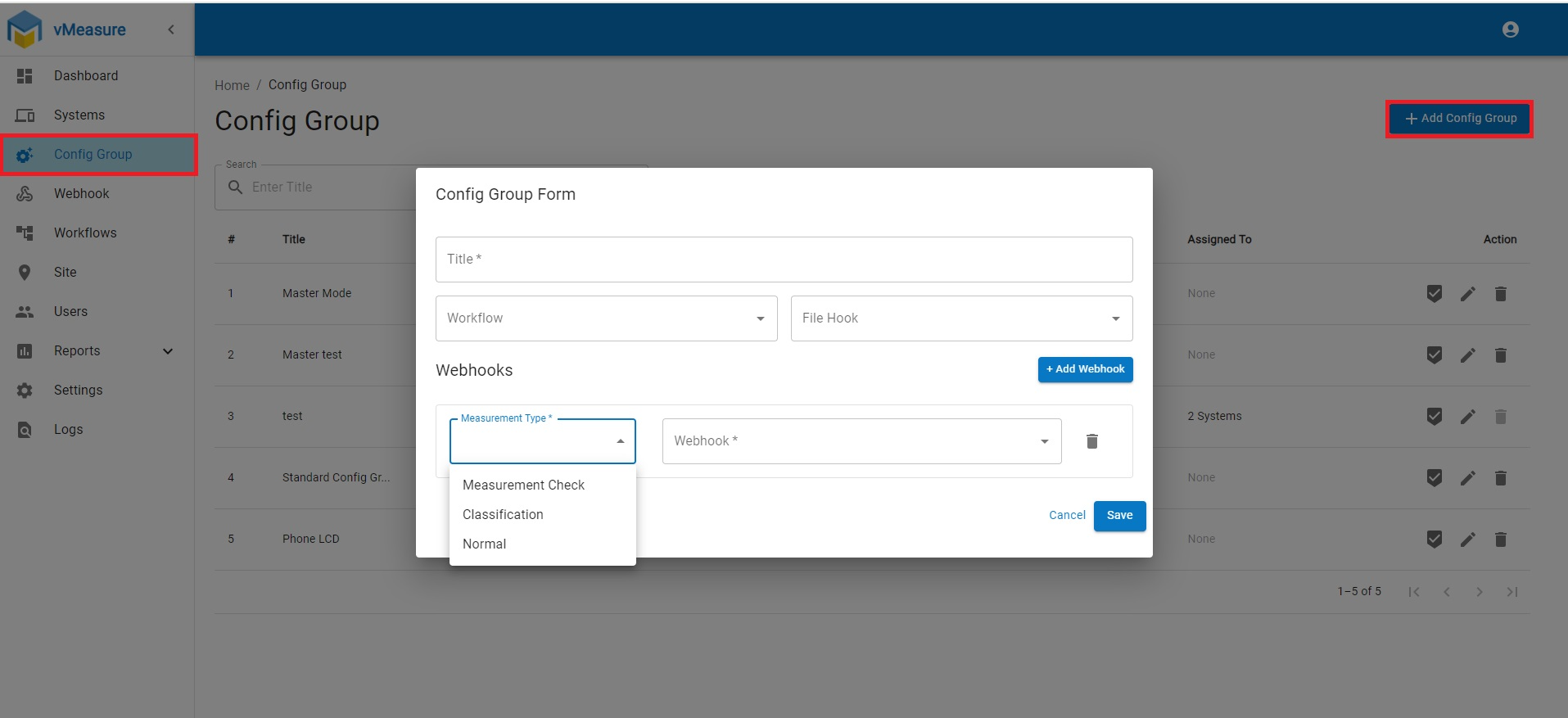
Step 2: Enter the Title, Select the workflow, Click on "Add Webhook" select the "Measurement type" (if applicable) from dropdown & Select the Webhook from dropdown then click on Save.
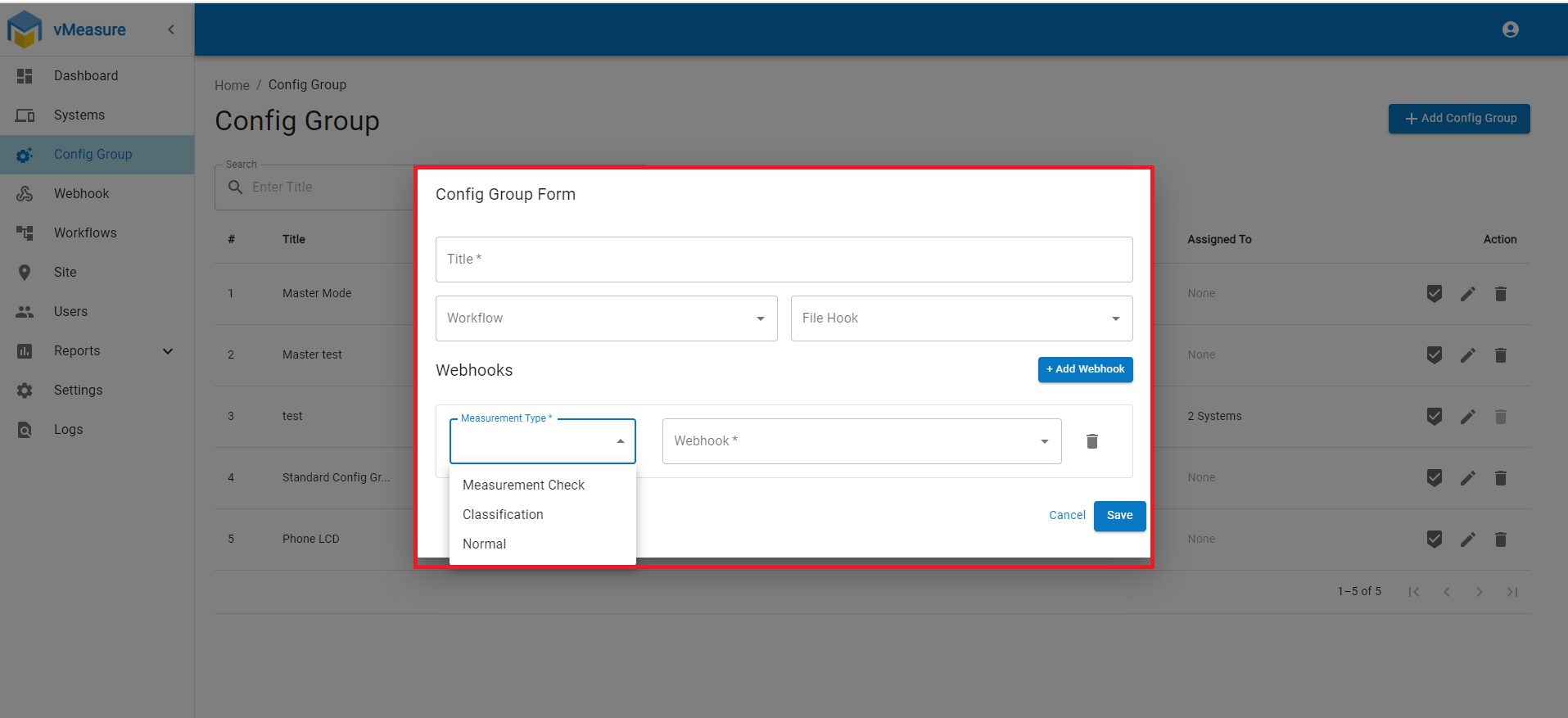
- Measurement Types:
- Measurement Check: Only "Measurement check (Reference box)" measurements data will be pushed to endpoint.
- Classification: Only "Barcode/API validation" data will be pushed to endpoint.
- Normal: All measurement data will be pushed to endpoint.
Step 3: Navigate to "Systems" menu
Step 4: Click on the System Name check box  to which you want to assign the Config Group.
Step 5: Assign Group to the system & click the check mark  .
.
Step 6: After selected the  , Then click on "RELOAD" .
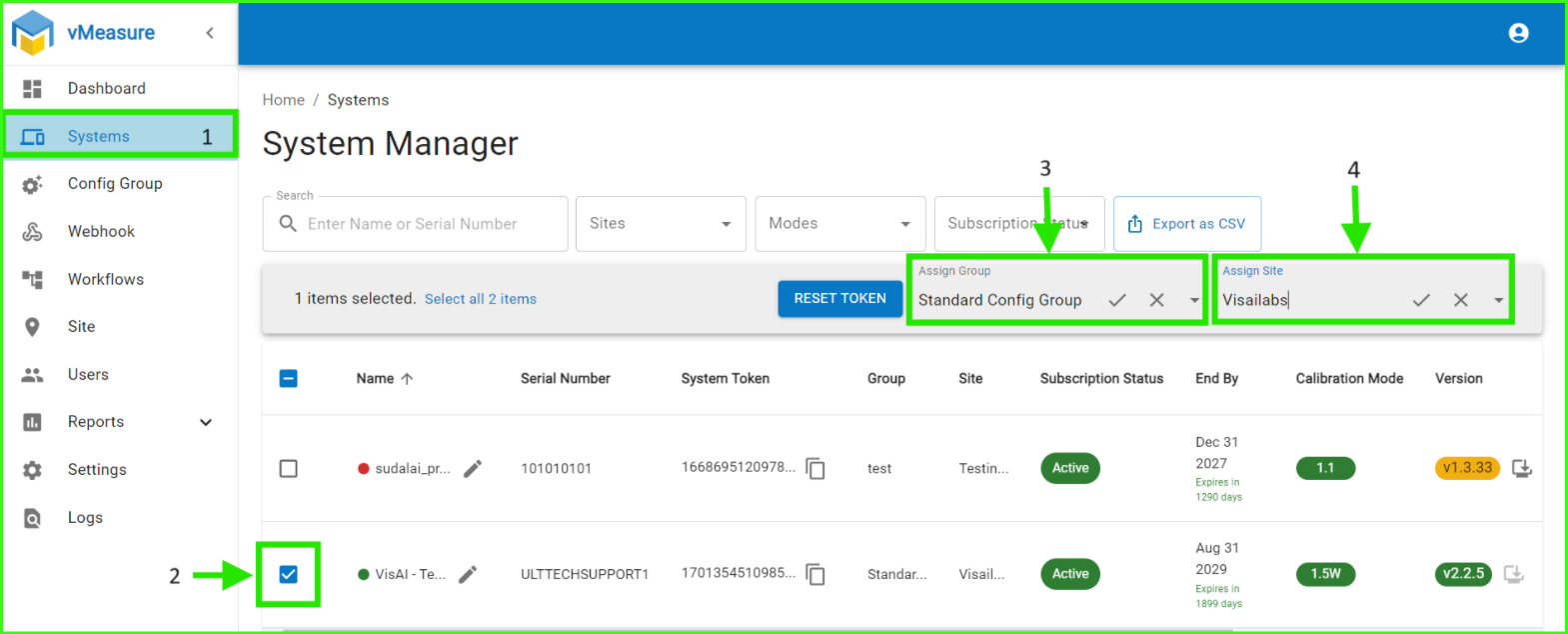
NOTE: You can apply a single config group to multiple devices.
Was this article helpful?
That’s Great!
Thank you for your feedback
Sorry! We couldn't be helpful
Thank you for your feedback
Feedback sent
We appreciate your effort and will try to fix the article