How to enable 4K Images (Only for V2 Device)
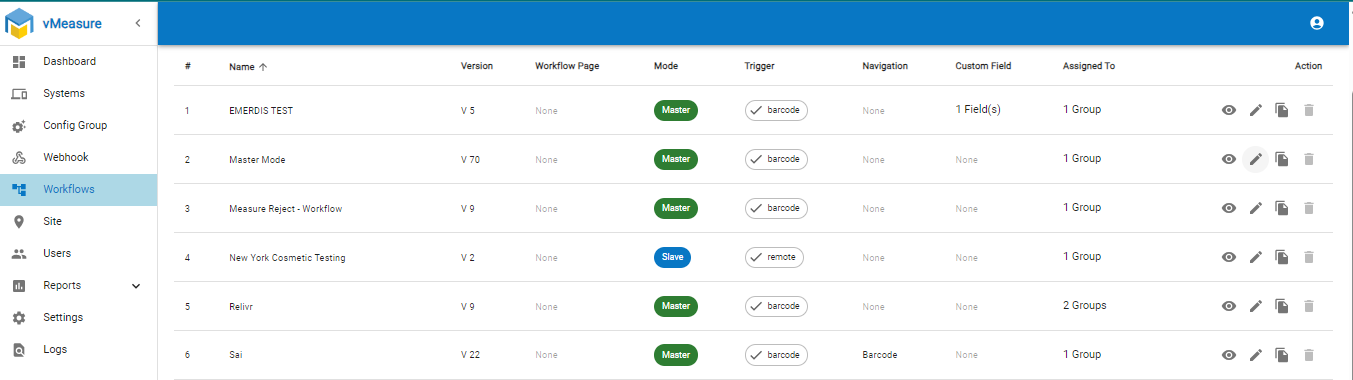
Step 1: Open your Forge account and “Log In”. Select "Workflows" and then "Edit" for the workflow that needs to be changed.
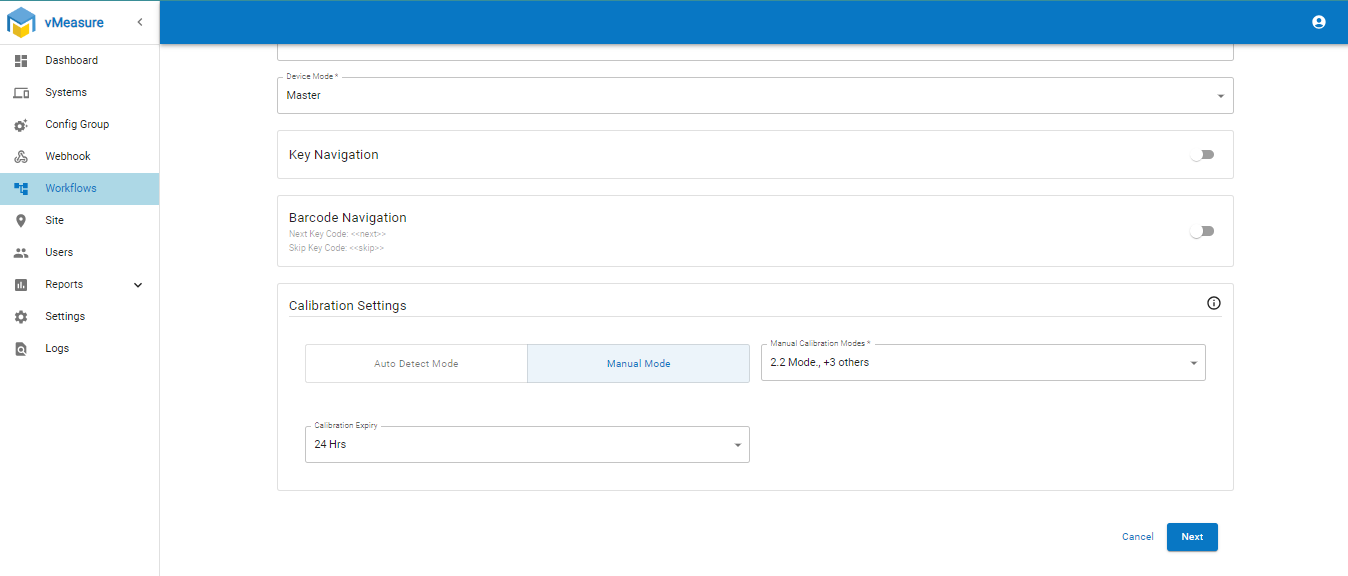
Step 2: To proceed to the measurement page, click “Next”.
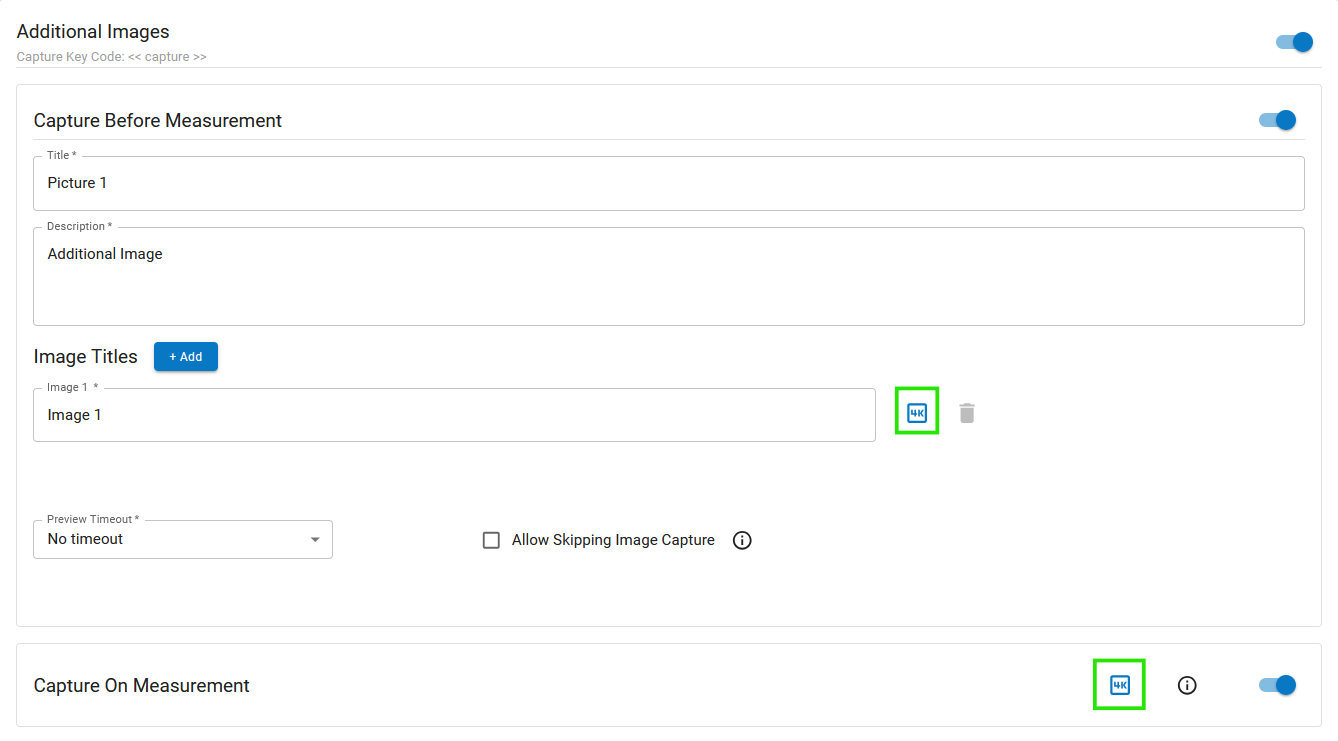
Step 3: Scroll down and locate the “Additional Images” section. Here to disable 4K images feature just disable the 4K switches in the for "Capture Before Measurement" and "Capture on Measurement".
Step 4: Then click “Next” and save.
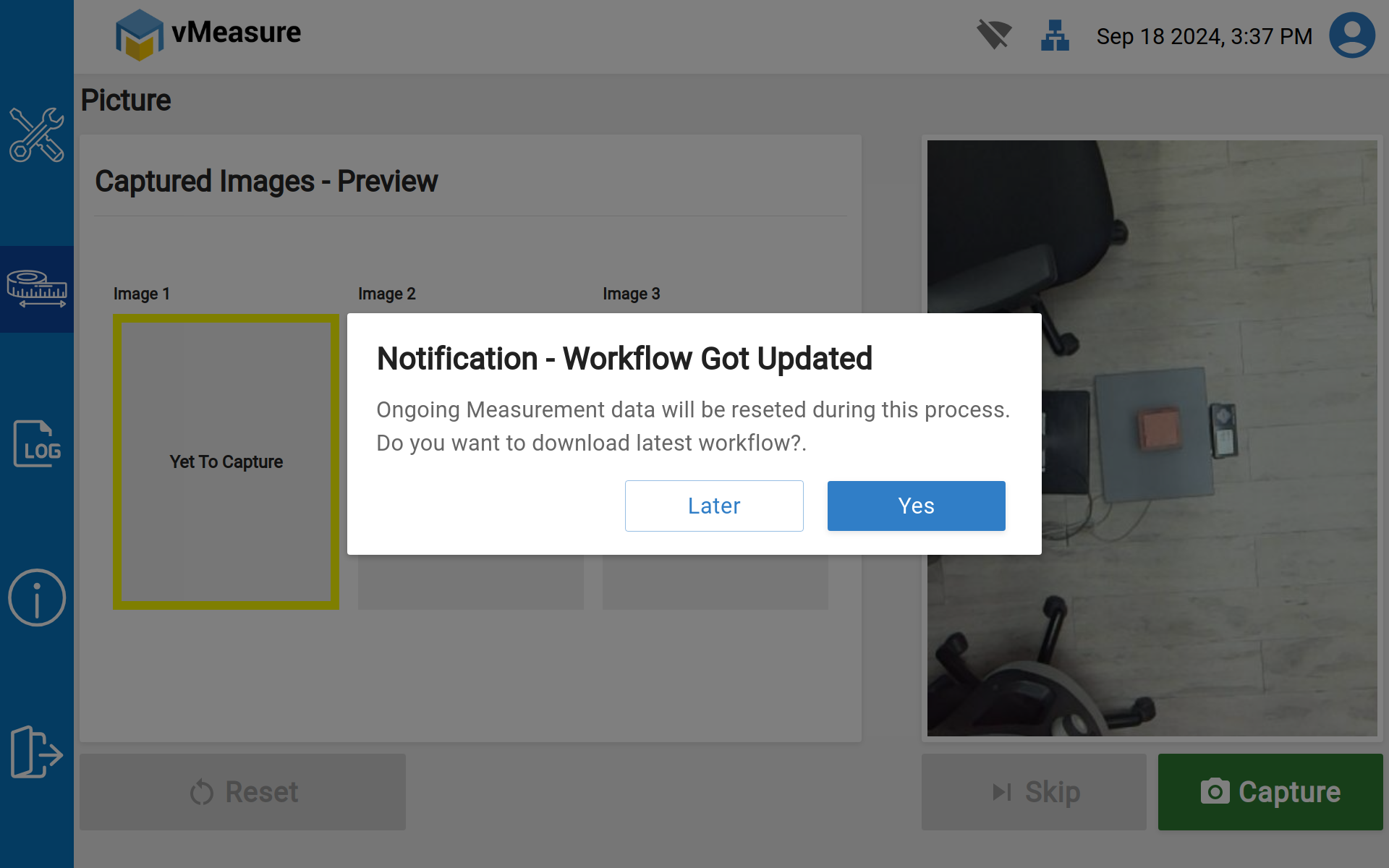
Step 5: You will receive a notification in the device “workflow has been updated”, click “ok”. Now your workflow is updated.
If you need any support , please drop a mail to vmeasure@visailabs.com or Click here to Submit a Ticket.
Was this article helpful?
That’s Great!
Thank you for your feedback
Sorry! We couldn't be helpful
Thank you for your feedback
Feedback sent
We appreciate your effort and will try to fix the article