Introduction :The Real Volume feature in vMeasure Forge allows administrators to store the actual measured volume of a product. This value can be used to compare the projected volume calculated by the system with the product's real volume, helping improve measurement accuracy and validation.
Unlike Cubic Volume, which is the volume of the smallest enclosing cuboid (L × W × H), Real Volume measures the true volume of the object, which is useful for irregularly shaped parcels.
This feature is useful when you want to:
- Store the actual measured volume of a product in Forge.
- Compare the projected volume with the real volume for validation and analysis.
- Improve the accuracy of volume measurement reports.
Note: This setting can only be configured by a user with Admin access.
Prerequisites:
Before proceeding, ensure that:
You have Admin access to vMeasure Forge.
The product already exists in Forge.
The Real Volume feature is enabled (if applicable).
You know the actual measured volume of the product.
Adding Real Volume in Forge:
Follow the steps below to add the Real Volume for a product.
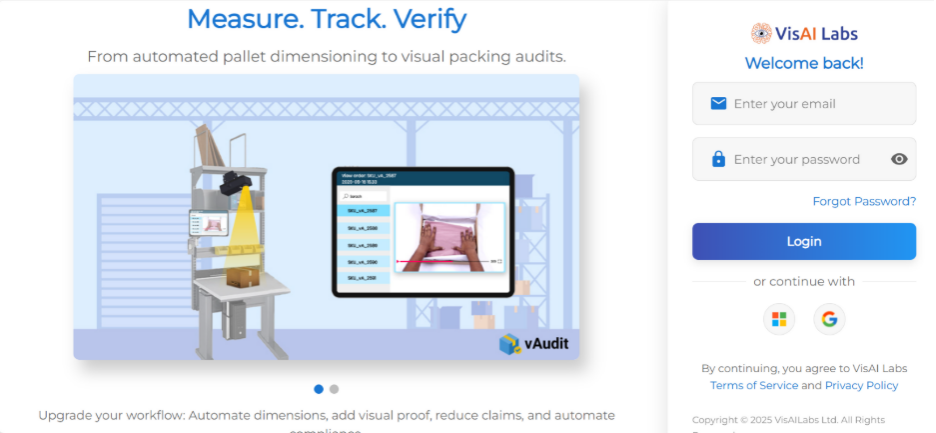
Step 1: Log in to vMeasure Forge: https://forge.vmeasure.ai
- Log in to your vMeasure Forge account using an Admin account.
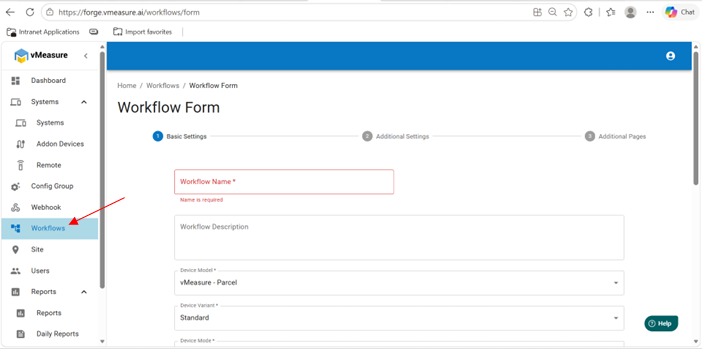
Step 2: Open the Workflow Manager:
- From the left navigation menu, click Workflow.
Step 3: Edit the available created the workflow:
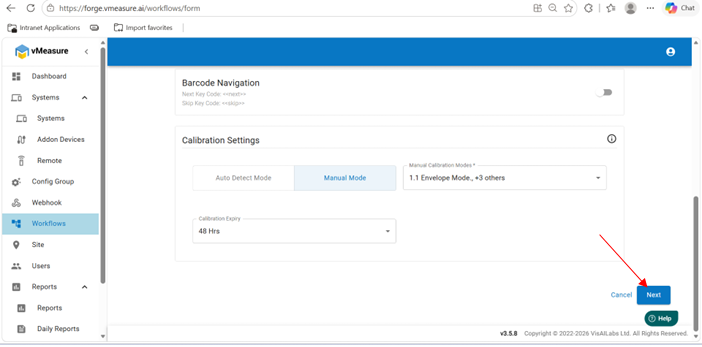
Step 3a : Scroll down and click on Next .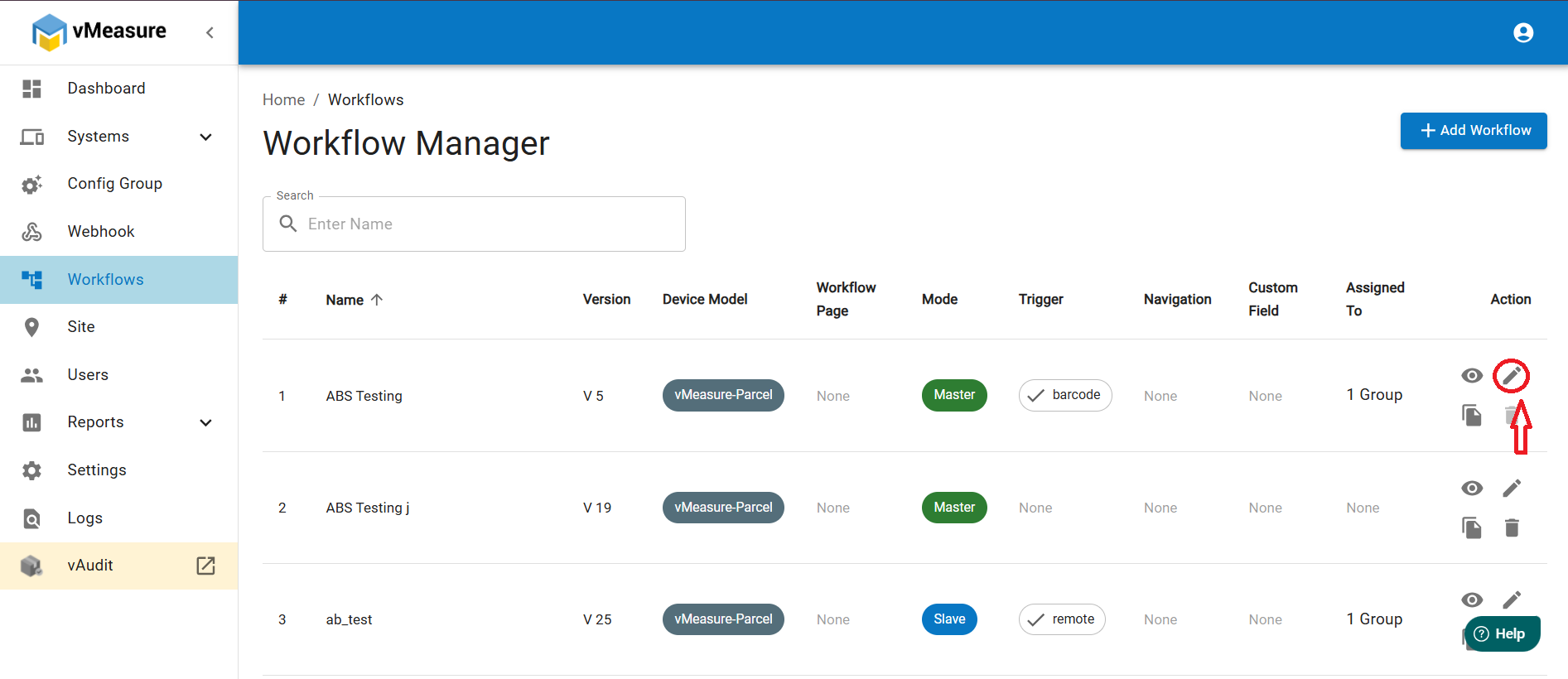
Step 5: Navigate to Additional Settings
- Proceed to the Additional Settings section of the workflow Form.
- Locate the Real Volume option.
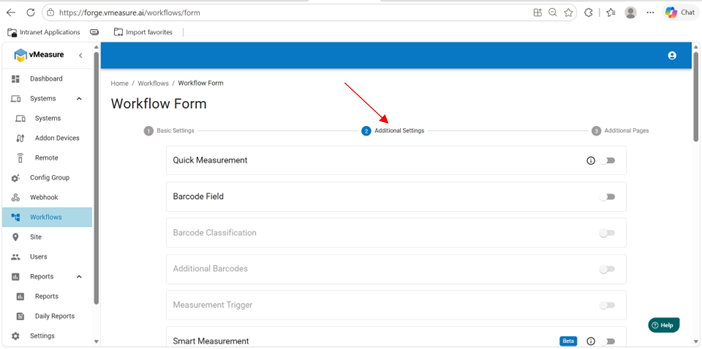
Step 6: Enable the " Real Volume" Feature:
Turn ON the Real Volume (Beta) toggle. Which enables the real volume feature in your device.
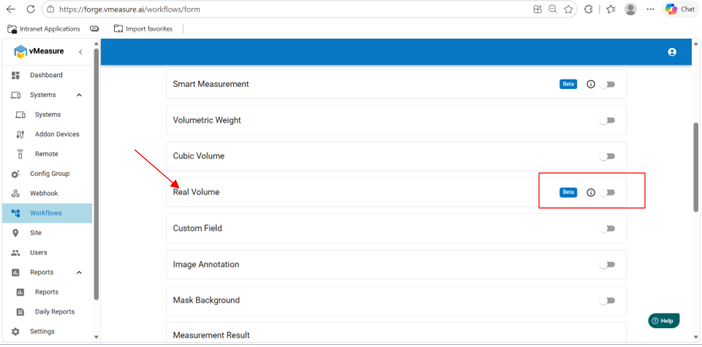
Step 7: Review the Feature Limitation:
Before enabling the feature, click the Information (i) icon next to the Real Volume toggle.
A limitation popup will be displayed.
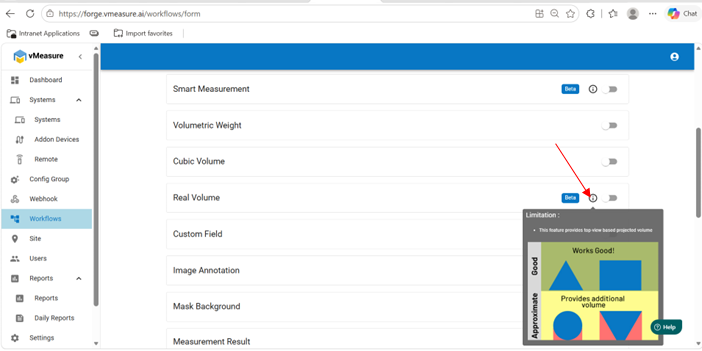
The limitation states:
- This feature provides top-view based projected volume.
- It works well for objects with flat top surfaces such as boxes and cuboids.
- Objects with curved or irregular shapes may produce additional projected volume compared to the actual volume.
Review the limitation before enabling the feature.
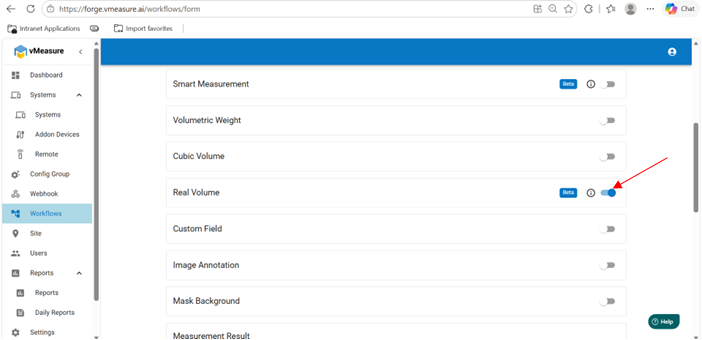
Step 8: Save the Workflow:
After enabling Real Volume,Click on next and then save.
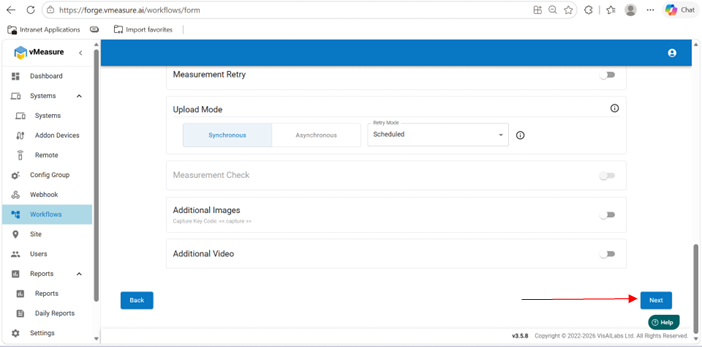
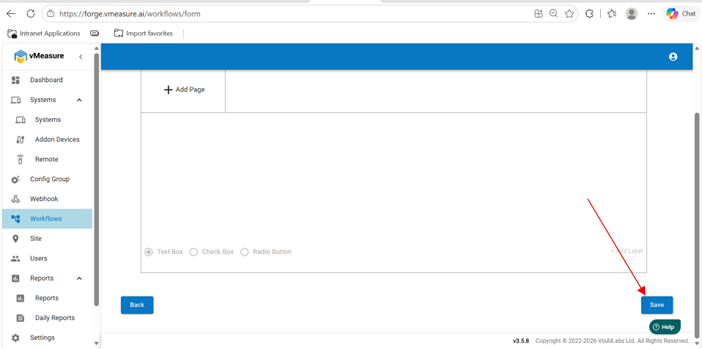
The workflow is now configured with the Real Volume feature enabled.
Notes:
- Only users with Admin privileges can enable or disable the Real Volume feature.
- Real Volume is currently available as a Beta feature.
- Review the limitation information before enabling the feature.
- Save the workflow after making any changes.
Limitations: The Real Volume feature uses top-view based projected volume.
As a result:
- It provides accurate results for objects with flat top surfaces.
- Objects with curved, sloped, circular, or irregular shapes may include additional projected volume.
- Please review the limitation popup before enabling the feature.
If you need any support, please drop a mail to vmeasure@visailabs.com or Click here to Submit a Ticket.
Was this article helpful?
That’s Great!
Thank you for your feedback
Sorry! We couldn't be helpful
Thank you for your feedback
Feedback sent
We appreciate your effort and will try to fix the article