What is Auto Calibration mode?
The vMeasure device can be calibrated within a height range of 105 cm to 225 cm.
| Calibrastion Height | Tolerance in Centimeter | Tolerance in Inch |
| Small Parcel mode | 105 cm to 115 cm | 41.34 in to 45.28 in |
| All Parcel Mode | 116 cm to 155 cm | 45.67 in to 61.02 in |
| White Goods Mode | 156 cm to 225 cm | 61.42 in to 88.58 in |
Step 1: Login to vMeasure forge using your login credentials.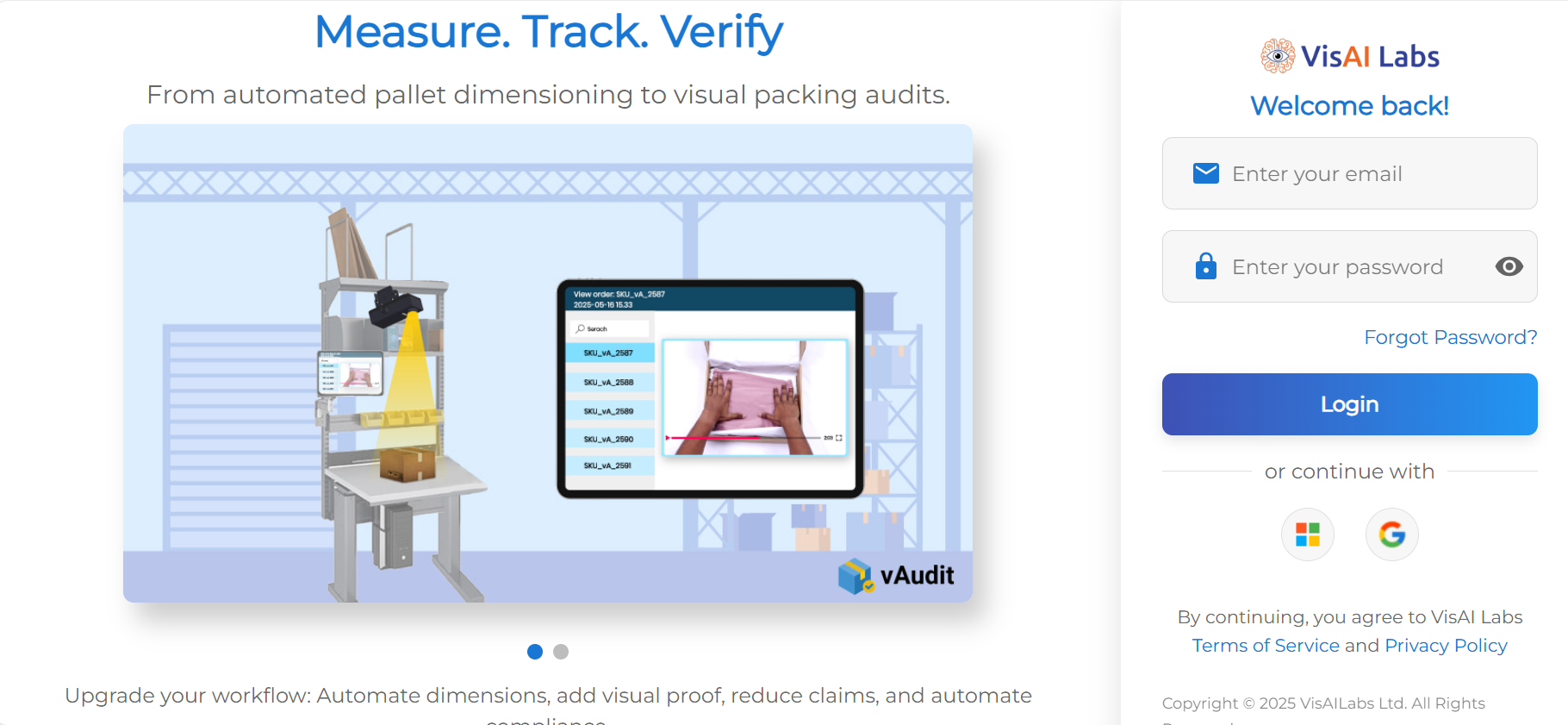
Step 2: Once on the "Dashboard" page, select the "Workflows" option.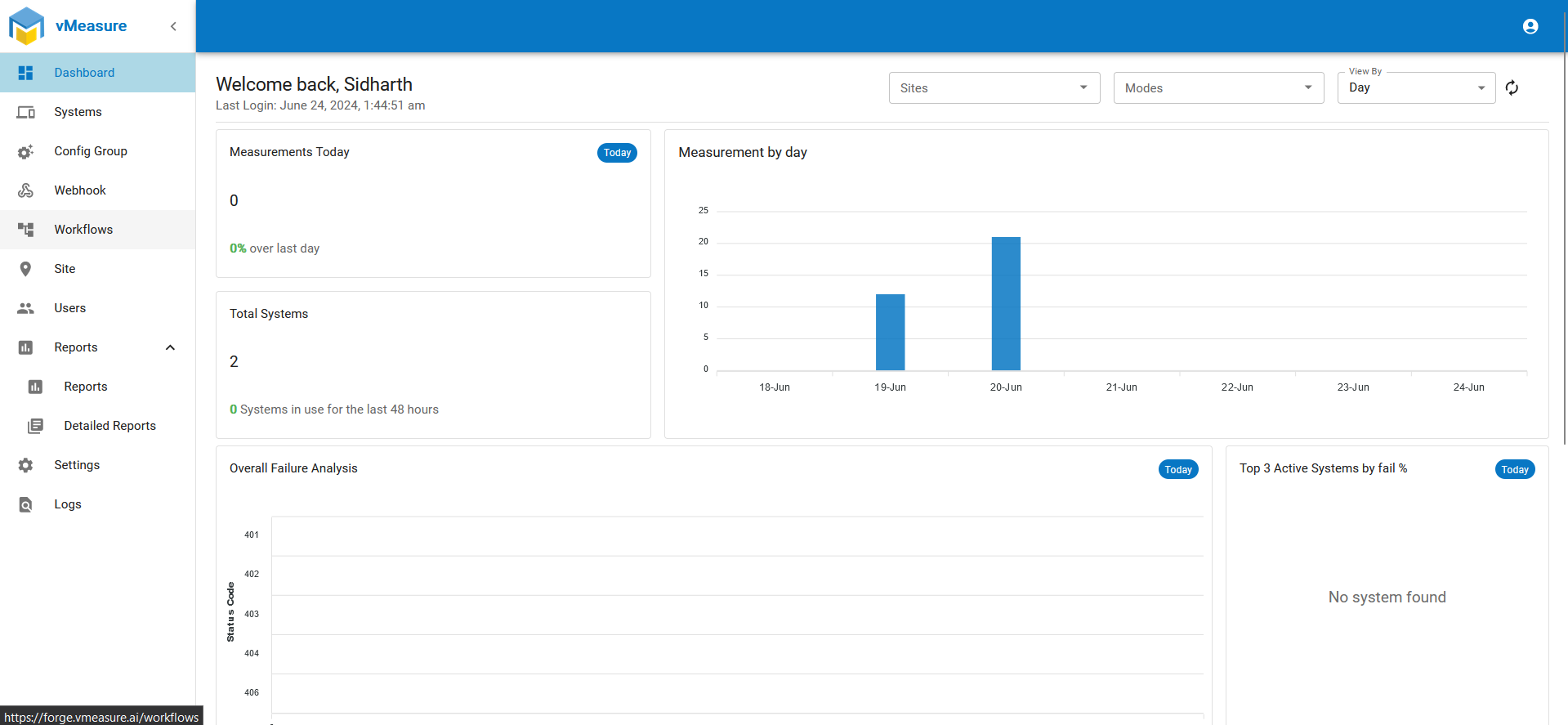
Step 3: Once on the "Workflows" page, select the workflow which you desire to edit, and click the "Edit" icon.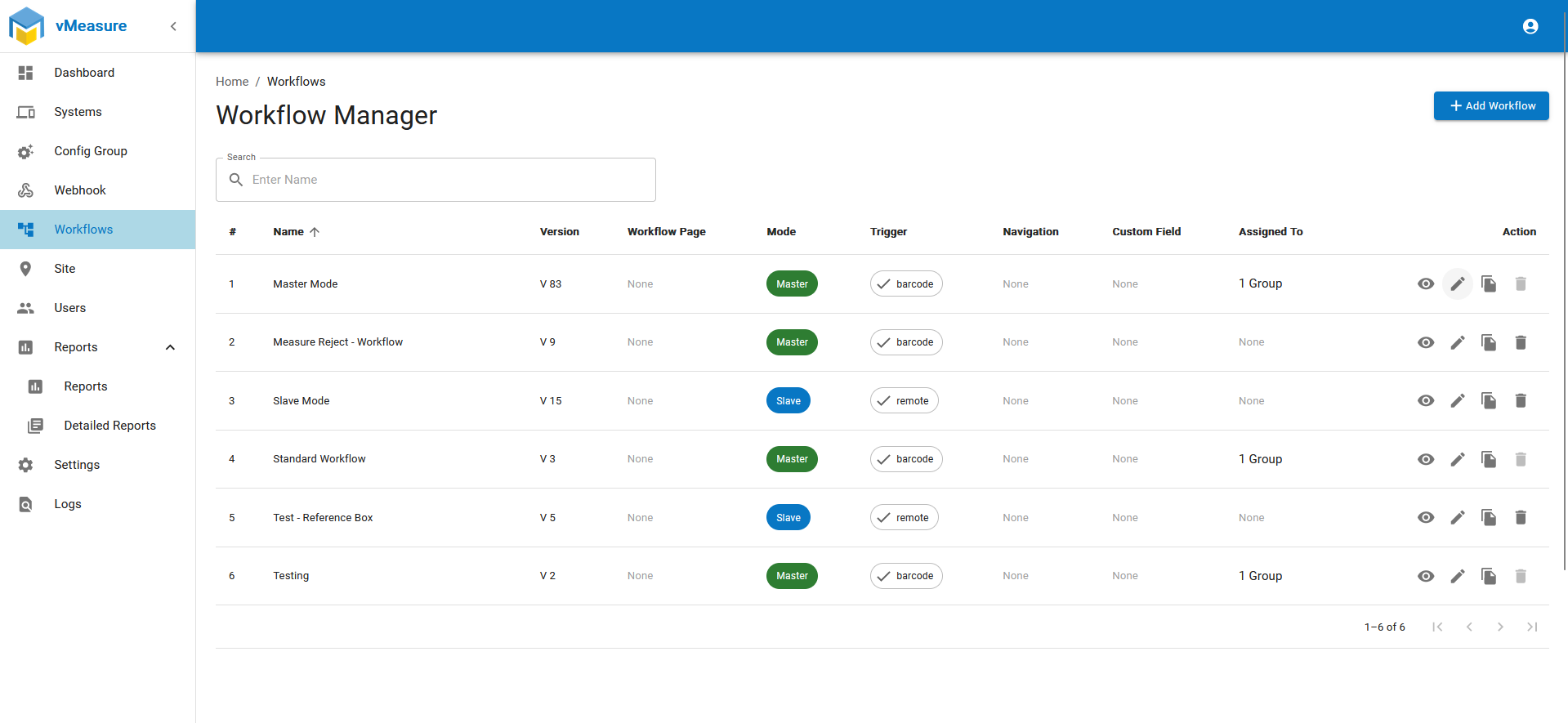
Step 4: Once in "Workflow Form" scroll down and in "Calibration Settings" and switch to "Auto Detect Mode".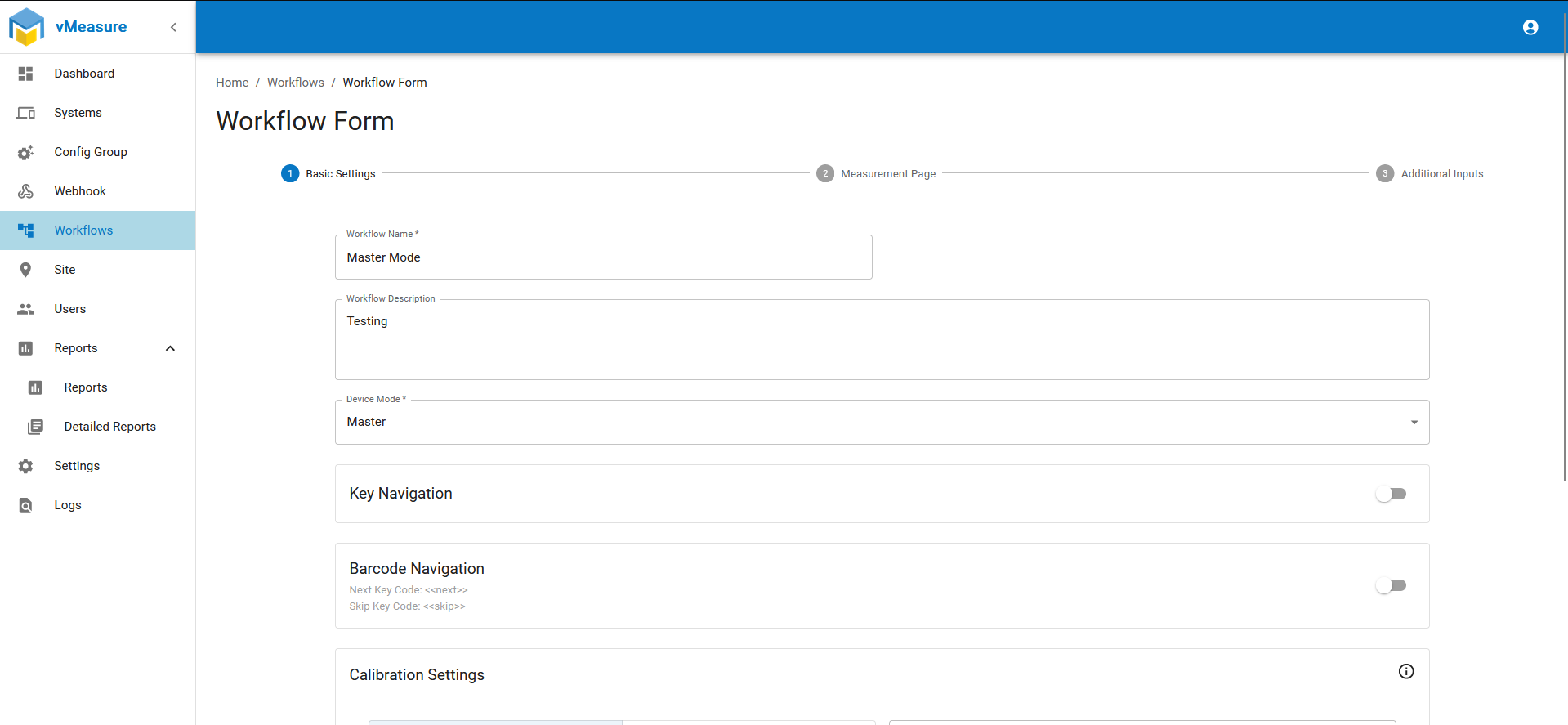
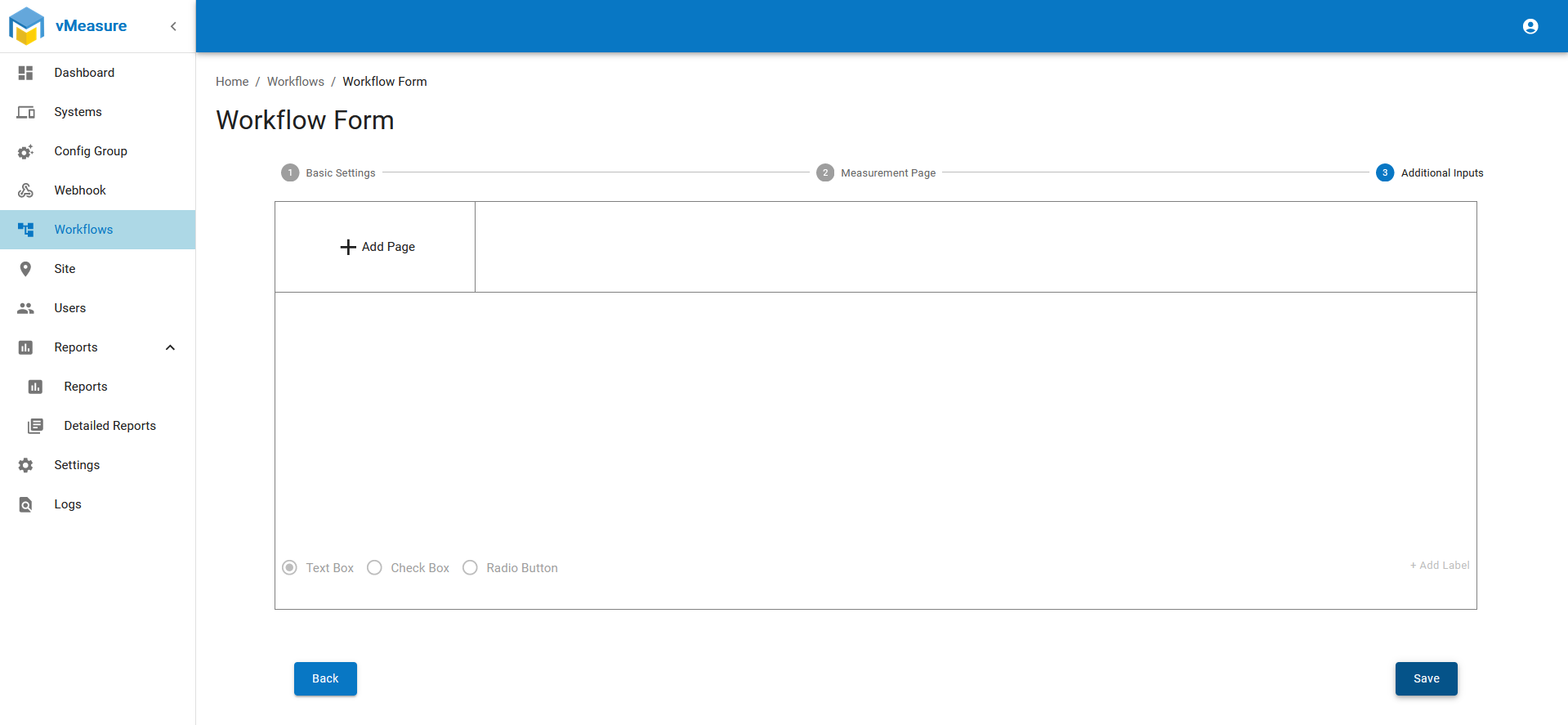
Step 5: Once selected go to 3rd page and press "Save" icon to save the edited workflow.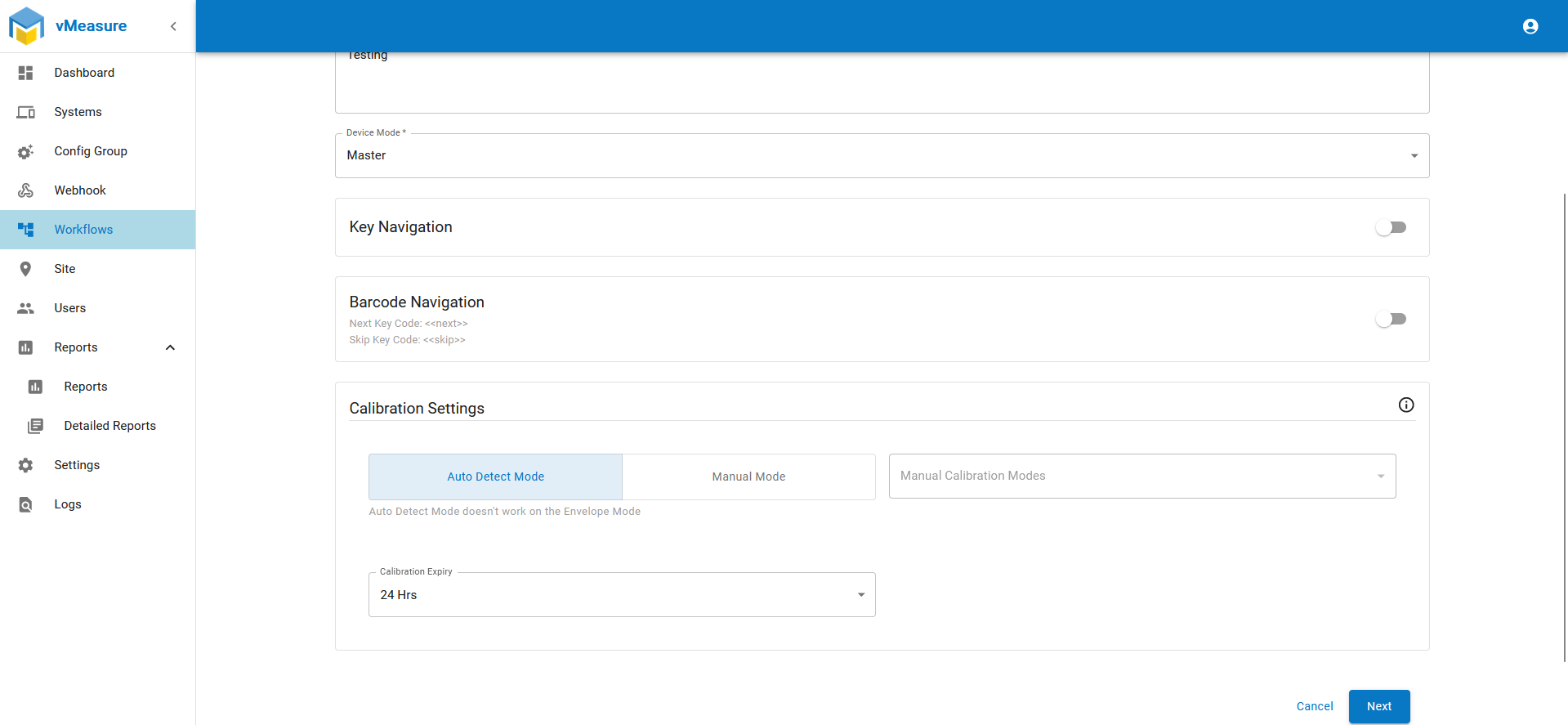
Step 6: Once the changes are done, workflow updated popup appears in vMeasure device, click "YES" to update the workflow Or kindly "Log-out" and "Log-In" in the device.
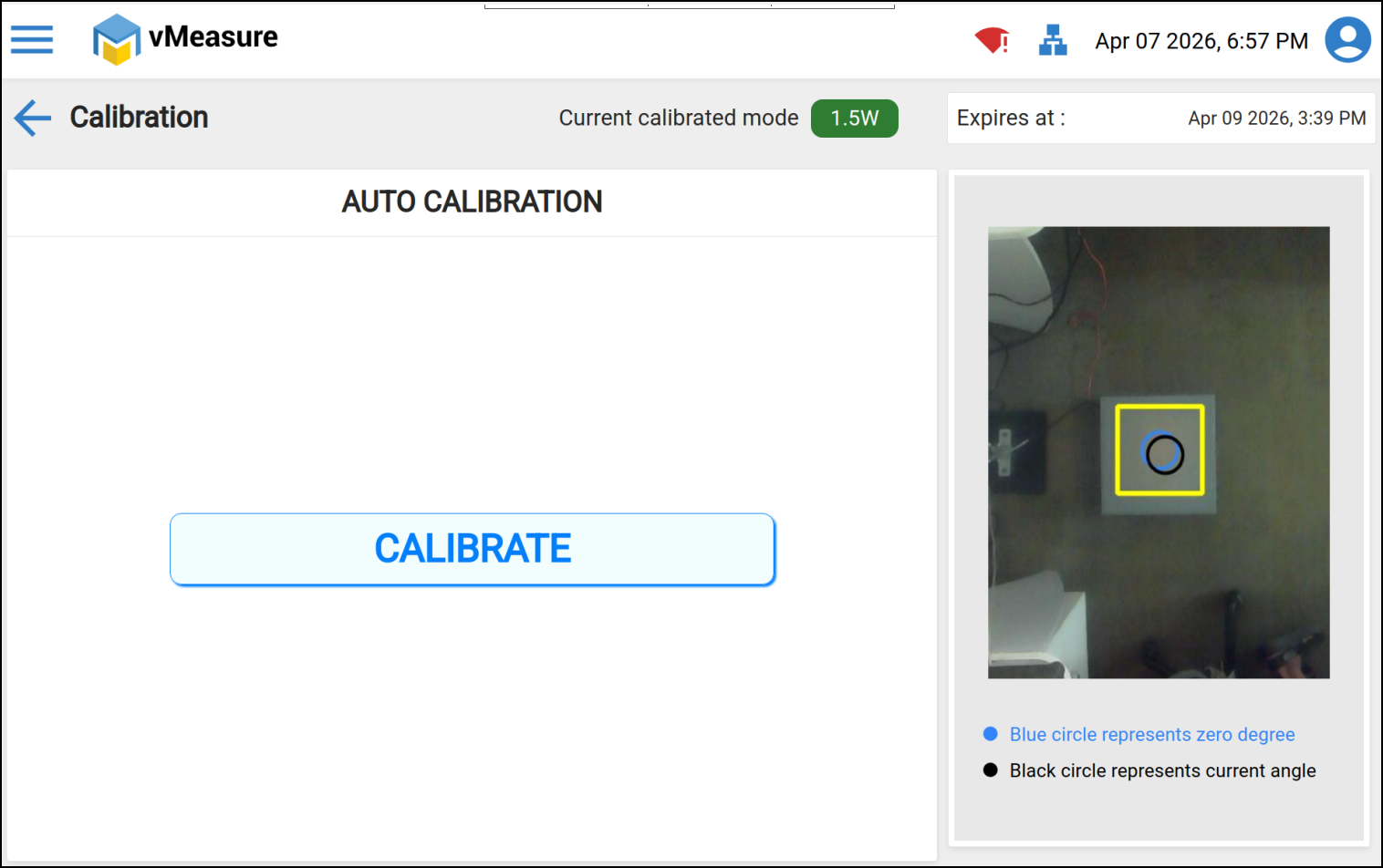
Step 7: Once you go into "Calibration" menu you see the option to "Calibrate".
If you need any support , please drop a mail to vmeasure@visailabs.com
Was this article helpful?
That’s Great!
Thank you for your feedback
Sorry! We couldn't be helpful
Thank you for your feedback
Feedback sent
We appreciate your effort and will try to fix the article