Follow the steps below to create a workflow without barcode trigger:
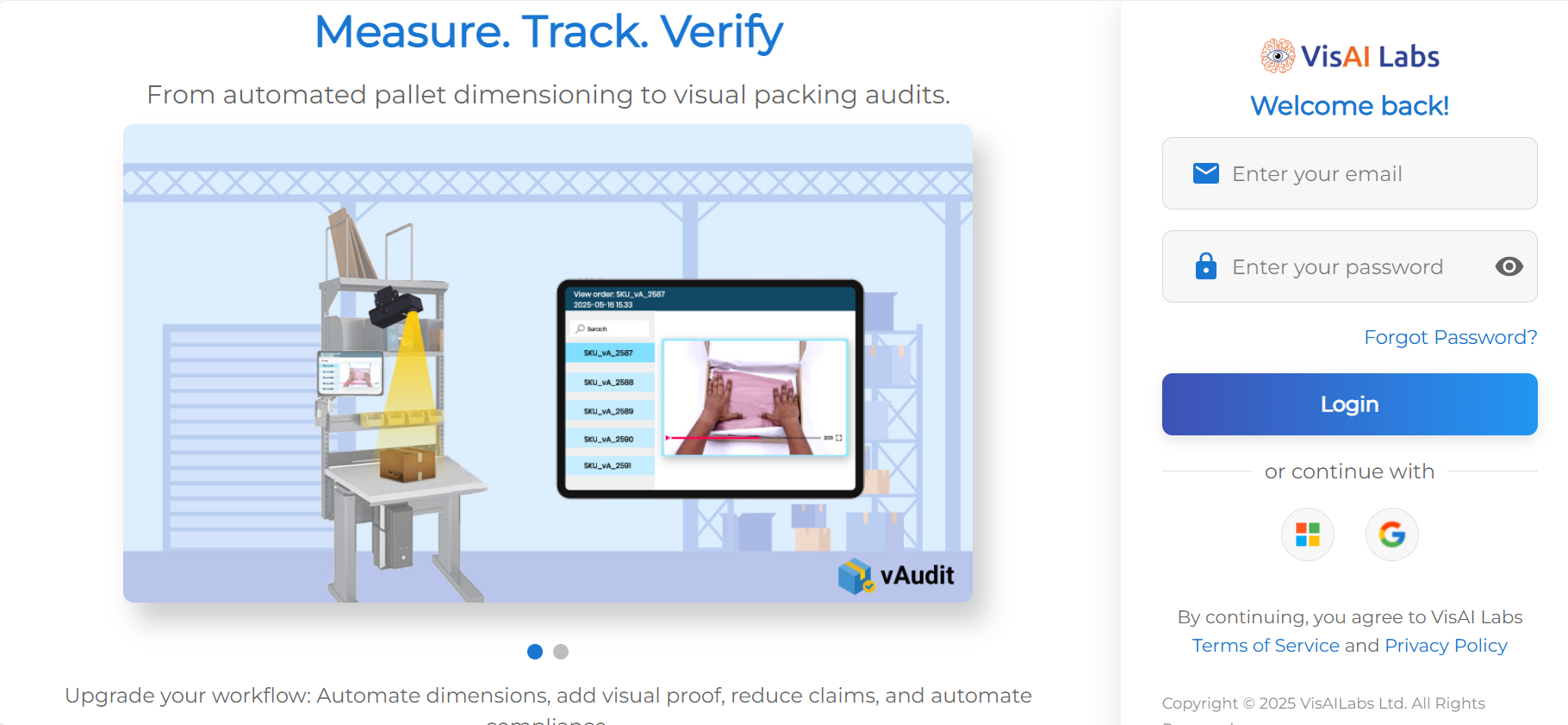
Step 1: Login to https://forge.vmeasure.ai/login
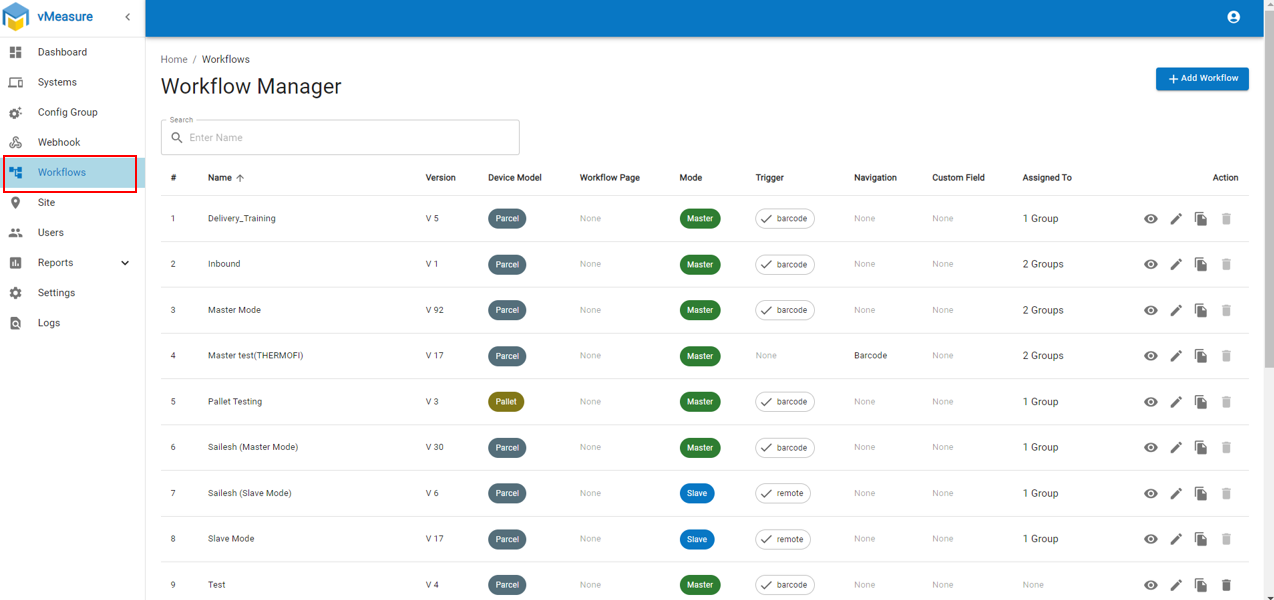
Step 2 : Navigate to "Workflow"
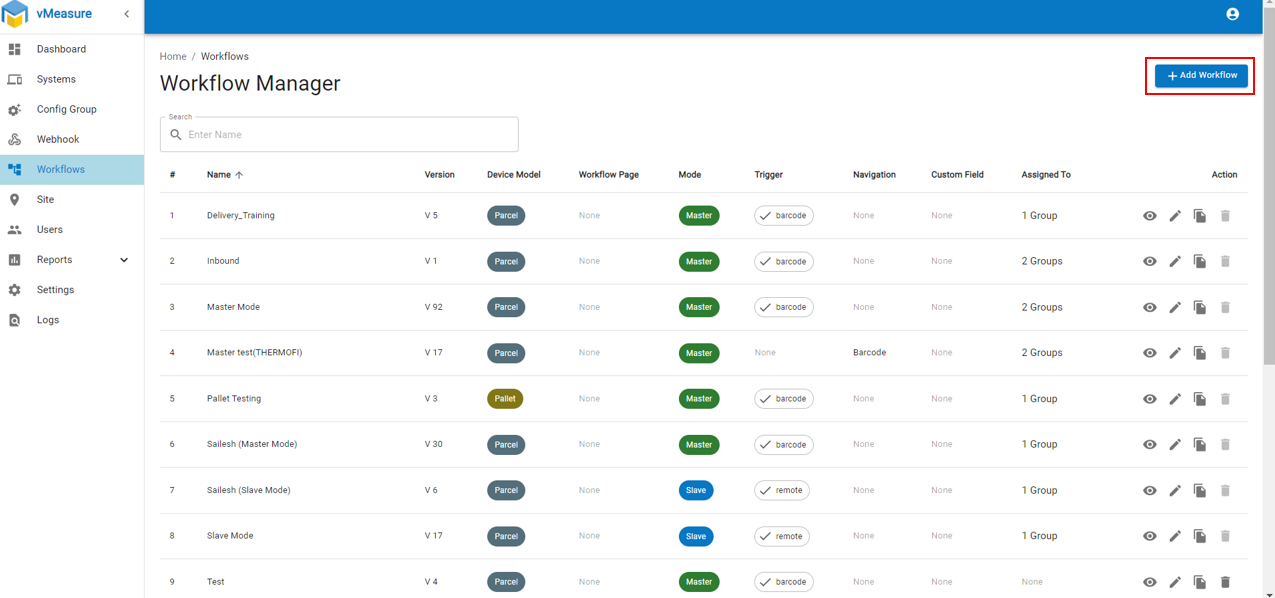
Step 3: Click on "+ Add Workflow"
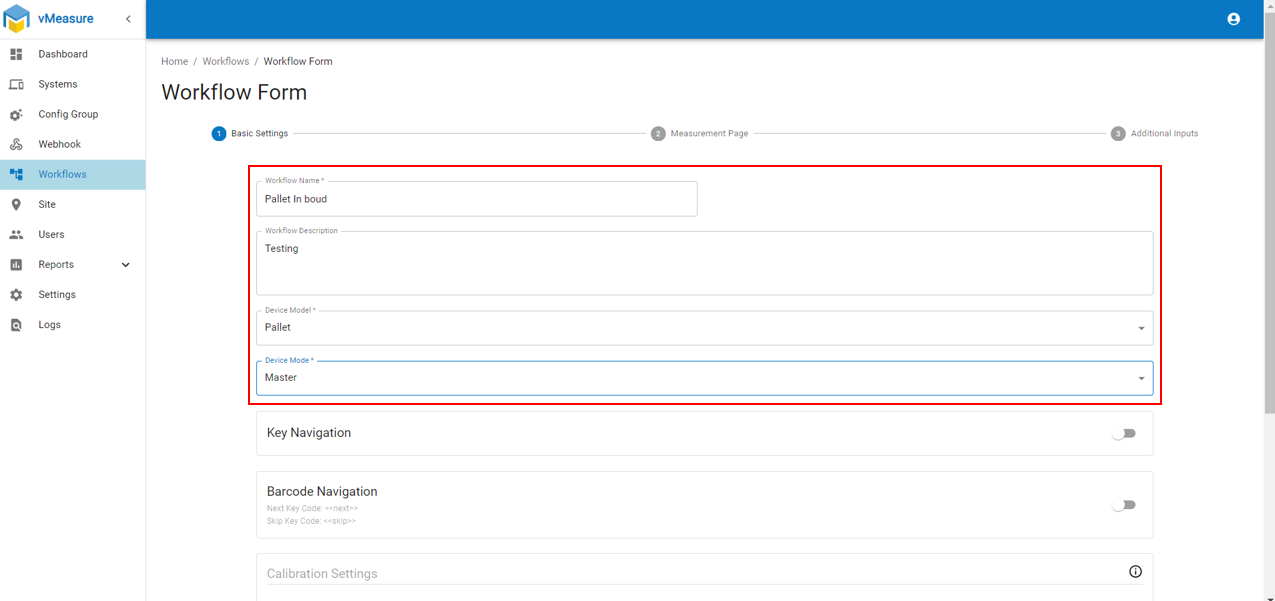
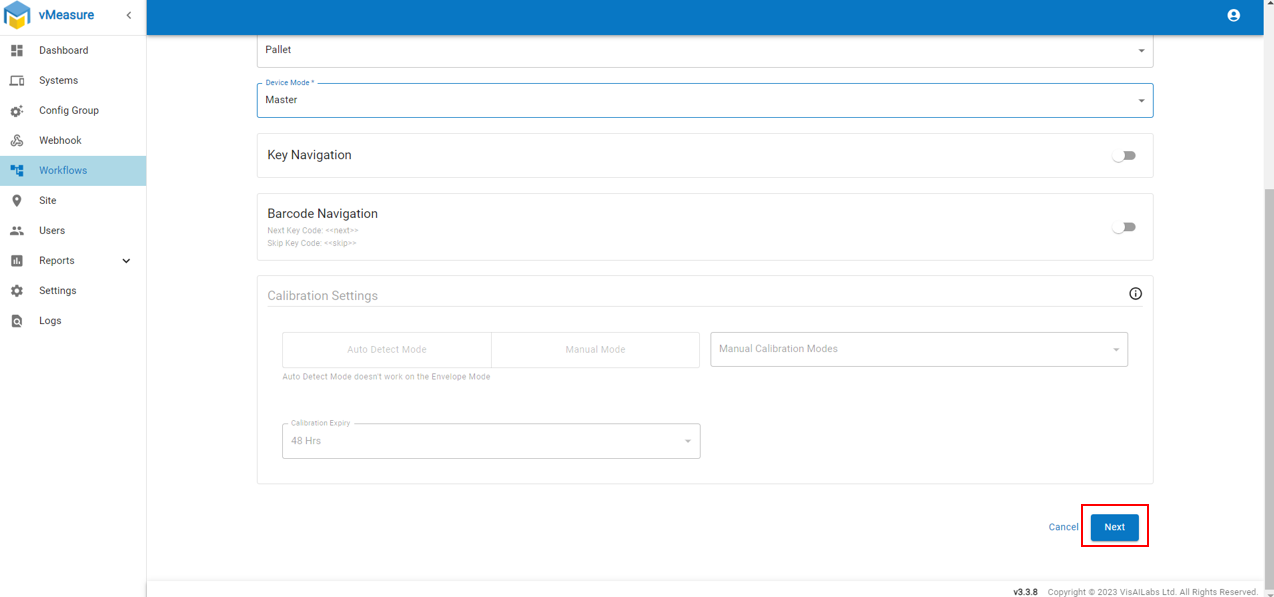
Step 4: Enter workflow name and select "Device Model" as "Pallet" and "Device Mode" as "Master"
Step 5: Click on "Next"
Step 6: Make sure "Barcode Field" is disabled and enable "Volumetric Weight", "Cubic Volume" and "Image Annotation"
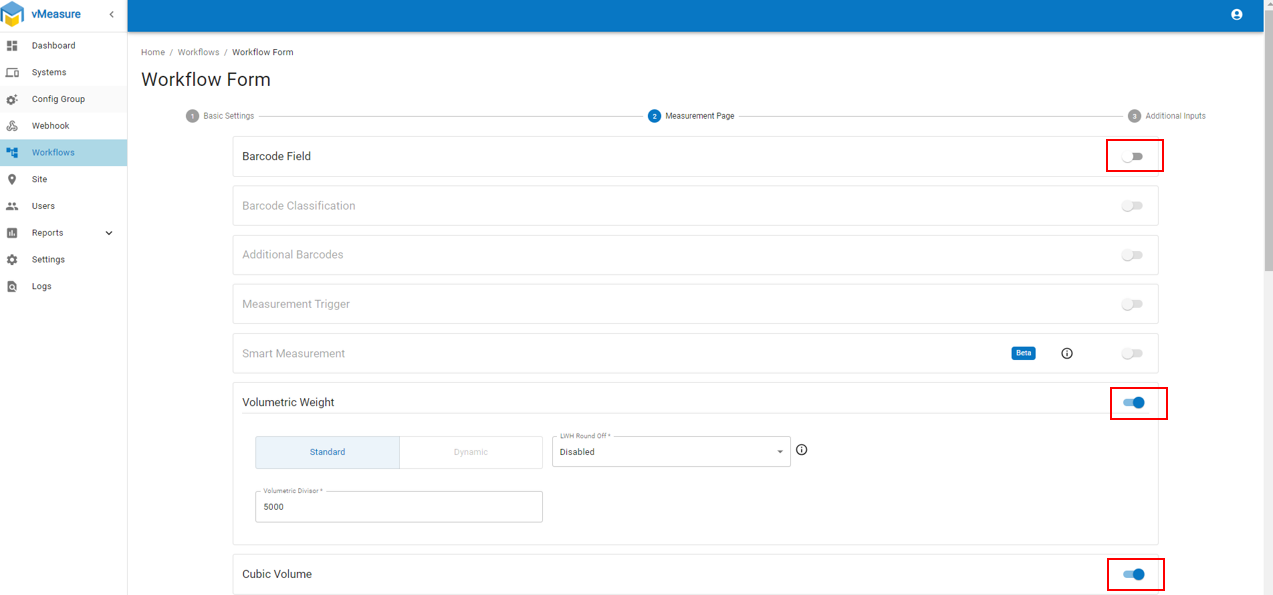
Note : Fill the Volumetric Divisor as required.
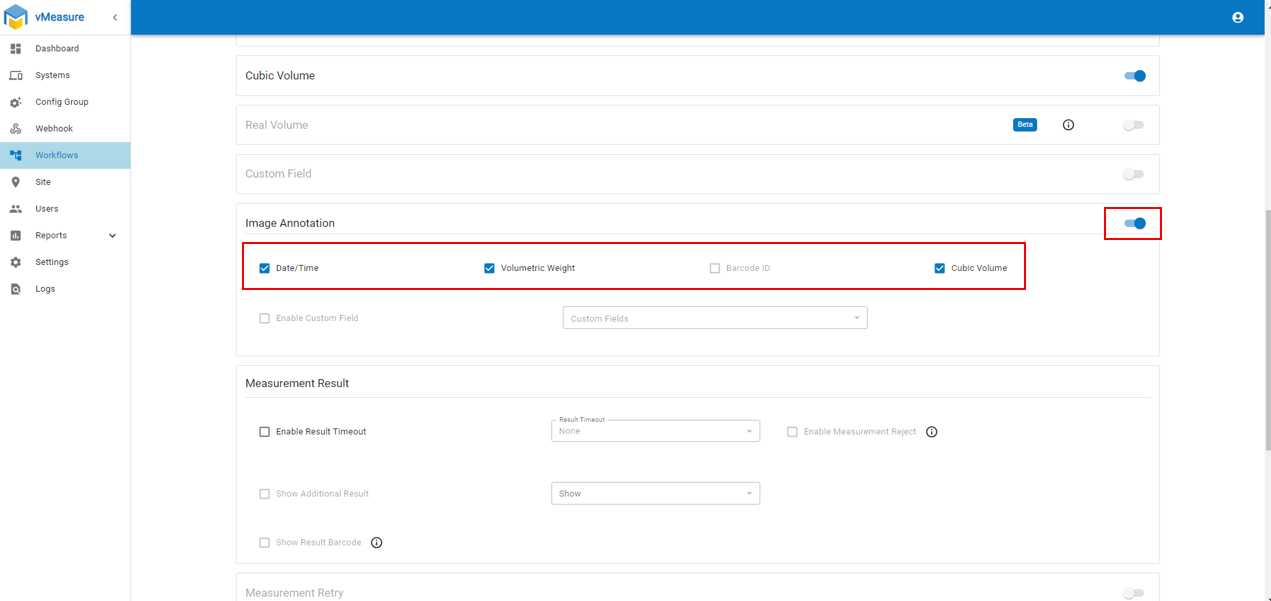
Step 7: Enable "Date/Time" , "Volumetric Weight" and "Cubic Volume" in "Image Annotation"
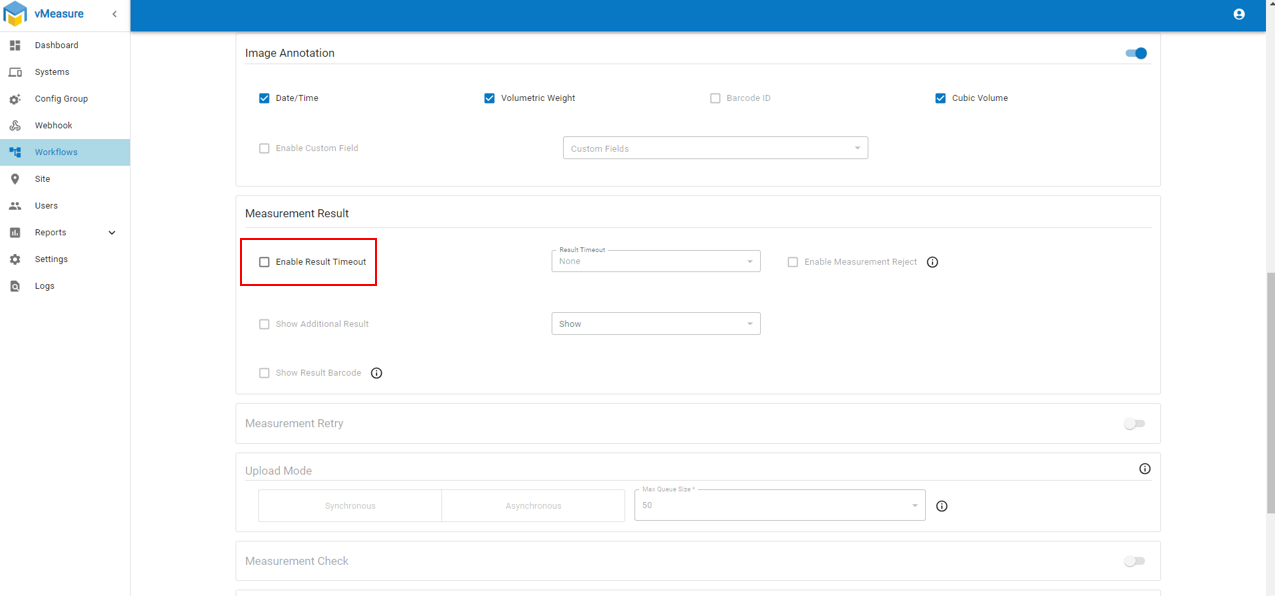
Step 8: Navigate to "Measurement Result"
To implement an Auto Clear feature on the vMeasure device, you can enable the "Enable Result Timeout" option in the settings. This setting allows the device to automatically clear the results after a specified amount of time, which can be selected from a drop-down menu.
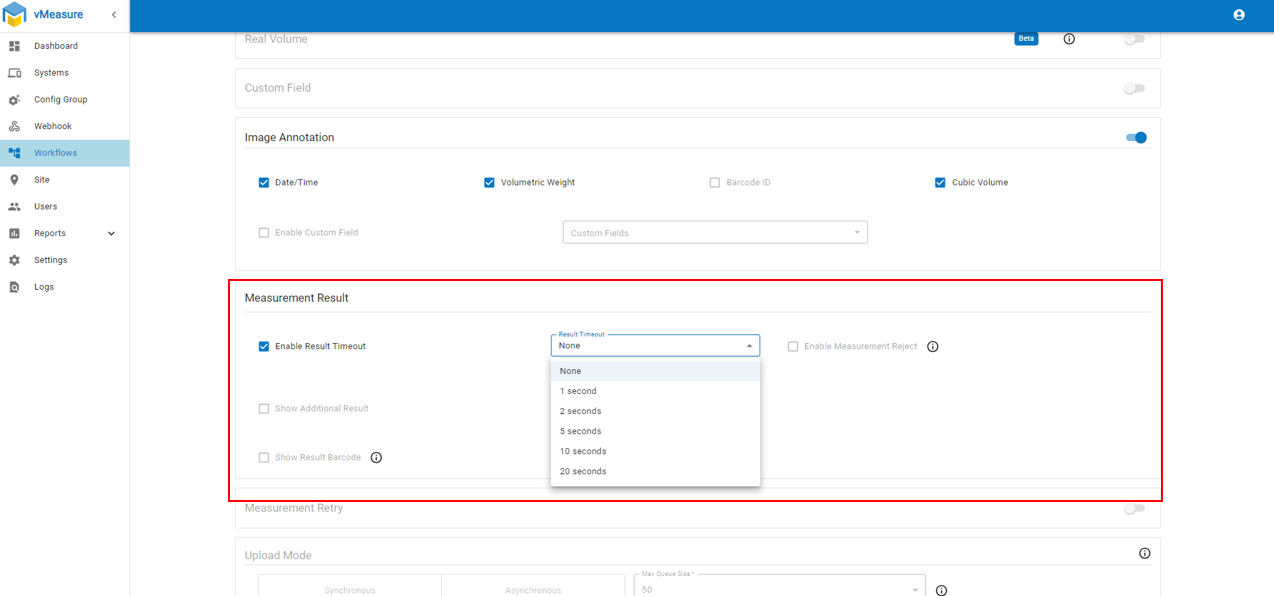
If you don't want Auto Clear on the vMeasure device, you can simply ensure that the "Enable Result Timeout" option is disabled. This way, the measurement results will remain on the display until you manually clear them on touching the clear option on the display.
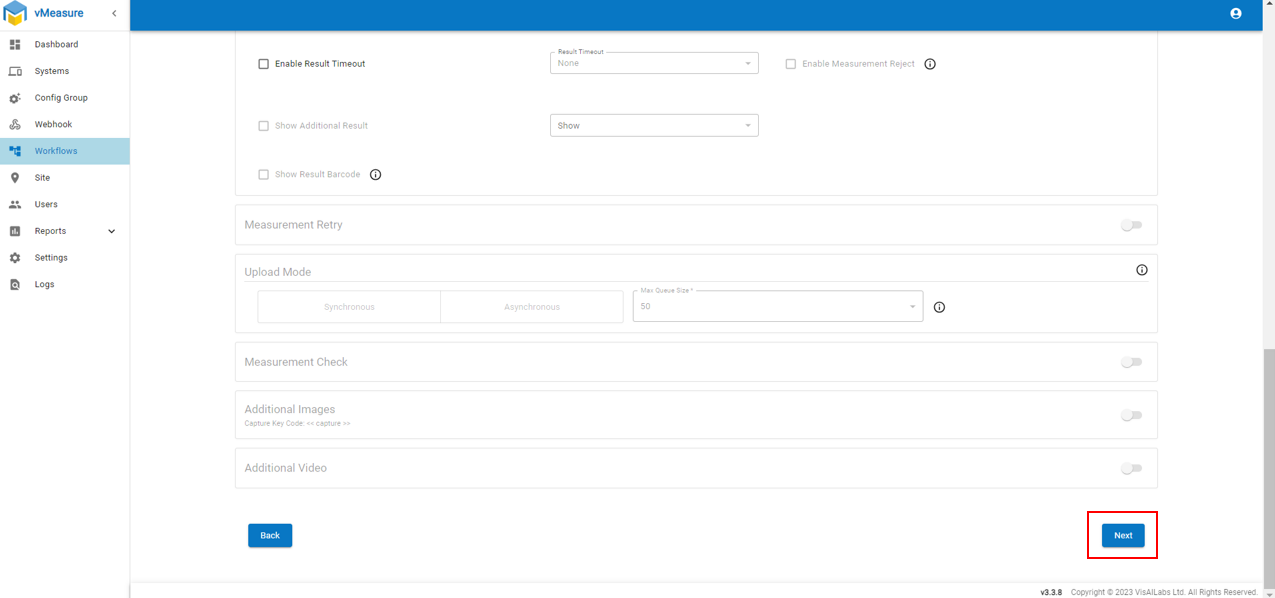
Step 9: Click on " Next" and "Save" the created workflow.
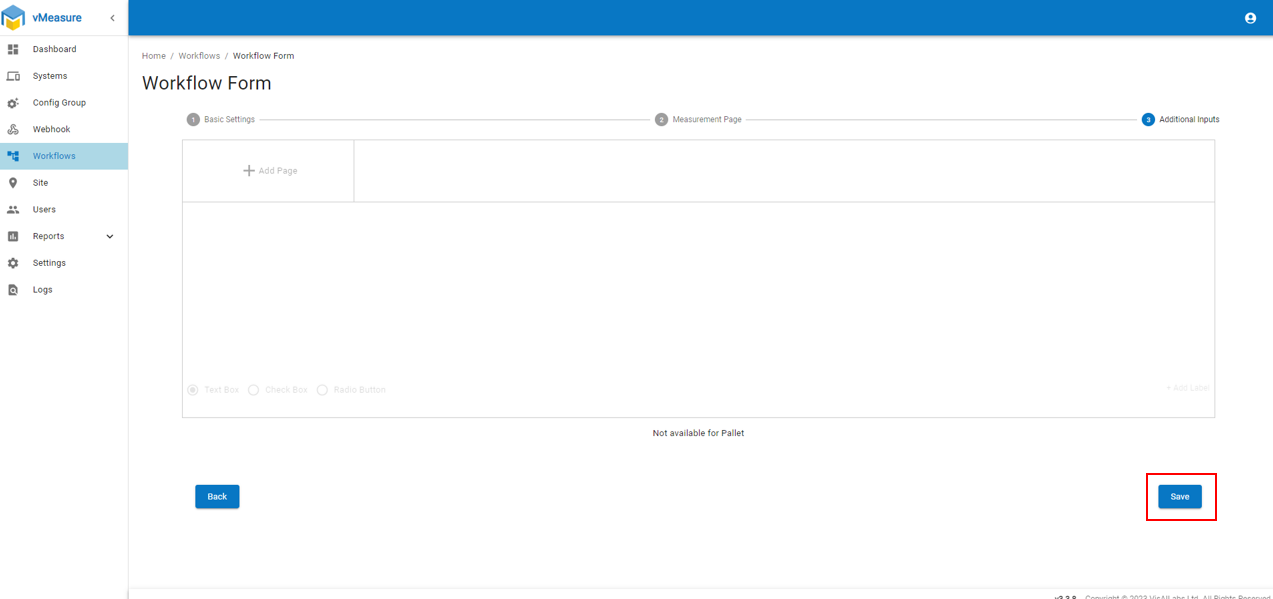
Step 9: Once your Workflow has been created, make sure to create "Config Group" and assign to system.
Refer : How to create "Config Group"
Refer: How to assign a group to a system.
If you need any support , please drop a mail to vmeasure@visailabs.com
Was this article helpful?
That’s Great!
Thank you for your feedback
Sorry! We couldn't be helpful
Thank you for your feedback
Feedback sent
We appreciate your effort and will try to fix the article