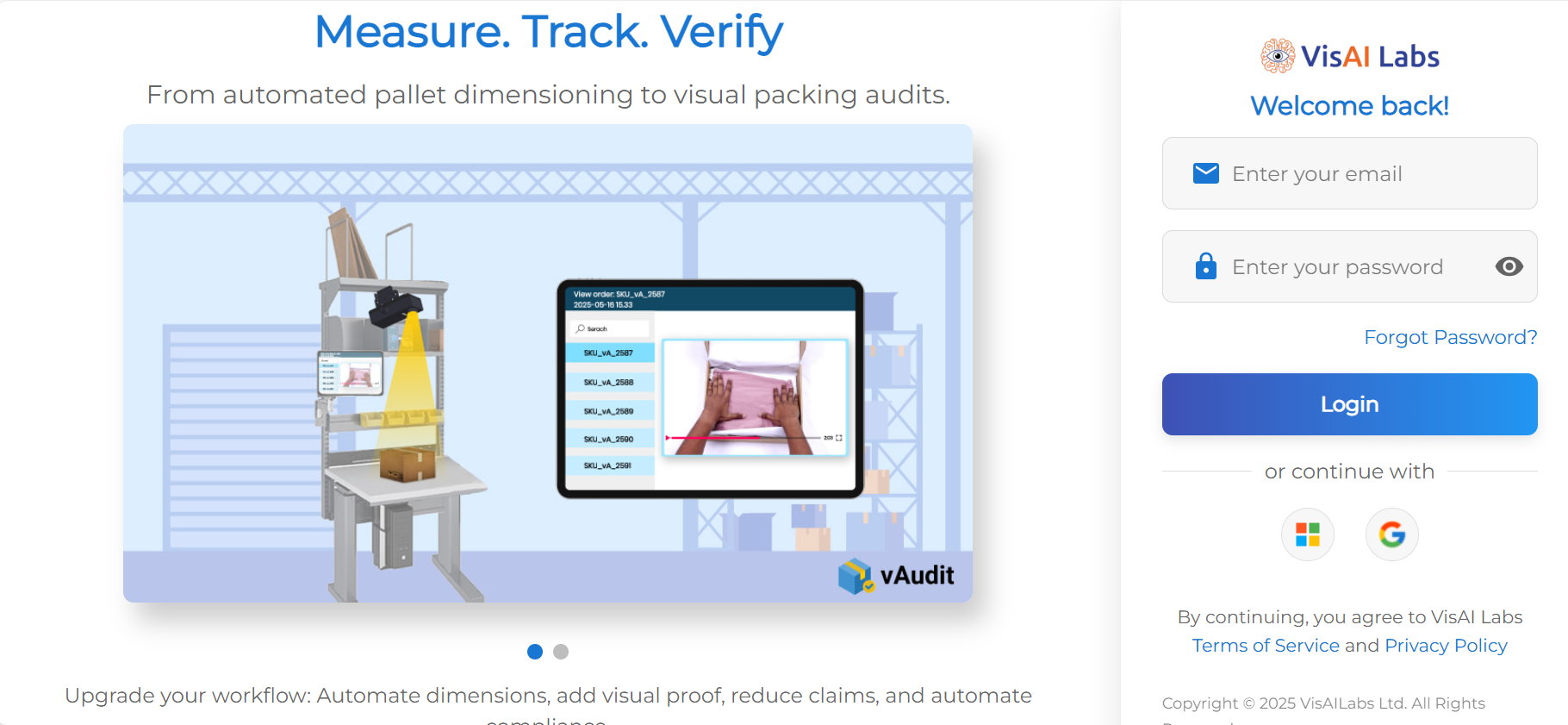
Step 1: Login into your Forge account. Click here to vMeasure Cloud portal.
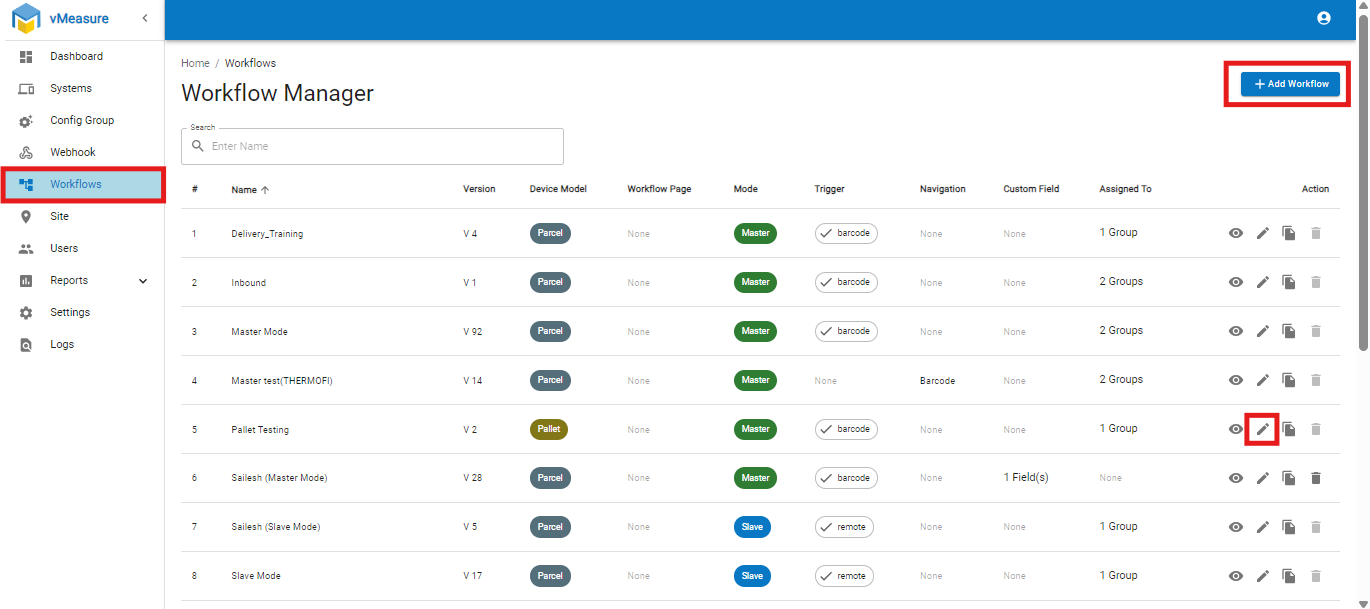
Step 2: You'll be redirected to the dashboard, Click on "Workflows". If you need to make changes to the current workflow, click on "Edit" or " + Add Workflow".
Step 3: To create a Workflow, click on " + Add Workflow" and you'll be taken to the Basic settings of workflow form.
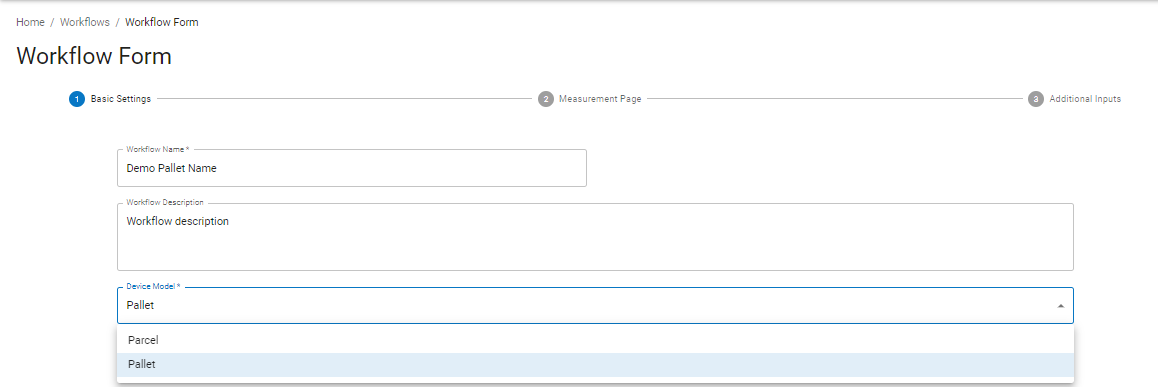
Step 4: Enter a name to your workflow and description to it. Make sure you are selecting "Pallet" in device model.
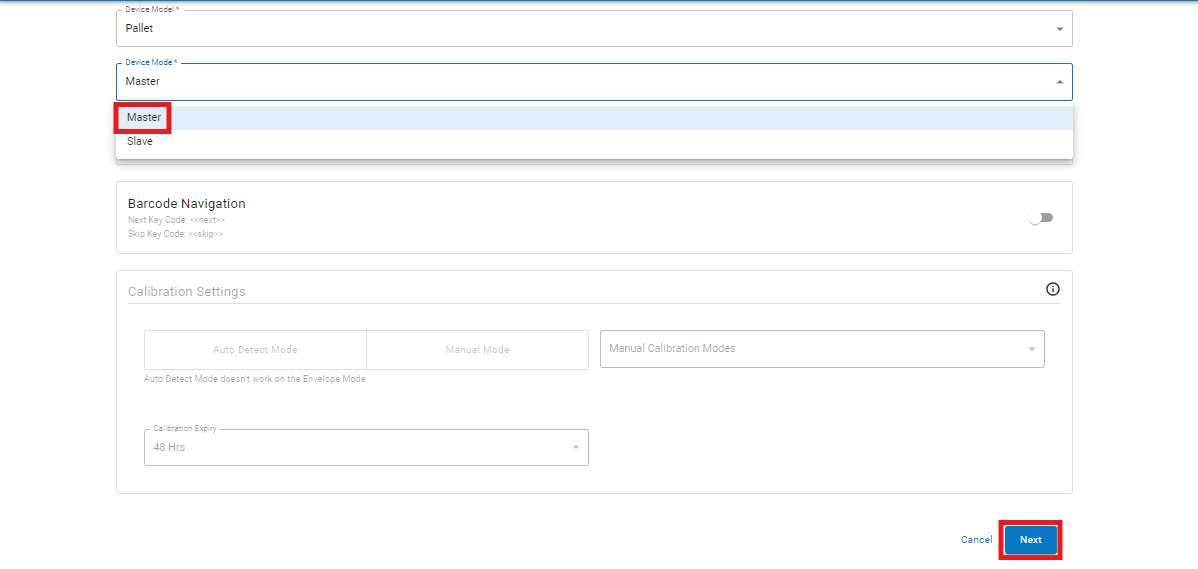
Step 5: In device mode select Master and Click on "Next".
Step 6: On Next page, you can find the Barcode Field, enabling it you can Input the Barcode Field Name and adjust the Barcode Minimum Length and Barcode Maximum Length. (Min-1 Max-100)
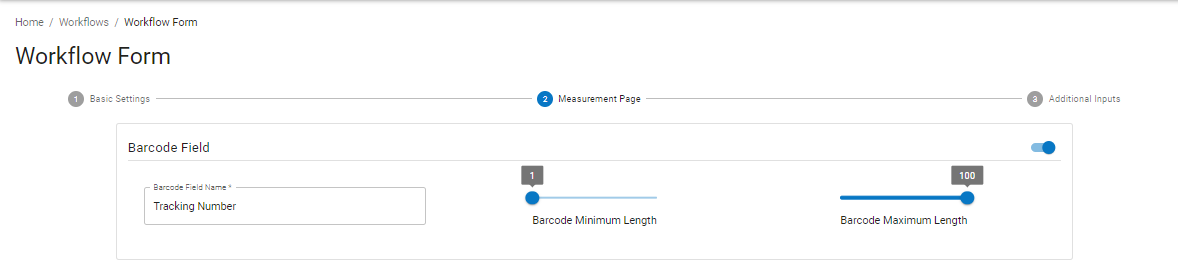
Step 7: You can also validate your barcodes using RegEX and API Validation. Refer this link to know more about Barcode Validation.
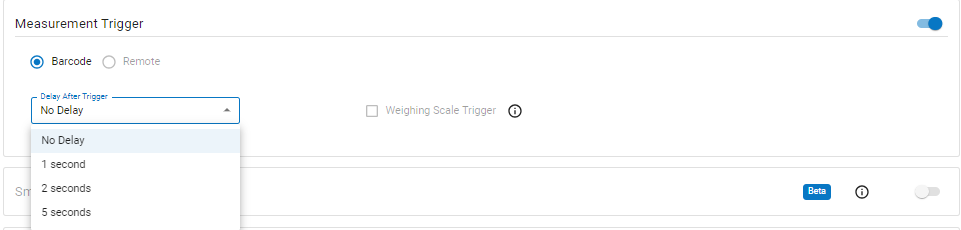
Step 8: You can trigger your measurements either by clicking on "Measure" in the display or using "Measurement Trigger" option, in which the measurement is triggered automatically once the barcode has been scanned.
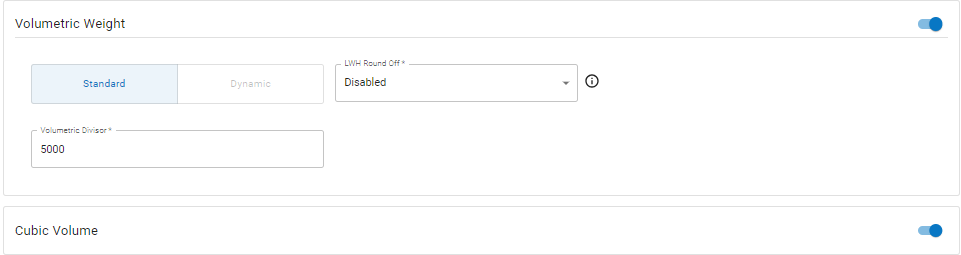
Step 9: You can also enable Volumetric Weight with appropriate volumetric divisor and also Cubic Volume.
Step 10: Next "Image Annotation", Enabling this you can data's such as Date/Time, Barcode ID. Volumetric Weight and Cubic Volume to your Annotated Image.

Step 11: In Measurement Result, you can find a option "Enable Result Time-out", In which you can have a preview of the measurement you have taken up to 20sec.
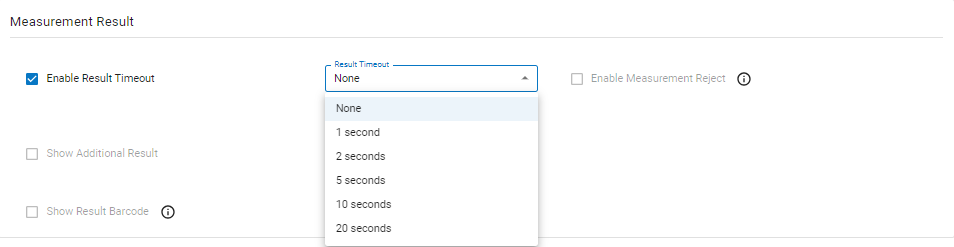
Step 12: Then Scroll down and click "Next -> Next -> Save"
Step 13: Once your Workflow has been created, make sure to create "Config Group" and assign to system.
Refer : How to create "Config Group"
Refer: How to assign a group to a system.
If you need any support , please drop a mail to vmeasure@visailabs.com
Was this article helpful?
That’s Great!
Thank you for your feedback
Sorry! We couldn't be helpful
Thank you for your feedback
Feedback sent
We appreciate your effort and will try to fix the article