Step 1: Log in to your Forge account.
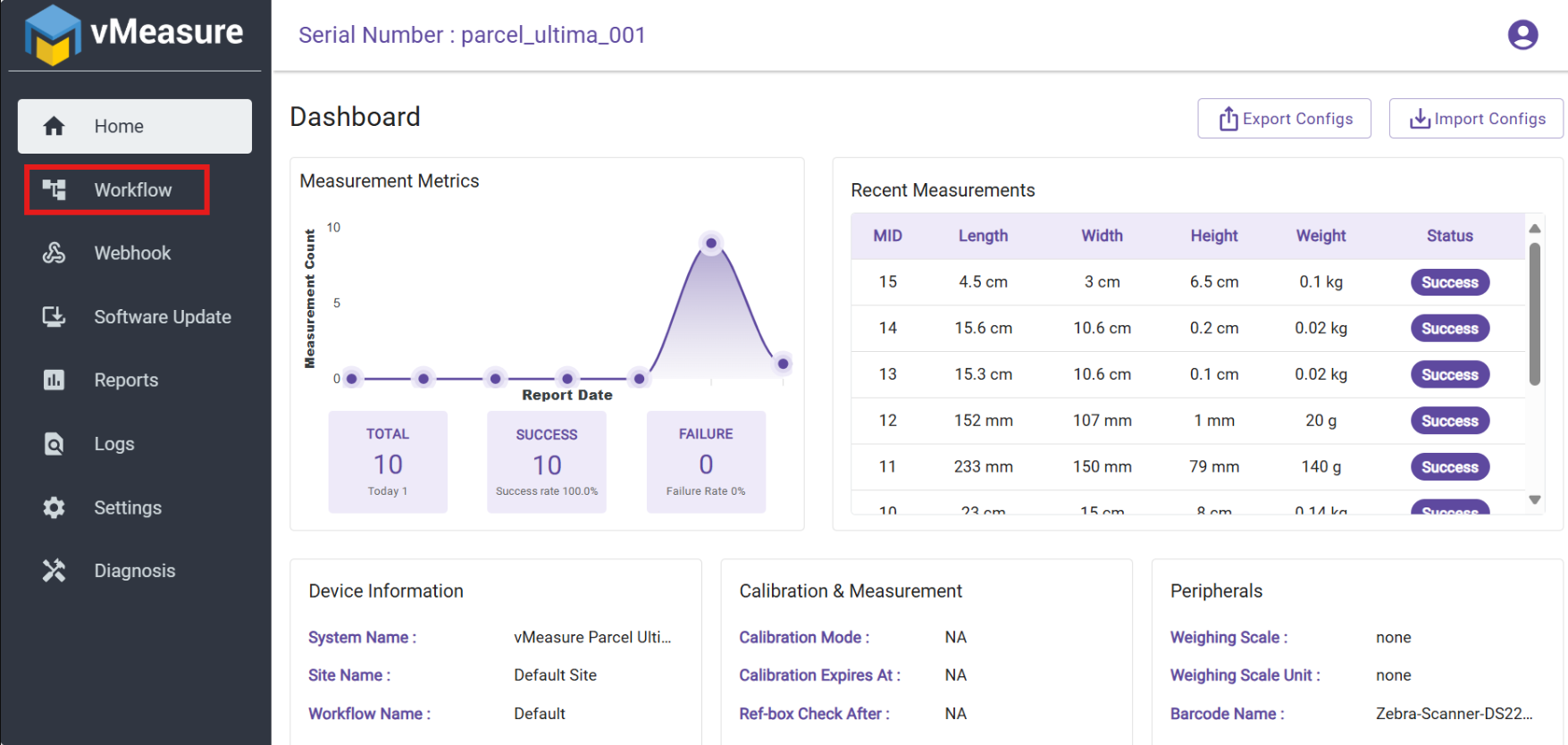
Step 2: Once redirected to the dashboard, click on "Workflows".
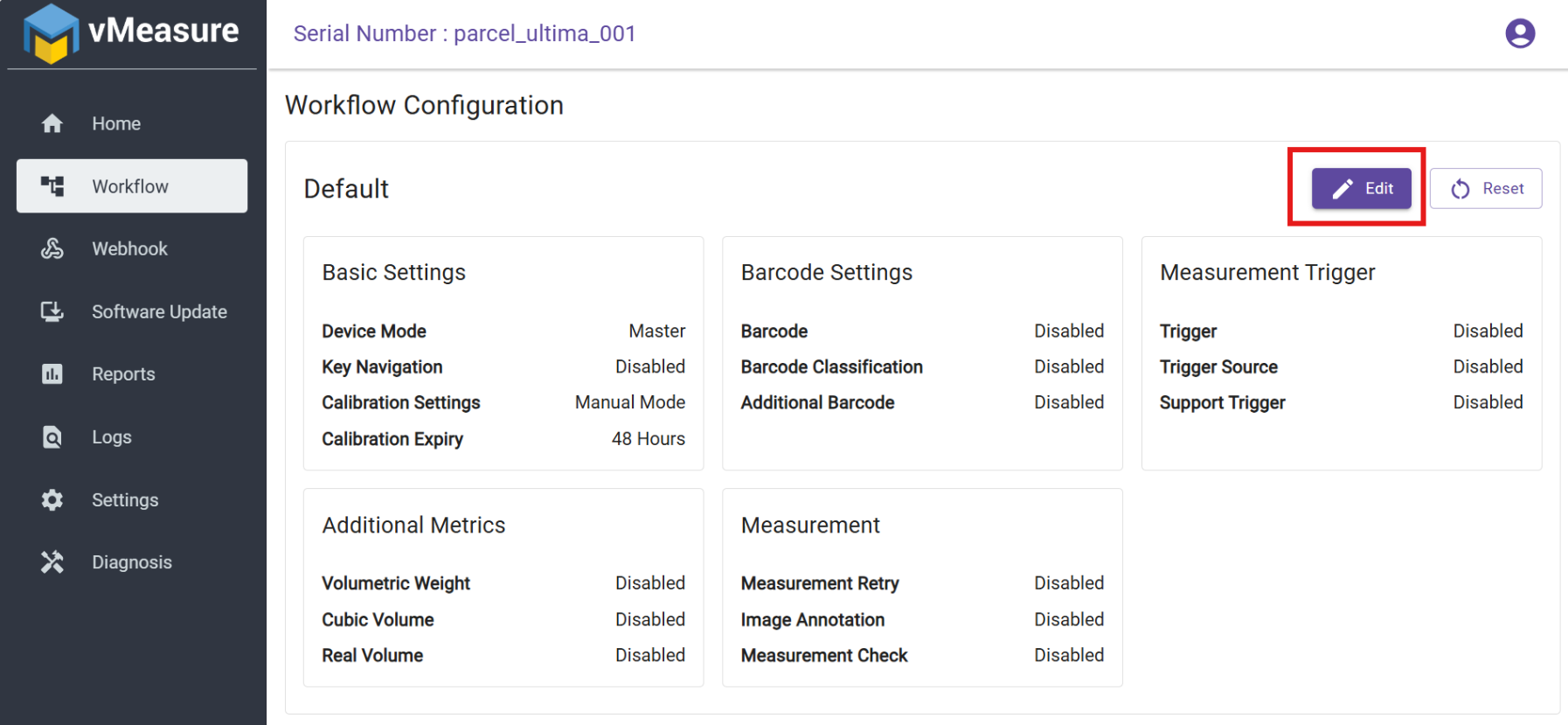
Step 3: Click on "Edit" to create a new workflow.
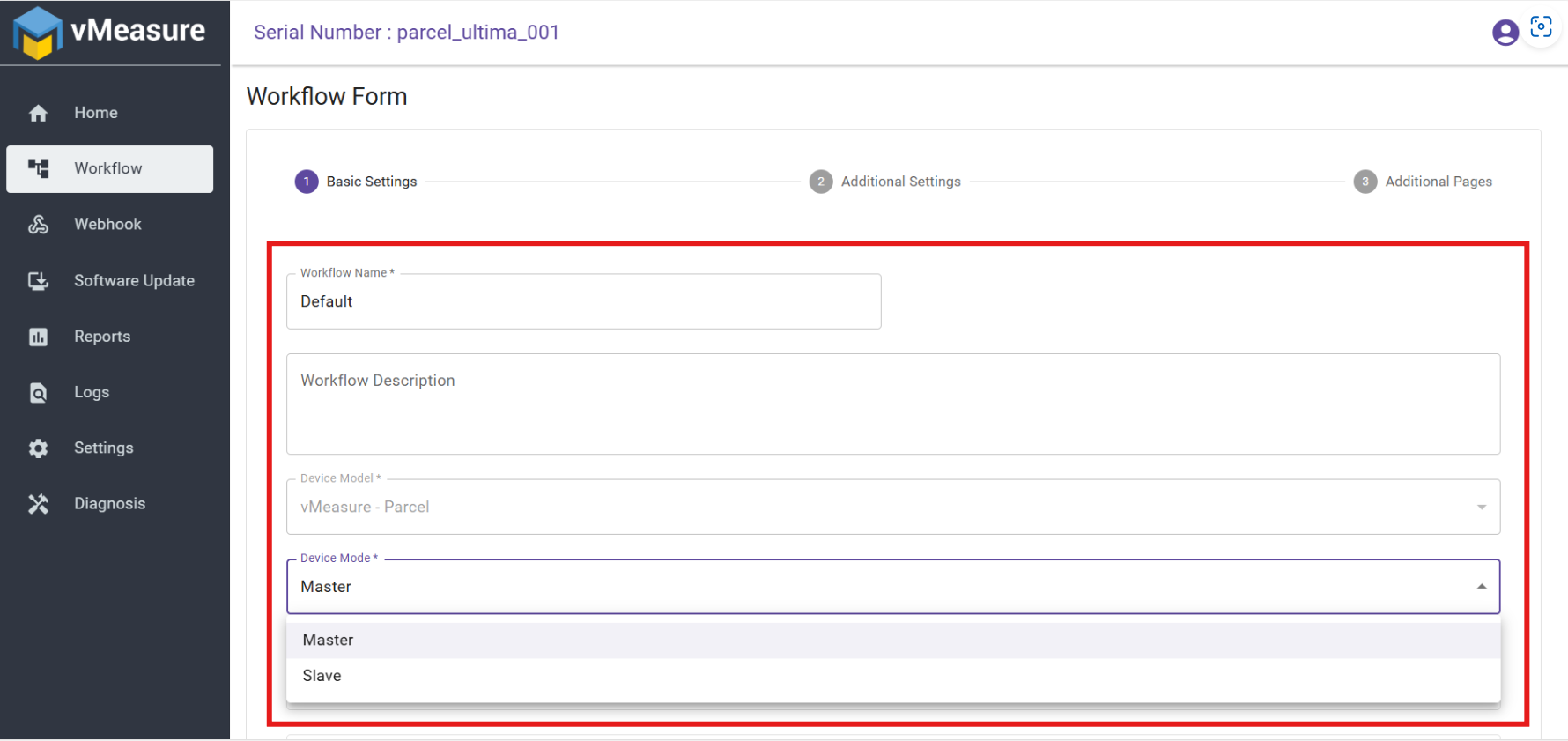
Step 4: Enter a name and description for your workflow, and In Device Mode, select Master or Slave.
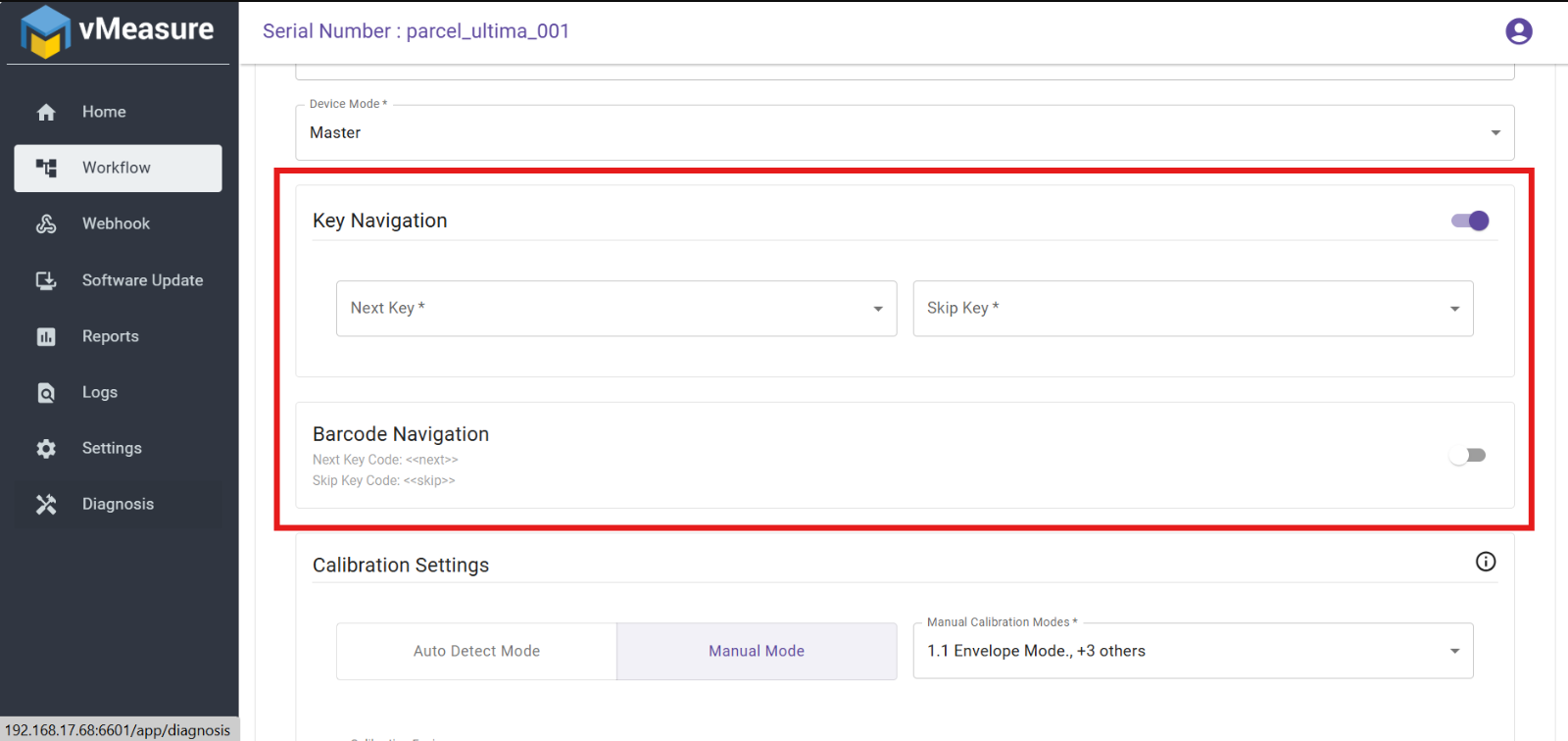
Step 6: You’ll find two navigation options:
Keyboard Navigation
Barcode Navigation
Choose based on your preference.
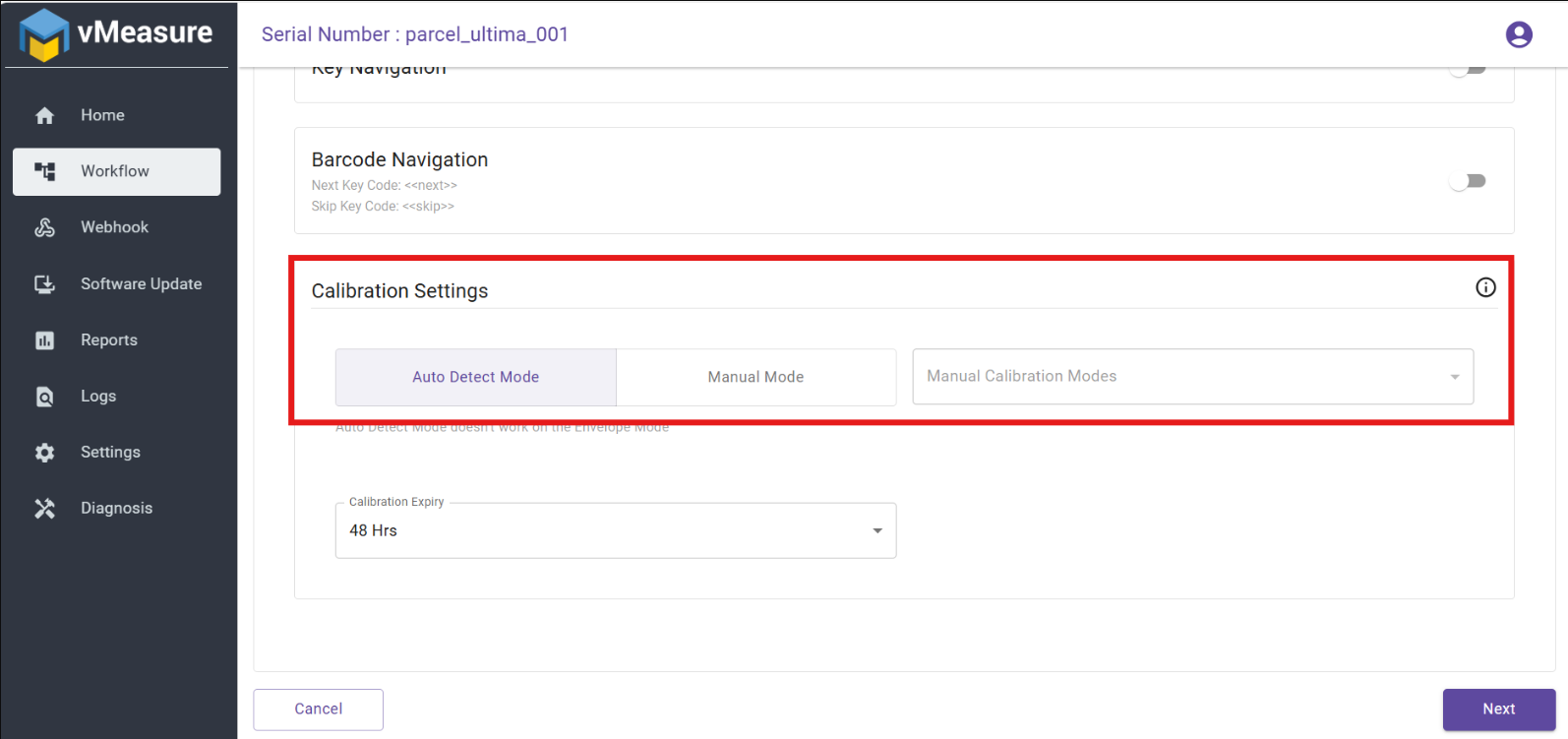
Step 7: In the Calibration section, you have two options:
Auto Calibration
Manual Calibration
Select the one that suits your requirements.
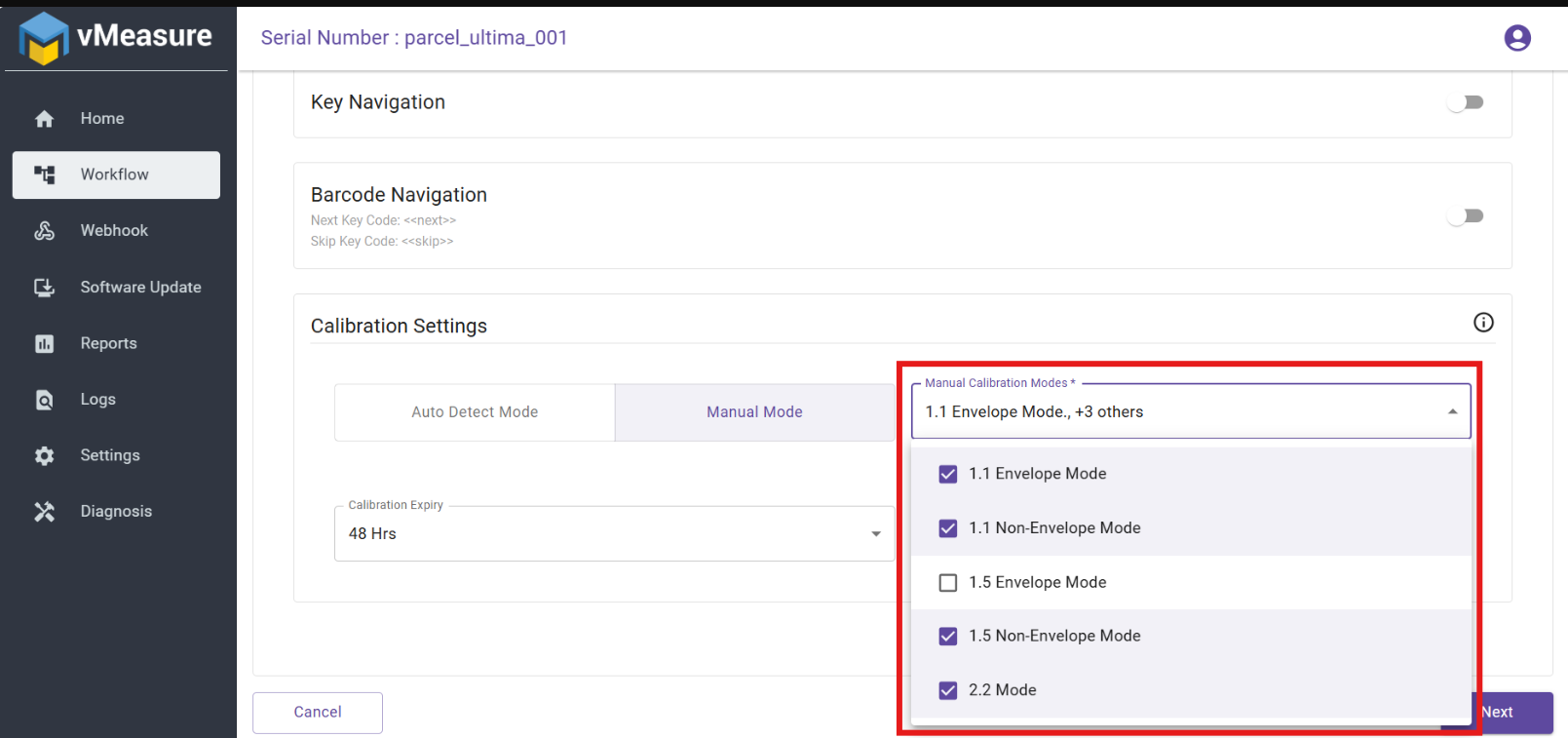
Step 8: If you choose Manual Calibration, select the Device Model.
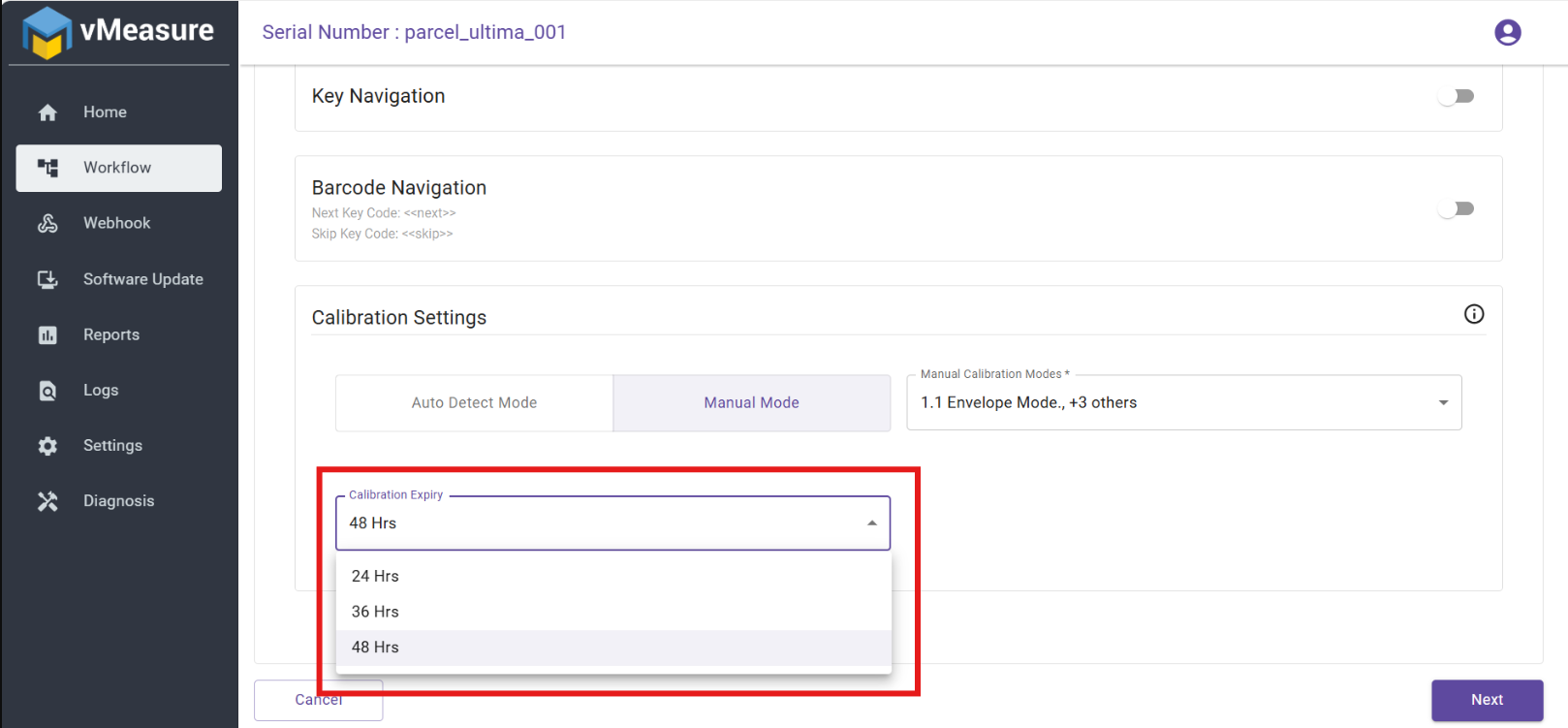
Step 9: Set the Time Limit for the next calibration and click "Next".
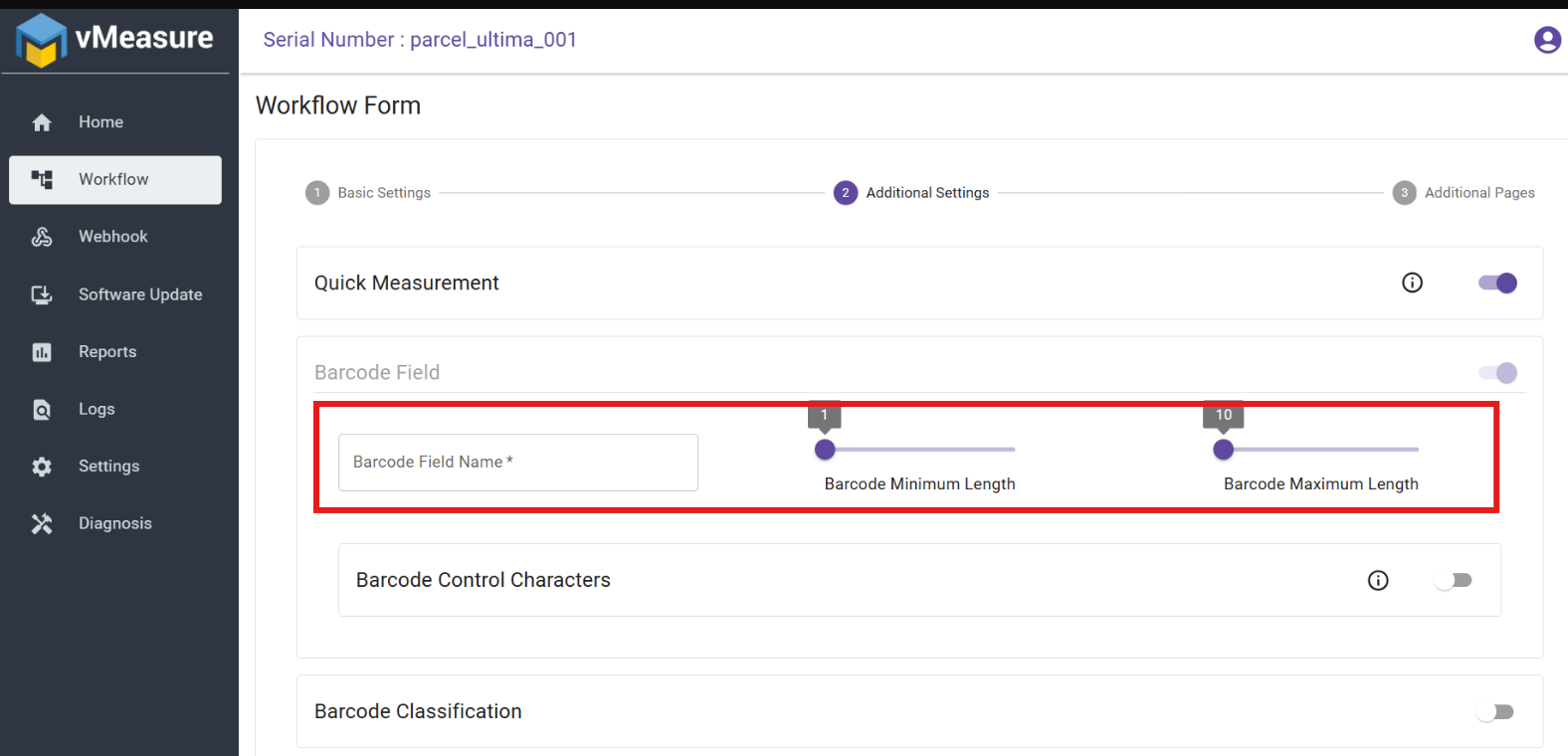
Step 10: On the next page, you’ll find the Barcode Field settings.
Enable it to input the Barcode Field Name, and configure:
Minimum Length (Min: 1)
Maximum Length (Max: 100)
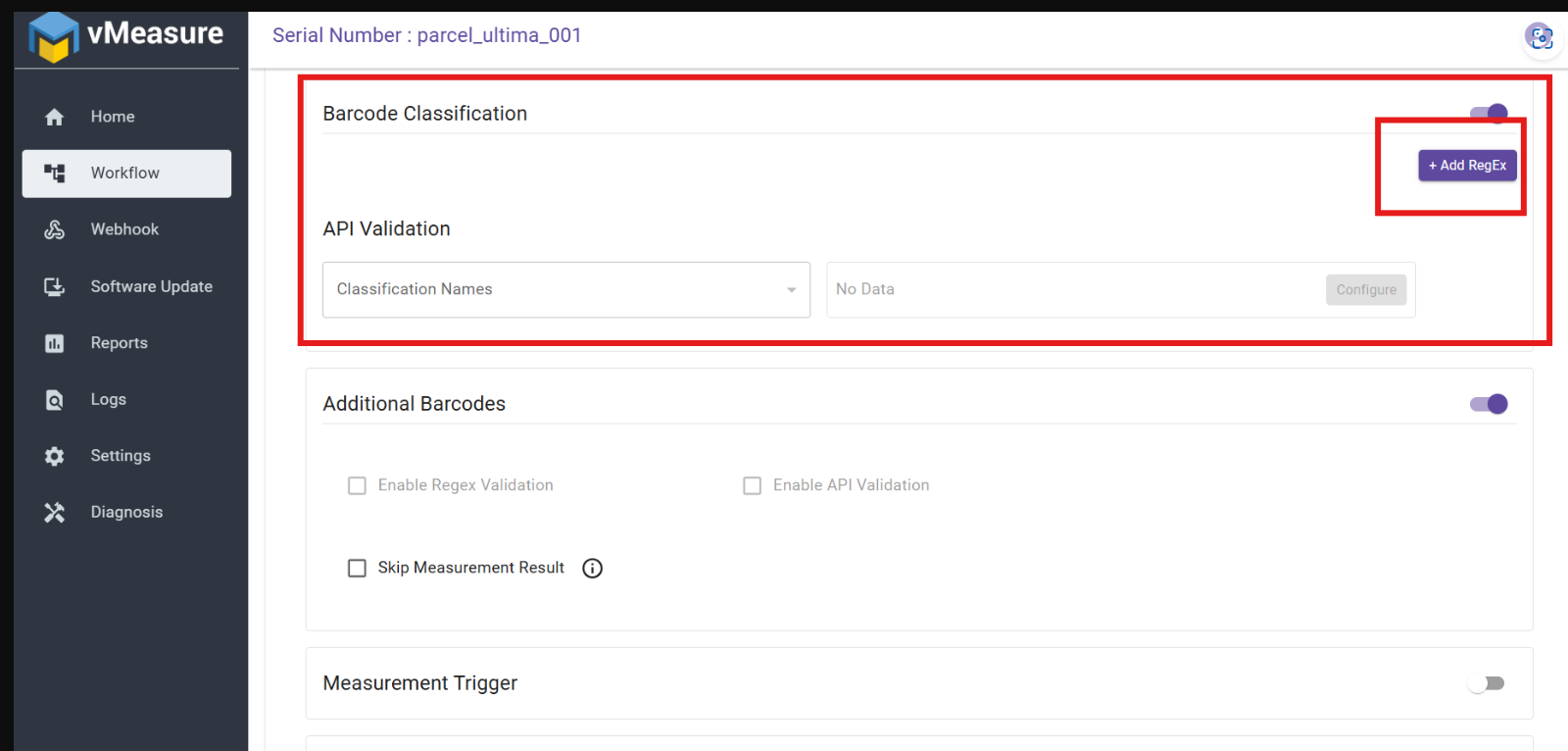
Step 11: You can also validate your barcodes using RegEx or API Validation.
Step 12: You can trigger measurements in two ways:
By clicking "Measure" on the display
By using the "Measurement Trigger" option, where measurement is triggered automatically upon barcode scan.
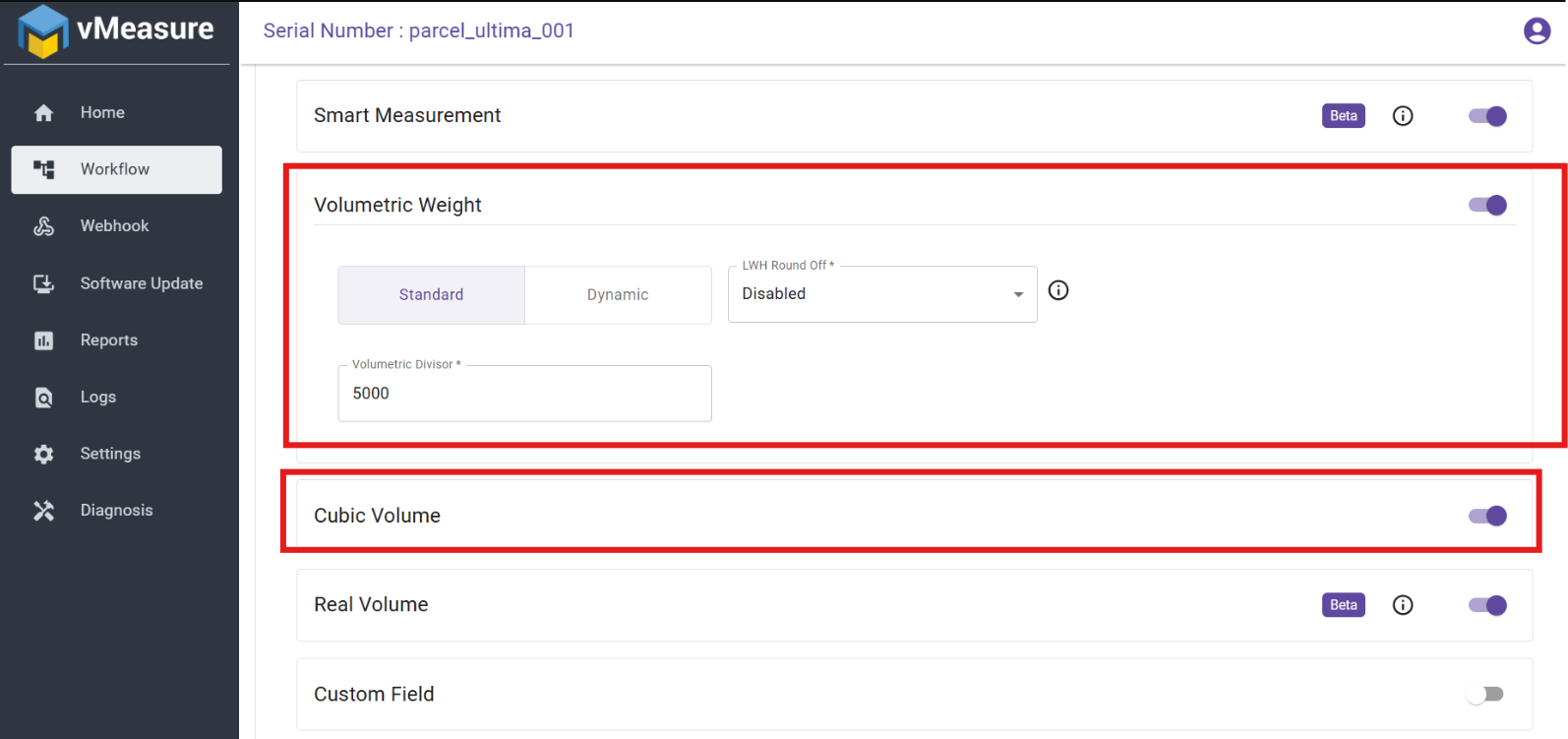
Step 13: Enable Volumetric Weight by specifying a Volumetric Divisor, and optionally enable Cubic Volume.
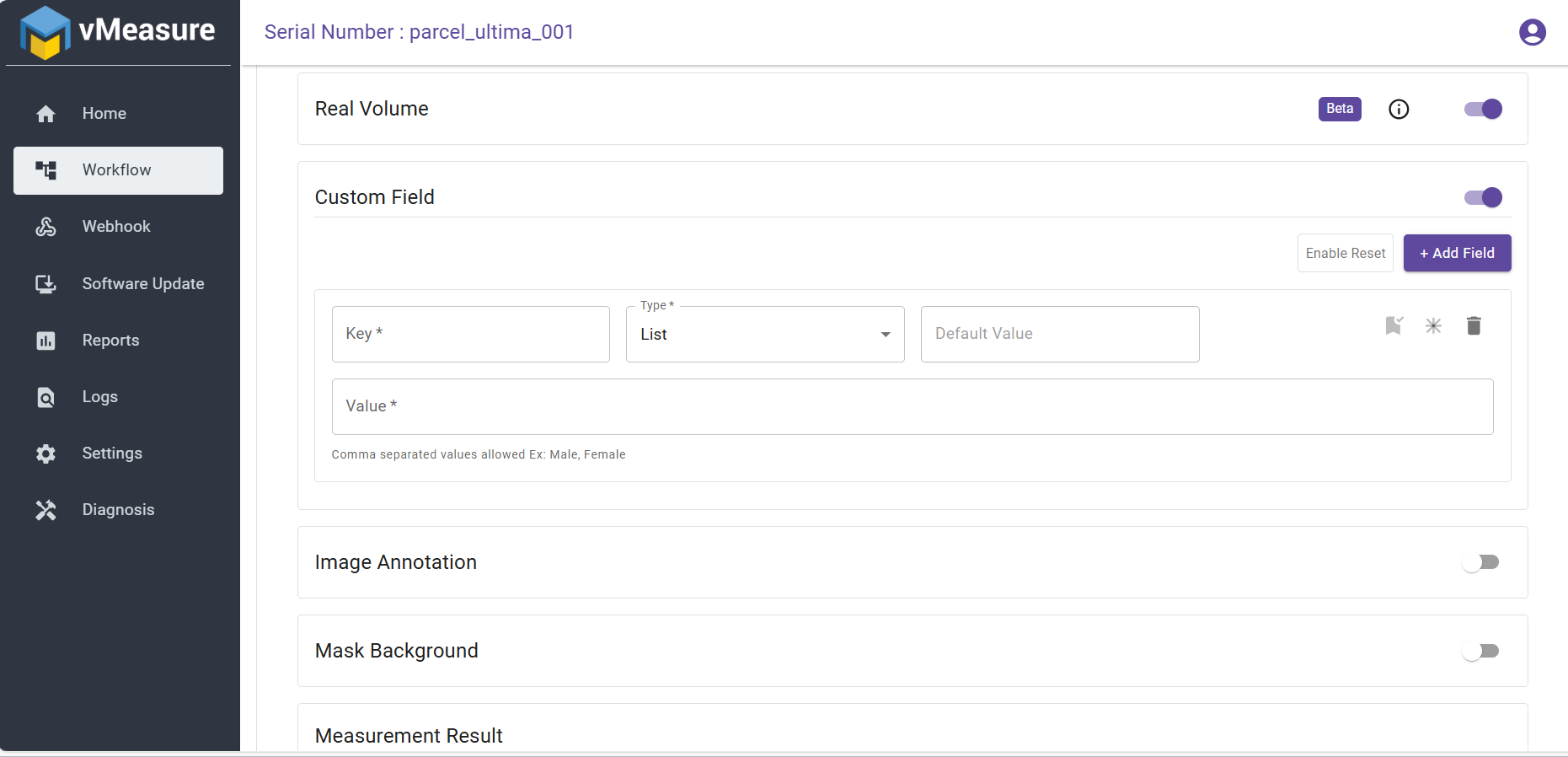
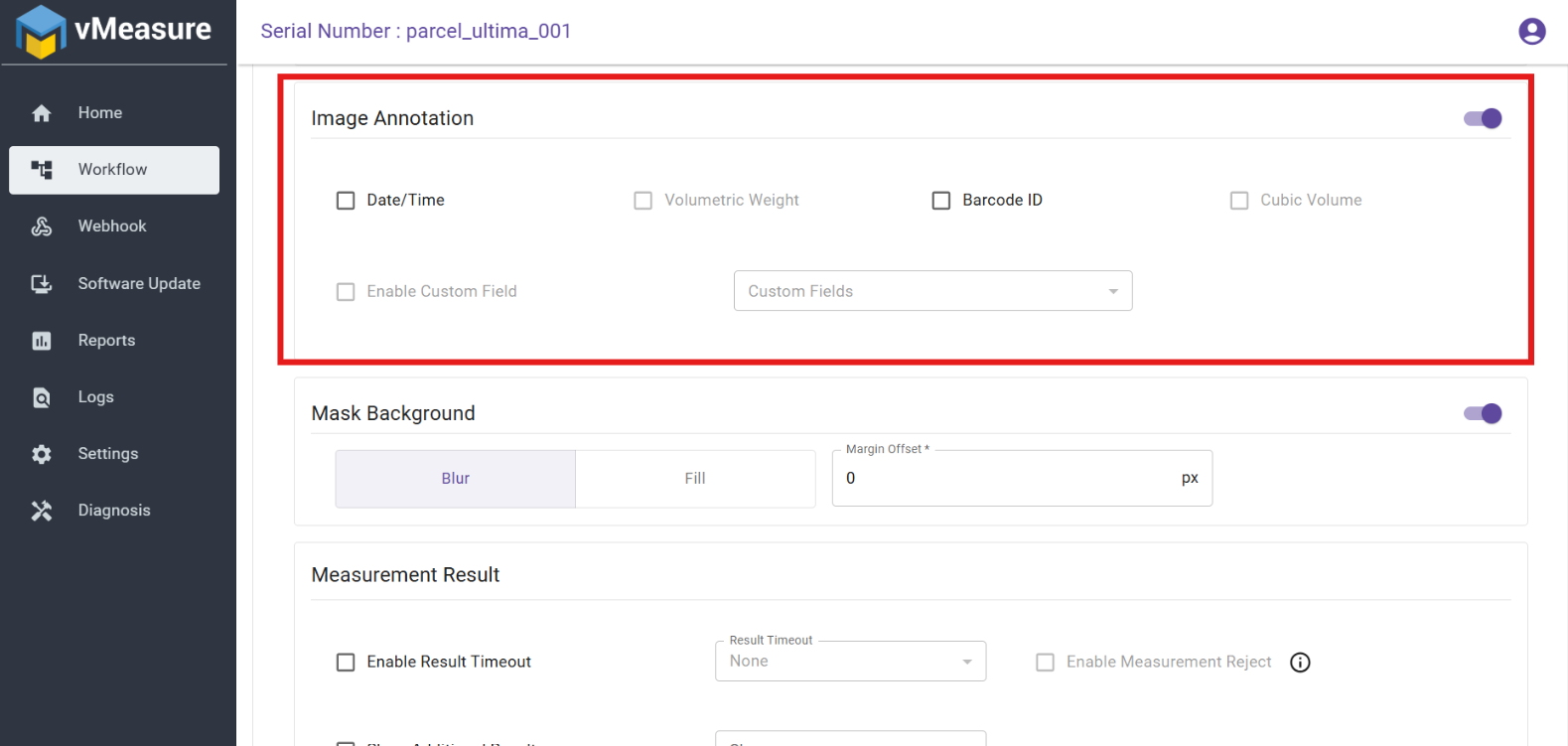
Step 14: Under Image Annotation, enable it to include data such as:
Date/Time
Barcode ID
Volumetric Weight
Cubic Volume
These will be added to the annotated image.
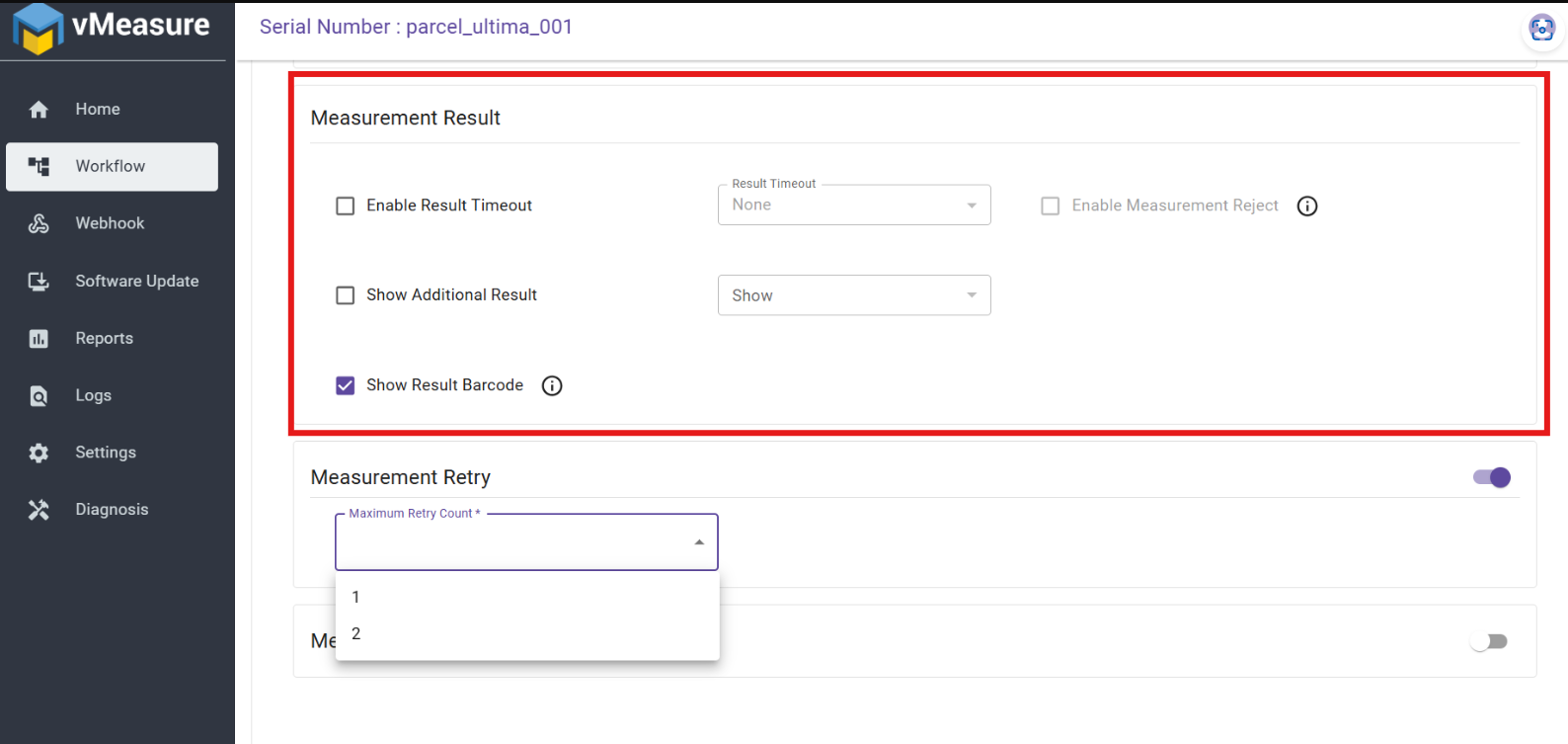
Step 15: In the Measurement Result section, enable "Result Timeout" to allow a preview of the measurement for up to 20 seconds and Measurement Retry option as well.
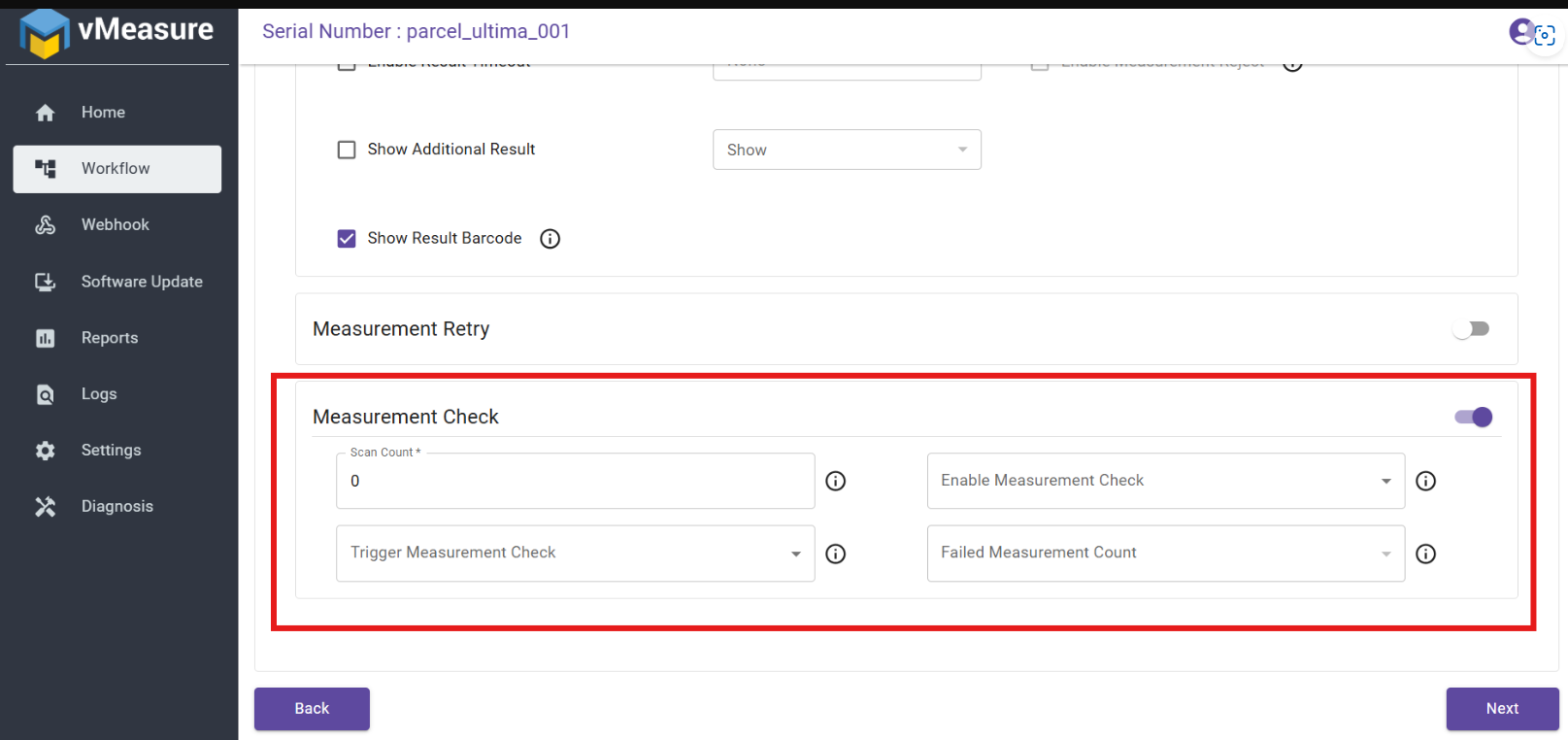
Step 16: Measurement Check
You can enable the Measurement Check feature to validate multiple measurements for consistency.
Options available:
Scan Count: Set the number of scans.
Trigger Measurement Check: Choose when to trigger the check.
Failed Measurement Count: Set the allowed failure threshold.
Toggle "Enable Measurement Check" to activate this feature.
Scroll down and click Next.
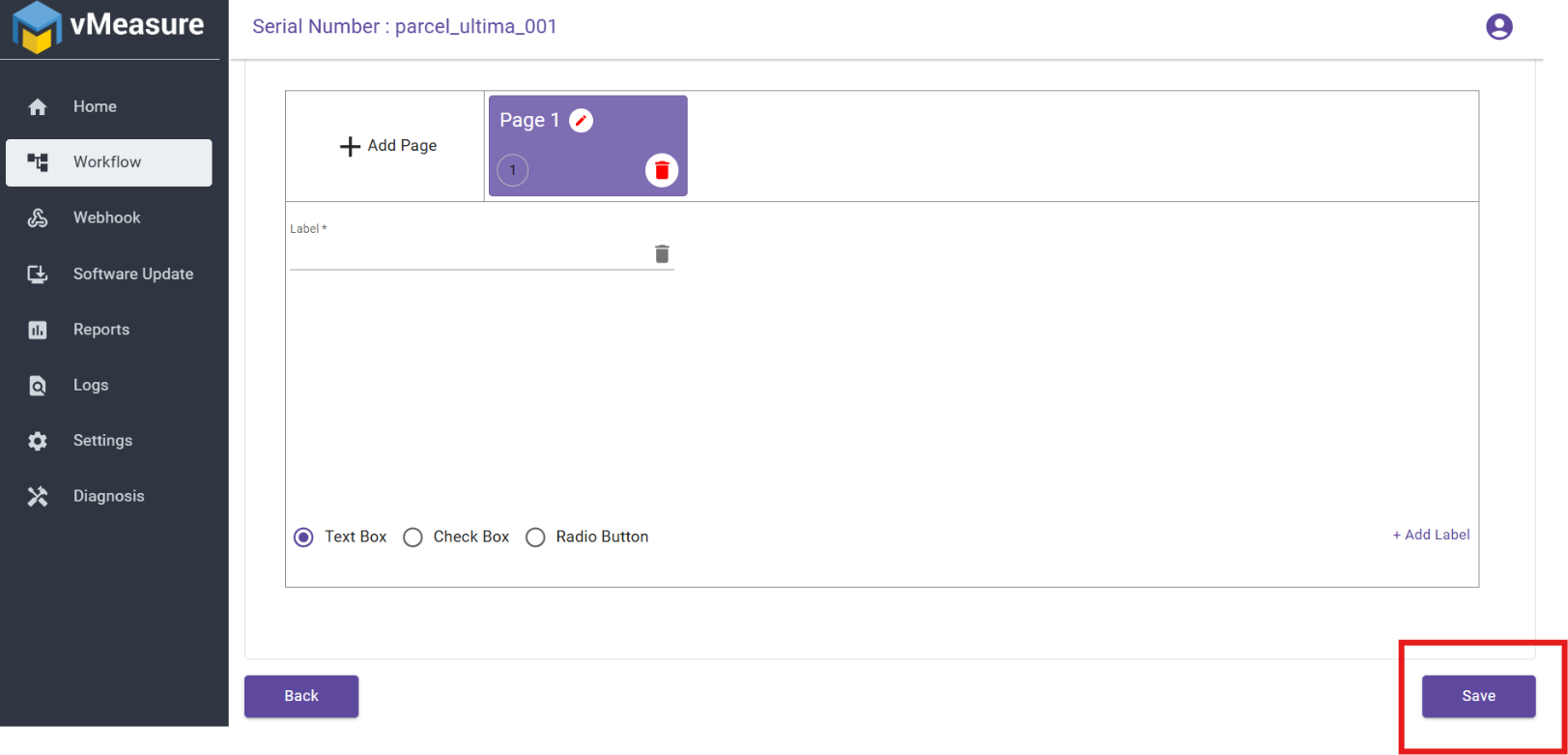
Step 17: Use the "Add Page" feature to include additional sections for capturing more details or custom inputs. This is useful for collecting extra information beyond the default measurement data.
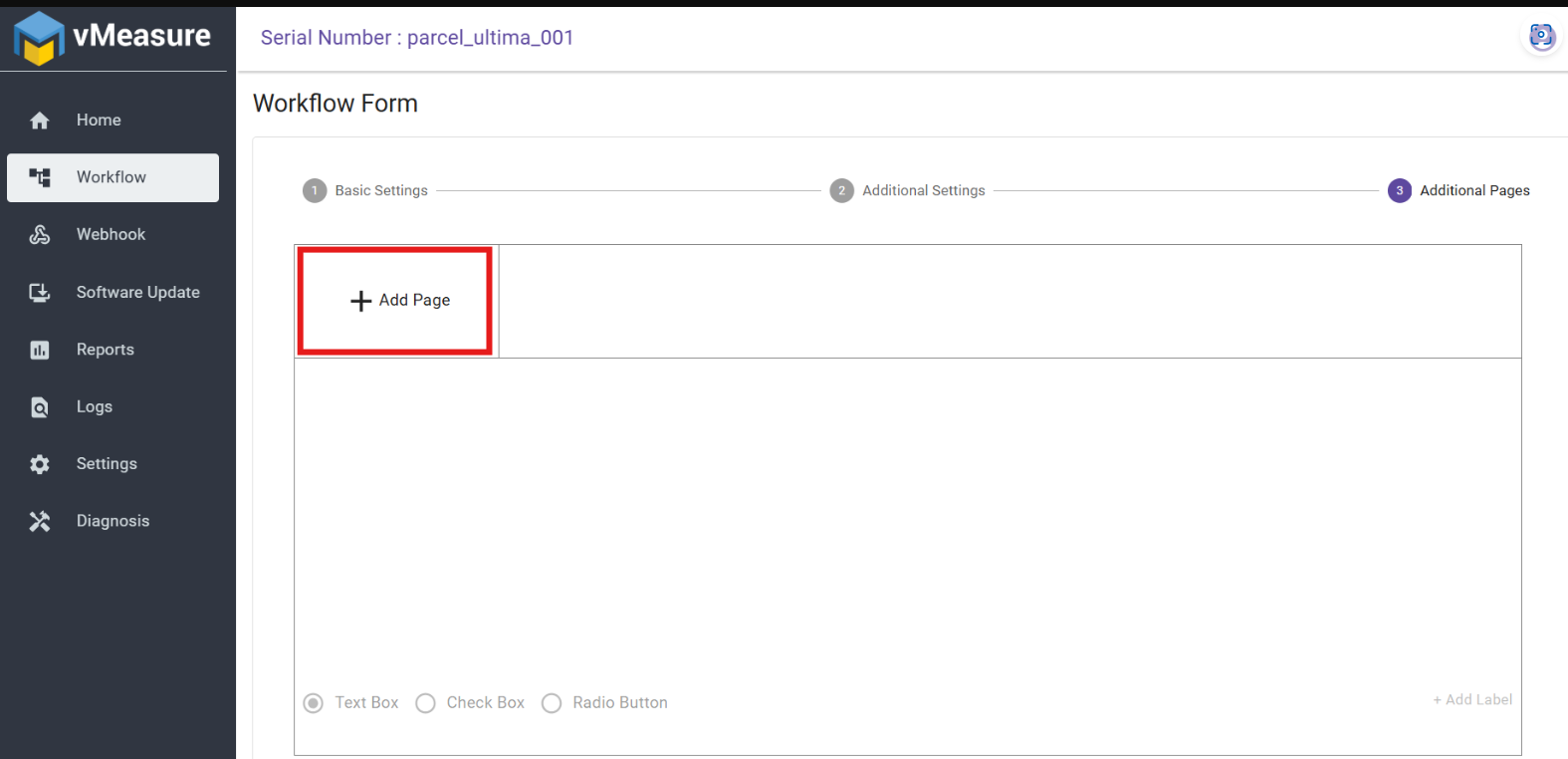
You can add fields like Text Box, Check Box, or Radio Button, and label them as required.
Step 18: Scroll down and click "Save".
Your workflow is now successfully created.
Was this article helpful?
That’s Great!
Thank you for your feedback
Sorry! We couldn't be helpful
Thank you for your feedback
Feedback sent
We appreciate your effort and will try to fix the article