Login to the Offline Website :
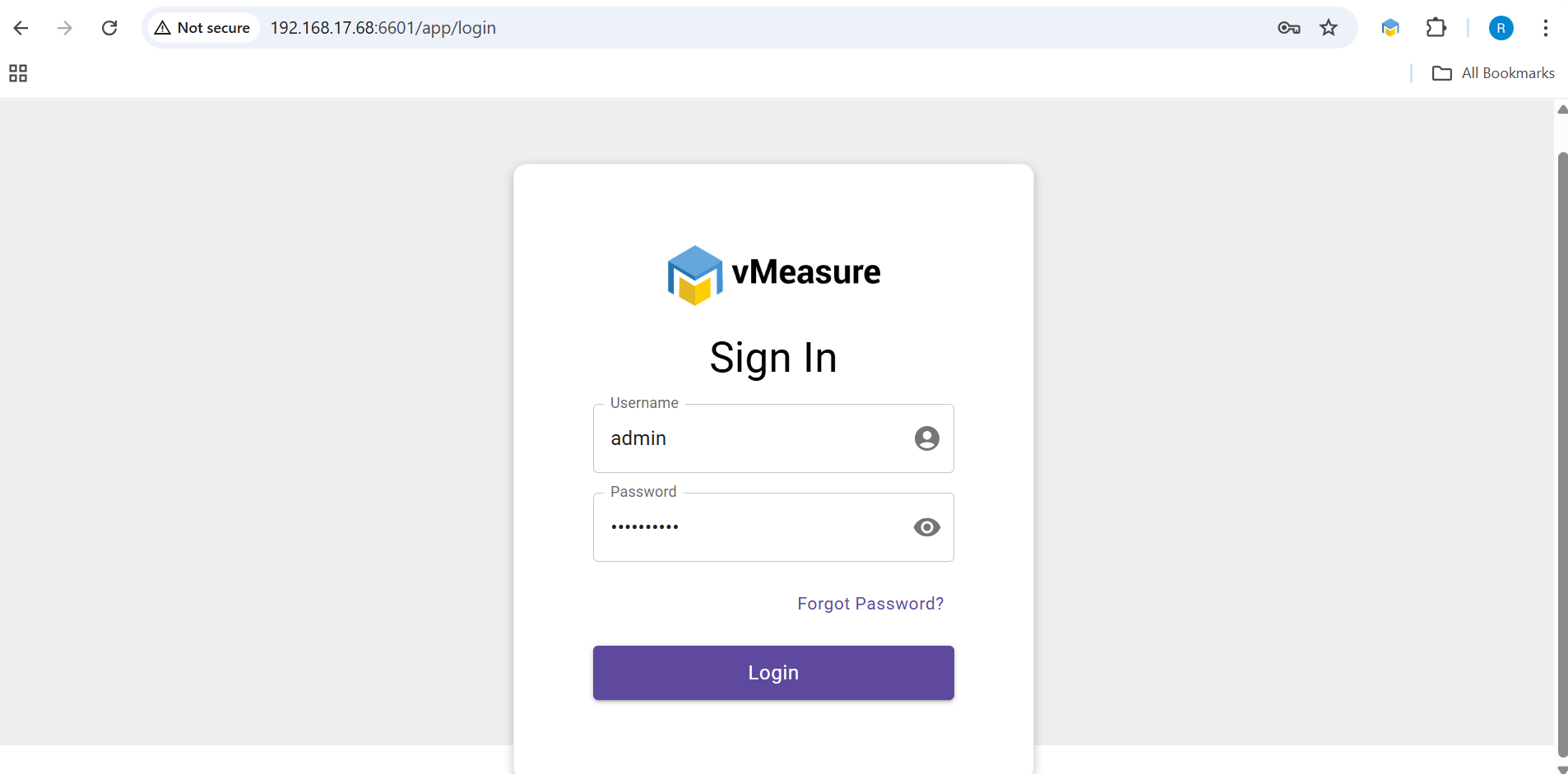
Please follow the steps below to log in to the offline website.
Step 1: Open the Offline Website
Open the following URL in your web browser:
http://192.168.xx.xxx:6601/app/login
Note: Replace 192.168.xx.xxx with the IP address of the vMeasure device.
Login Credentials
- Username:
admin(default) - Password: Device Serial Number
The device serial number is available on the VHU Camera.
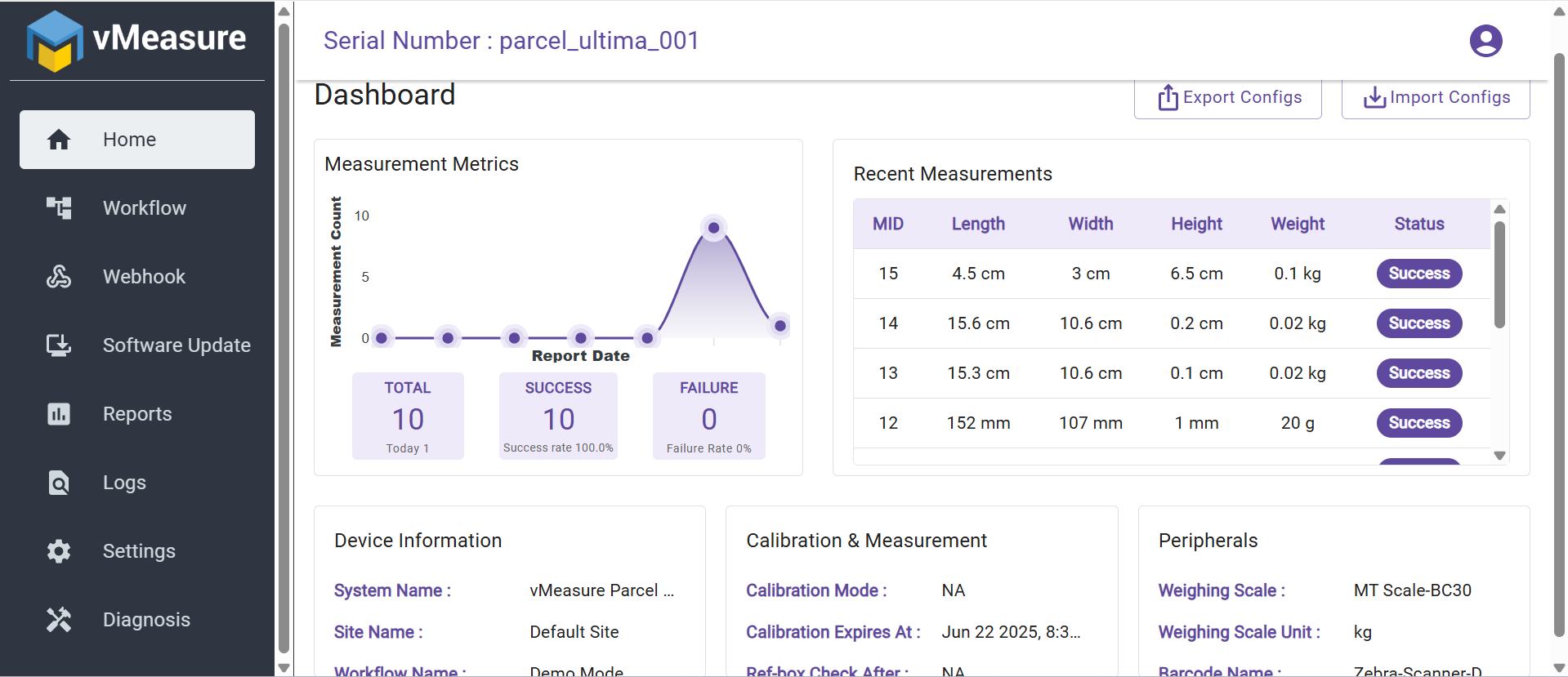
Note : If the device serial number does not work as the password, please follow the password reset procedure provided in the attached KB article.
Reference: Click here to view the article
Viewing and Downloading Images Using Barcodes
Follow the steps below to view and download shipment images using barcodes.
Step 1: Login
Successfully log in to the Offline Website using the credentials provided above.
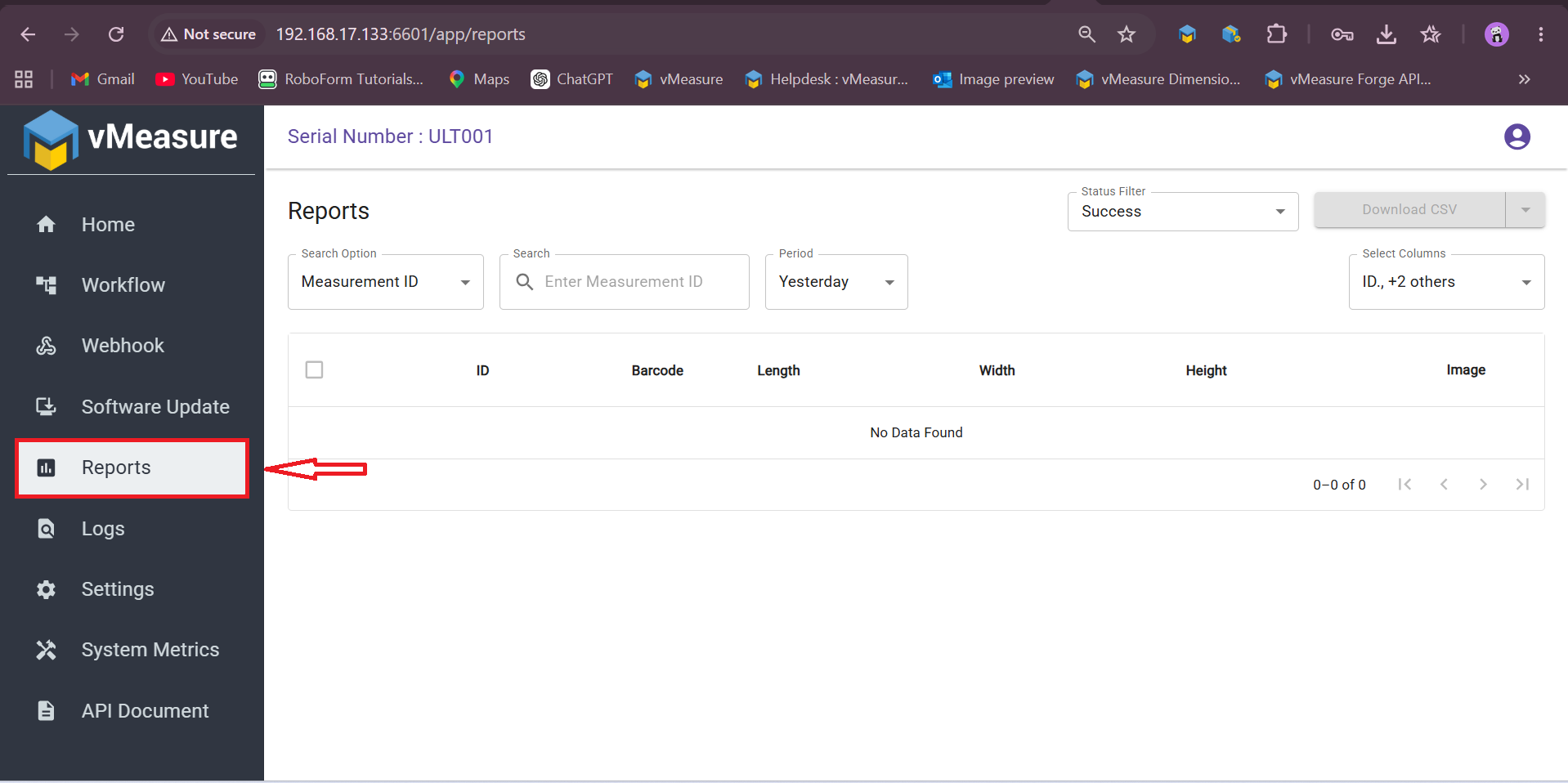
Step 2: Navigate to Reports
From the main menu, navigate to Reports.
Step 3: Select Barcode Search
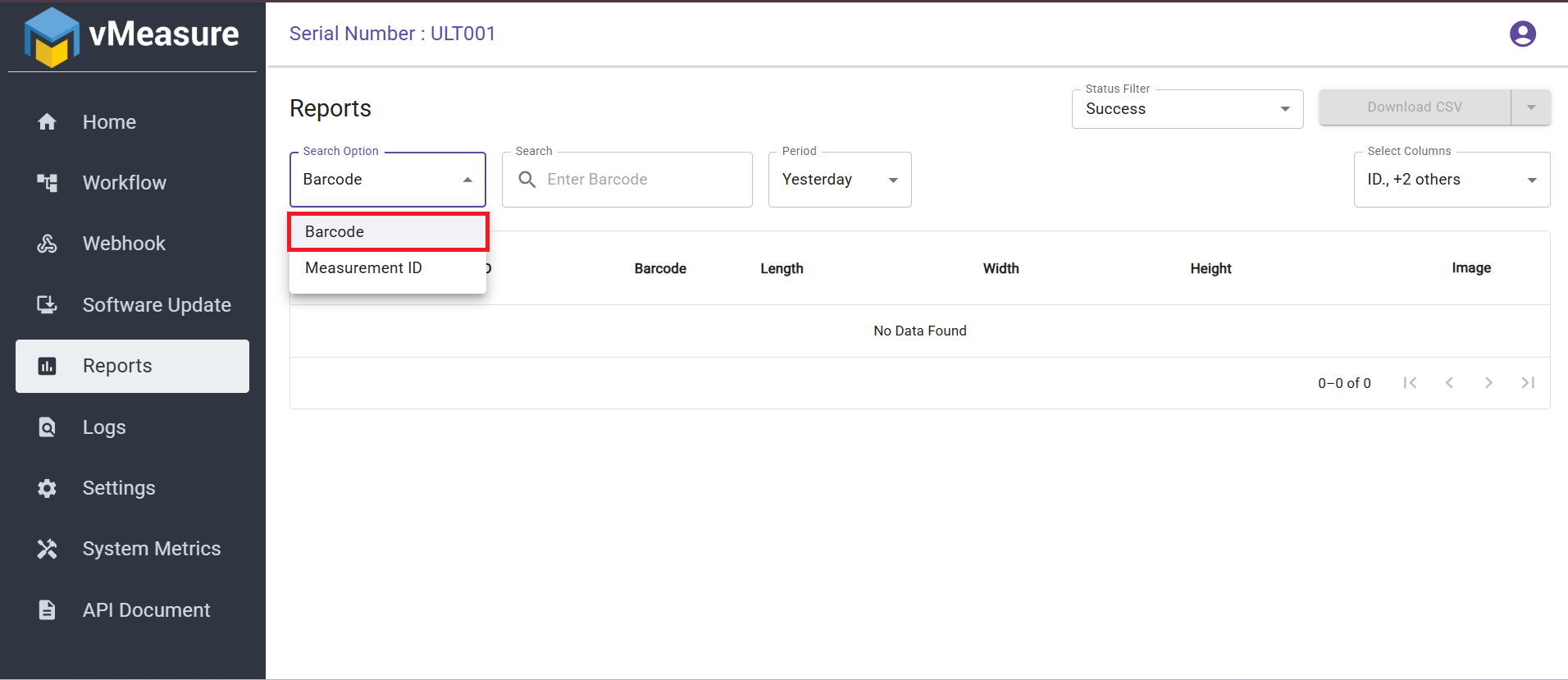
In the Reports page:
- Locate the Search Option dropdown.
- Select Barcode from the available search criteria.
Step 4: Search Using Barcode
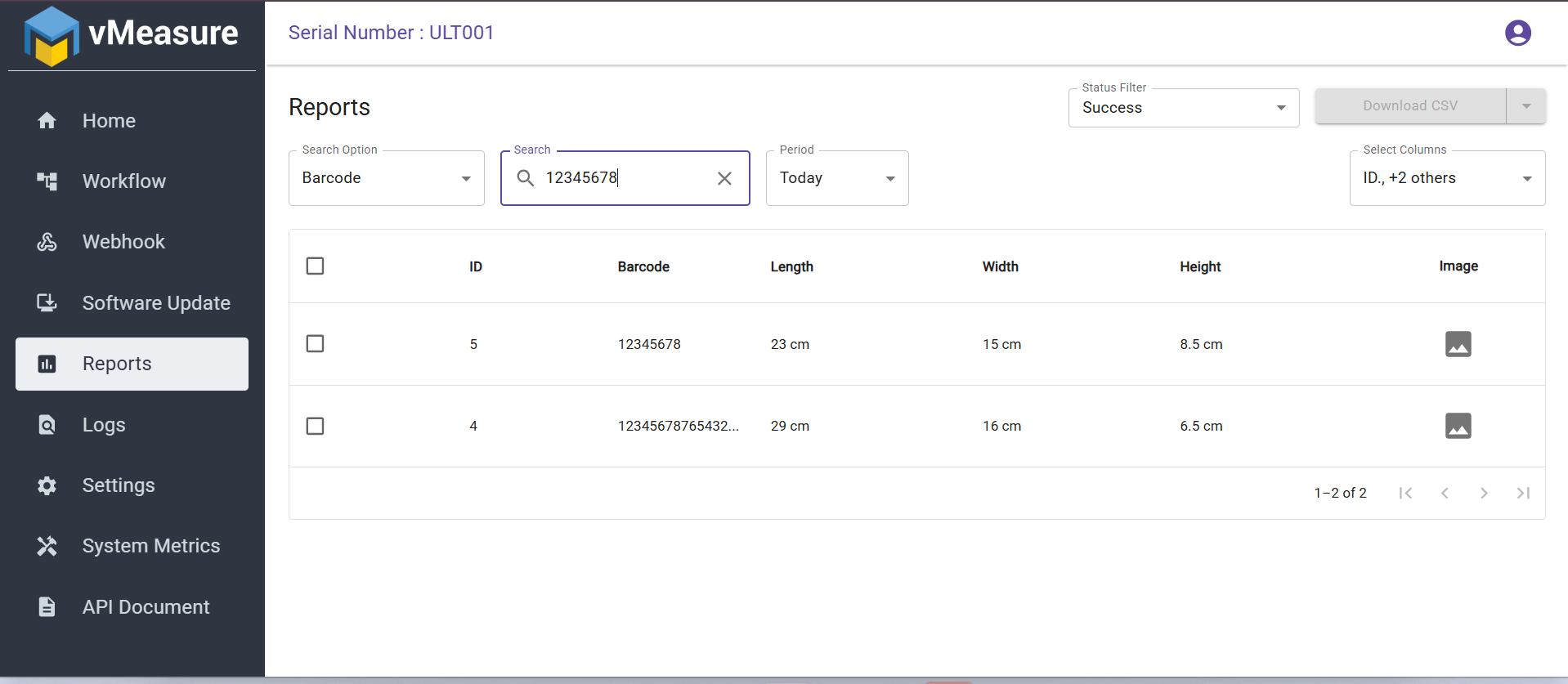
- Enter the required barcode in the Search field.
- The corresponding measurement details will be displayed below.
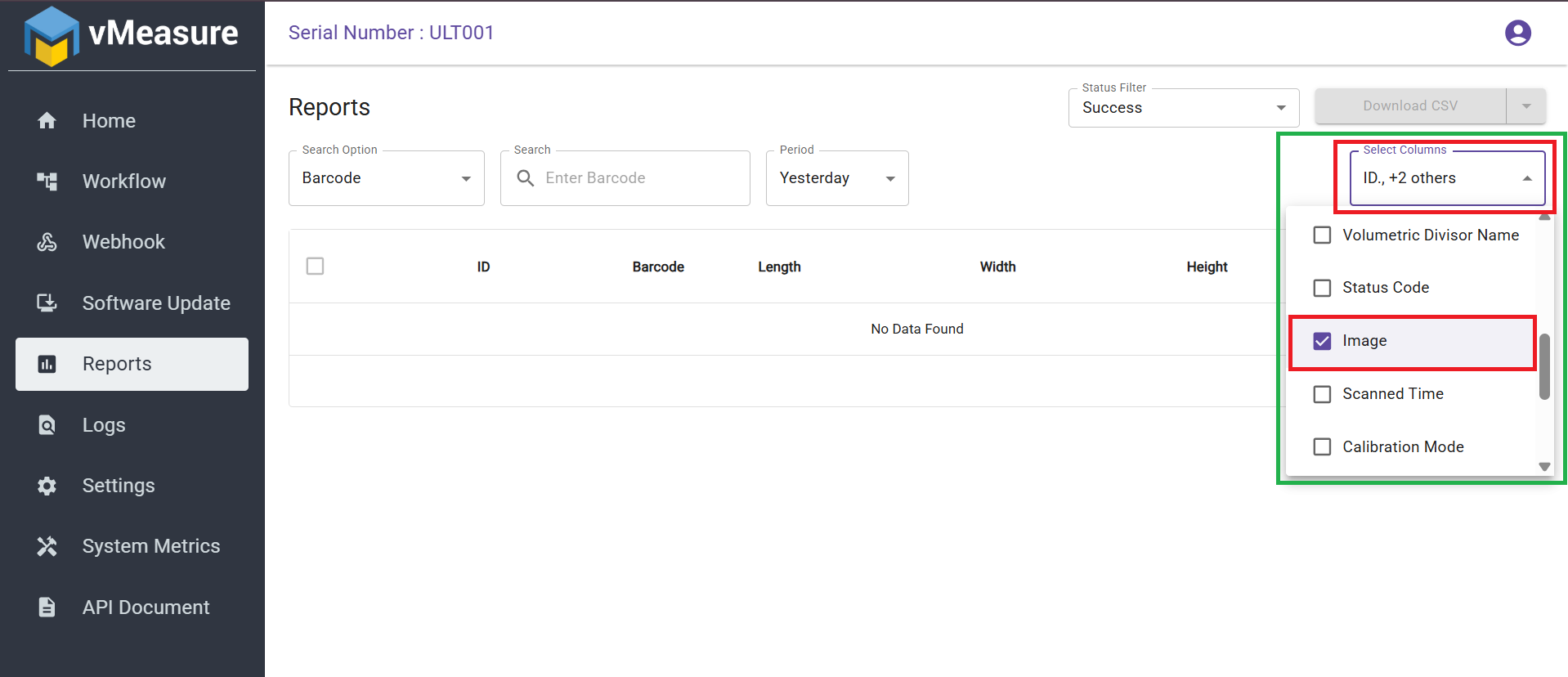
- In the Select Columns dropdown, enable/select Image.
- The measurement details along with the captured image will be displayed.
Step 5: Download Images
To download images for the selected barcode:
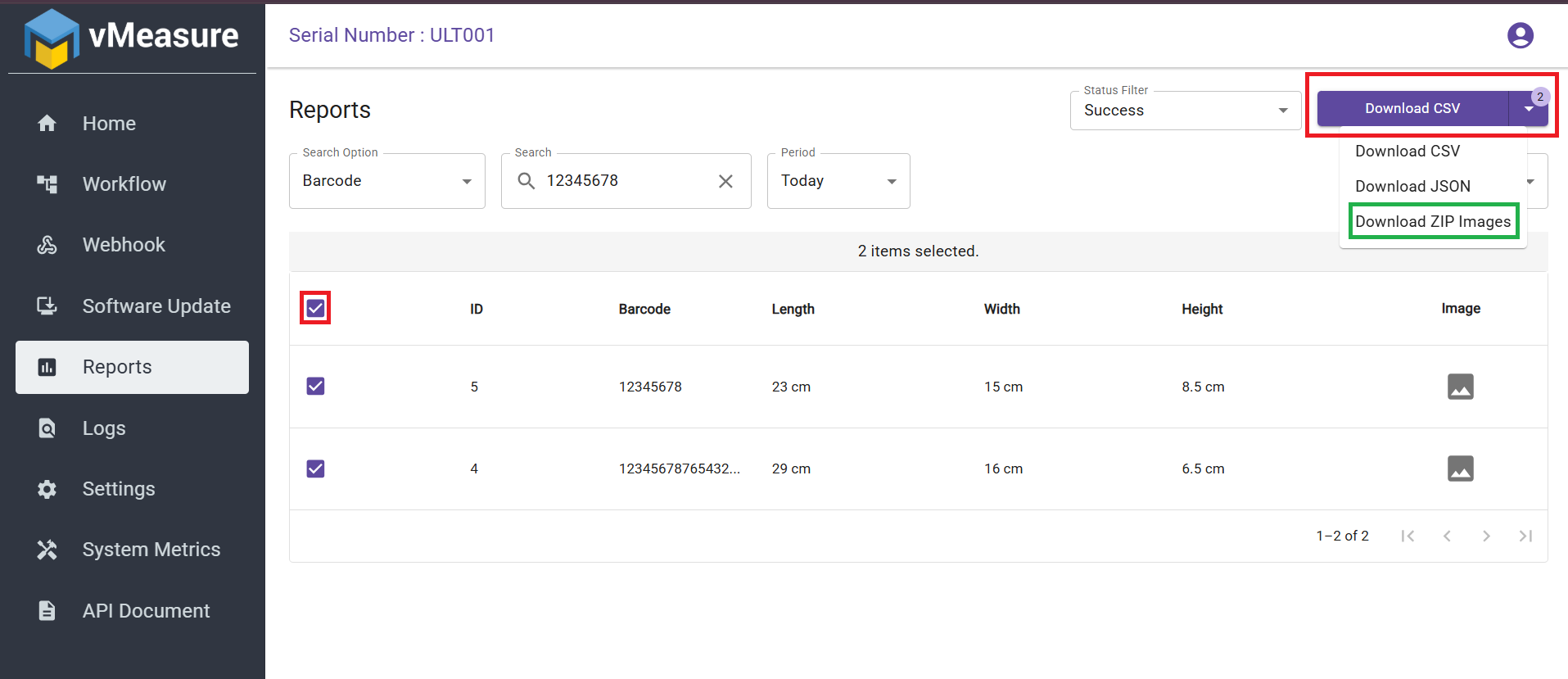
- Select the checkbox corresponding to the required measurement record.
- Click on the Download CSV dropdown.
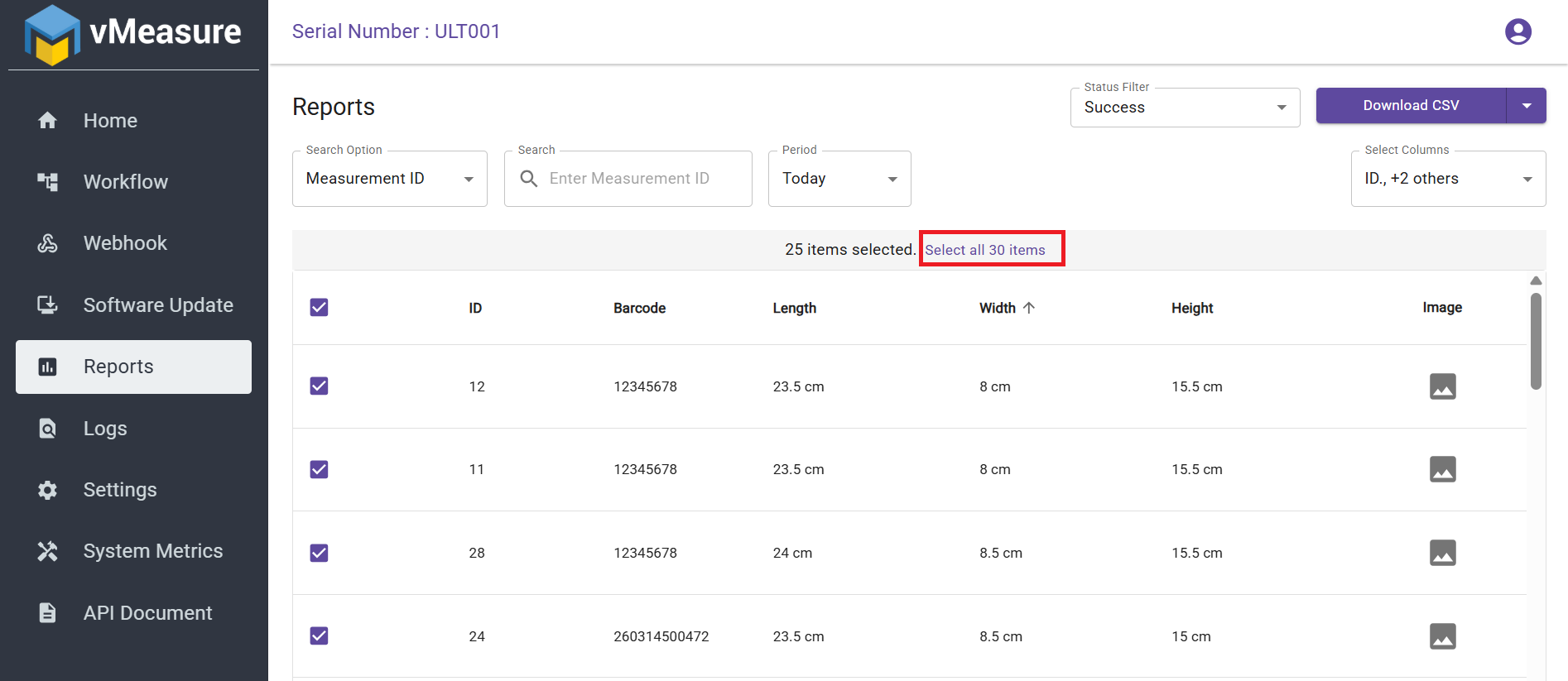
- Select "Download ZIP Images" (You can download only 25 records in single download)
- The images associated with the selected barcode will be downloaded as a ZIP file.
Notes:
- Ensure that the vMeasure device and your system are connected to the same network.
- Verify that the correct device IP address is used while accessing the offline website.
- If login issues persist, reset the password using the attached KB article and try again.
For any additional assistance, please contact the vMeasure Support Team via Support portal : raise the support ticket: https://support.visailabs.com
Was this article helpful?
That’s Great!
Thank you for your feedback
Sorry! We couldn't be helpful
Thank you for your feedback
Feedback sent
We appreciate your effort and will try to fix the article