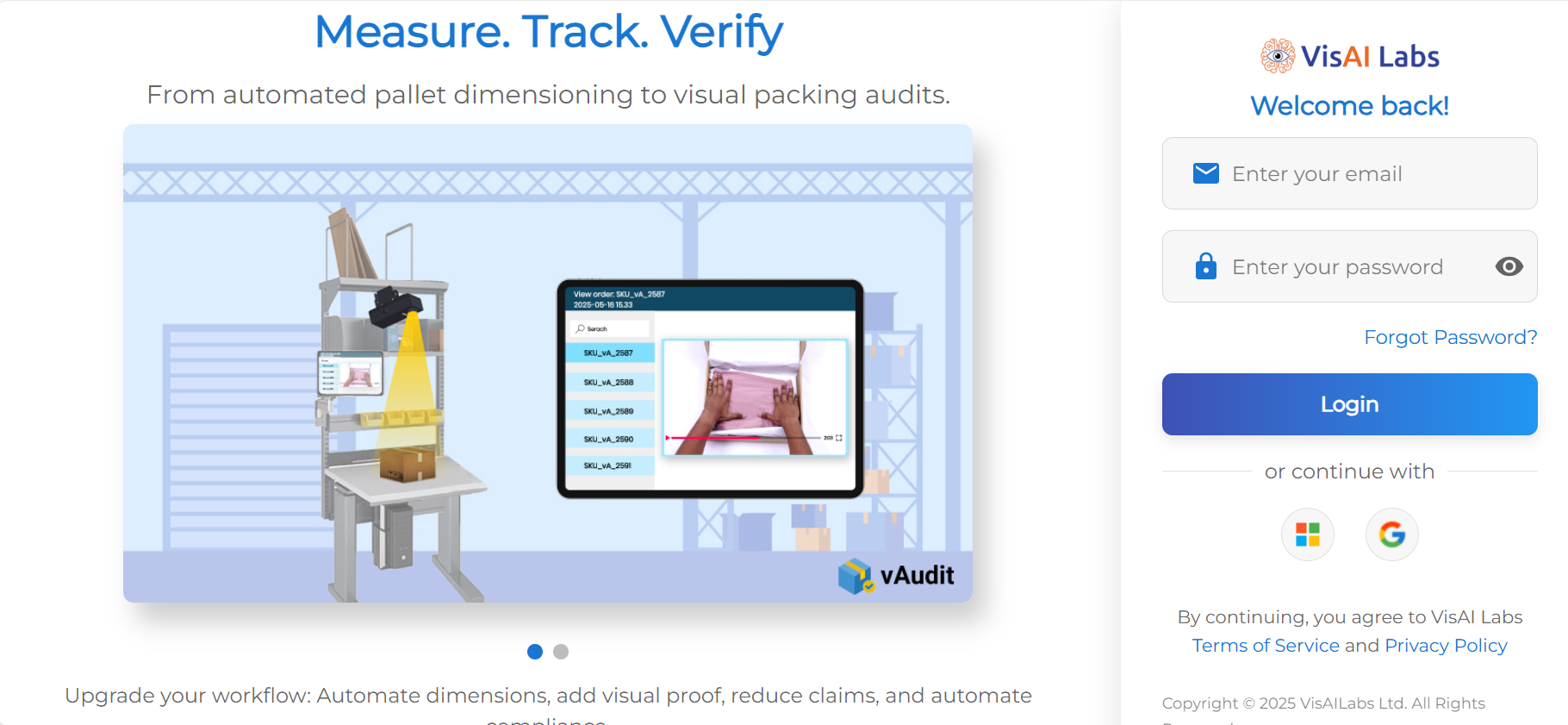
Step 1: Login to https://forge.vmeasure.ai/login
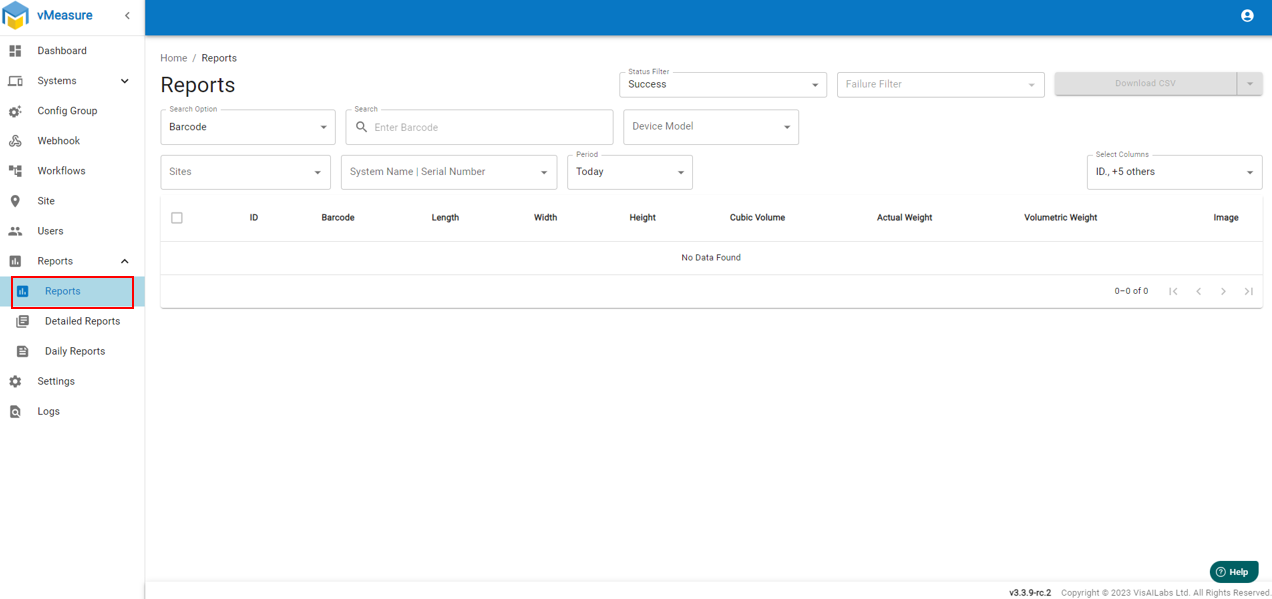
Step 2: Navigate to "Report"
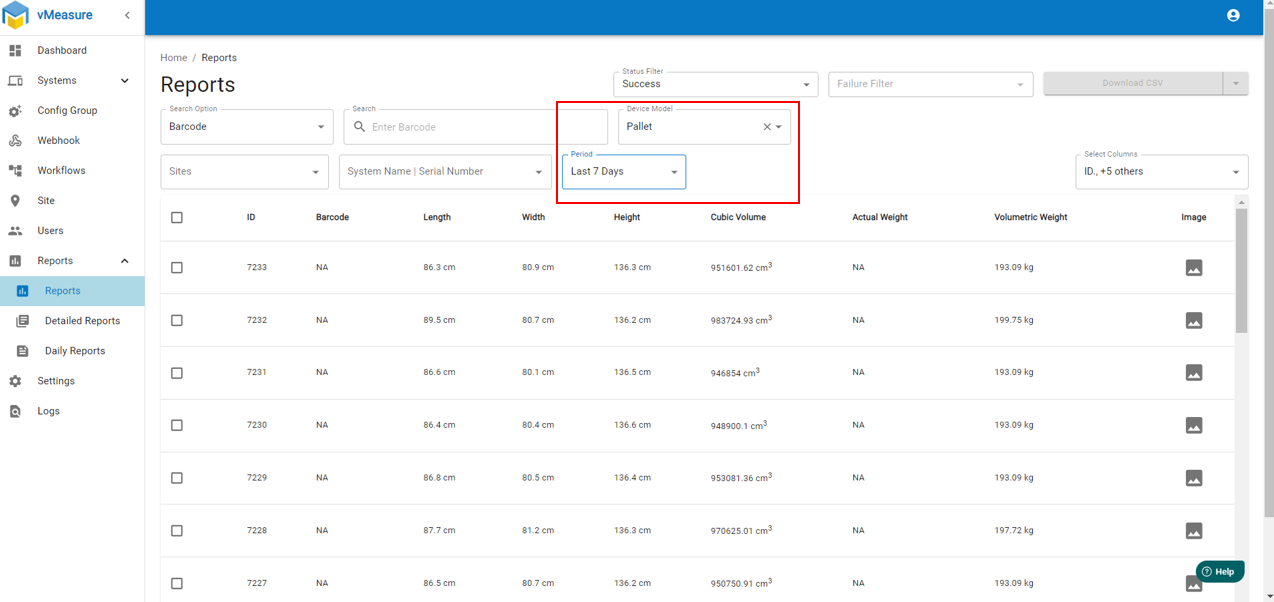
Step 3: Select "Device Model" as "Pallet" and select "Periods" from drop-down.
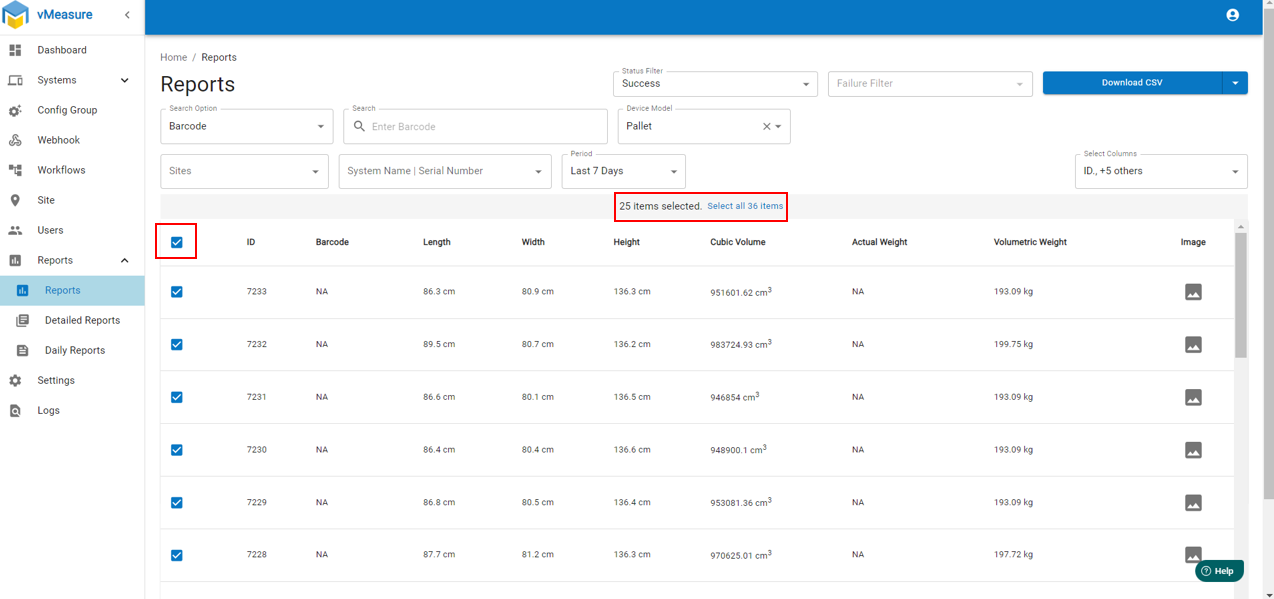
Step 4: Click on "Check Box" as shown in Image.
Note : Each page contains only 25 data entries. To download all the data, select " Select All" as shown in the image.
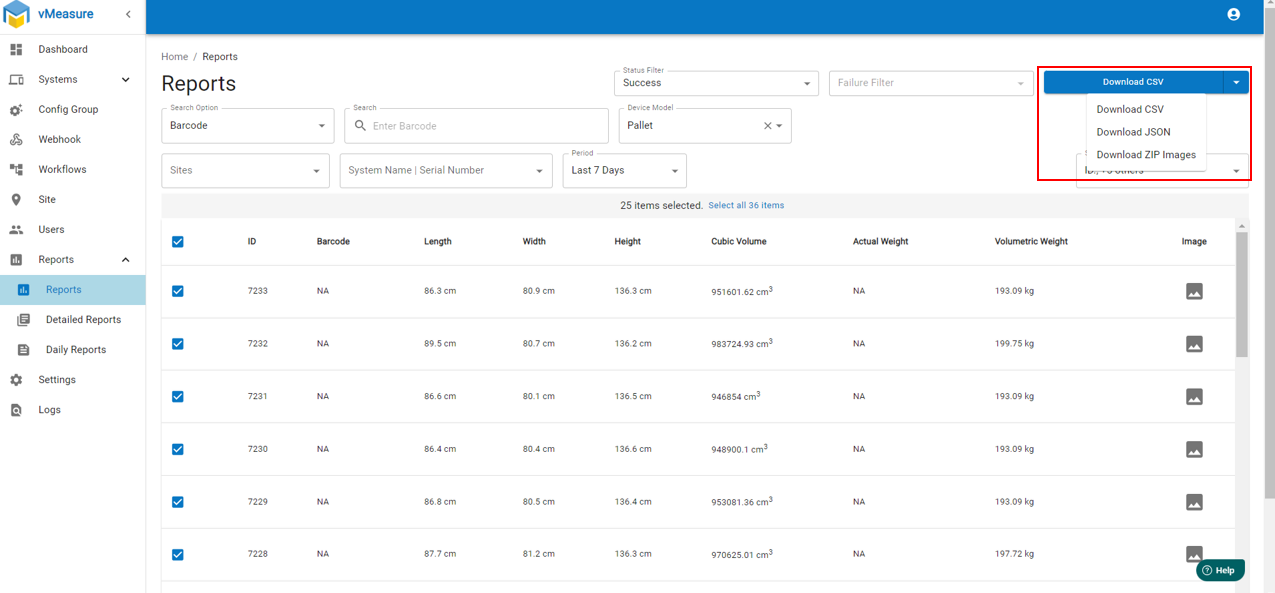
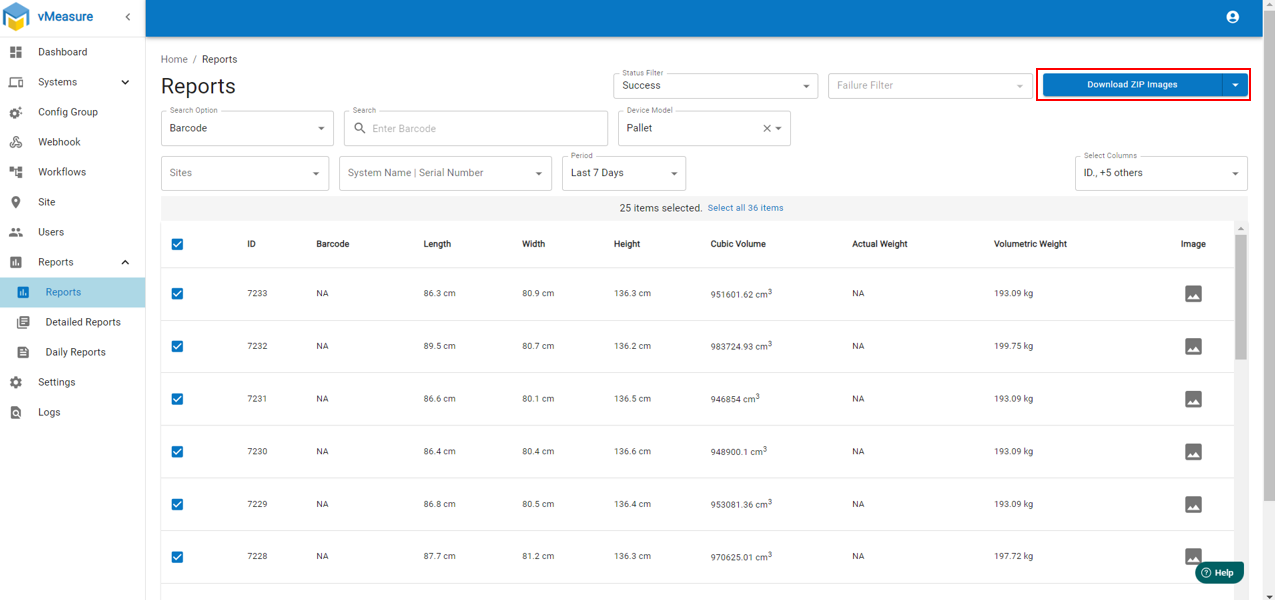
Step 5: Click on "Download CSV" and select the "Download Zip Image" from drop-down and click on "Download Zip Images."
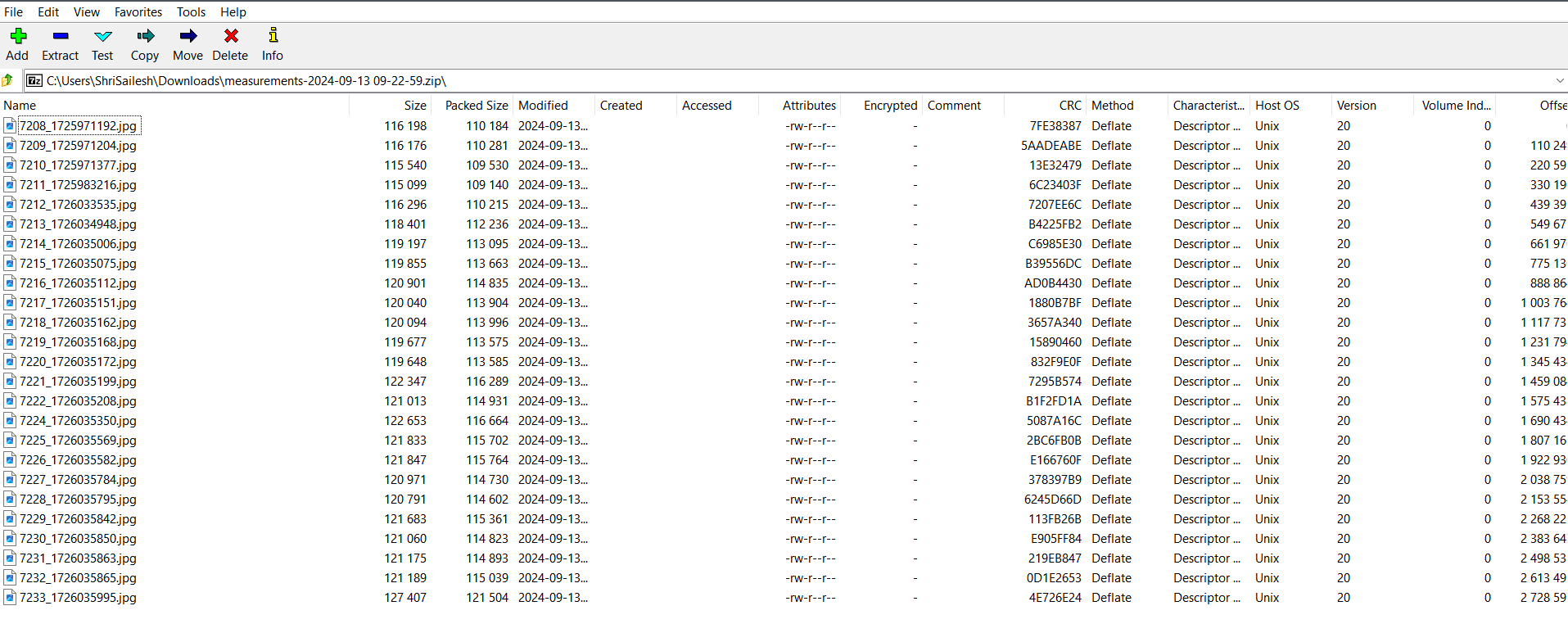
Note : Zip file will be downloaded in Download Folder and extract the file.
If you need any support , please drop a mail to vmeasure@visailabs.com
Was this article helpful?
That’s Great!
Thank you for your feedback
Sorry! We couldn't be helpful
Thank you for your feedback
Feedback sent
We appreciate your effort and will try to fix the article