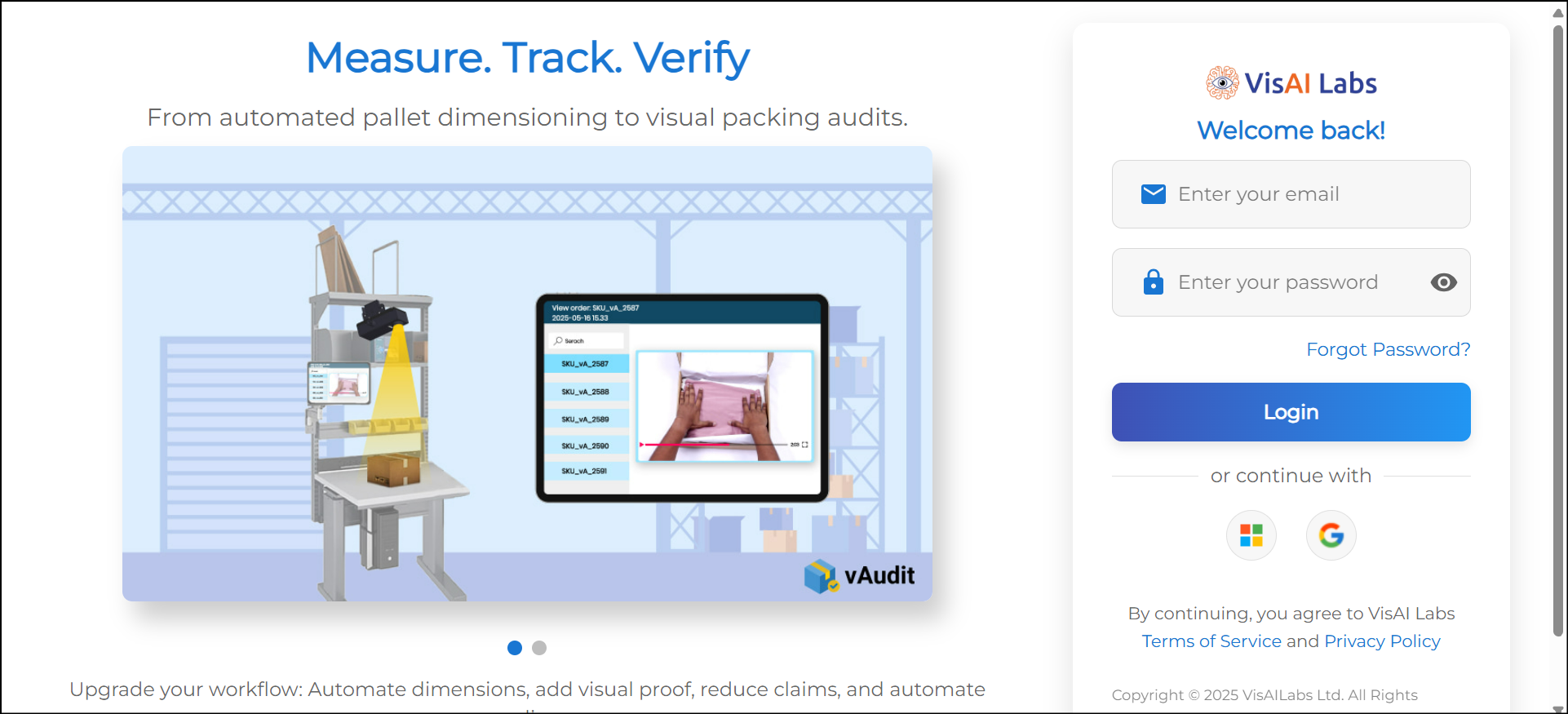
- Login to vMeasure forge using your login credentials
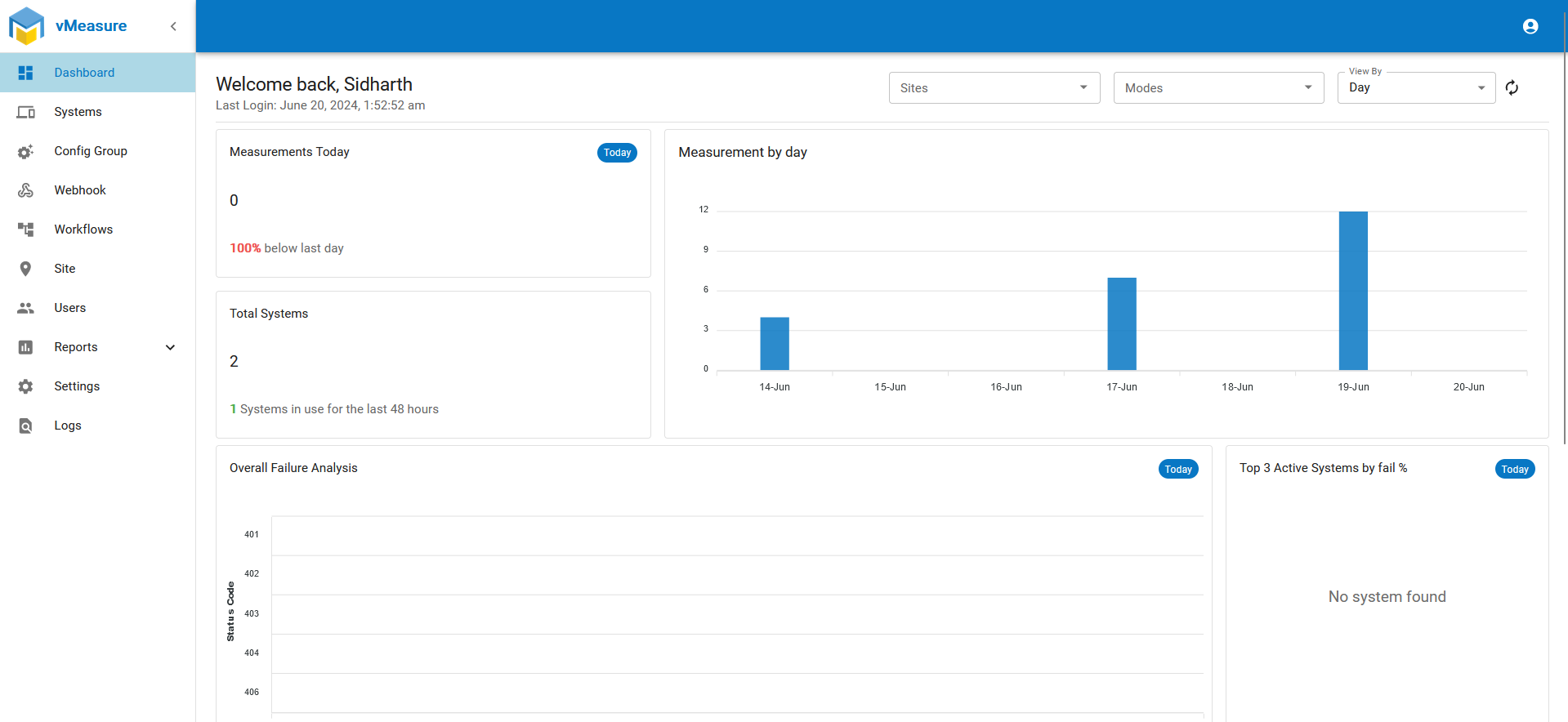
- Once logged in to the "Dashboard" page go to the "Reports" page.
In the sub-menu select the "Reports" option.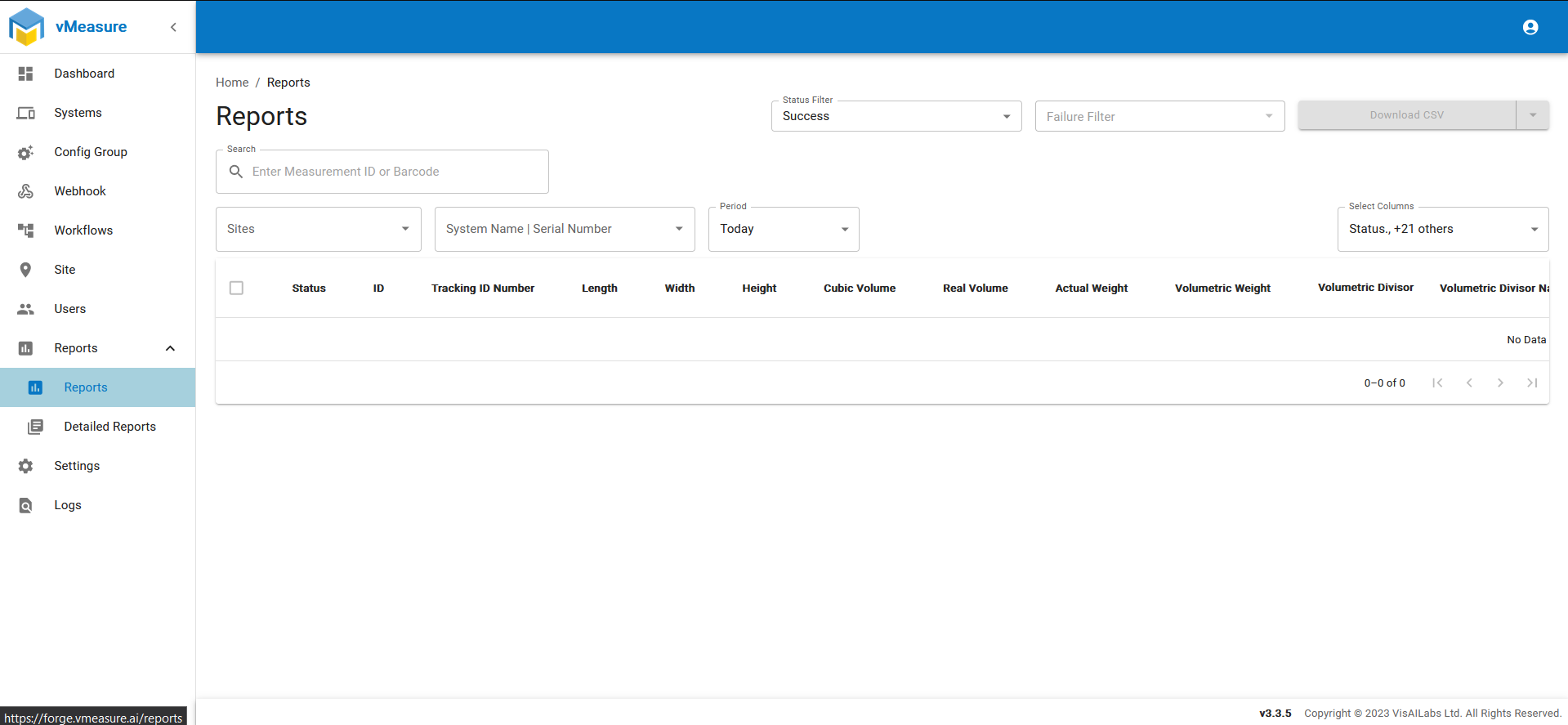
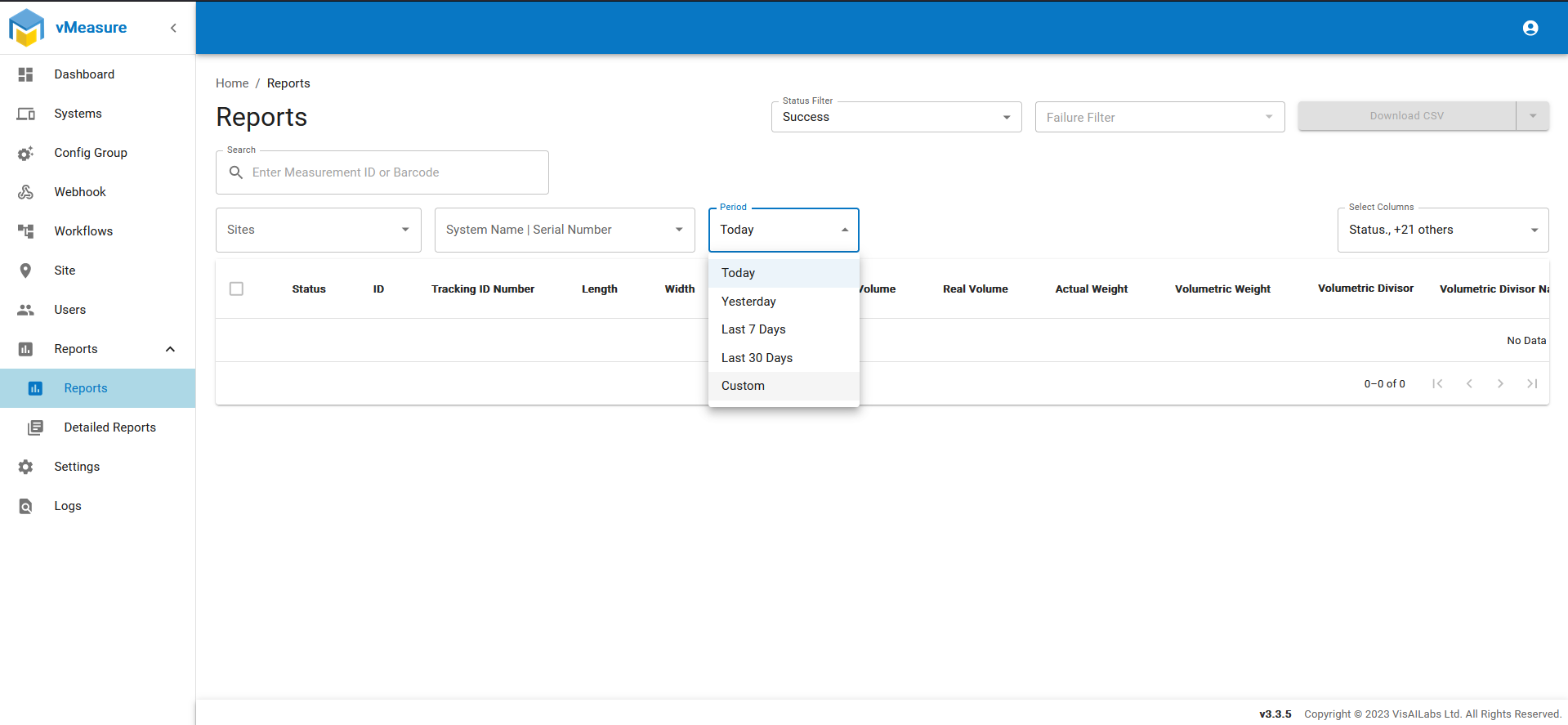
- Select the "Period" or select "Custom".
NOTE: You can also fine tune what type of data you require in the report by using the "Select Columns" option.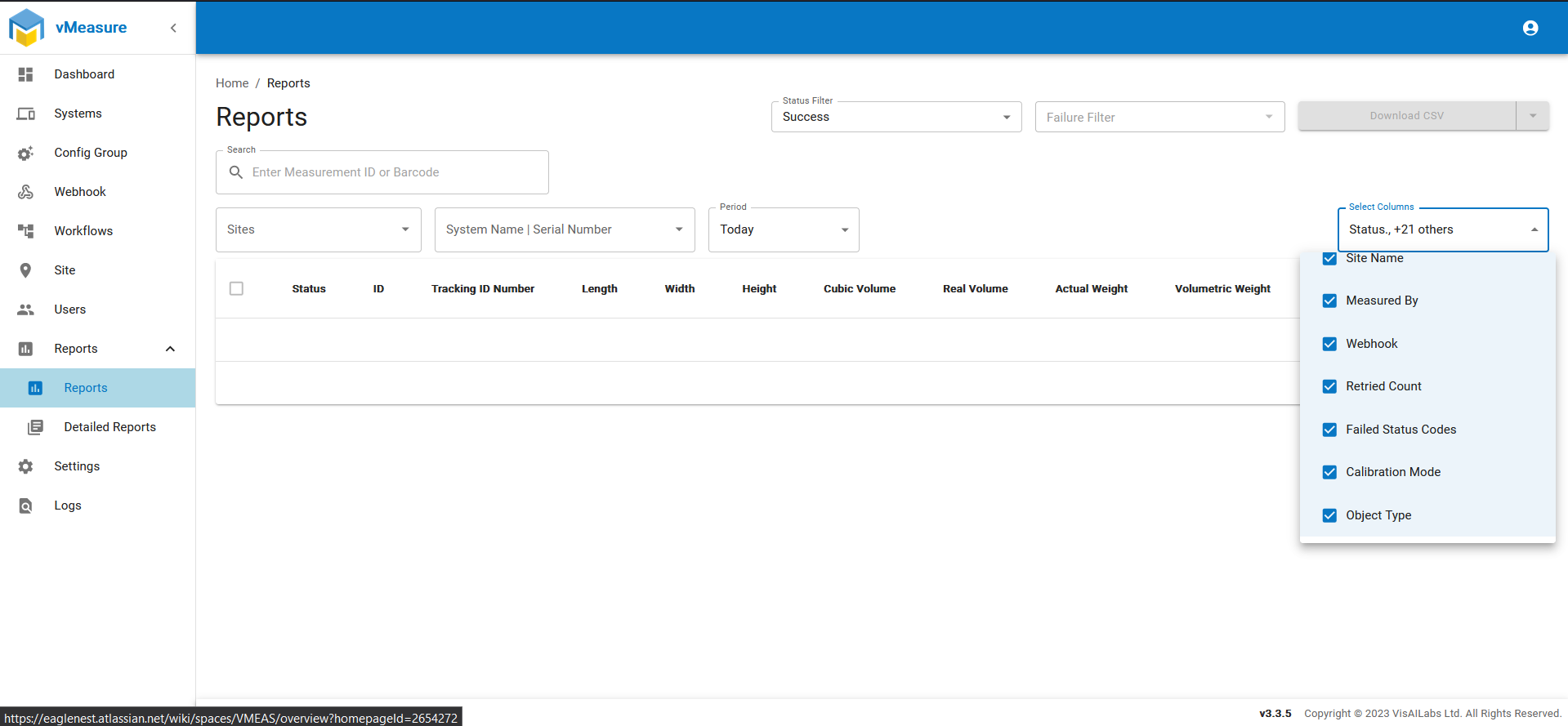
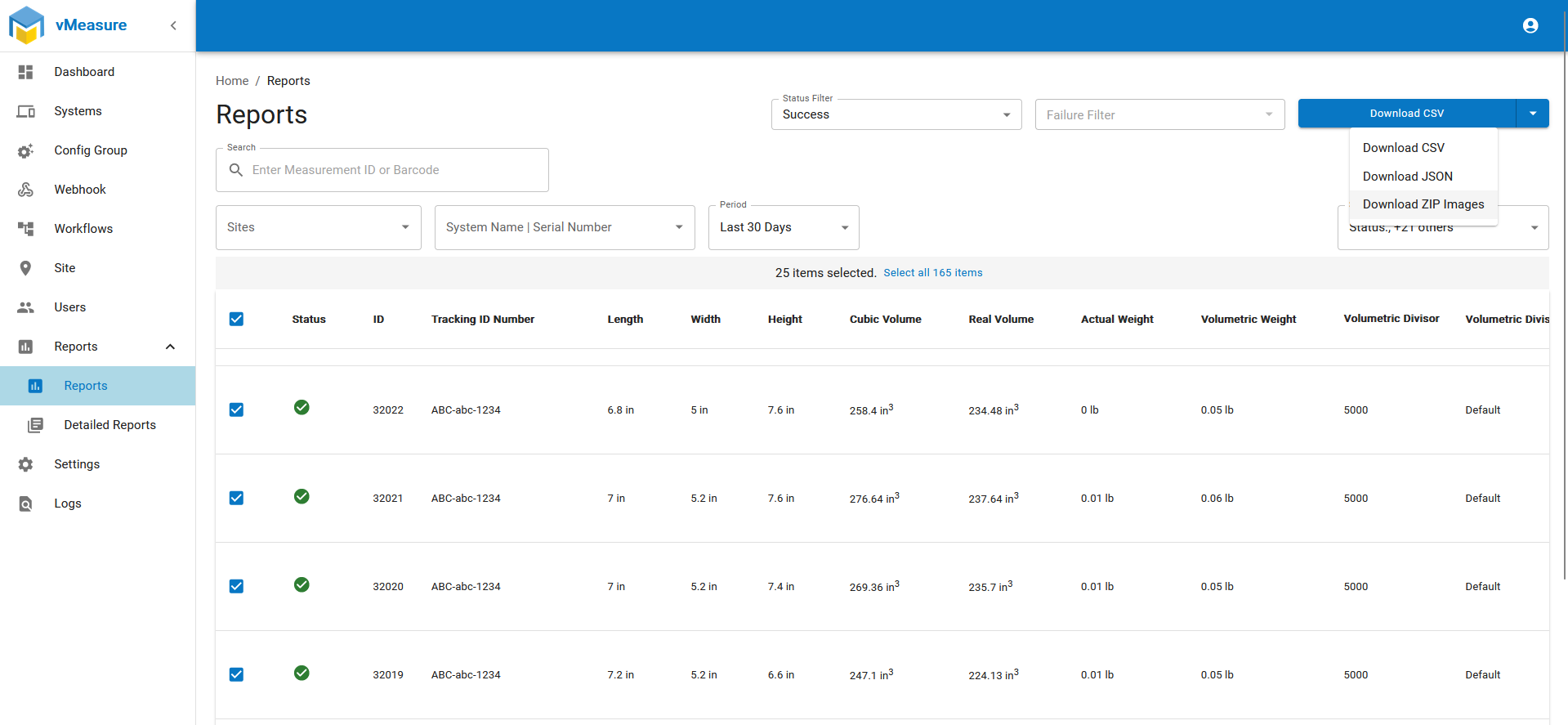
- Mark the checkboxes for the measurements required, if all the measurements are required ( You can select a maximum of upto 25 dims for images in zip).
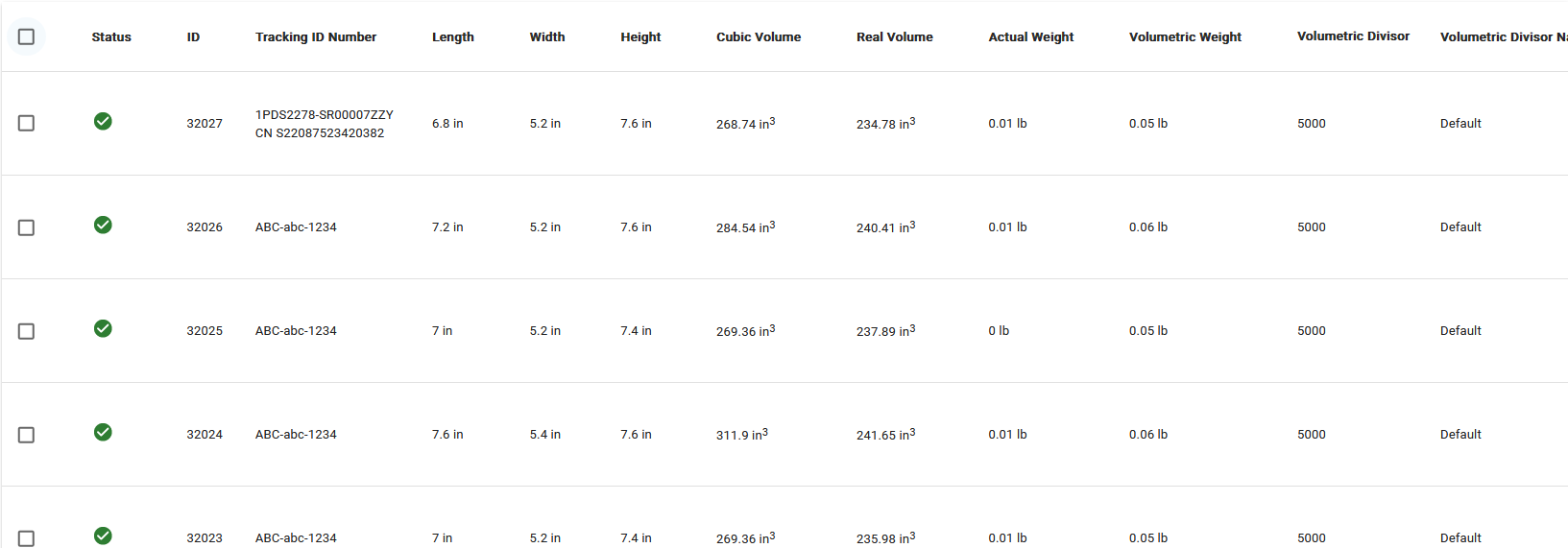
- Once the desired dims are selected you can click the "Download ZIP Images" from the dropdown. You can find all the downloaded images in a zipped file in your Downloads folder.
If you need any support , please drop a mail to vmeasure@visailabs.com or Click here to Submit a Ticket.
Was this article helpful?
That’s Great!
Thank you for your feedback
Sorry! We couldn't be helpful
Thank you for your feedback
Feedback sent
We appreciate your effort and will try to fix the article