Please follow the steps below to download measurement data from Forge:
What time frame of measurement data is available for download from Forge?
For example:
1st period - last 90 days to last 60 days.
2nd period - last 59 days to last 30 days
3rdperiod - last 29 days to till date.
1. Login to Forge - Click Here to loin Forge.
2. Navigate to the Reports section.
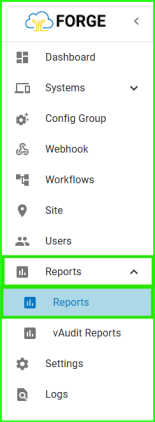
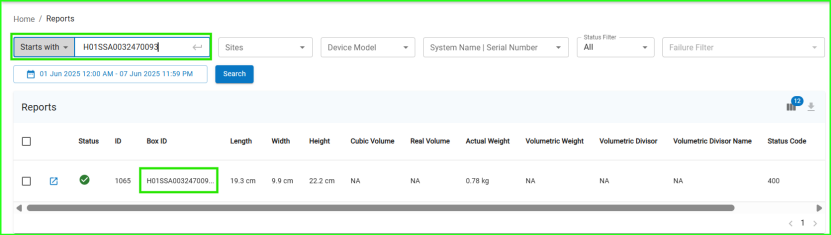
3. If you're looking for a specific Barcode ID measurement, enter the barcode ID in the Search bar to retrieve the corresponding data.
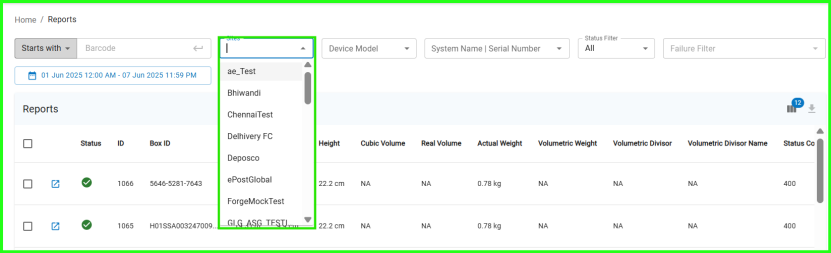
4. Use the Sites dropdown to select the desired site.
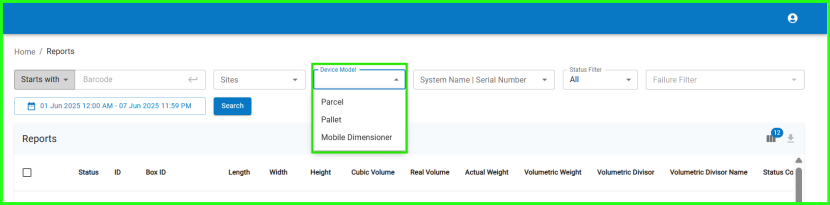
5. Select the Device Model from the dropdown (Parcel - vMeasure / Pallet / Mobile Dimensioner).
6. In the System Name / Serial Number dropdown, choose the particular device from which you want to download the measurement data.
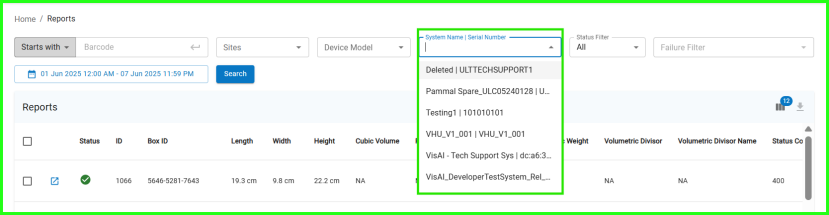
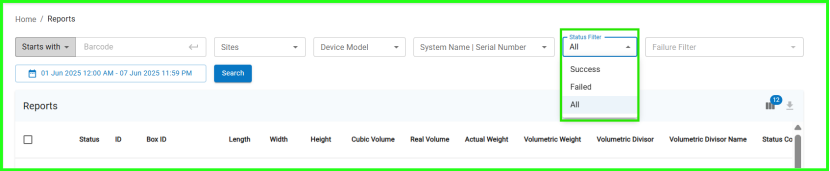
7. Use the Status Filter to select the type of data:
- Success, Failed, or All
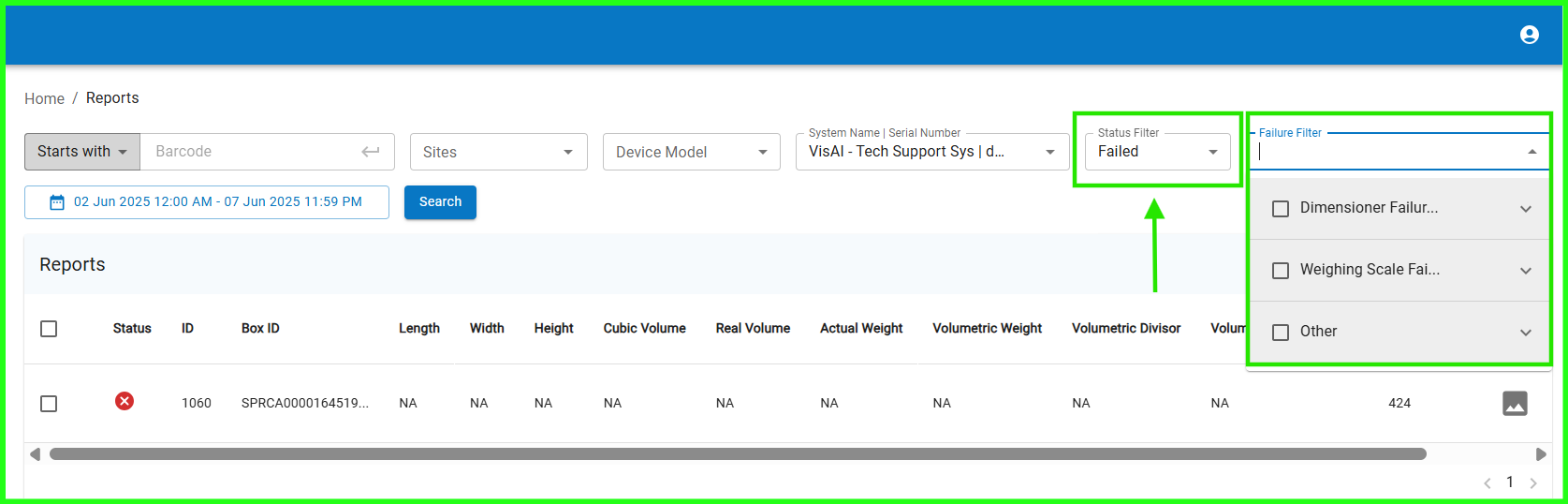
- If selecting Failed, you can further filter by Dimensioner Failure, Weighing Scale Failure, or Other as needed.
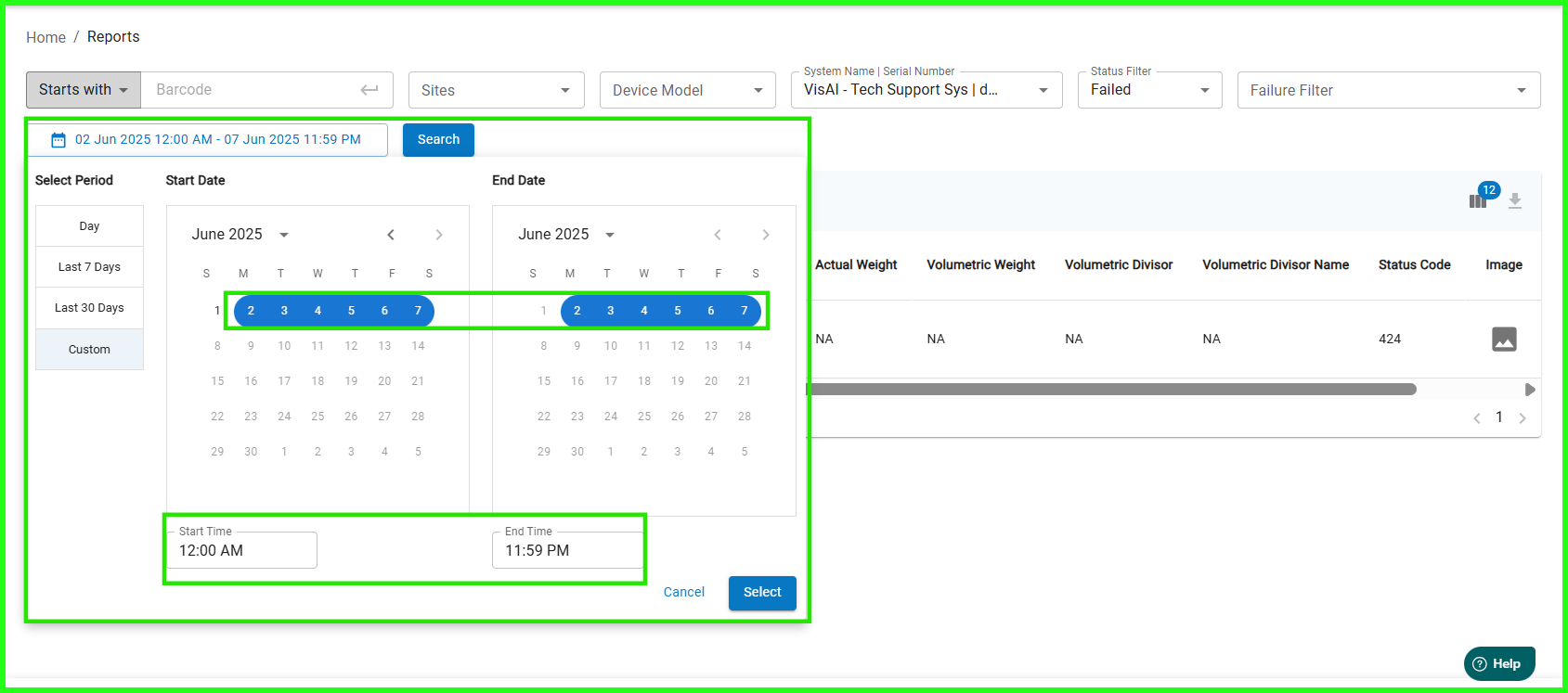
8.Under Select Period, choose:
- Day, Last 7 Days, Last 30 Days, or Custom
- Under the Custom option, you can select the desired dates and define a specific Start Time and End Time as per your requirements.
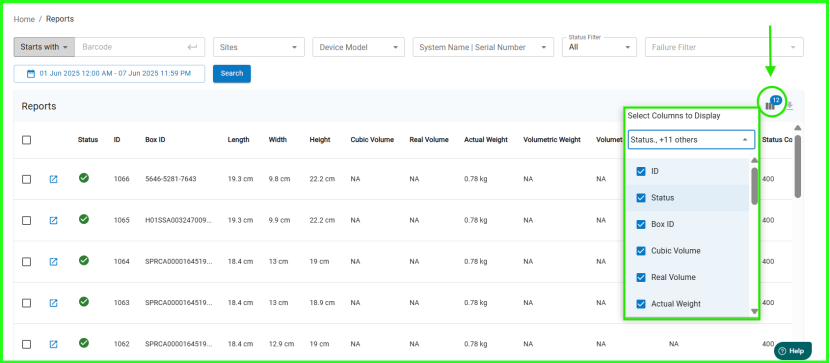
9. On the top-right of the Reports page, click Modify Column and select the specific data columns you want to view or download.
10.To download:
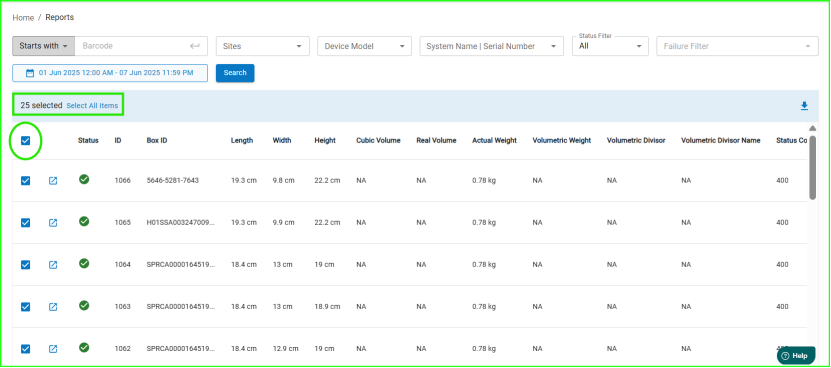
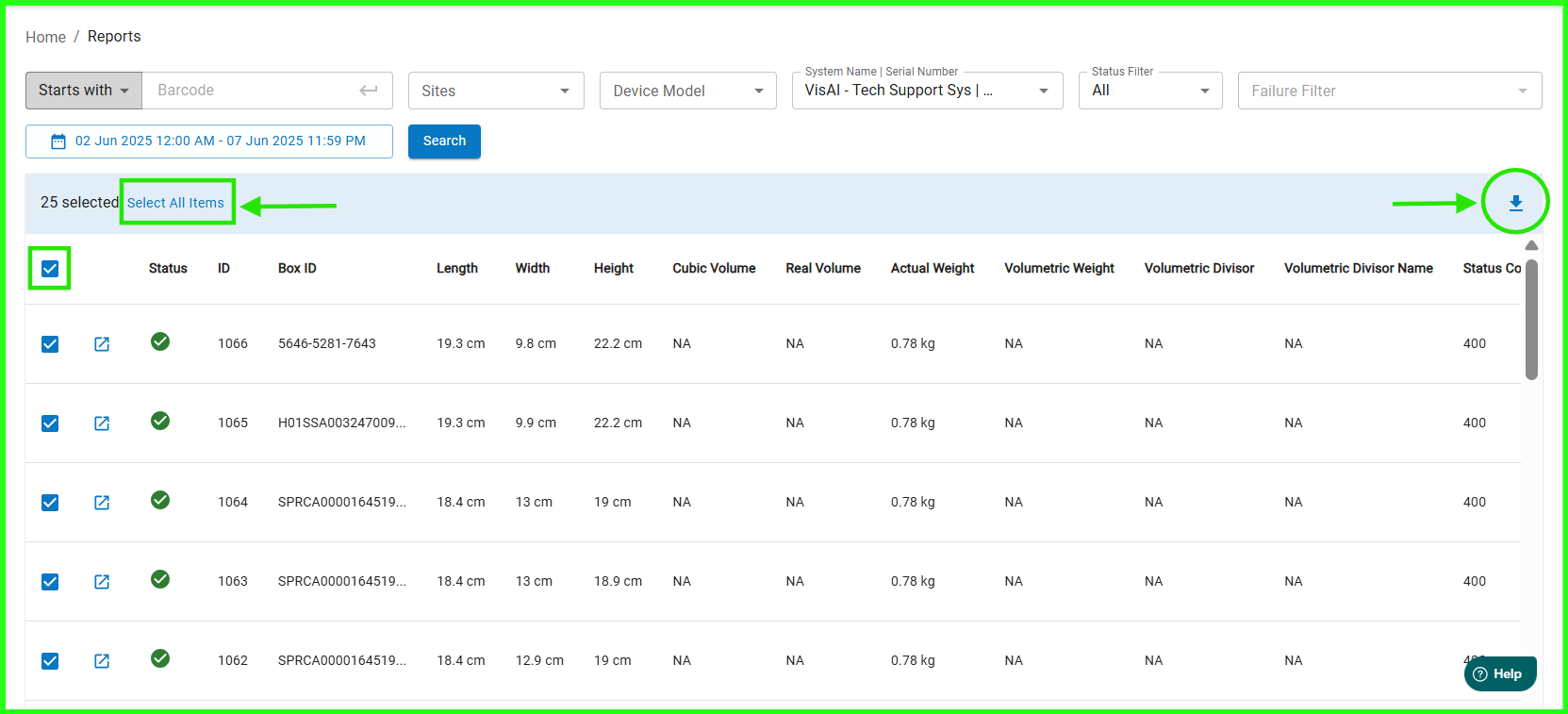
- Click the top checkbox to select all entries on the current page (up to a maximum of 25 records per page). If user is downloading 25 records or less than 25 records the data will be downloaded immediately in selected format.
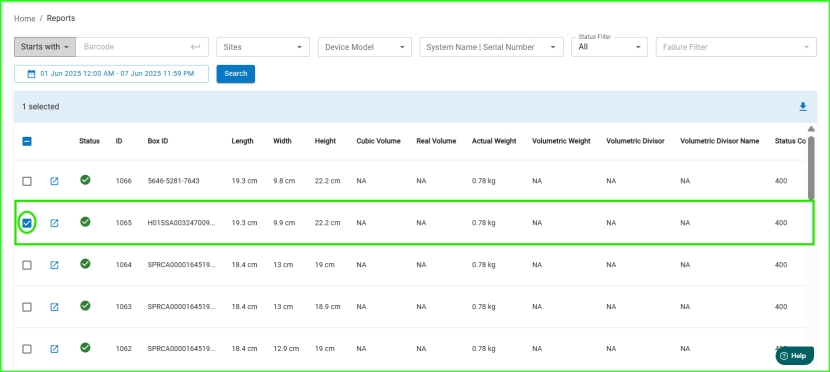
- Or select specific rows using individual checkboxes.
11. Click on Download Reports and choose your preferred format:
- Download CSV, Download JSON, or Download ZIP Images.
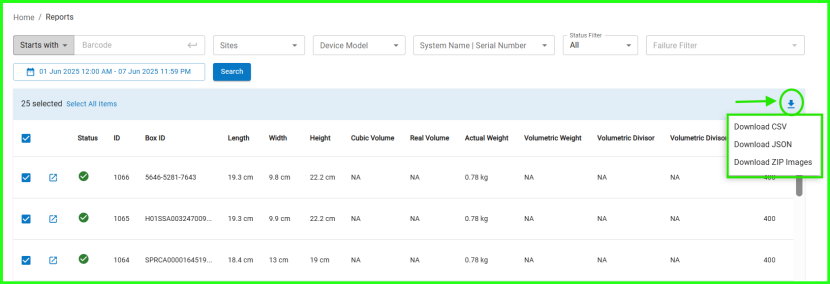
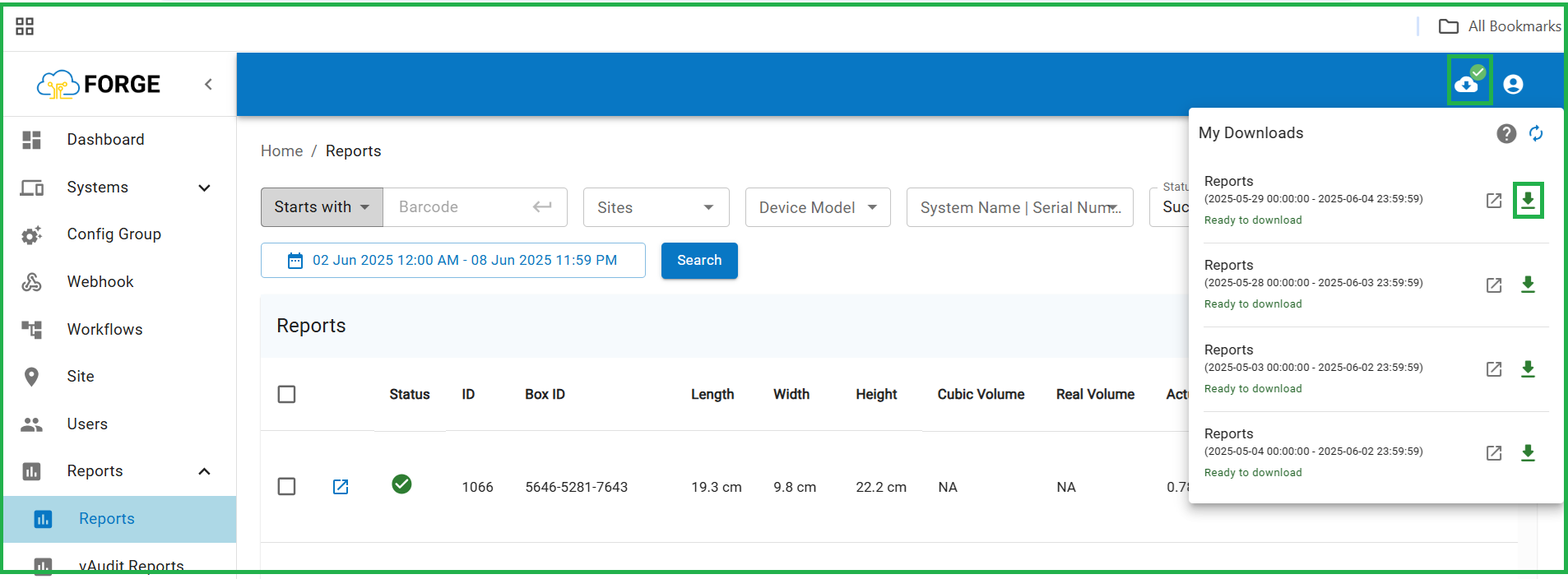
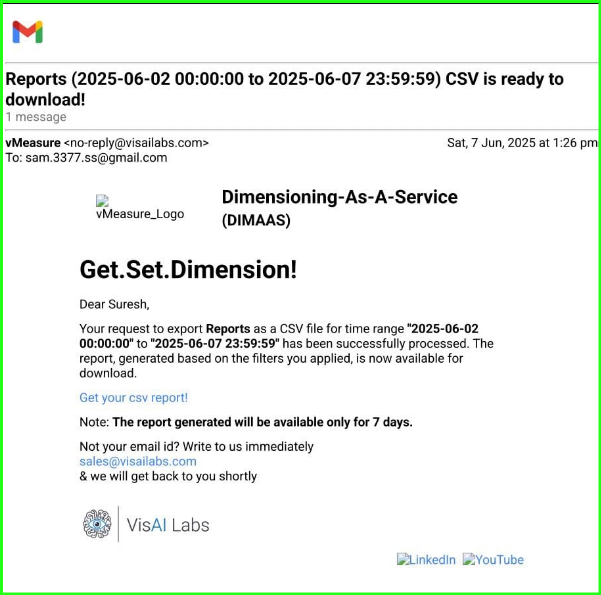
- To download more than 25 measurement records, click the top checkbox and choose the 'Select All Items' option. Next, click the Download icon. The data will be queued, prepare & then ready to download. Once the data is ready to download state a notification email will be sent to your registered email ID (see image below). Once you receive the notification, you can proceed to download the complete measurement data from Forge for the selected period. (Note: When using the 'Select All Items' option, the data will be downloaded in CSV format only.)
- The queue downloaded reports will be available for 7 days in the cloud downloads & post 7 days the data will be deleted from the queue downloads option. (refer the image below).
Mail Notification Image:
Was this article helpful?
That’s Great!
Thank you for your feedback
Sorry! We couldn't be helpful
Thank you for your feedback
Feedback sent
We appreciate your effort and will try to fix the article