How to Download Reports from vMeasure Forge
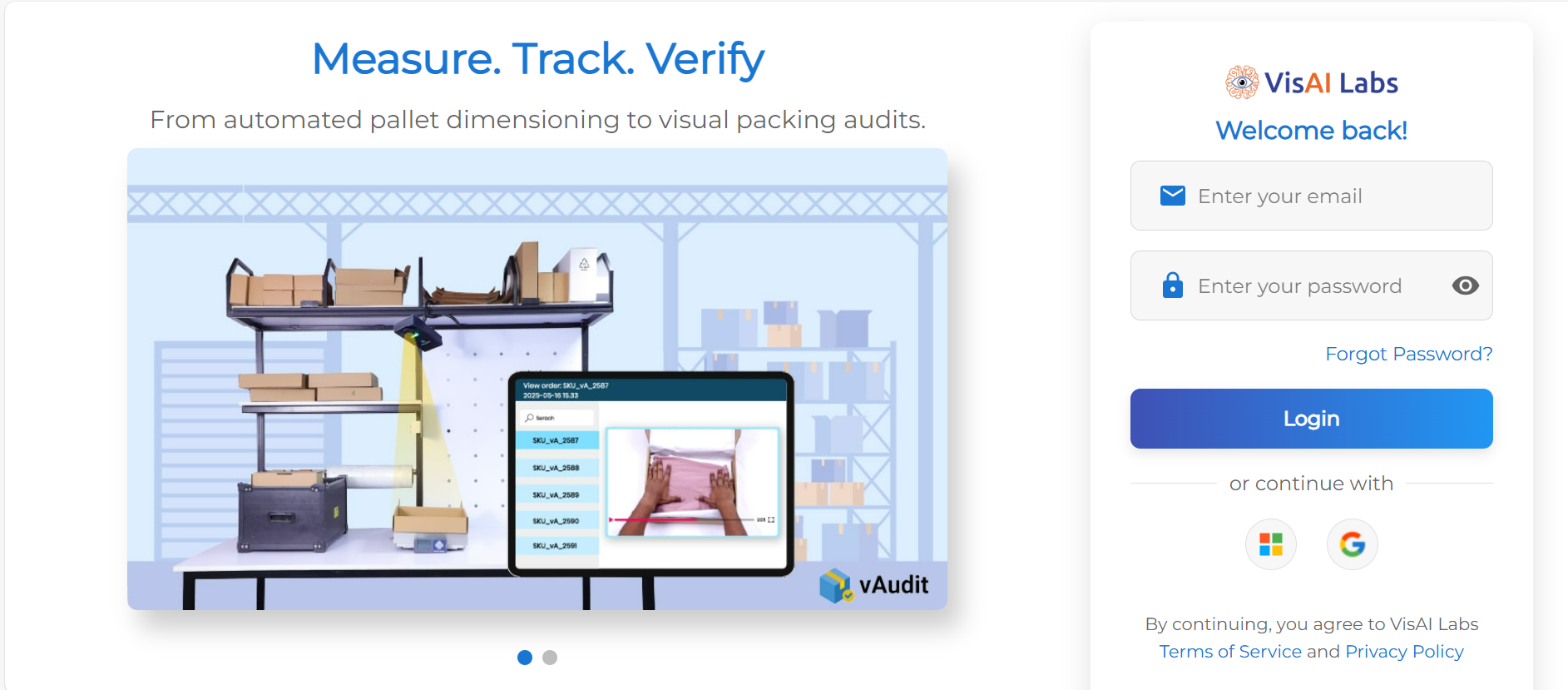
Step 1: Log in to vMeasure Forge https://forge.vmeasure.ai/login using your credentials.
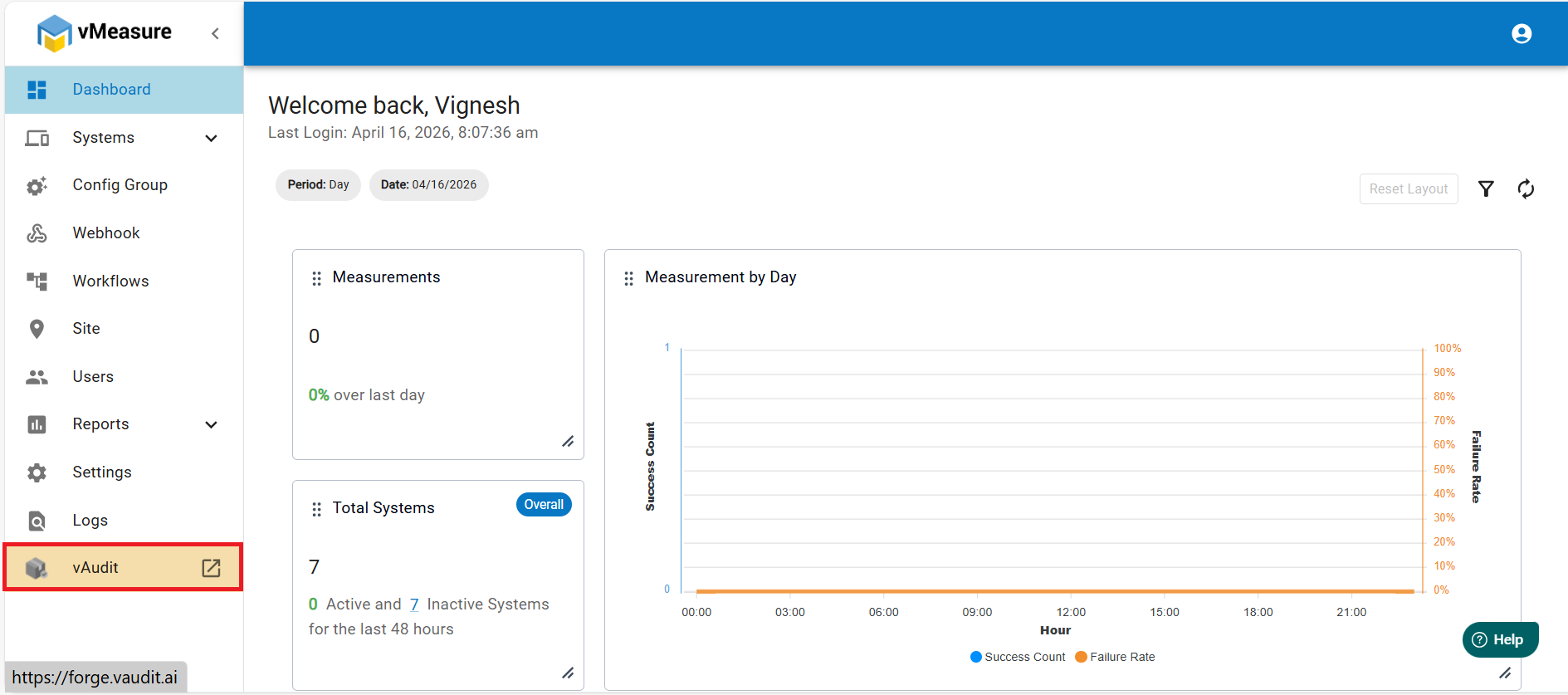
Step 2: From the dashboard, click on “vAudit” at the bottom. This will navigate you to the vAudit Forge section.
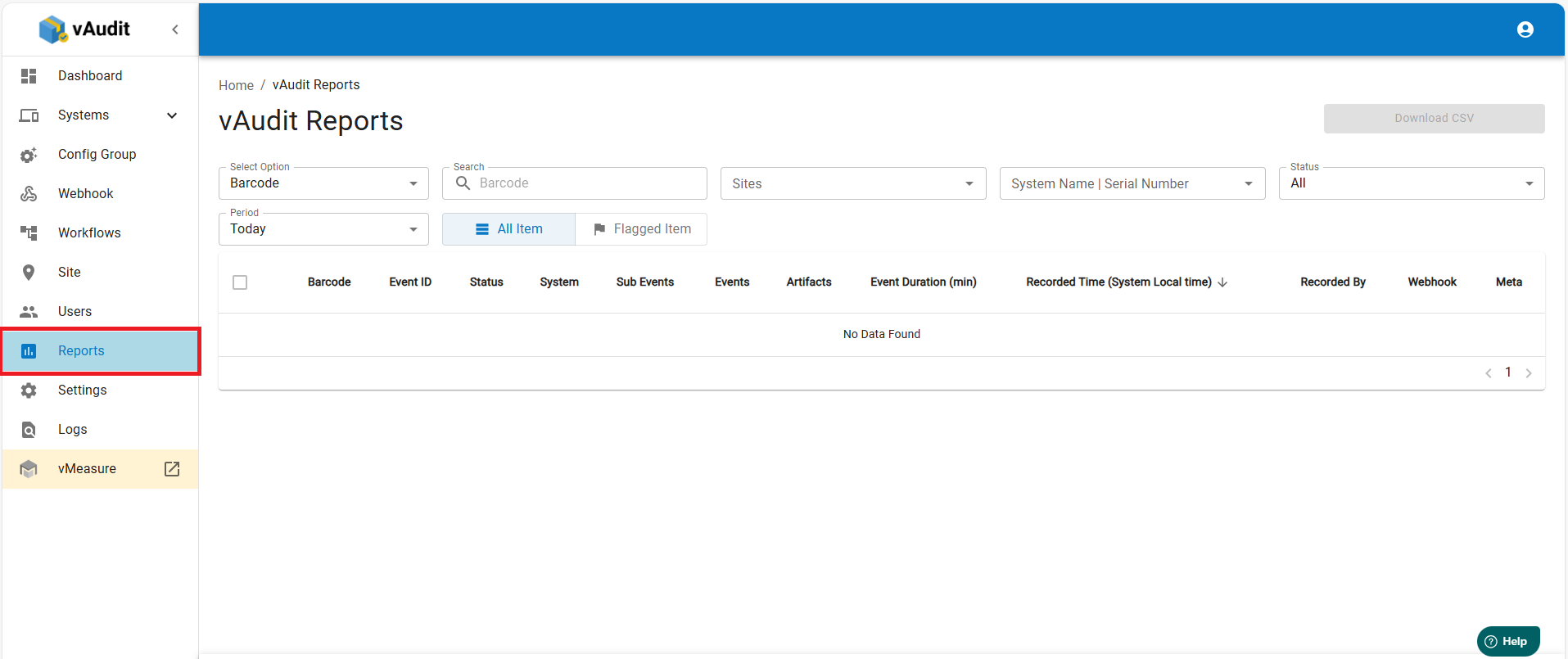
Step 3: Click on the “Report” tab.
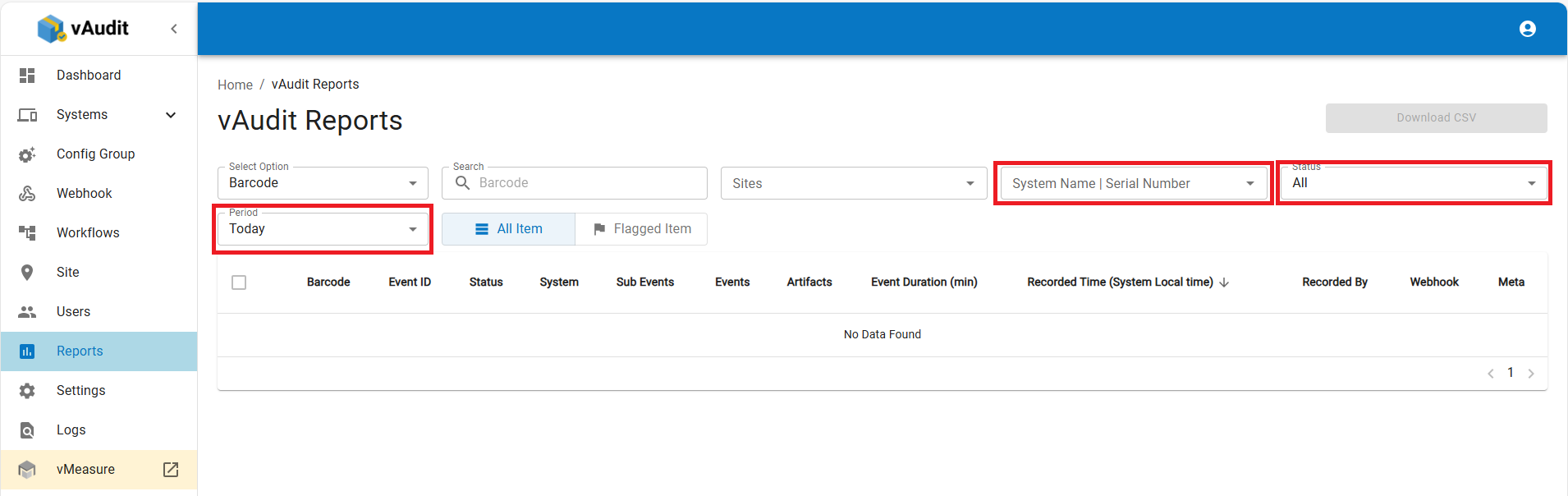
 Apply the required filters such as:
- Period
- System S/N
- Status
Step 4: Select the reports to download:
- Click the checkbox and choose “Select All Items” to download all available records.
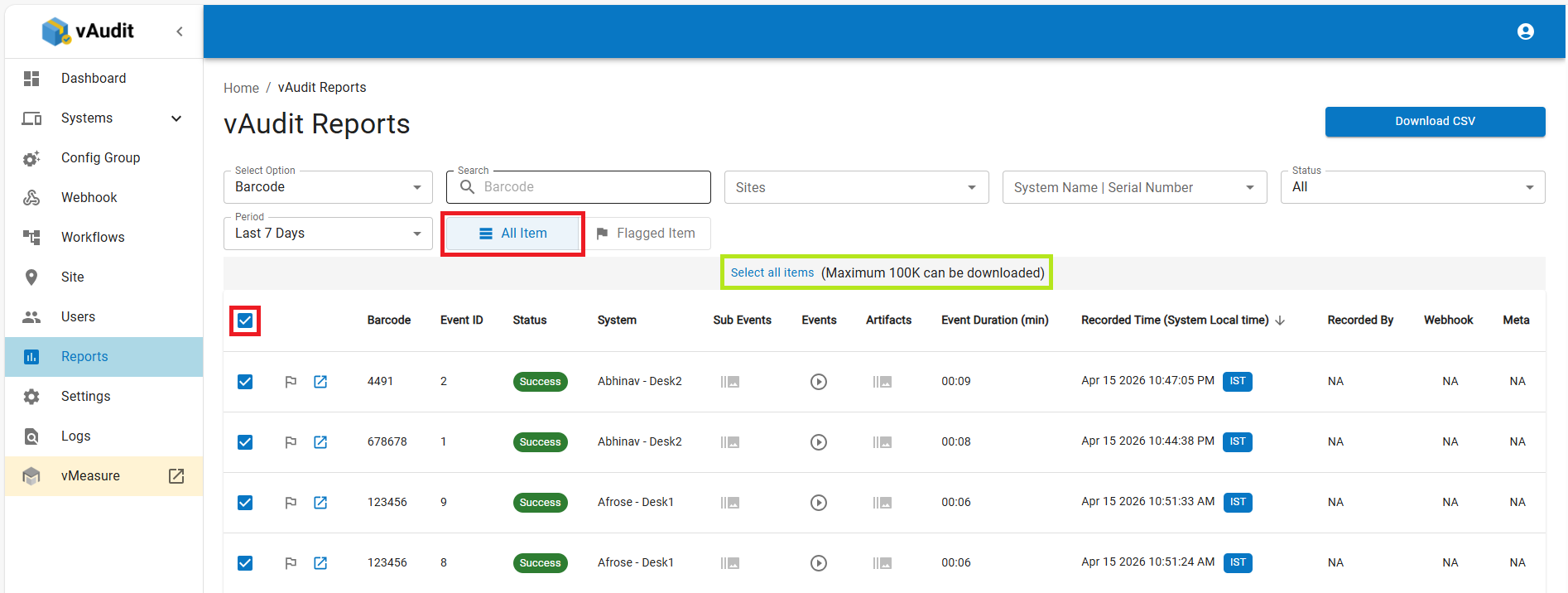
- Note: If “Select All Items” is not selected, only the first 25 records (Page 1 data) will be downloaded.
Step 5: Click on “Download CSV”.
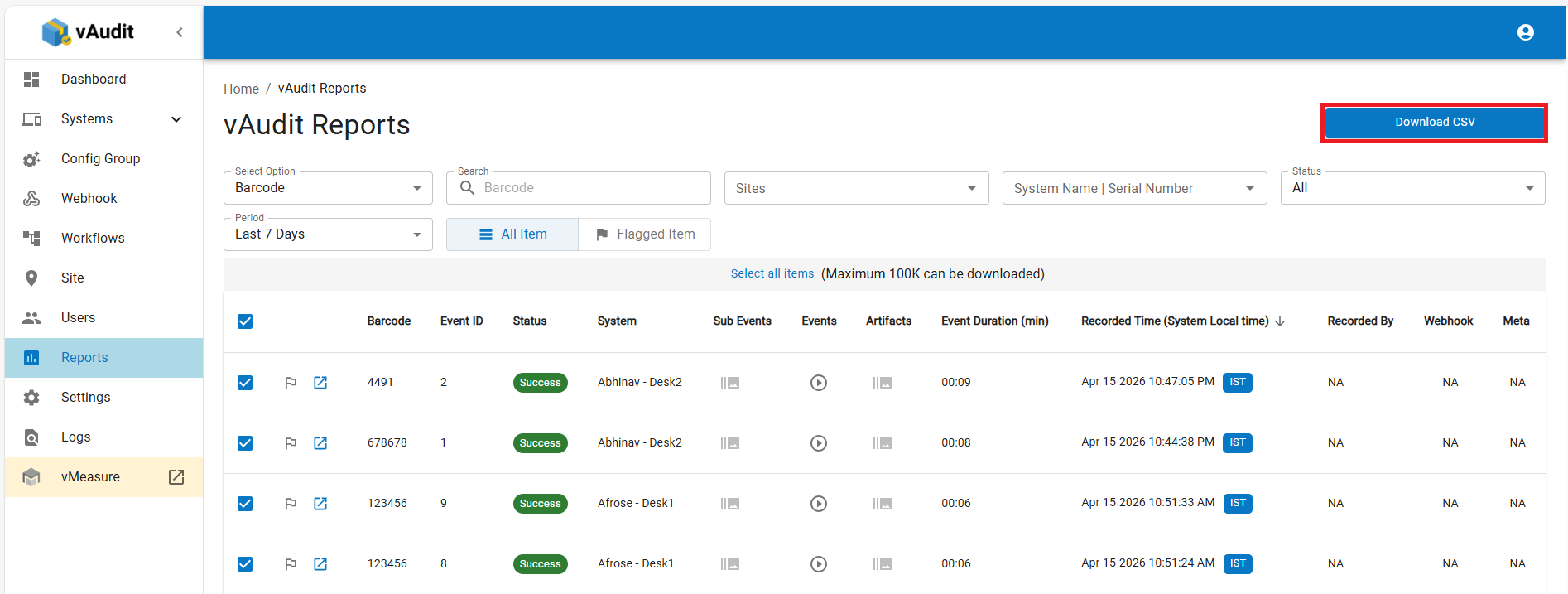
The file will be downloaded to the Downloads folder on your PC as CSV file.
Was this article helpful?
That’s Great!
Thank you for your feedback
Sorry! We couldn't be helpful
Thank you for your feedback
Feedback sent
We appreciate your effort and will try to fix the article