Workflow Creation – vAudit (vMeasure Forge Portal)
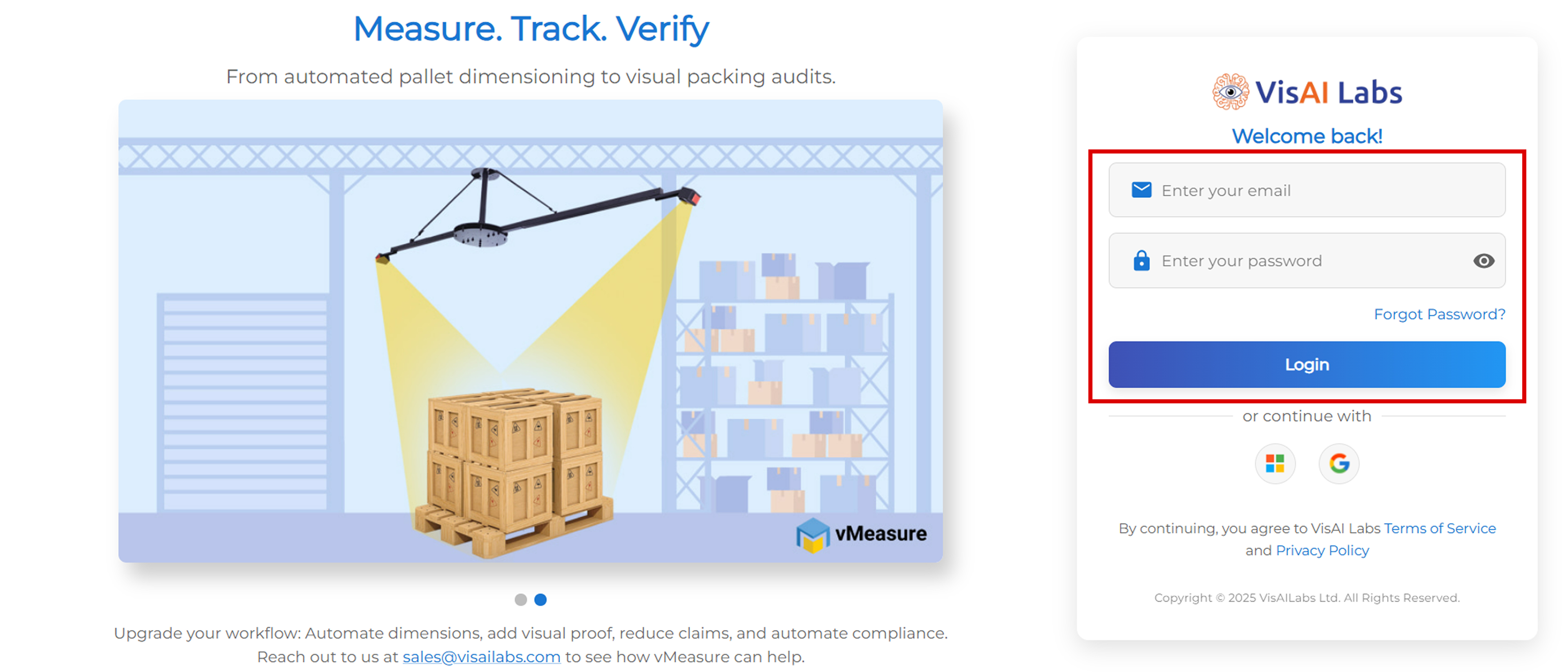
Step 1: Login to Portal
- Login to vMeasure Forge Portal using your credentials
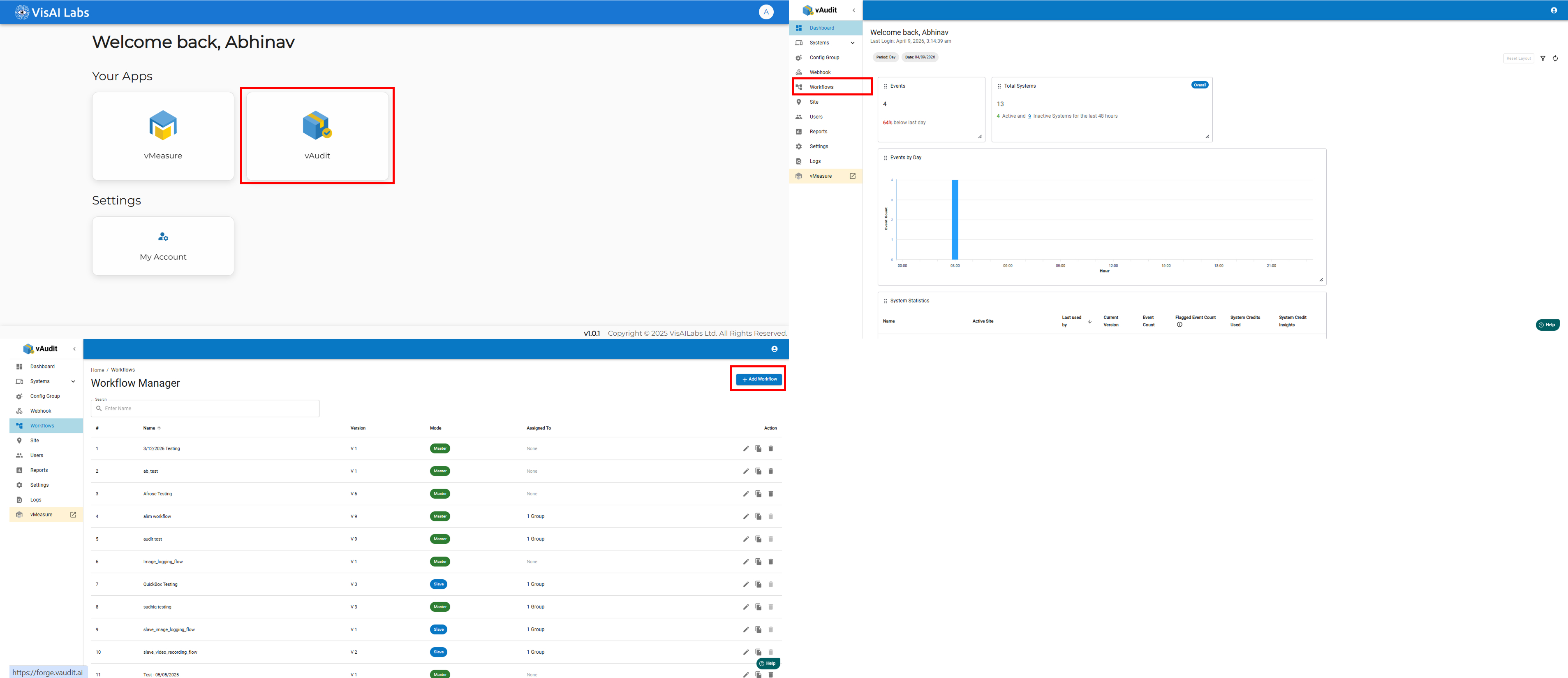
Step 2: Navigate to Workflow Section
- Go to vAudit module
- Click on “+ Add Workflow”
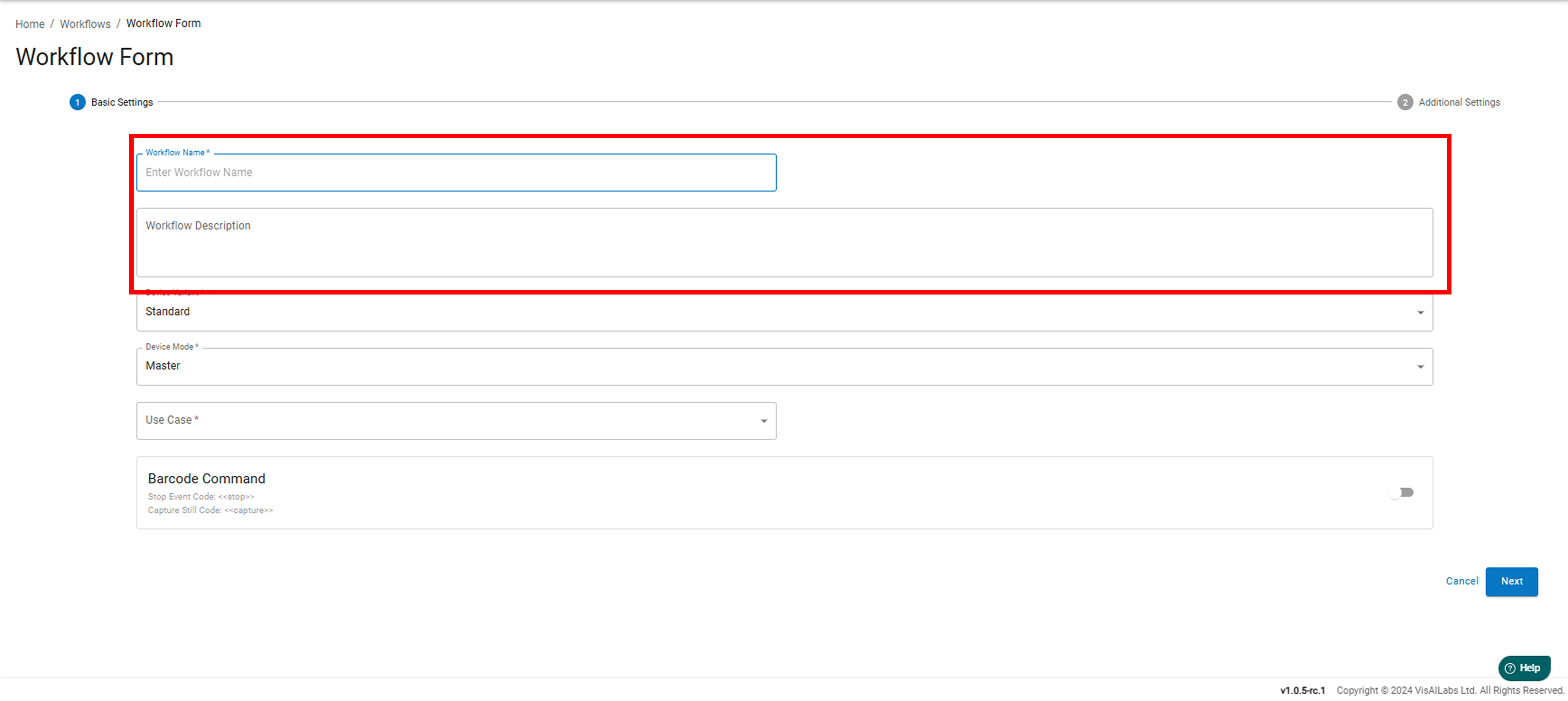
Step 3: Enter Basic Details
- Provide:
- Workflow Name
- Workflow Description
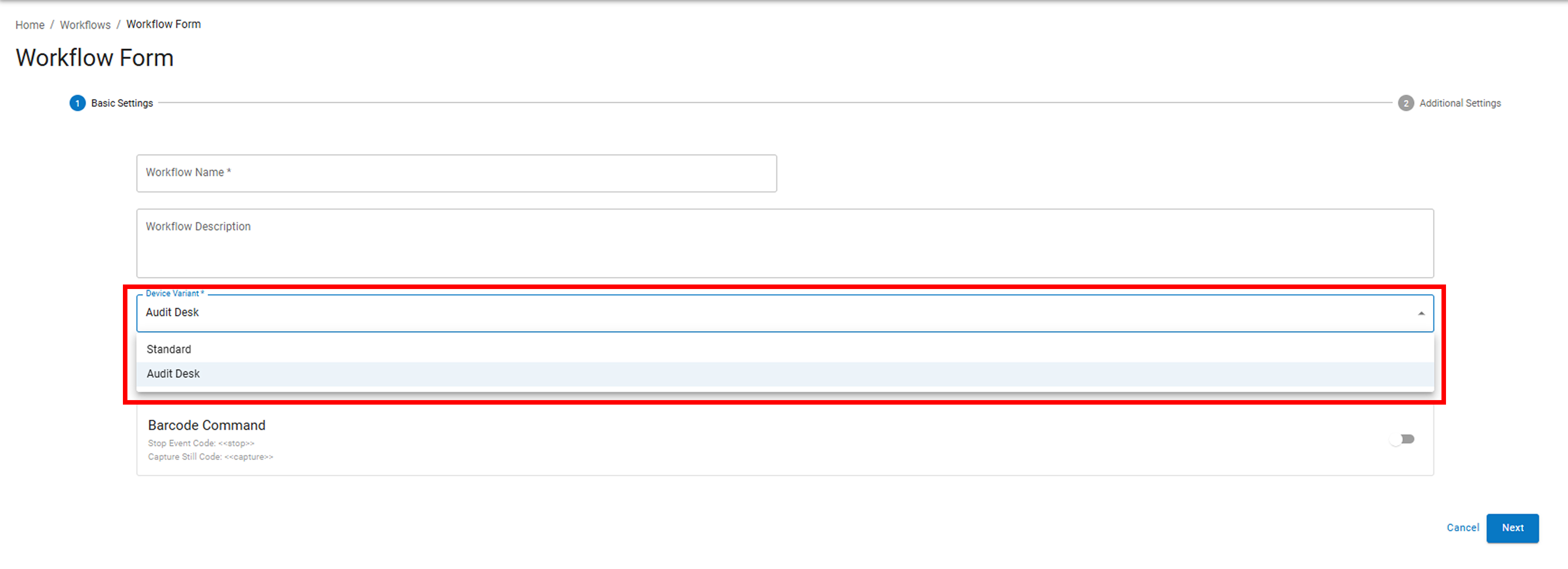
Step 4: Select Device Variant
- Click on Device Variant
- Select “Audit Desk”
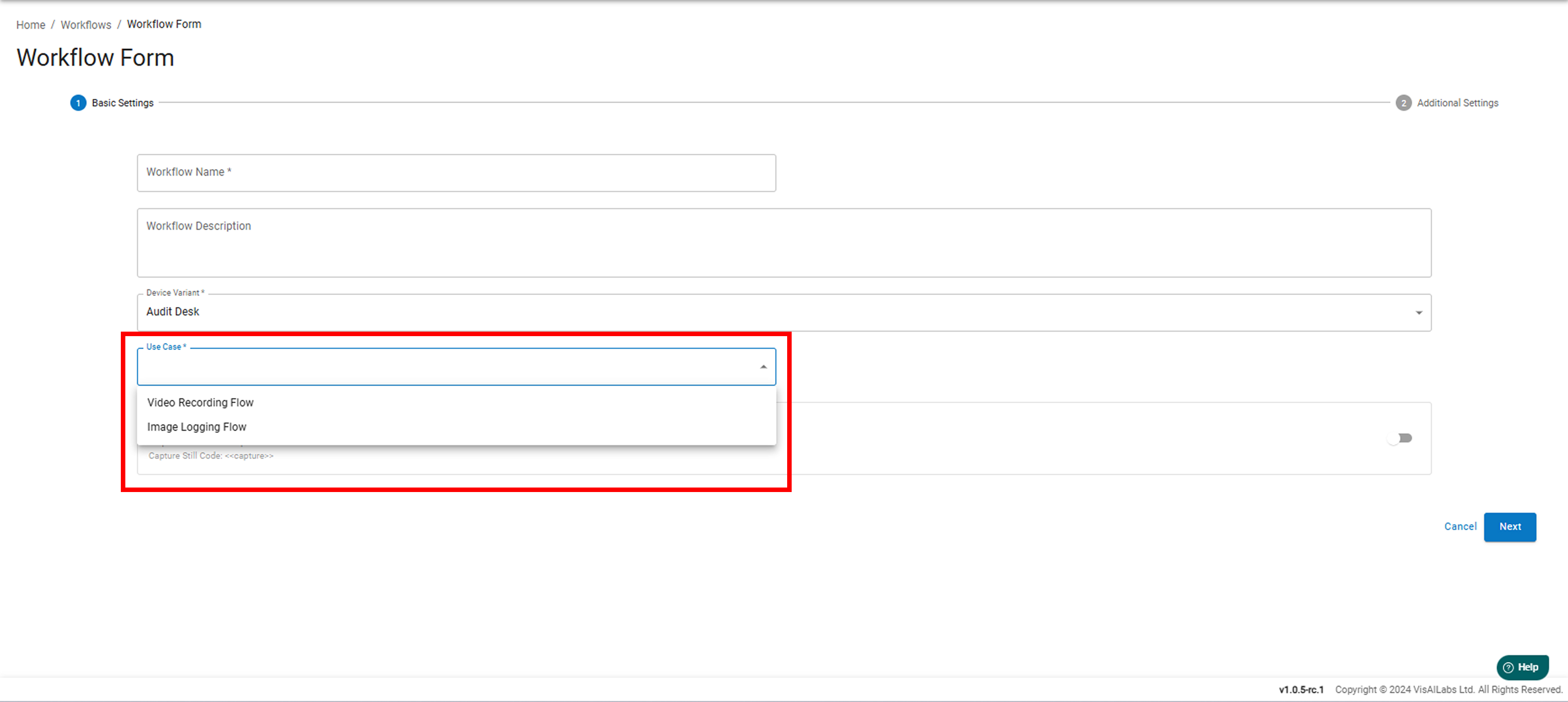
Step 5: Select Use Case
Choose one of the following:
1. Video Recording Flow
- Captures continuous video during the audit process
- Useful for:
- Process monitoring
- Quality checks
- Full activity tracking
2. Image Logging Flow
- Captures images at intervals or events
- Useful for:
- Proof of completion
- Snapshot-based audits
- Storage optimization (less space than video)
Step 6: Configure Barcode Field
- Click Next
- Select Barcode Field Name
- Customize as per requirement:
- Example: UPC / Item Code / Item Number

- Example: UPC / Item Code / Item Number
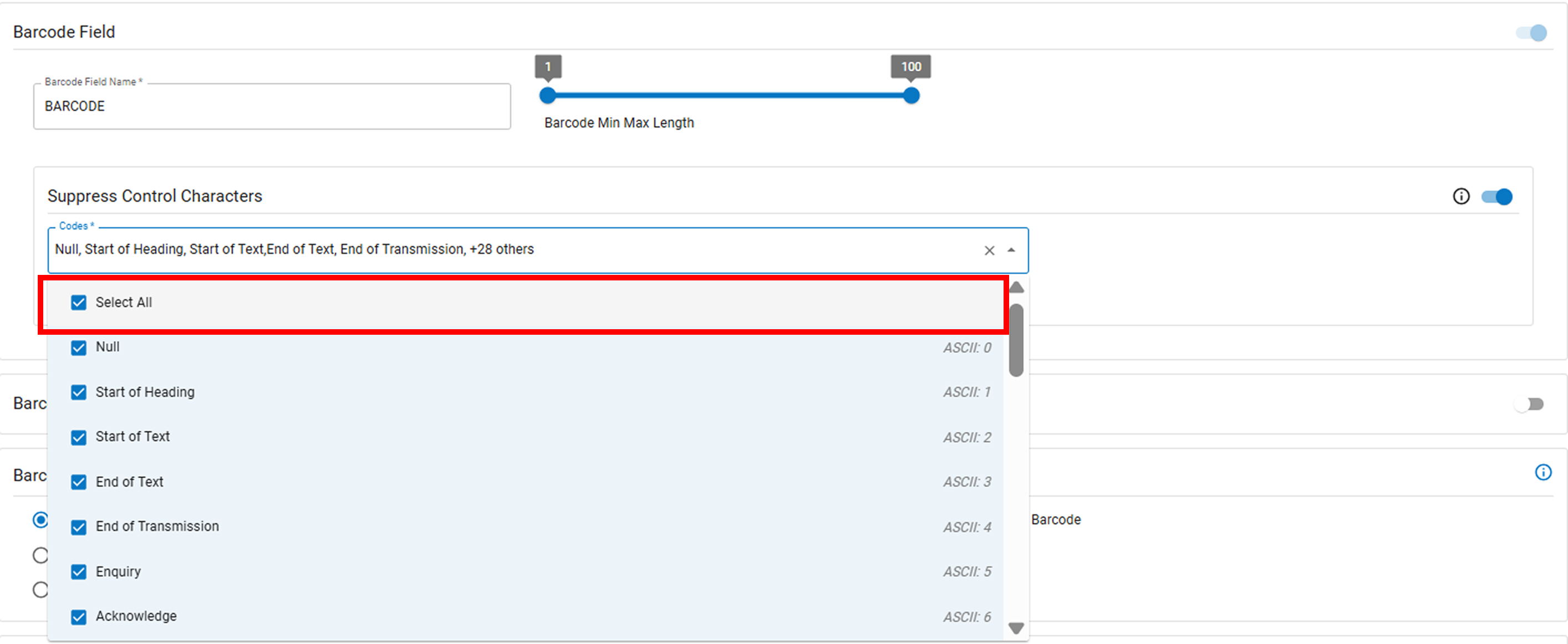
Step 7: Special Character Restriction
- If required:
- Enable “Suppress Control Characters”
- Select “All” under Code
- This removes unwanted/special characters from barcode input
Step 8: Barcode Classification (Regex)
- Enable Barcode Classification if needed
- Enter Regex (Regular Expression)
? What is Regex?
- Regex is a pattern used to validate barcode format
- Example:
- Only numbers →
^[0-9]+$ - Alphanumeric →
^[A-Za-z0-9]+$
- Only numbers →
- Helps ensure only valid barcode formats are accepted

Step 9: Barcode Scan Duration Event
Choose how events behave during scanning:
1️⃣ End Event on Same Barcode
- If the same barcode is scanned again → current event ends
2️⃣ Stop and Start New Event on New Barcode
- When a new barcode is scanned:
- Current event stops
- New event starts automatically
3️⃣ Stop and Start New Event Always
- Every scan:
- Stops previous event
- Starts a new event, regardless of barcode

Note: The minimum duration for video capture is 5 seconds.
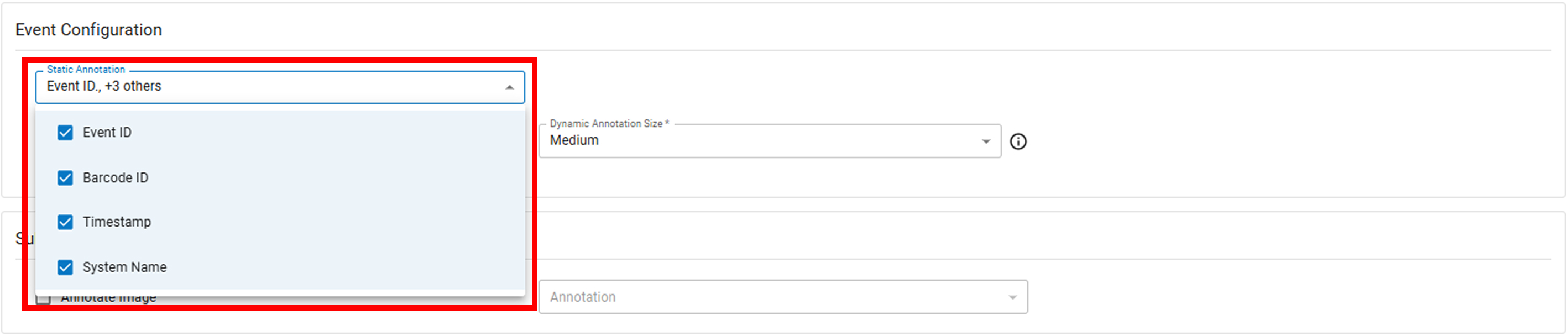
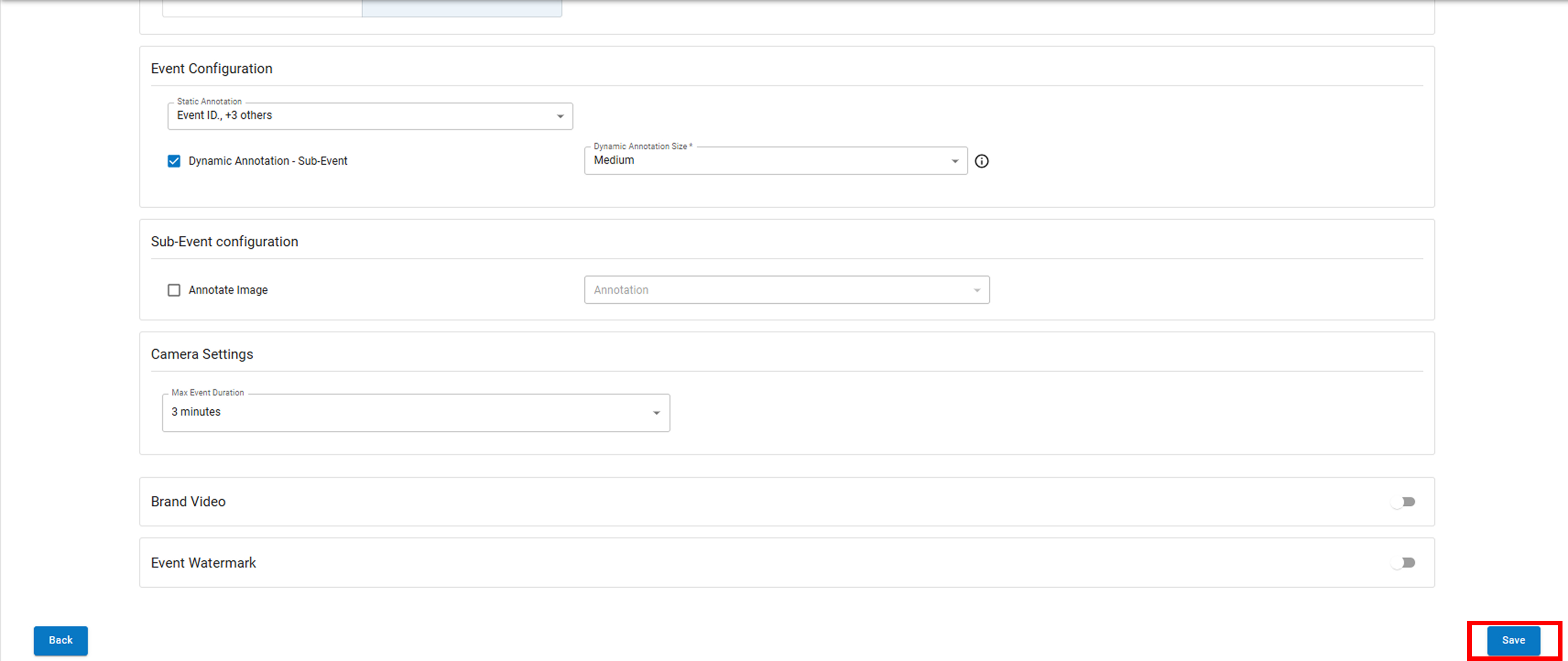
Step 10: Event Configuration
Select required fields to be captured:
- Event ID – Unique event identifier
- Barcode ID – Scanned barcode value
- Timestamp – Date & time of event
- System Name – Device/system identifier
(Applicable for both video and image workflows)
Step 11: Sub-Event Configuration
- Enable “Annotated Image” if required
- Select necessary fields from dropdown
- Useful for adding extra details/labels on images

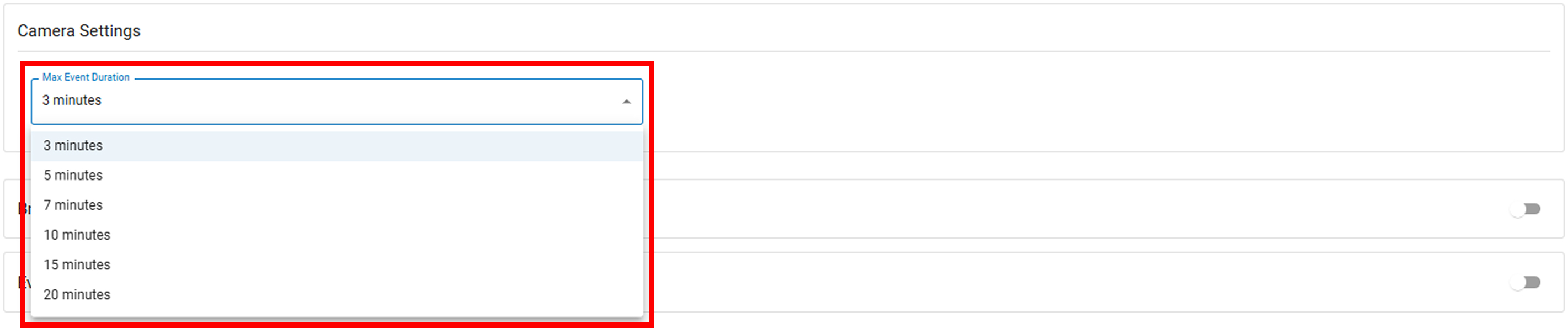
Step 12: Max Event Duration
- Select maximum duration for each event from dropdown
- Ensures events don’t run indefinitely
Step 13: Watermark (Optional)
- Enable Watermark if required
- Upload image (logo / branding)
- Will appear on captured images/videos

Step 14: Image Capture Delay
- Select delay timing from dropdown
- Defines interval between image captures

Step 15: Save Workflow
- Click Save to complete workflow creation
✅ Final Outcome
- Workflow will be ready for use in vAudit (Audit Desk)
- Can be used for barcode-based audit operations
If you need any support , please drop a mail to vmeasure@visailabs.com
Was this article helpful?
That’s Great!
Thank you for your feedback
Sorry! We couldn't be helpful
Thank you for your feedback
Feedback sent
We appreciate your effort and will try to fix the article