Step 1: Open Application
- Launch the vAudit Desktop application
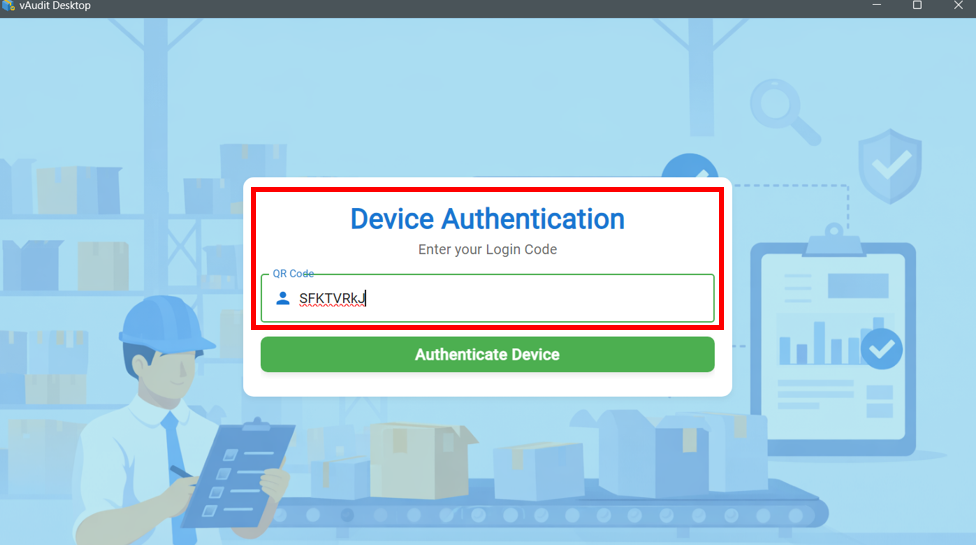
- The system will prompt for Device Authentication
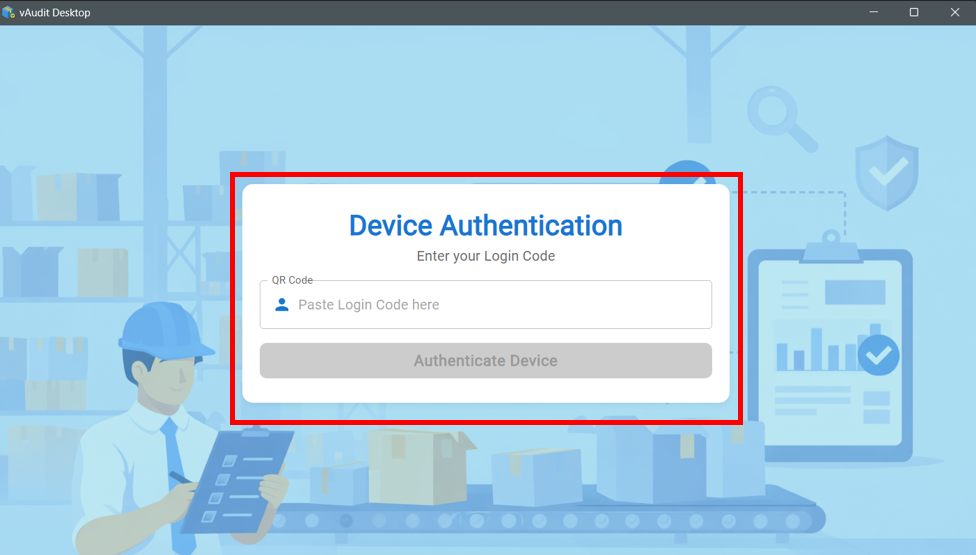
Step 2: Enter Login Code
- You will be asked to enter a Login Code
- This Login Code must be fetched from vAudit Forge Portal
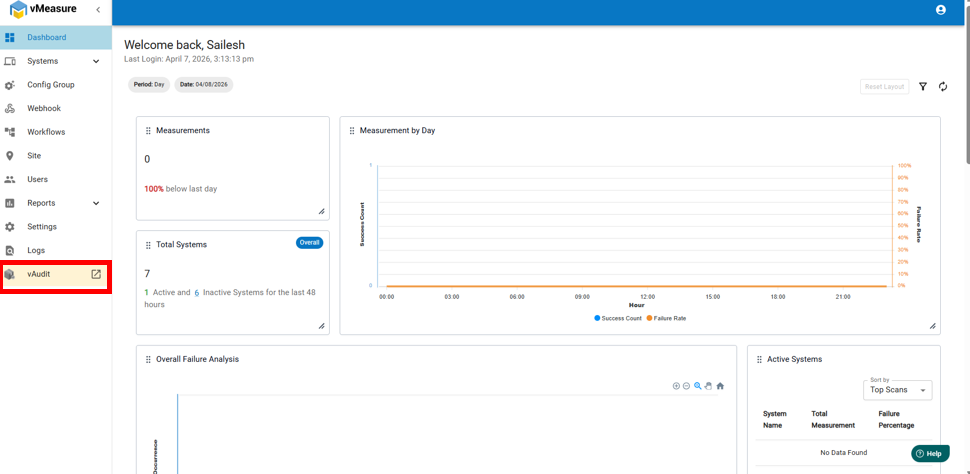
Step 3: Login to Forge
- Open vAudit Forge in your browser
- Login using your credentials
- Navigate to the vAudit section
Step 4: Access Connect Option
- Go to the “System” tab
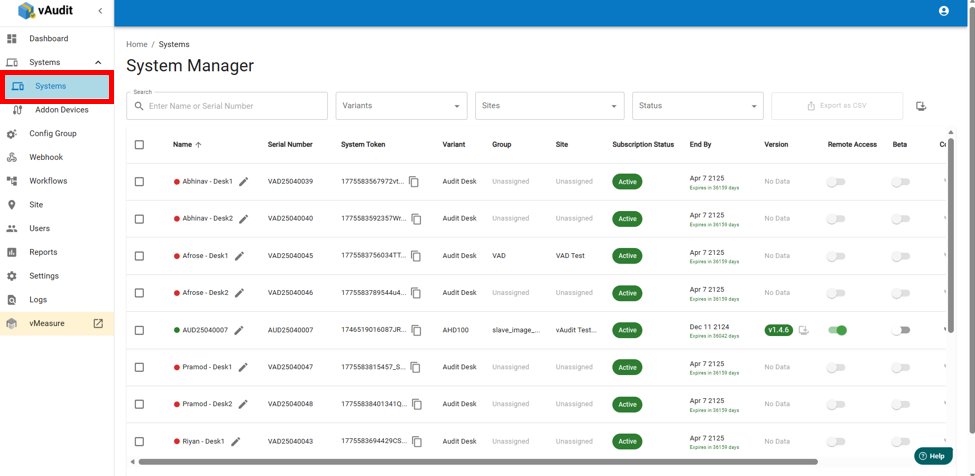
- Scroll towards the right side
- Locate the “Connect” option
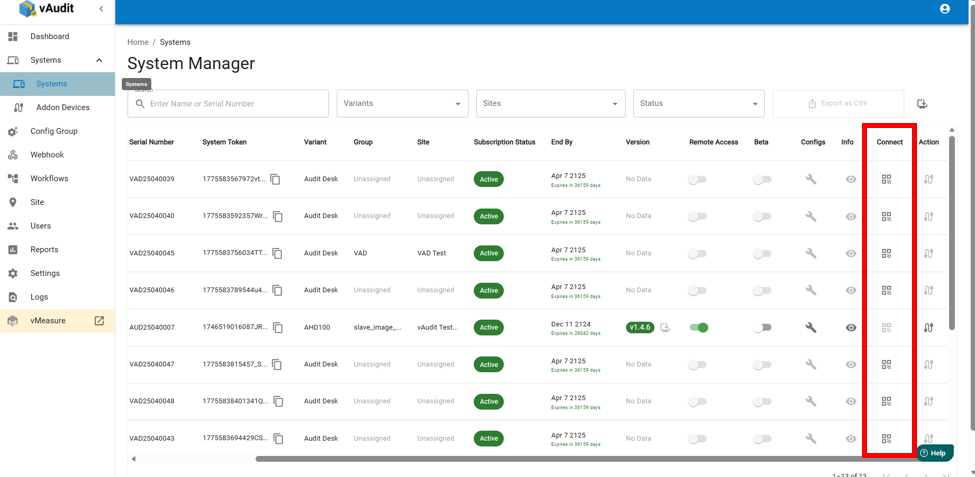
Step 5: Copy QR Code
- Click on “QR Code”
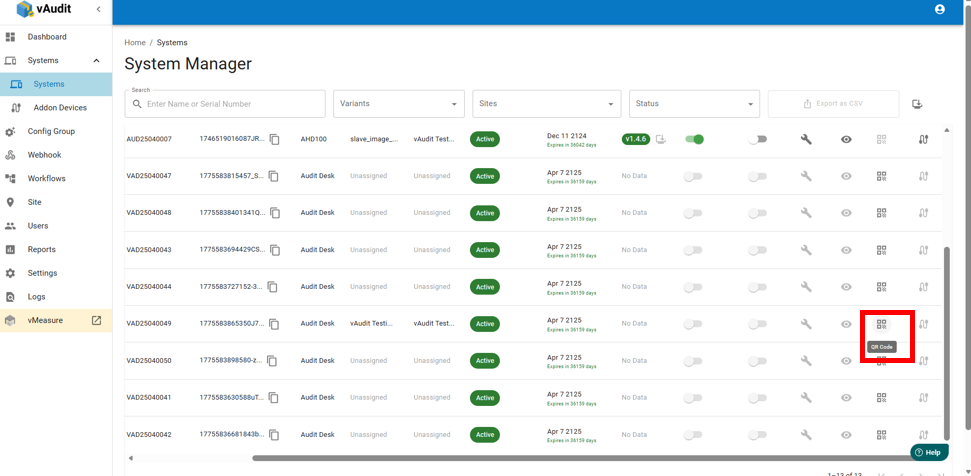
- Copy the generated QR Code value
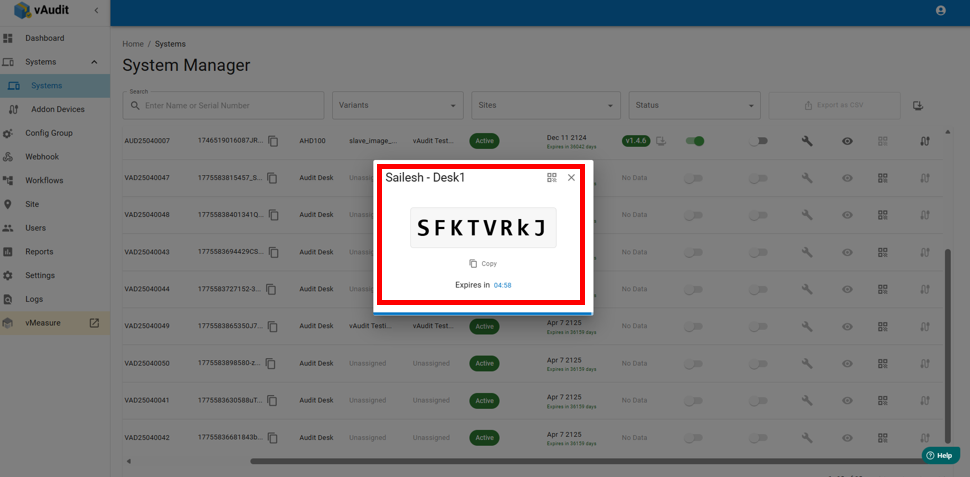
Step 6: Authenticate Device
- Paste the copied QR Code into vAudit Desktop
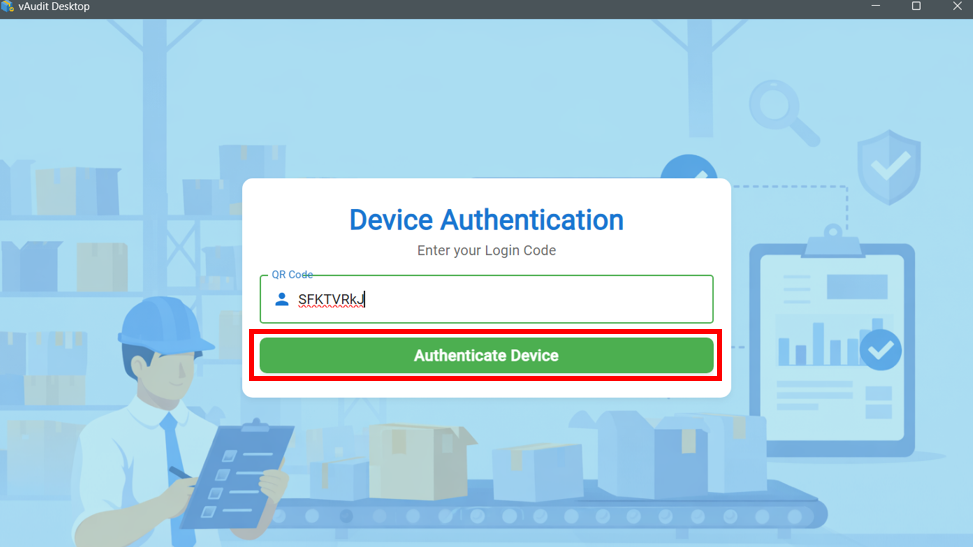
- Click on “Authenticate Device”
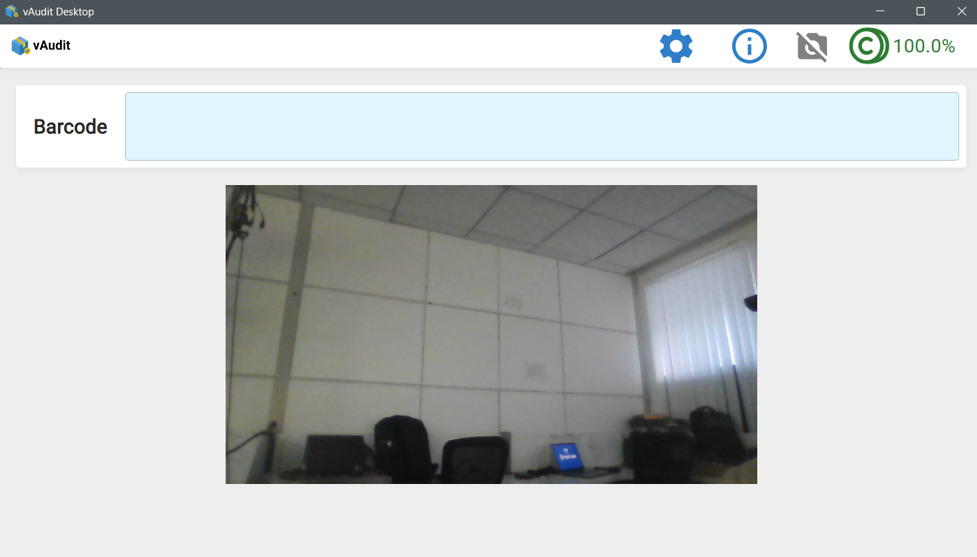
Step 7: Camera Preview
- Once the device is successfully authenticated:
- Camera preview will appear in Audit Desk
- You can use:
- Built-in camera
- External camera / Web camera
⚠️ Important Note
- The QR Code is valid only for 5 minutes
- If it expires, generate a new QR Code from Forge
If you need any support , please drop a mail to vmeasure@visailabs.com
Was this article helpful?
That’s Great!
Thank you for your feedback
Sorry! We couldn't be helpful
Thank you for your feedback
Feedback sent
We appreciate your effort and will try to fix the article