How to View "System Information" on the vAudit Device
To check the system-related details of your vAudit device, follow the steps below:
Step 1:
From the main menu, navigate to the "System Information" section.
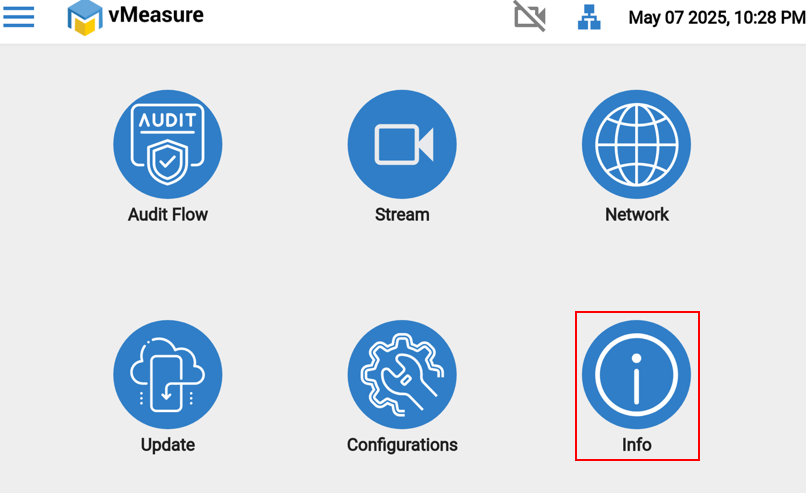
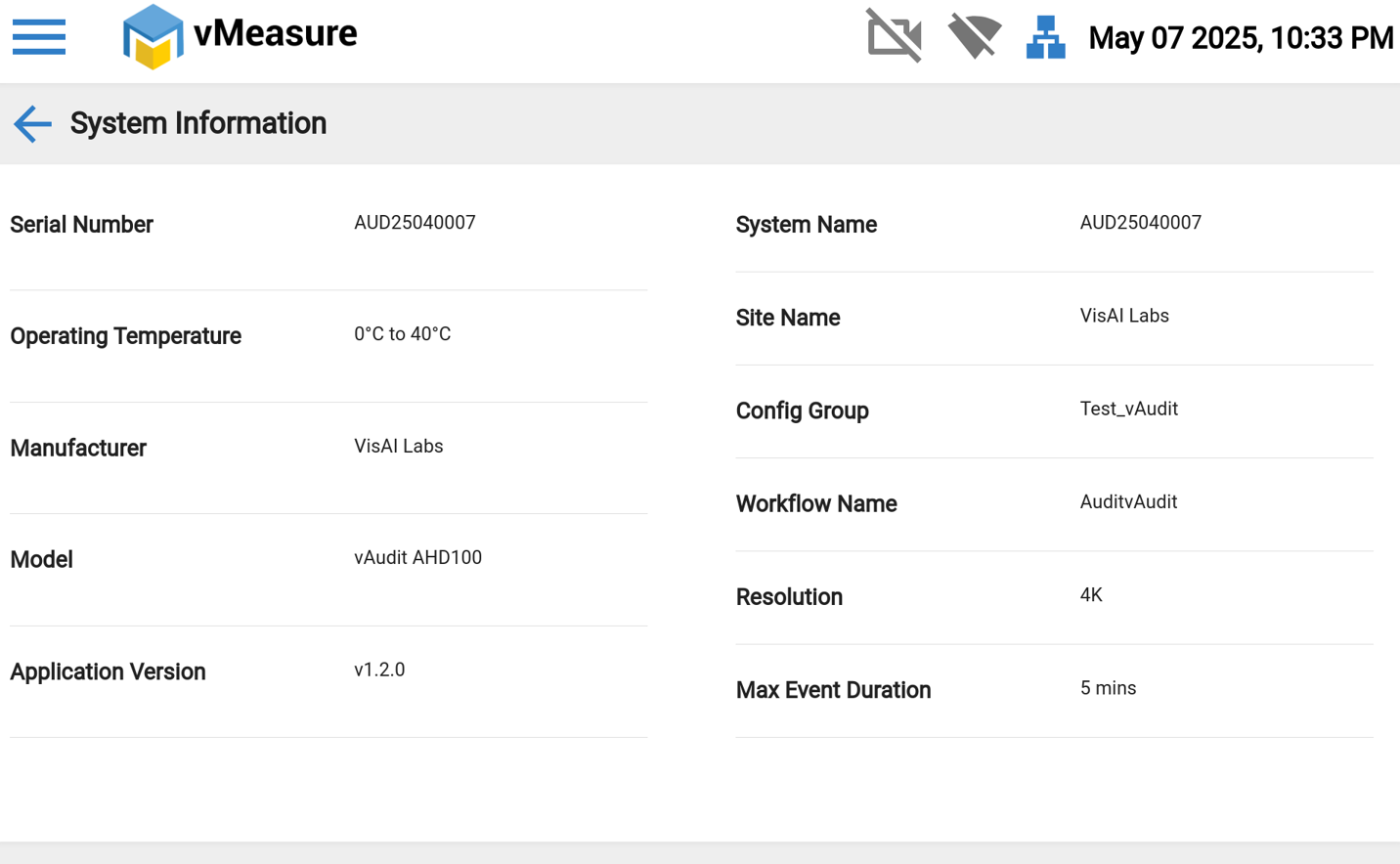
Once you enter the System Information page, you will be able to view the following details:
Serial Number of the vAudit – A unique identifier for the barcode scanning hardware integrated into the device.
Operating Temperature – The current temperature at which the device is functioning.
Manufacturer – The name of the company that manufactured the vAudit hardware.
Model – The model number or name of the vAudit device.
Application Version – The version of the vAudit software currently installed on the device.
System Name – The designated name assigned to the device within the system.
Assigned Site Name – The specific site to which the device is assigned.
Assigned Configuration Group – The configuration group under which the device is categorized.
Assigned Workflow – The workflow or process logic currently mapped to the device.
Resolution – The image resolution capability of the device (often relevant for visual inspections or captures).
Maximum Event Duration – The longest duration the system is configured to track or process an event.
If you need any support , please drop a mail to vmeasure@visailabs.com or Click Here to Summit a Ticket.
Was this article helpful?
That’s Great!
Thank you for your feedback
Sorry! We couldn't be helpful
Thank you for your feedback
Feedback sent
We appreciate your effort and will try to fix the article