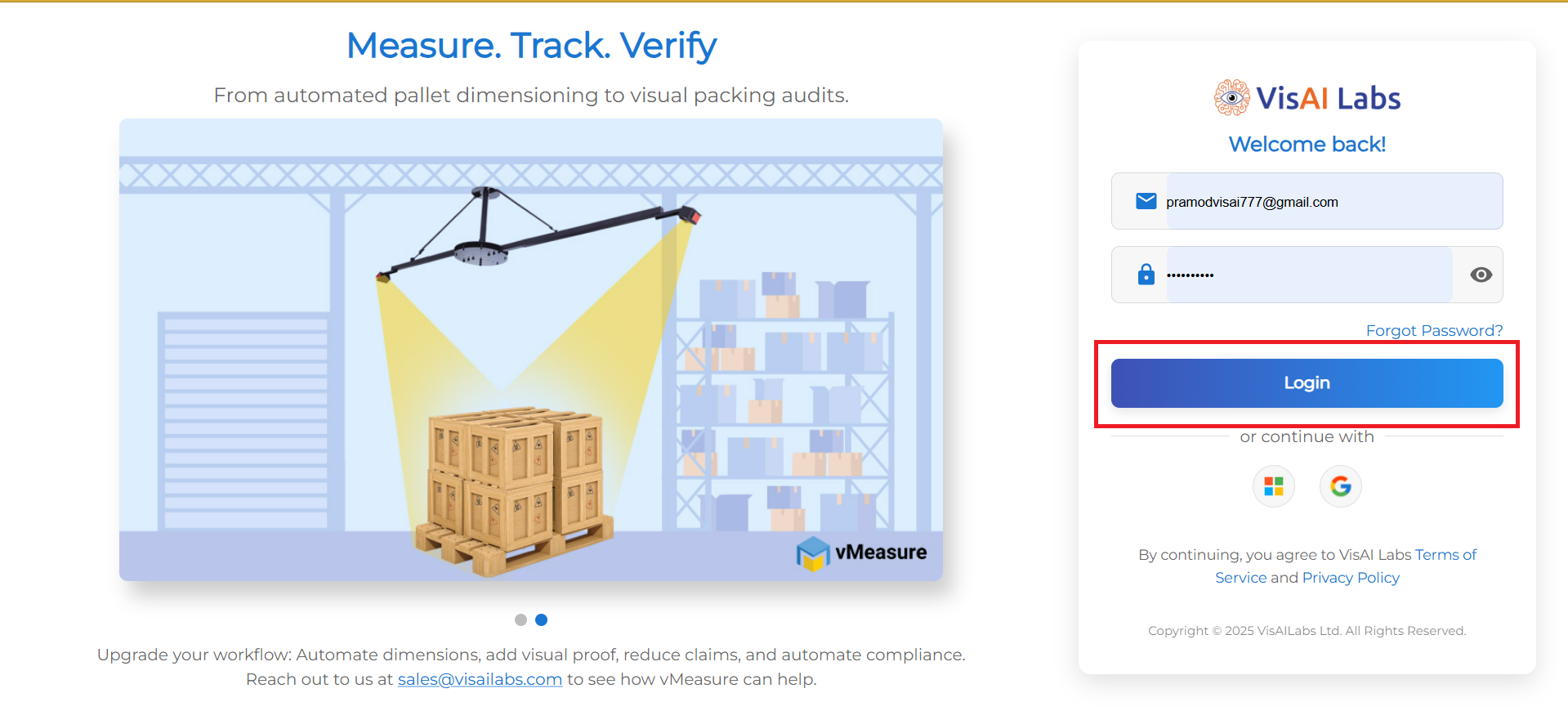
1. Open https://forge.vmeasure.ai/ and login with the mail id and password.
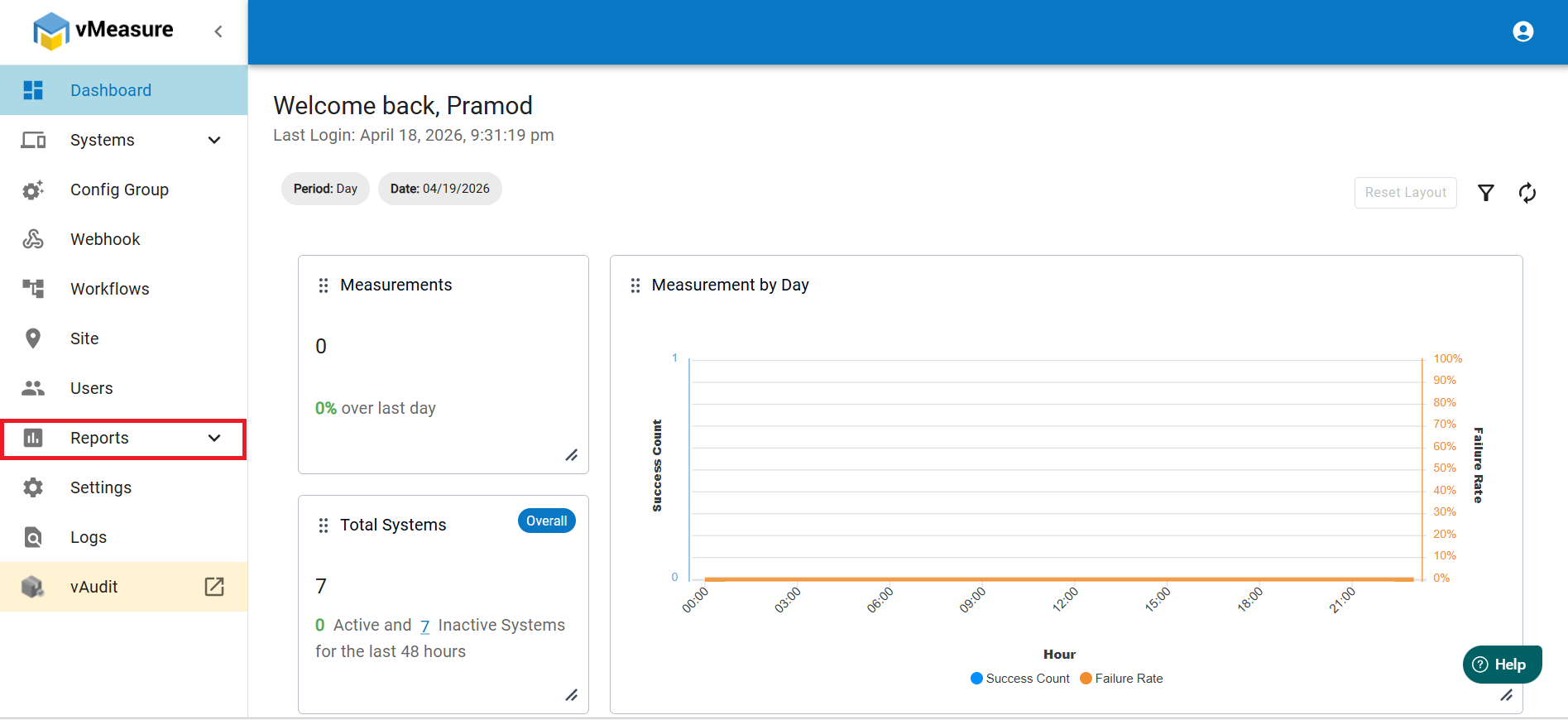
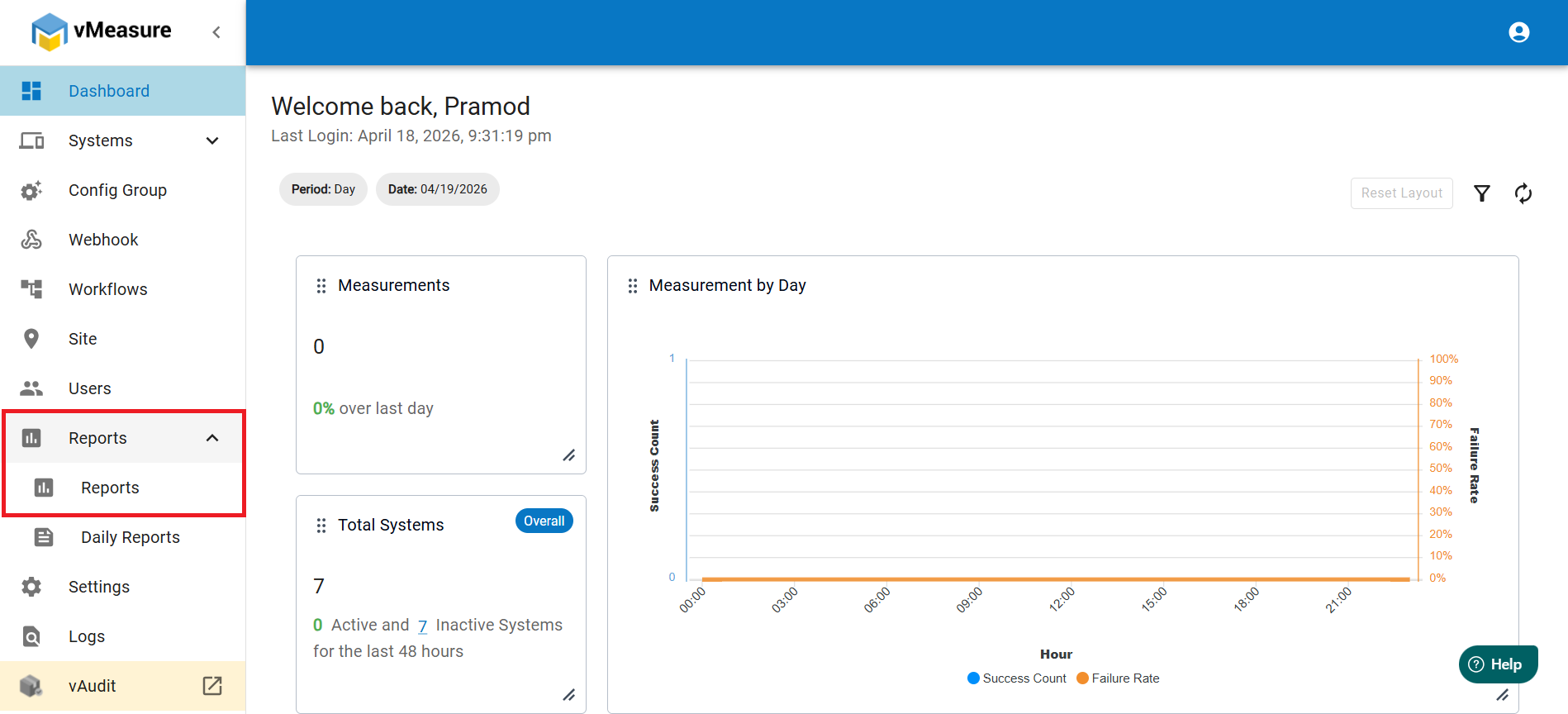
2. In the left panel, navigate to Reports and click on the dropdown and select Reports.
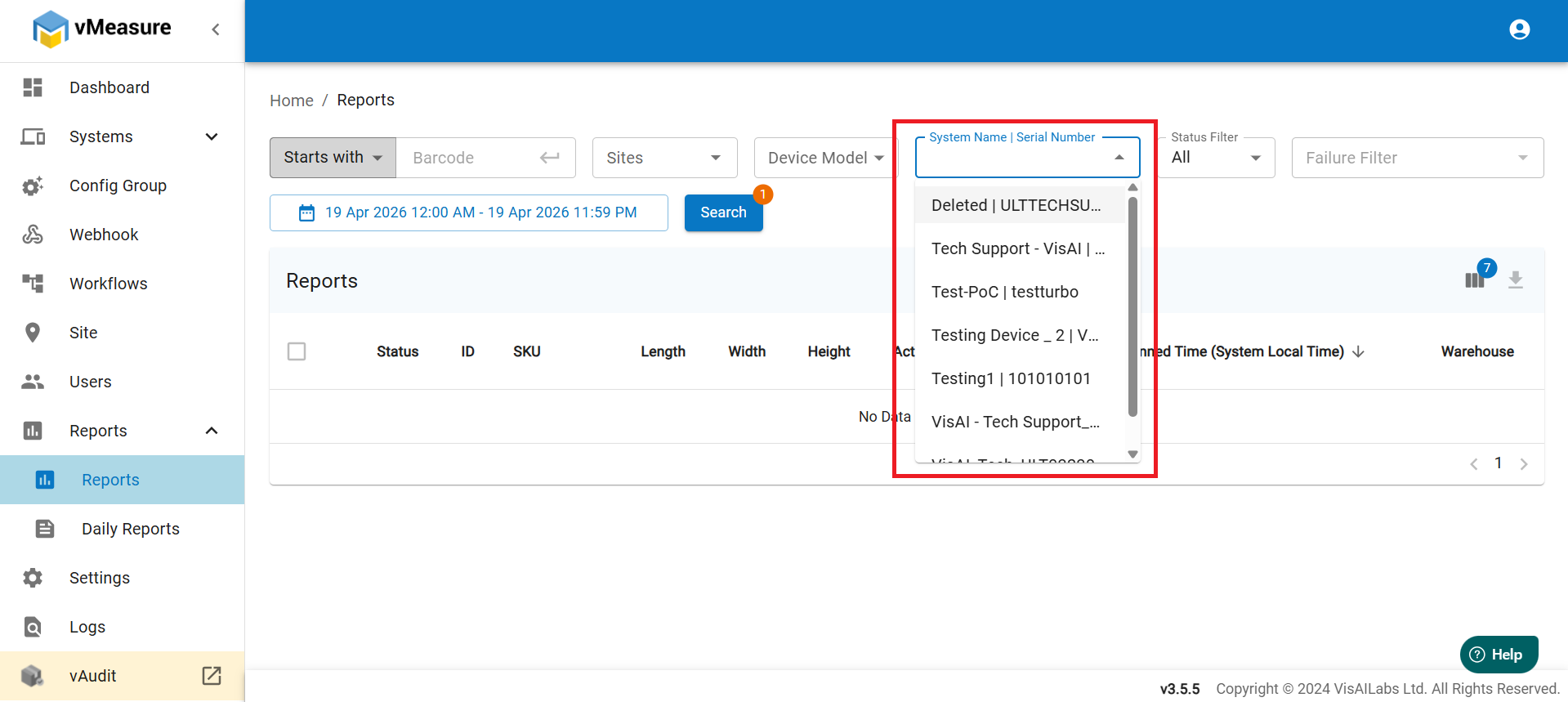
3. Navigate to System Name and click on the dropdown and select the desired system for which you want to download Reports.
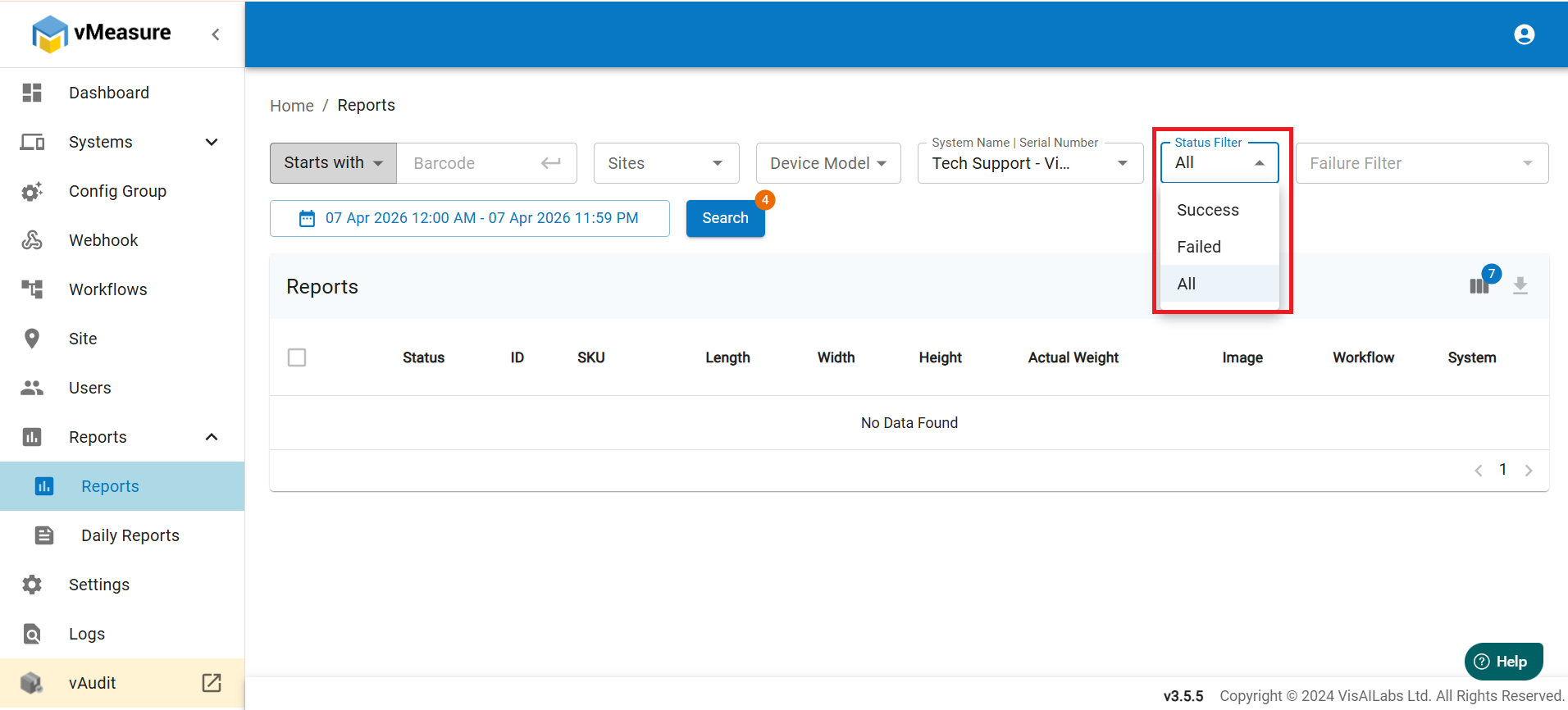
4. Beside the system name, you will see an option as Status Filter. With this option, you can generate the reports for the type of status like Success or Failure. If you want all the data, then please select All option from the dropdown.
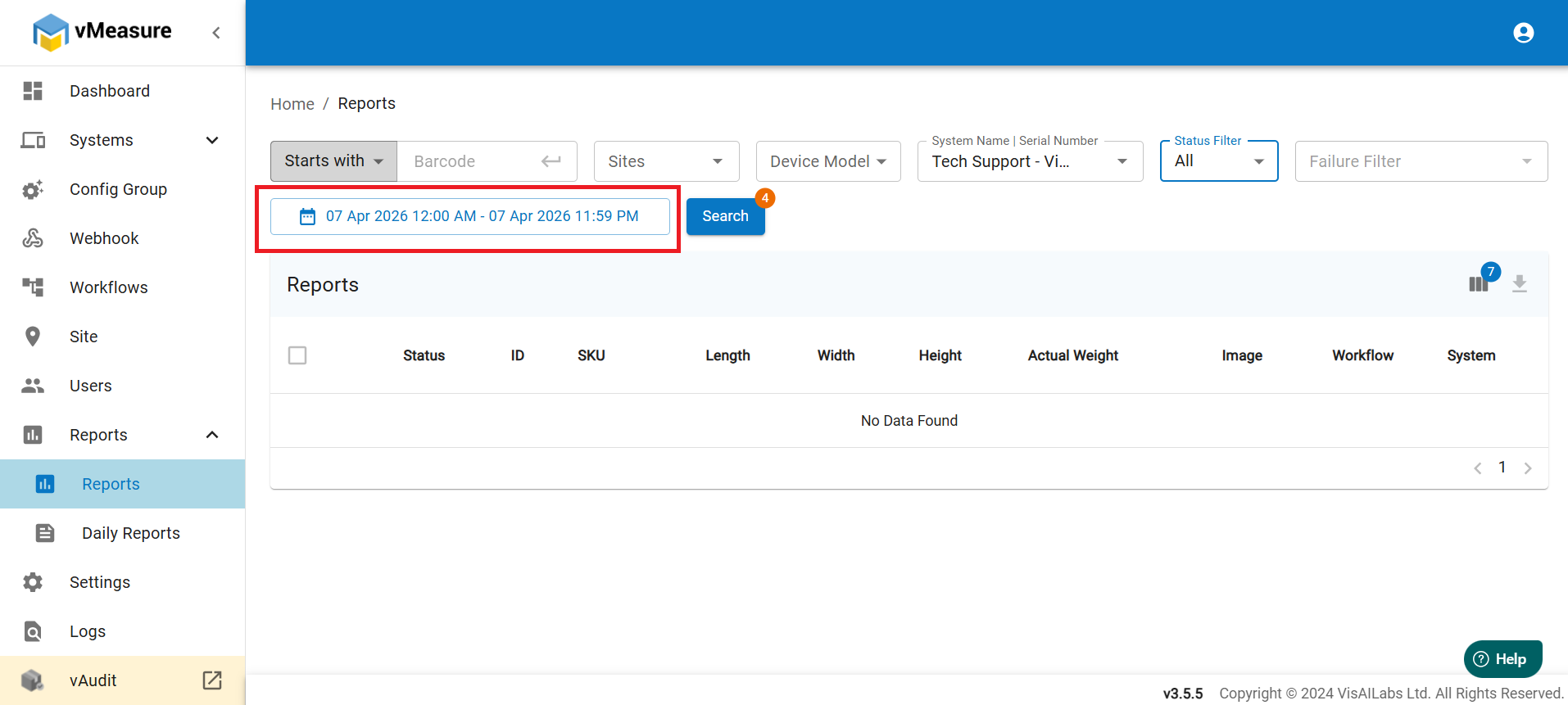
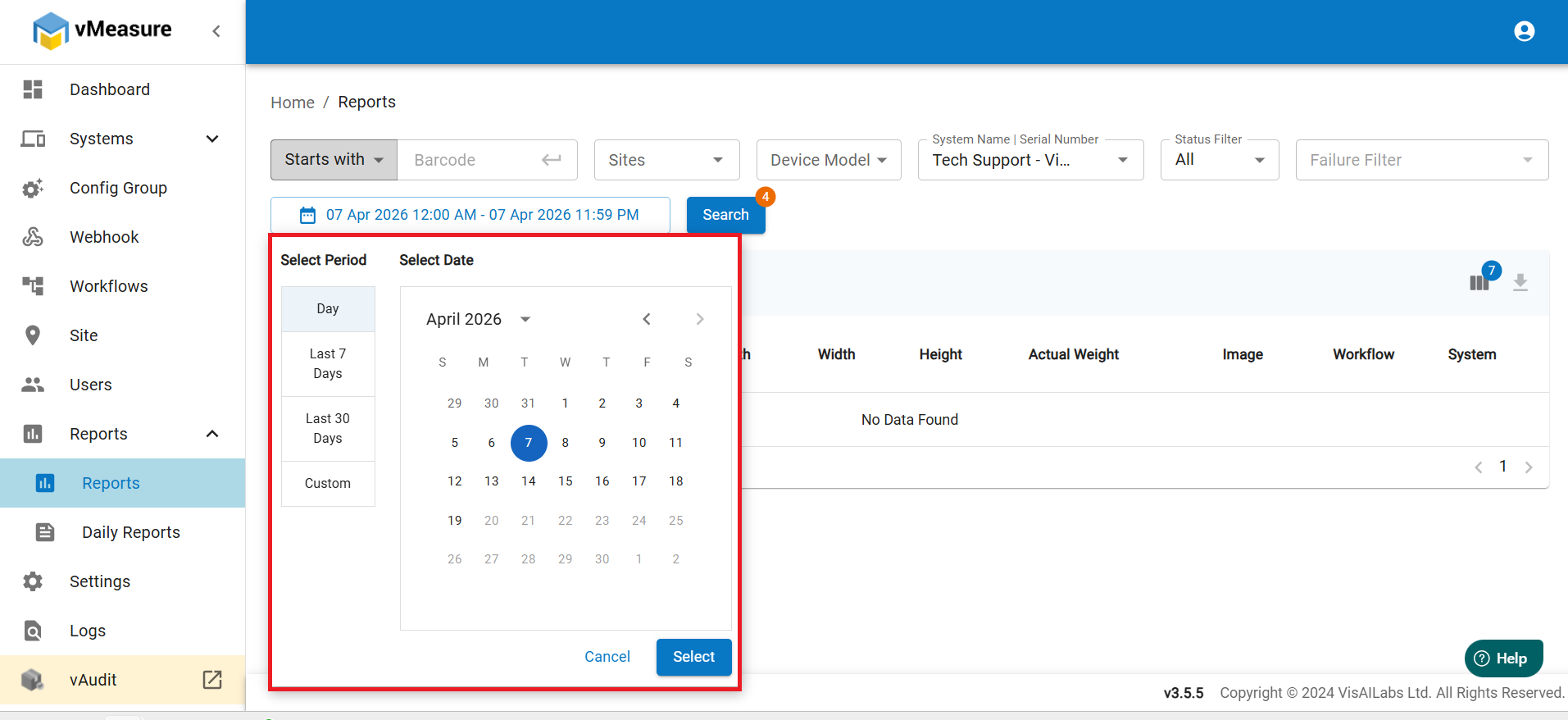
5. You will see a calendar option. With this you can select the time range for which you want to generate the reports. Select your date and click on Select to download the reports for that particular date.
6. After selecting the required configuration, click on Search.
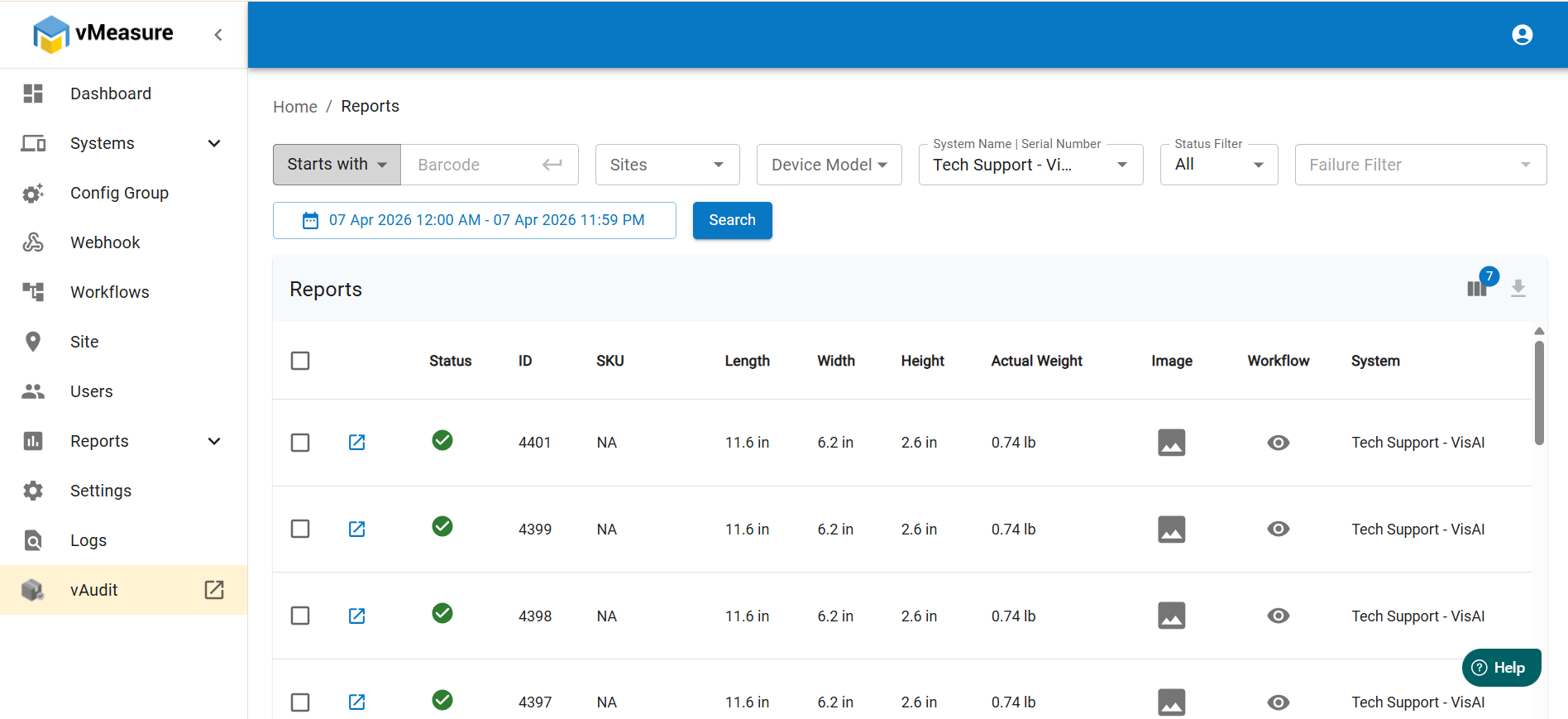
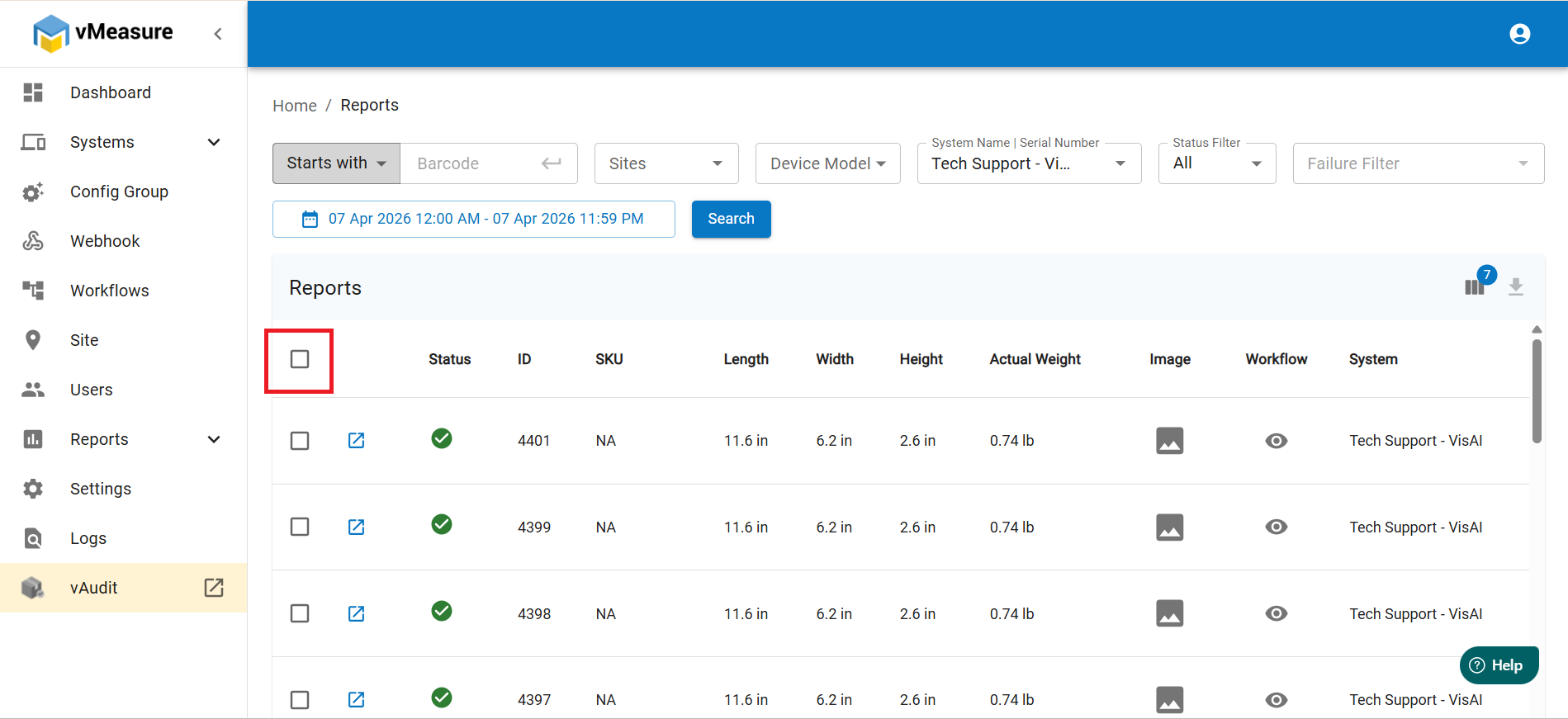
7. Under Reports, you will find a checkbox for selcting 25 items. Click on it.
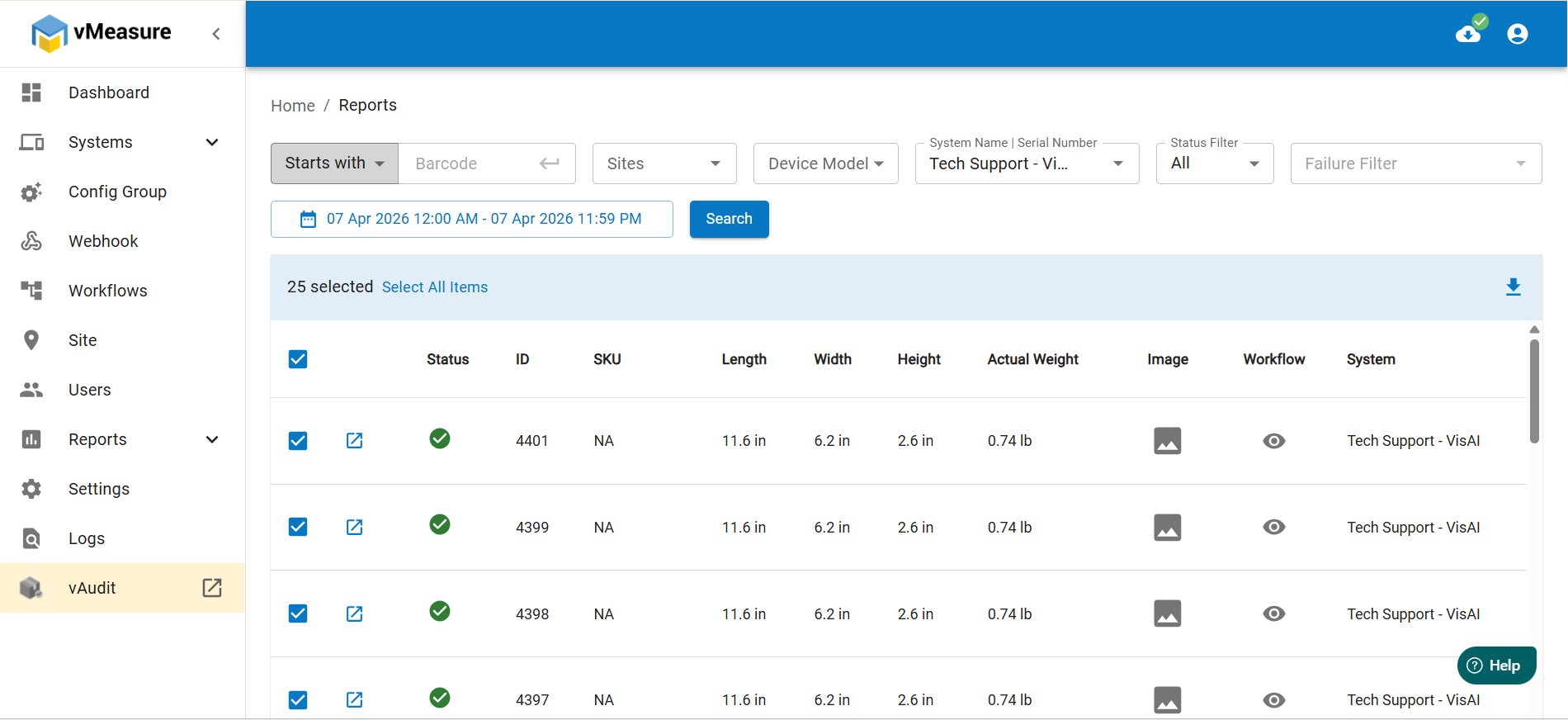
8. After clicking on the checkbox, you will see the 25 items are selected.
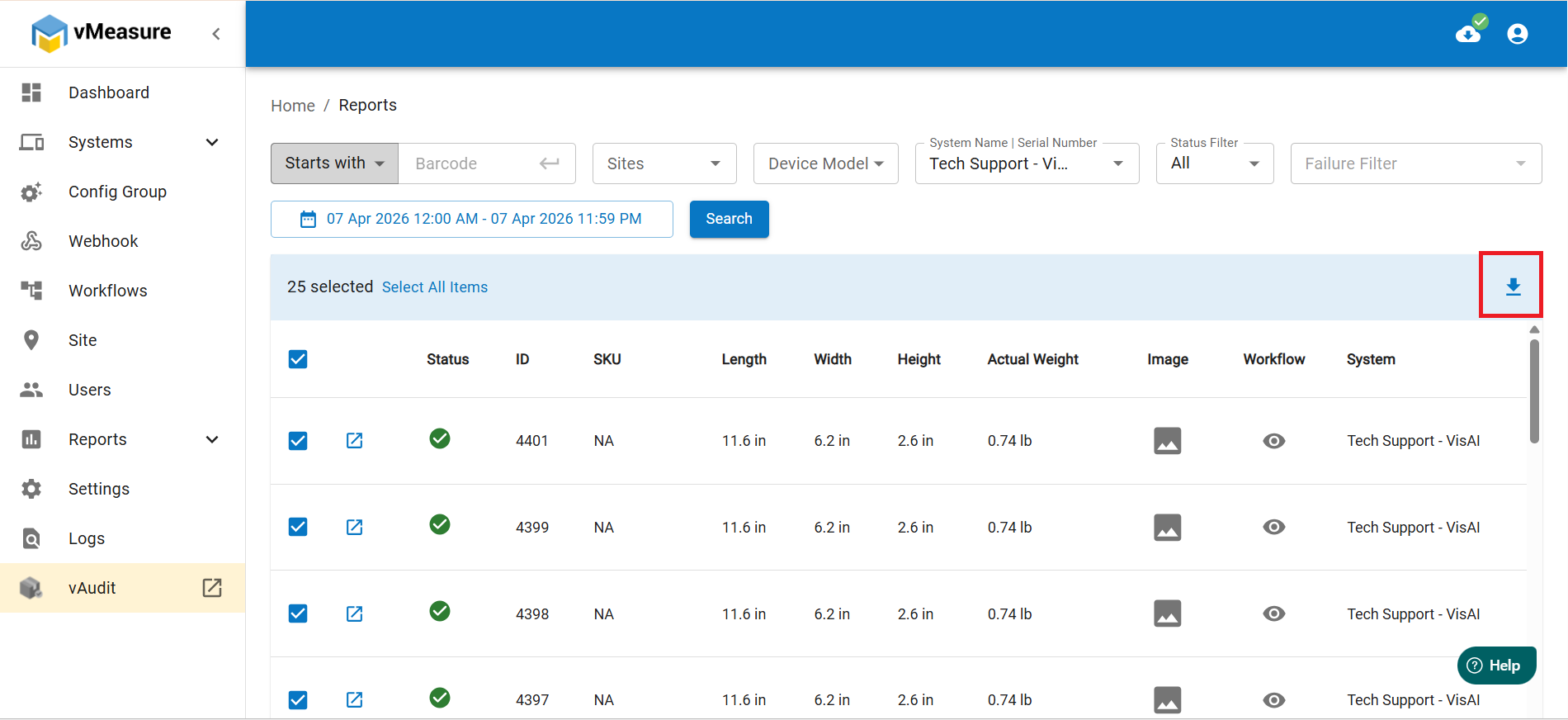
9. After selecting the reports, in the right side you will see a download option.
10. After clicking the download option, you will see options like Download CSV, Download JSON, Download ZIP Images. Select Download JSON option. Click on Download JSON , you will see a pop up as Downloading json. After some time you will see a message that Successfully Downloaded.
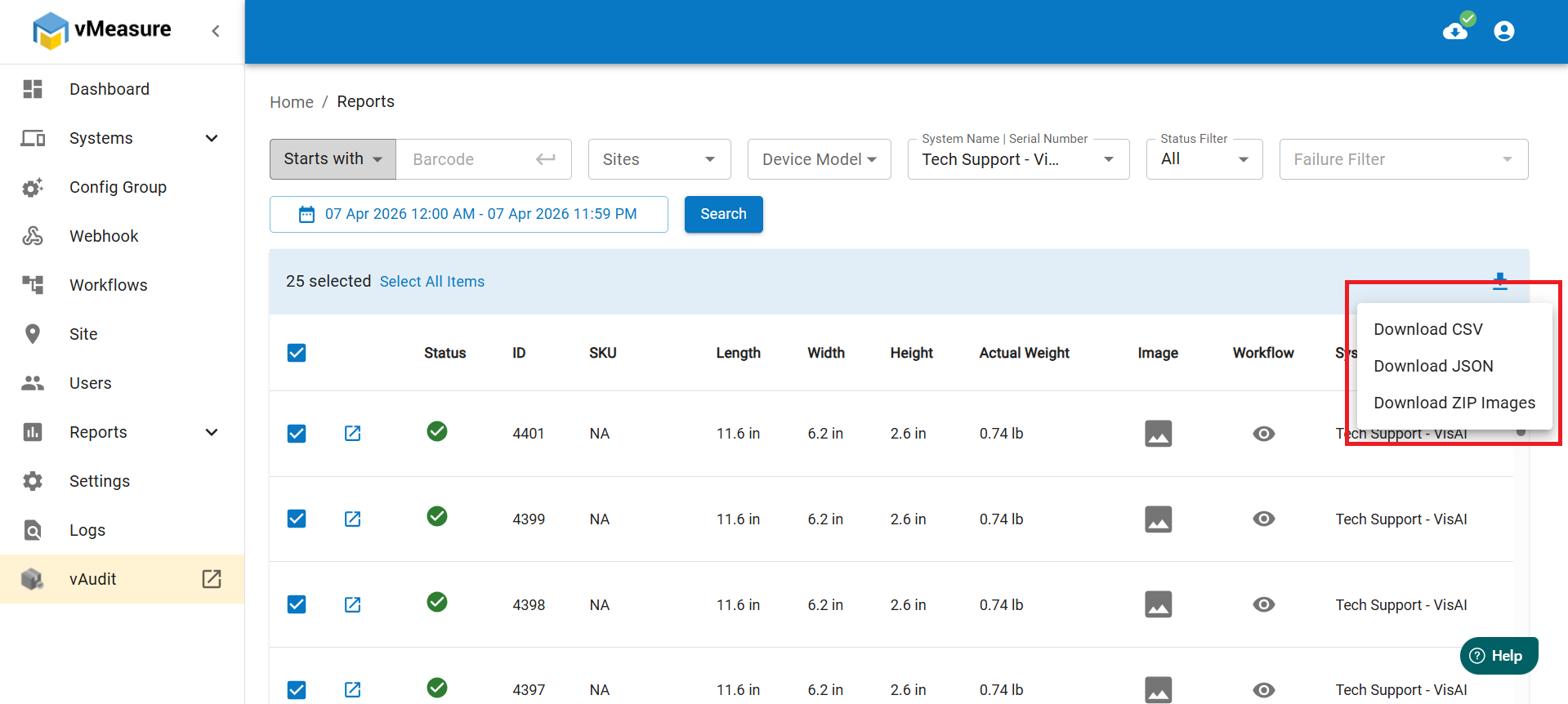
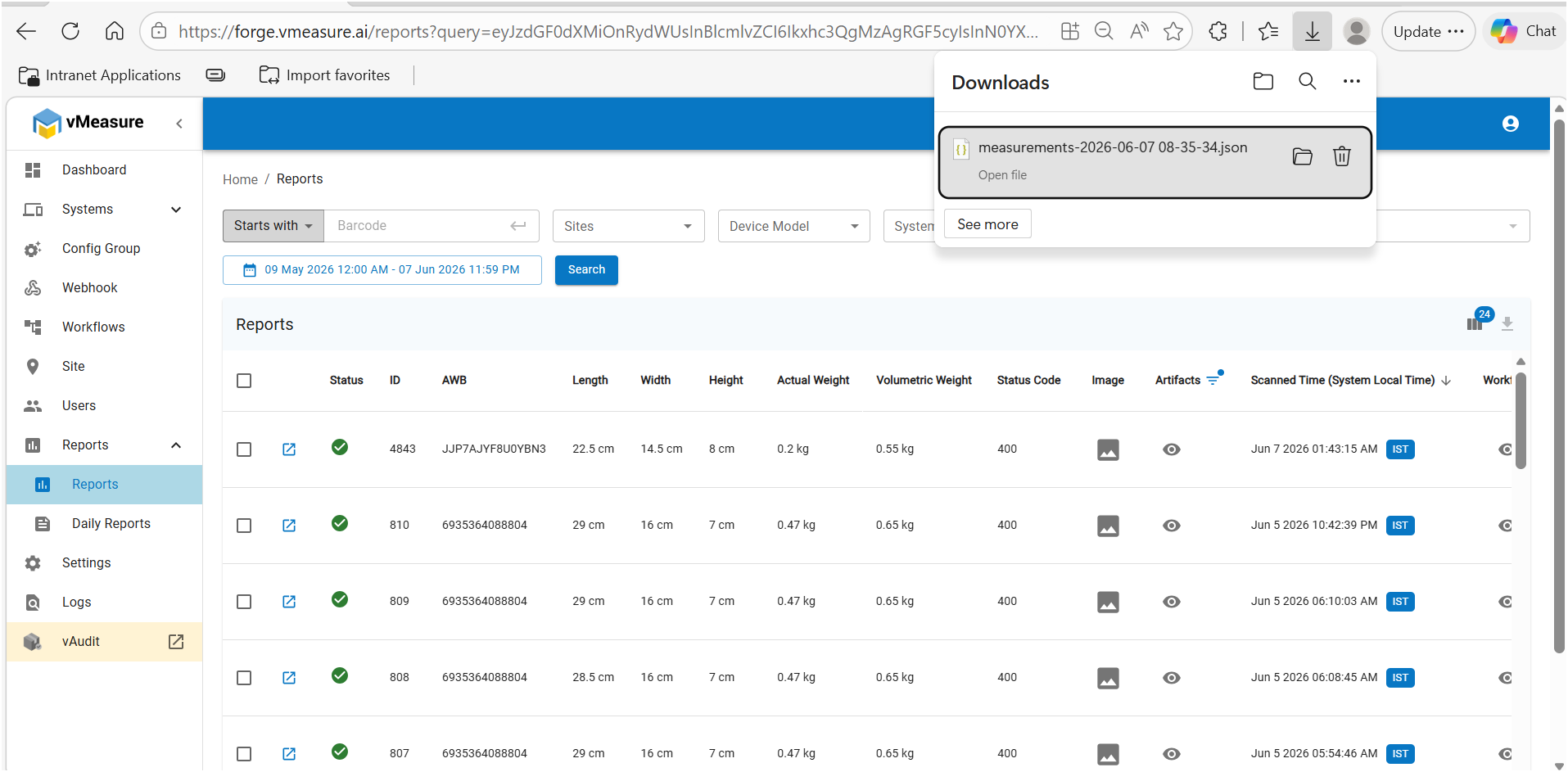
Note : You can download reports in JSON format for only 25 records per page by default.
If you need any support , please drop a mail to vmeasure@visailabs.com or Click here to Submit a Ticket.
Was this article helpful?
That’s Great!
Thank you for your feedback
Sorry! We couldn't be helpful
Thank you for your feedback
Feedback sent
We appreciate your effort and will try to fix the article