Follow the steps below to log in and download reports from Offline Forge:
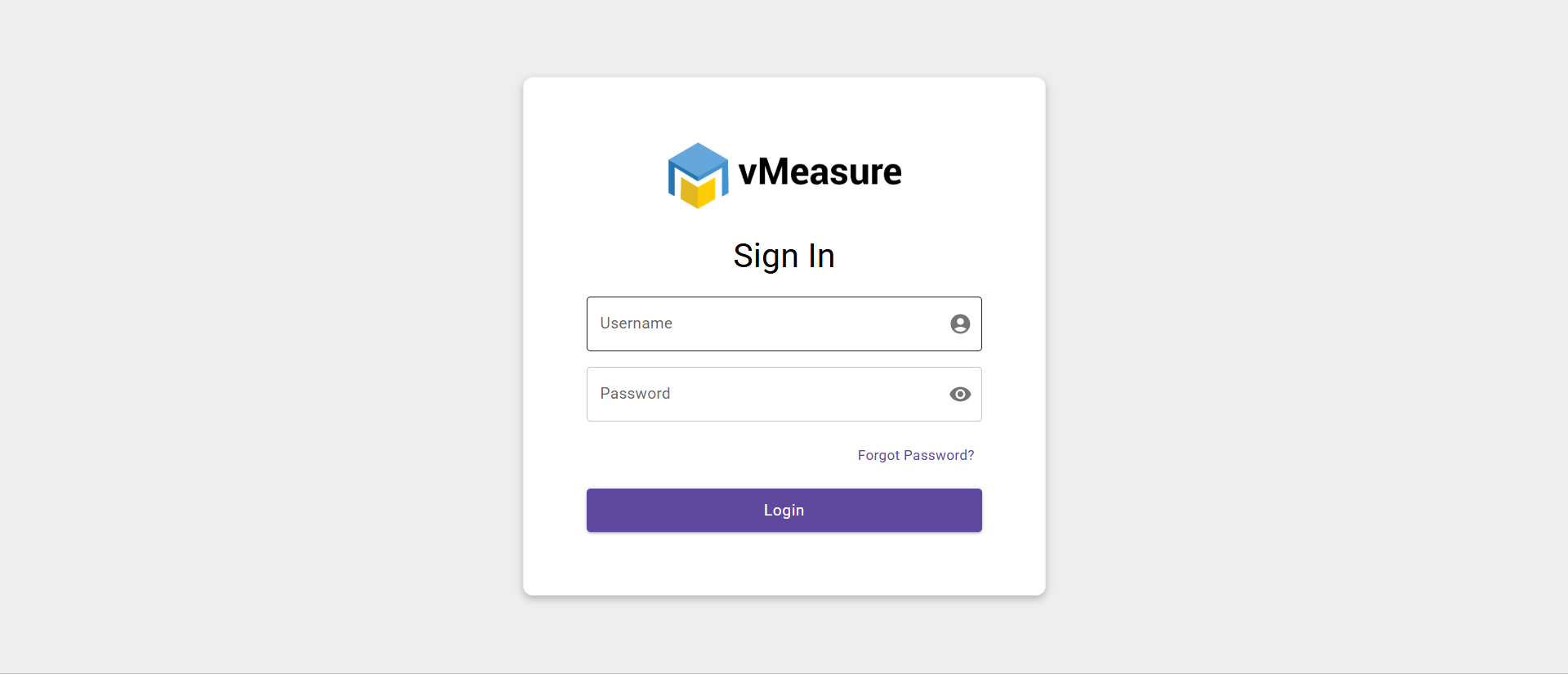
Step 1: Open the following URL in your web browser:
http://192.168.xx.xxx:6601/app/
Note: Replace
192.168.xx.xxxwith the IP address of your vMeasure device.
Login Credentials:
- Username:
admin(default) - Password:
ultt001or the vMeasure device serial number in lowercase (e.g.,ulcxxxxxxxx).
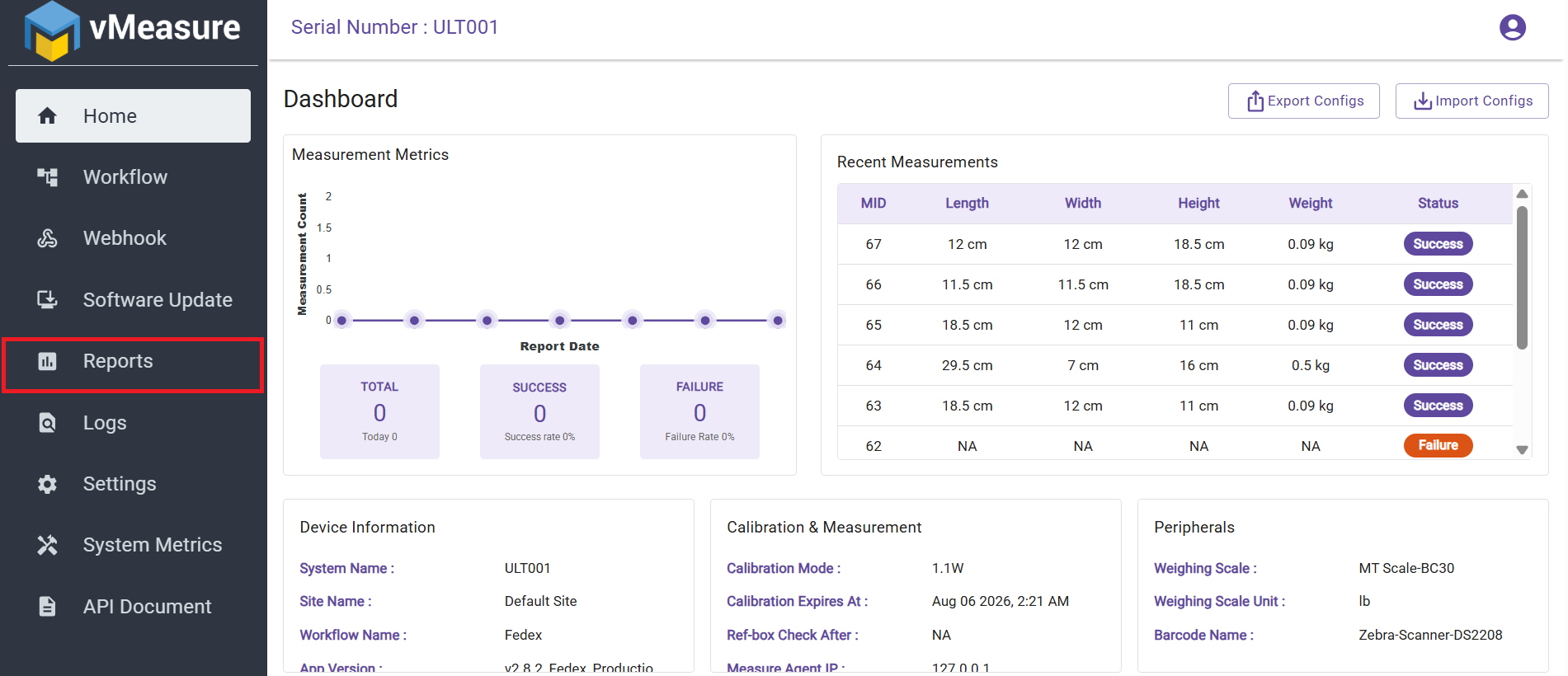
Step-2: After logging in, you will be redirected to the Dashboard. From the left navigation menu, click Reports.
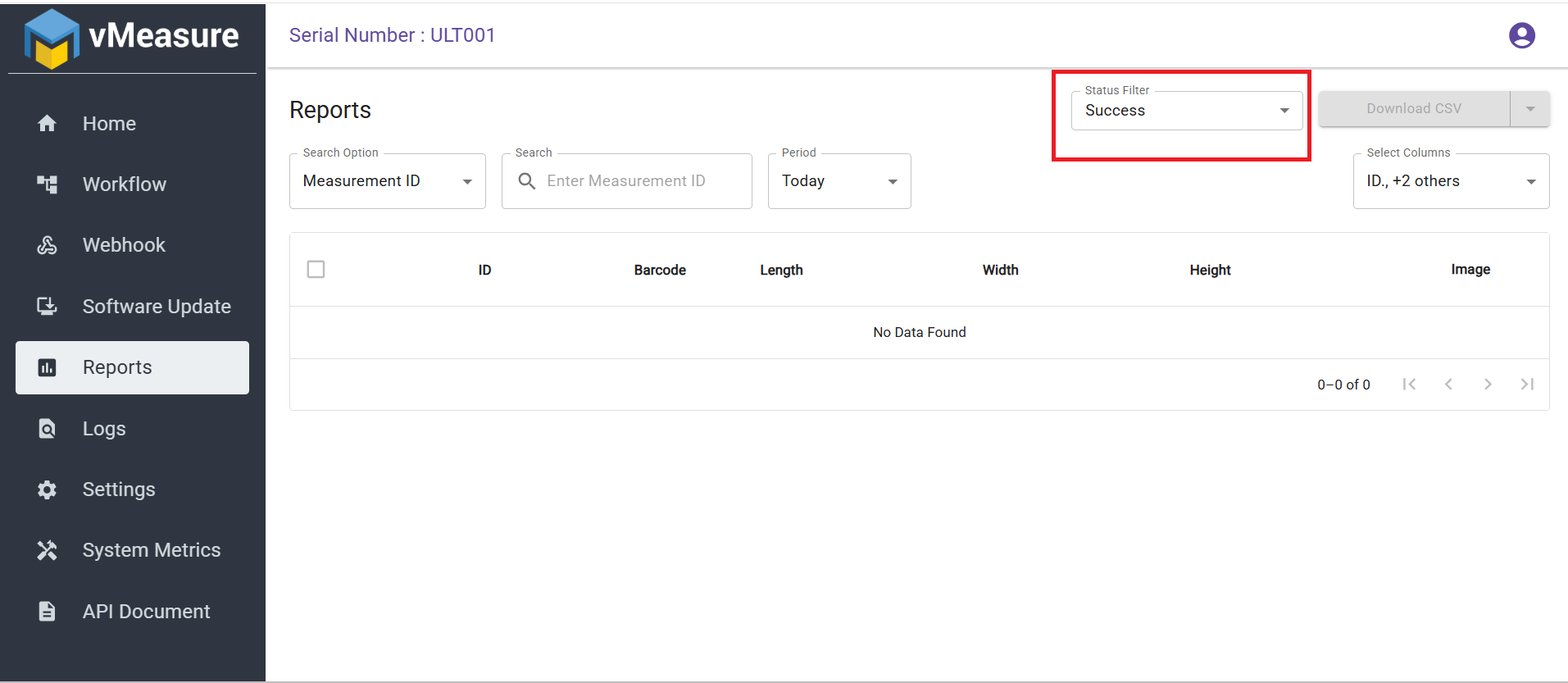
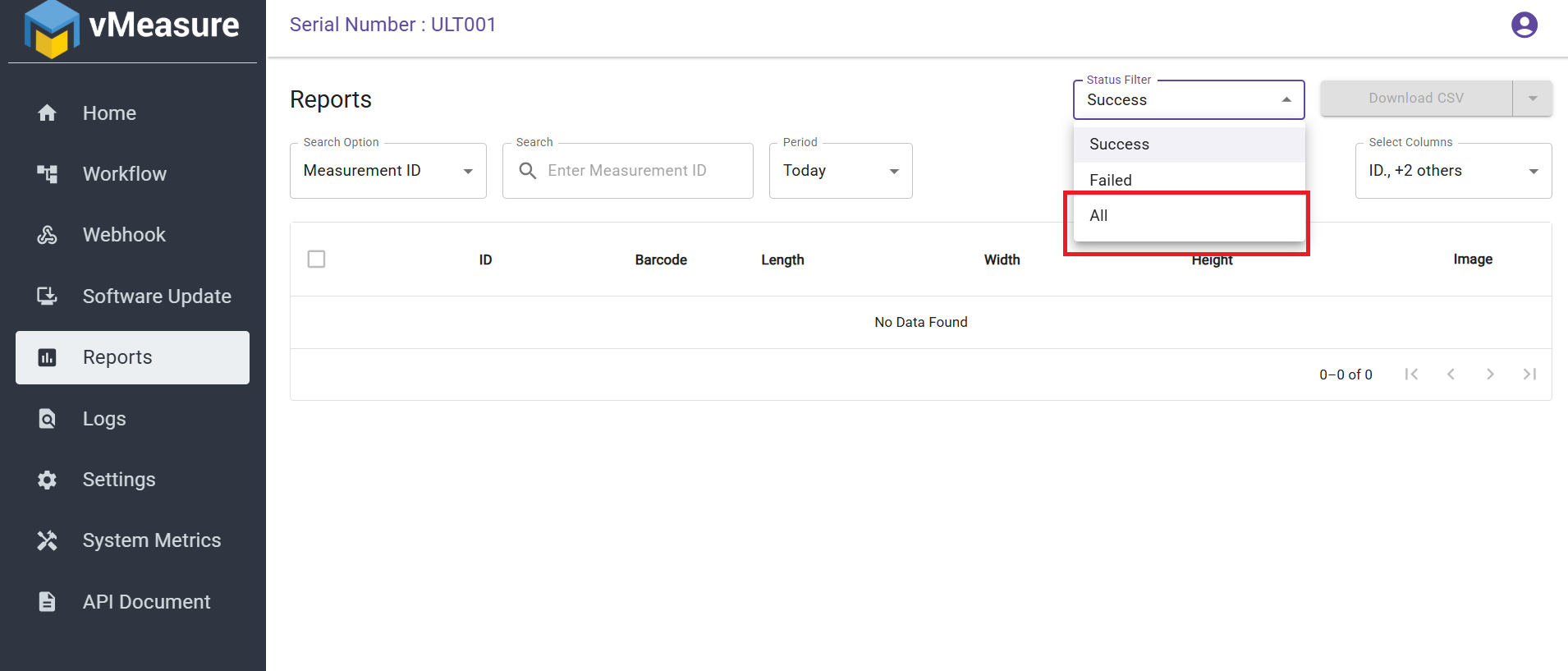
Step-3: Under the Status filter, select All if you want to download both successful and failed measurements.
Step-4: Under the Period filter, select the desired time range for the reports you wish to download.
Note: Offline Forge retains report data for the last 7 days only.
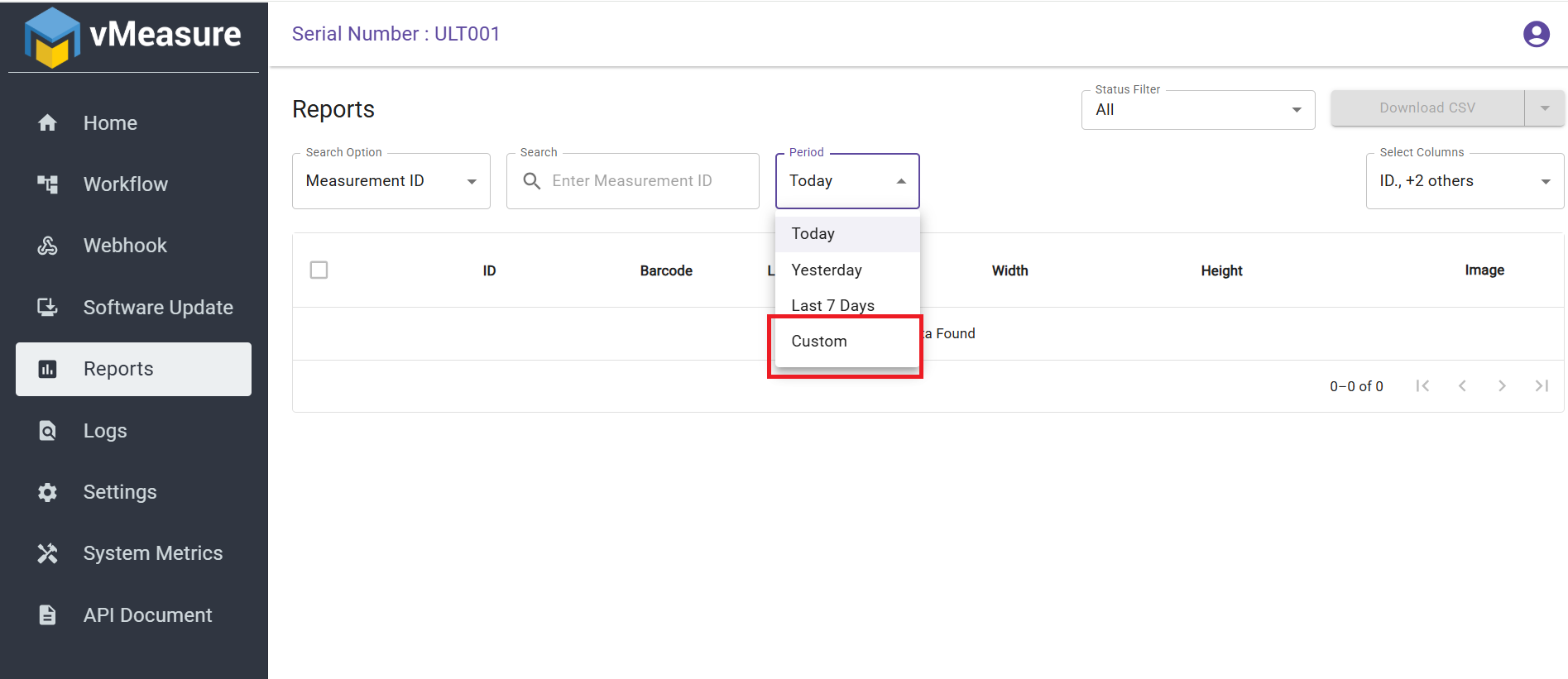
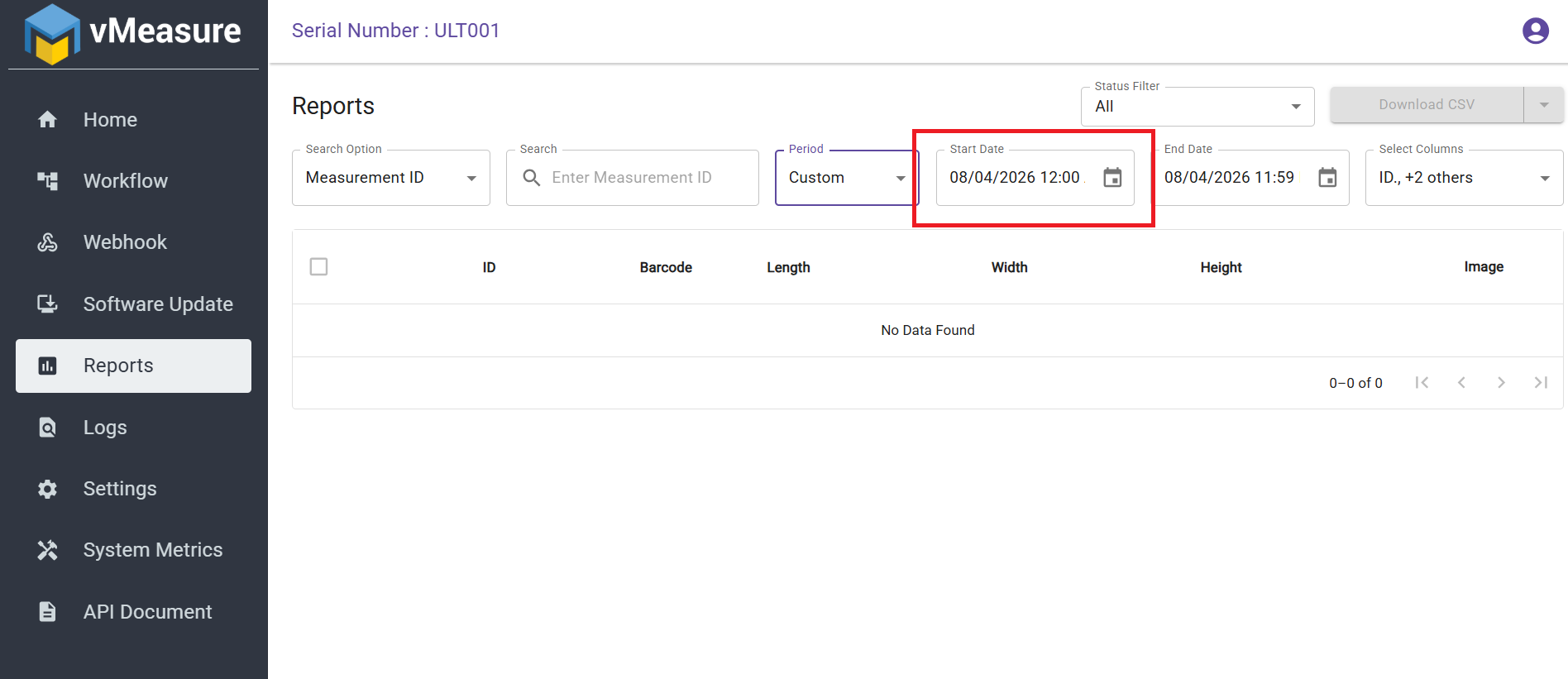
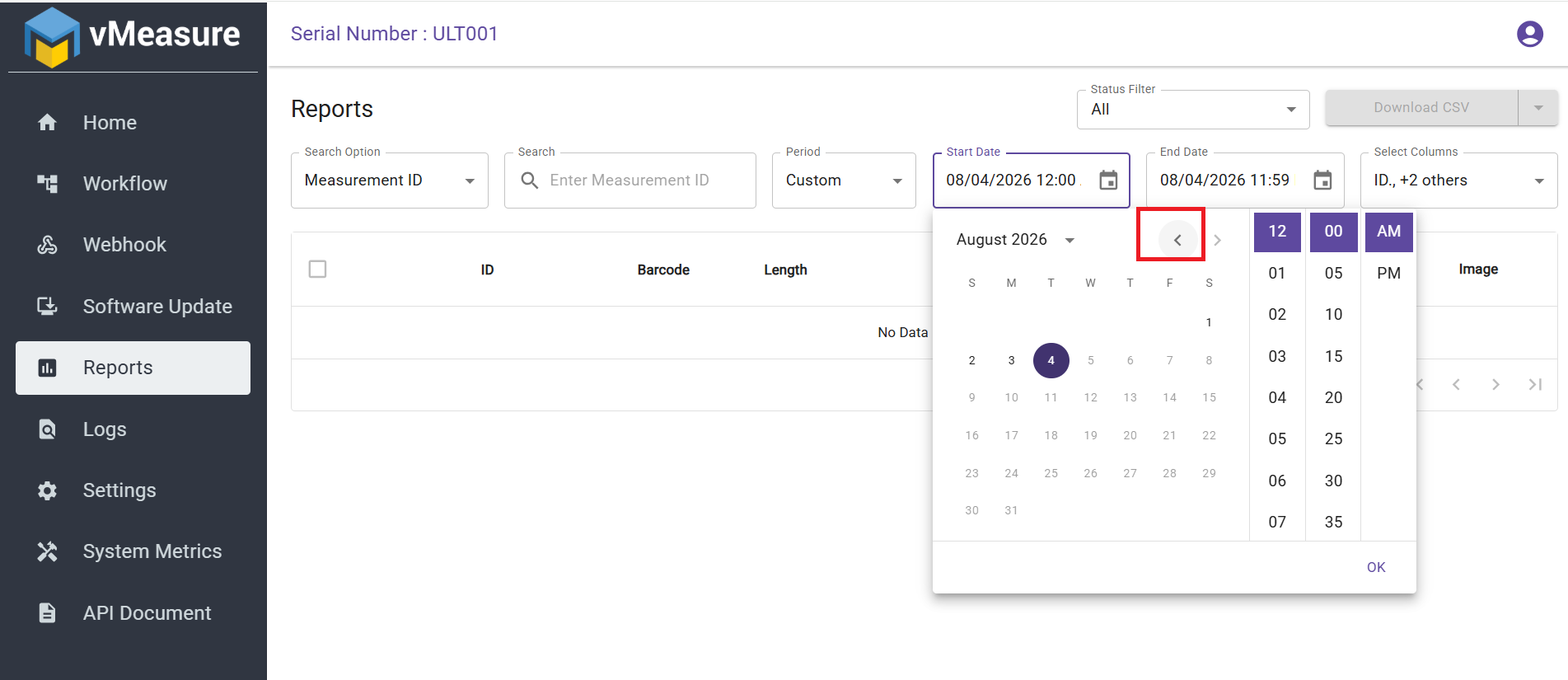
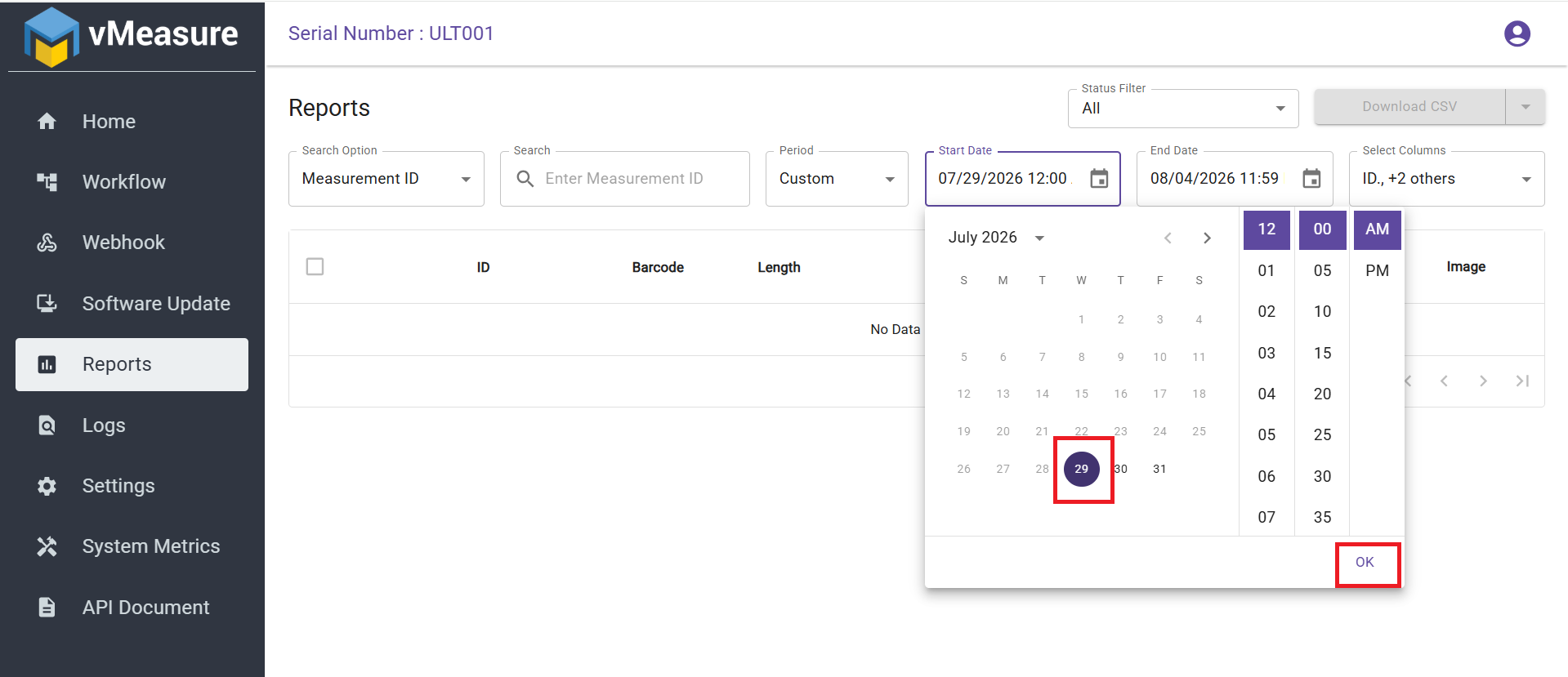
Step-5: If you select Custom under the Period filter, you can use the left and right arrow buttons in the Start Date and End Date fields to navigate and select the desired date within the last 7 days.
Step-6: Navigate to Select Columns and choose the desired fields to include in the report.
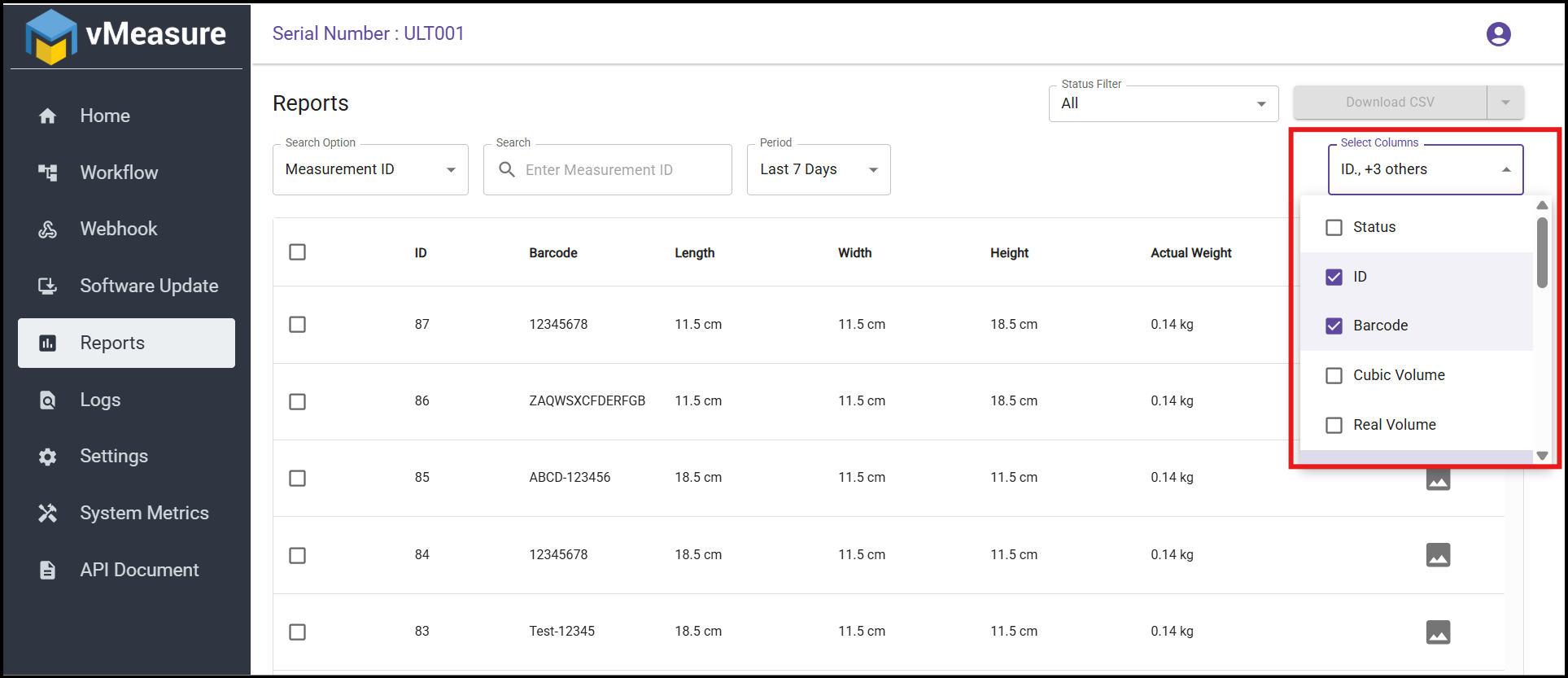
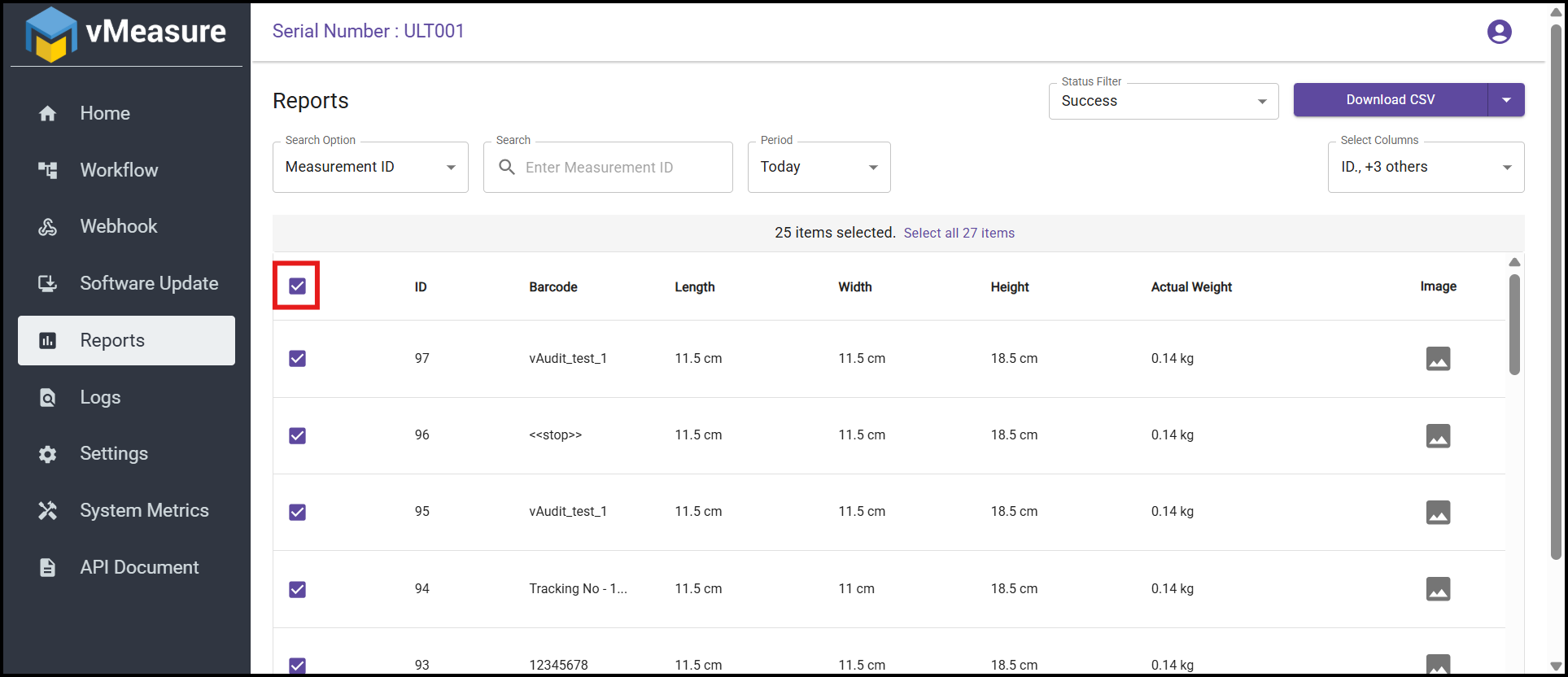
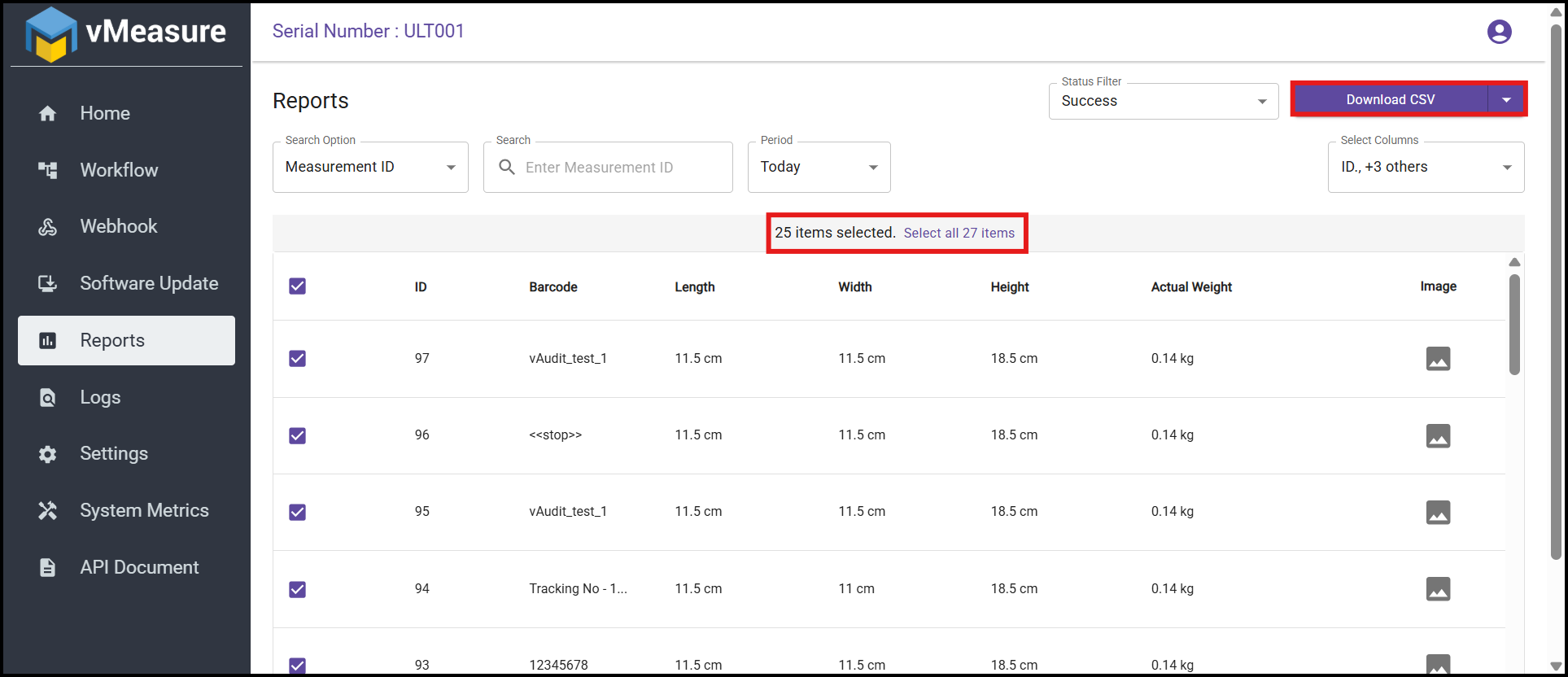
Step-7: Select the checkbox next to ID to select the records displayed on the current page (up to 25 measurements). To select all available records, click Select all xx items displayed in the center of the page, and then click Download CSV to export the report.
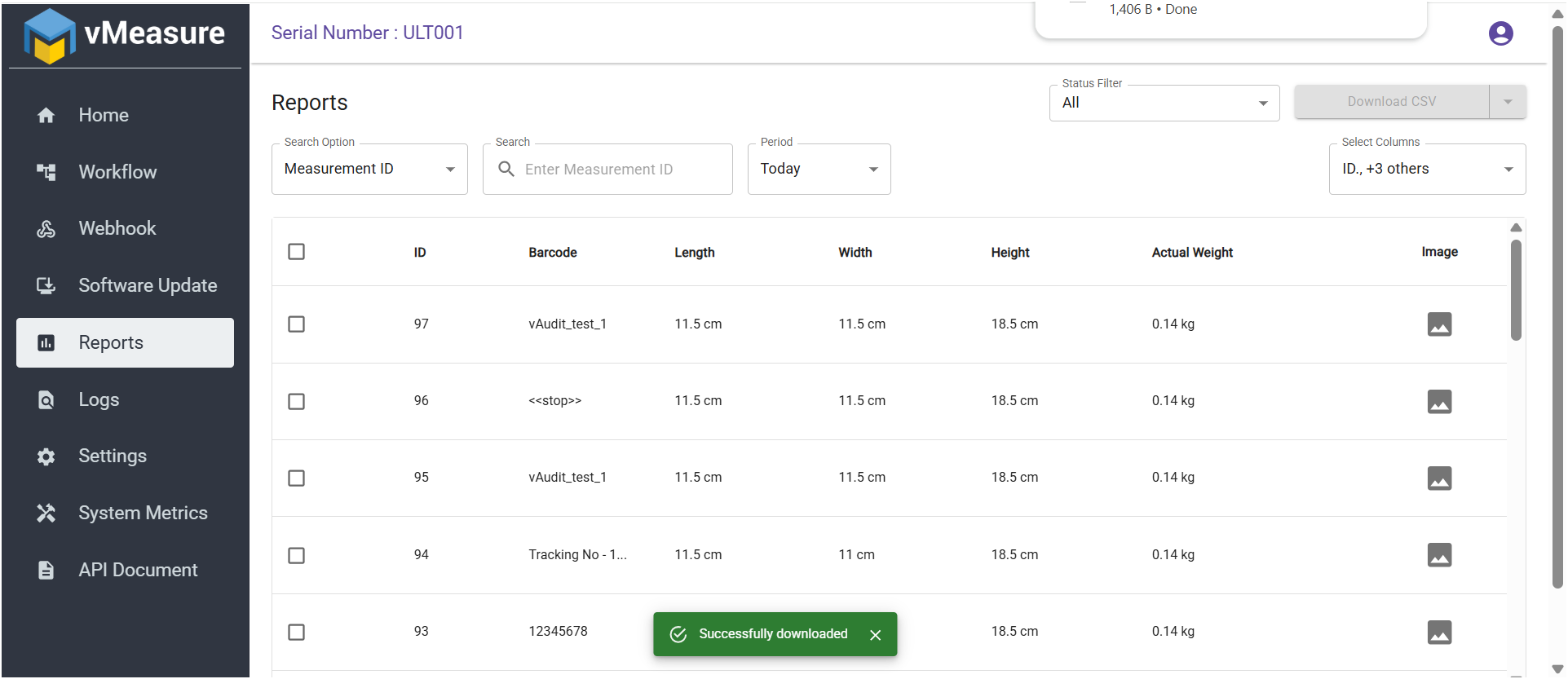
Step-8: Reports are successfully downloaded to CSV in downloads folder in your Desktop / Laptop.
Reference KB Articles:
How to download bulk images (25) from reports - KB Article - Image Download Procedure
To raise a support ticket - https://support.visailabs.com/
Was this article helpful?
That’s Great!
Thank you for your feedback
Sorry! We couldn't be helpful
Thank you for your feedback
Feedback sent
We appreciate your effort and will try to fix the article