FedEx vMeasure Suite Installation
Pre-requisites for installation:
- · The 6601 port should be given access for application installation.
Step 1: Click on the installer to begin application installation.
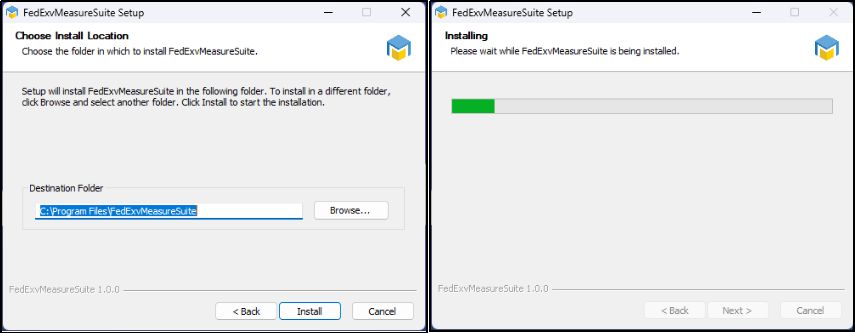
Figure 1 - Application Installation
FedEx vMeasure Suite Connection:
Step 1: After successful installation, go to the network menu to setup connection.
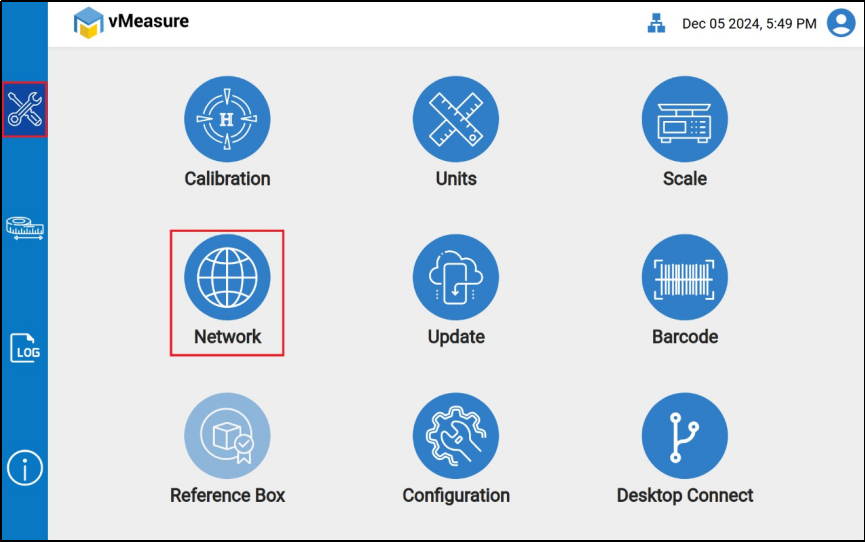
Figure 2 - Network Menu
Step 2: Select Ethernet as the preferred network type.
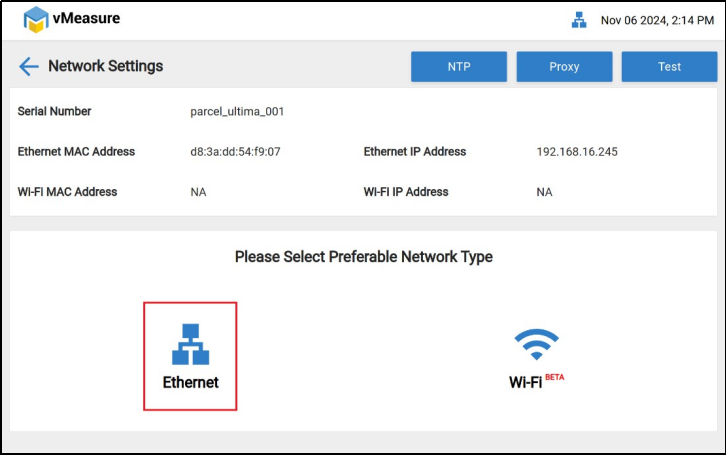
Figure 3 - Preferred Network Type
Step 3: The network mode can either be DHCP or static IP. DHCP is the preferred network mode.
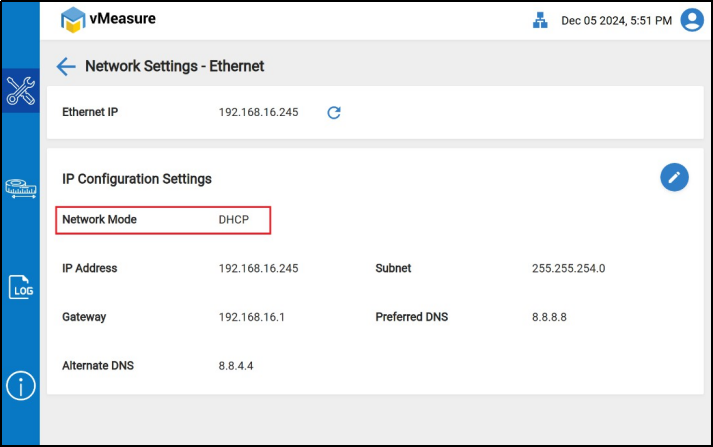
Figure 4 - Network Mode
In case your IT administration requires static IP, you can change the network mode by clicking on the pen icon.
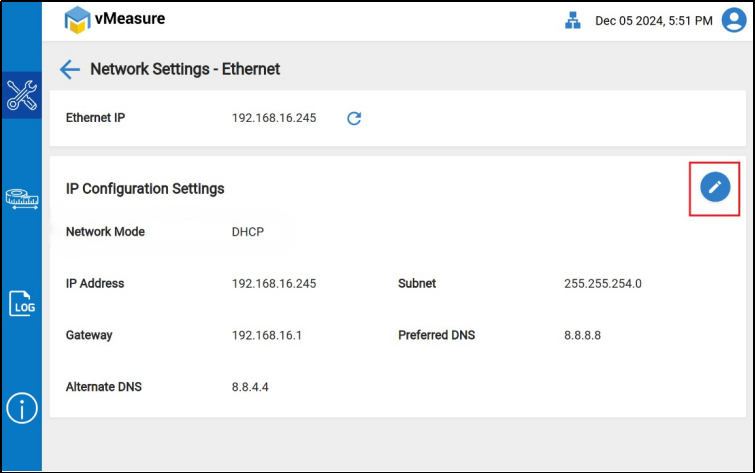
Figure 5 - Changing Network Mode
Select Static IP, enter the necessary connectivity information and click save.
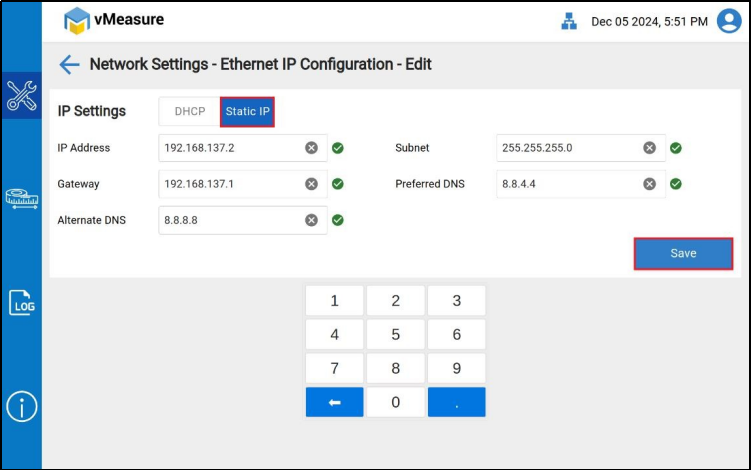
Figure 6 - Static IP configuration
Step 4: After successful installation, Navigate to "Configurations" --> "External Integrations" --> "Agent Configuration" on the settings page.
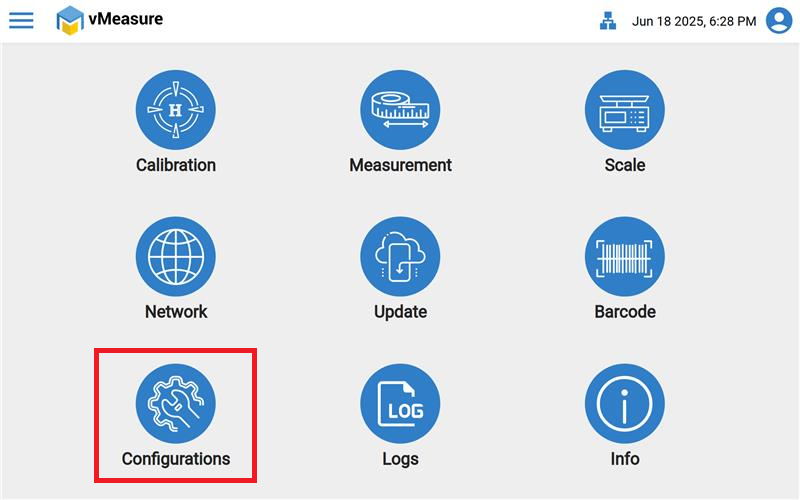
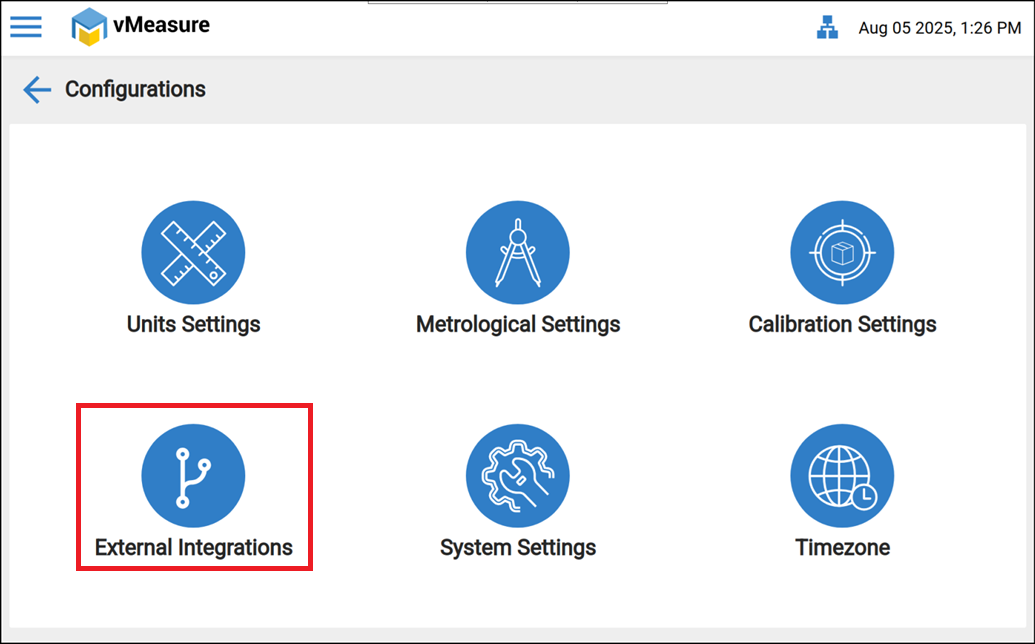
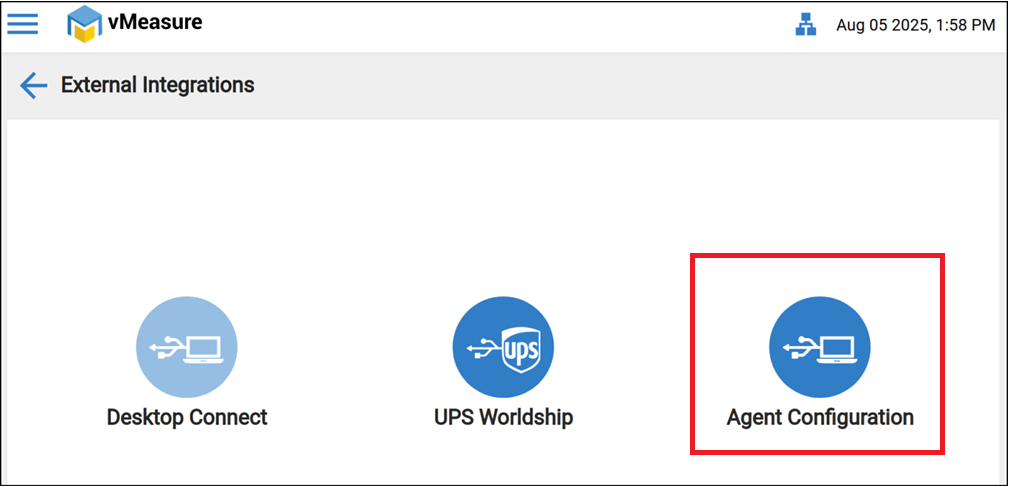
Figure 7 - Desktop Connect
Step 5: Enable the "Agent Mode" toggle button, enter the desktop IP address in which “FedEx vMeasure Suite” is installed.
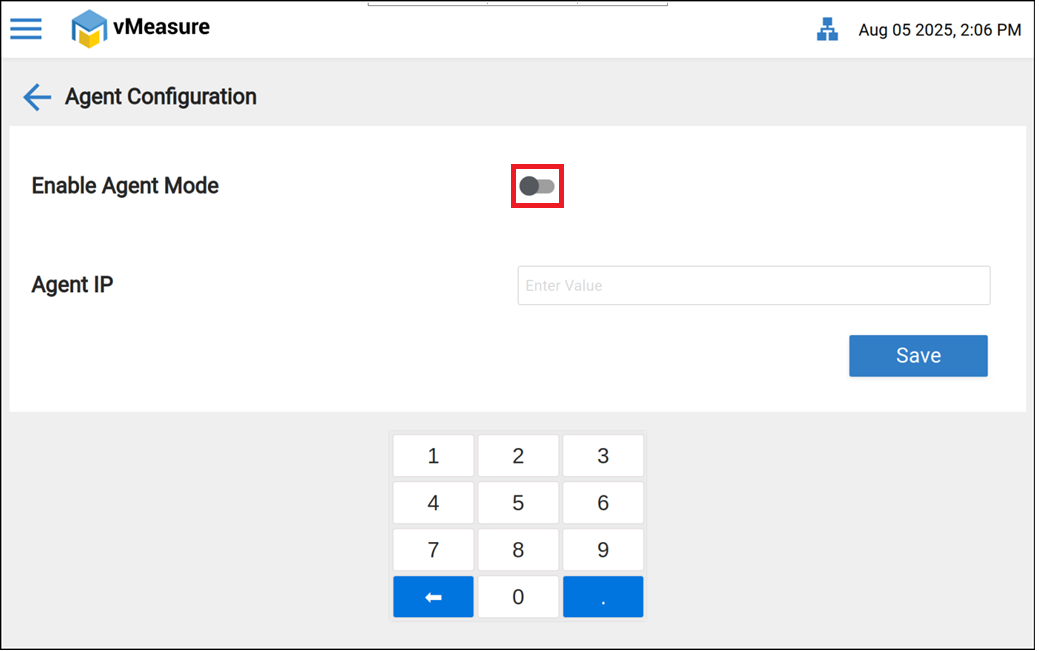
Figure 9 - Connecting the Desktop App using desktop local IP on vMeasure Device
Step 6: Enter your Desktop IP address shown on FedEx vMeasure Suite in vMeasure device.
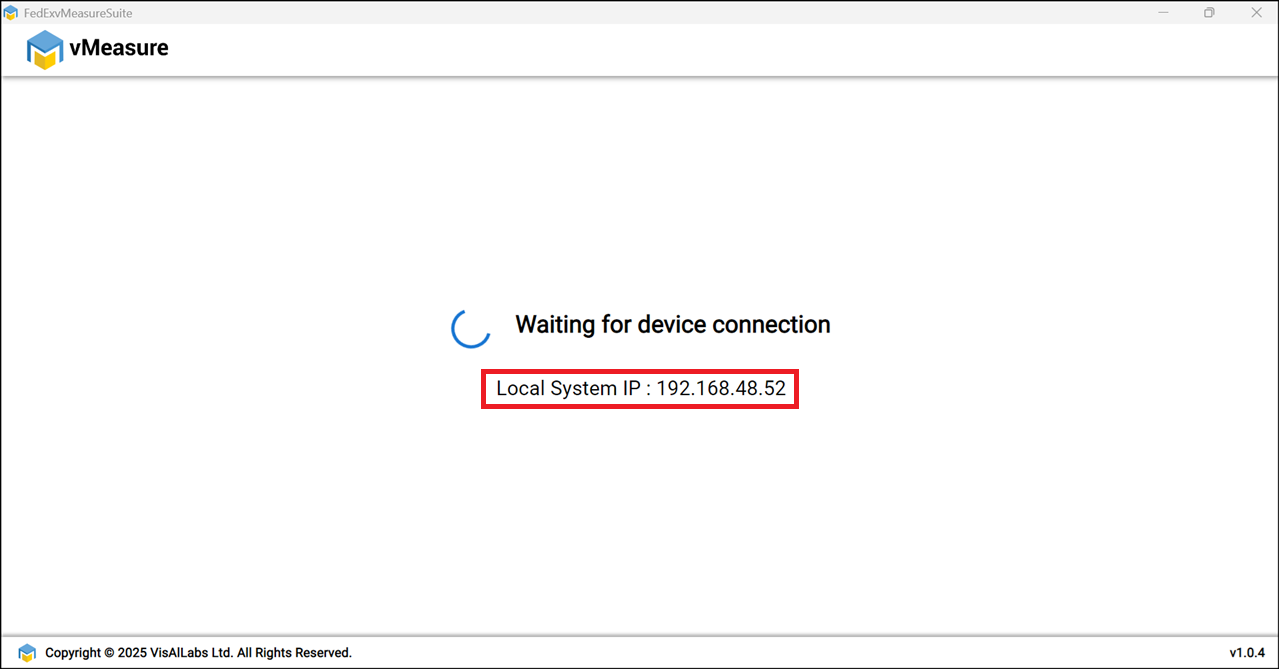
Figure 8 - Locate Device IP Address on FedEx vMeasure Suite
Step 7: After entering the IP address, click on Save. The vMeasure device should now be connected to the FedEx vMeasure Suite.
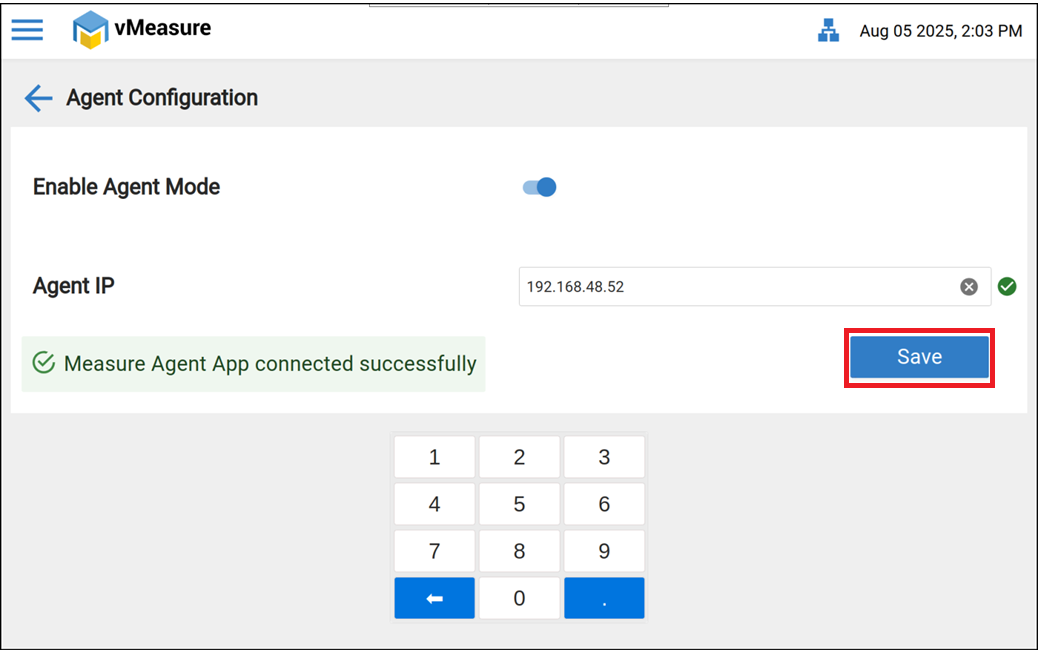
Figure 10 - Desktop App and vMeasure Device Connected
Report/Logs:
You can check reports and logs on the FedEx vMeasure Suite page, where the details of the Last Measurement Received are shown.
Reports are stored as a CSV file in the following path: C:\Users\Public\FedExvMeasureSuite\fedex.csv
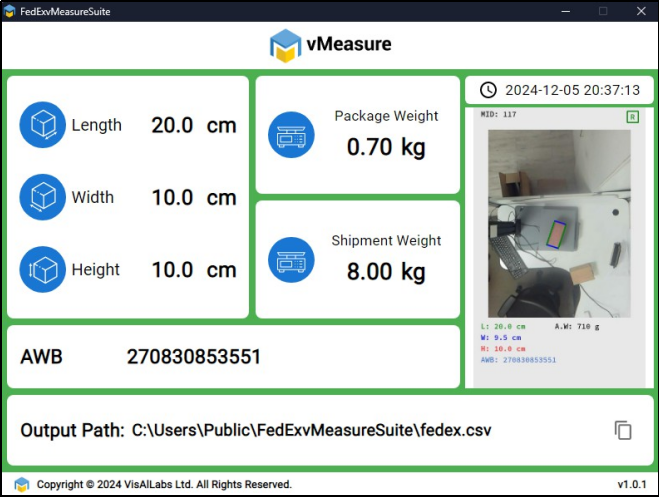
Figure 11 - Output Location
Note: Ensure the CSV file is not open during measurement. In case, the file is open, the system will display the following error on the FedEx vMeasure Suite application.
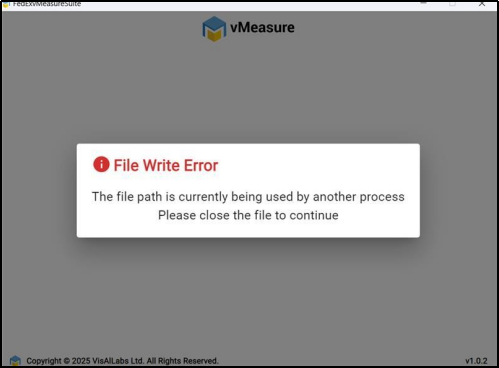
Figure 12 - File Write Error
The vMeasure Dimensioner will display the following screen until the excel file is closed.
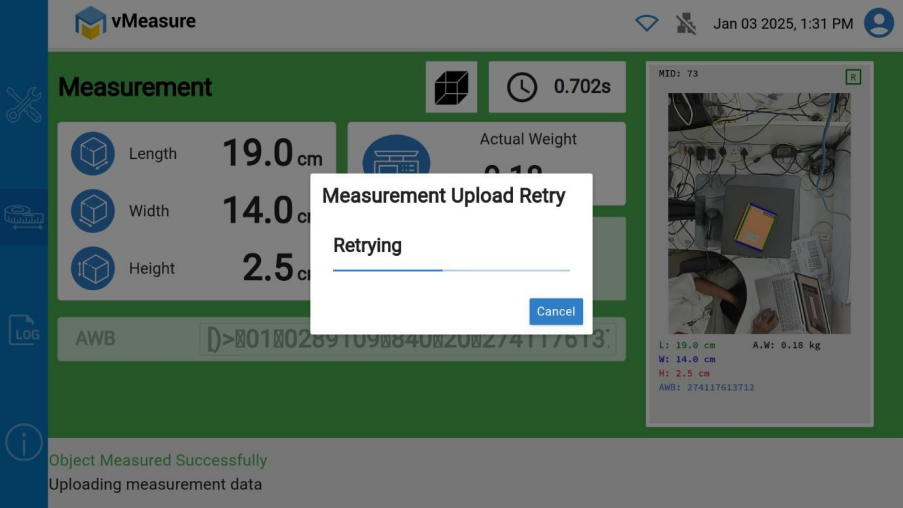
Figure 13 - Retrying of Measurement Upload
Annotated Image:
The annotation images are stored in the following path: C:\Users\Public\FedExvMeasureSuite\annotation
Note: The images are saved in folders organized by date.
What to do after CSV file upload?
After uploading the data to the FedEx software, clean up the following files to ensure that the CSV file only contains the latest data.
- - Delete the fedex.csv file from the path: C:\Users\Public\FedExvMeasureSuite\fedex.csv.
- - Delete the barcode_mapping.json file from the path: C:\Users\Public\FedExvMeasureSuite\logs\barcode_mapping.json.
Disk Space Cleanup:
Make sure to perform the following activity once a month to maintain enough hard disk space.
- 1. After uploading Fedex.csv to your software, delete both the Fedex.csv and barcode_mapping.json files.
- 2. Navigate to C:\Users\Public\FedExvMeasureSuite\annotation and remove any dated folders that are no longer needed.
- 3. Navigate to C:\Users\Public\FedExvMeasureSuite\logs\path\debug and delete any outdated date folders.
- 4. Navigate to C:\Users\Public\FedExvMeasureSuite\logs\path\application and remove older files based on their dates.
Note: The folders and files under C:\Users\Public\FedExvMeasureSuite\logs\path required for troubleshooting and debugging purpose.
If you need any support, please drop a mail to vmeasure@visailabs.com.
Was this article helpful?
That’s Great!
Thank you for your feedback
Sorry! We couldn't be helpful
Thank you for your feedback
Feedback sent
We appreciate your effort and will try to fix the article