Follow the steps below to install & configure the remote trigger to your Pallet device.
To use the vRemote application the workflow has to be set to slave mode.
Kb Article - How to change the workflow to Slave mode
Note: Please ensure both Android Application installed device & Pallet device are in the same network.
Step -1: Install the vRemote application from Google play store.
https://play.google.com/store/apps/details?id=com.vmeasureremote
Step -2: Once the application is installed it will show the Welcomes page, Loginto Forge https://www.start.visailabs.com
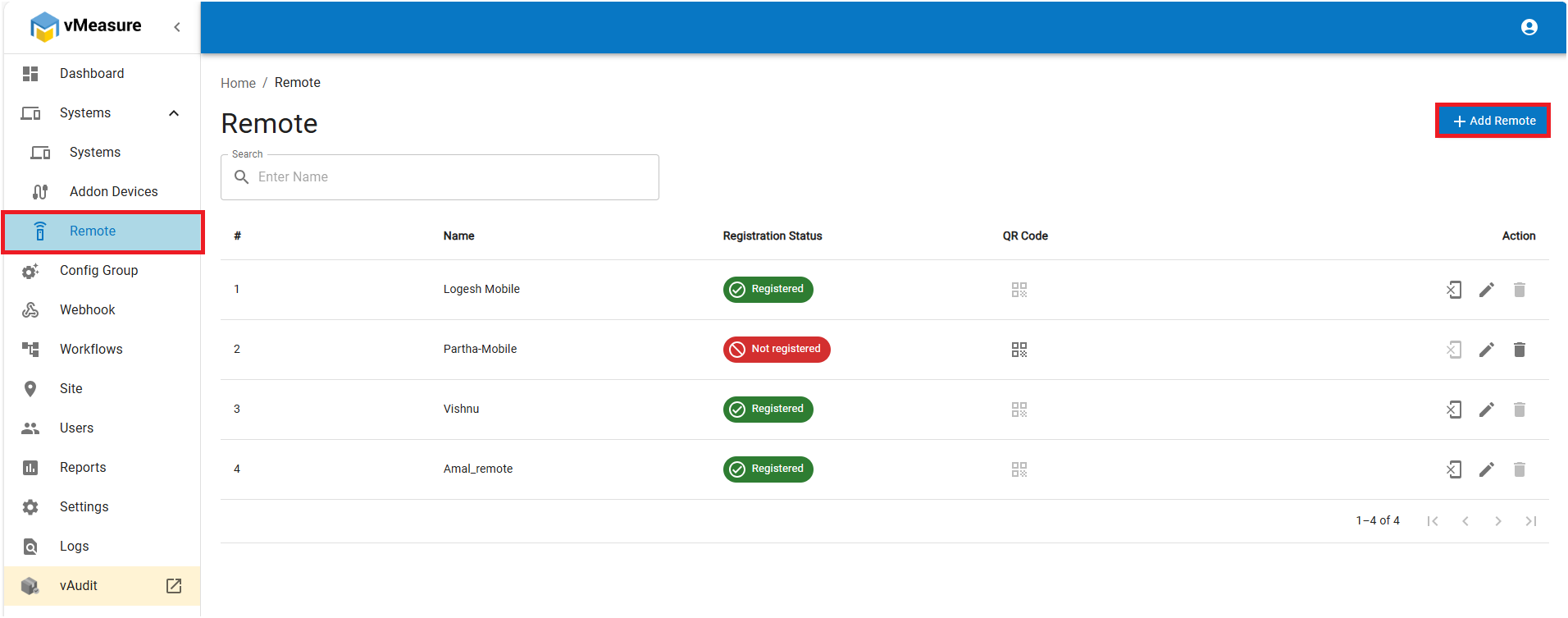
Step -3: Navigate to "Systems", Click on "Remote" & "+Add Remote".
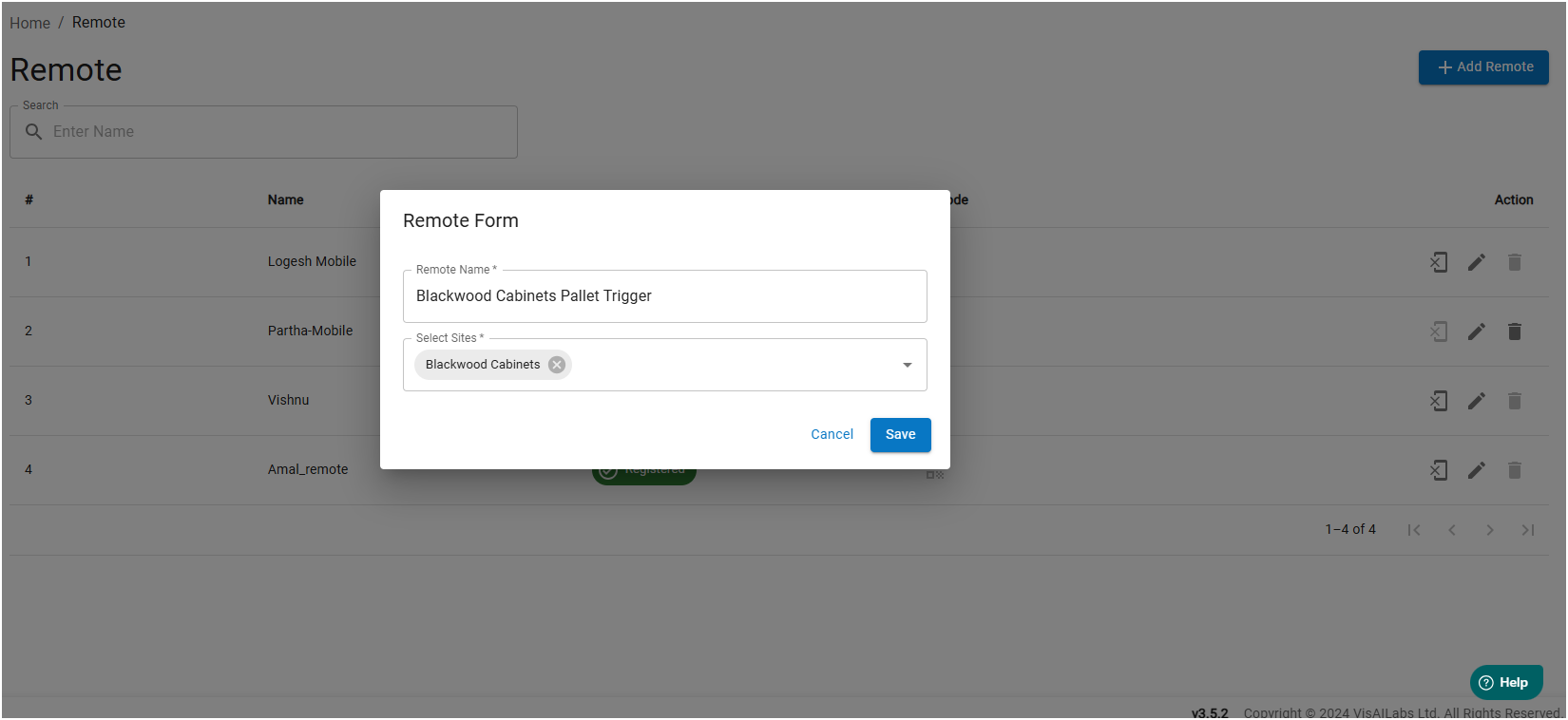
Step -4: Enter the "Remote Name" & Select the "Site" & Click on Save.
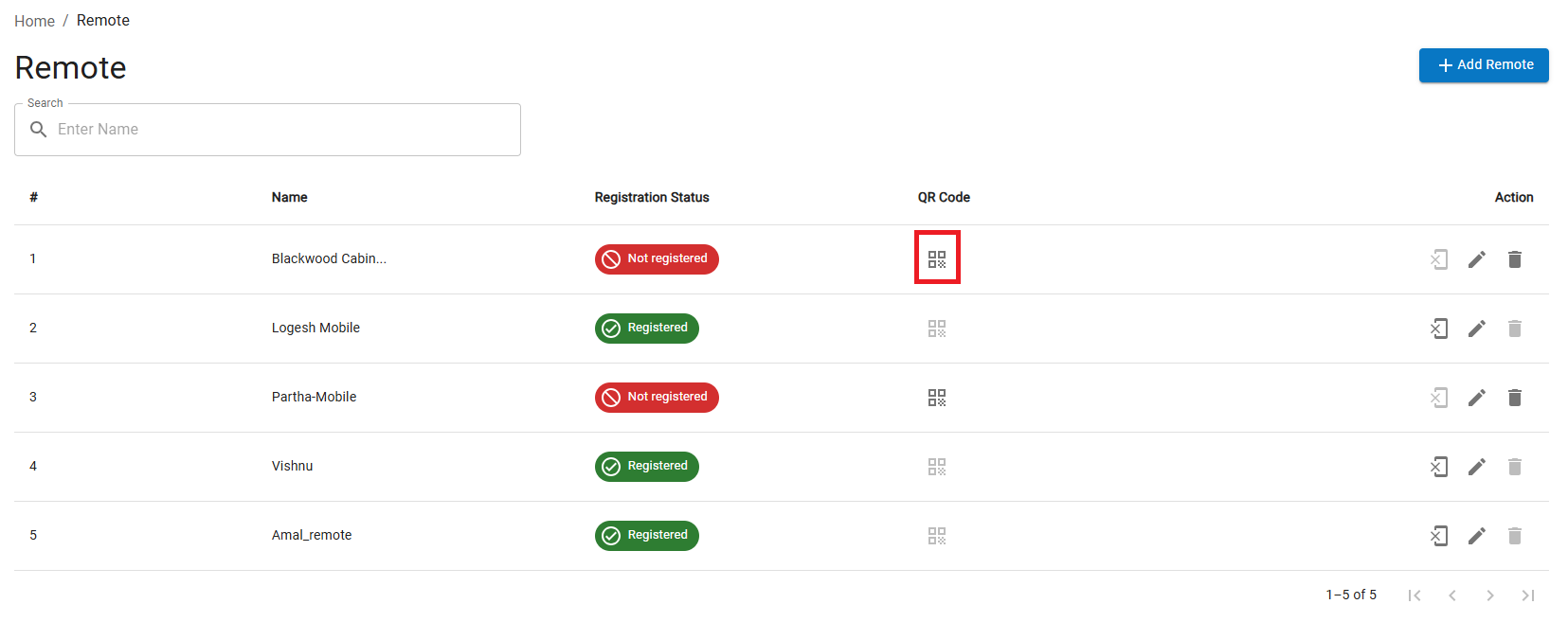
Step -5: Remote will be created, we need to register the remote with Android device application. Click on the QR code
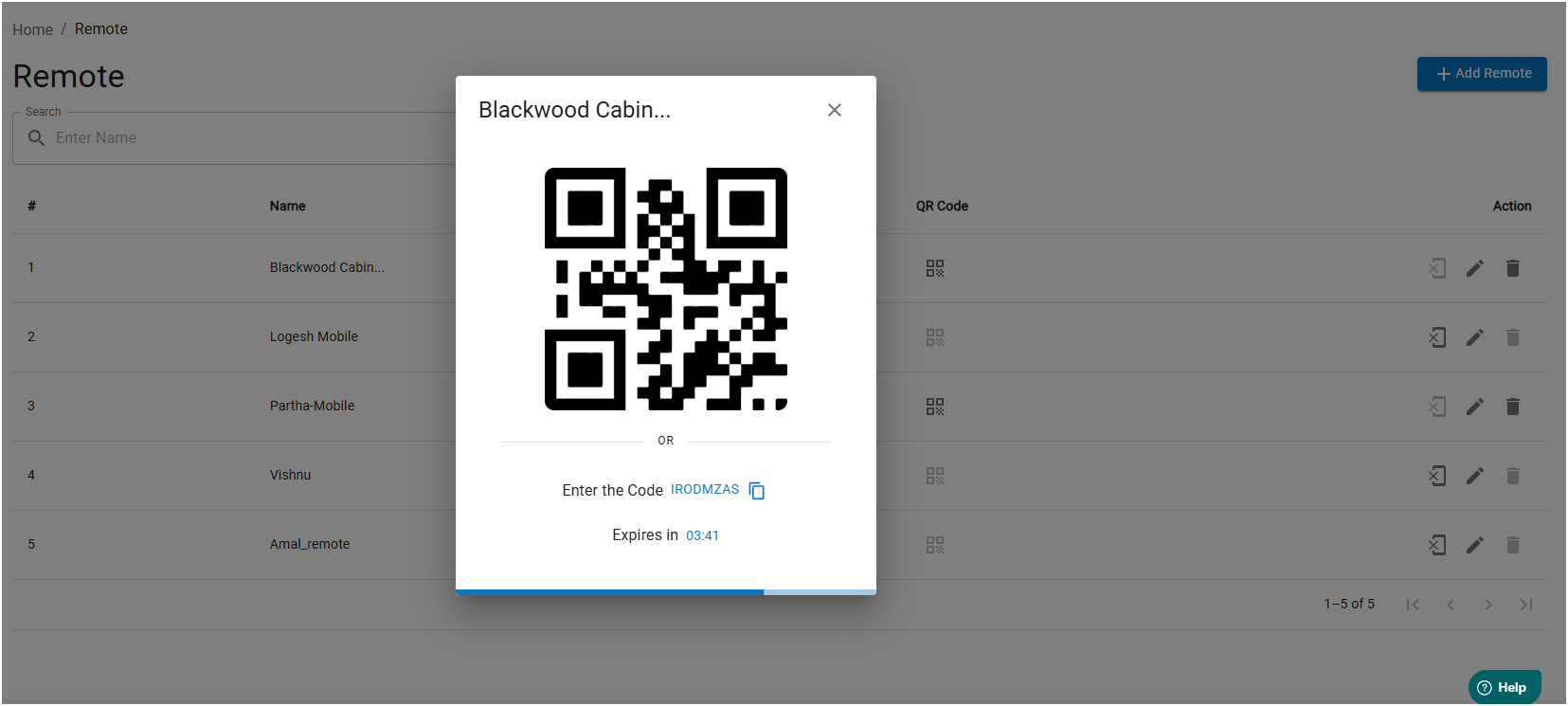
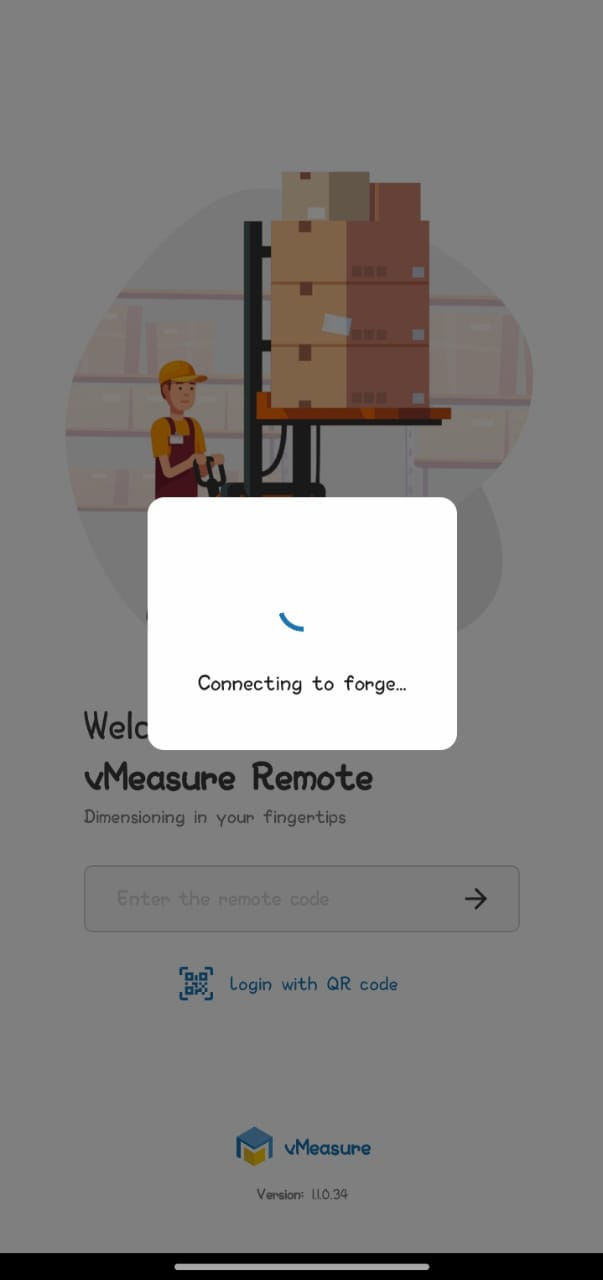
Step -6: Now Scan the QR code or enter the code manually in the vRemote application.
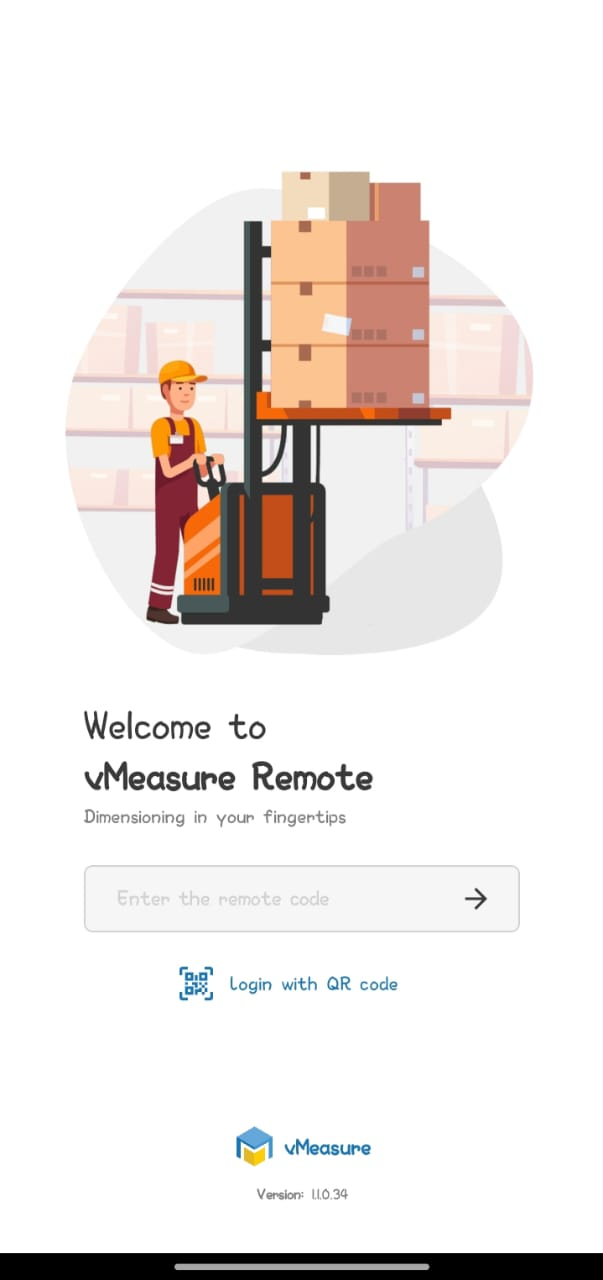
Step -7: Code / QR will be verified & registration will be success.
Step -8: Navigate to Device tab in the device. (List of devices from the configured site will listed). Selcet the Pallet device & clcik on "Pair".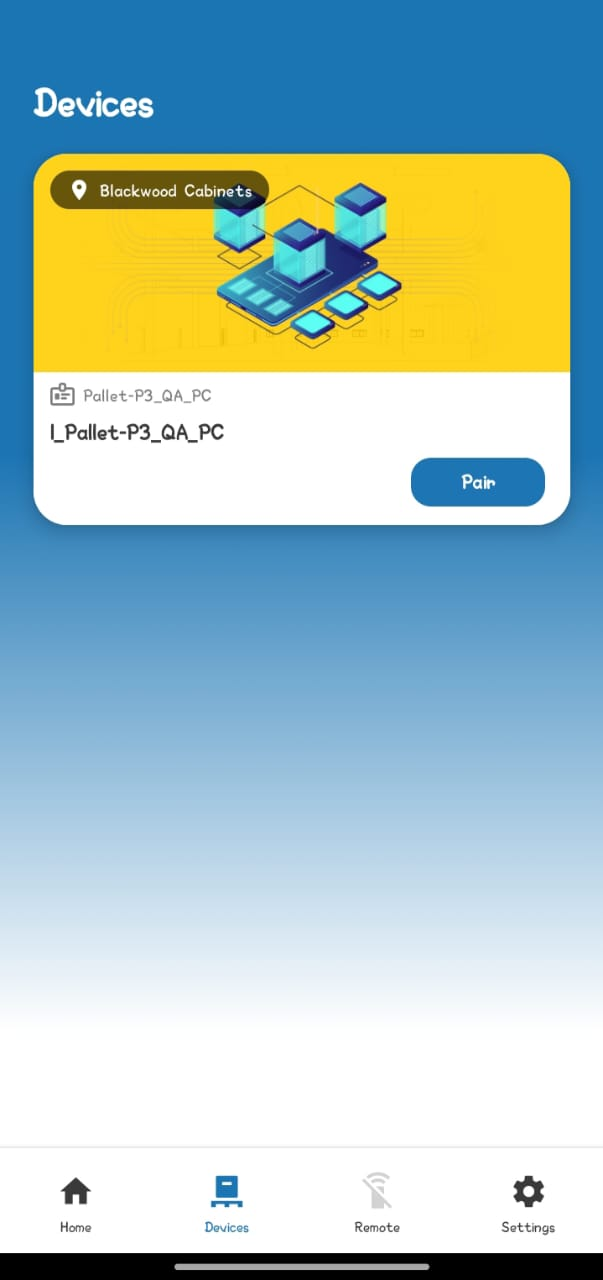
Step -9: vRemote application will prompt to enter the OTP, User can find the OTP in Pallet device screen.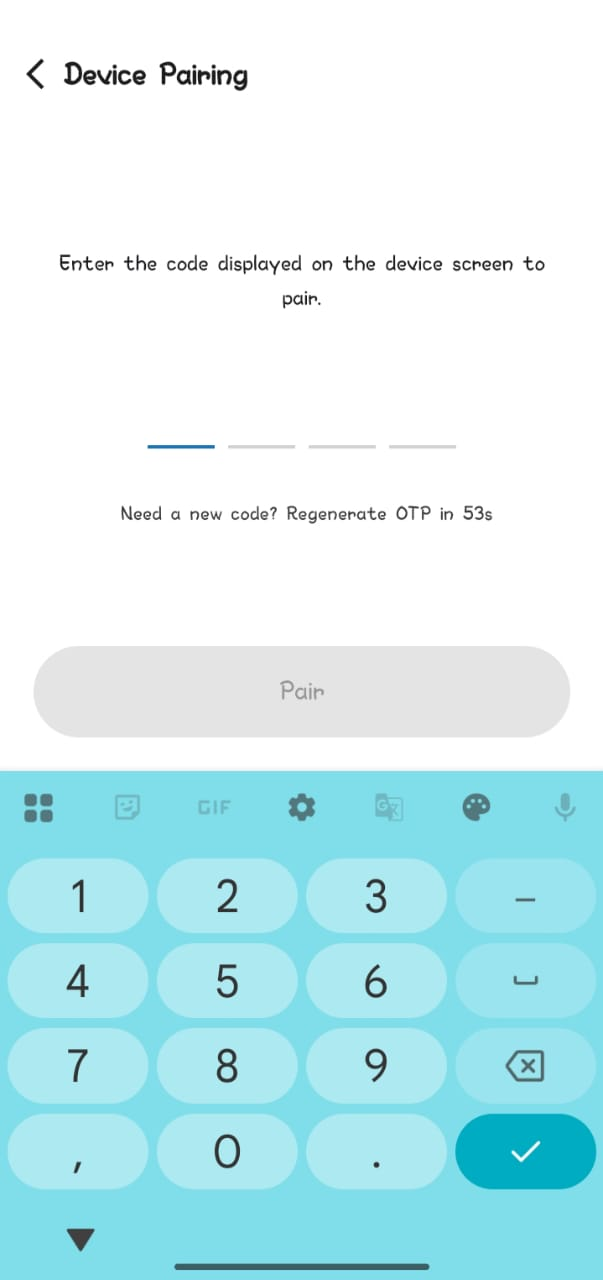
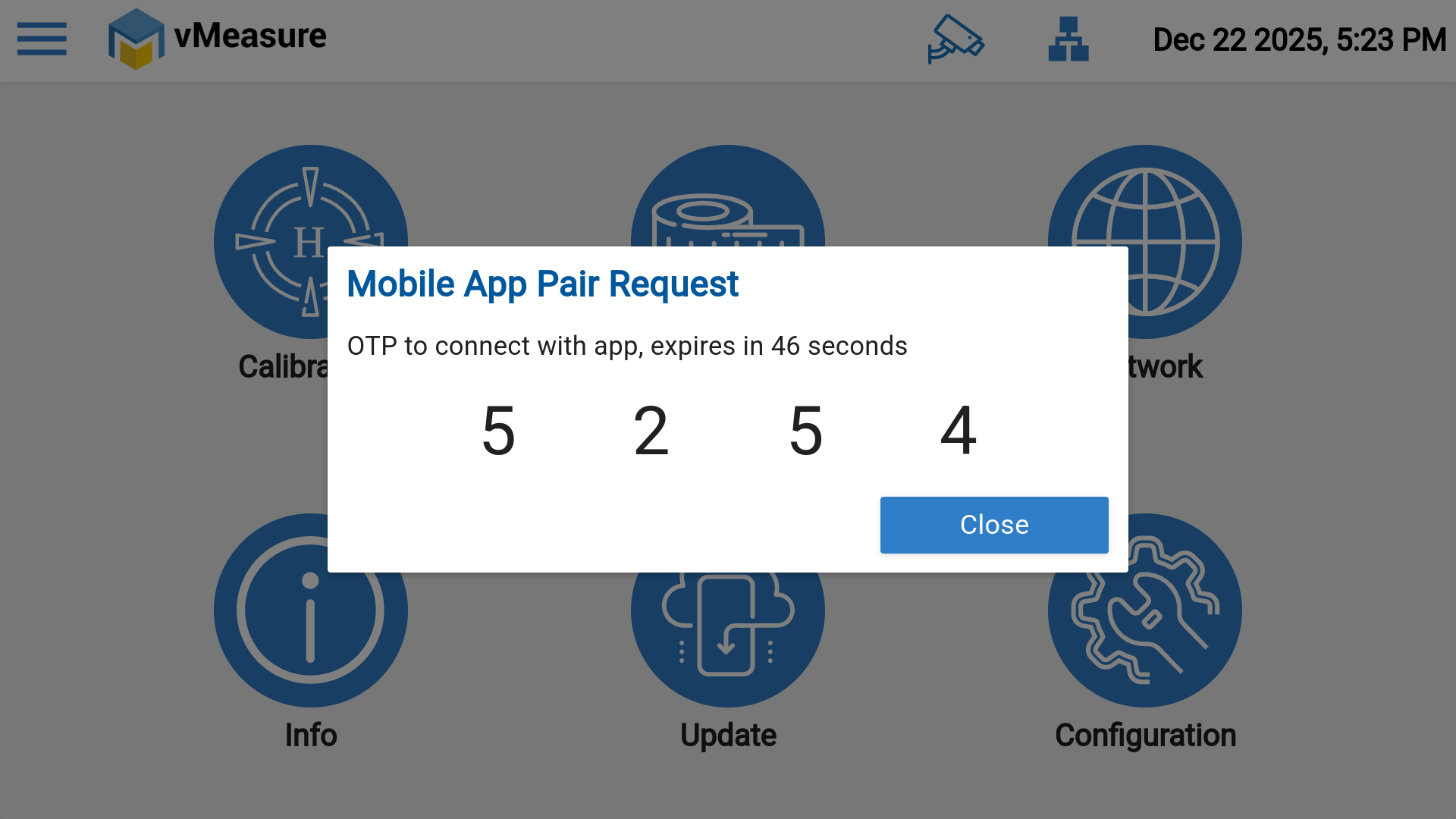
Step -10: Enter the OTP & click on Pair, Remote connection is successful.
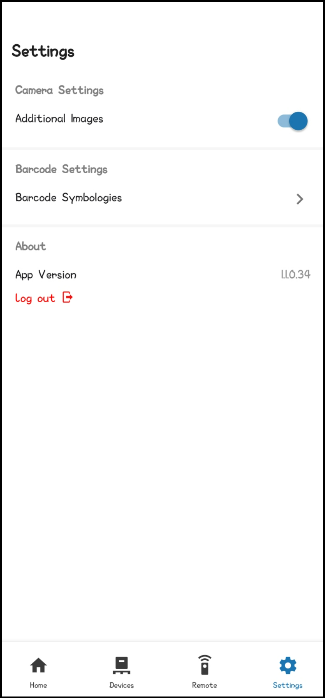
Step -11: Navigate to"Settings" enable/disable Additional Images toggle button as per requirement.
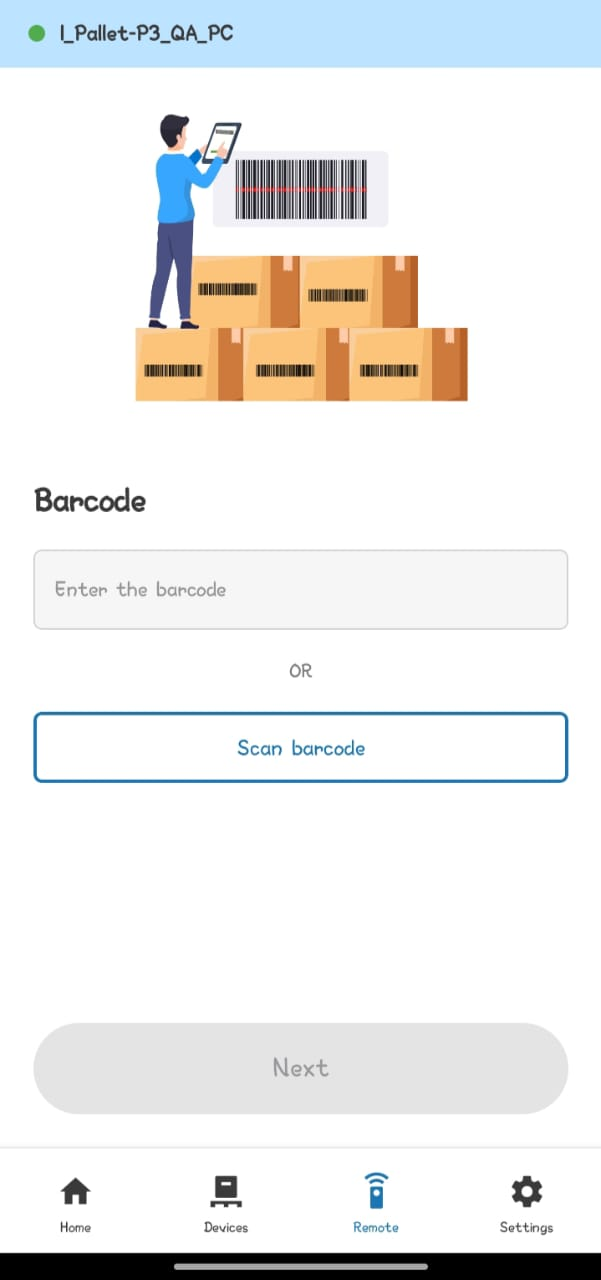
Step -12: Navigate to "remote", screen prompts you to enter / scan the barcode (If applicable).
Step -13 : Once the barcode is triggered, an additional image page will automatically appear, allowing you to capture up to five additional images using the vRemote application.
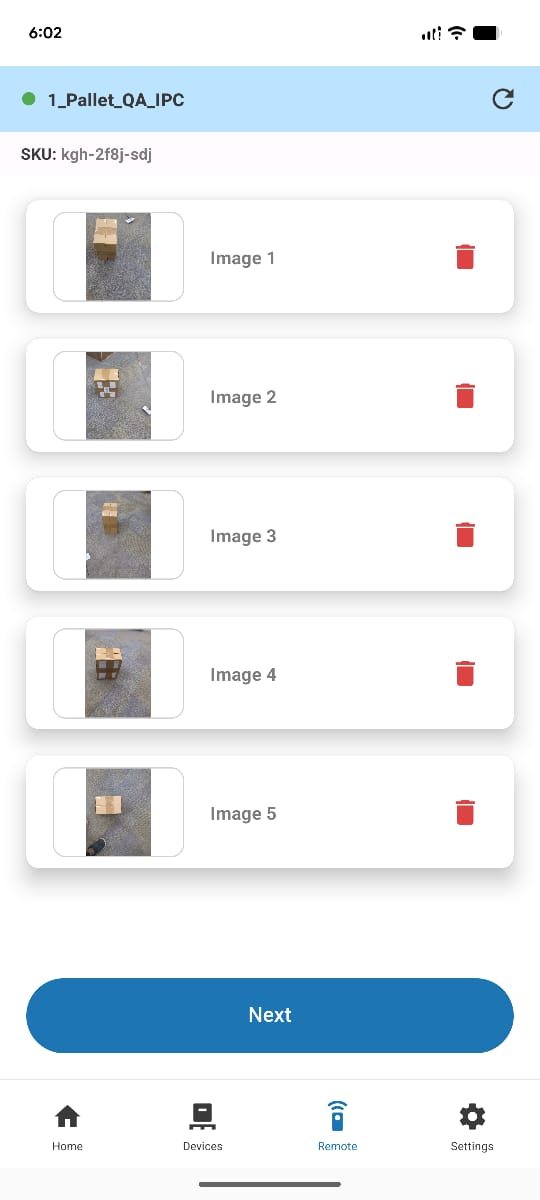
Step -14: Click on Next to proceed for the Measurement screen, Click on Measure button to trigger the measurement.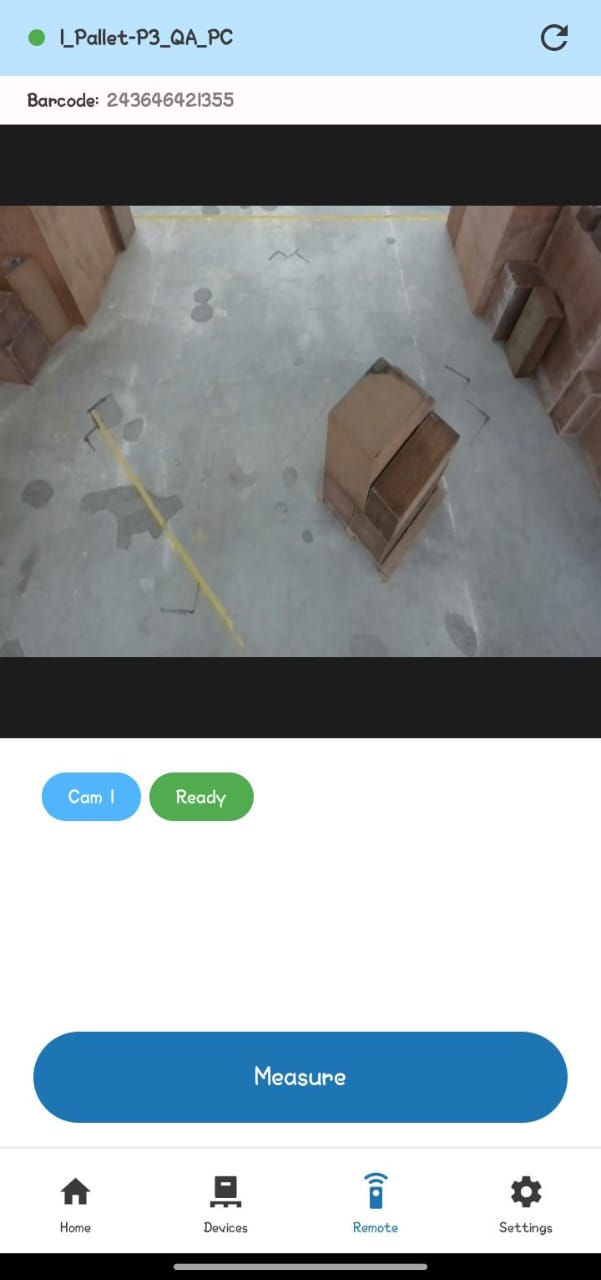
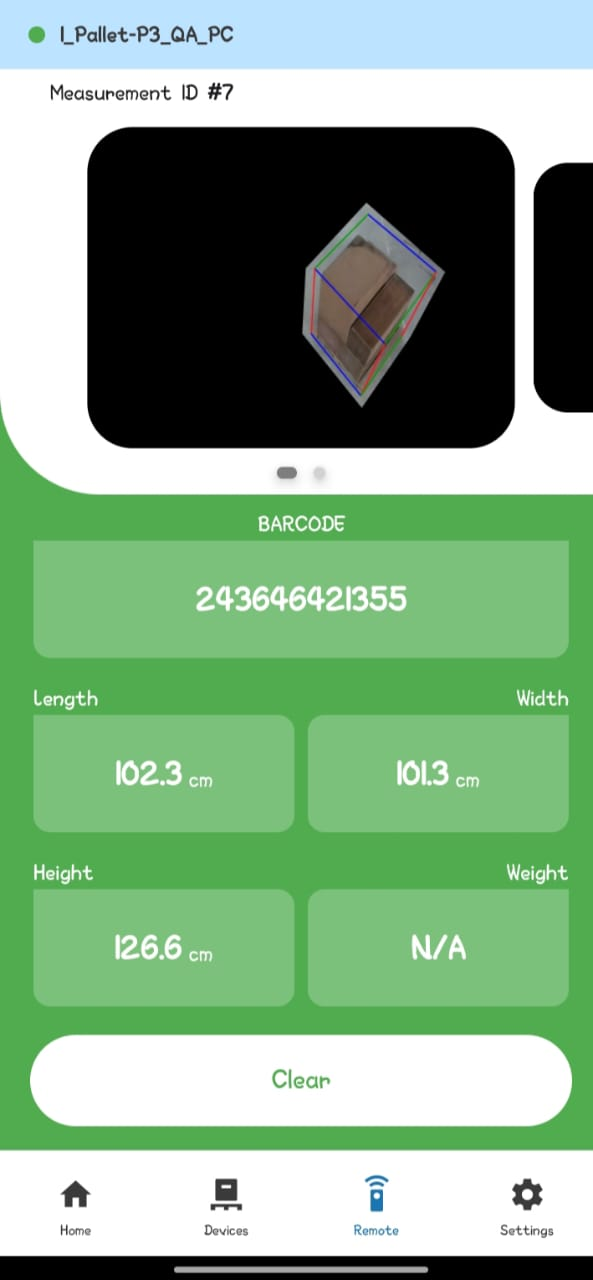
Remote is successfully registered & measurements are triggered successfully.
If you need any support , please drop a mail to vmeasure@visailabs.com
Was this article helpful?
That’s Great!
Thank you for your feedback
Sorry! We couldn't be helpful
Thank you for your feedback
Feedback sent
We appreciate your effort and will try to fix the article