Introduction
Weighing Scale Trigger:
The Weighing Scale Trigger is an additional trigger option that works together with the Barcode Trigger or Remote Trigger. It allows the measurement process to be automatically triggered when the is weight is stable on the weighing scale. You can configure the trigger reset behavior by selecting one of the available options from the Trigger Reset drop-down menu.
- This is a feature allows the device to trigger the measurements only when some load is placed on the weighing scale.
- This is a feature allows the device to trigger the measurenet when the placed weight is stable.
- This feature could be used to decrease error rates when used by the POC.
Smart Measurement:
The Smart Measurement feature is designed to prevent inaccurate measurements caused by human interference in the camera's field of view. When enabled, the device continuously monitors the camera preview. If any movement is detected, the measurement process is paused until the camera view is clear and motionless, ensuring accurate dimensioning.
Steps to Enable Smart Measurement and Weighing Scale Trigger
Step 1: Log in to Forge
Log in to the Forge portal using your credentials.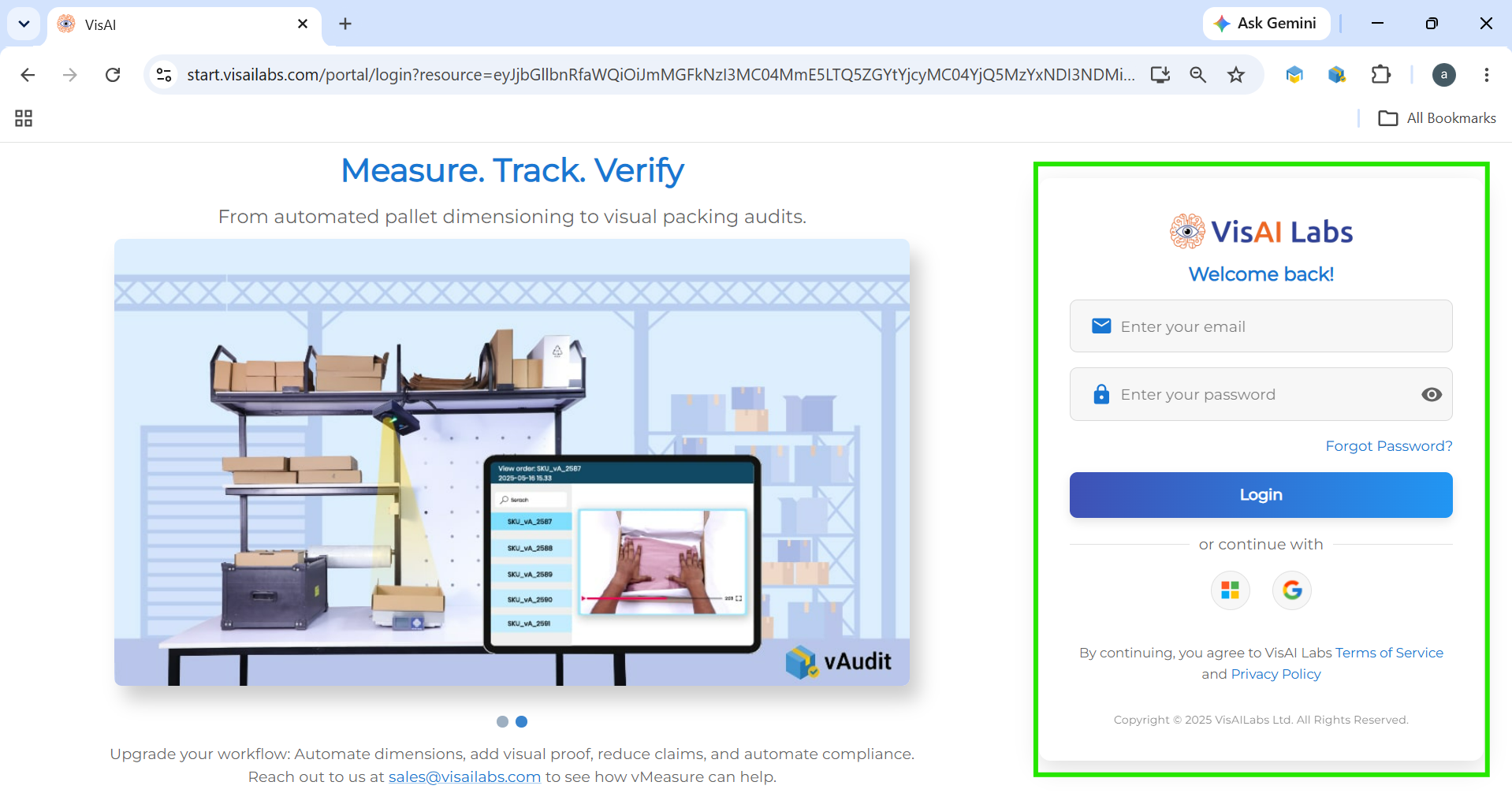
Step 2: Open the Workflow
Navigate to Workflow.
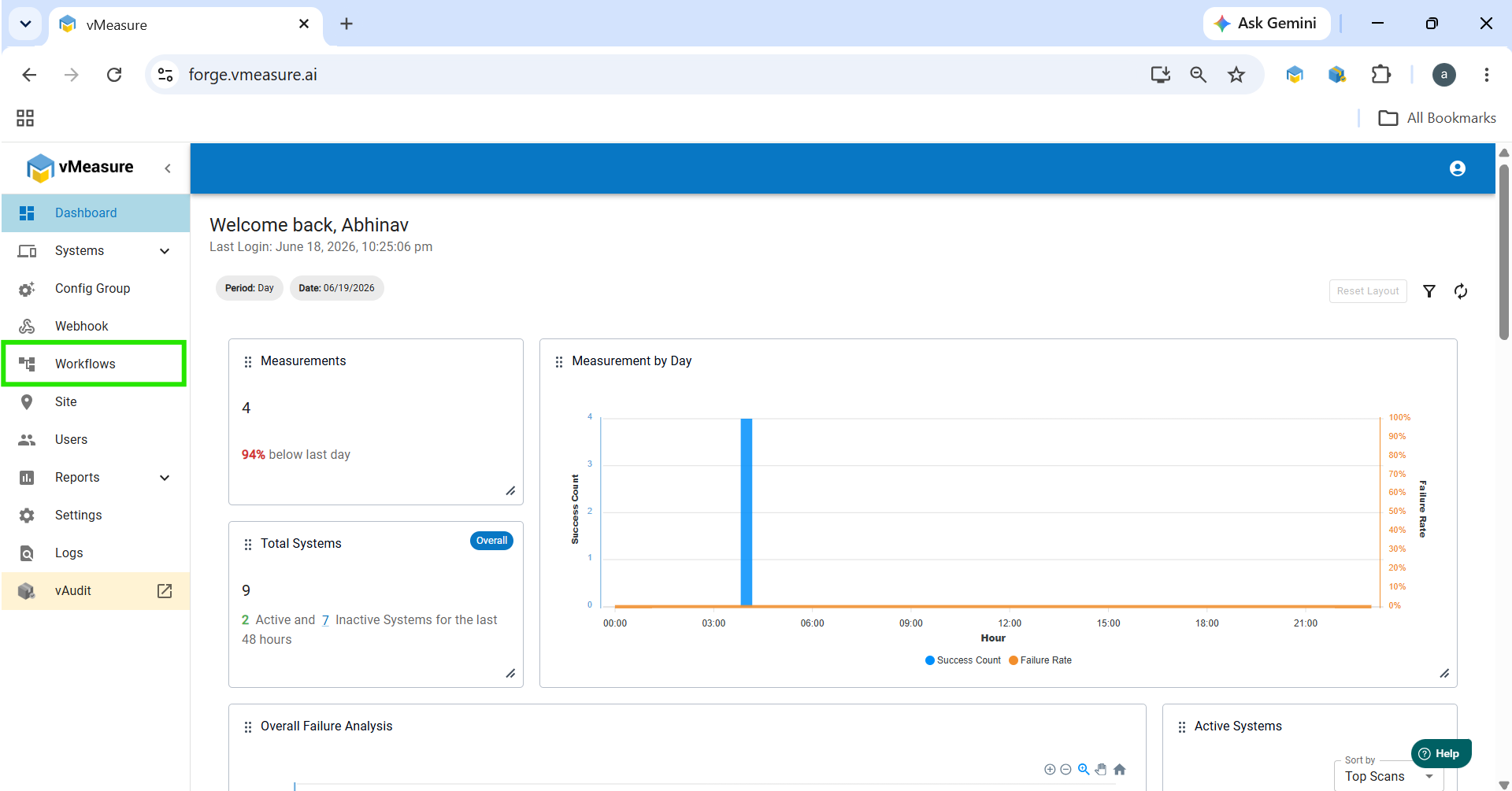
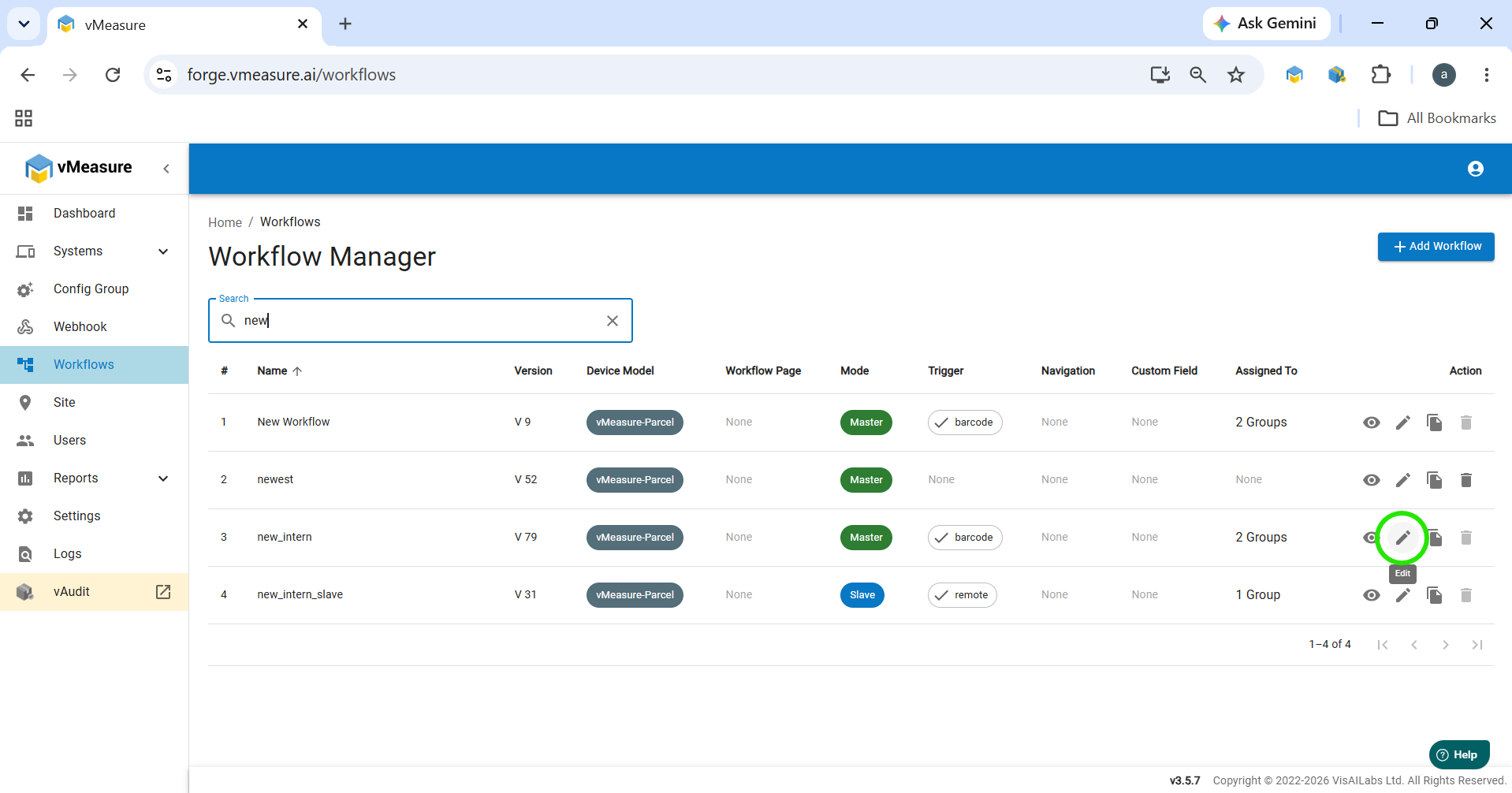
Click Edit on the desired workflow.
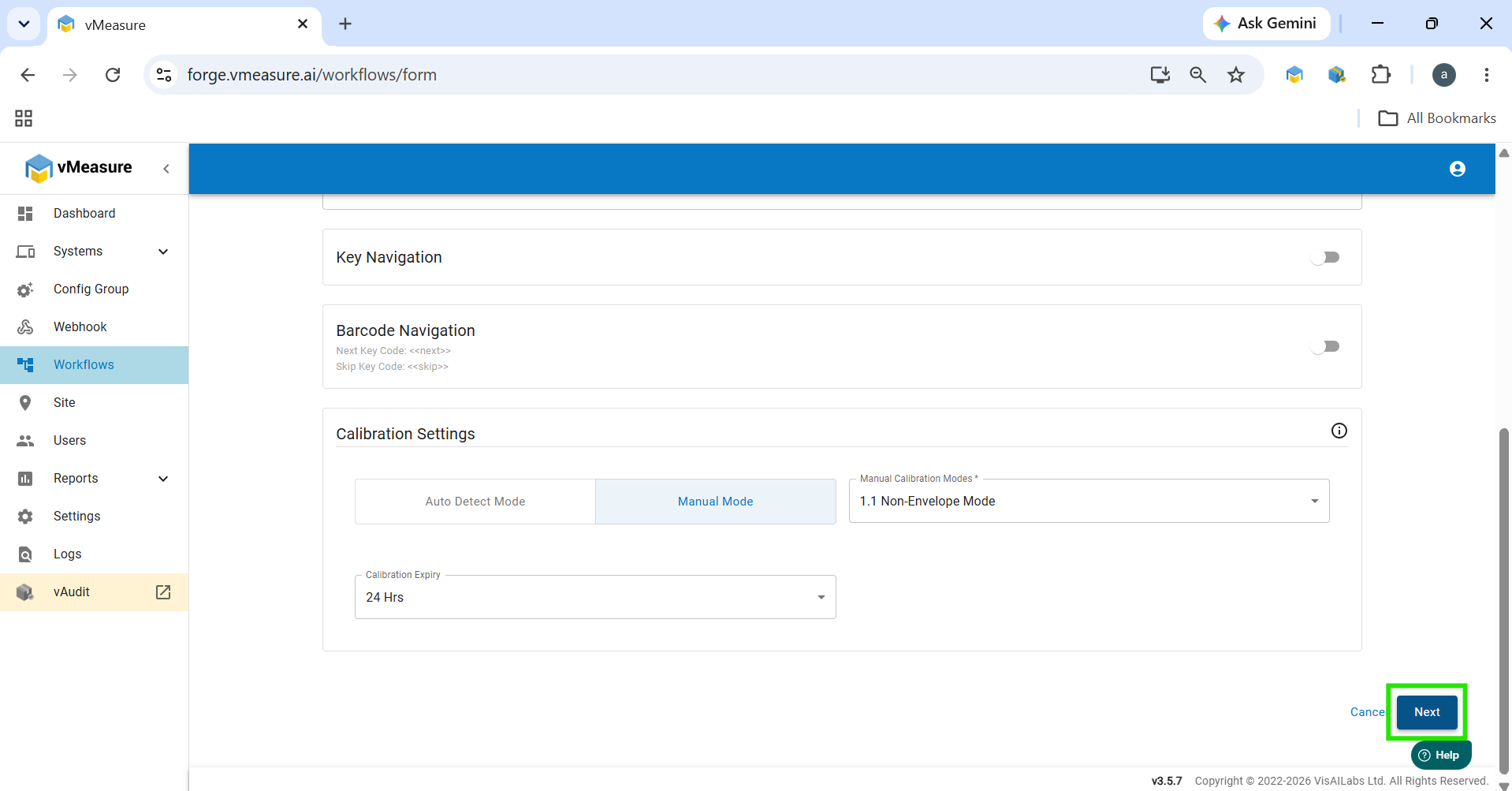
Click Next to move to Page 2 of the workflow configuration.
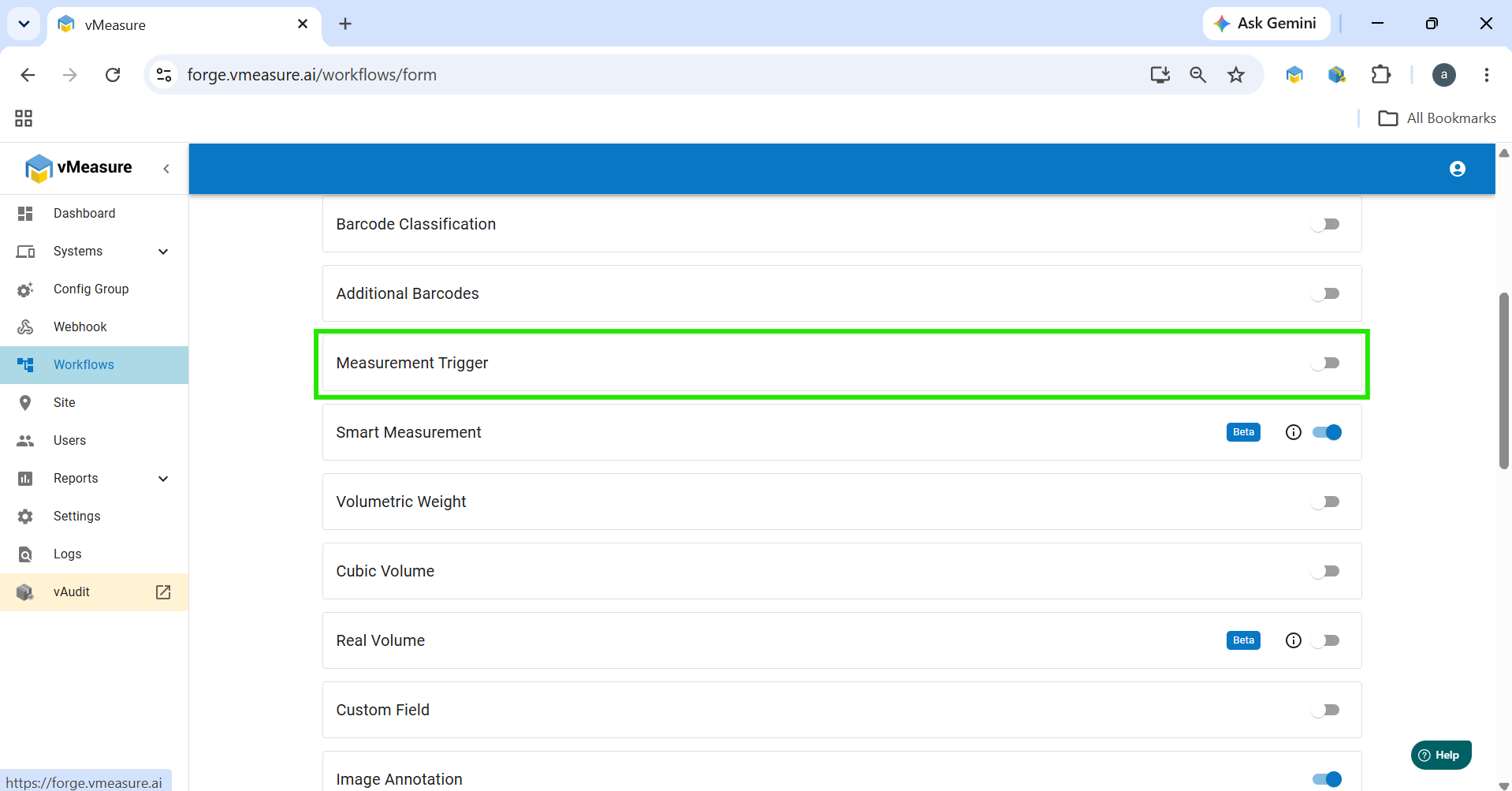
Step 3: Enable Measurement Trigger
Scroll down to the Measurement Trigger section.
Turn ON the Measurement Trigger toggle.
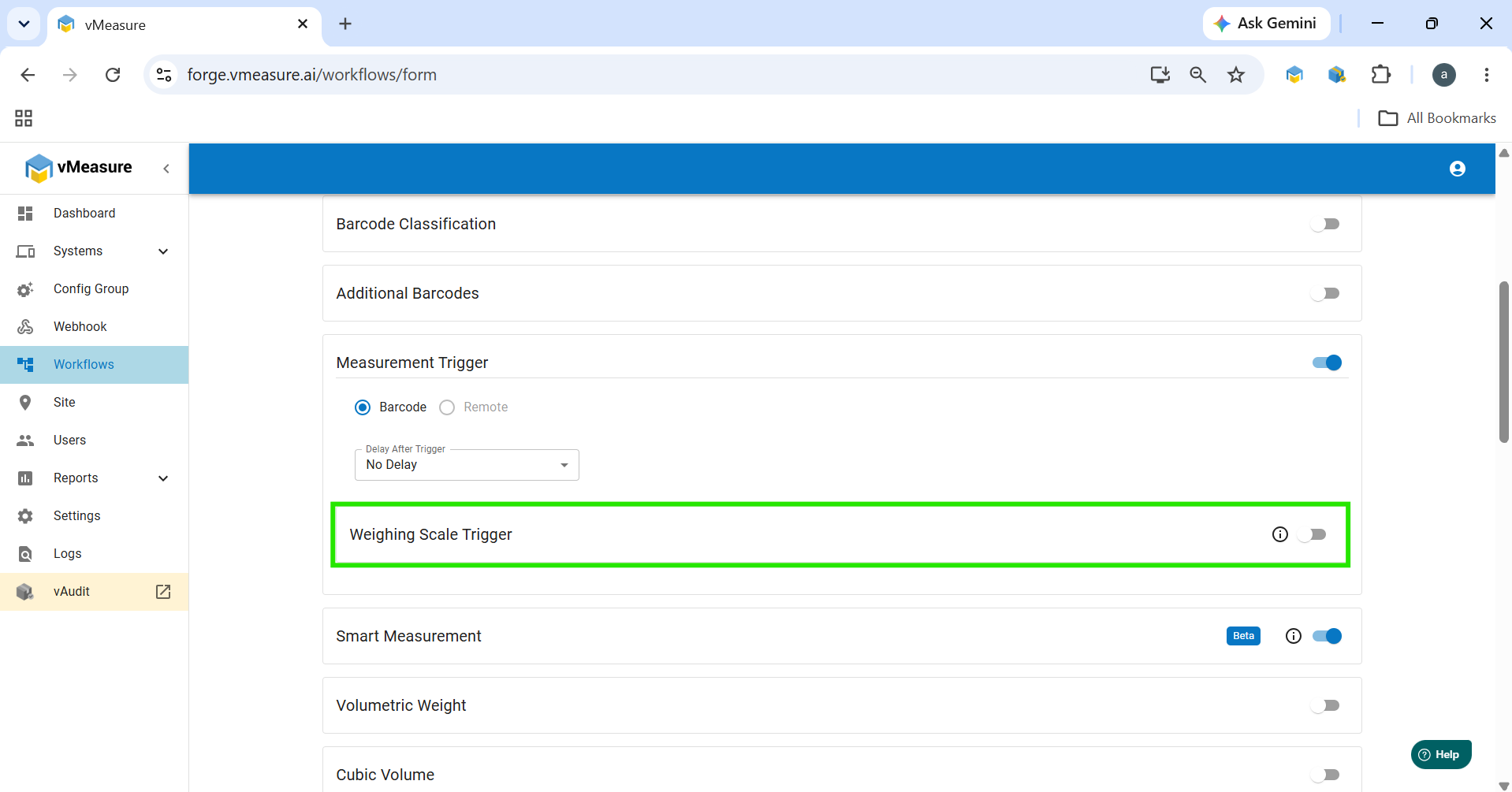
Step 4: Enable Weighing Scale Trigger
After enabling the Measurement Trigger, the Weighing Scale Trigger option will become available.
Turn ON the Weighing Scale Trigger toggle.
Step 5: Configure Trigger Reset
Under Trigger Reset, select one of the following options: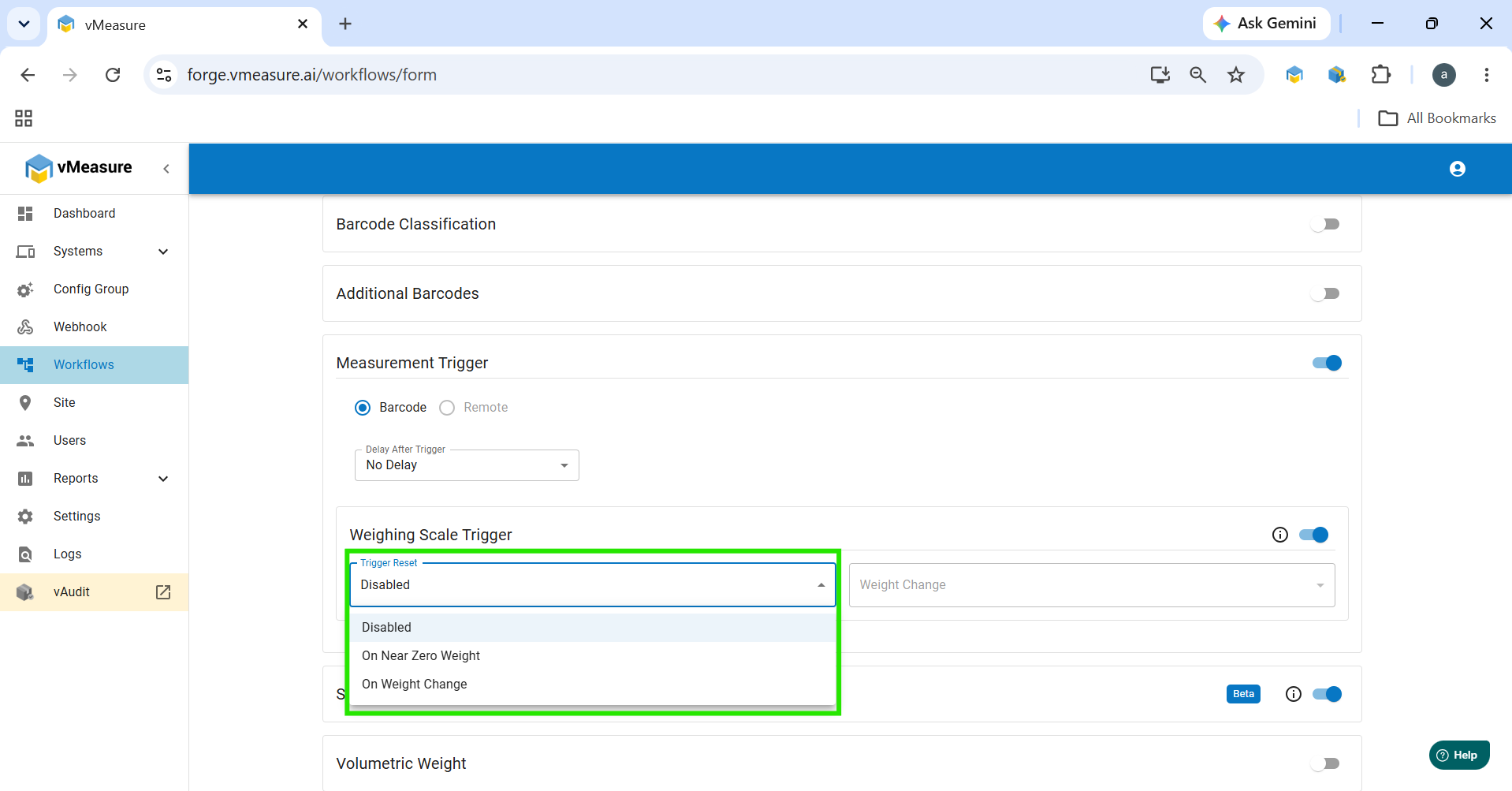
Trigger Reset Disable:
Disables the weighing scale trigger reset option.
User can scan the same shipment again without any restriction of changing the weight.
In device UI Actual Weight field turns orange after the measurement.
Trigger Reset On Near Zero Weight:
The weighing scale trigger is reset only when the weight on the scale returns to near zero.
After a shipment is scanned, it must be removed from the scale before scanning the next shipment.
If the previous shipment remains on the scale, the next shipment cannot be processed.
In device UI Actual Weight field turns Blue after the measurement, when the shipment is removed or weight changes to near 0 then it will turn Orange.
Trigger Reset On Weight Change:
The weighing scale trigger is reset whenever a weight change is detected.
Scanning the same shipment again without changing the weight will not trigger another scan.
A different shipment or any noticeable weight change must occur before the next scan is triggered.
You can also configure the Weight Change Percentage (for example, 10%, 20%, etc.) to define the minimum percentage of weight change required before the trigger is activated. This helps prevent unintended triggers caused by minor weight fluctuations.
In device UI Actual Weight field turns Blue after the measurement, when the shipment is removed or found weight difference then it will turn Orange.
Step 6: Enable Smart Measurement
Turn ON the Smart Measurement toggle.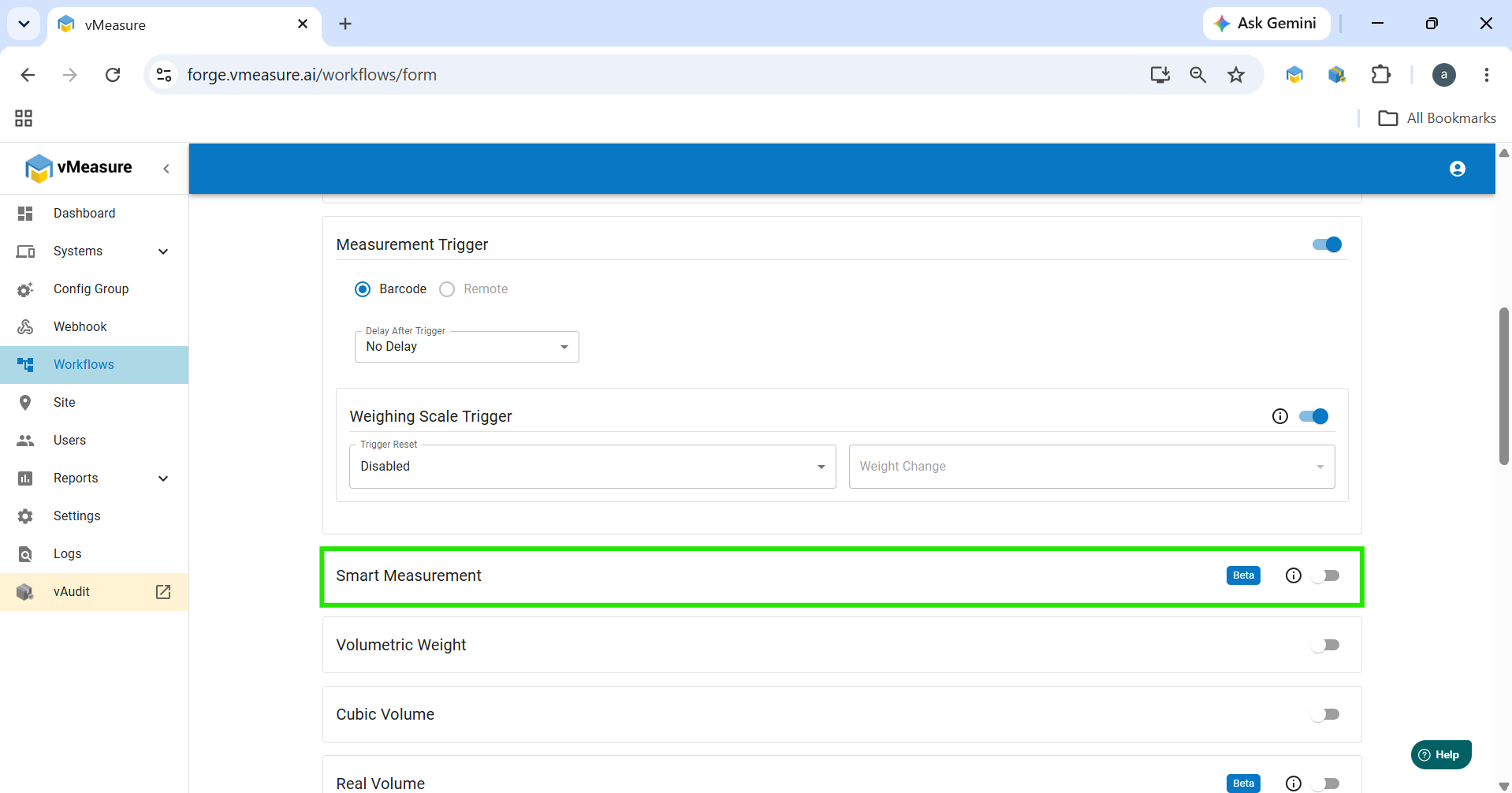
Step 7: Save the Workflow
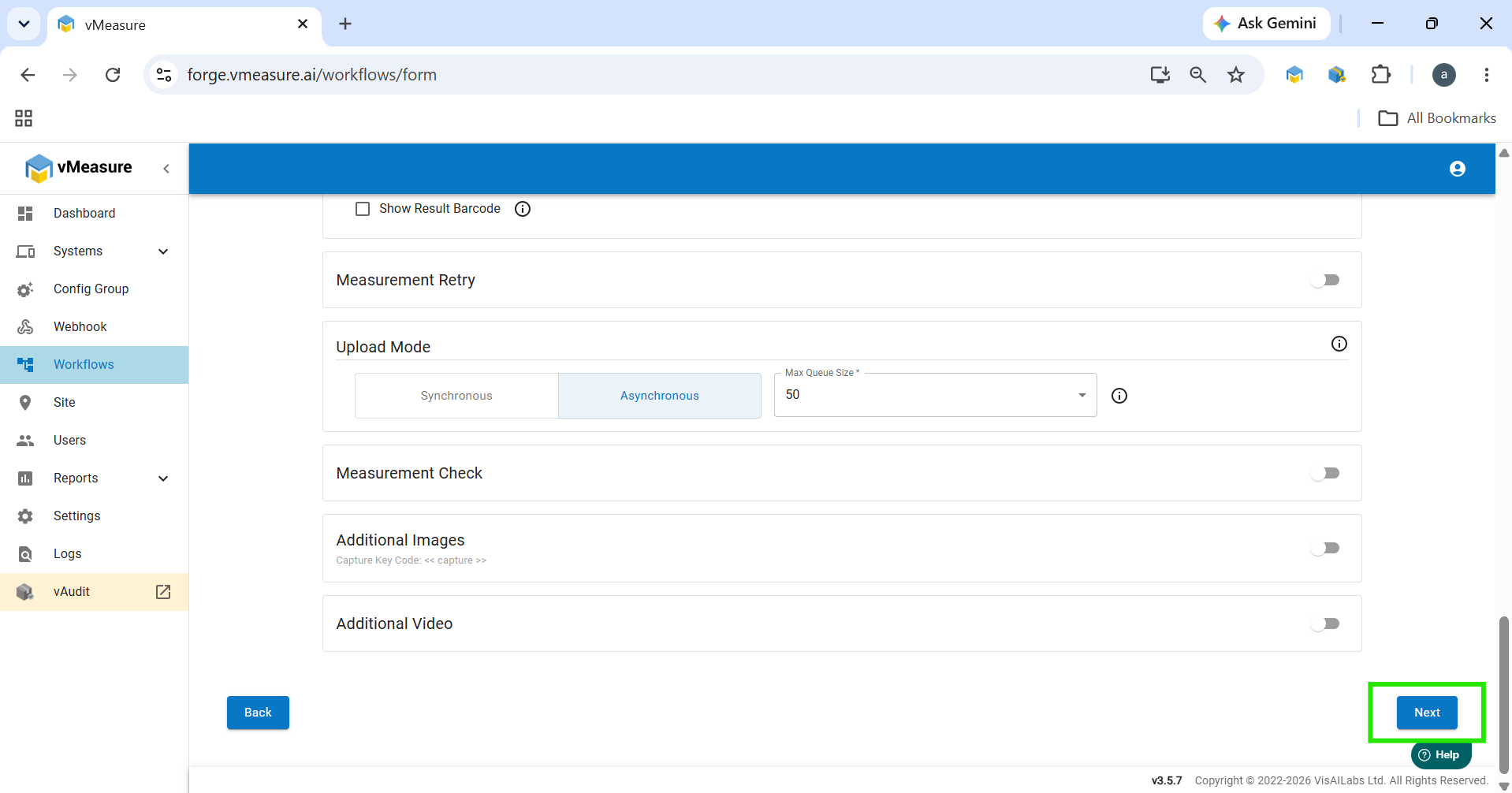
Click Next.
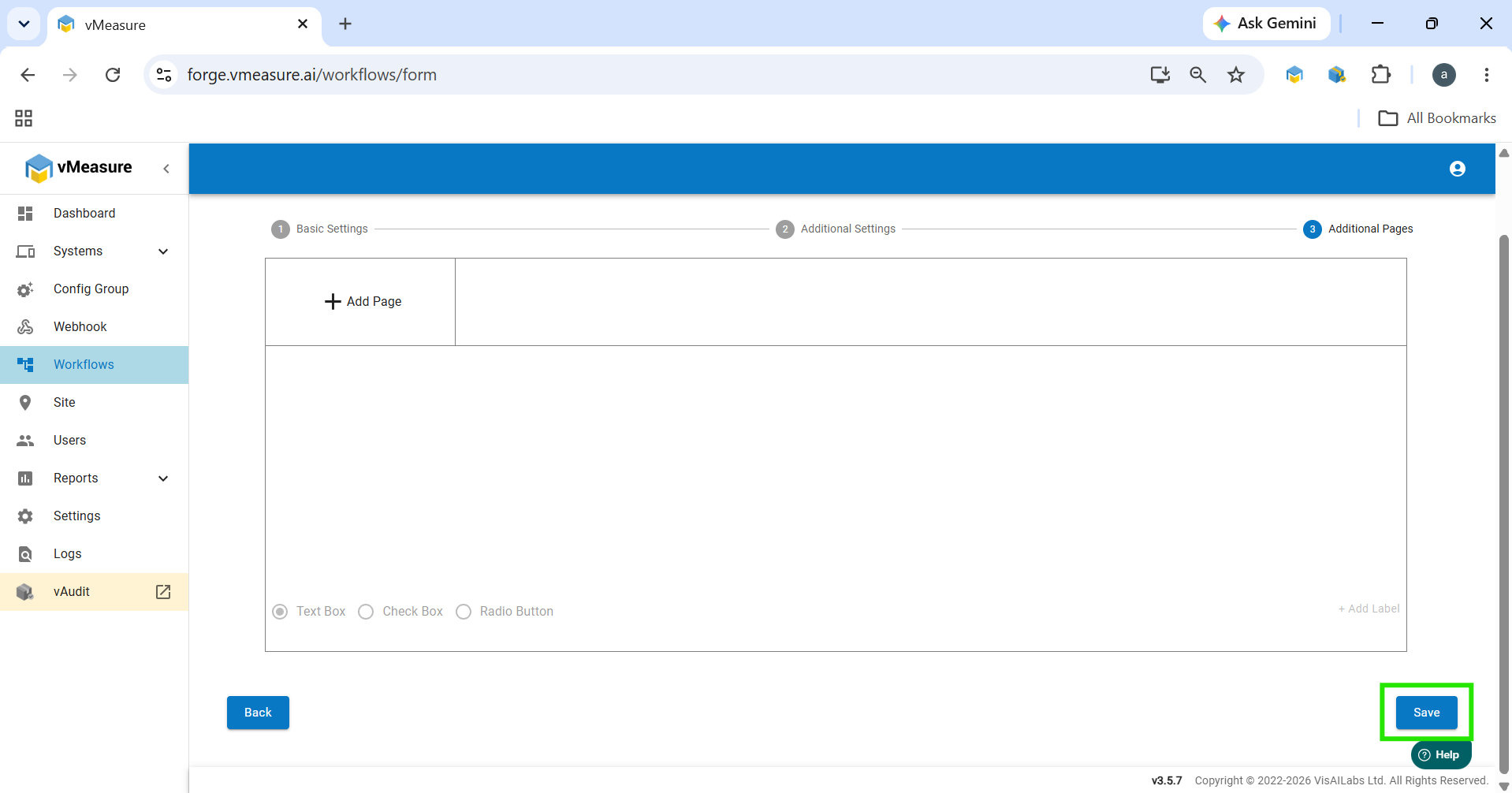
Click Save to save the workflow configuration.
Step 8: Update the Device workflow.
A Workflow Update pop-up message will appear on the device.
Click OK.
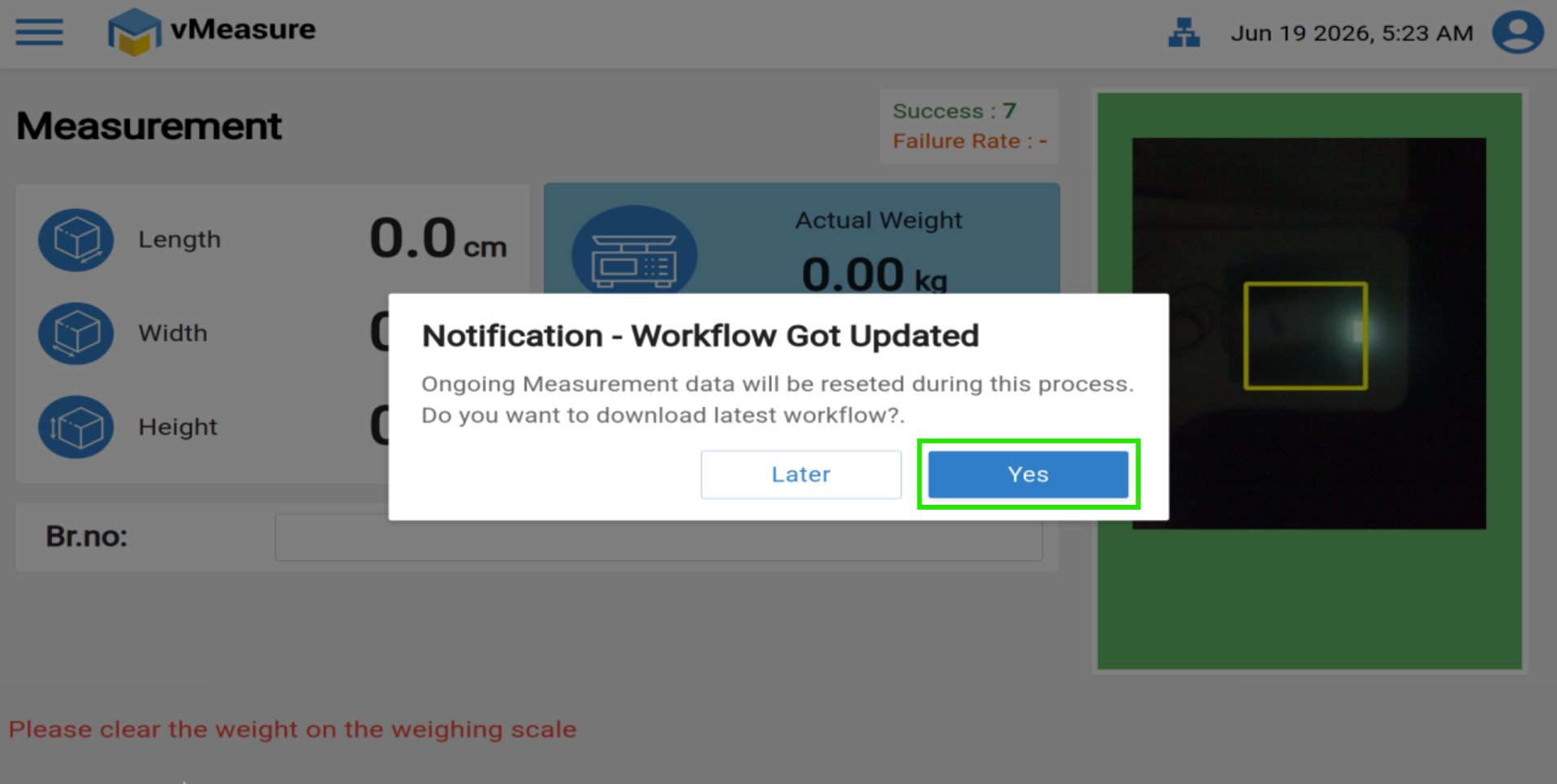
The updated workflow settings will be applied to the device.
If you need any support , please drop a mail to vmeasure@visailabs.com or Click here to Submit a Ticket.
Was this article helpful?
That’s Great!
Thank you for your feedback
Sorry! We couldn't be helpful
Thank you for your feedback
Feedback sent
We appreciate your effort and will try to fix the article