This document explains how to enable Bluetooth on a METTLER TOLEDO scale, retrieve the Bluetooth details, and connect the scale with the vMeasure mobile application for wireless weight scanning.
1. Enabling Bluetooth on METTLER TOLEDO Scale
Step 1: Open Home Menu
- Press and hold the upper arrow button for 3 to 5 seconds.
- The scale will navigate to the Home Page.
Step 2: Navigate to Bluetooth Settings
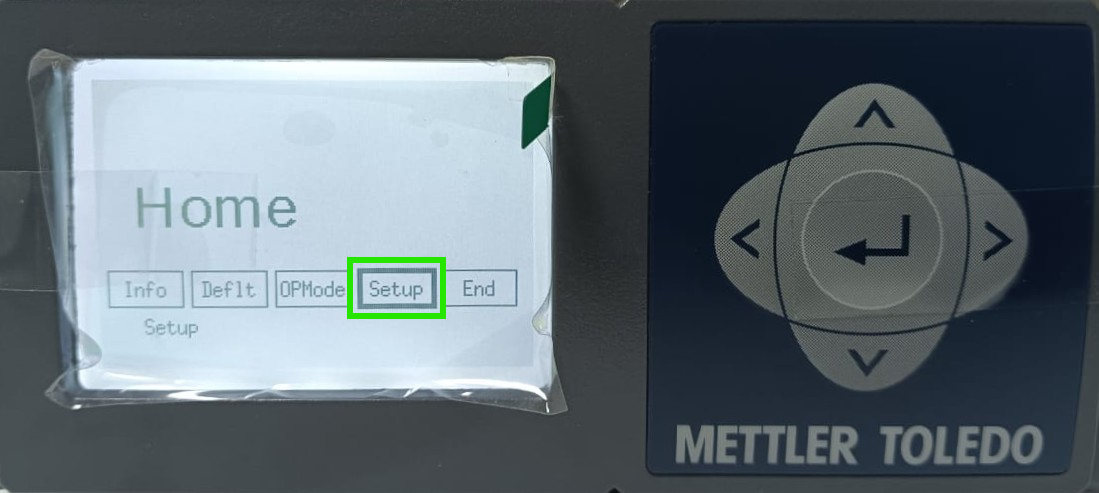
- Navigate to Setup and press the Center button.
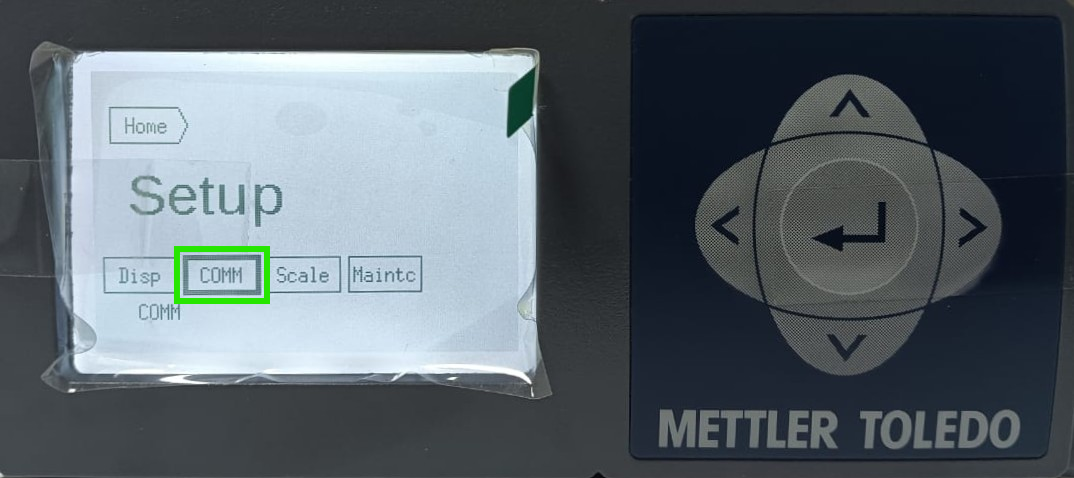
- Navigate to COMM and press the Center button.
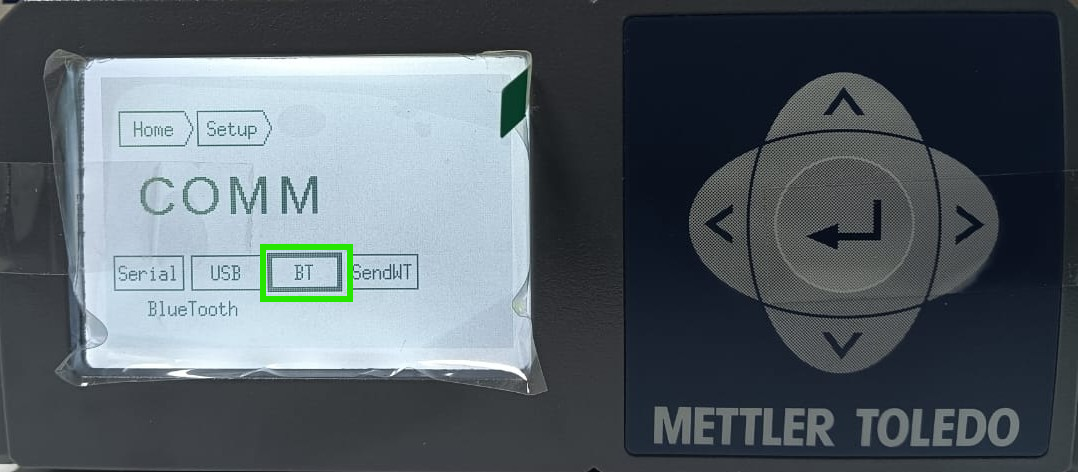
- Navigate to BT and press the Center button.
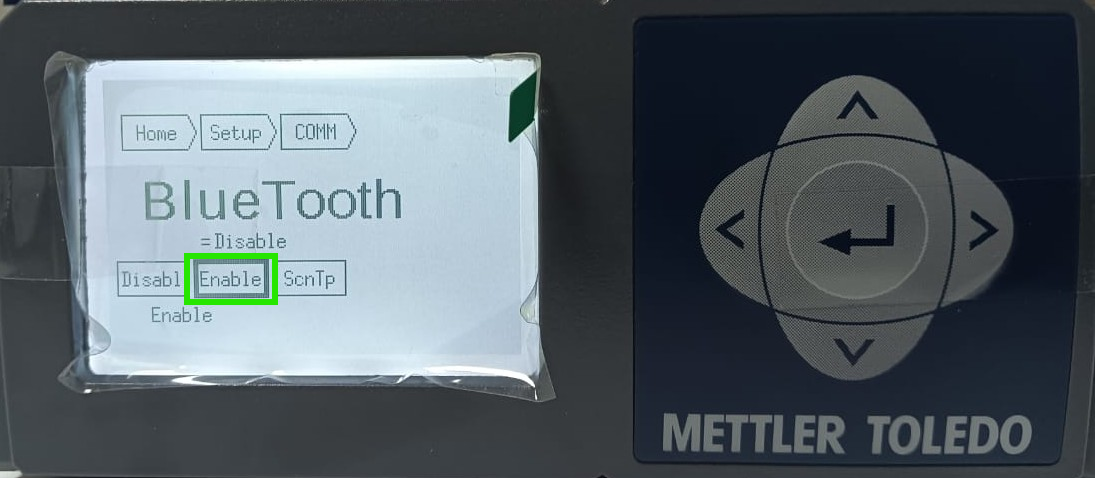
- Navigate to Enable and press the Center button.
Step 3: Save the Configuration
- Navigate to Home using the upper arrow button and press the Center button.

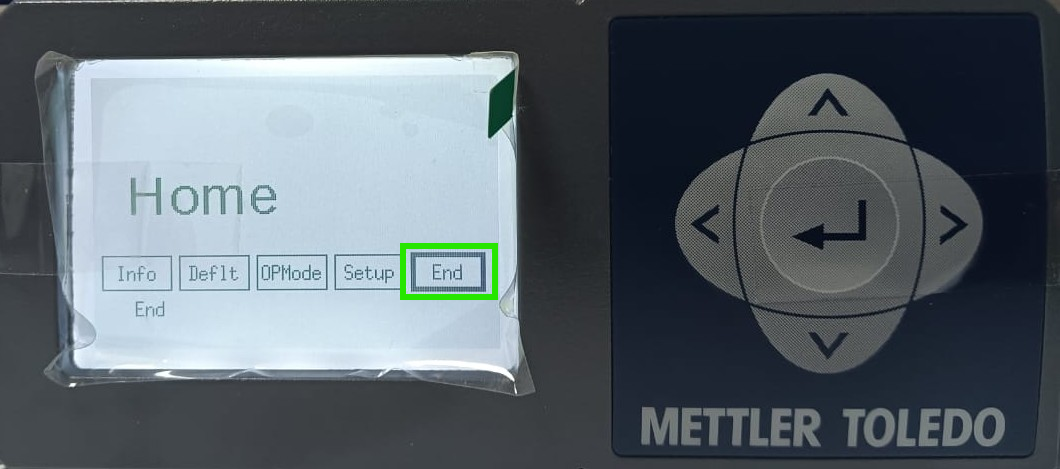
- Navigate to End and press the Center button.
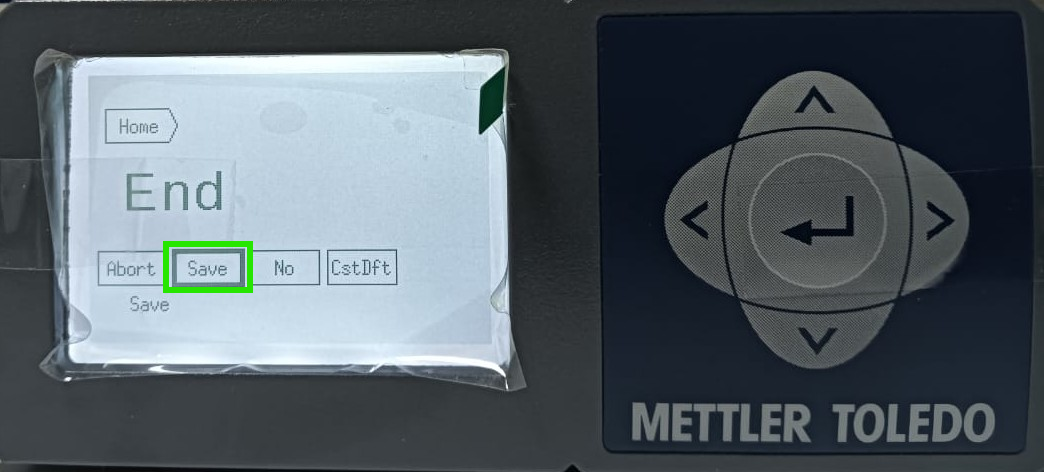
- Navigate to Save and press the Center button.
- A confirmation popup will appear. Select Exit.
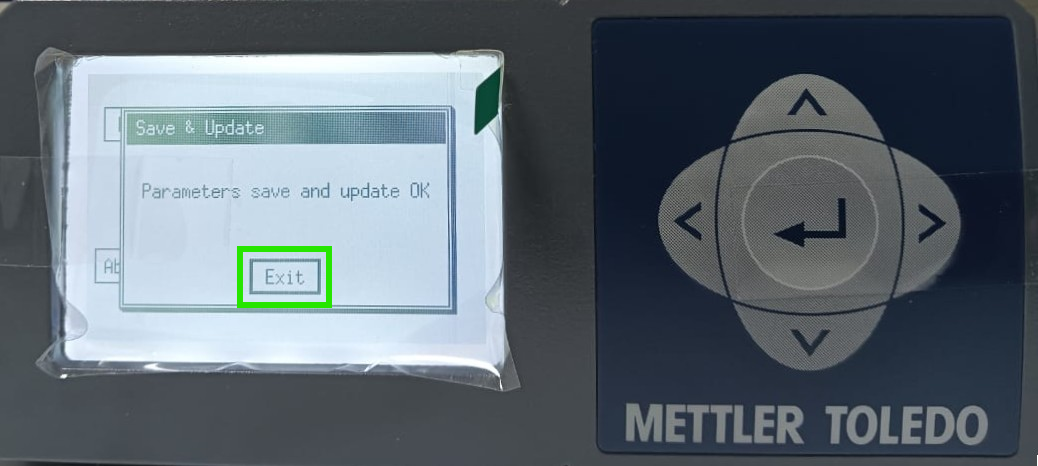
The scale will restart automatically after saving the settings.
2. Getting Bluetooth Details from the Scale
Step 1: Open Home Menu
- Press and hold the upper arrow button for 3 to 5 seconds.
- The scale will navigate to the Home Page.
Step 2: Open Scale Information
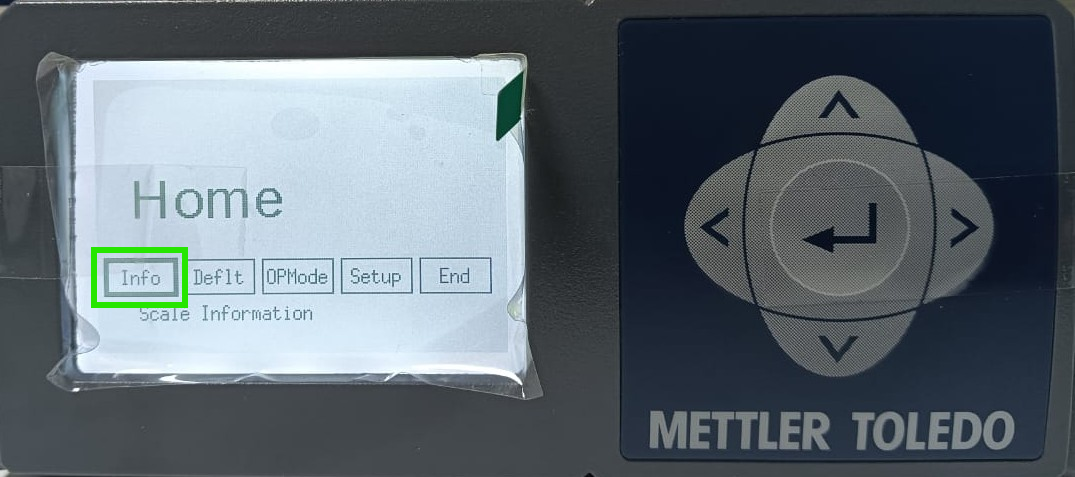
- Navigate to Info and press the Center button.
- Navigate to BT (Bluetooth Information).
This option is available in the next of the Scale Info menu.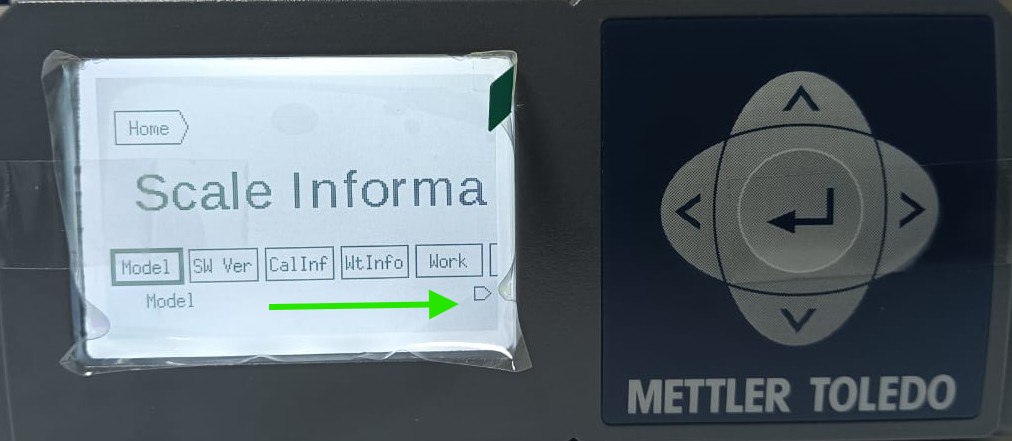
- Press the Center button.
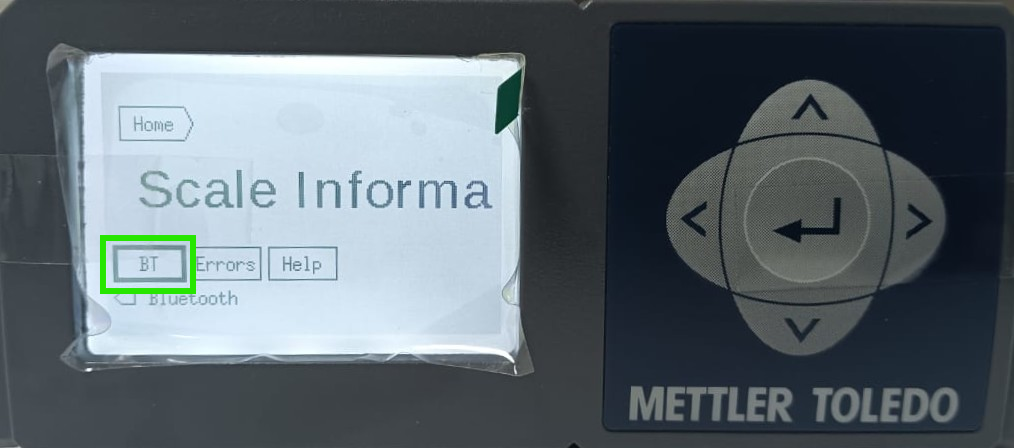
Step 3: Note the Bluetooth Name
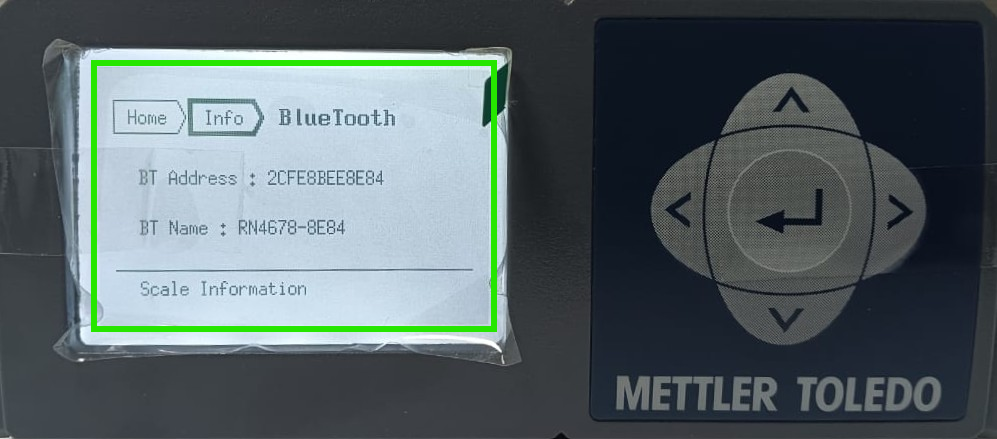
- The screen will display the Bluetooth details of the scale.
- Note down the Bluetooth Name (BT Name), as it will be required while pairing the scale in the vMeasure application.
3. Configuring the Scale in vMeasure Mobile Application
Step 1: Open the Application
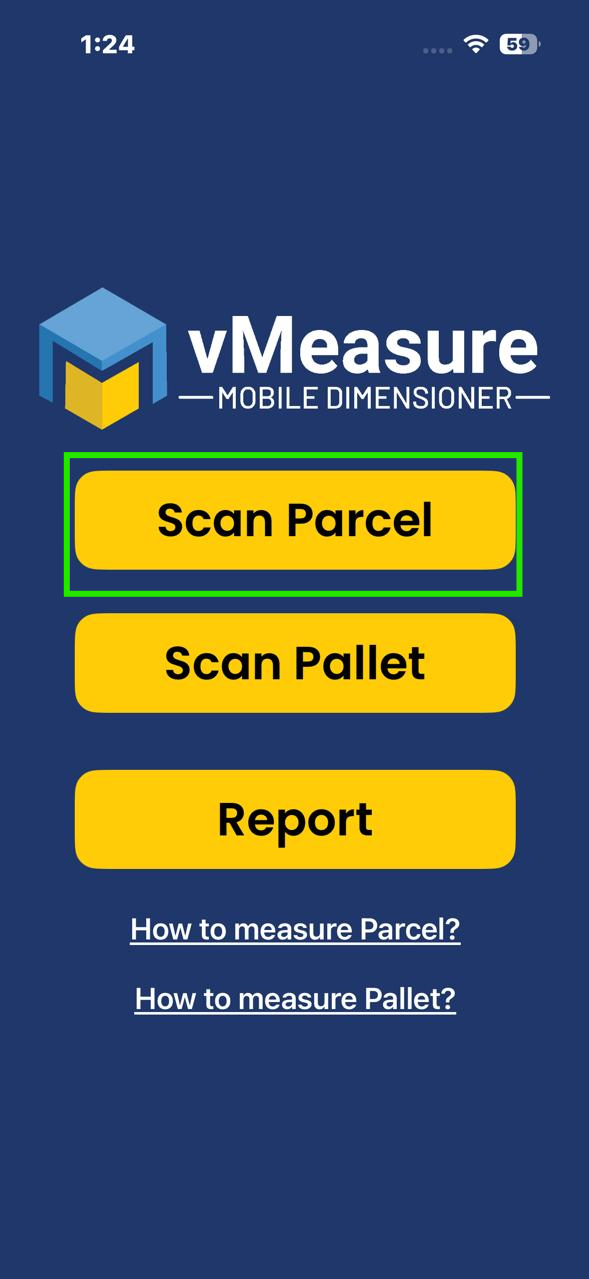
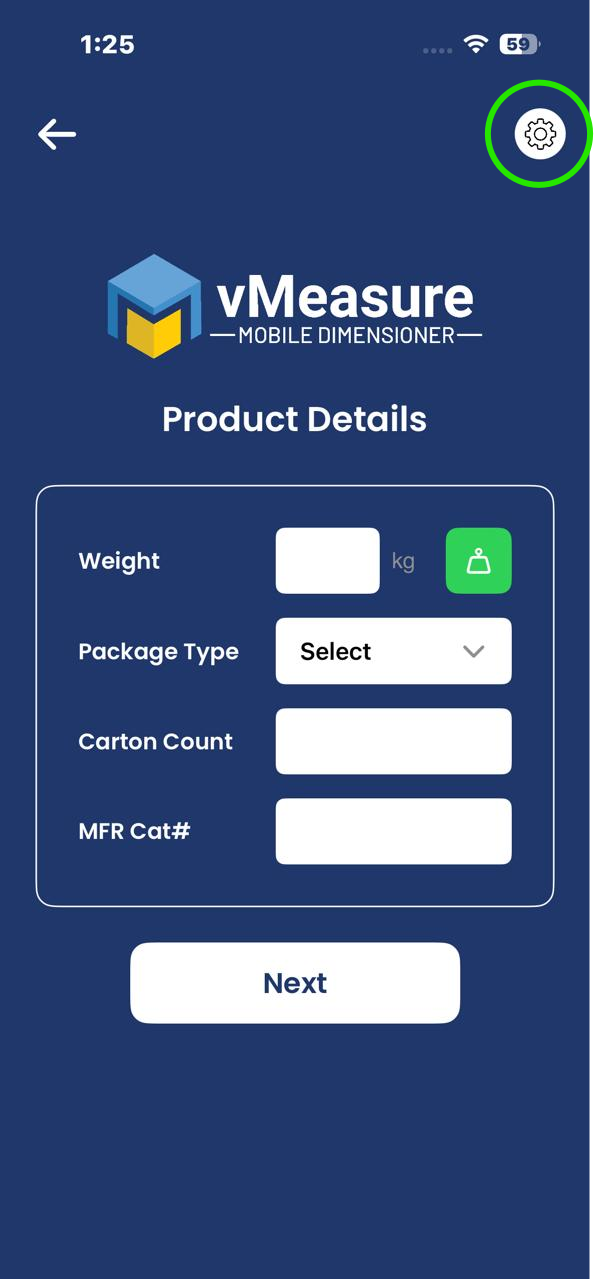
- Open the vMeasure mobile application.
- Select Scan Parcel.
Step 2: Open Scan Settings
- Click the Settings icon on the top-right corner.
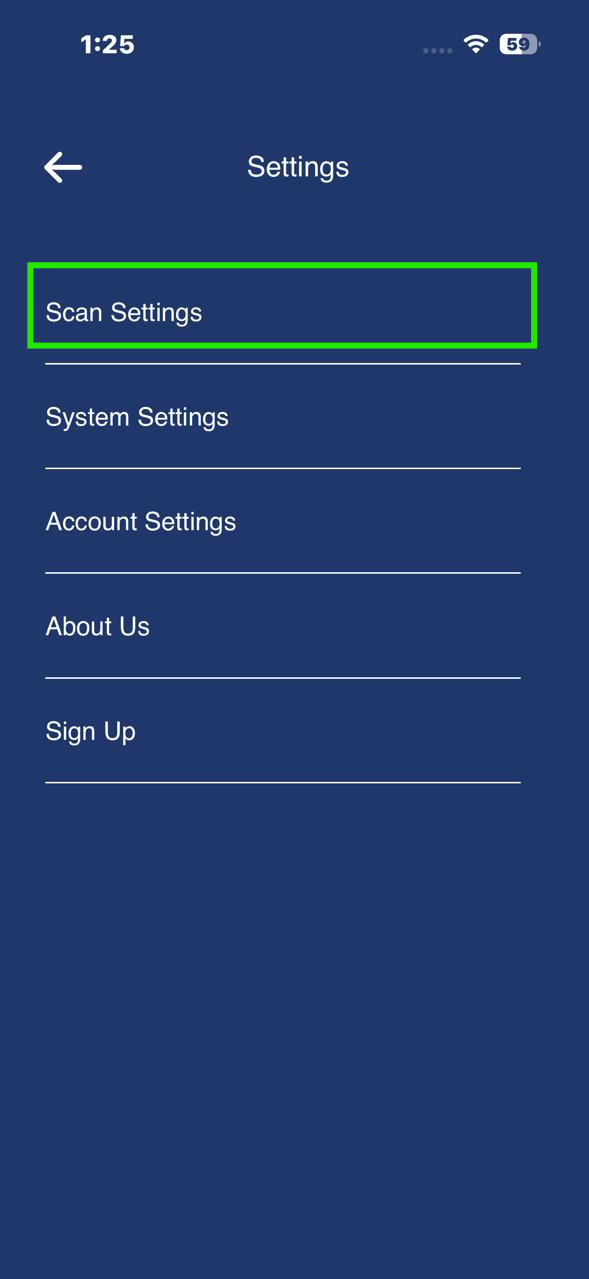
- Select Scan Settings.
Step 3: Enable Bluetooth Weight Scan
- Turn ON the toggle for Bluetooth Weight Scan. Ensure that Bluetooth is turned ON on your phone.
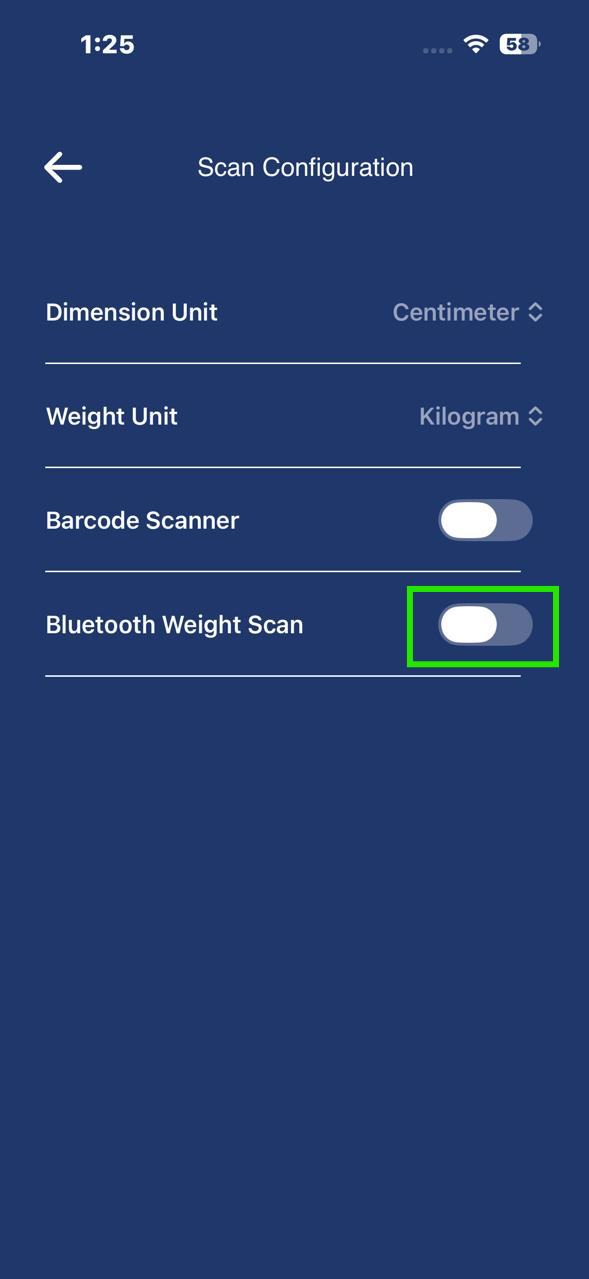
- The list of available Bluetooth scales will appear.
Step 4: Connect the Scale
- Enter the Bluetooth Name (available in the BT Info section of the METTLER TOLEDO scale) in the search bar.
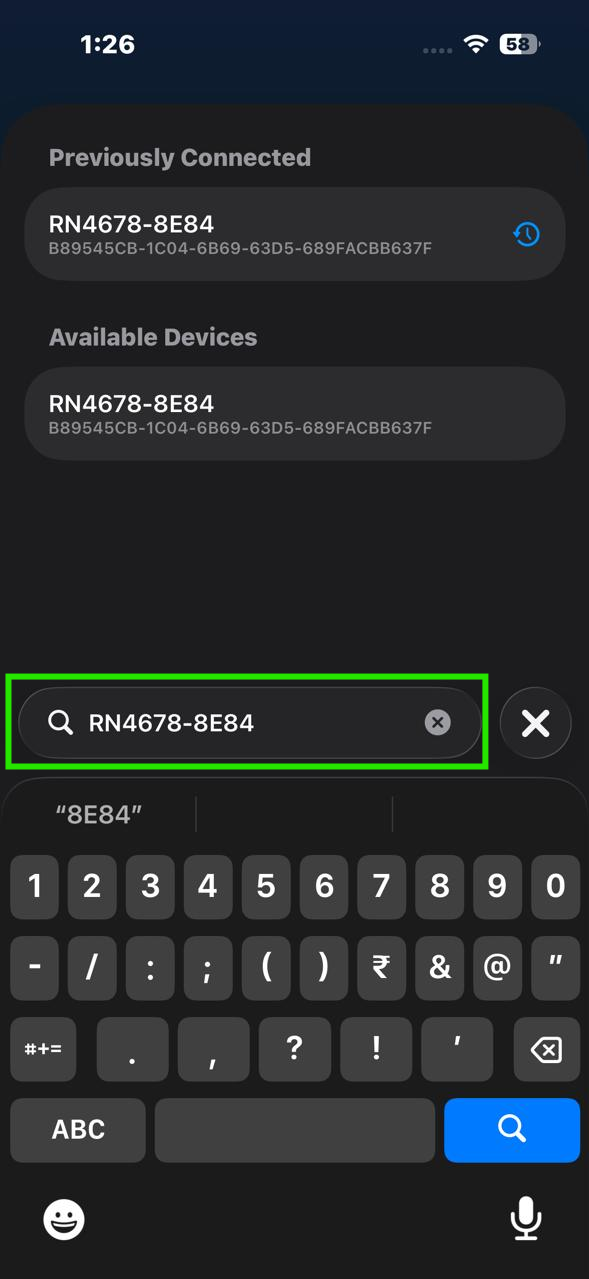
- Select the scale from the list.
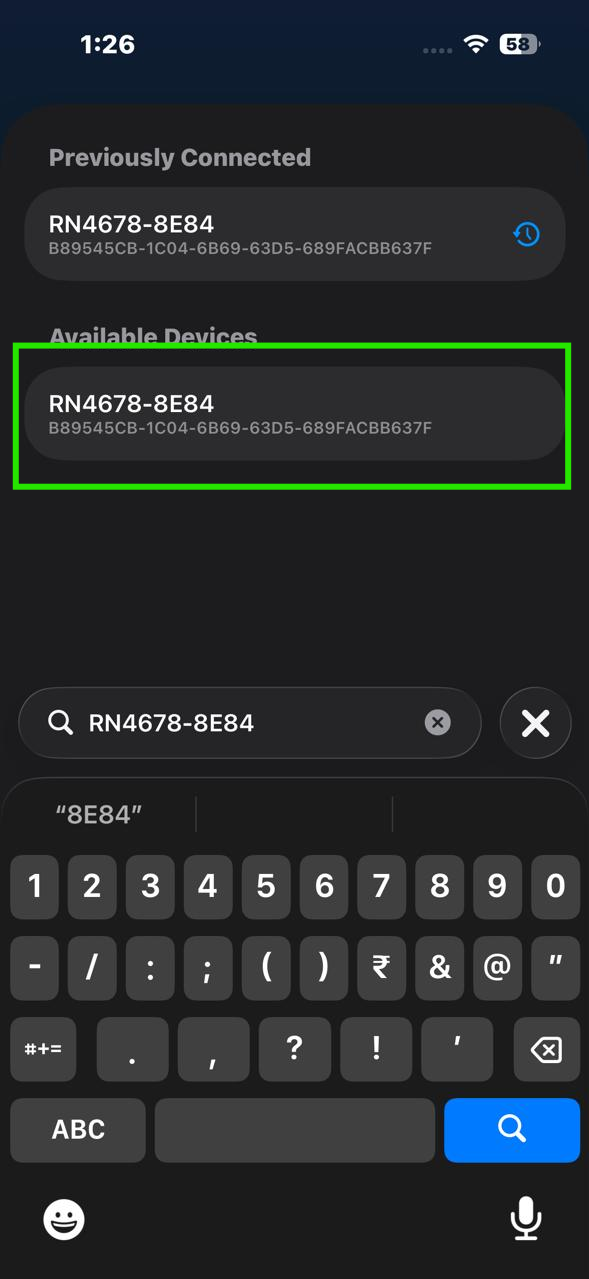
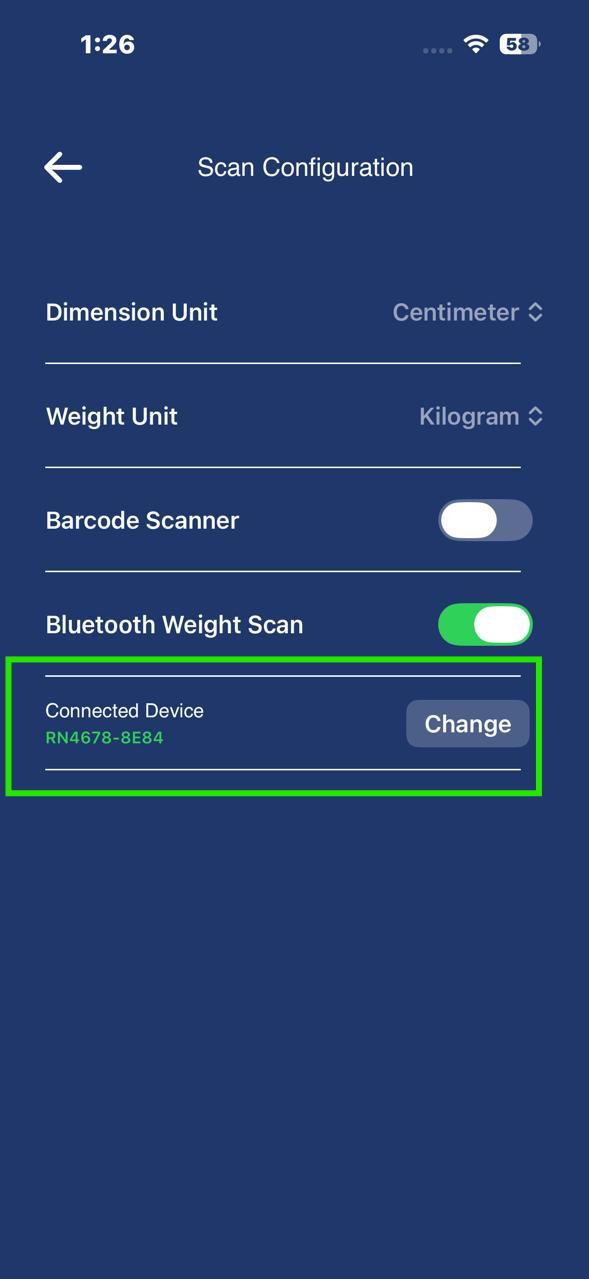
- Once connected, the scale name will appear under Connected Device.
Step 5: Perform Weight Scanning
- Navigate back to the Scan Parcel page.
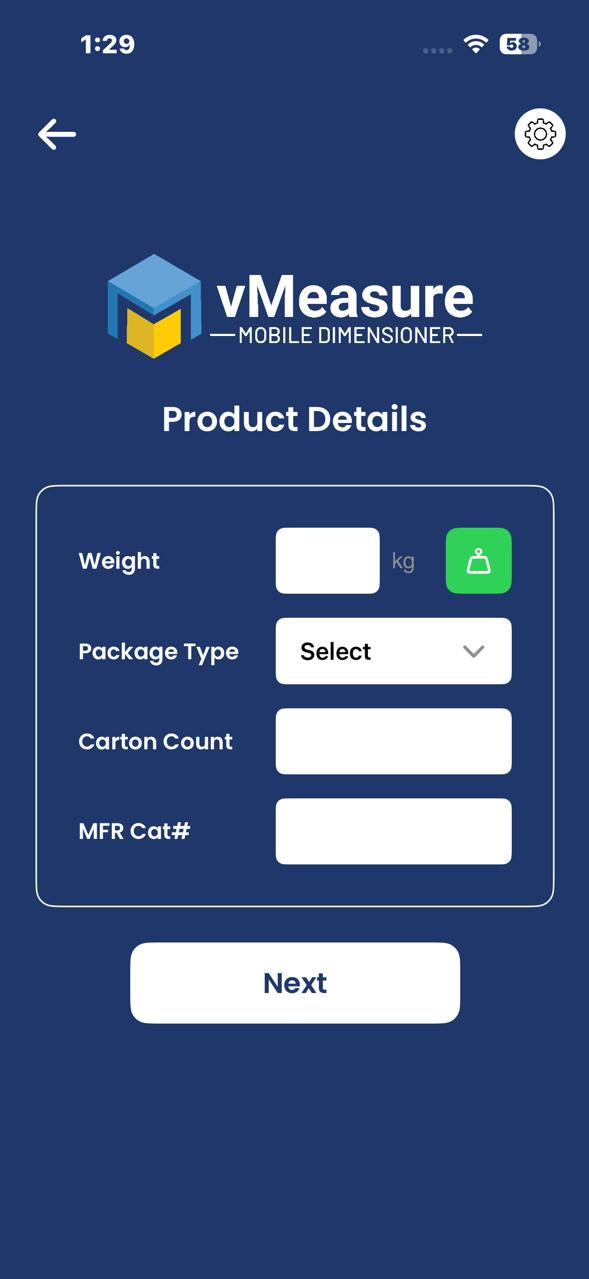
- Place the shipment on the weighing scale.
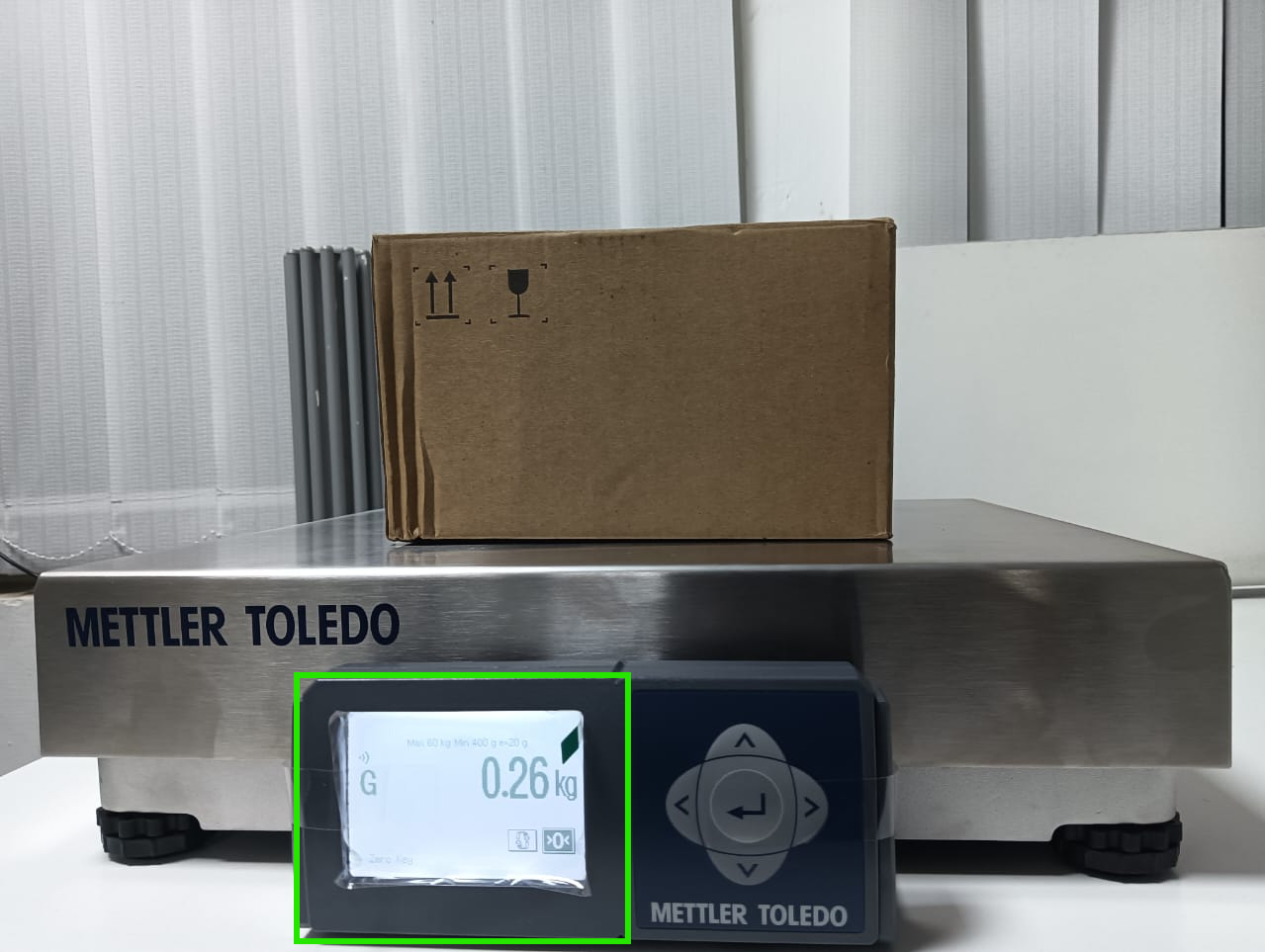
- Click the Weight icon on the Scan Parcel page.
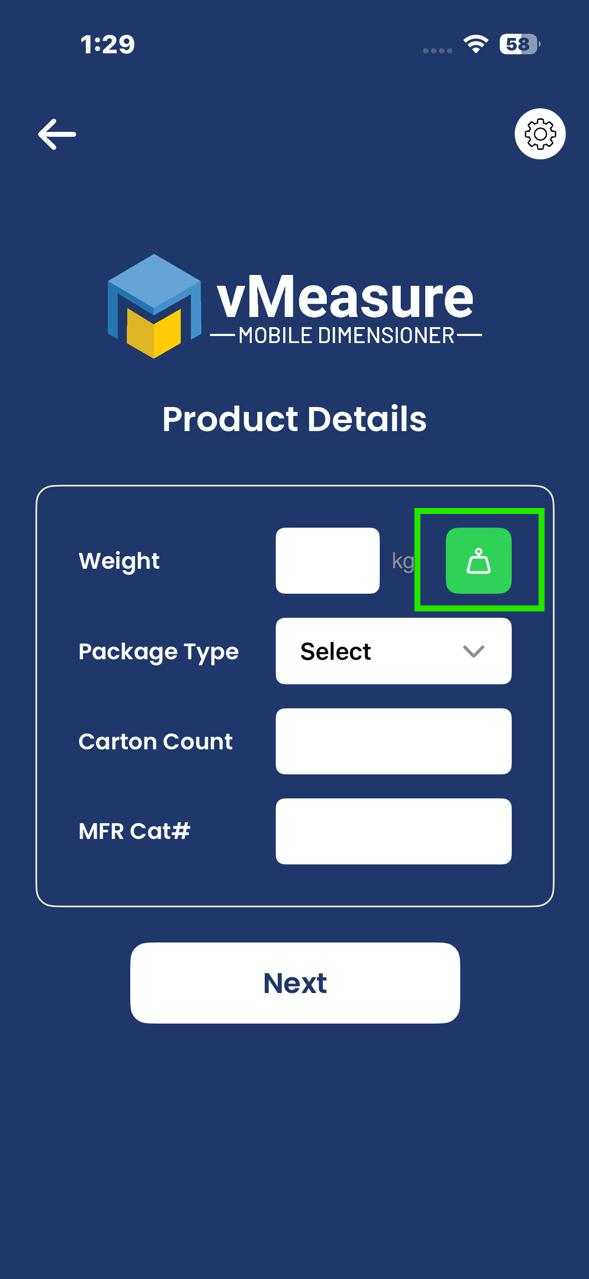
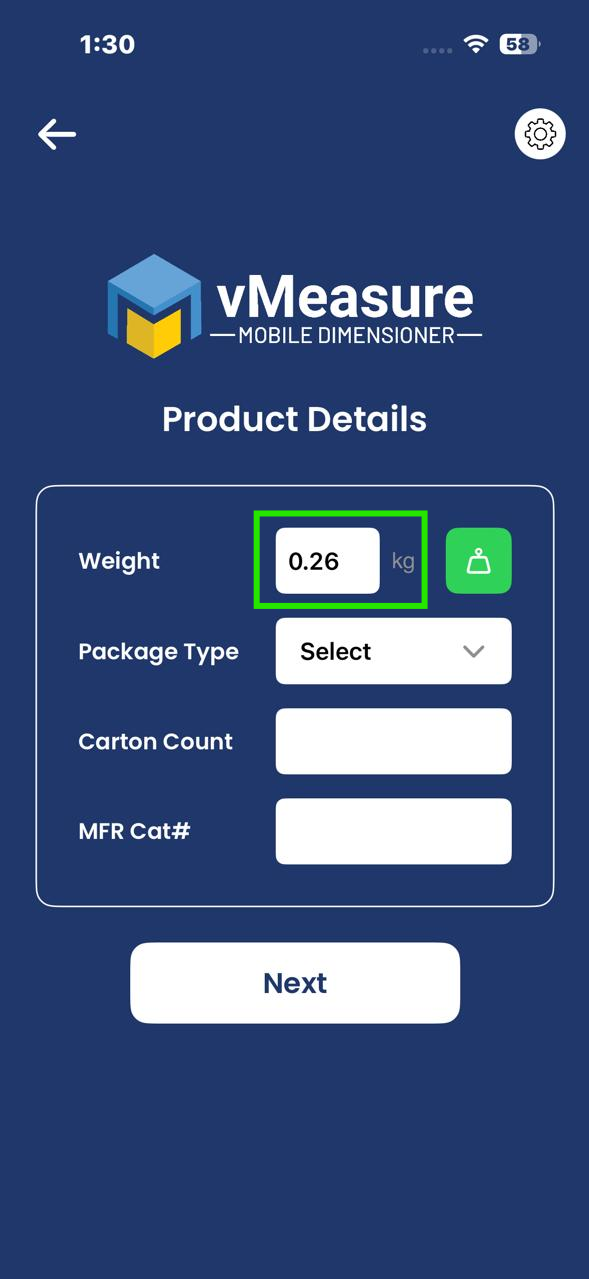
- The weight will automatically populate in the weight field.
Step 6: Complete Shipment Measurement
- Enter all the remaining shipment details.
- Click Next.
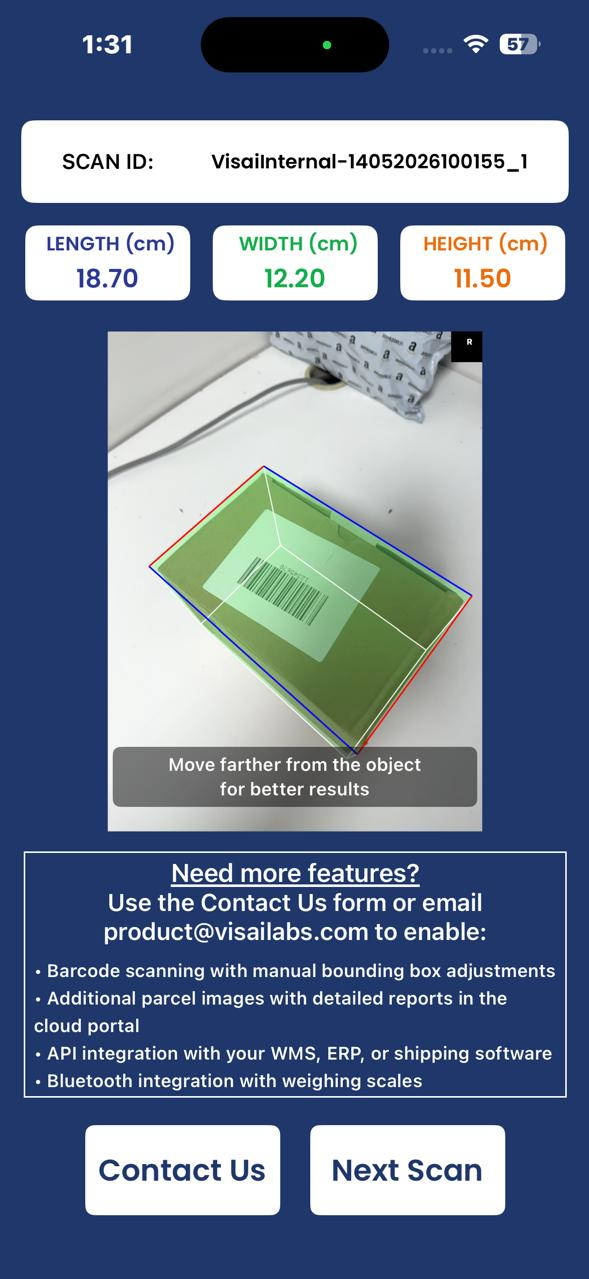
- Perform the dimension measurement of the shipment.
Step 7: Verify Measurement in Reports
- Navigate to the Reports page.
- Select the required measurement entry.
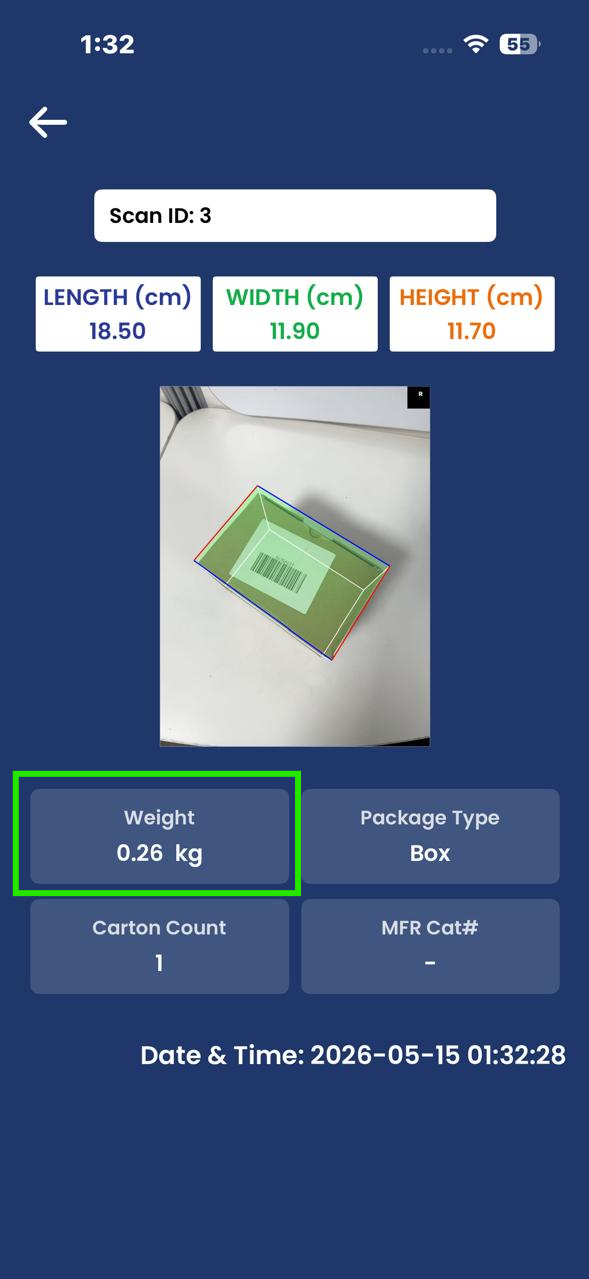
The recorded weight will be available in the measurement details.
Notes
- Ensure Bluetooth is enabled on the mobile device before connecting the scale.
- Keep the mobile device within Bluetooth range of the weighing scale.
- If the scale does not appear in the list, restart Bluetooth on both the mobile device and the scale and try again.
- Some METTLER TOLEDO models may require Bluetooth hardware support to enable wireless communication.
If you need any support , please drop a mail to vmeasure@visailabs.com or Click here to Submit a Ticket.
Was this article helpful?
That’s Great!
Thank you for your feedback
Sorry! We couldn't be helpful
Thank you for your feedback
Feedback sent
We appreciate your effort and will try to fix the article