Step 1: Long press the UP button on the Mettler console
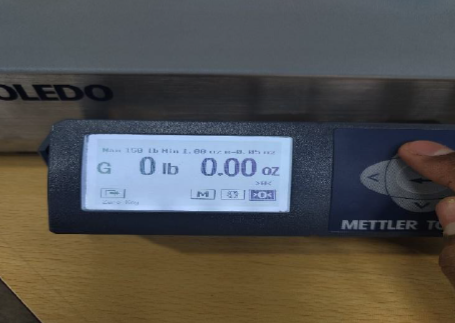
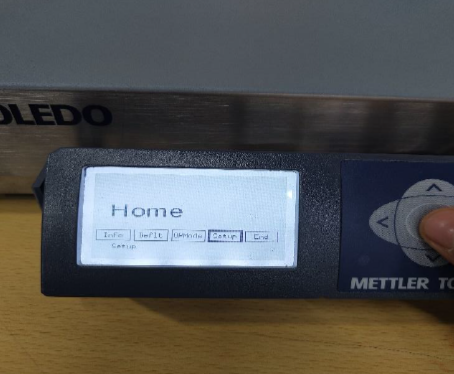
Step 2: Then select SETUP by pressing the center button on Mettler console
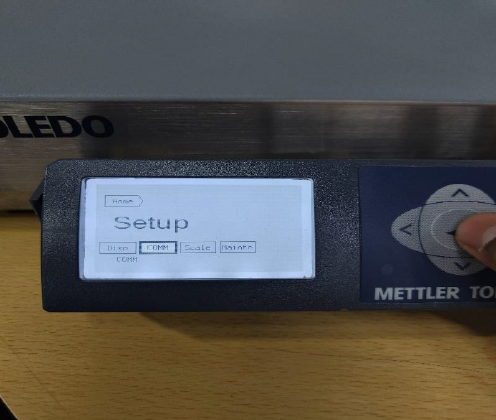
Step 3: Now navigate to COMM and select by pressing the center button
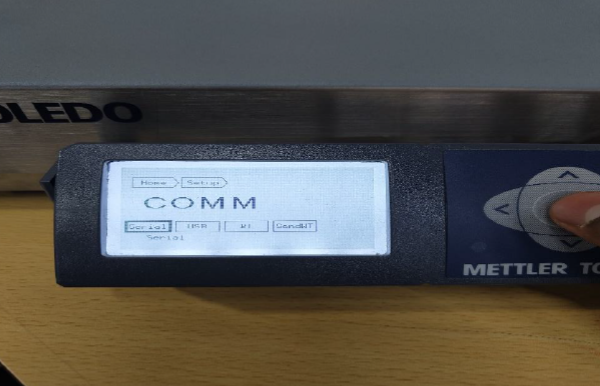
Step 4: Select SERIAL by pressing the center button
Step 5: Now navigate to BAUD and select it by pressing the center button
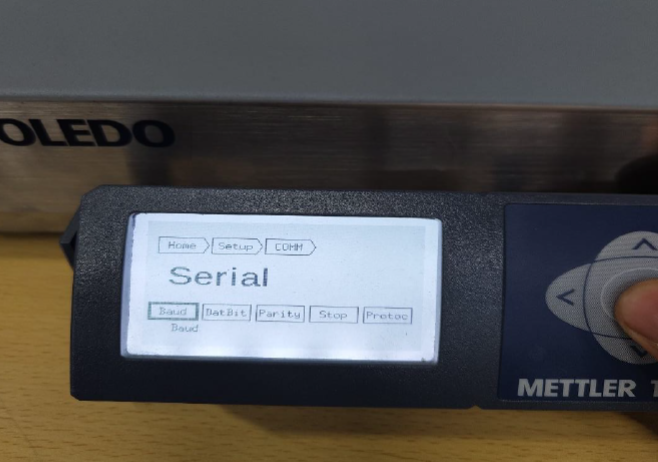
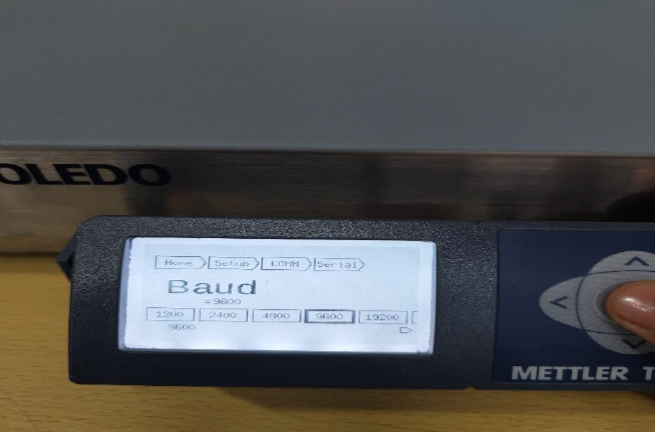
Step 6: Now navigate to 9600 and select it by pressing the center button
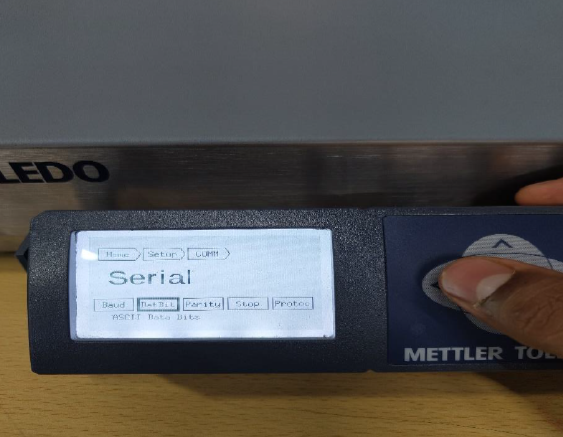
Step 7: Now navigate to ASCII DATA BITS and select it by pressing the center button
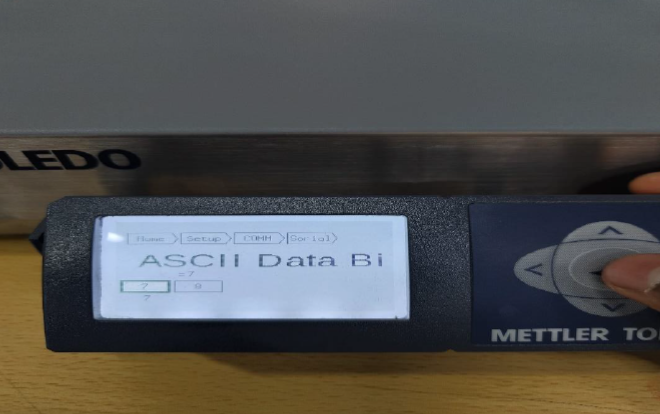
Step 8: Select 7 by pressing the center button
Step 9: Now navigate to PARITY and select it by pressing the center button
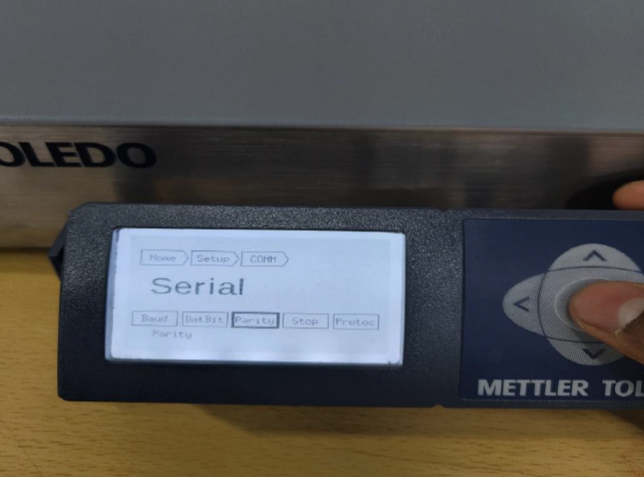
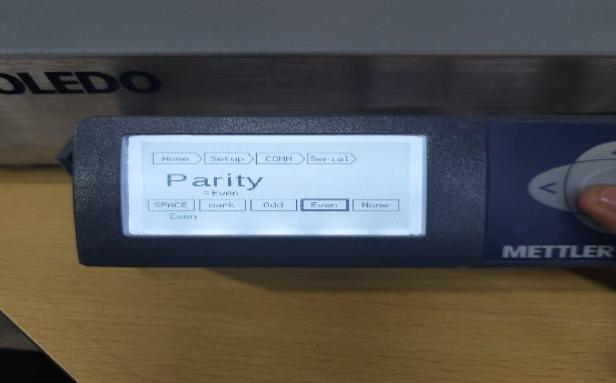
Step 10: Now navigate to EVEN and select it by pressing the center button
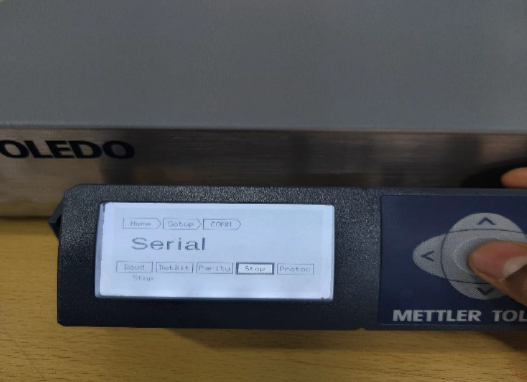
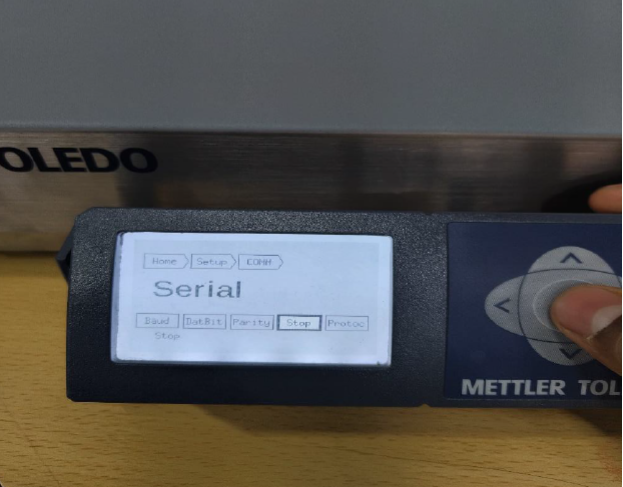
Step 11: Now navigate to STOP and select it by pressing the center button
Step 12: Now navigate to PROTOCOL and select it with the center button
Step 13: Now navigate to TOLEDO and select it with the center button
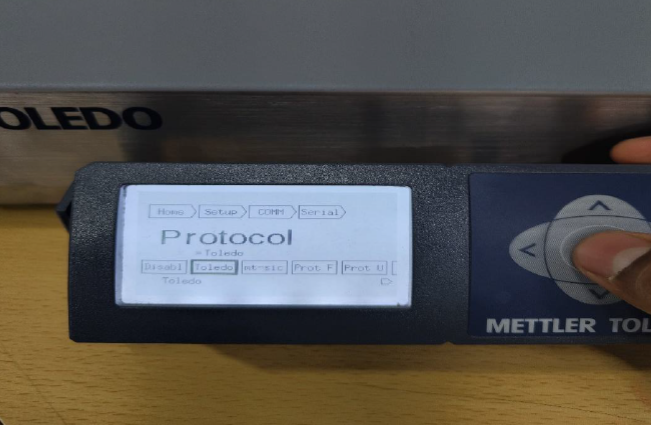
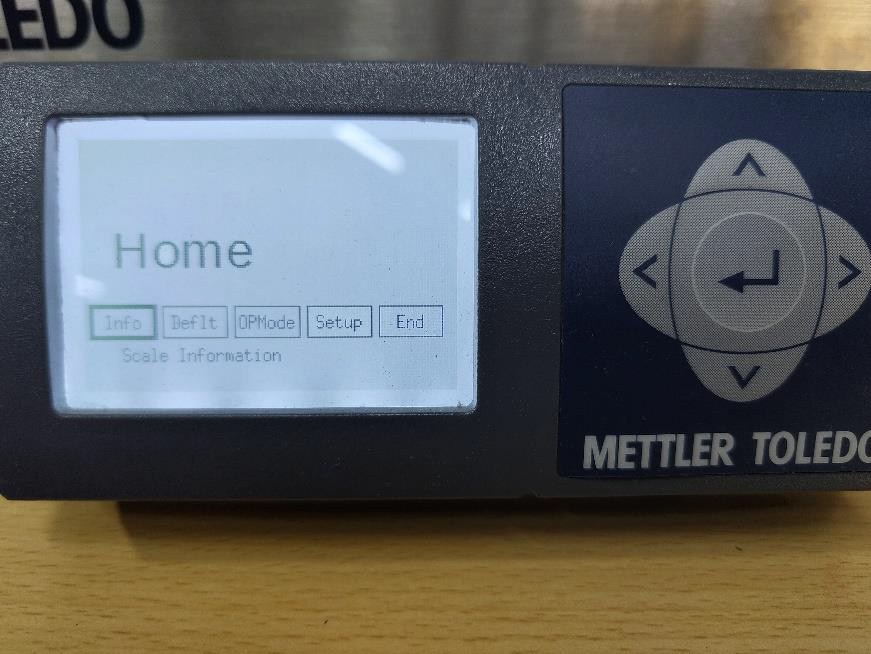
Step 14: After that go to HOME and navigate to END and select it by pressing the center button
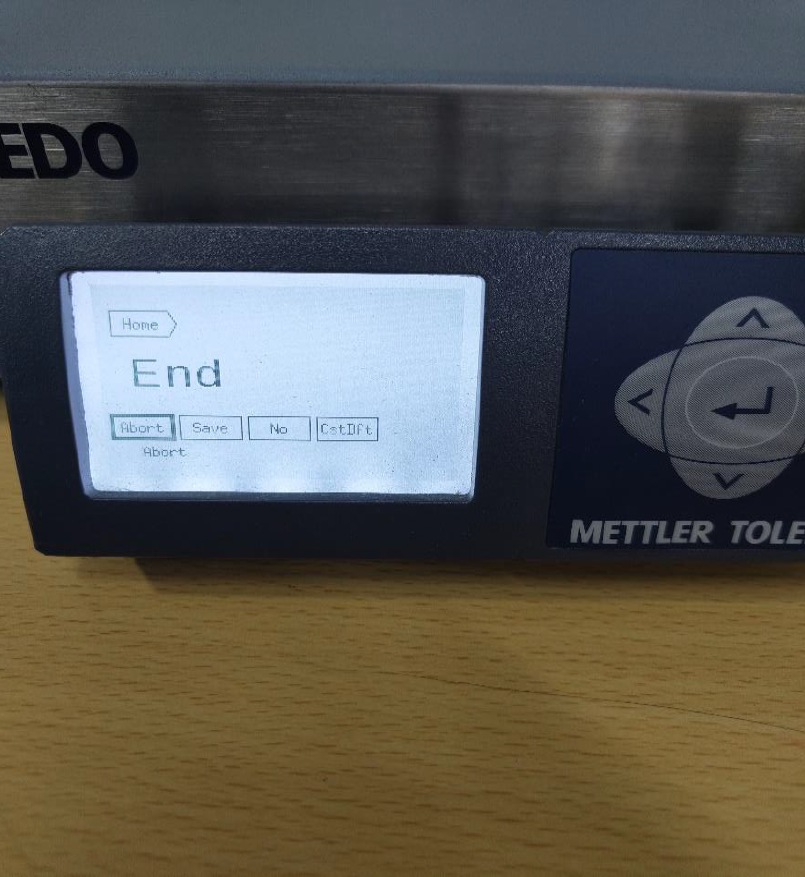
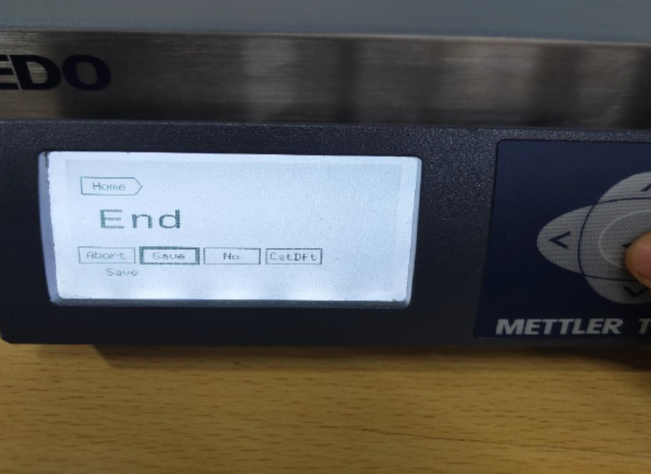
Step 15: Navigate to SAVE and select it using the center, after the weighing scale, it will reboot.
Video Link: MT-BC scale settings.mp4 (dropbox.com)
After completing these settings, please follow the instructions below to change the Mettler Toledo scale to "Virtual Mode":
Step 1: Press & hold up arrow.
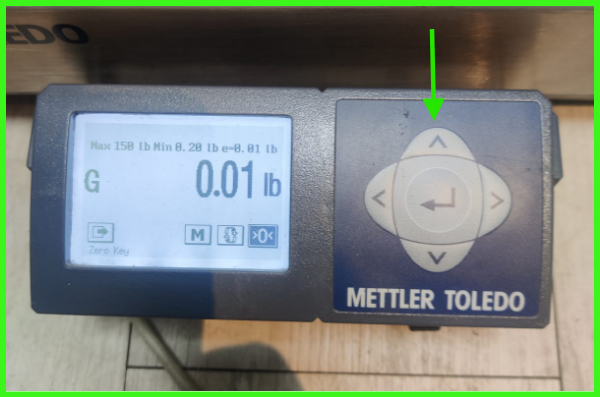
Step 2: Navigate to Setup option using right arrow & select it using center button.
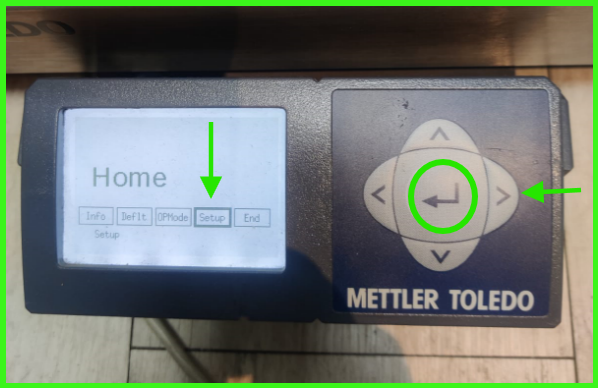
Step 3 : Go to COMM using right arrow & select it using center button.
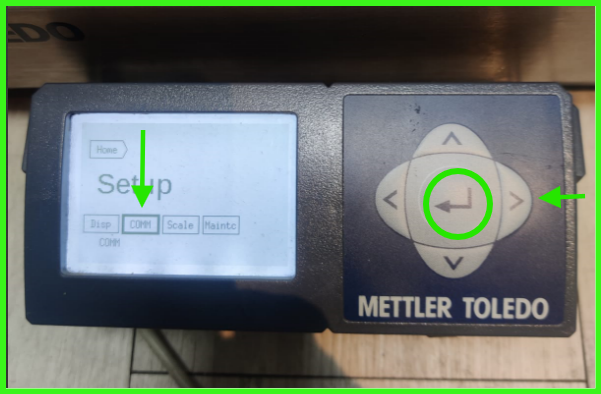
Step 4 : Navigate to USB option using right arrow & select it using center button.
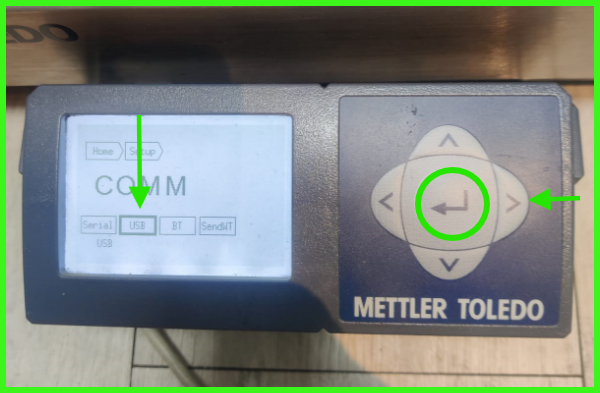
Step 5 : Select Virtual mode using right arrow & select it using center button.
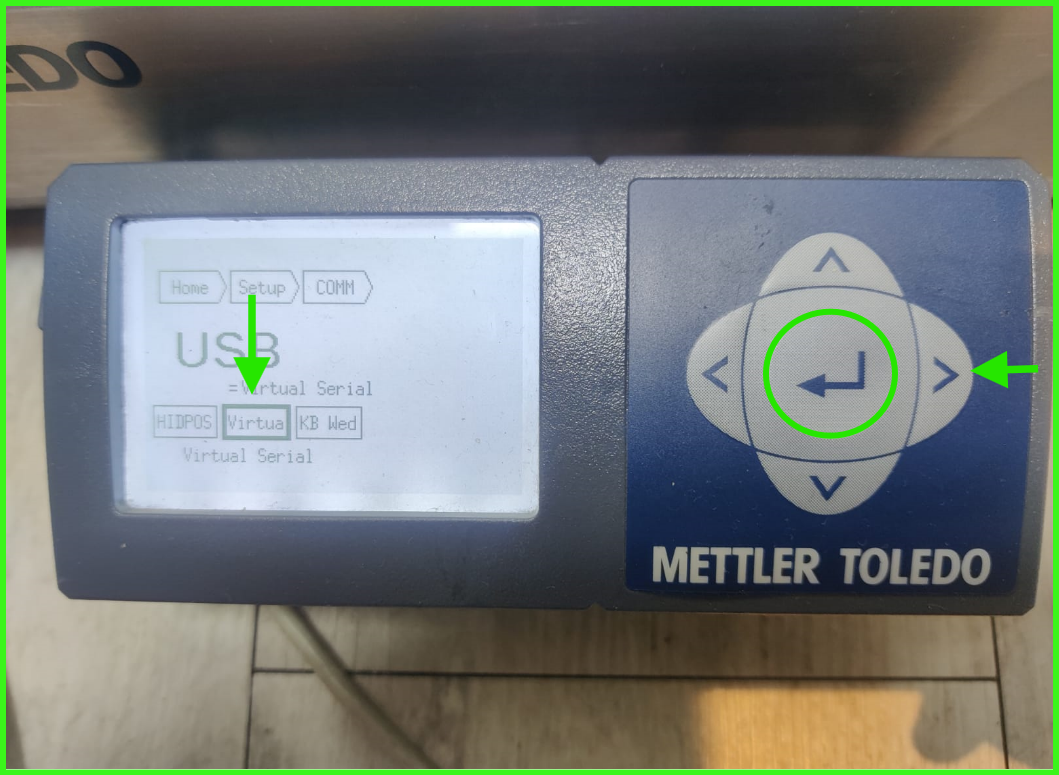
Step 6: Press & hold the center button for few seconds and press Save.
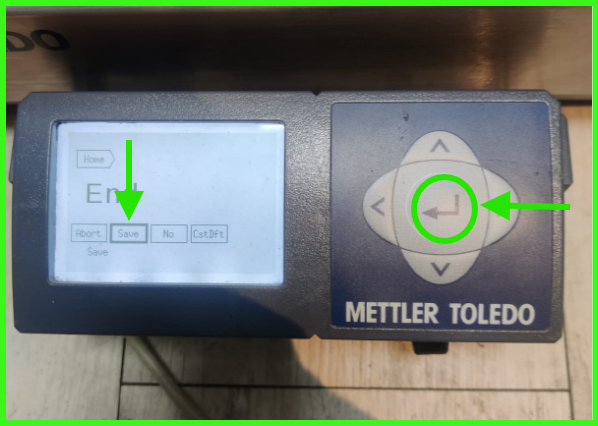
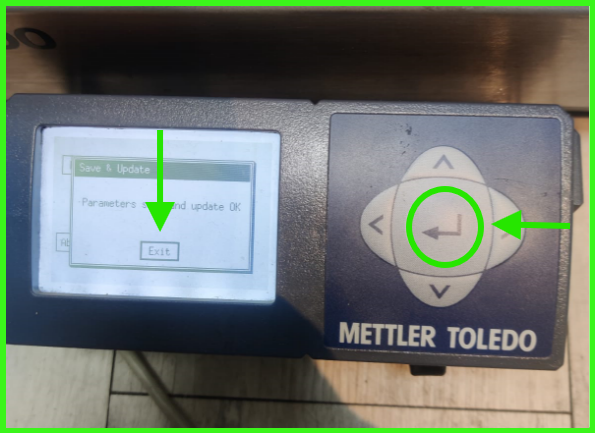
Step 7: Finally, select Exit to save the changes. The Mettler scale will automatically restart.
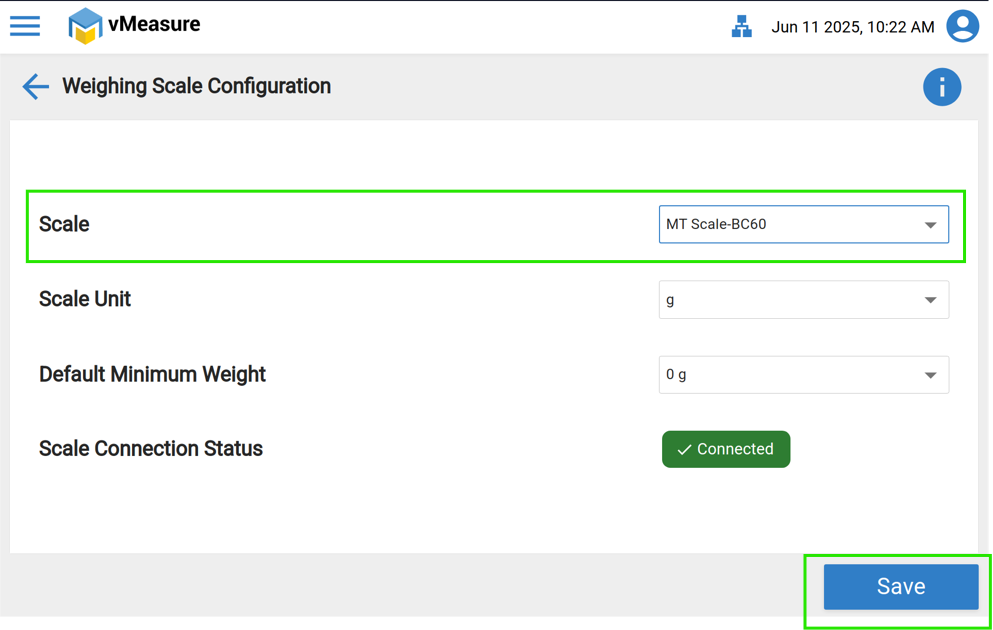
Once these settings are completed on the Mettler Toledo scale, please follow the steps below on the "vMeasure device" to select and save the Mettler Toledo BC60 or appropriate scale model.
Step 1: Click "Scale" option.
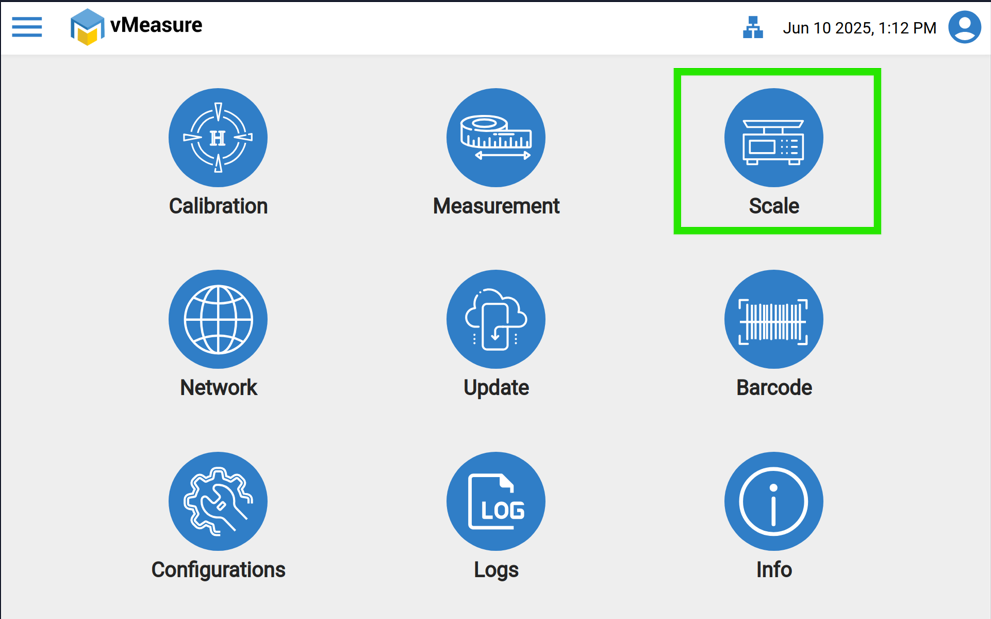
Step 2: In Scale, please select MT Scale BC60 & finally Save the settings.
Configuration Details:
Baud rate - Home > setup > comm > serial > Baud > =9600
ASCII Data Bit - Home > Setup > Comm > Serial > =7
Parity - Home > setup > Comm > Serial > =EVEN
STOP - Home > Setup > Comm > Serial > =1
Protocol - Home > Setup > Comm > Serial > =Toledo
If you need any support, please drop a mail to vmeasure@visailabs.com or click here to Submit a Ticket.
Was this article helpful?
That’s Great!
Thank you for your feedback
Sorry! We couldn't be helpful
Thank you for your feedback
Feedback sent
We appreciate your effort and will try to fix the article