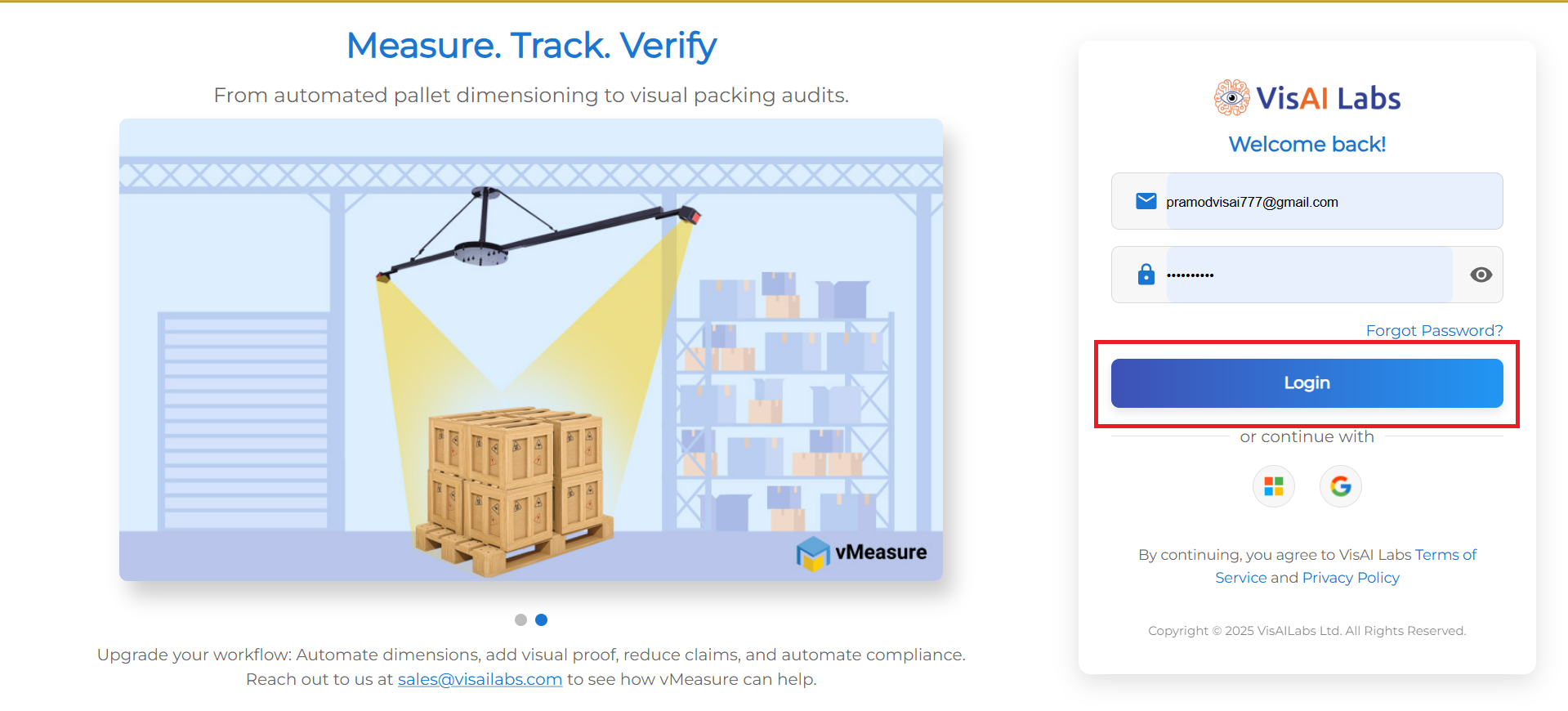
1. Open https://forge.vmeasure.ai/ and login with the mail id and password.
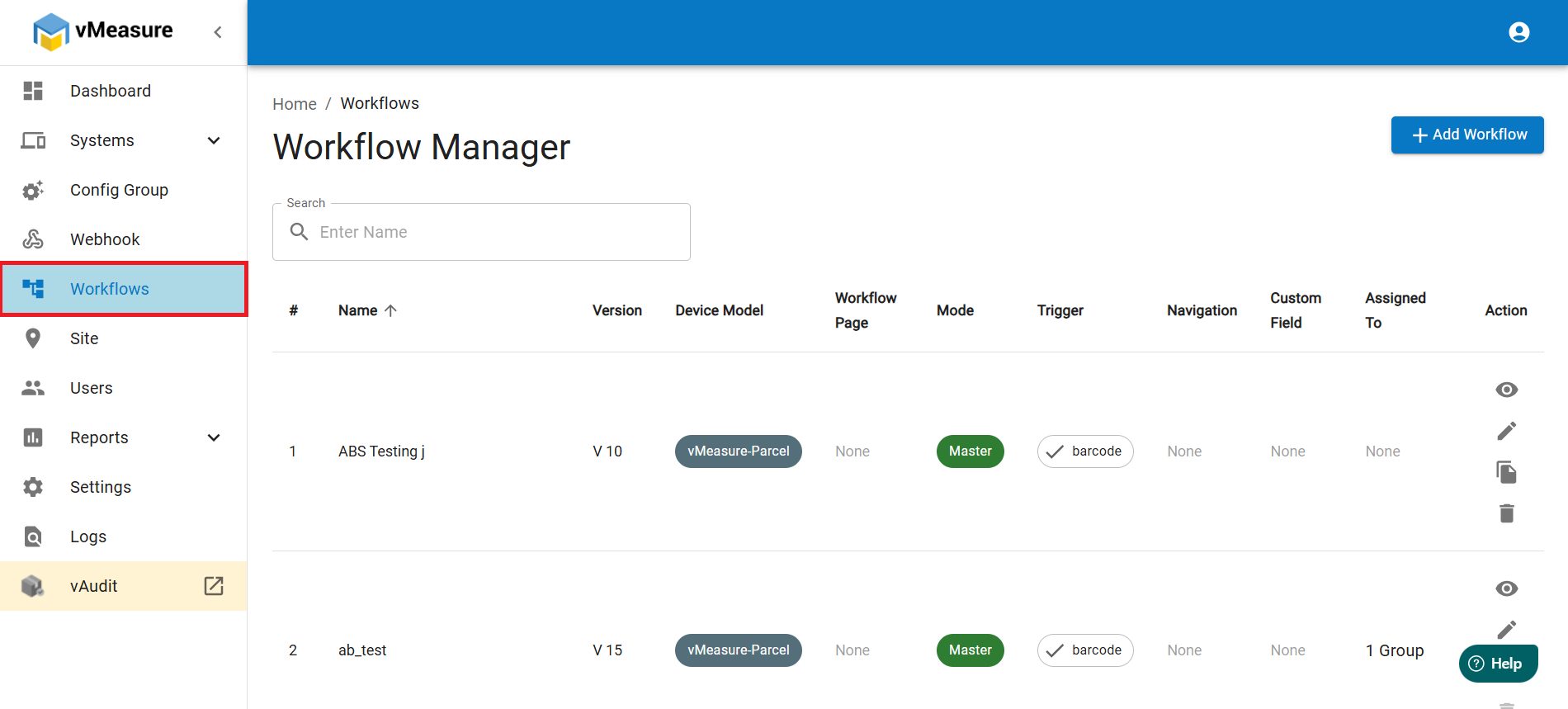
2. In the vMeasure page, on the left pane, navigate to Workflows.
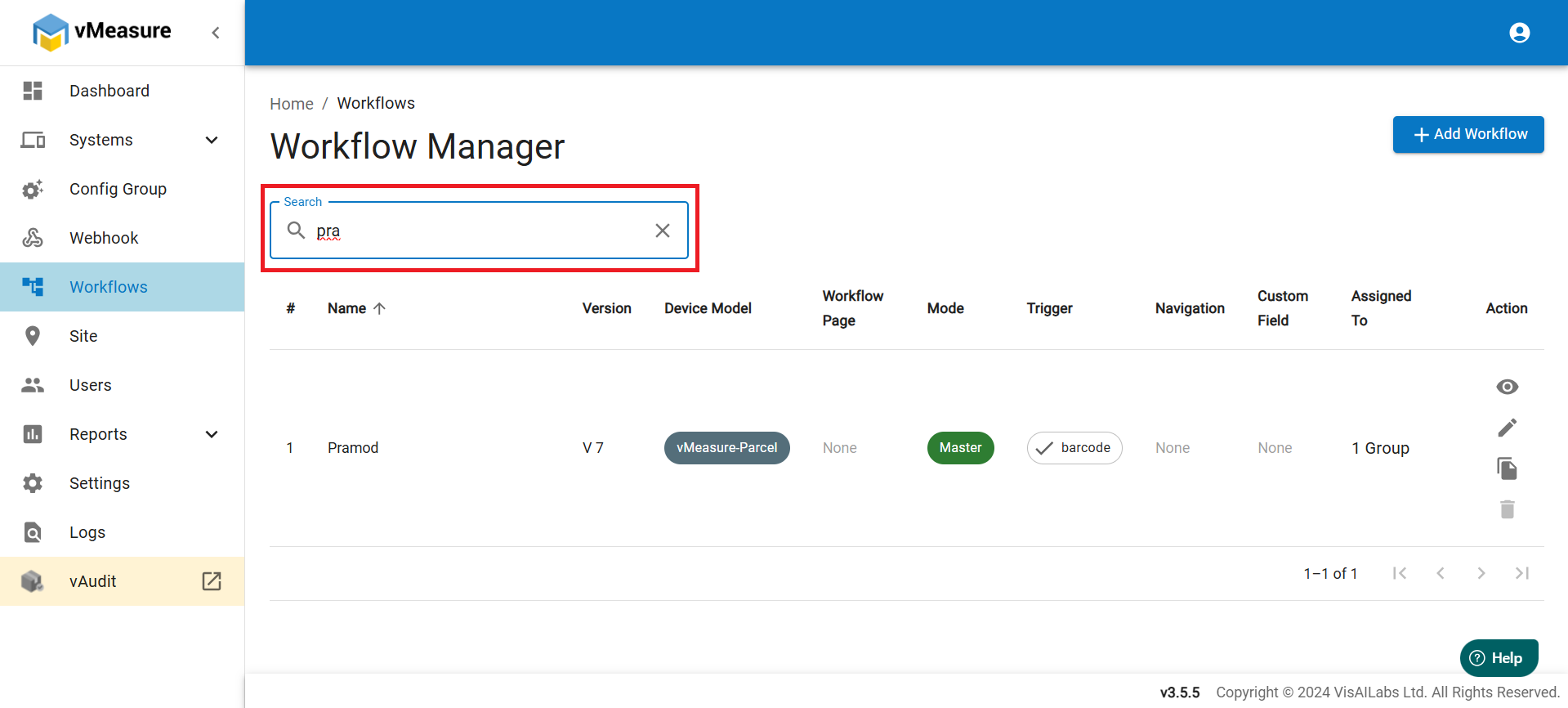
3. In the search box, type a few letters of your workflow name.
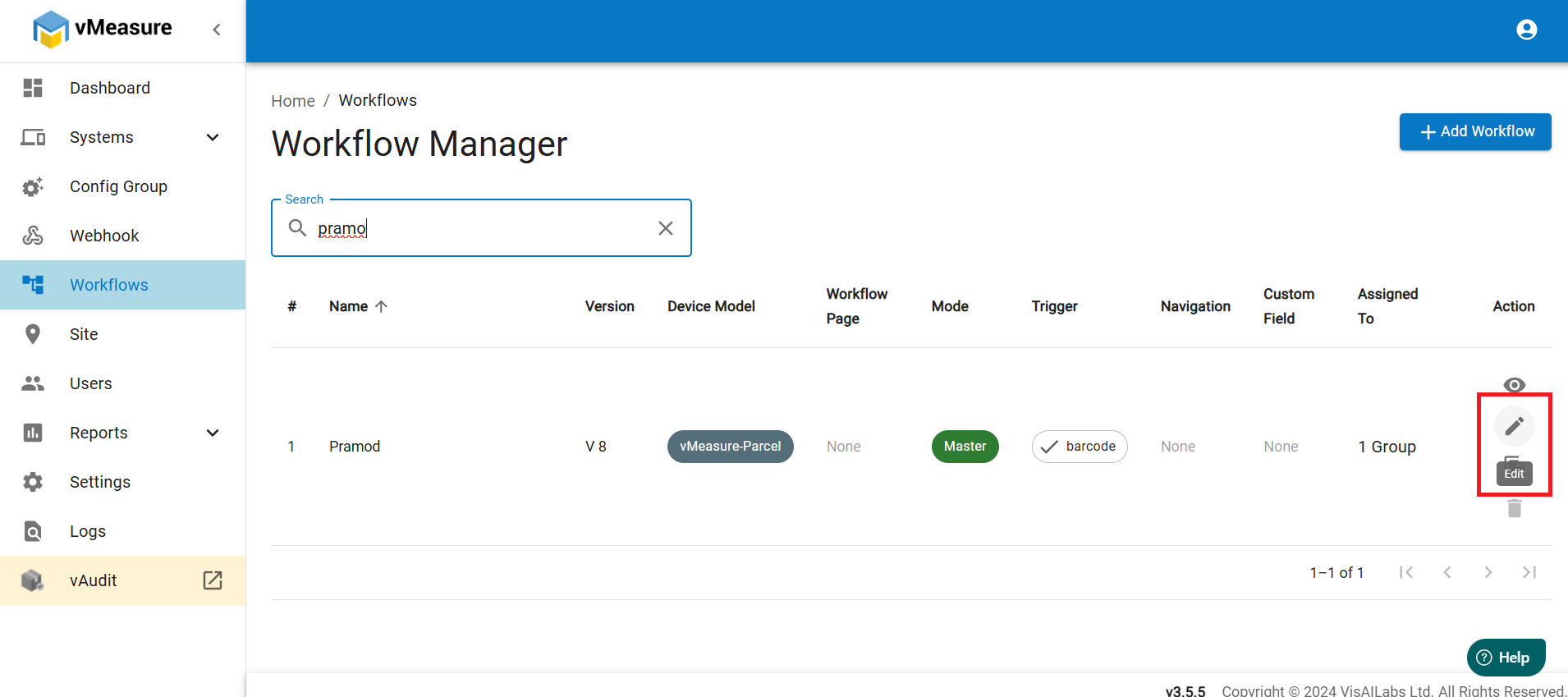
4. After your workflow appears, click on the pencil icon.
5. The workflow settings will open.
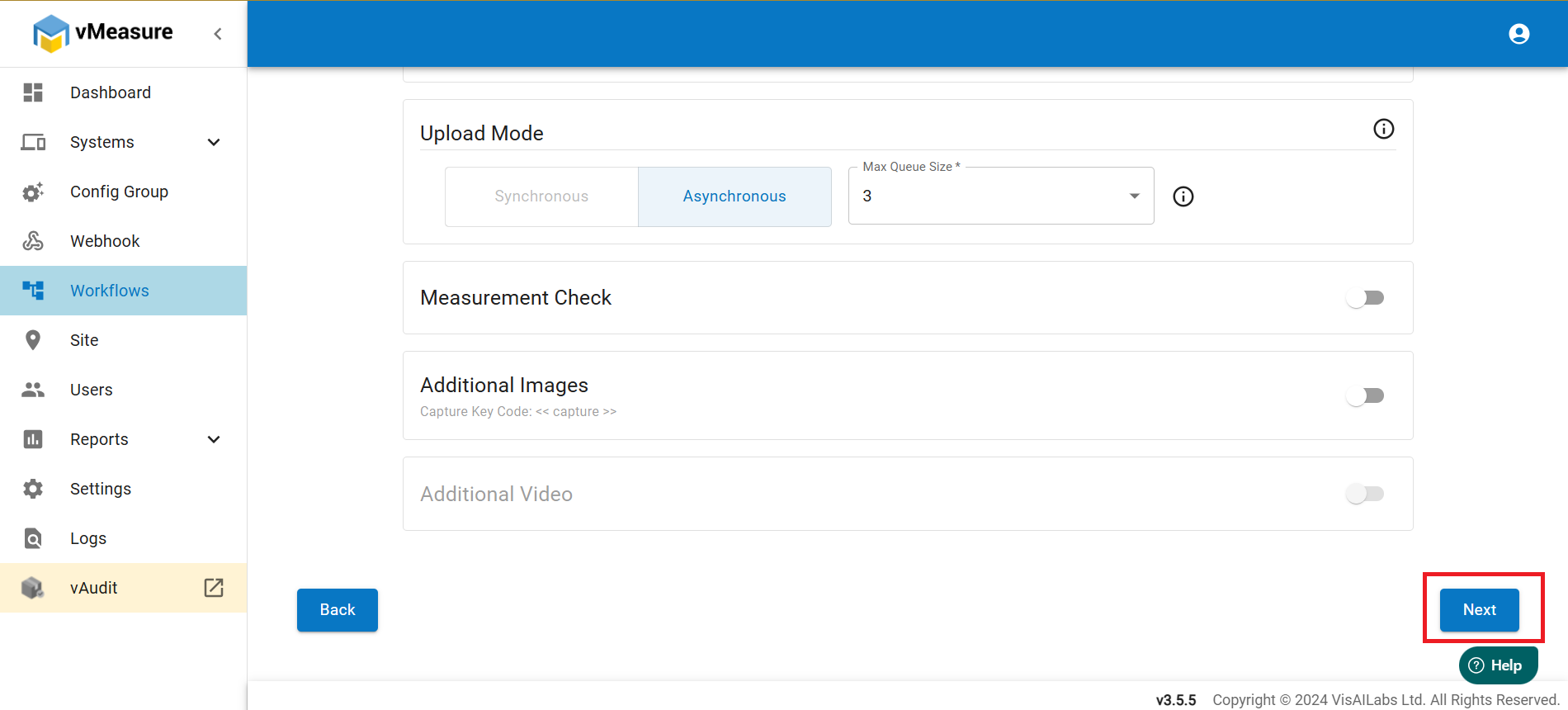
6. Scroll down the first page to the end and click on next.
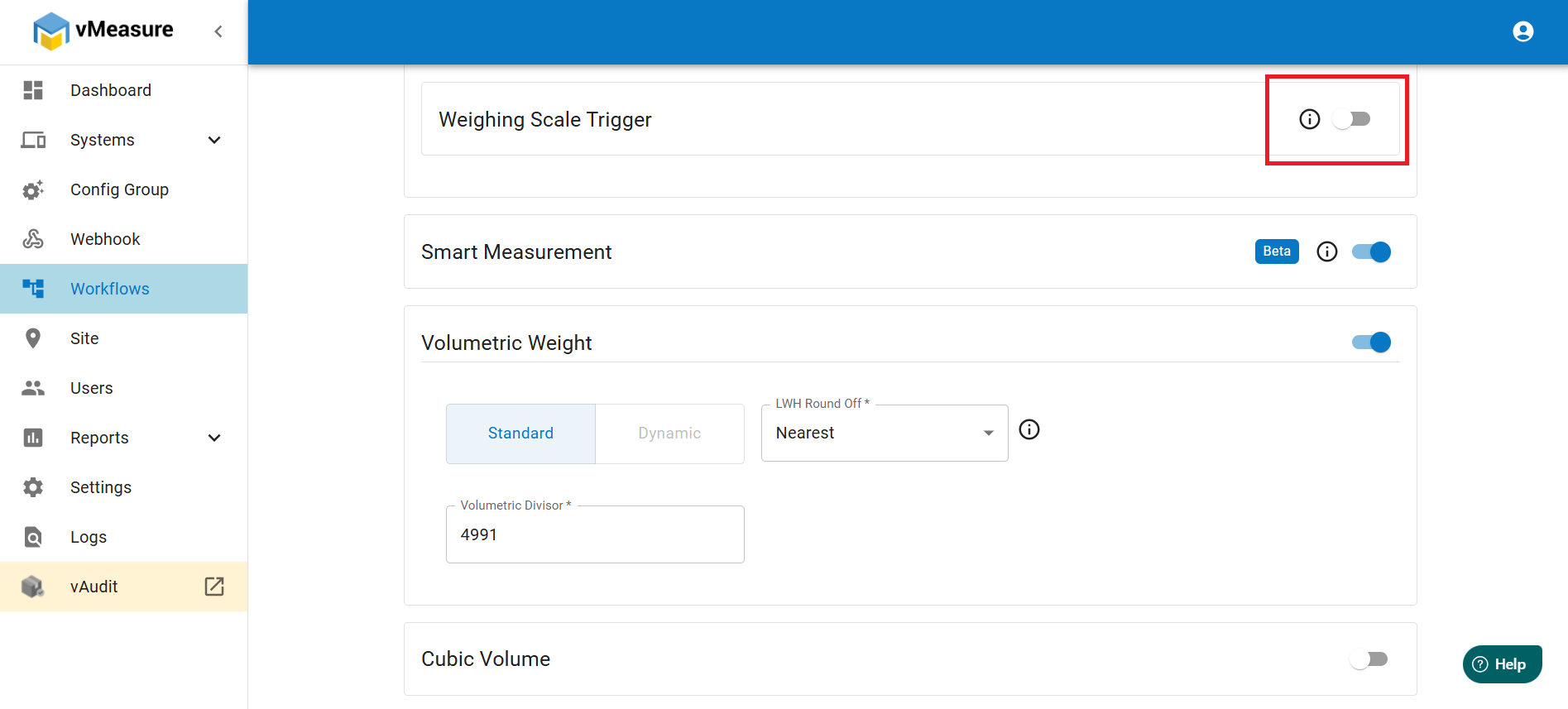
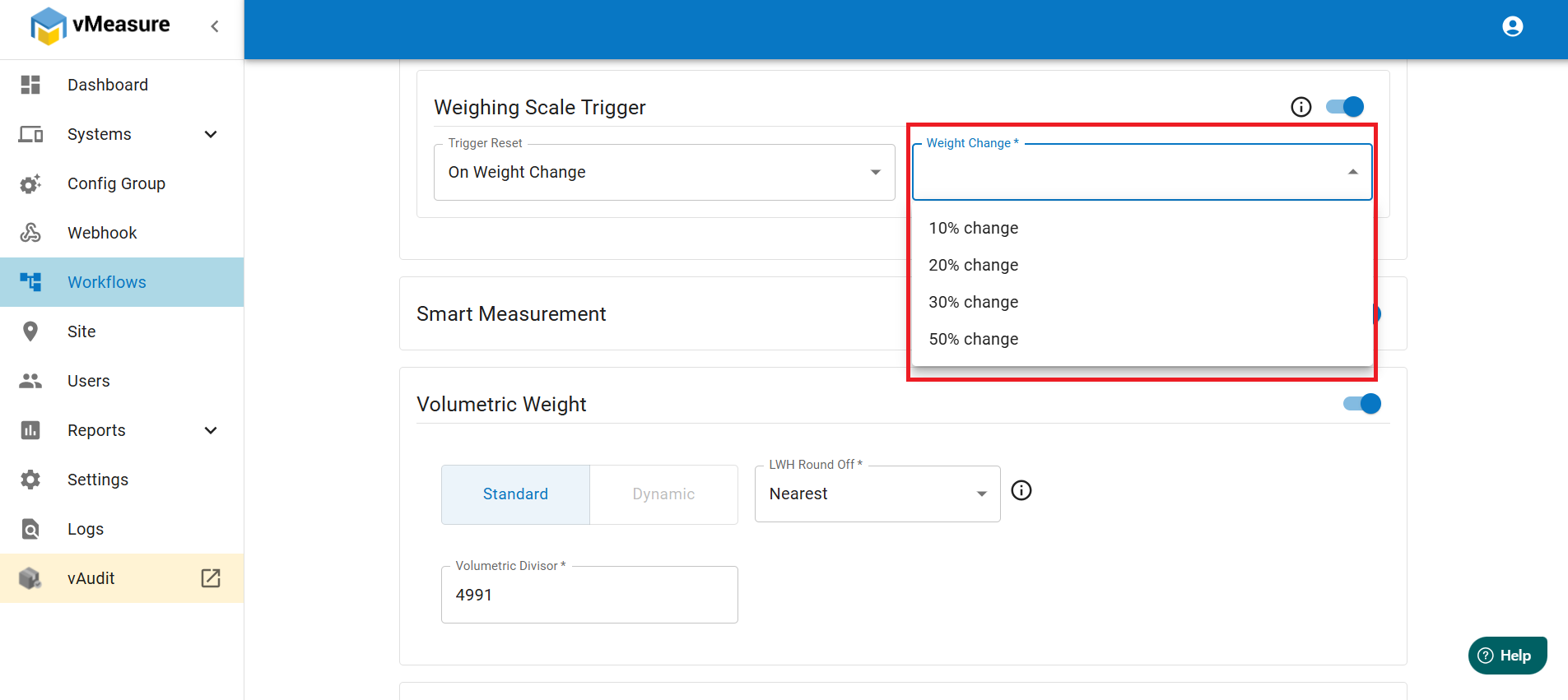
7. Scroll down until you find Weighing Scale Trigger and turn it on.
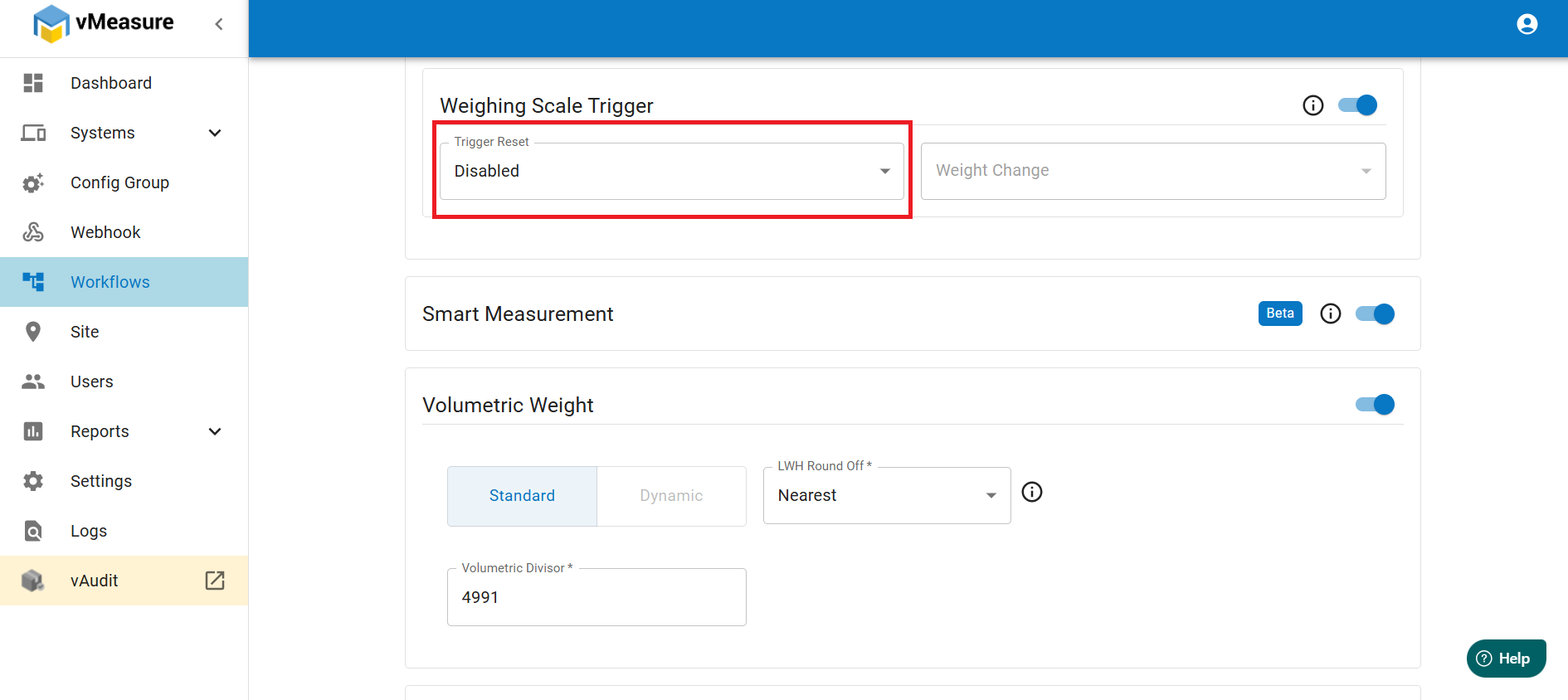
8. If you select Disabled option, the weighing scale trigger option will be on but the weighing scale will not trigger automatically in case of manual intervention is found.
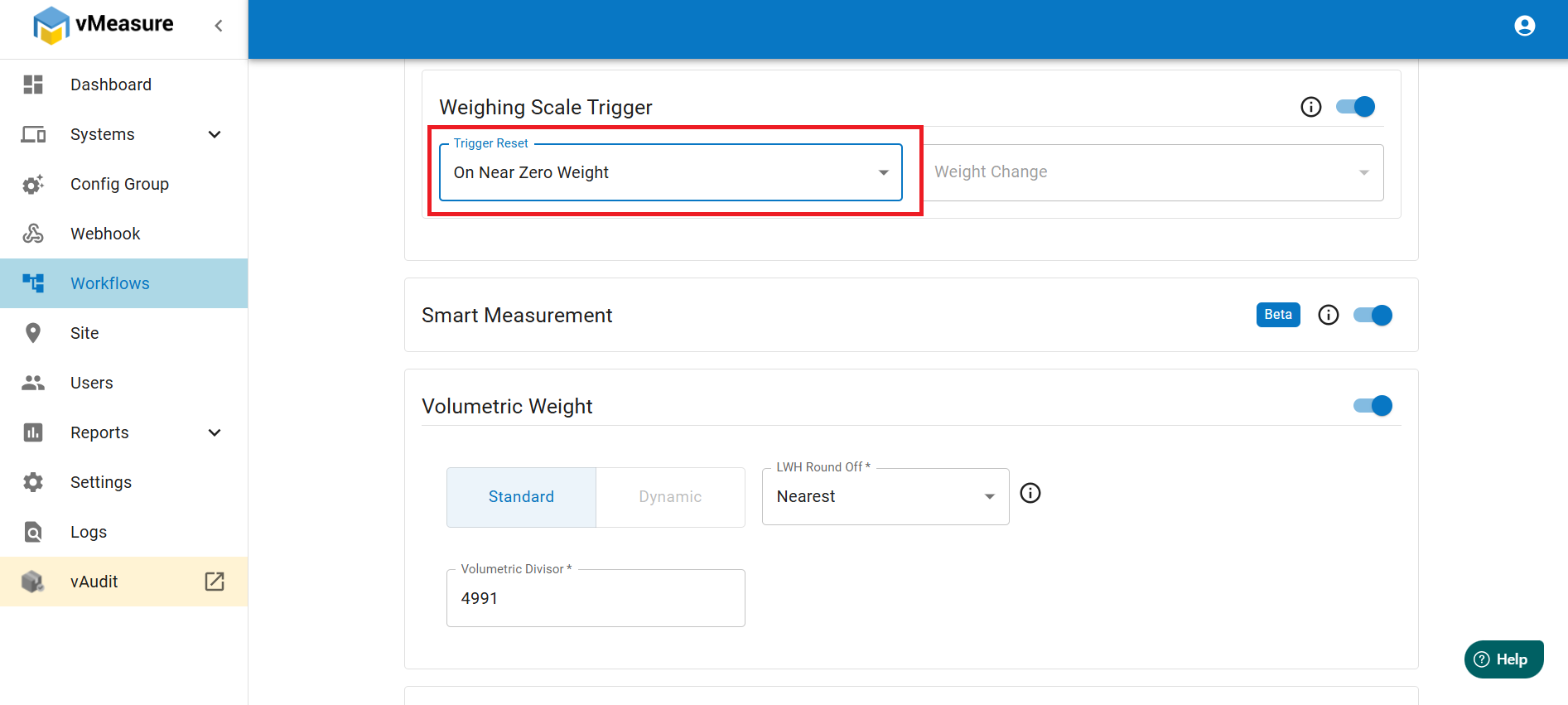
9. If you select On Near Zero Weight option, the weighing scale trigger option will work on near zero weight. Means the weight will be triggered when the system senses zero weight or the weight is near to zero.
10. If you select On Weight Change option, the weighing scale trigger option will work if the scale detects a weight change. You can set the weight change percent as shown in the image.
11. Scroll down and click on Next.
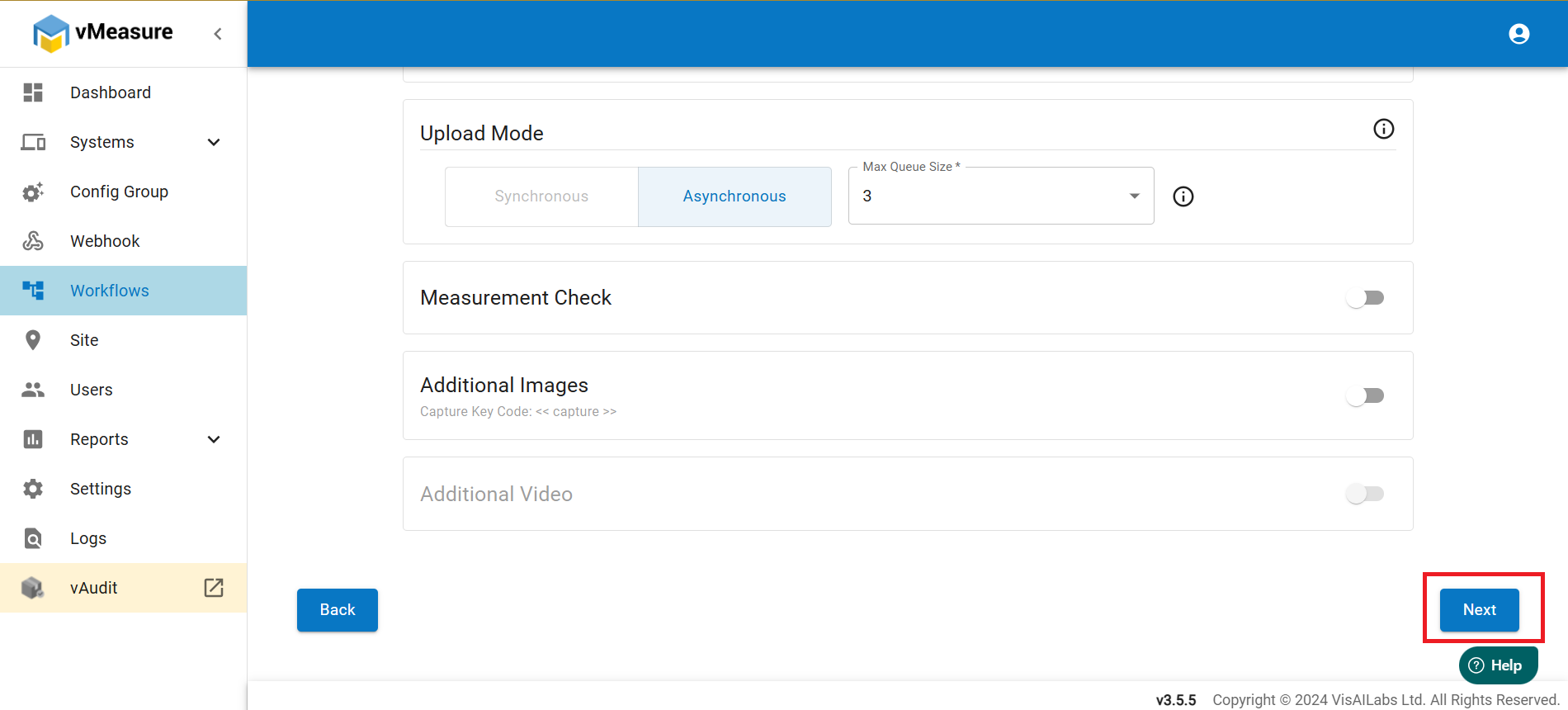
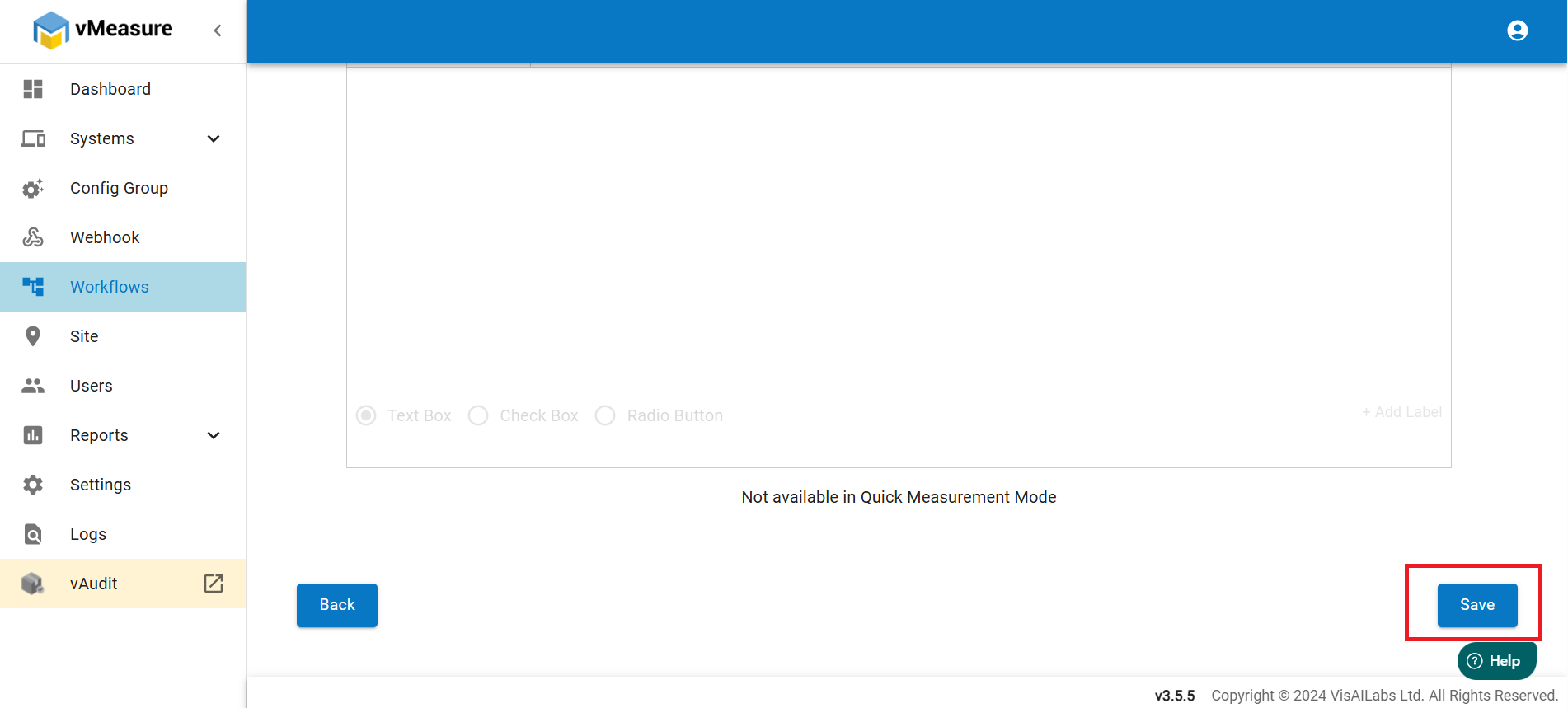
12. You will go to Additional Images page. Scroll down and click on Save.
13. After saving the settings, you will come back on the main workflow page and see a message as Successfully Saved.
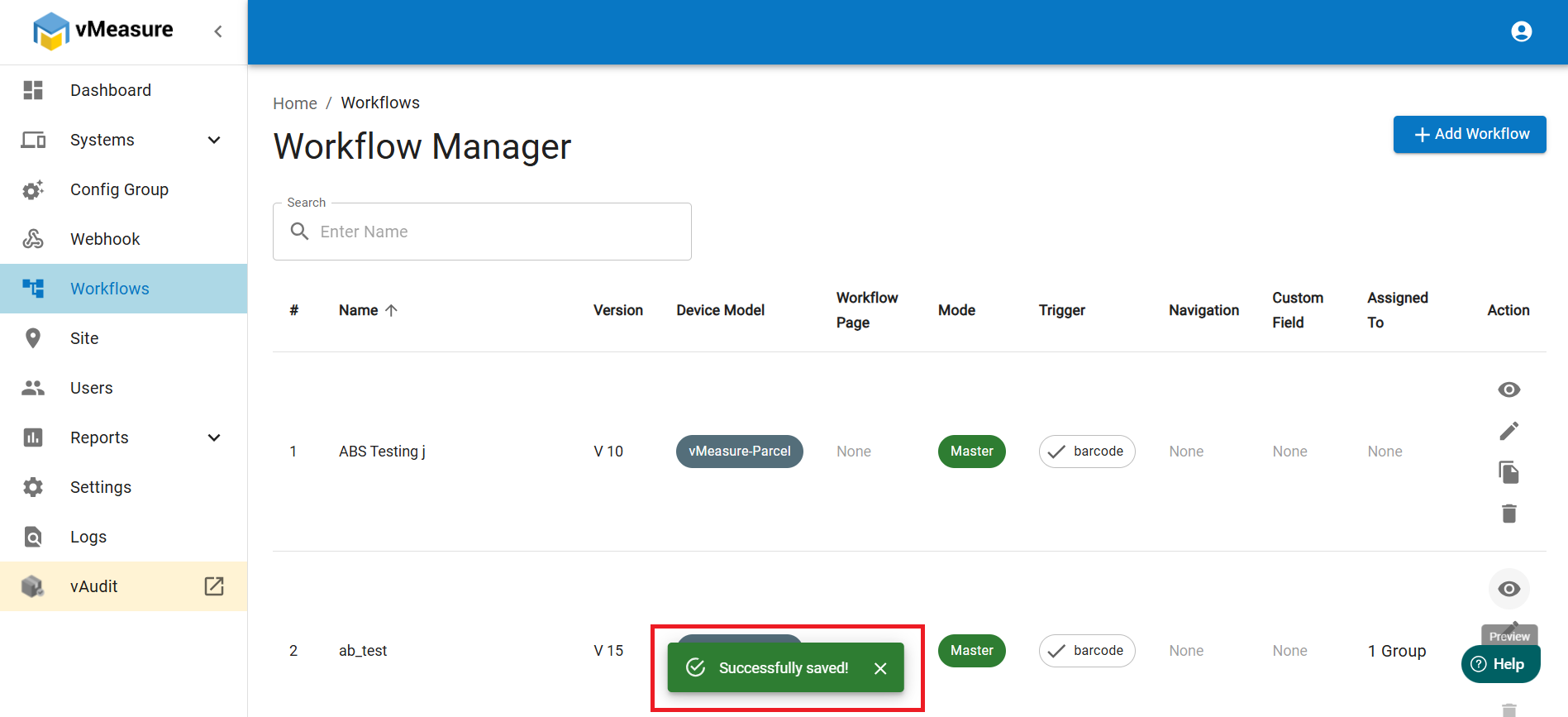
14. The Weighing Scale Trigger is now enabled and from now onwards, the weighing scale will trigger based on the settings selected.
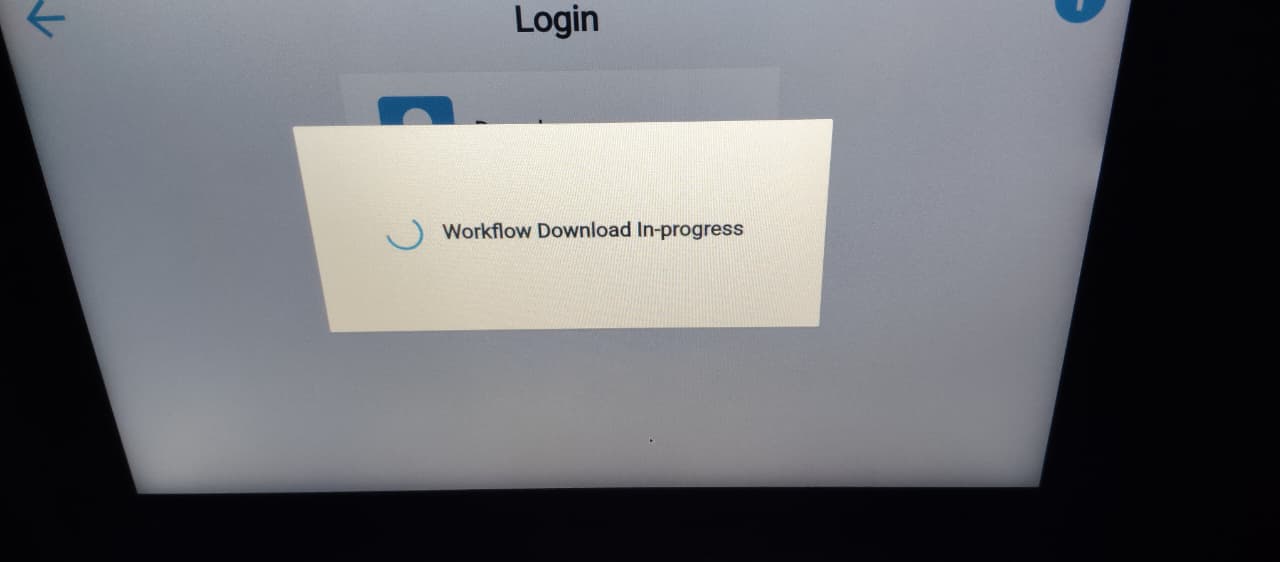
15. In the device, you will see a pop-up for updating the workflow, click on Yes and the workflow download will start and completed within few minutes.
Was this article helpful?
That’s Great!
Thank you for your feedback
Sorry! We couldn't be helpful
Thank you for your feedback
Feedback sent
We appreciate your effort and will try to fix the article