How to Create a basic Workflow for vAudit (Oder Verification Flow).
Step 1: Log in to https://forge.vmeasure.ai/login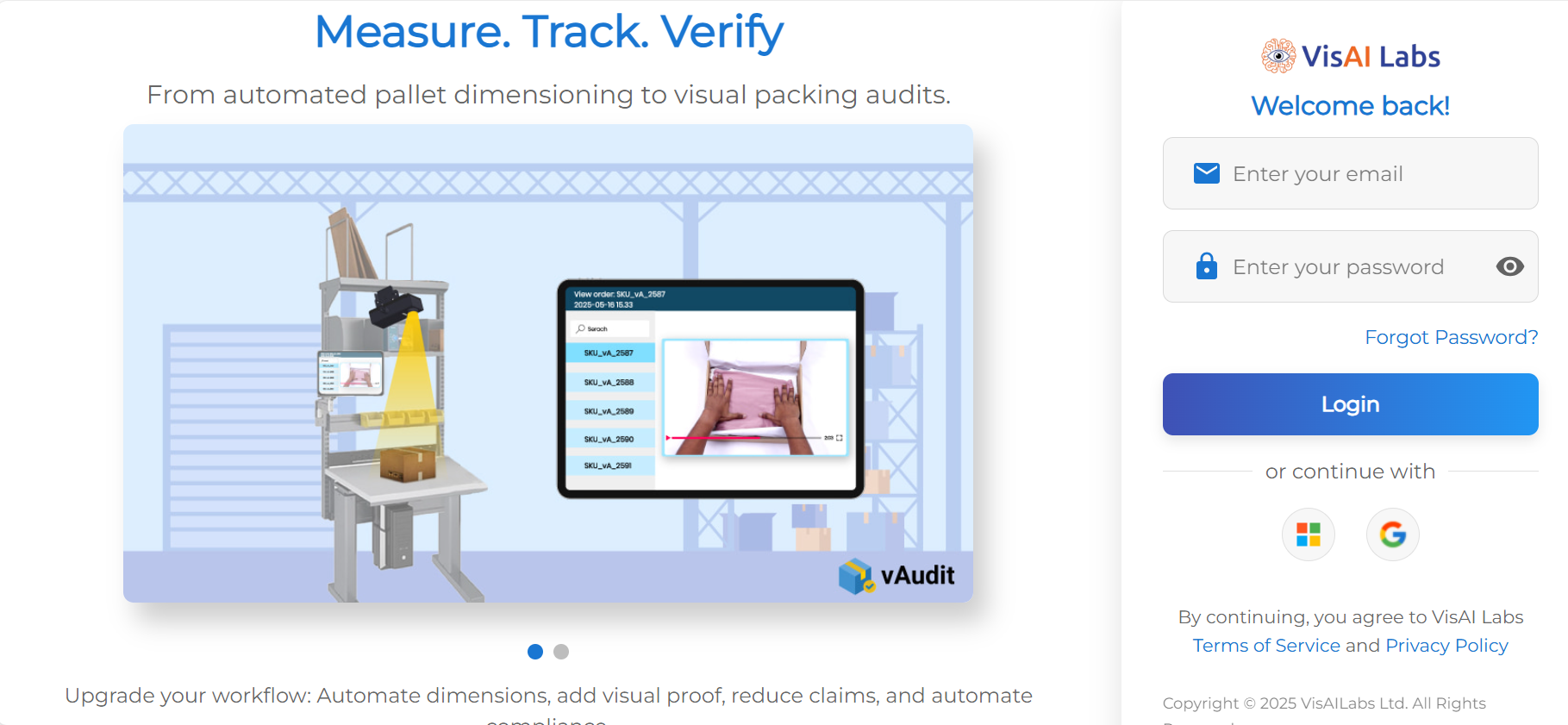
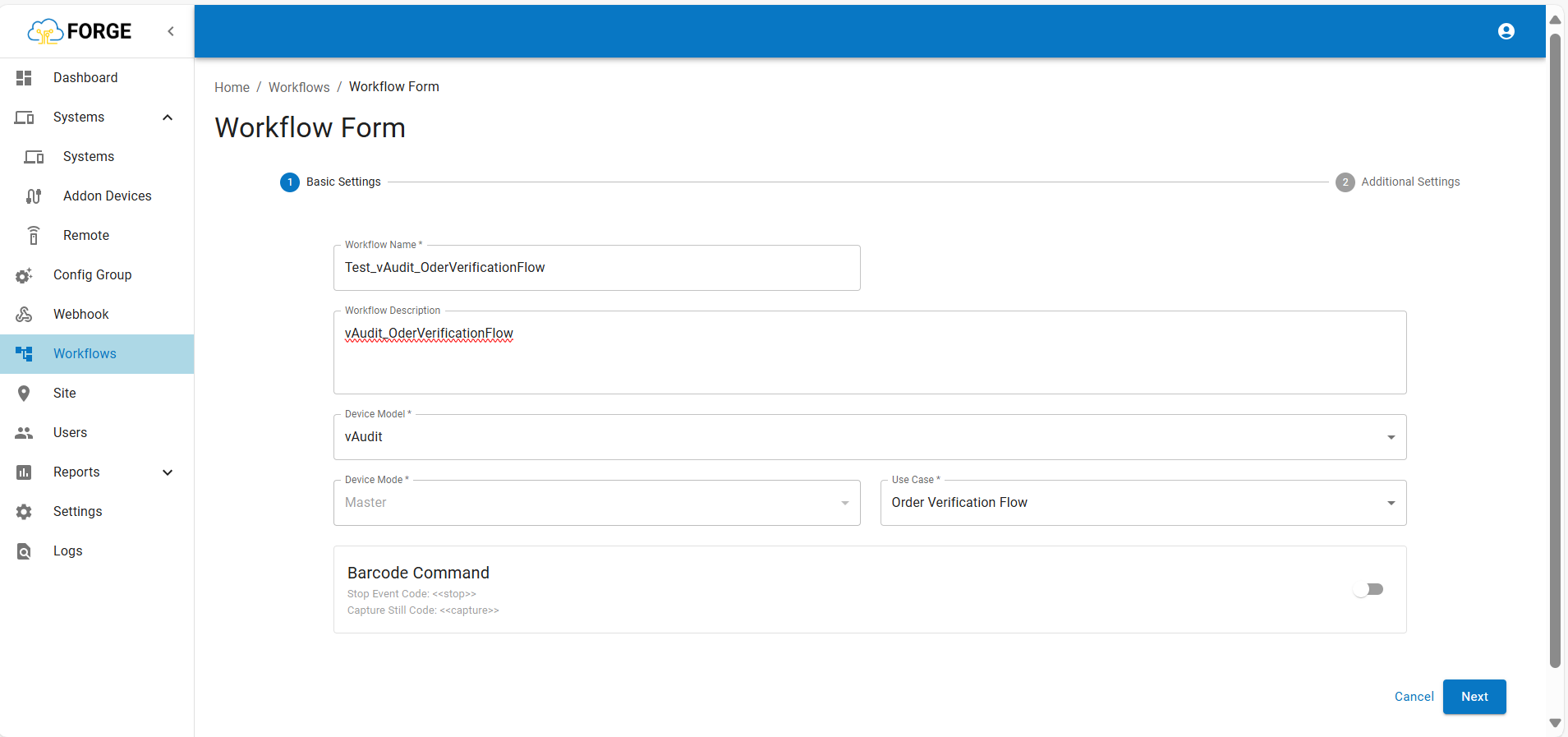
Step 2: Navigate to the Workflow section and click on “+ Add Workflow”.
Step 3: Enter the required details:
Workflow Name
Workflow Description
Step 4: From the Model dropdown, select “vAudit”.
Step 5: From the Use Case dropdown, select “Order Verification Flow” and click “Next”.
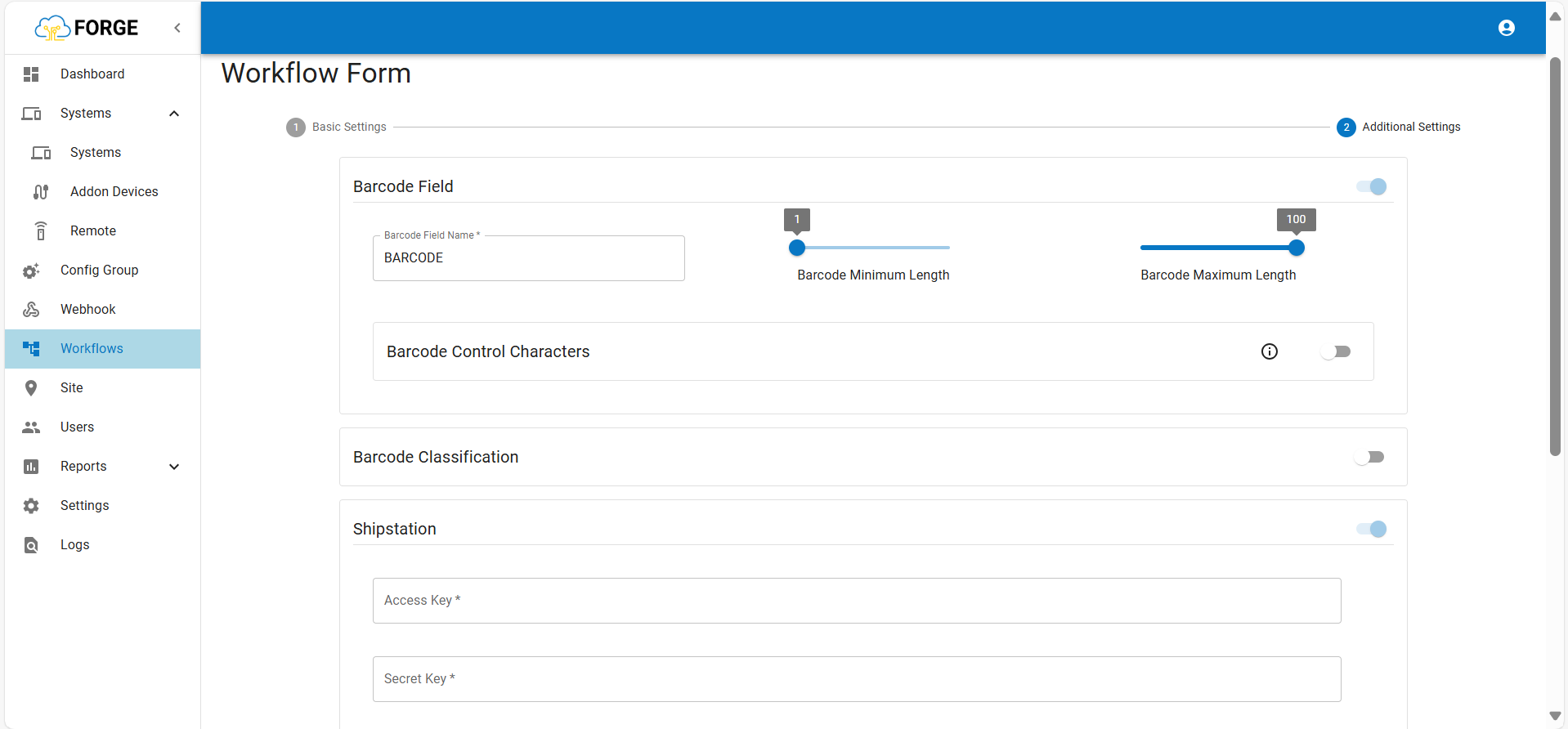
Step 6: Specify the Barcode Field Name.
Ensure the minimum barcode length is set to 1 and the maximum to 100. This allows barcode values ranging from 1 to 100 characters to be scanned.
Step 7: Then enter the Shipstation "Access Key" and "Secret Key".
Step 8: Under Sub-Event Configuration, select “Annotated Image”, "Capture image" and choose relevant details like:
Barcode ID
Timestamp
Step 9: Configure Camera Settings such as:
Max Event Duration
Capturing Resolution
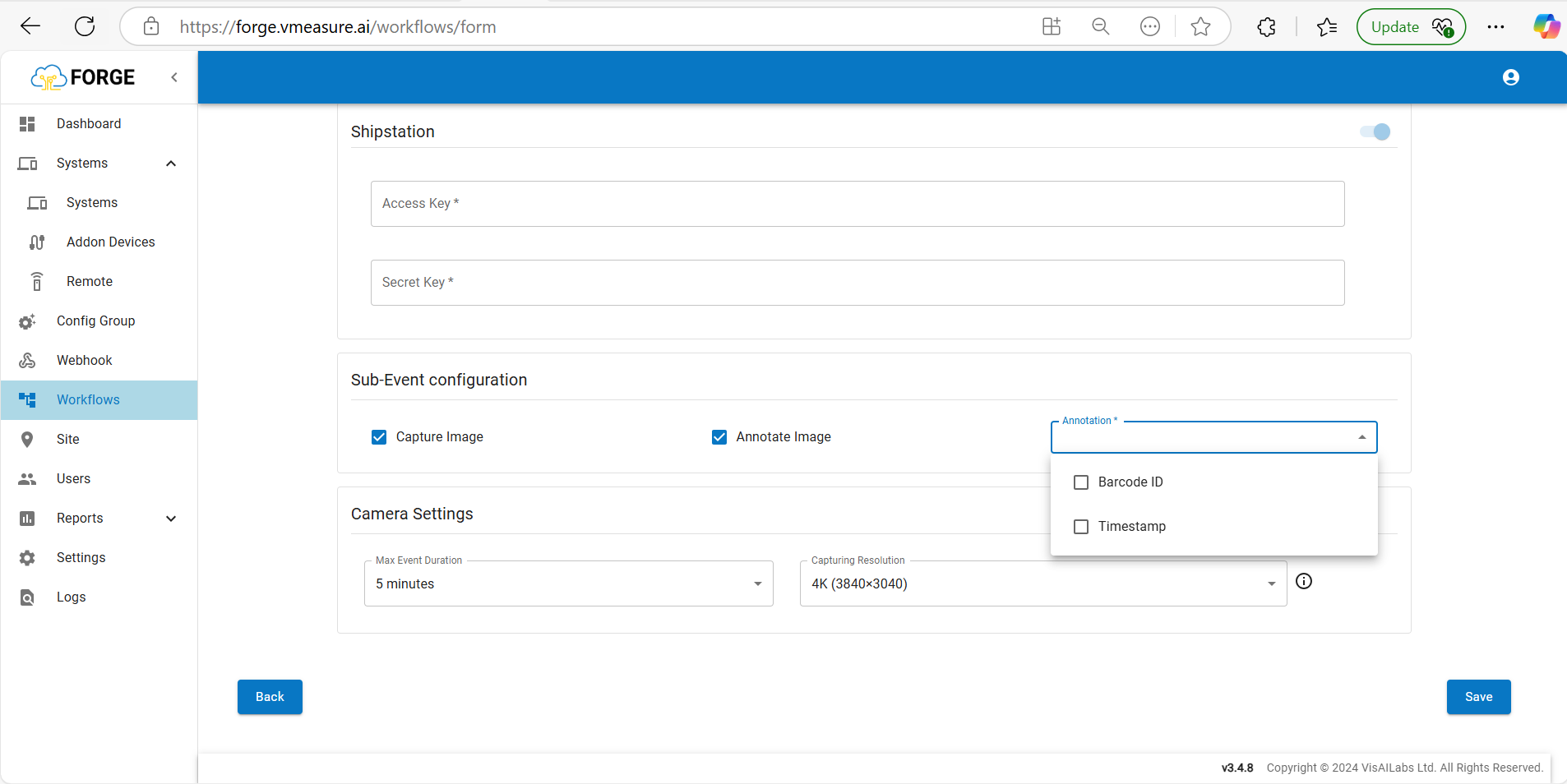
Step 10: Click “Save” to finalize the workflow.
Note : After creating the Workflow, you need to create a Config Group and assign it to the respective device.
How to create "Config Group" Link : https://vmeasure.freshdesk.com/support/solutions/articles/88000061680
If you need any support , please drop a mail to vmeasure@visailabs.com
Was this article helpful?
That’s Great!
Thank you for your feedback
Sorry! We couldn't be helpful
Thank you for your feedback
Feedback sent
We appreciate your effort and will try to fix the article