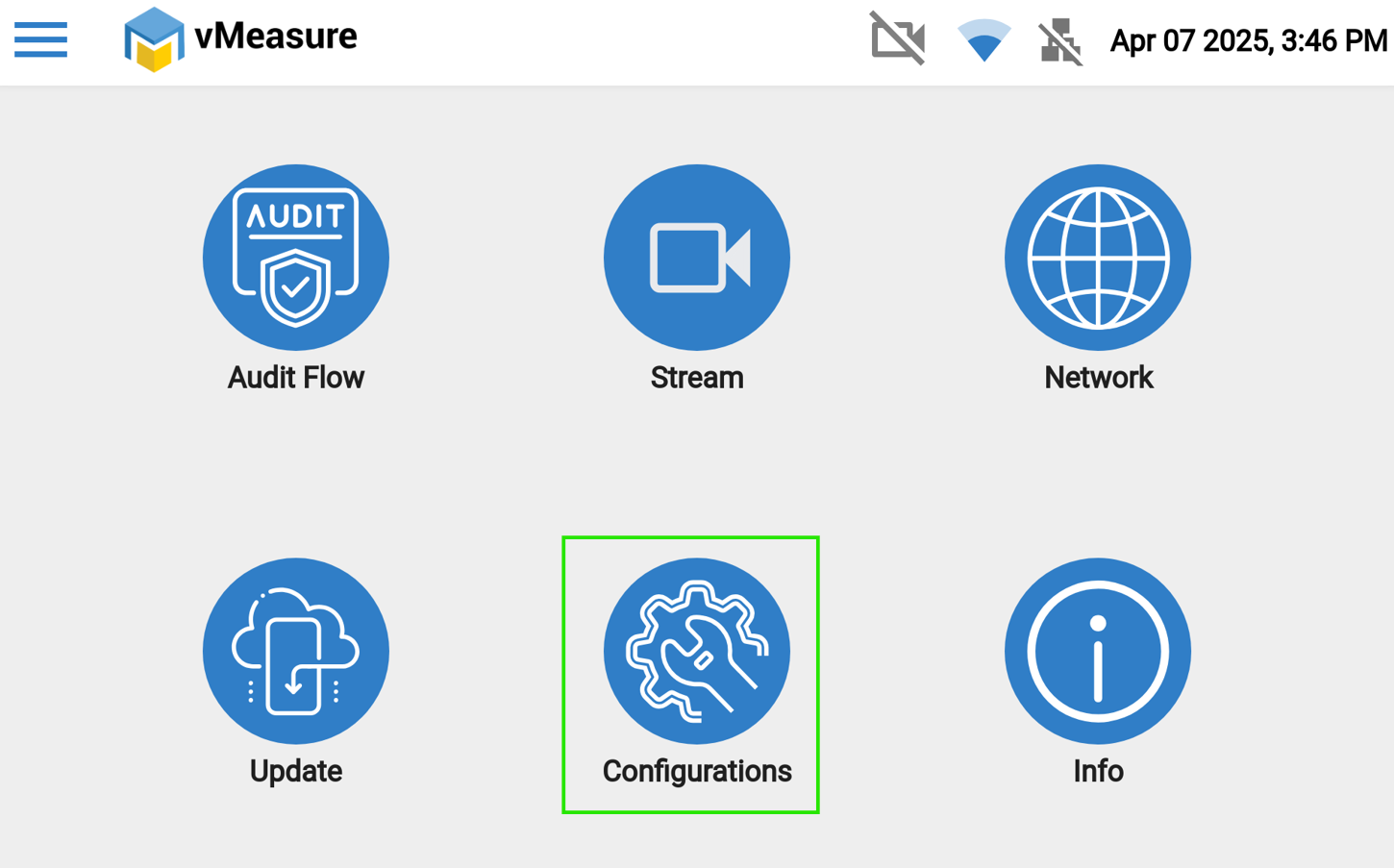
Step 1 - After logging into the device, you will see the Menu page. Navigate to the 'Configuration' icon.
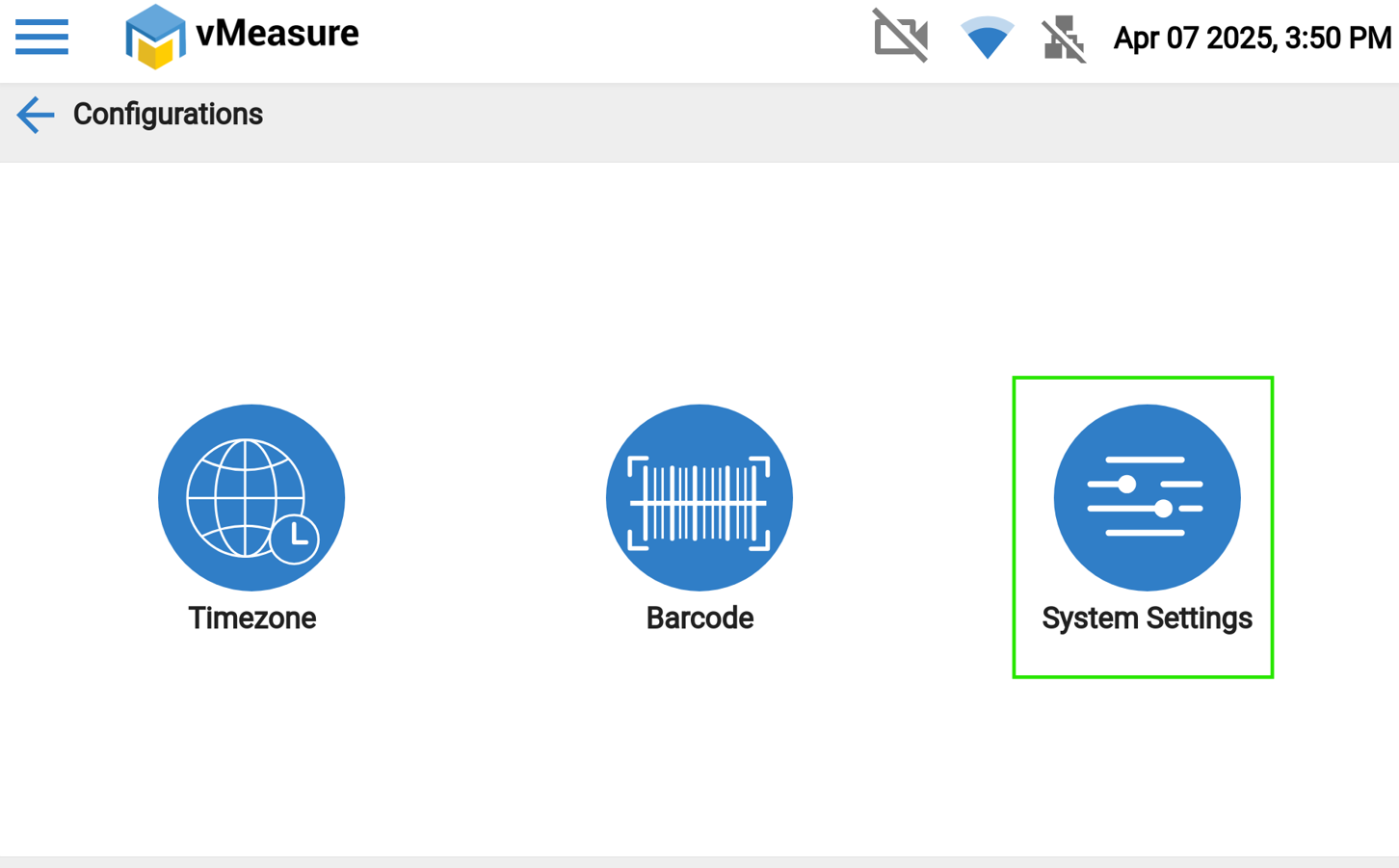
Step 2 - Next, navigate to 'System Settings', where you will find the "Buzzer Volume" level.
Step 3 - You can select from four options : "Mute, Low, Medium, or High "- based on your preference.
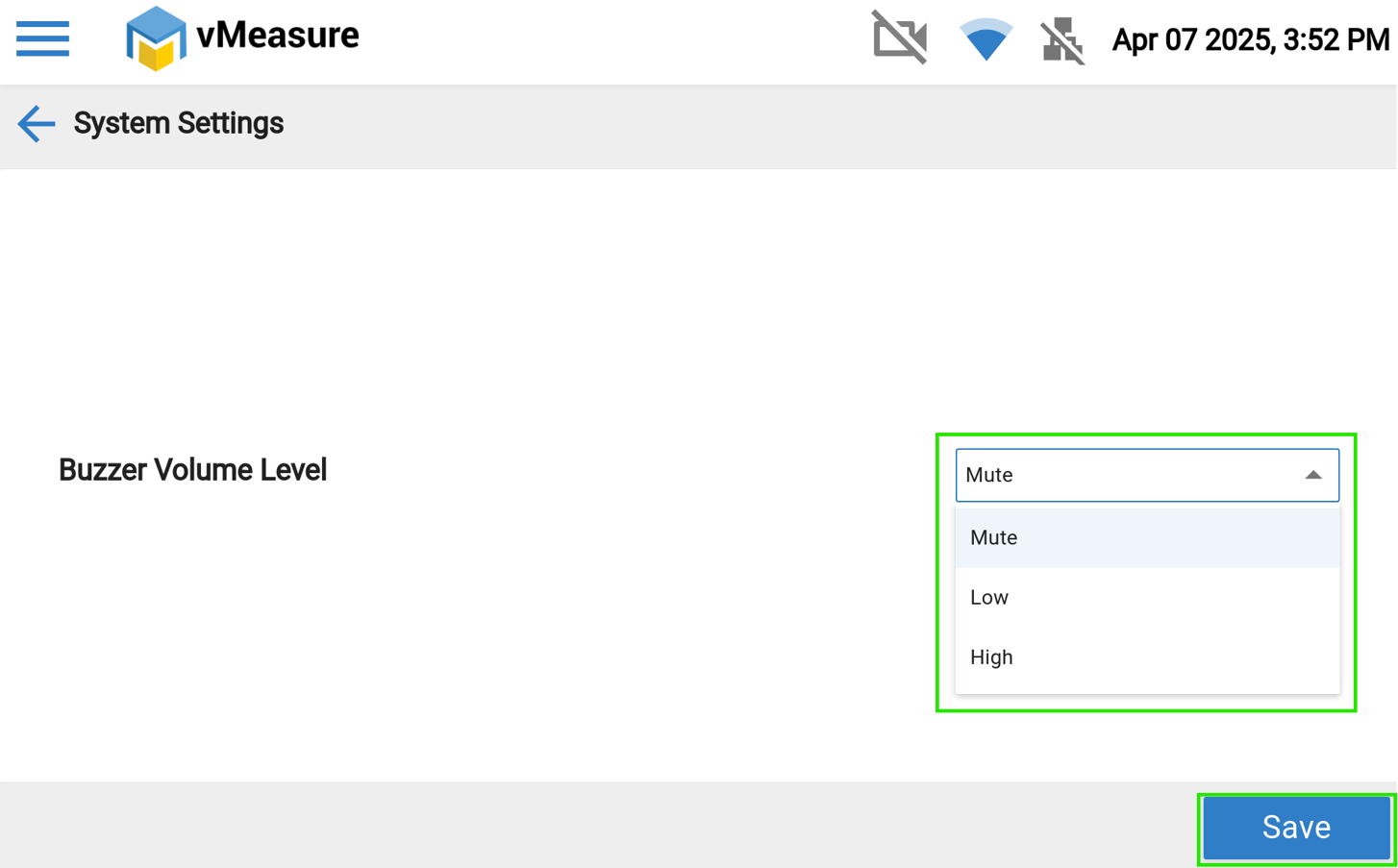
Step 4 - Once you have selected your preferred volume level, click 'Save'.
If you need any assistance, please email vmeasure@visailabs.com or Click Here to Summit a Ticket.
Was this article helpful?
That’s Great!
Thank you for your feedback
Sorry! We couldn't be helpful
Thank you for your feedback
Feedback sent
We appreciate your effort and will try to fix the article