How to Assign the vAudit Config group to the System.
Step 1: Login to forge.vmeasure.ai, using your forge login credentials.
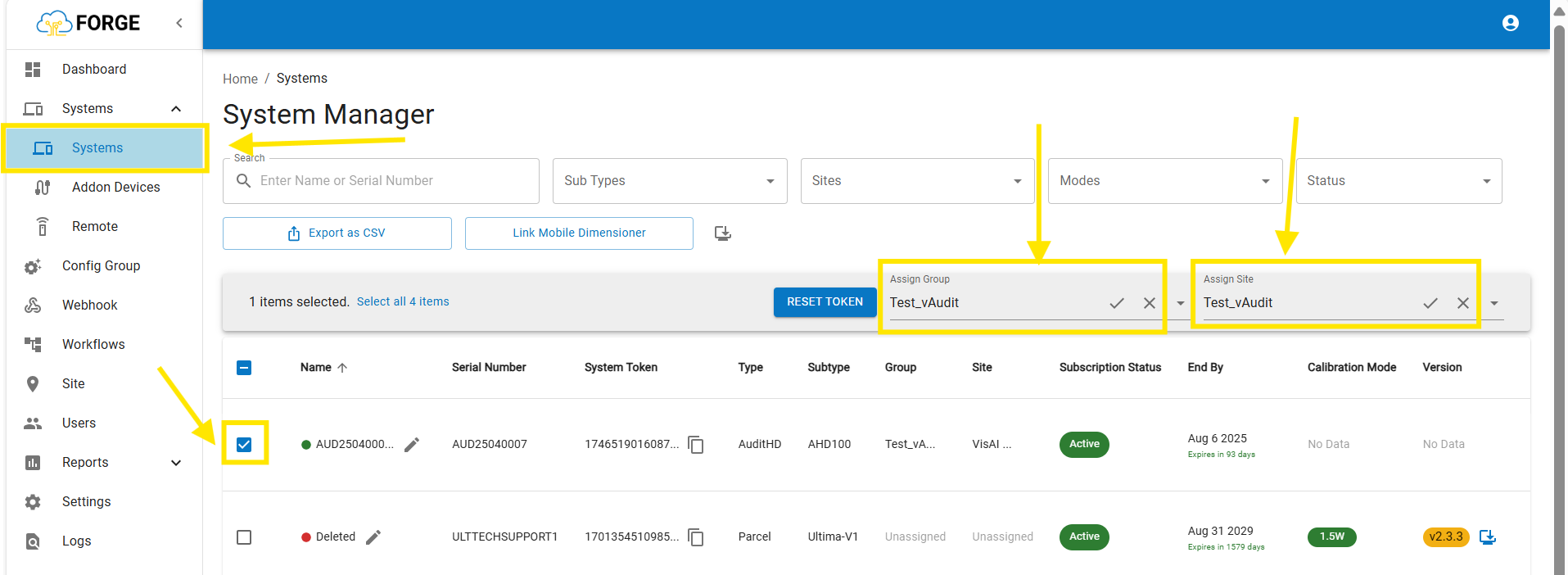
Step 2: Navigate to "Systems" menu.
Step 3: Click on the System Name check box  .
.
Step 4: Assign vAudit Group to the system & click the check mark  .
.
Step 5: Assign Site to the system (vAudit site) & click the check mark  .
.
Step 6: After selected the  , Then click on "RELOAD" .
Once the changes are applied on forge, a prompt will be displayed on the device. On the prompt press "Yes" to apply the config group to the device.
If you need any support , please drop a mail to vmeasure@visailabs.com or Click Here to Summit a Ticket.
Was this article helpful?
That’s Great!
Thank you for your feedback
Sorry! We couldn't be helpful
Thank you for your feedback
Feedback sent
We appreciate your effort and will try to fix the article