Forge:
Step - 1: Login in to forge.vmeasure.ai.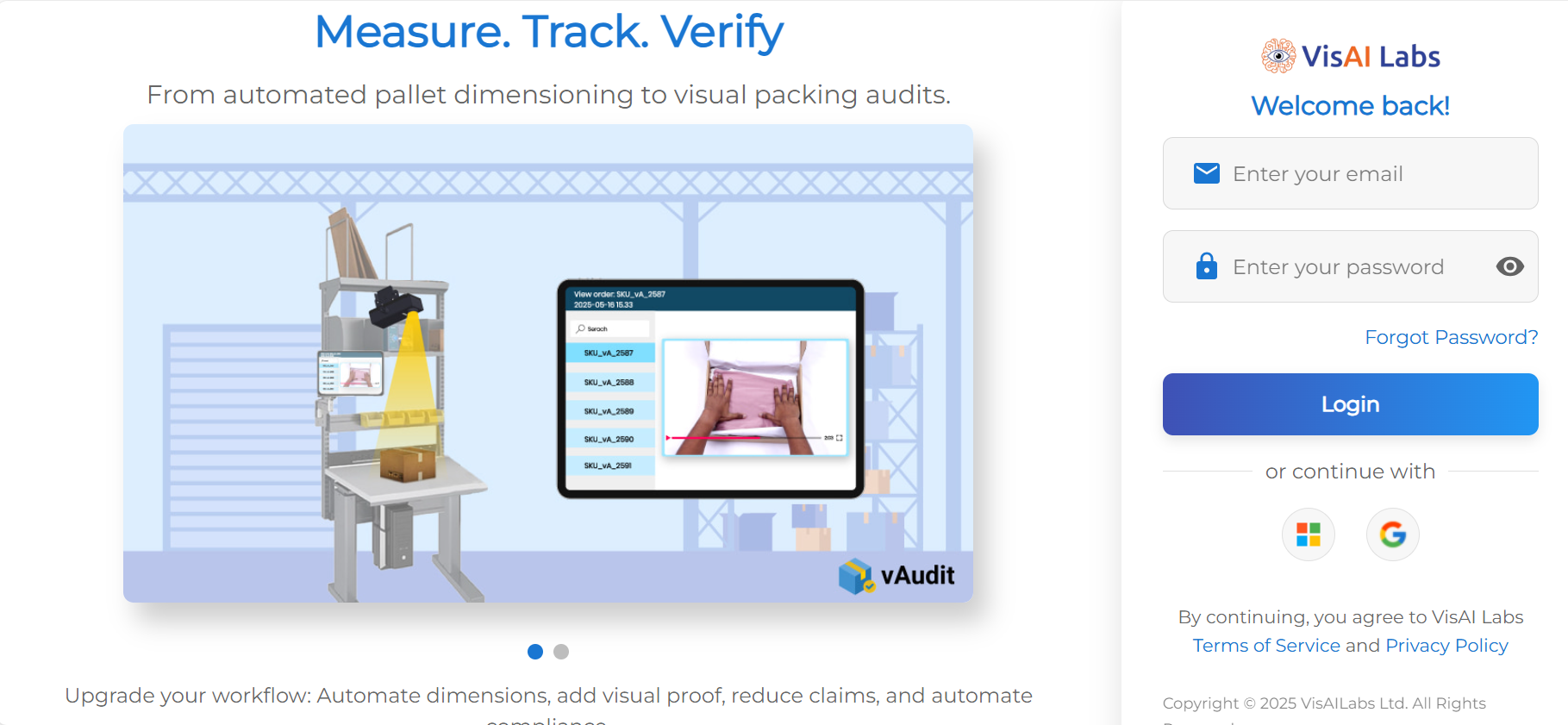
Step - 2: Navigate to Workflow, click on pencil icon edit the current workflow.
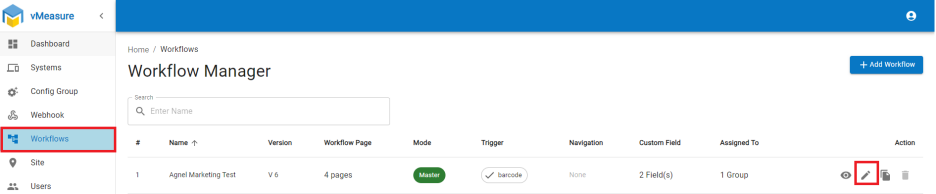
Step - 3: Navigate to the next page, disable the measurement trigger option.
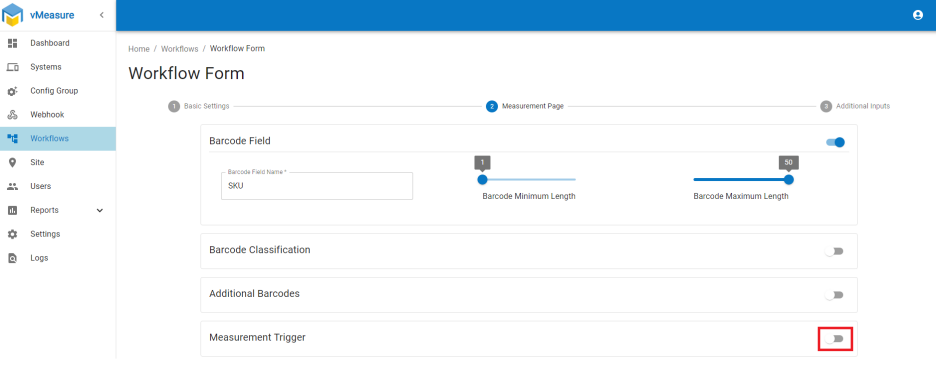
Step - 4: Navigate to the next page and save the workflow.
Step - 5: Logout & Log-in to vMeasure device to reflect the updated workflow.
Device:
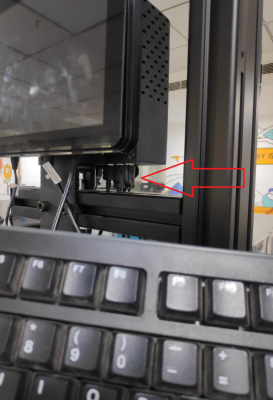
Step - 1: Connect the external keyboard to the power box.
Step - 2: Navigate to the measurement page. Highlight on the barcode field.
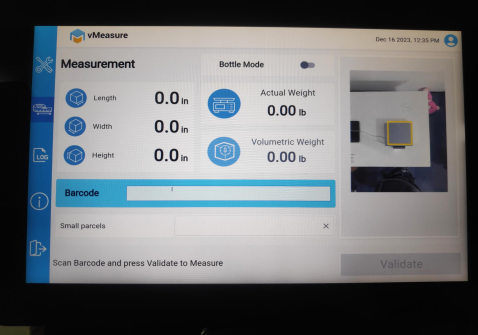
Step - 3: Type your barcode using external keyboard & Click on the “validate” button after entering the barcode.
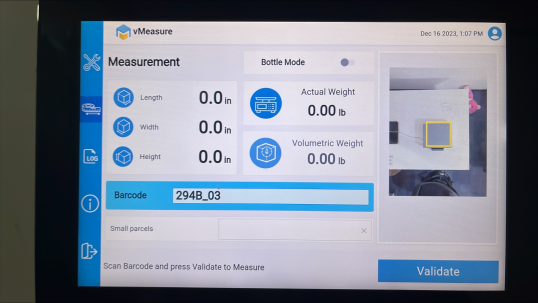
Step - 4: Barcode validation will be done & then click on the “Measure” button to trigger the measurement.
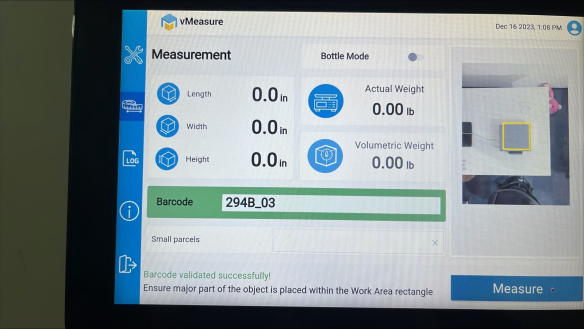
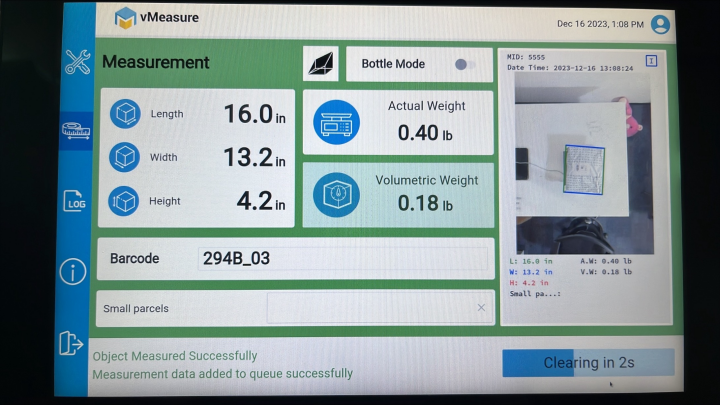
Measurement successfully triggered.
If you need any support , please drop a mail to vmeasure@visailabs.com.
Was this article helpful?
That’s Great!
Thank you for your feedback
Sorry! We couldn't be helpful
Thank you for your feedback
Feedback sent
We appreciate your effort and will try to fix the article