The vMeasure system can validate the scanned Barcode in 3 levels.
- Validation by Barcode Length
- Validation by RegEx
- Validation by Client API
Note: The Barcode Validation can only be done with the Master mode of the vMeasure system.
Validation by Barcode Length
The steps to validate the barcode are as follows.
- Login to vMeasure Forge.
- Navigate to the "Workflows" as shown below.
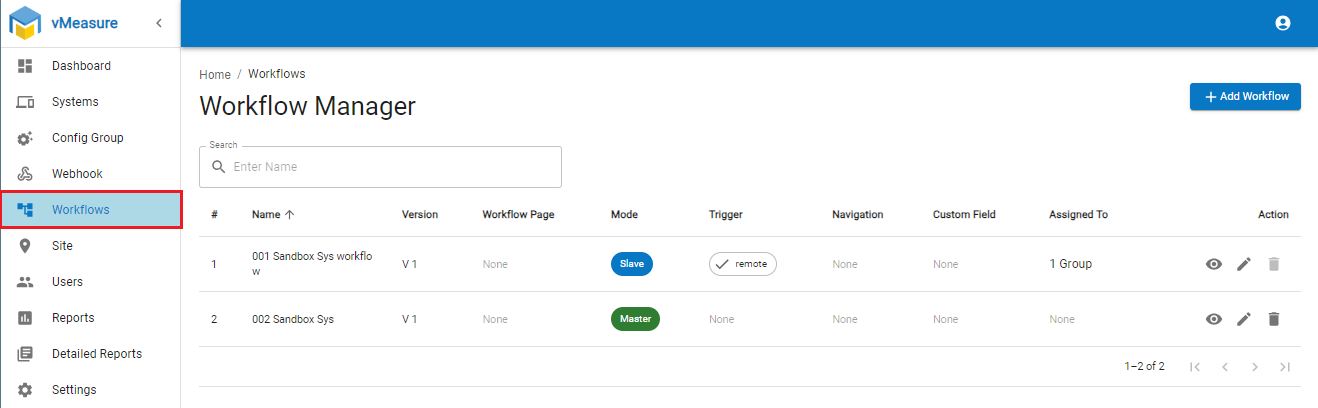
- Edit the desired workflow or add a workflow using the "+ Add Workflow" button.
- Configure the Basic Settings and click on the Next.
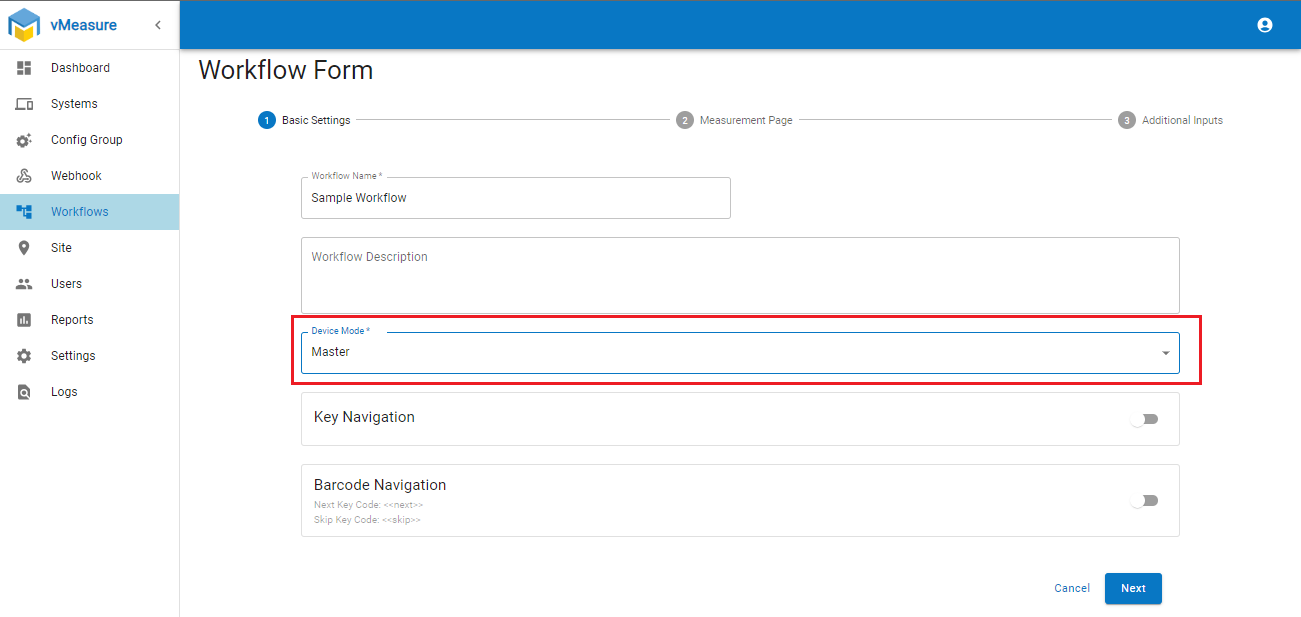 Note: Please make sure to select Master from the Device Mode drop-down.
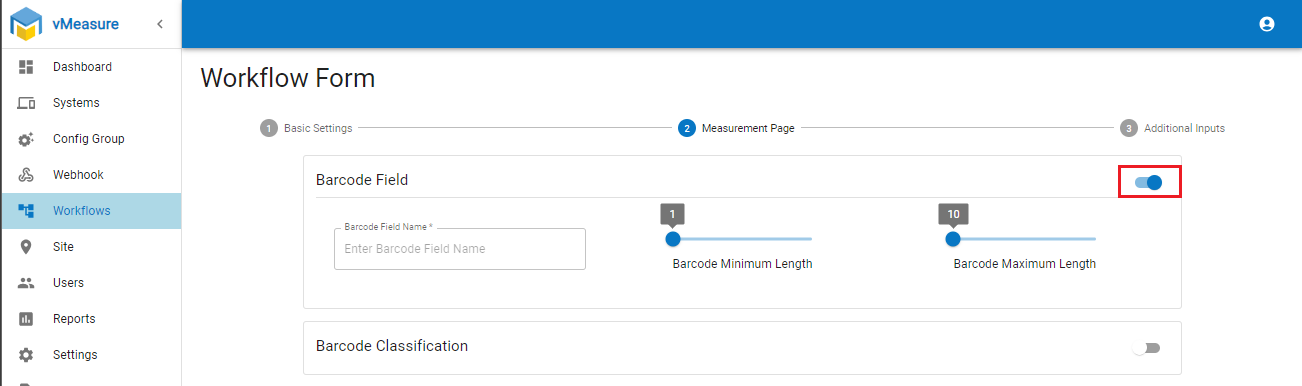
 - Enable the Barcode Field as shown below.
- As shown below, Input the "Barcode Field" Name and adjust the Barcode Minimum Length and Barcode Maximum Length.
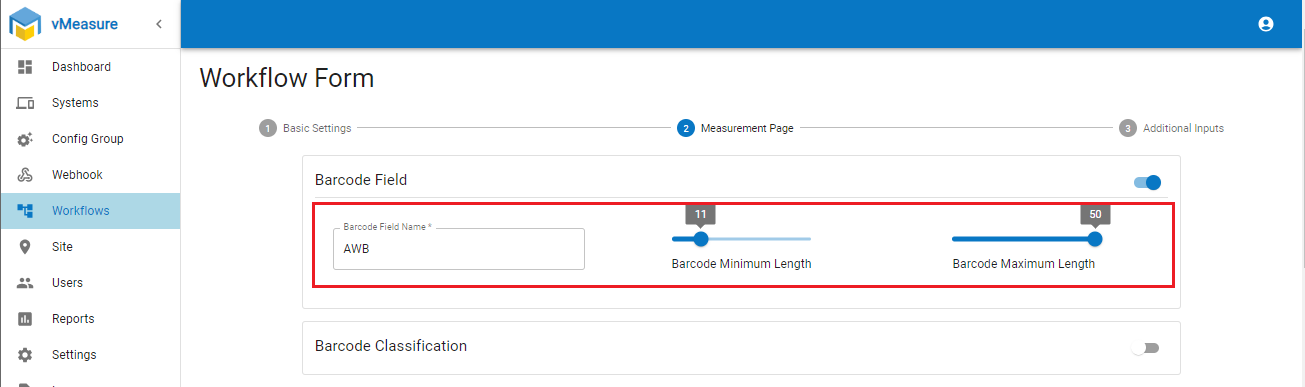
This Validates the Barcode on first level by Length. If the Barcode exceeds the maximum length or its lesser than the minimum, the barcode is not valid.
Validation by RegEx
RegEx- are powerful tools used for pattern matching and text manipulation. They allow you to search for, match, and manipulate text based on patterns defined by special syntax
Steps to validate the barcode using a RegEx pattern are shown below.
- Continuing from the above steps Validating the Barcode by Length, Enable the Barcode Classification as shown below.
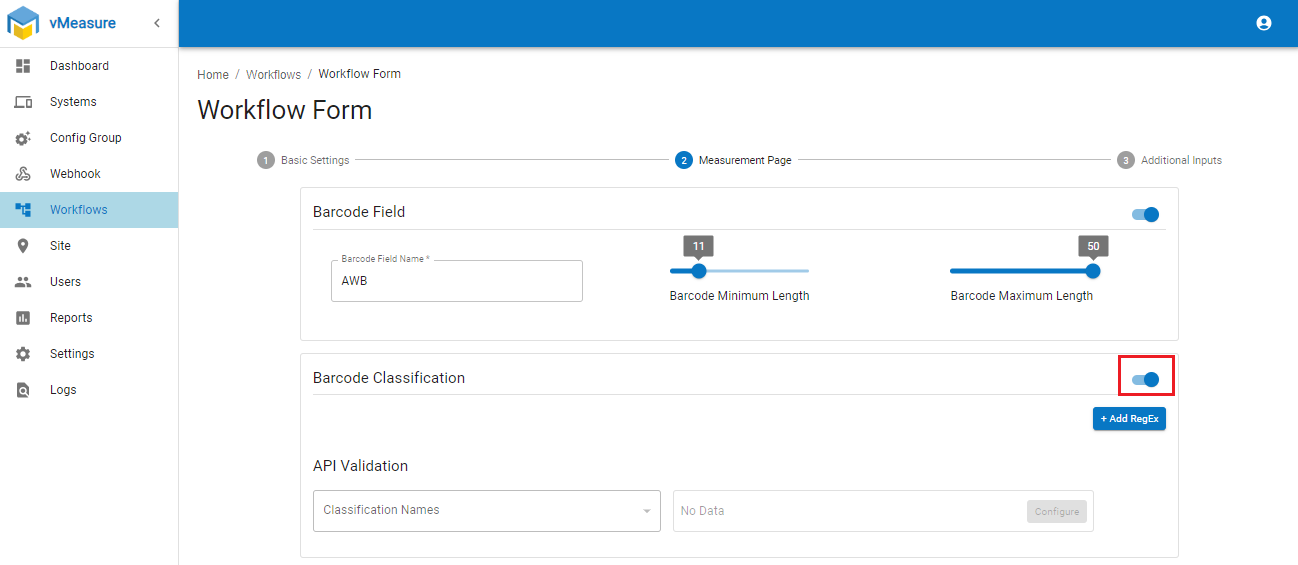
- Click on the "+ Add RegEx" and configure the RegEx pattern as shown below.
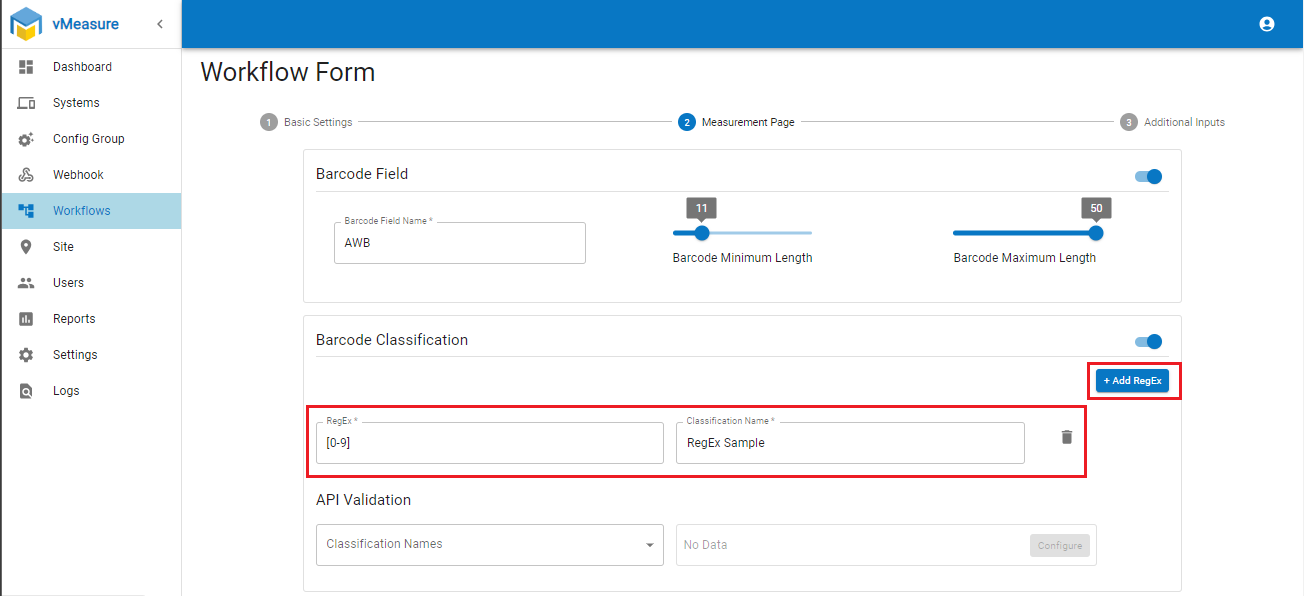
Validation by Client API
Steps to validate the barcode using an API call are shown below.
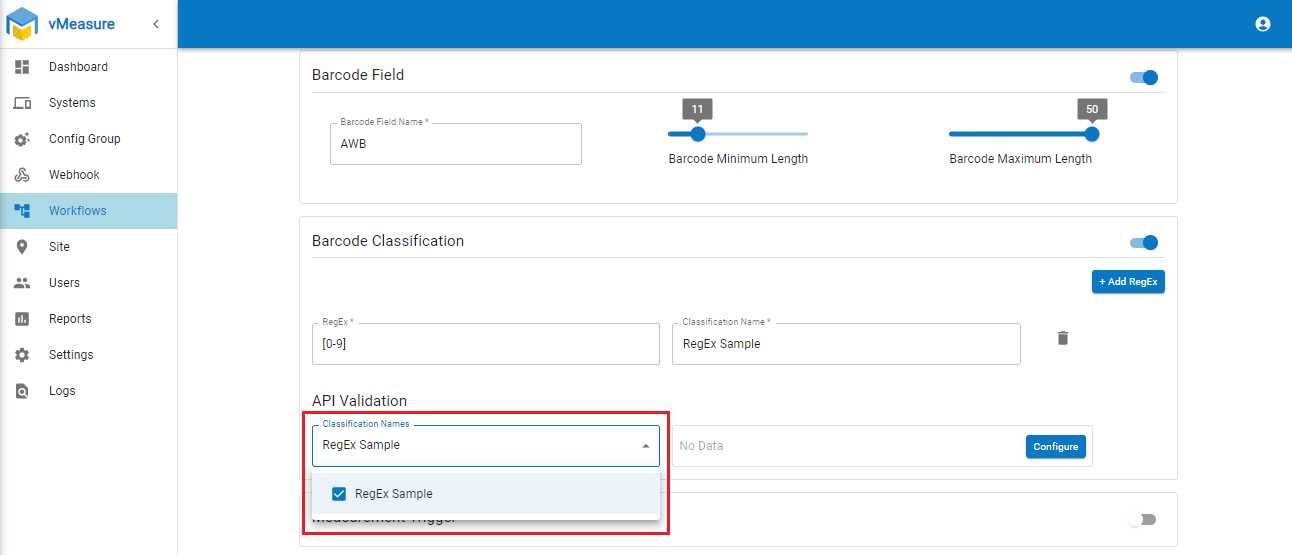
- Continuing from the above steps of the Validation by RegEx, select the Barcode classification from the "Classification Names" drop-down as shown below.
- Click on the Configure button as shown below.
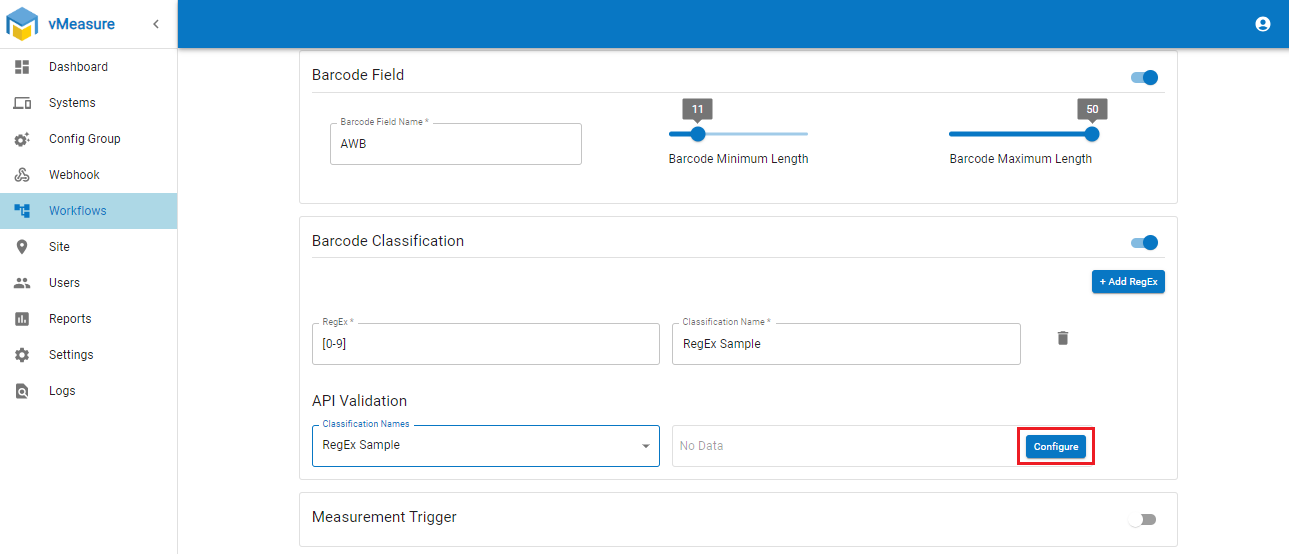
- Configure the desired data for API Validation.
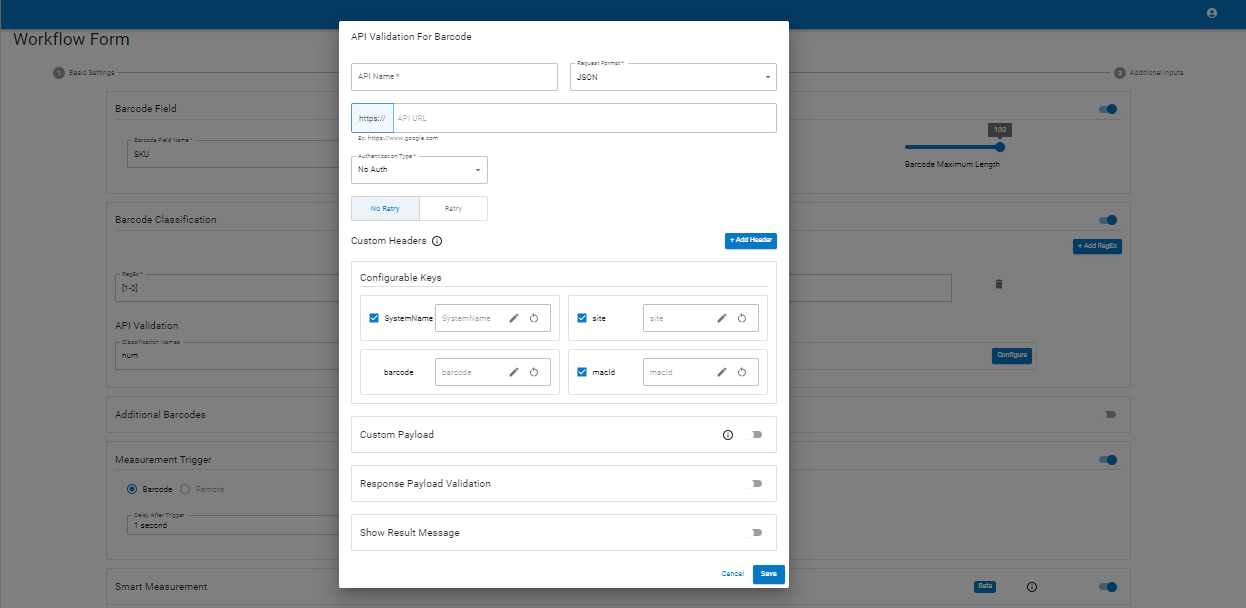
- Click on the "Save" button to save the "API Validation for Barcode".
- Then click on the "Next" and "Save" the workflow.
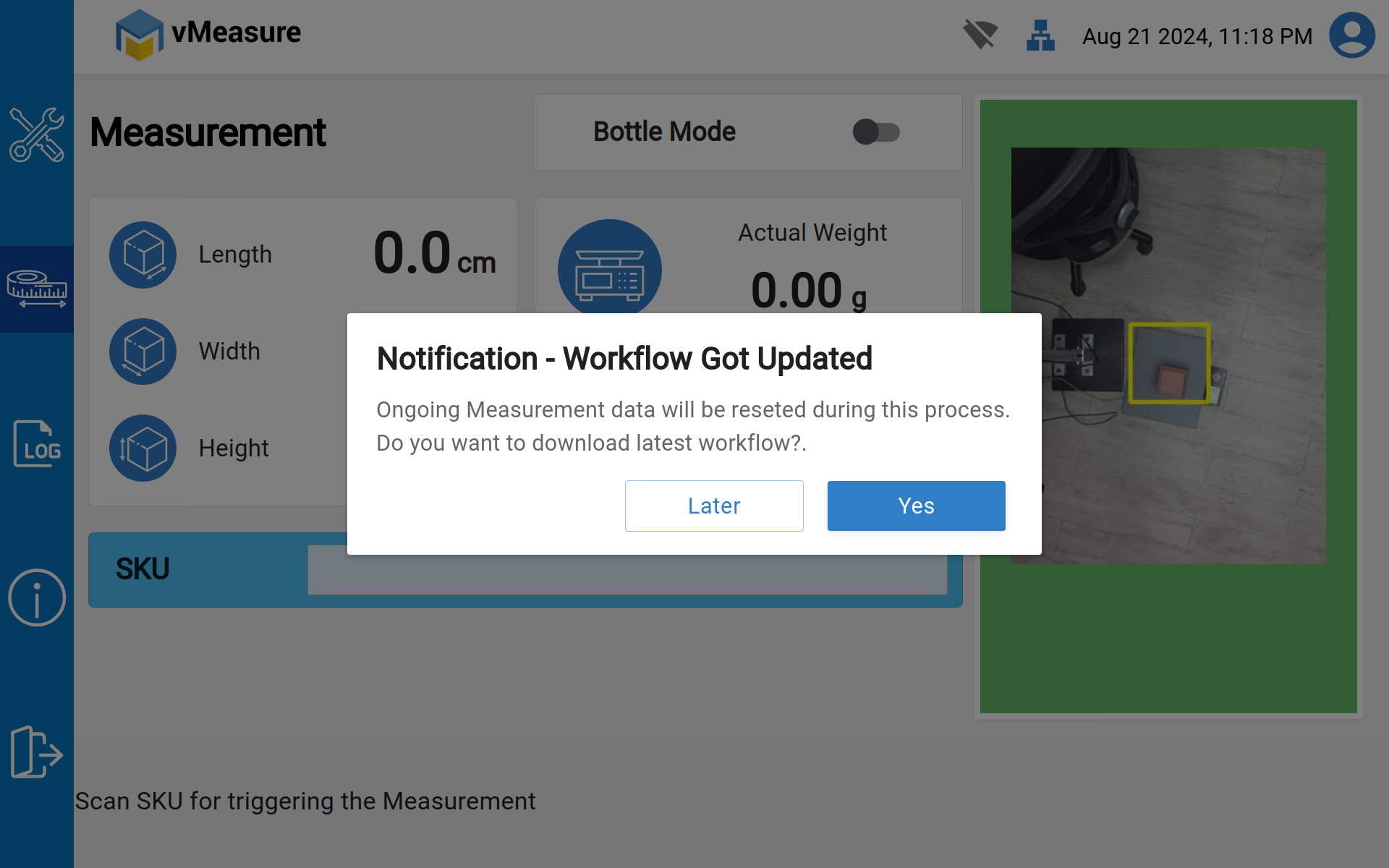
After making the necessary changes, you will have a prompt on your vMeasure device "Workflow got updated".
Click "Yes" or "Later" and proceed further.
If you need any support, please drop a mail to vmeasure@visailabs.com or click here to Submit a Ticket.
Was this article helpful?
That’s Great!
Thank you for your feedback
Sorry! We couldn't be helpful
Thank you for your feedback
Feedback sent
We appreciate your effort and will try to fix the article