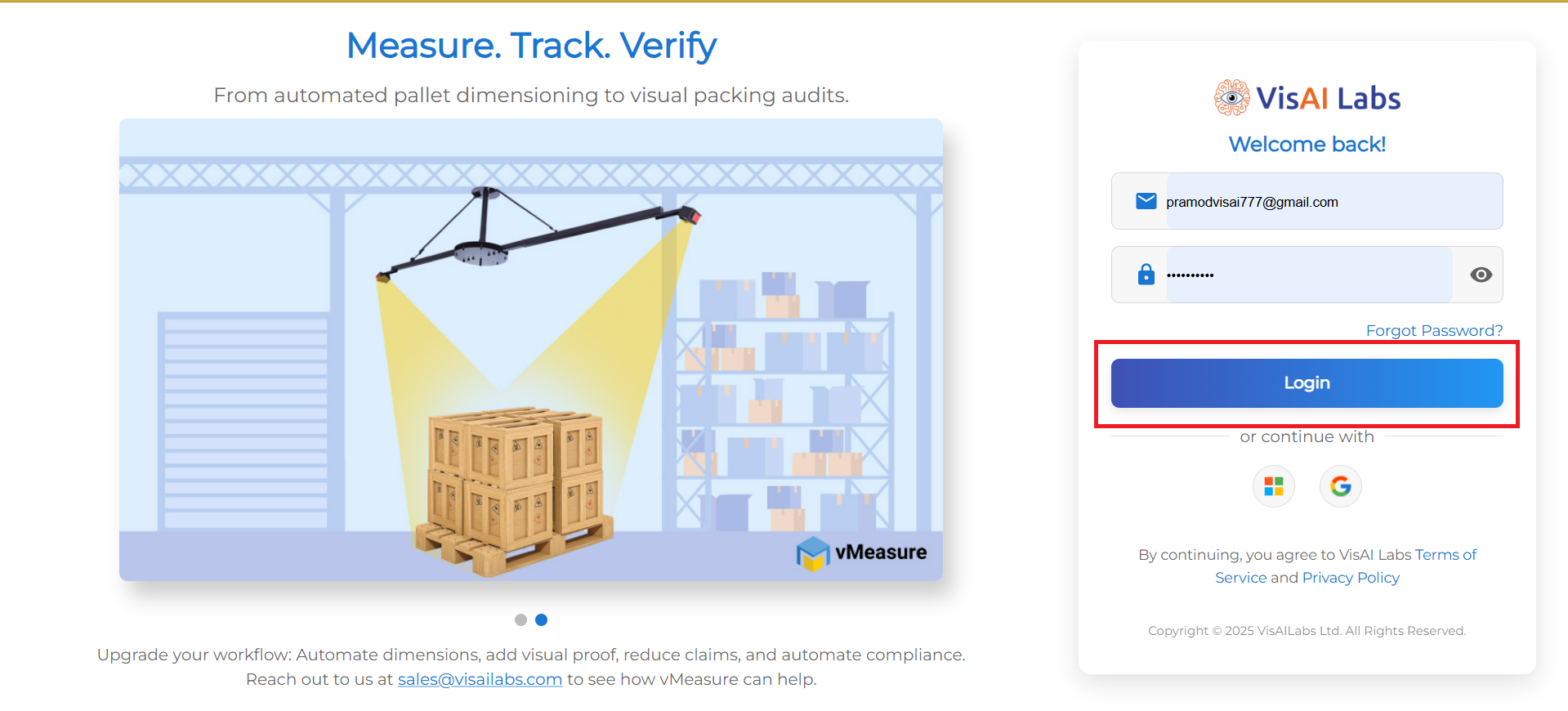
1. Open https://forge.vmeasure.ai/ and login with the mail id and password.
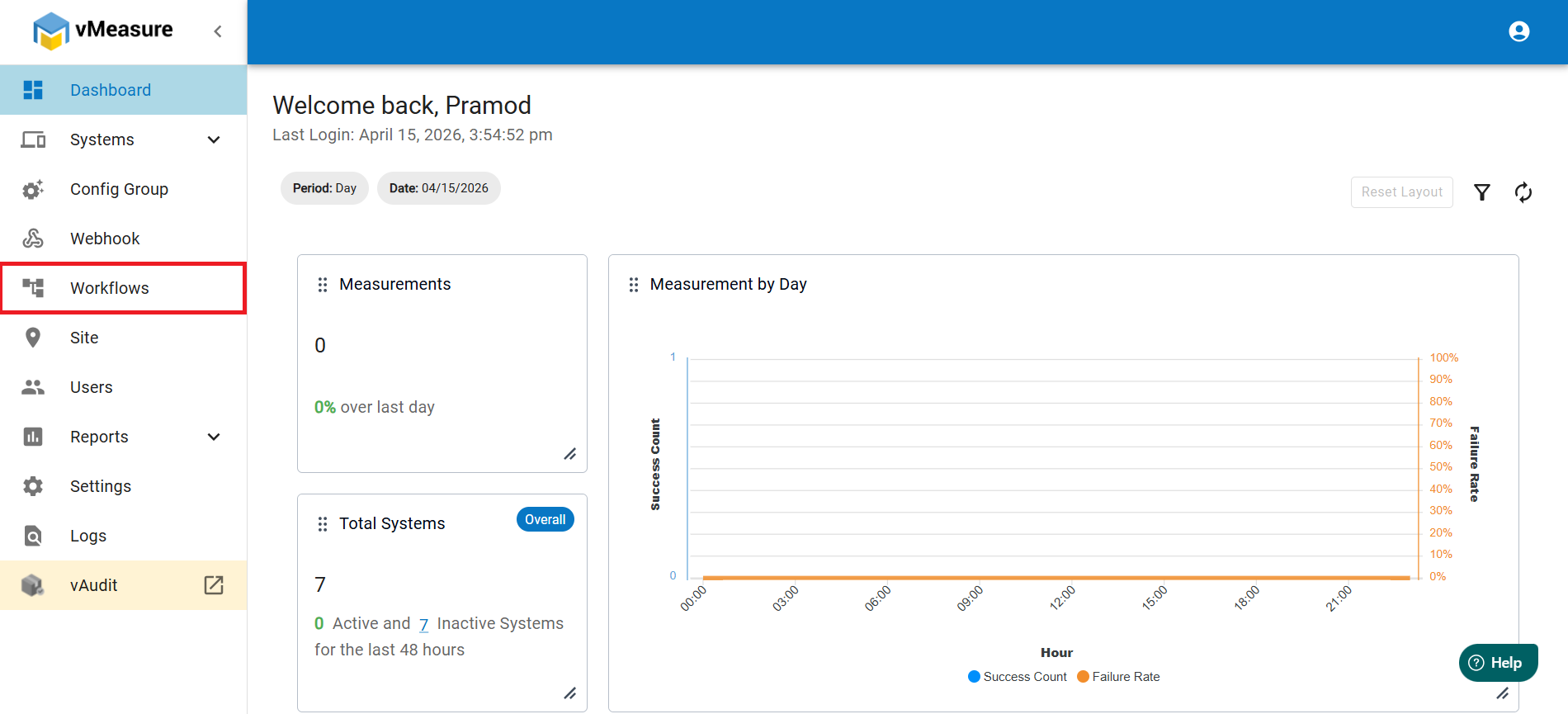
2. In the vMeasure page, on the left pane, navigate to Workflows.
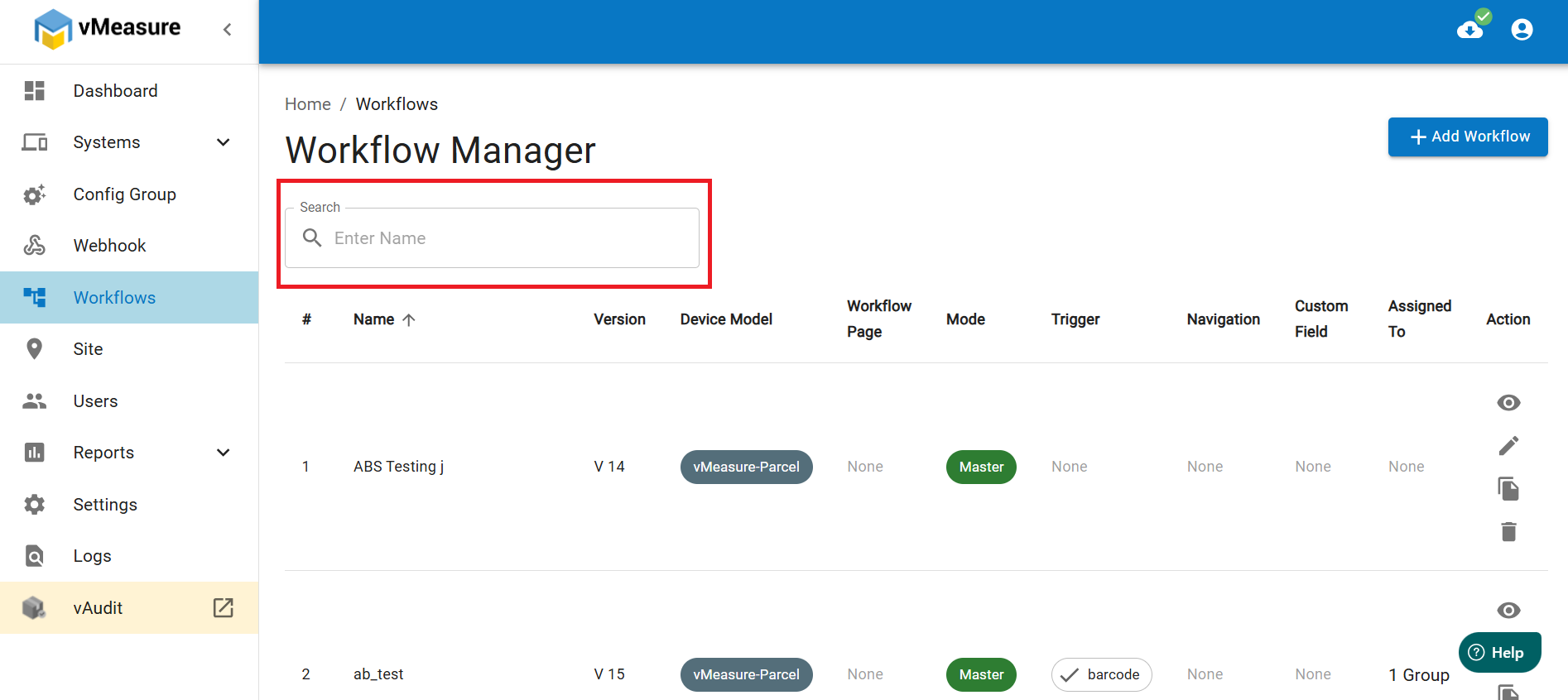
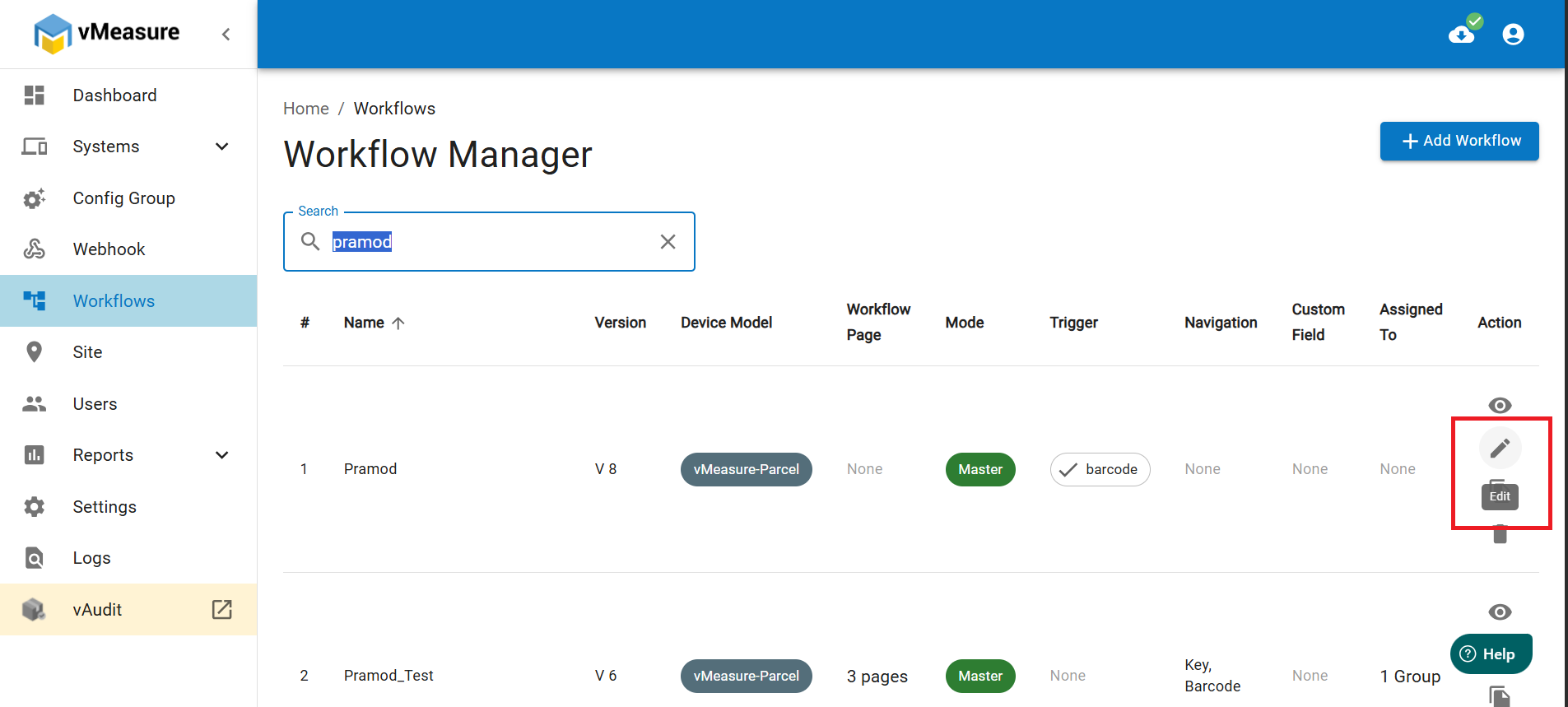
3. In the Workflow page, click on the search box to search for your workflow.
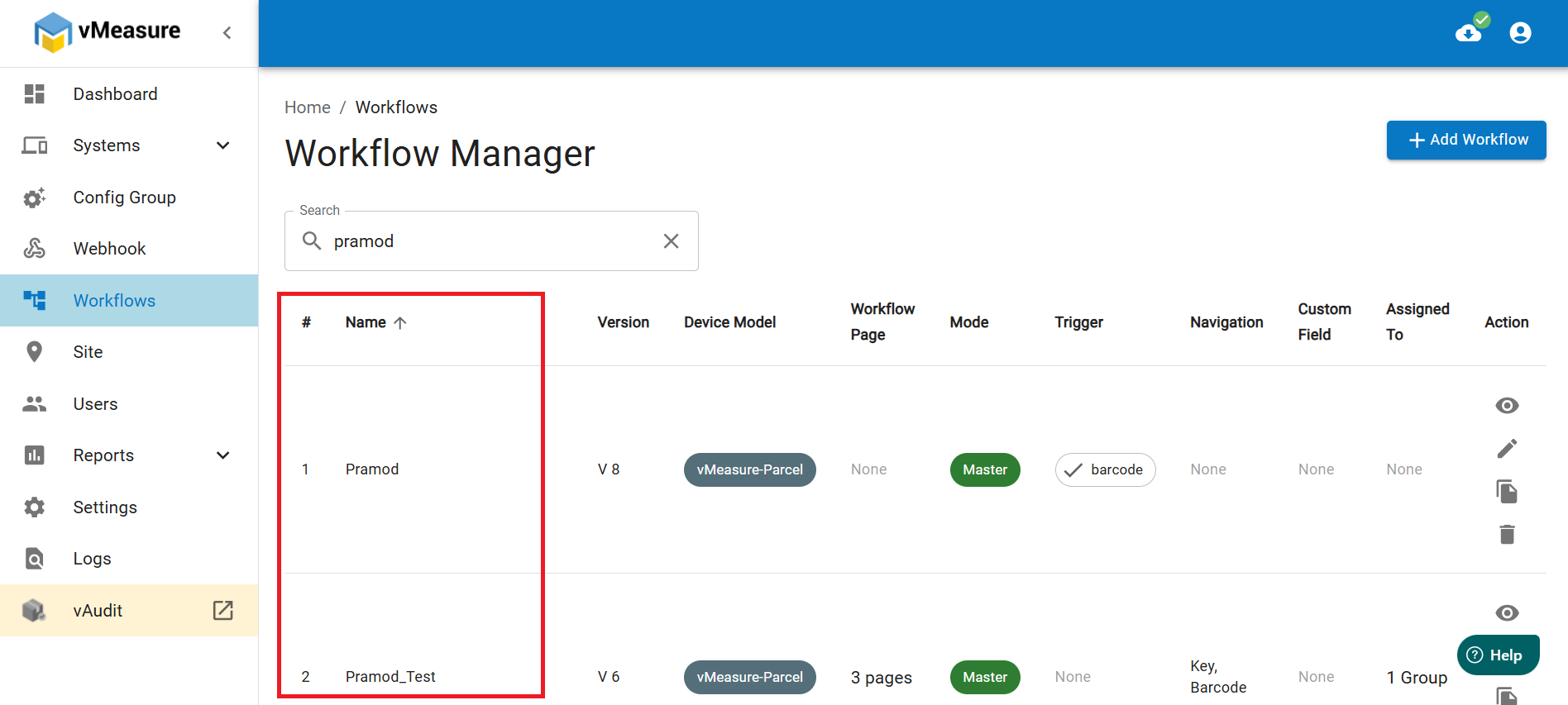
4. Enter a few character of your workflow name and it will display the list of workflows based on the keywords you typed.
5. Click on the pencil icon of the desired workflow you want to edit.
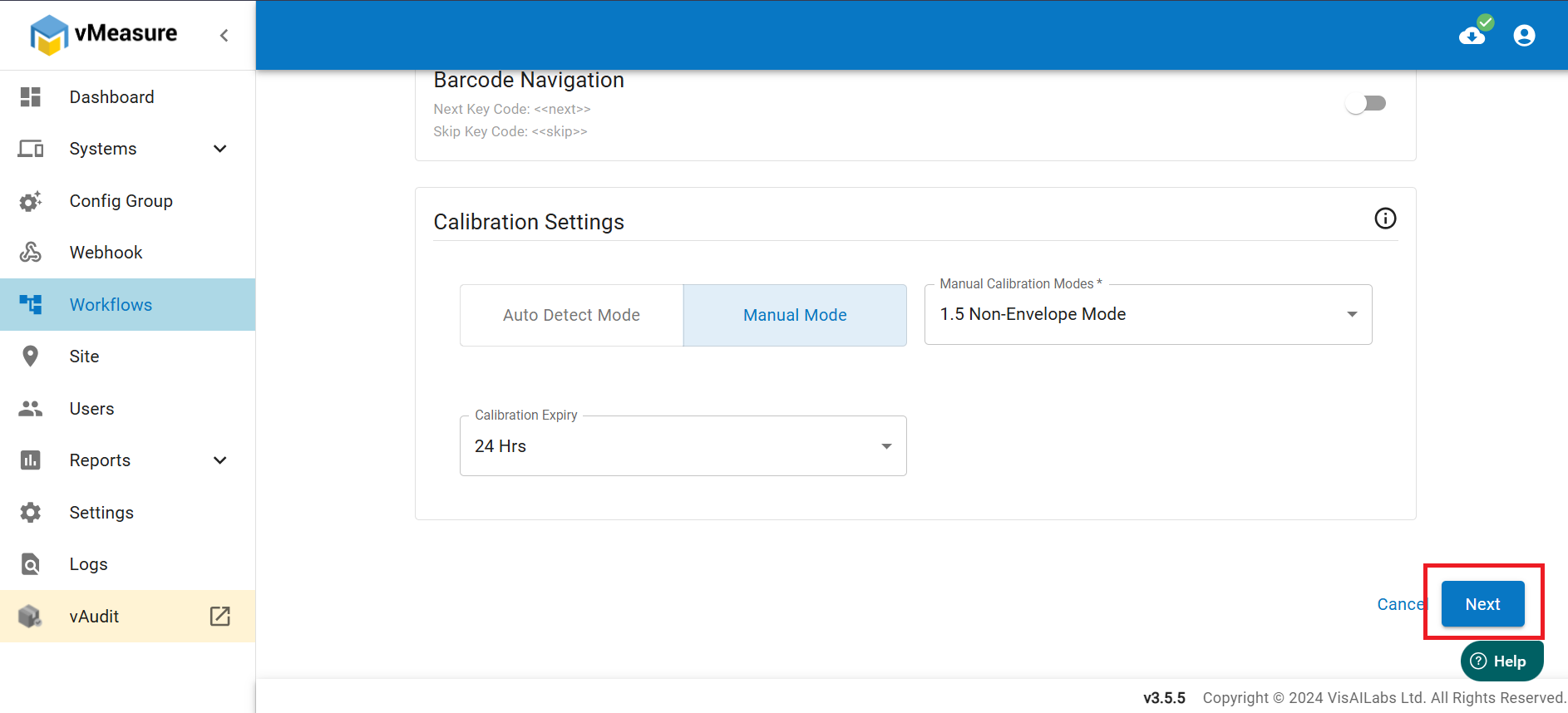
6. Scroll Down and click on Next.
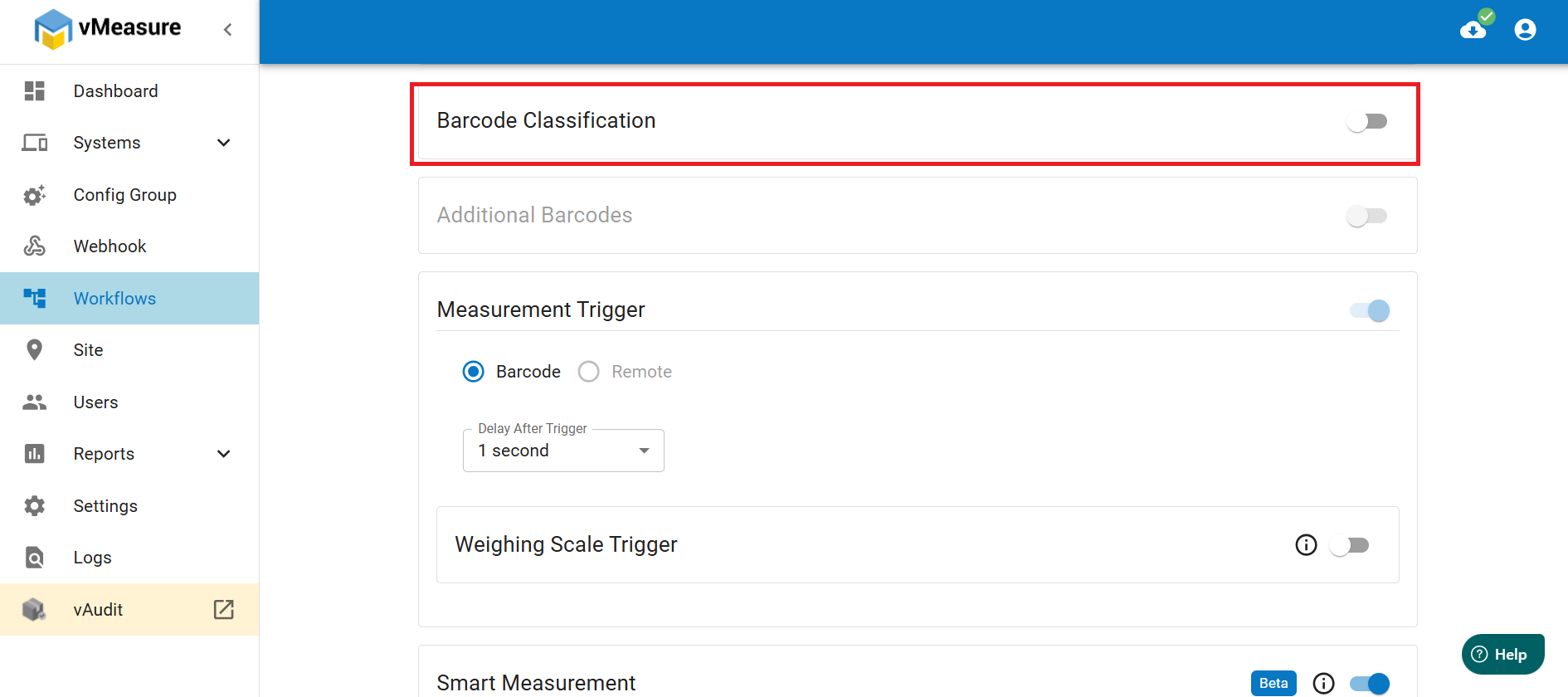
7. In the next page, look for Barcode Classification and turn on the toggle.
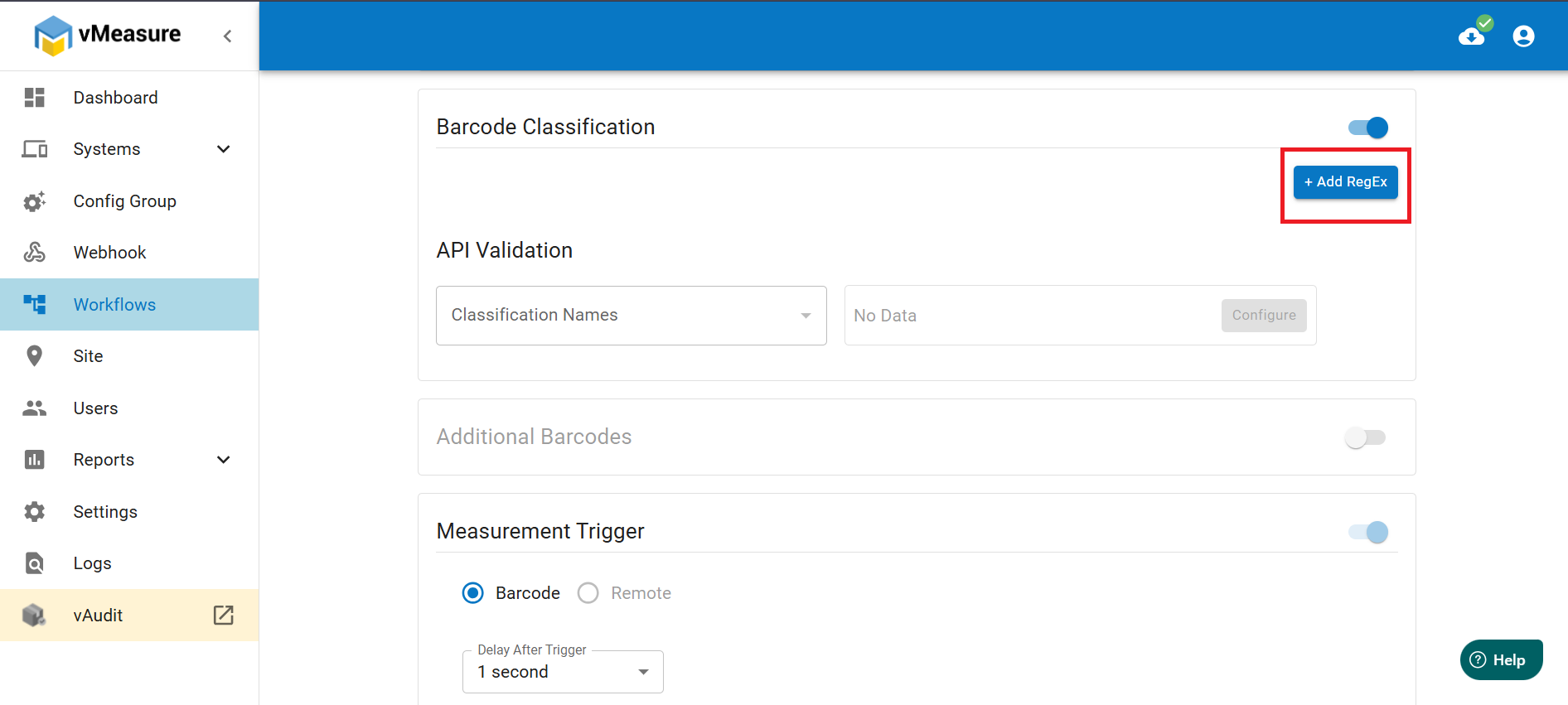
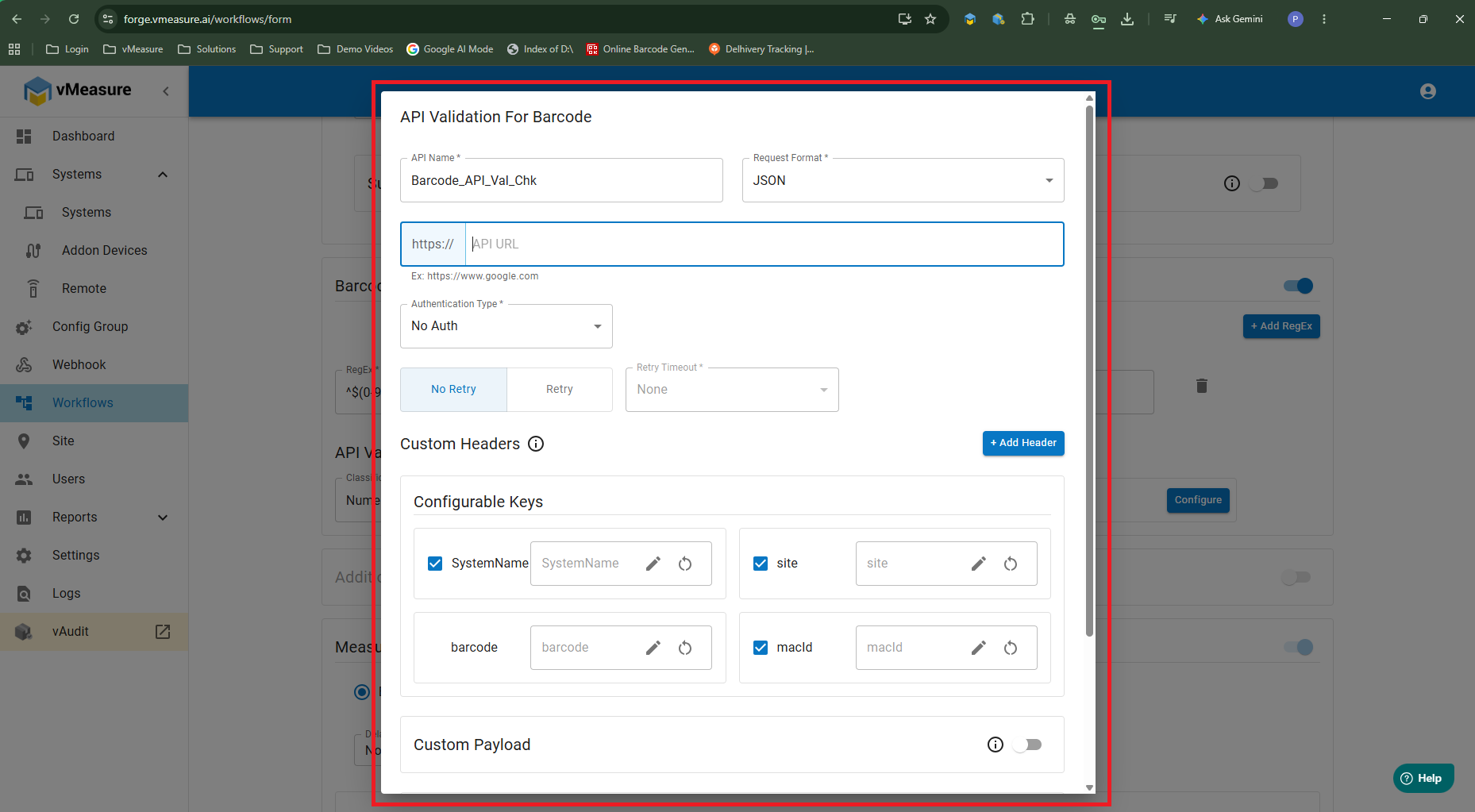
8. After turning on the toggle, you will see an option to add regex. Click on Add RegEx. After entering the RegEx format, click on configure to add the API Validation Check for the barcode and enter the details accordingly.
10. In the RegEx, enter the following :
- RegEx
Examples:Pattern [1, 2, 3, 4, 5, 6] Description Matches ^[a-z0-9]+$Alphanumeric (lowercase only) "user123", "abc - Classification Name
- Under API Validation, select the Classification Name from the dropdown and click on Configure to add the API details.
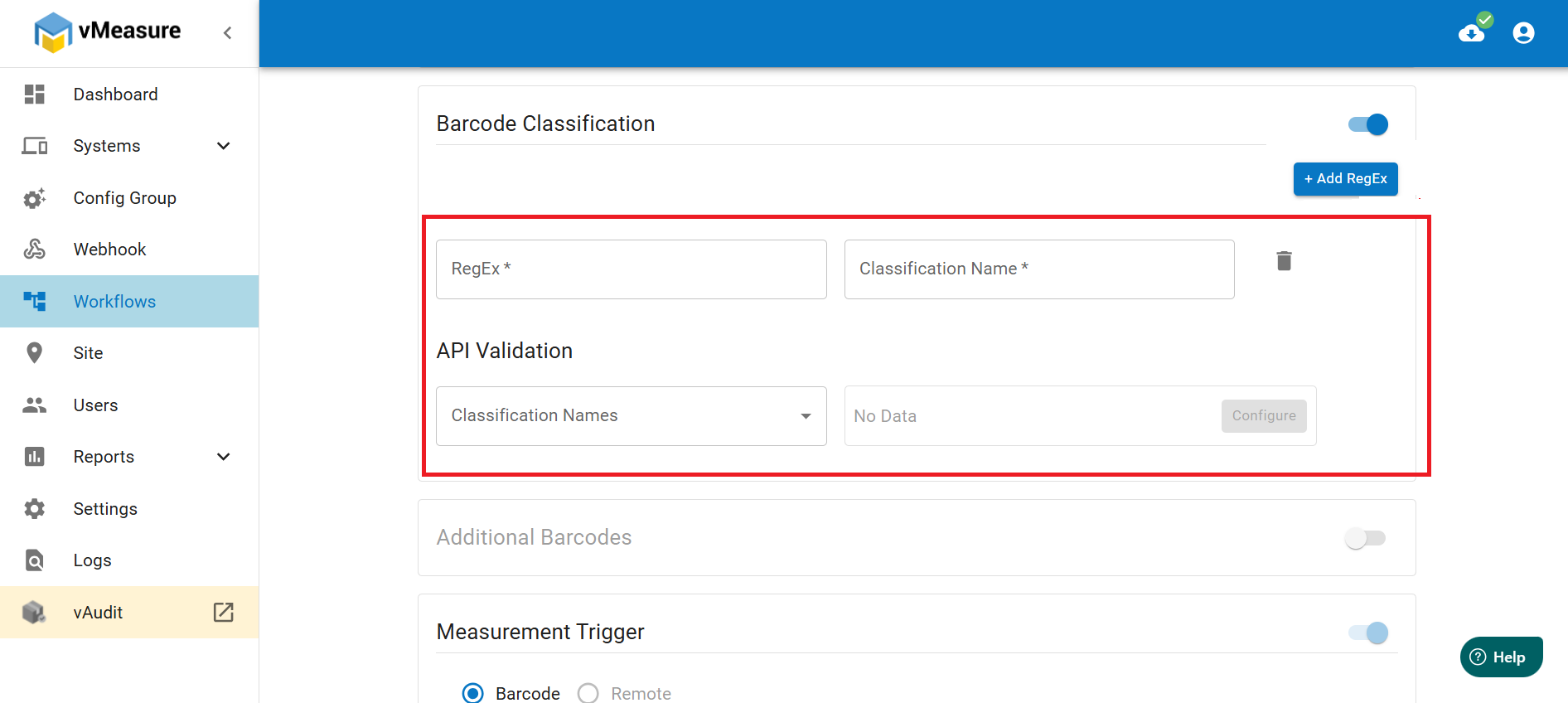
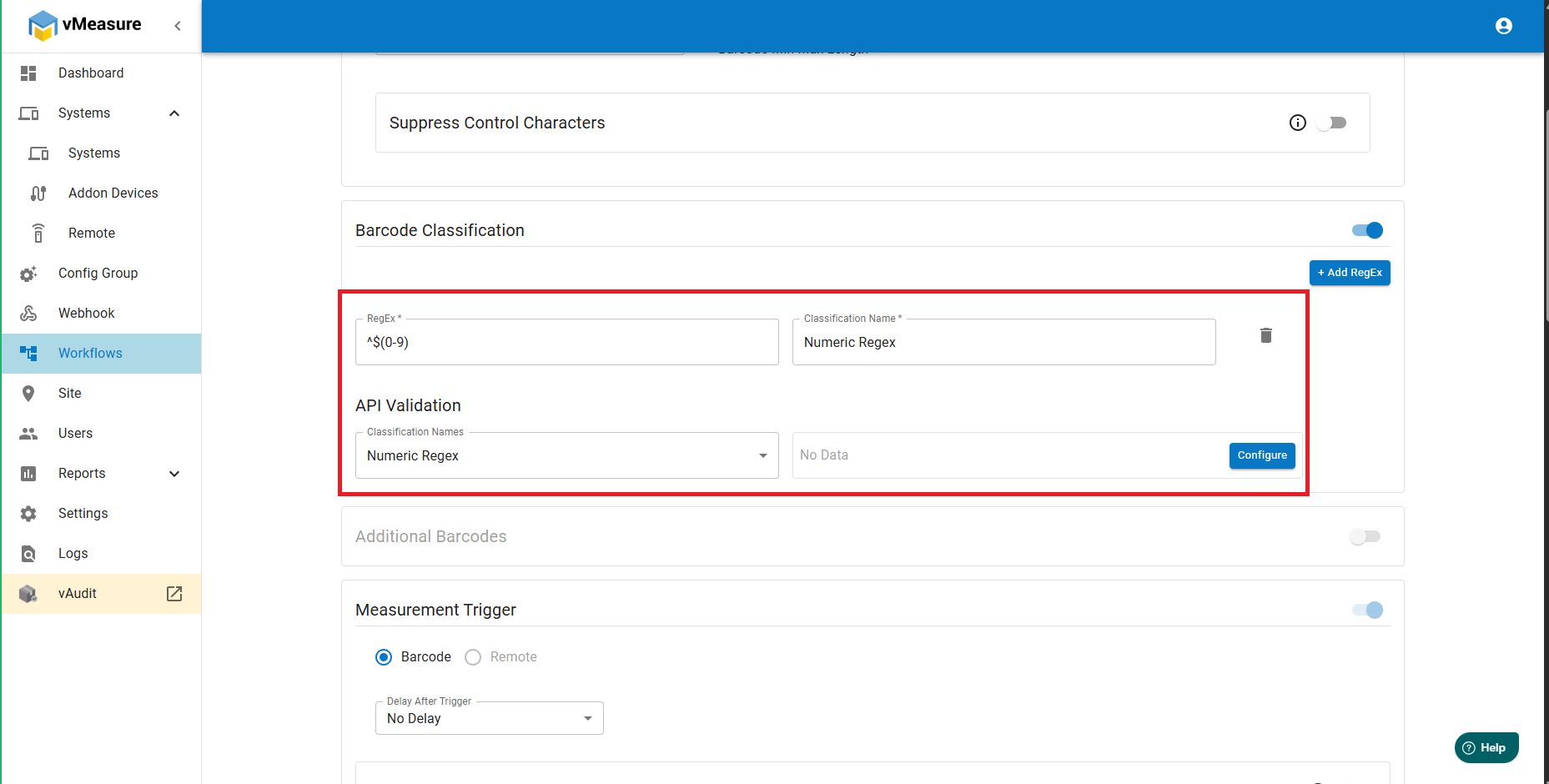
After configuring the details in API Validation click on Save.
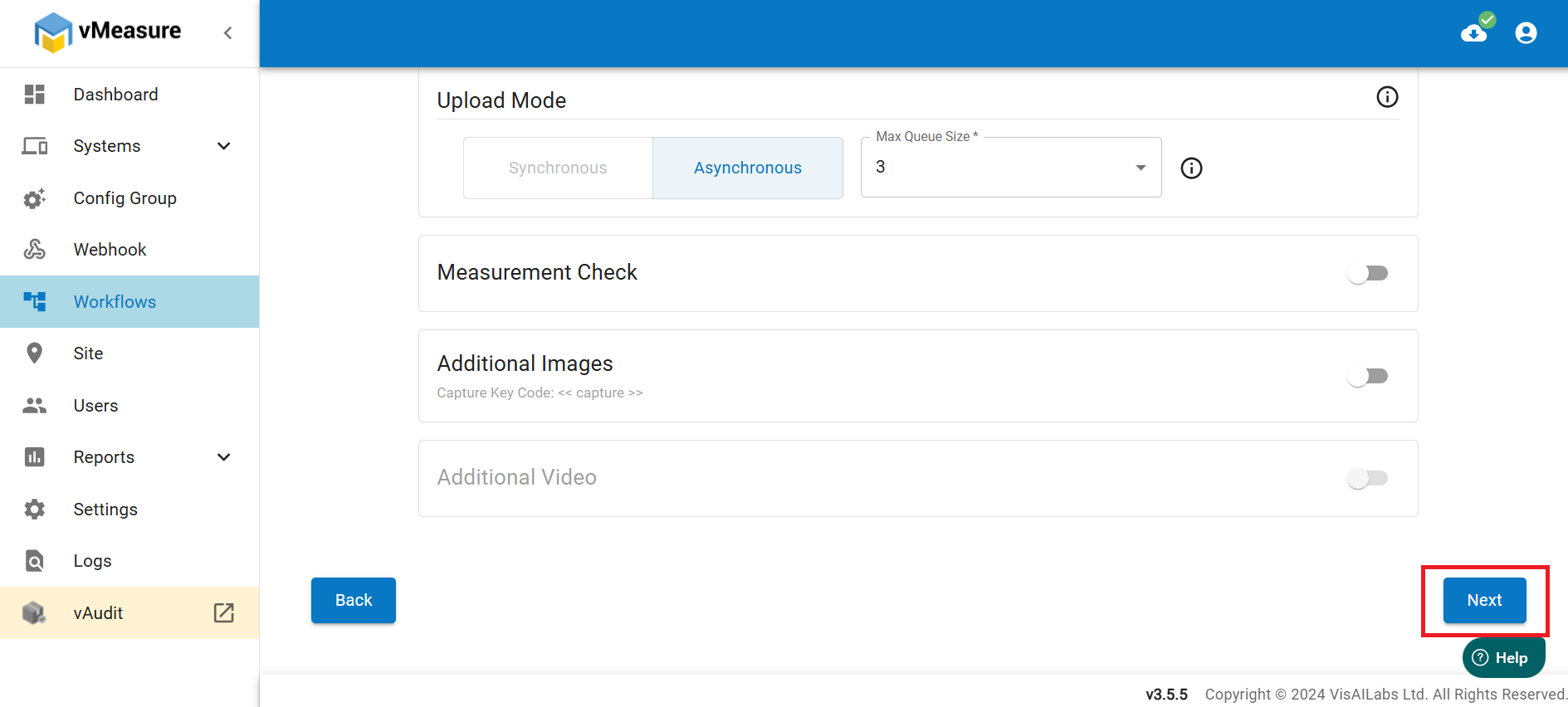
11. After adding RegEx, scroll down and click on Next.
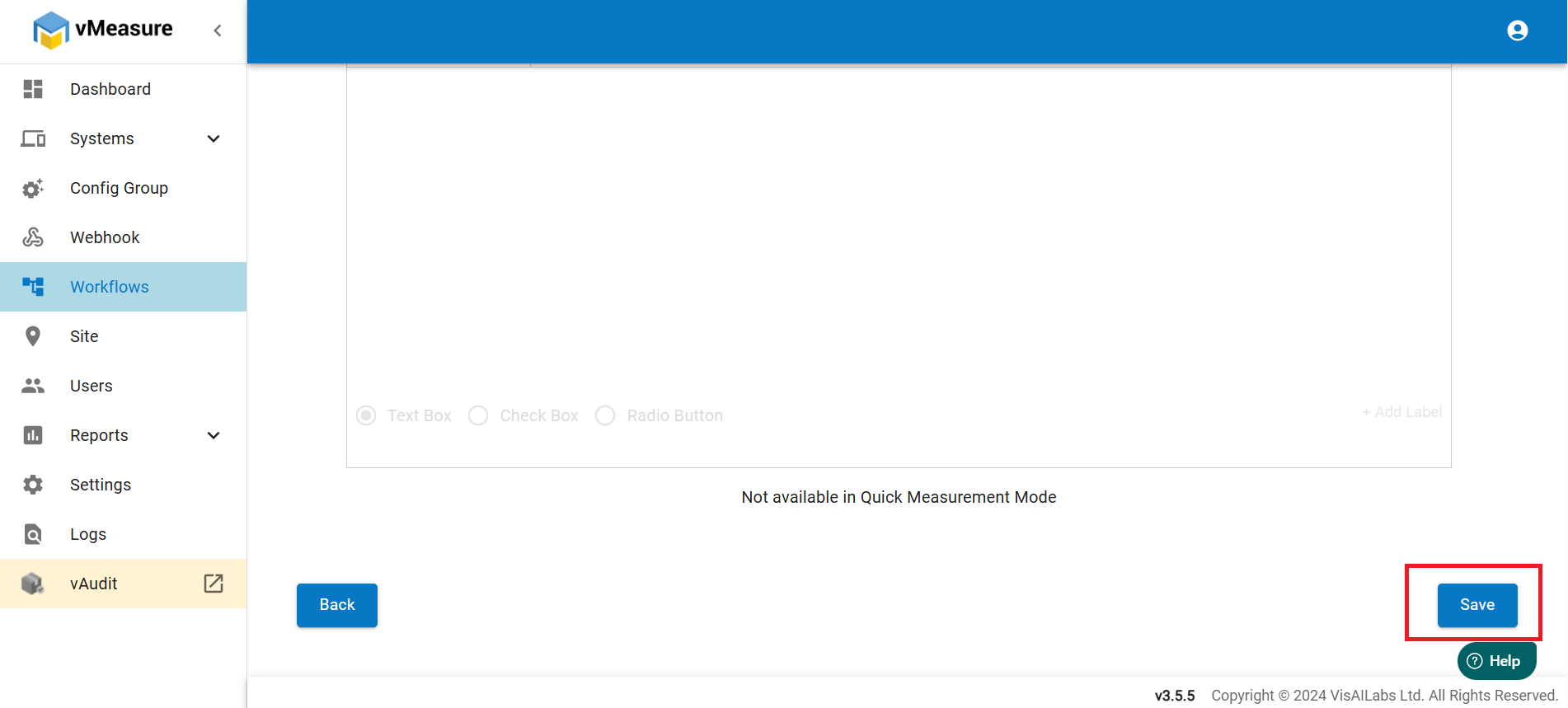
12. In the next page scroll down and click on Save.
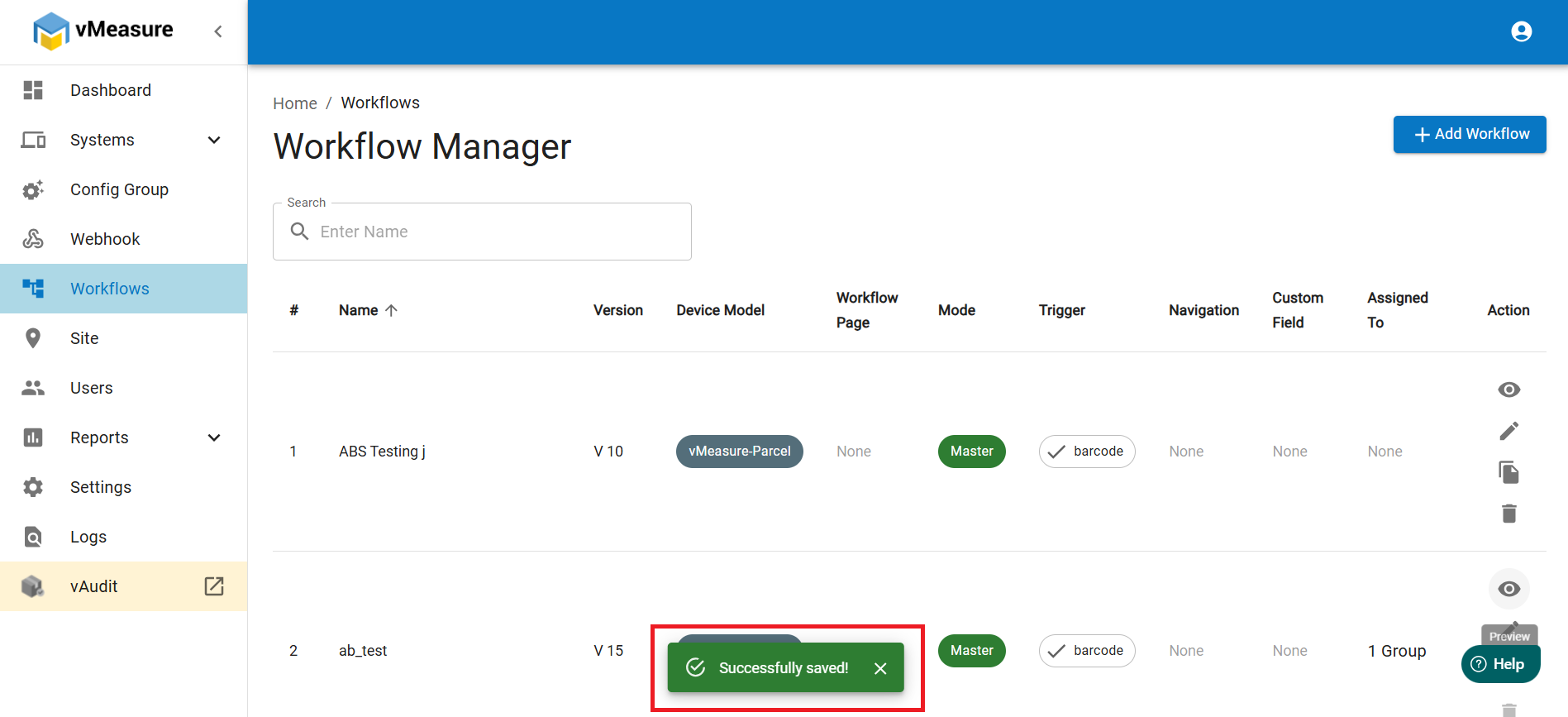
13. After saving the changes, you will see a message as Successfully Saved.
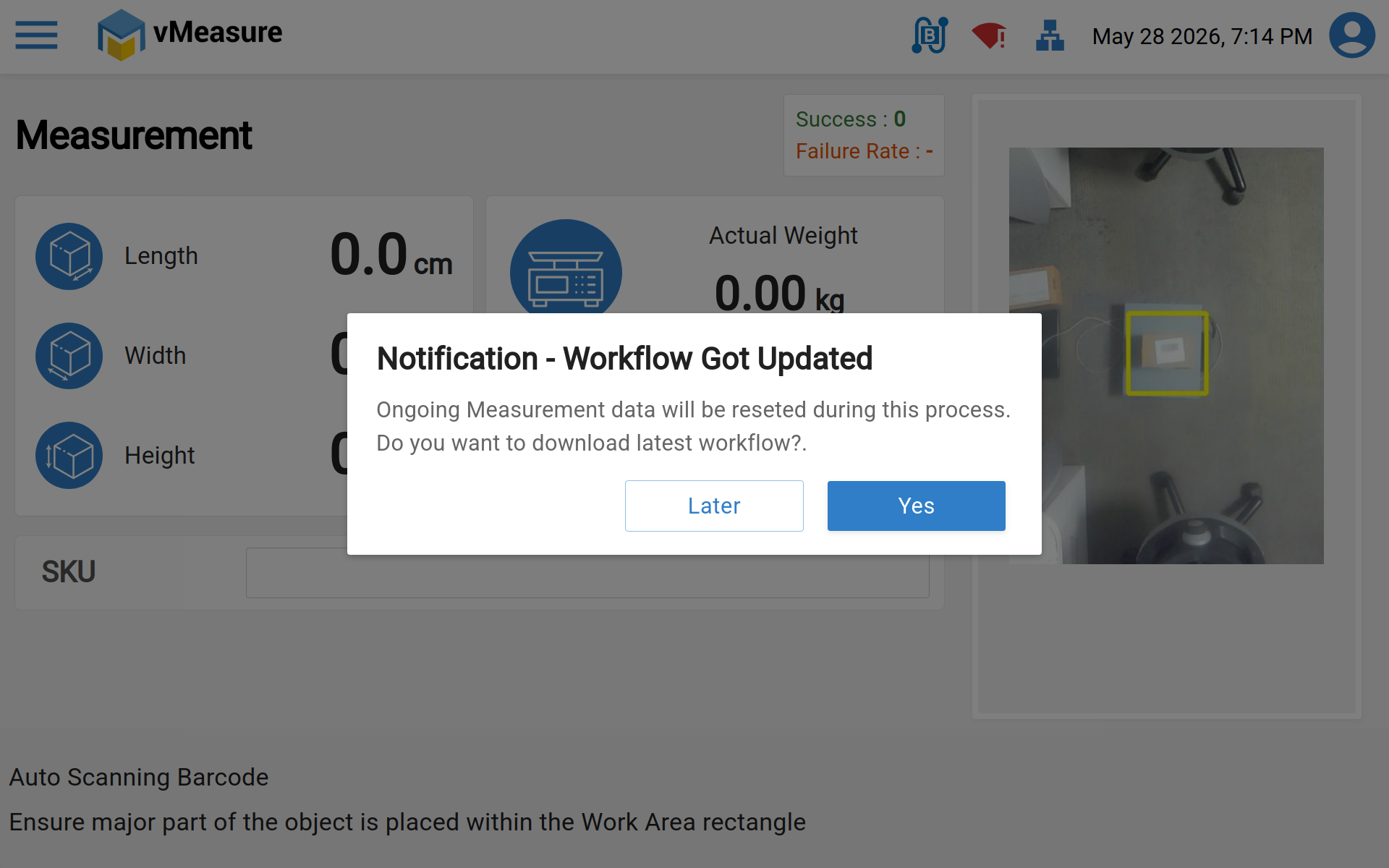
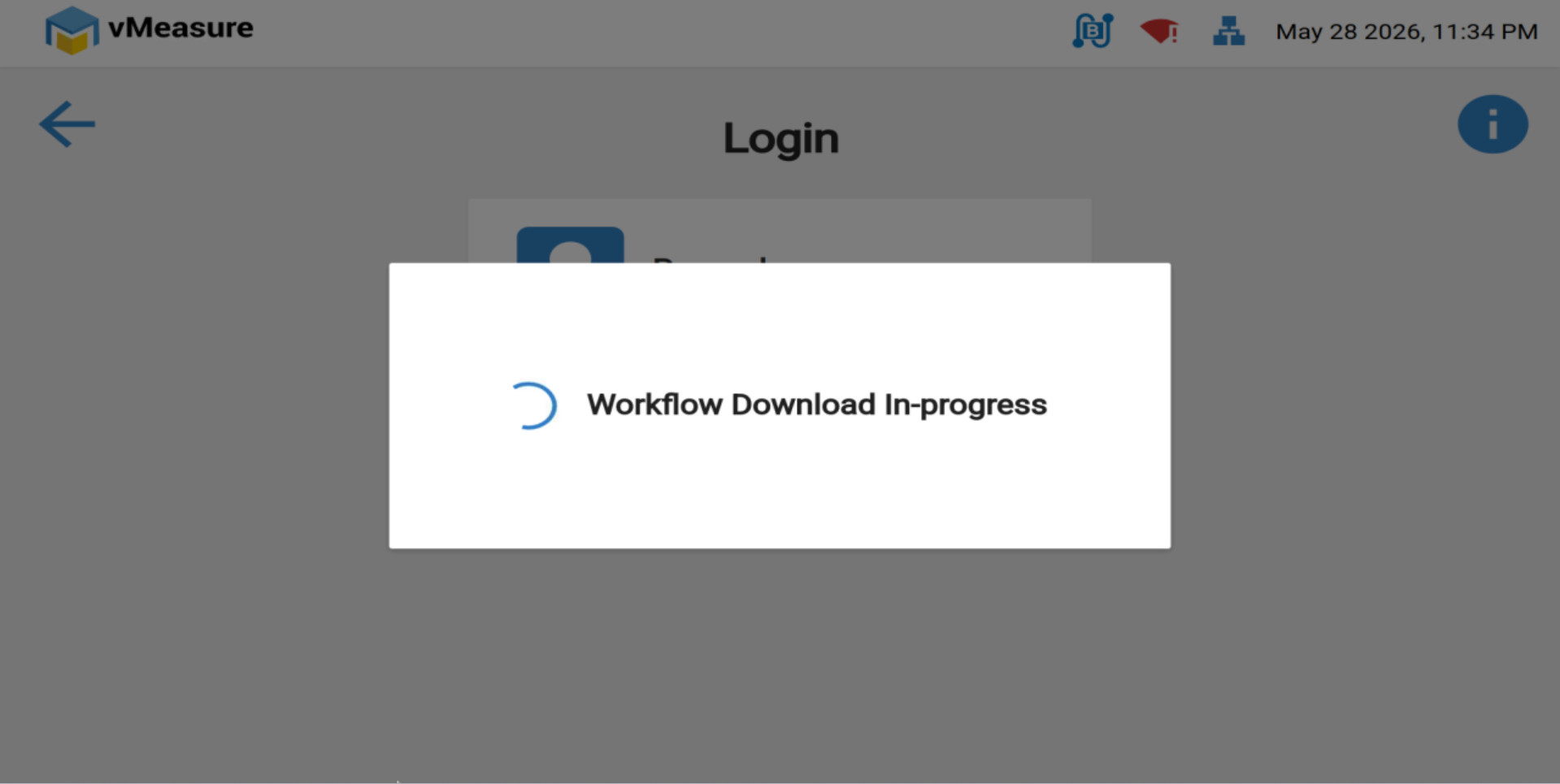
14. In the device, you will see a pop-up for updating the workflow, click on Yes and the workflow download will start and completed within few seconds.
If you need any support , please drop a mail to vmeasure@visailabs.com or Click here to Submit a Ticket.
Was this article helpful?
That’s Great!
Thank you for your feedback
Sorry! We couldn't be helpful
Thank you for your feedback
Feedback sent
We appreciate your effort and will try to fix the article