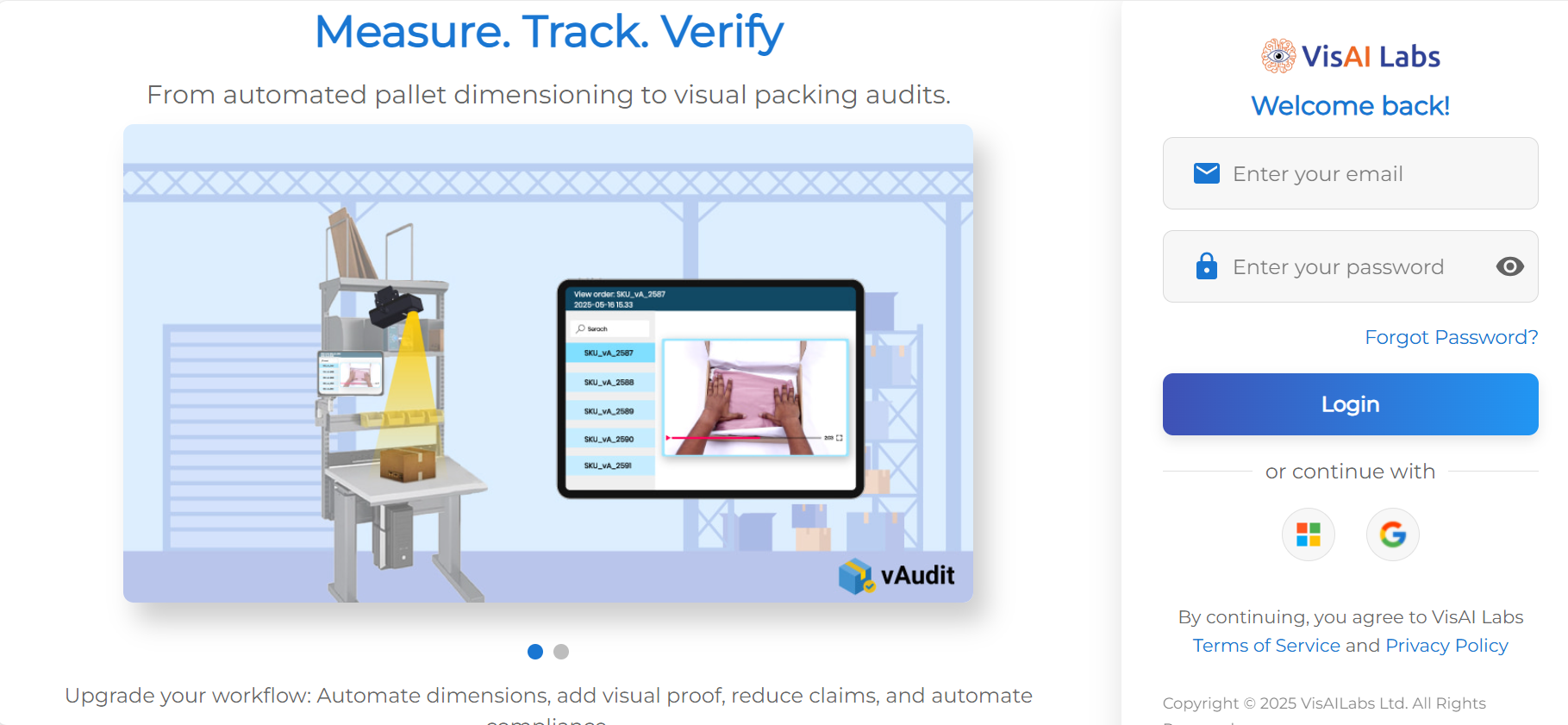
1. Log in to your Forge account: Click Here
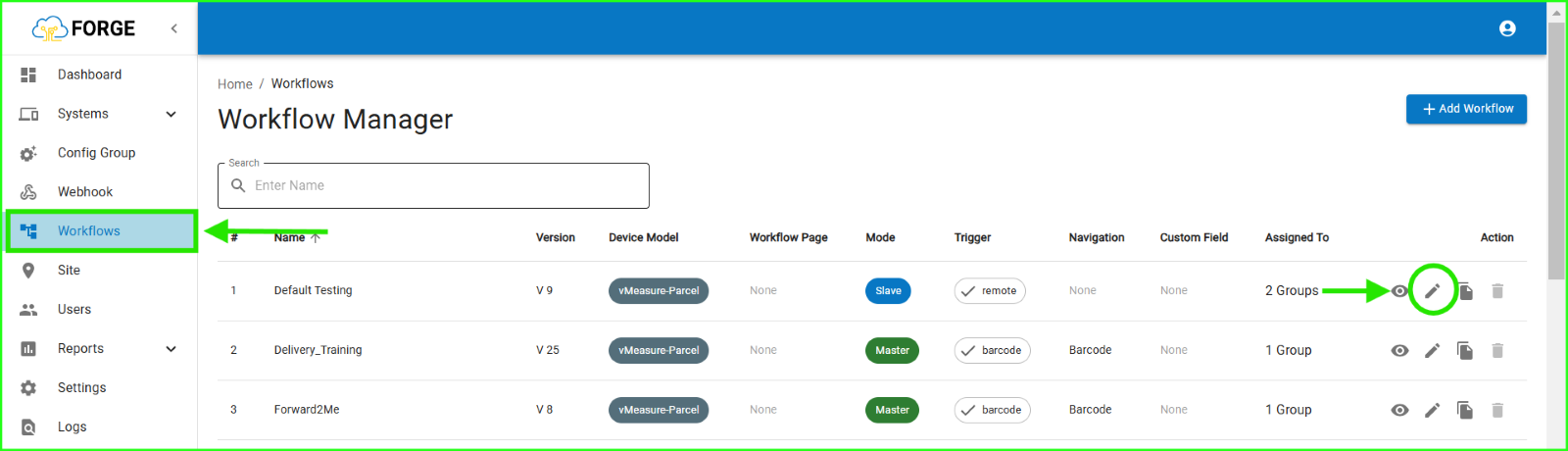
2. Locate the Workflow section and click the edit icon.
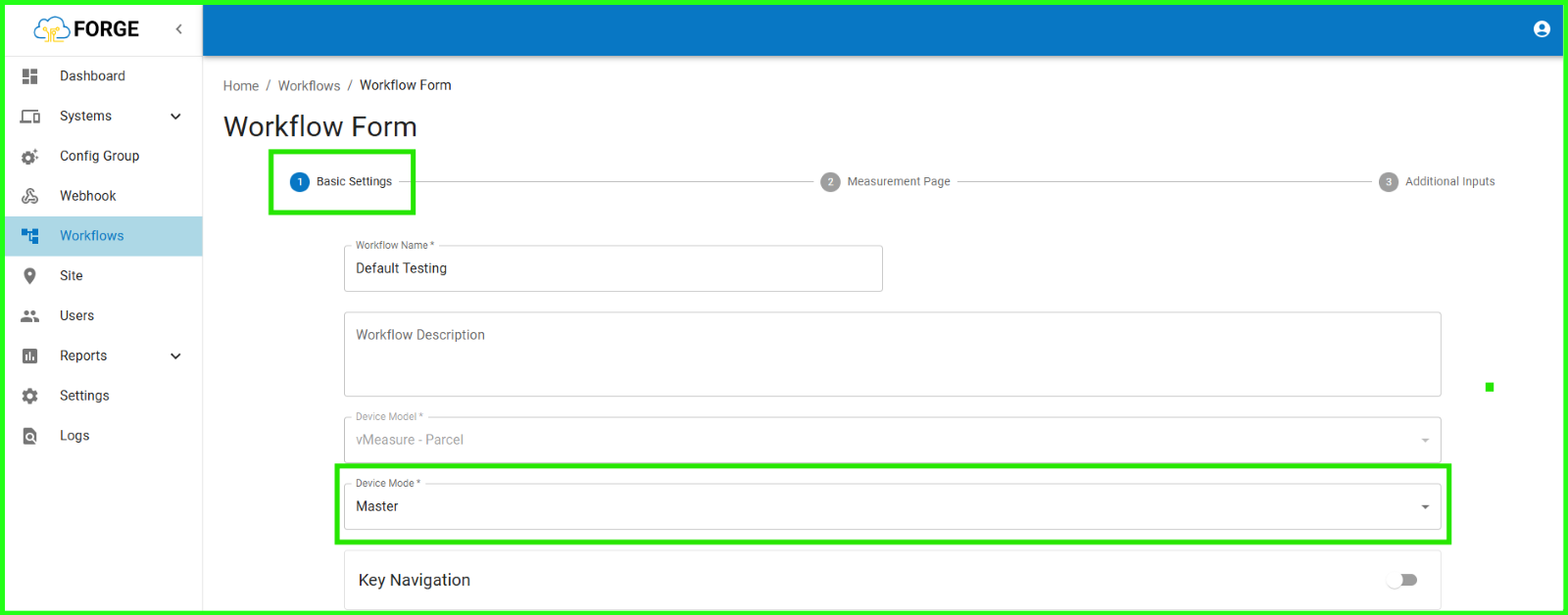
3. In Basic Settings, go to Device Mode. Select Master Mode and click Next to proceed to the Measurement Page.
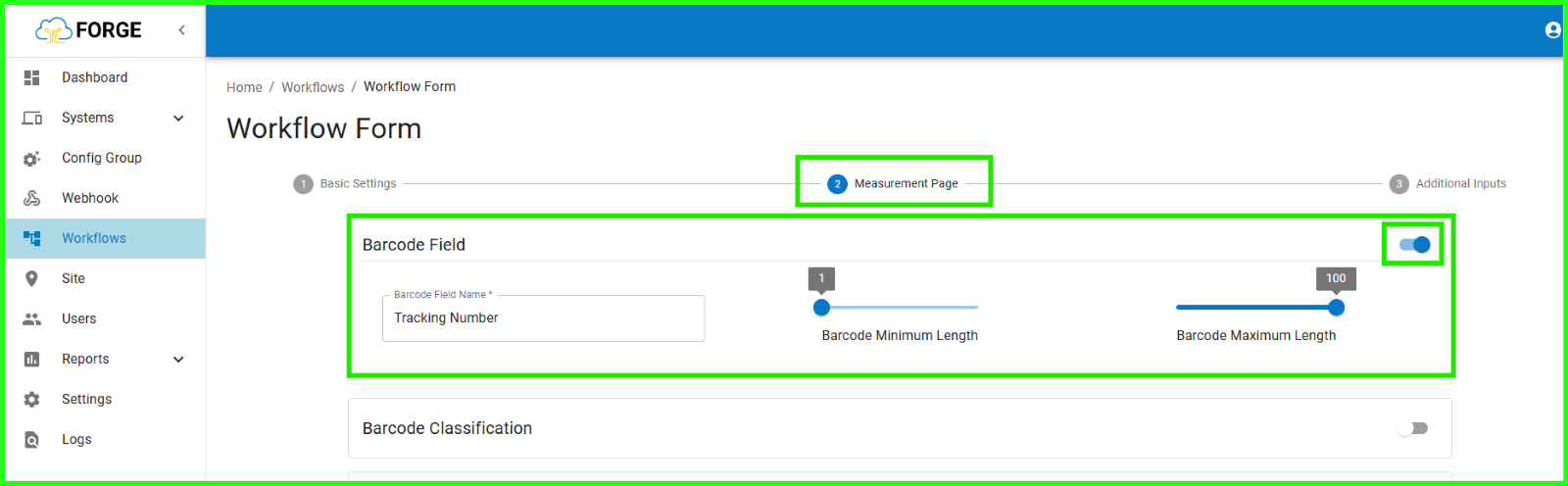
4. In Measurement Page Enable the Barcode Field. Name the Barcode Field and adjust the barcode length as needed.
5. Scroll down to Measurement Trigger and enable it. Select Barcode as the trigger option and set the Delay After Trigger. Click Next and save your changes.

6. Once these changes are done in Forge, go to your vMeasure device, Select Settings > Barcode and choose the Barcode Model (Note : vMeasure supports Zebra DS2208 and HID Barcode models only).
If you need any support , please drop a mail to vmeasure@visailabs.com
Was this article helpful?
That’s Great!
Thank you for your feedback
Sorry! We couldn't be helpful
Thank you for your feedback
Feedback sent
We appreciate your effort and will try to fix the article