What is Quick Measurement?
Quick Measurement Mode is designed to reduce measurement time. When enabled, the following features will be disabled to optimize performance.
- Additional Barcode
- Delay in Barcode Trigger
- Volumetric Weight (Dynamic)
- Custom Fields
- Measurement Reject
- Show Additional Result
- Show Result Barcode
- Upload Mode (Synchronous mode)
- Additional Image (Capture Before Measurement)
- Additional Videos
- Additional Pages.
Please note that once Quick Measurement is enabled, the Barcode field and Measurement Trigger options will be frozen, and no further changes can be made to those settings.
To avoid any issues, kindly ensure that these fields are configured correctly before enabling Quick Measurement.
Follow the steps below to Enable "Smart Measurement" in Forge:
Step 1: Login to vMeasure Forge. Link : vMeasure.
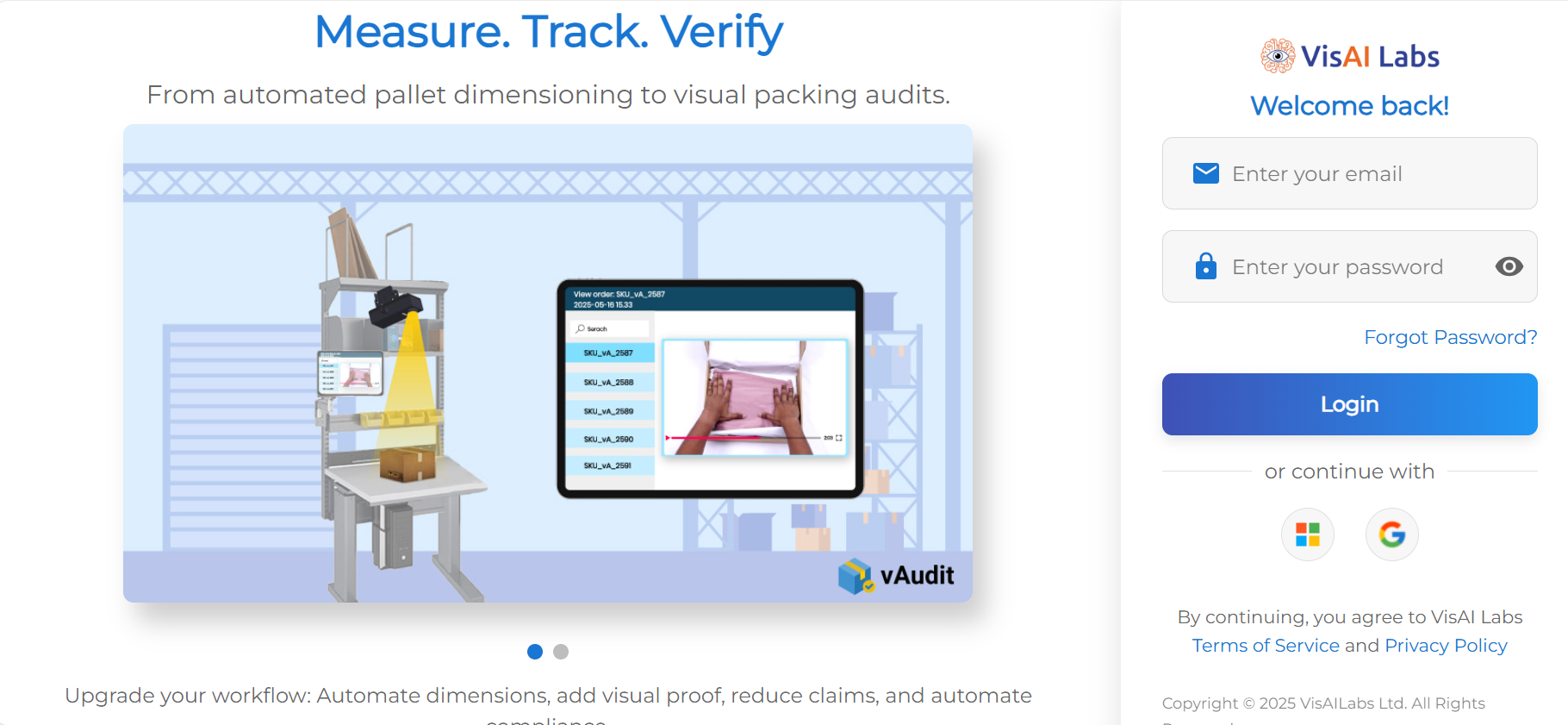
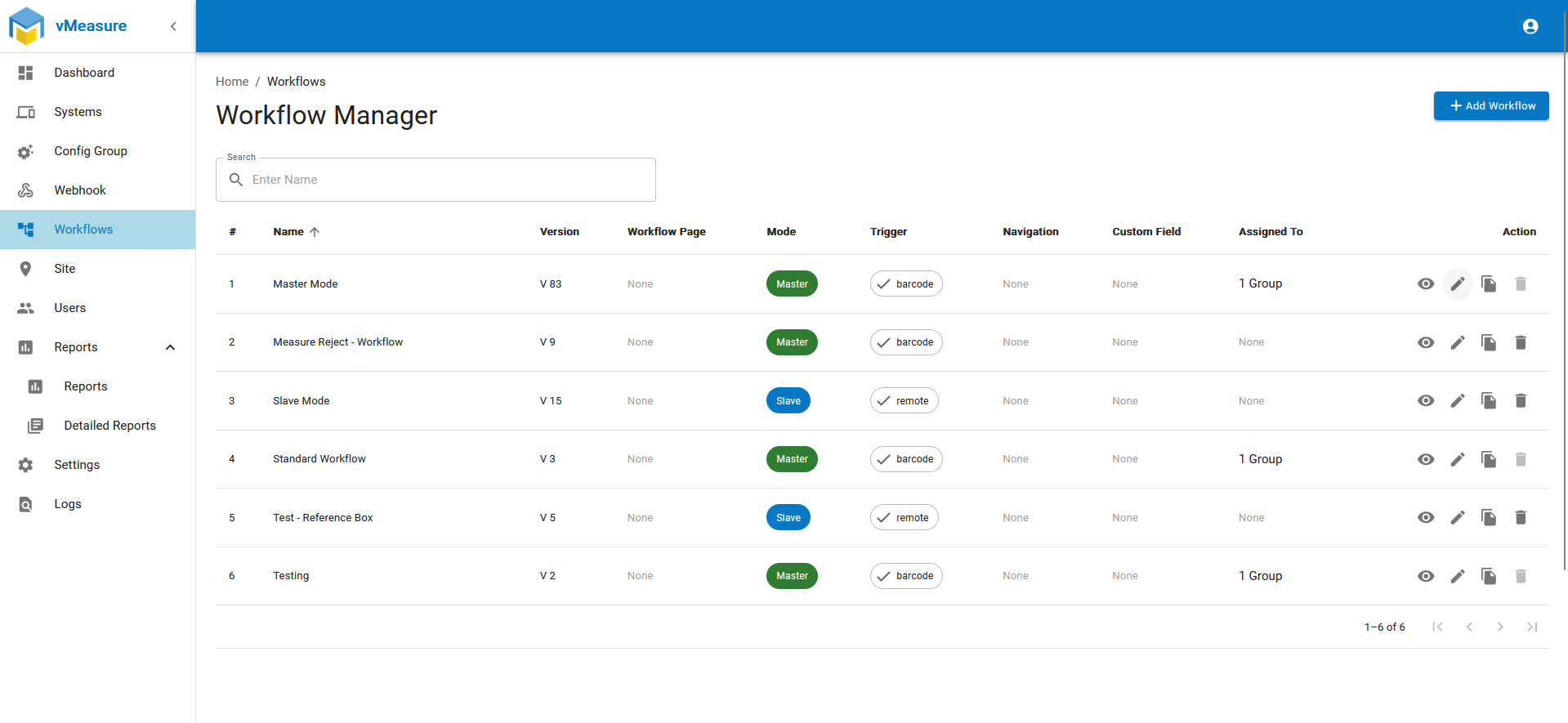
Step 2: Navigate to the Workflows page as shown below.
Step 3: Once on the "Workflows" page, select the workflow which you desire to edit, and click the "Edit" icon.
Step 4: Once in "Workflow Form" scroll down and Click on "Next" to go next page. 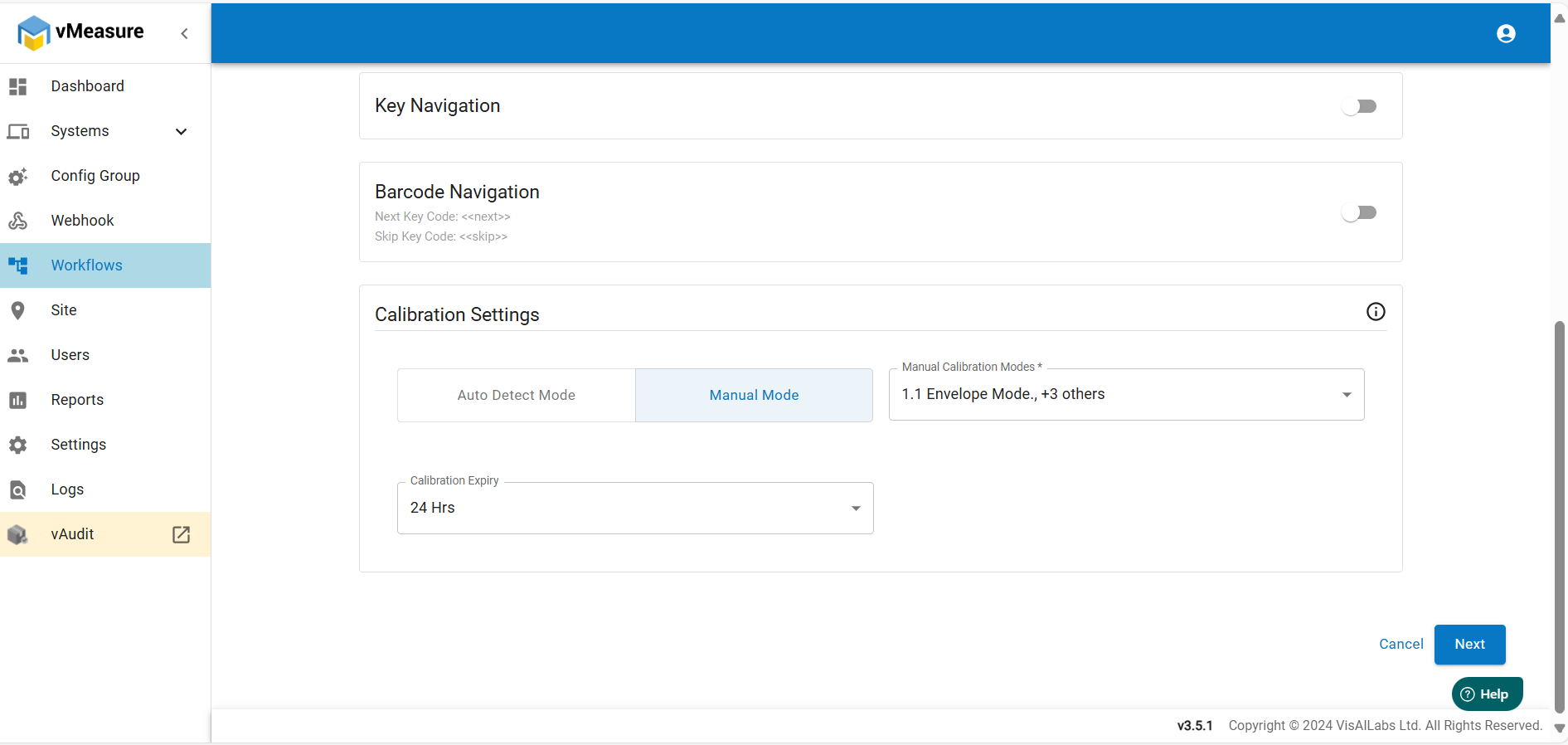
Step 5: Navigate to Quick Measurement and Enable the option.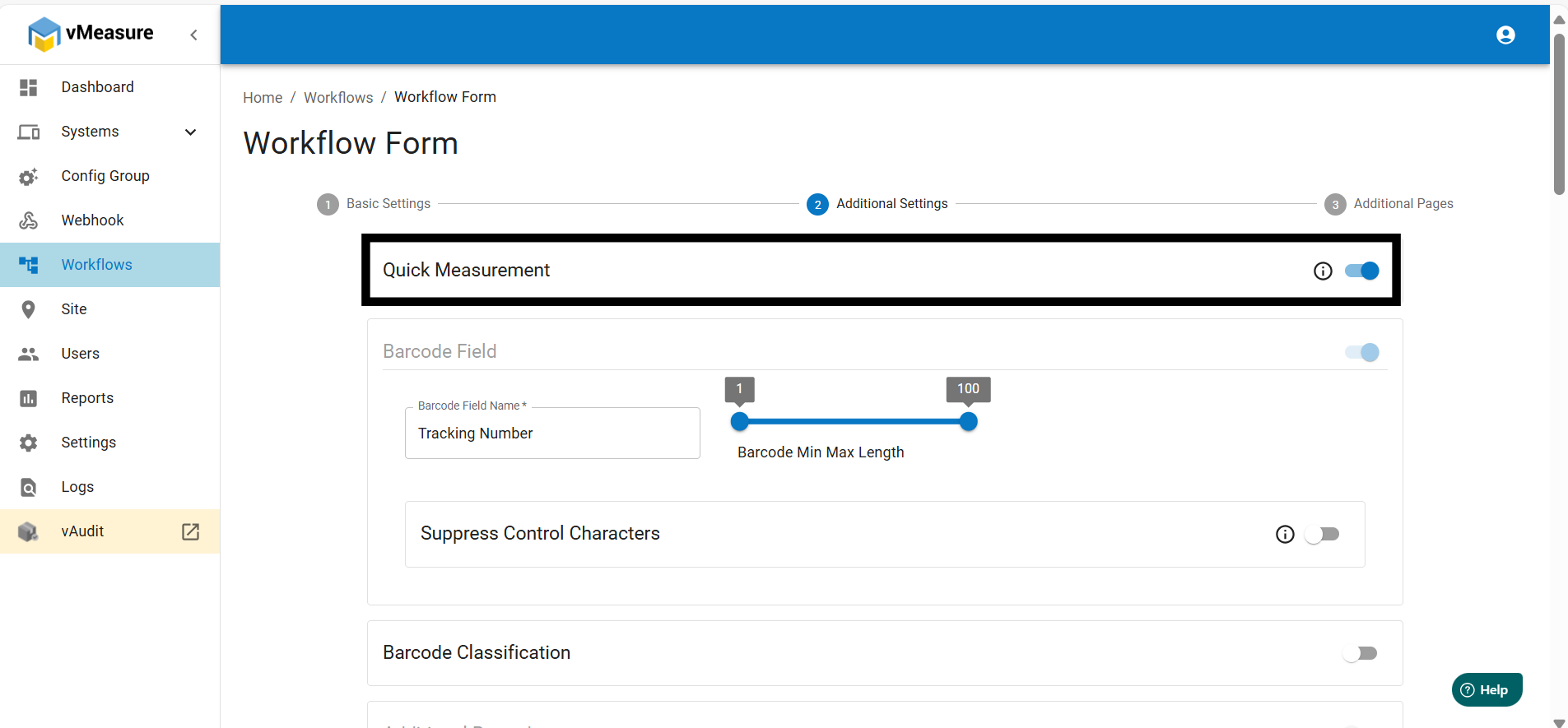
Step 6 : At the bottom right corner, after clicking "Next," you will see the 'Save' button. Click the "Save" button to save the workflow. 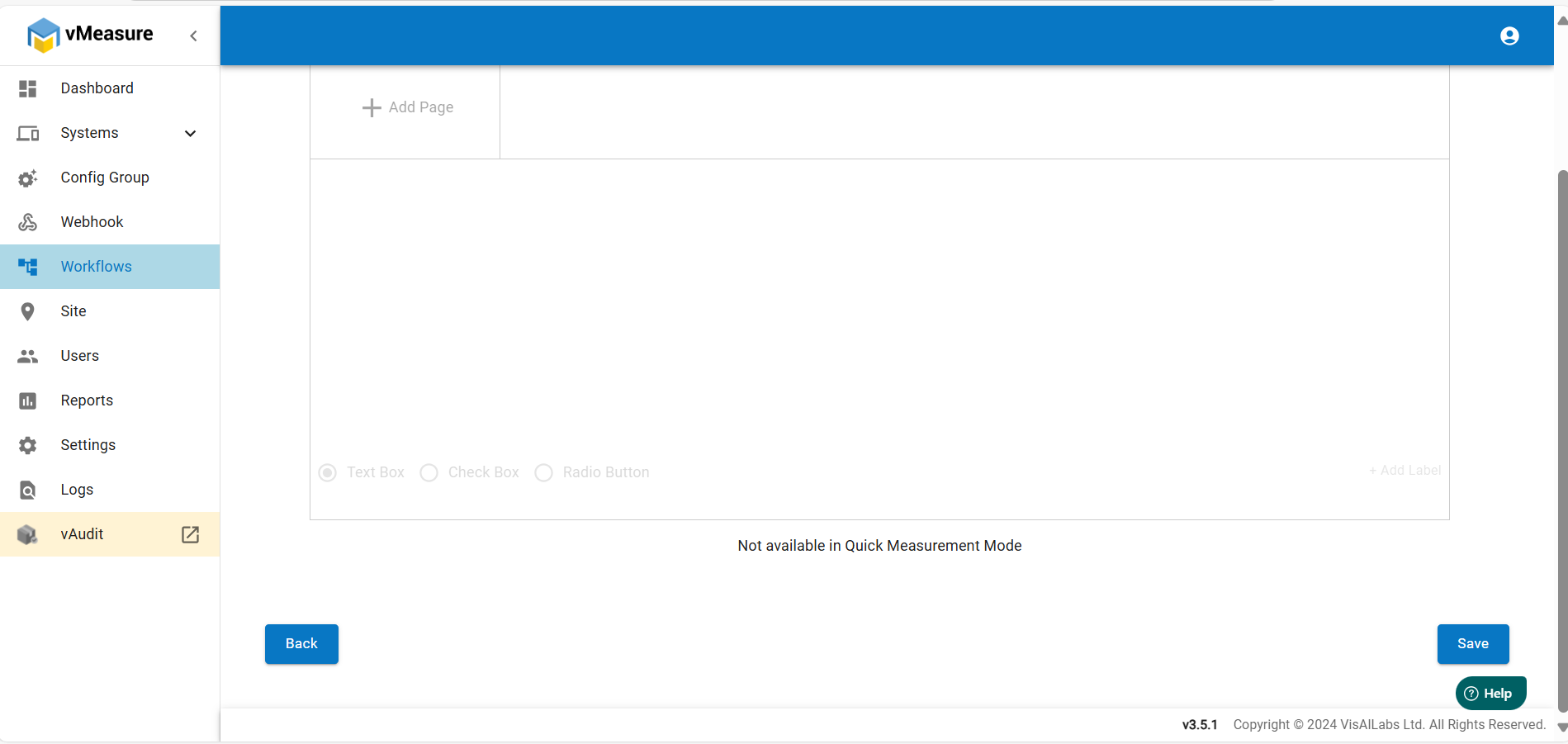
Step 7 : After saving the workflow, the workflow updated popup in vMeasure device, click "YES" and update the workflow.
Step 8 : After updating the workflow you can get an output from device measurement page. Then place the shipment and scan it.
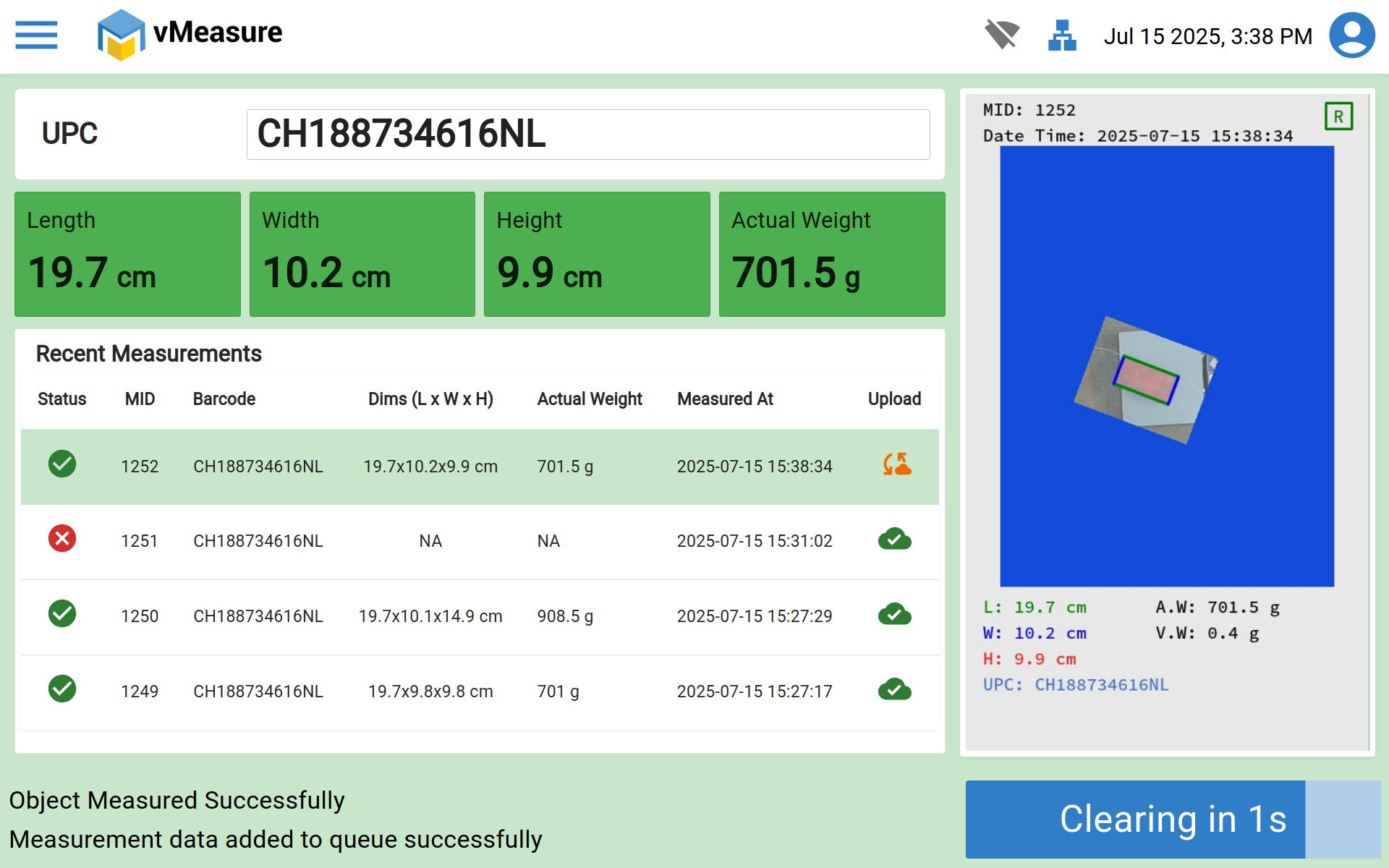
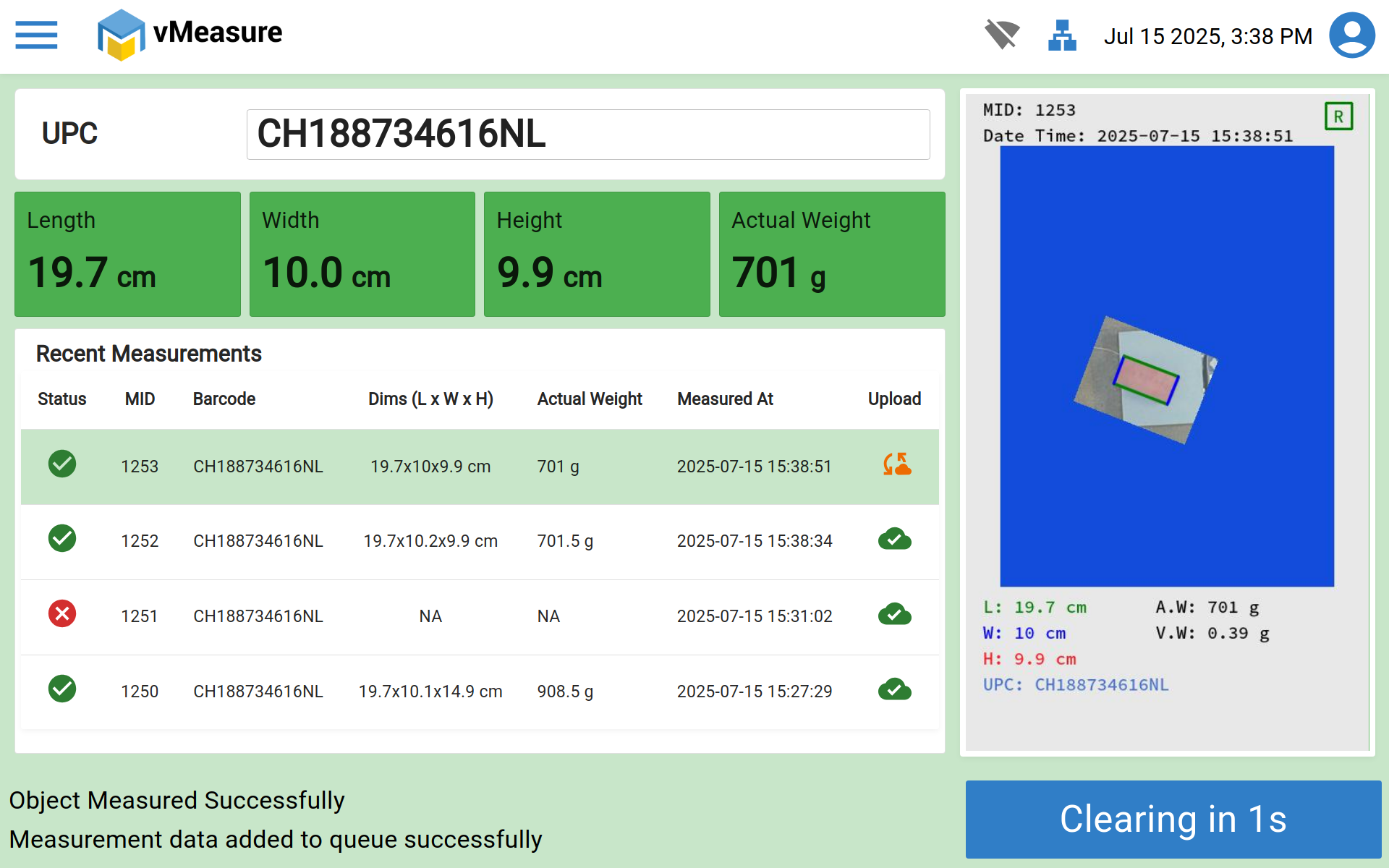
Step 9 : You will get the output like the below image.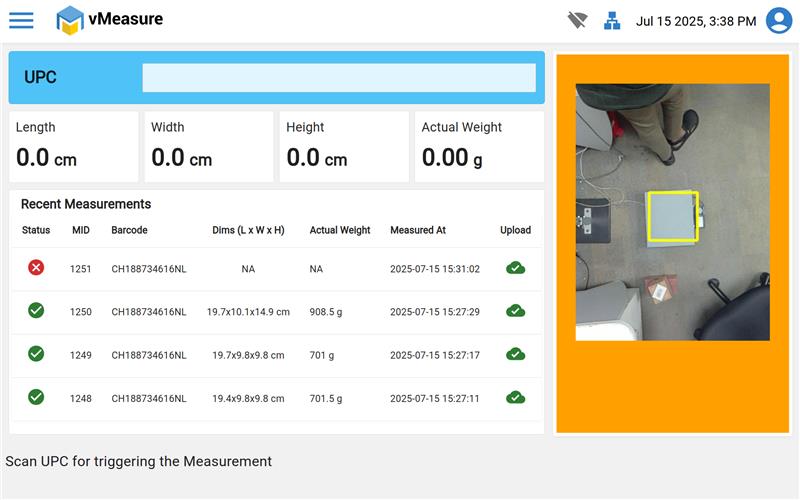
If you need any support , please drop a mail to vmeasure@visailabs.com.
Was this article helpful?
That’s Great!
Thank you for your feedback
Sorry! We couldn't be helpful
Thank you for your feedback
Feedback sent
We appreciate your effort and will try to fix the article