The vMeasure system allows the user to capture additional SKU attributes before measuring the SKU. Below are the types of fields that can be enabled.
1. List
2. Text
3. Toggle
Note:
1. The Custom Fields can only be enabled with the Master mode of the vMeasure system.
2. A maximum of 2 Custom Fields can be added.
Adding Custom Fields:
This section details the steps to enable the desired Custom Field(s). The steps to enable and add the desired Custom Fields(s) are as follows.
Step 1: Login to vMeasure Forge.
Step 2: Navigate to the Workflows page as shown below.
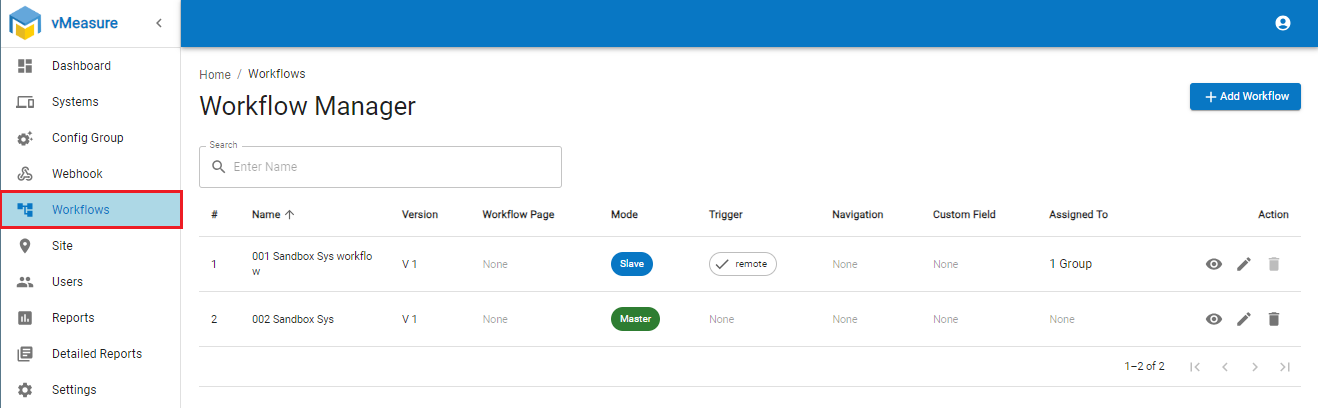
Step 3: Edit the desired workflow or add a workflow using the + Add Workflow button.
Step 4: Configure the Basic Settings and click on the Next button as shown below.
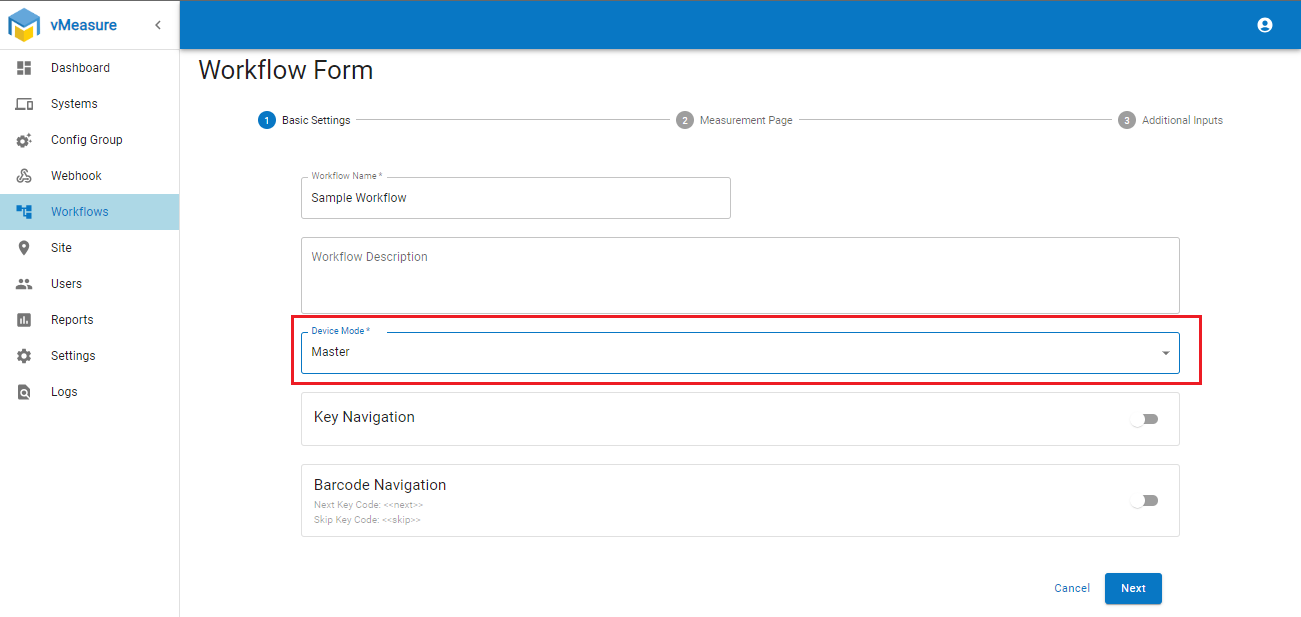
Note: Please make sure to select Master from the Device Mode drop-down.
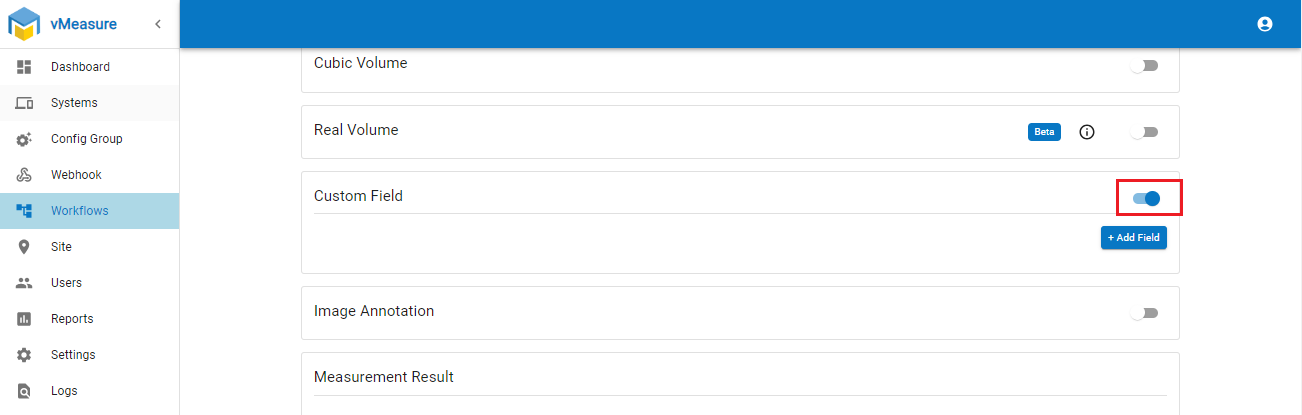
Step 5: Navigate to the Custom Field section and enable it as shown below.
Step 6: Click on the + Add Field button and configure the desired Key of the Custom Field as shown below.
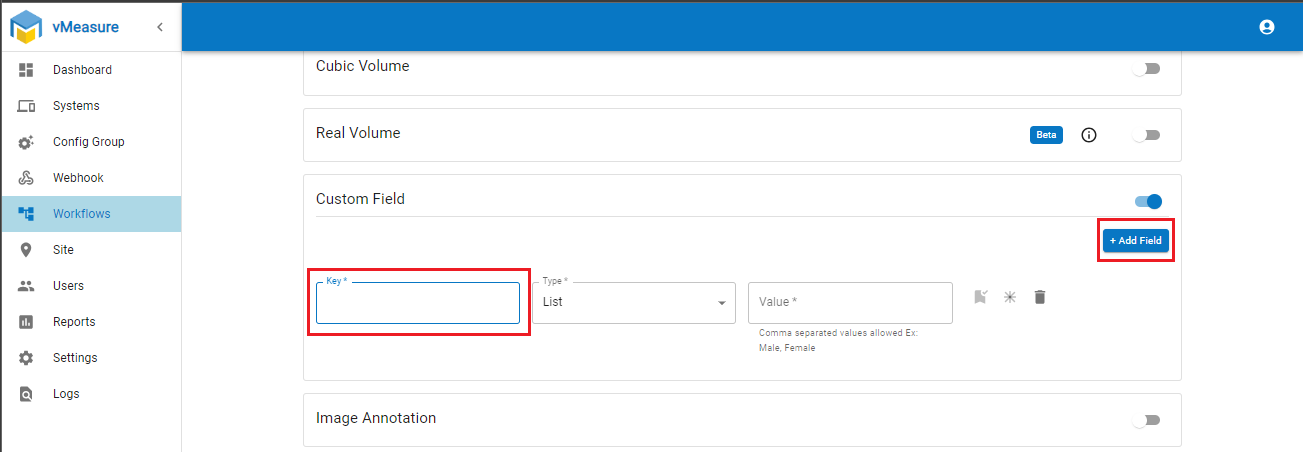
Step 7: Select the desired type of field from the Type drop-down.
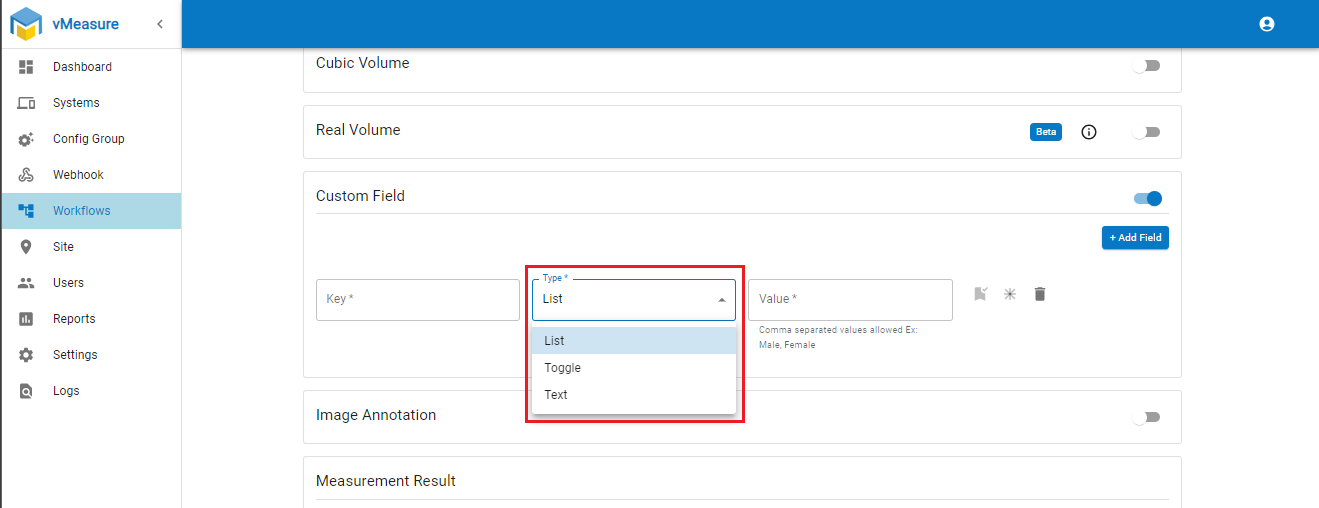
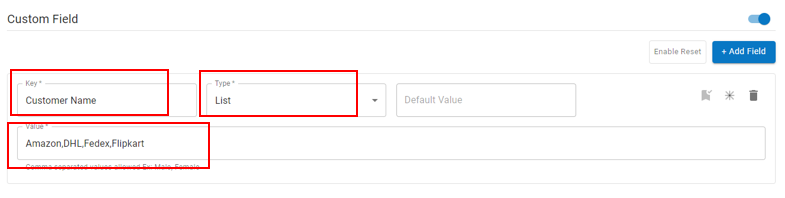
Step 8: Fill the required filed such has key and value.
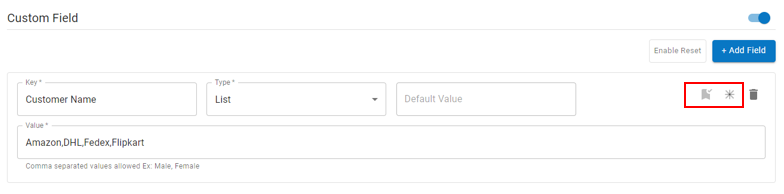
Step 9: The Retain Data and Mandatory options of the Custom Field(s) can be configured as shown below.
"Retain data" is about preserving information, while a "mandatory option" is about enforcing a specific choice or action.
Step 10: Click on the Next button and Save the workflow.
Step 11: Pop-Up will appear on vMeasure device to download the latest work flow.
In vMeasure Device.
If Retain Data:
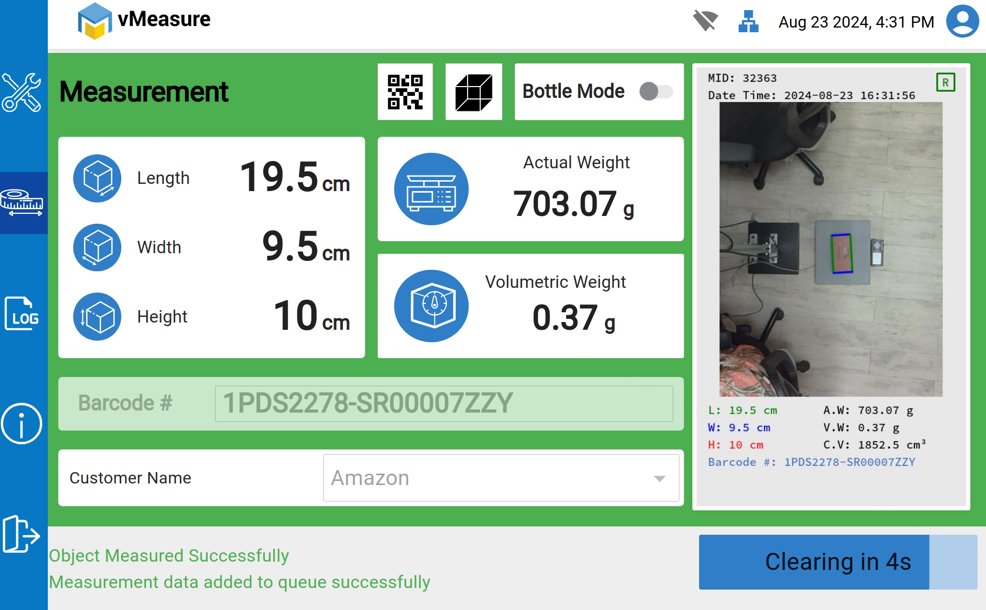
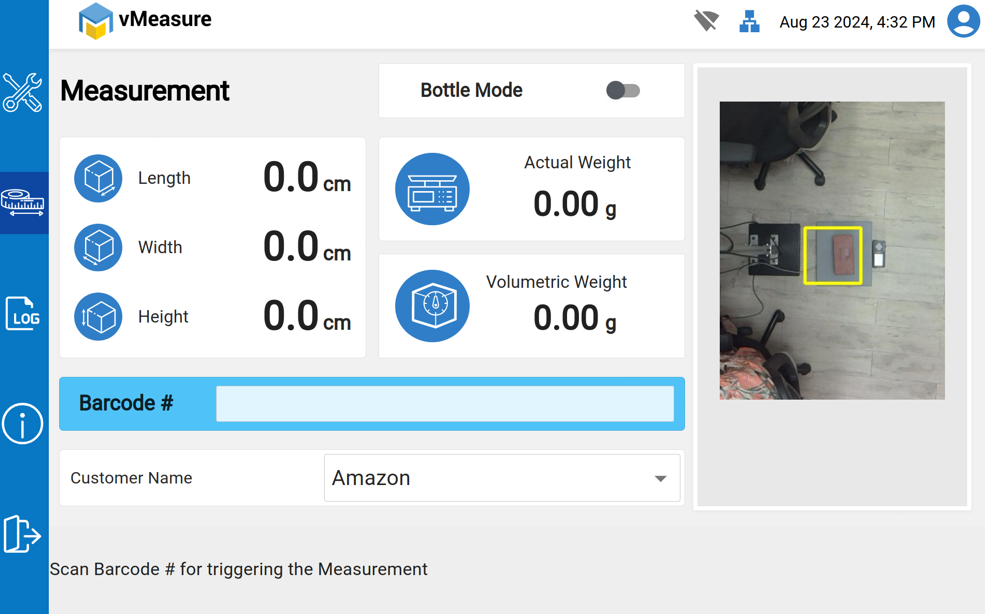
Step 1: Select the "Customer Name" from the dropdown and Scan the "Barcode"
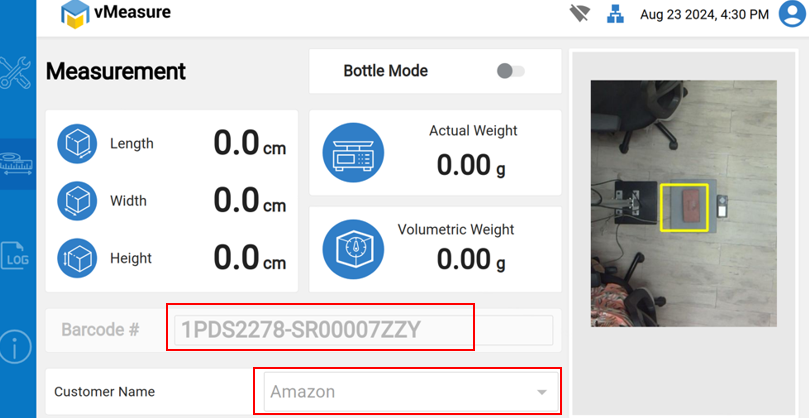
Step 2: Once the measurement is successfully completed, it will automatically redirect to a new measurement, retaining data such as "Amazon," which will remain unchanged until the user decides to modify it.
If Mandatory:
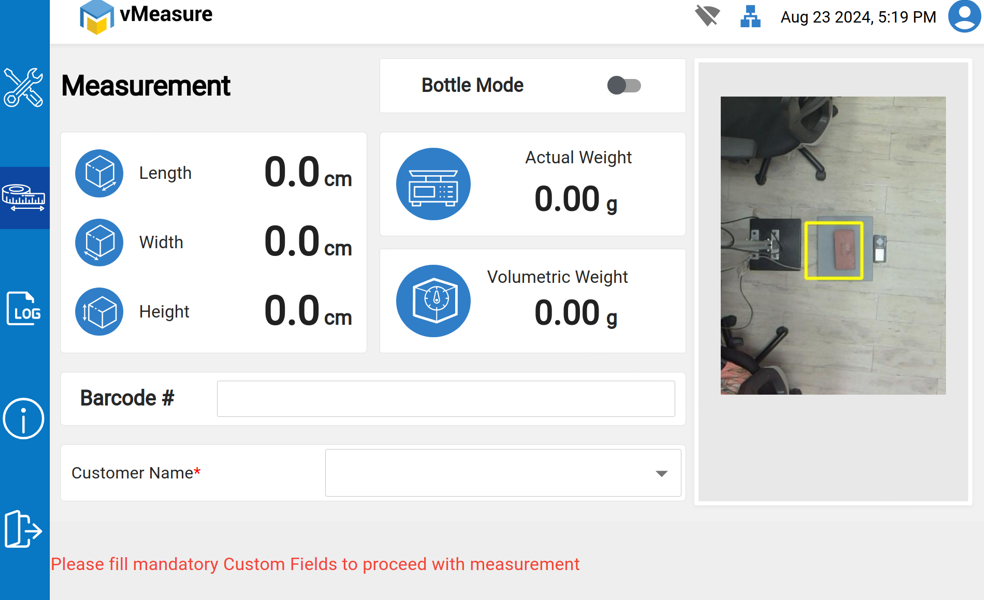
A mandatory option is a setting or choice that must be selected or enabled. The user or system cannot bypass this option—it’s required to proceed.
Step 1: Need to select the Mandatory option and scan the Barcode for triggering the measurement.
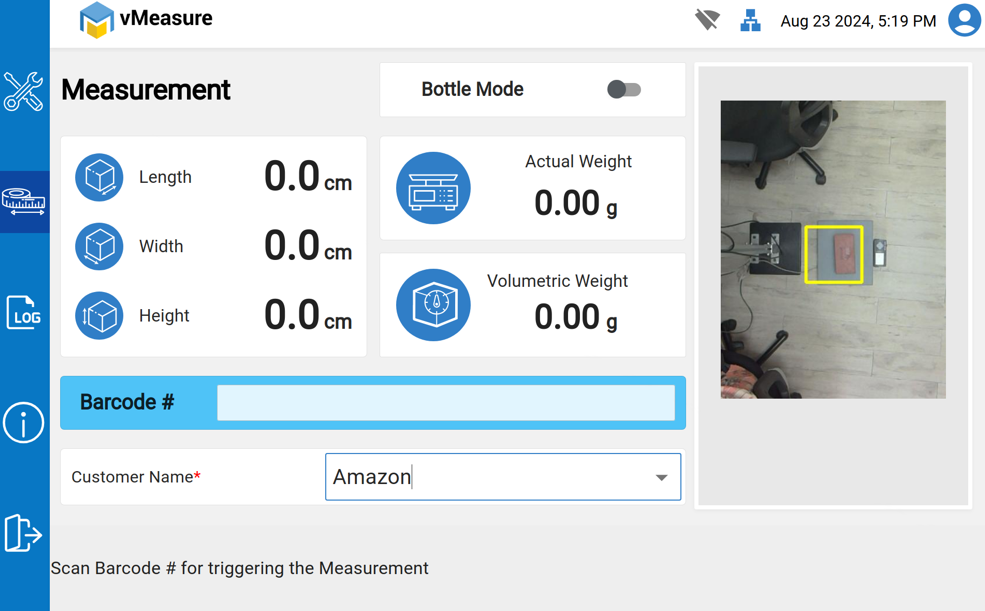
Step 2: After the measurement is successfully completed, it will automatically redirect to a new measurement. You will need to select the mandatory option and then trigger the measurement.
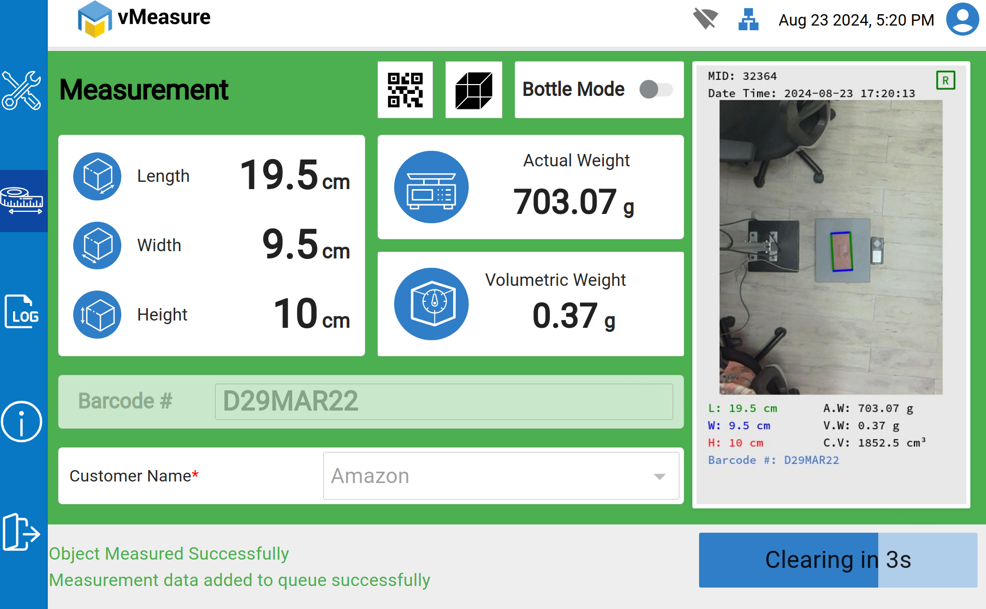
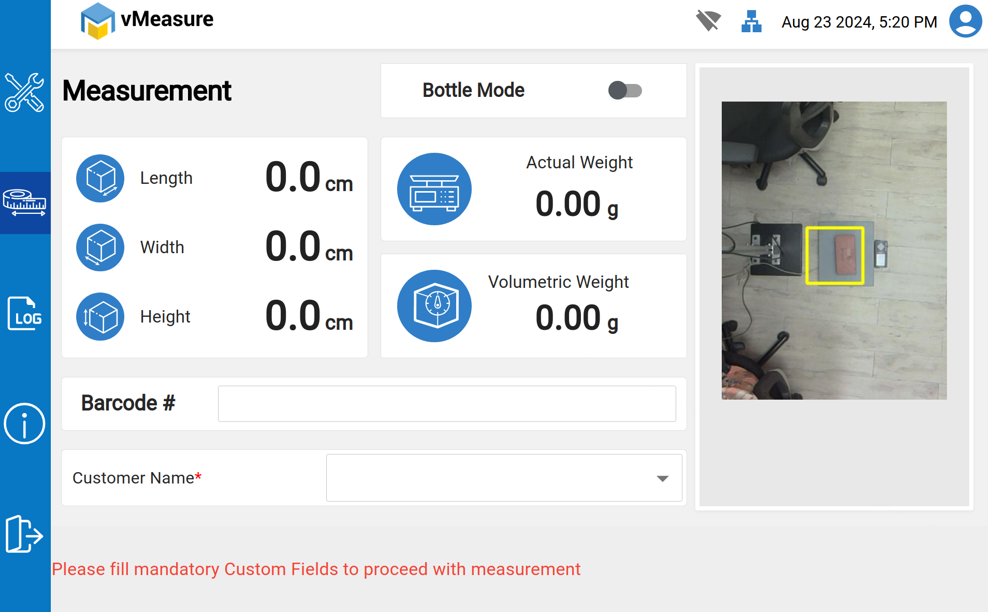
How to download detail report :
Step 1: Login to vMeasure Forge.
Step 2: Navigate to the Detailed Report section.
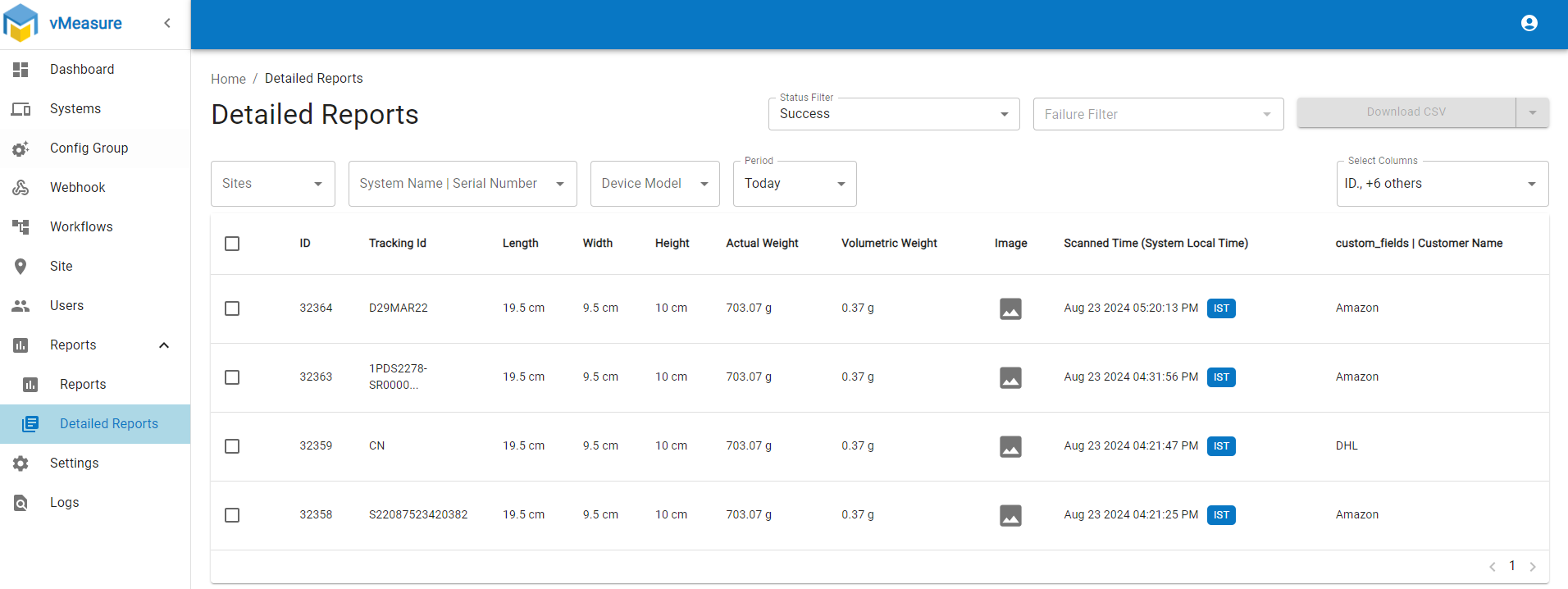
Step 3: Enable the required fields by selecting the desired columns.
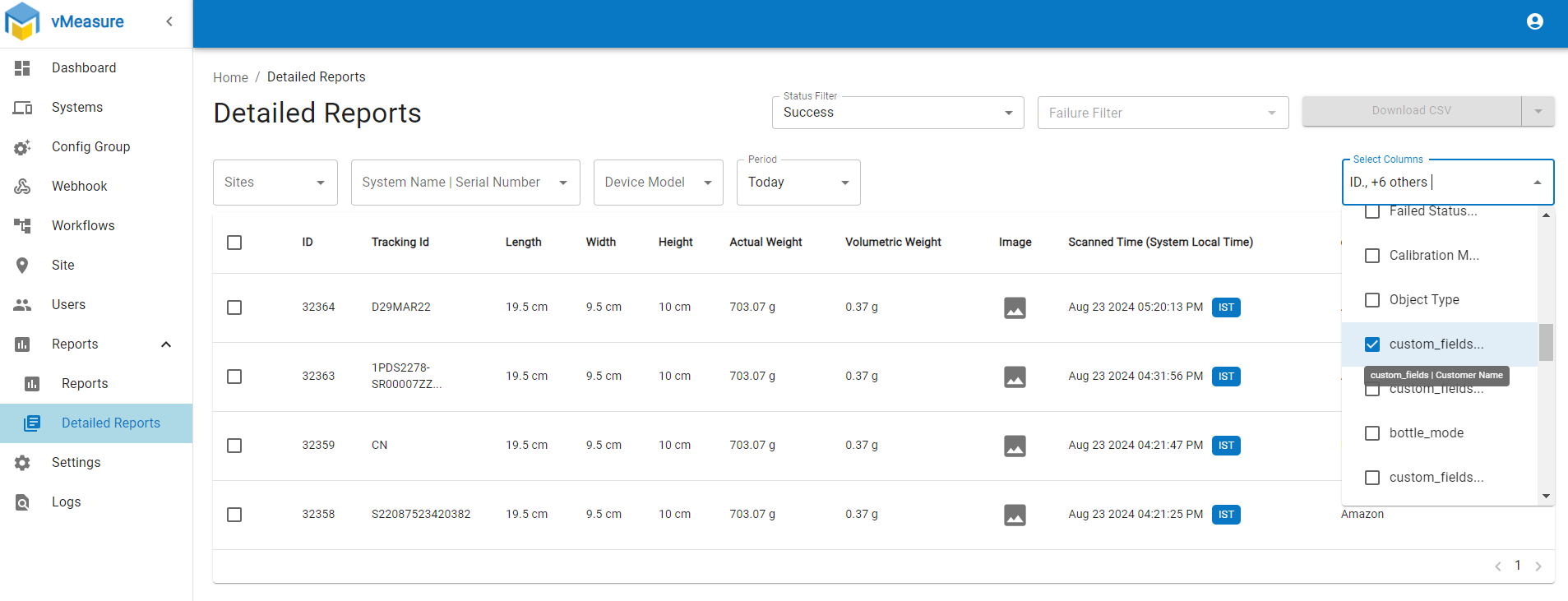
Step 4: Click on Check box and click to download the CSV file.
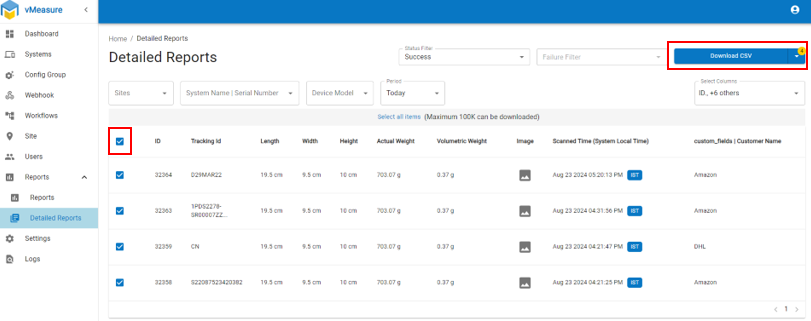
Note: In the Detailed Report, custom fields will appear in separate columns. Refer to the image below for guidance.

If you need any support , please drop a mail to vmeasure@visailabs.com or Click here to Submit a Ticket.
Was this article helpful?
That’s Great!
Thank you for your feedback
Sorry! We couldn't be helpful
Thank you for your feedback
Feedback sent
We appreciate your effort and will try to fix the article