Step 1: Login into your Forge account.
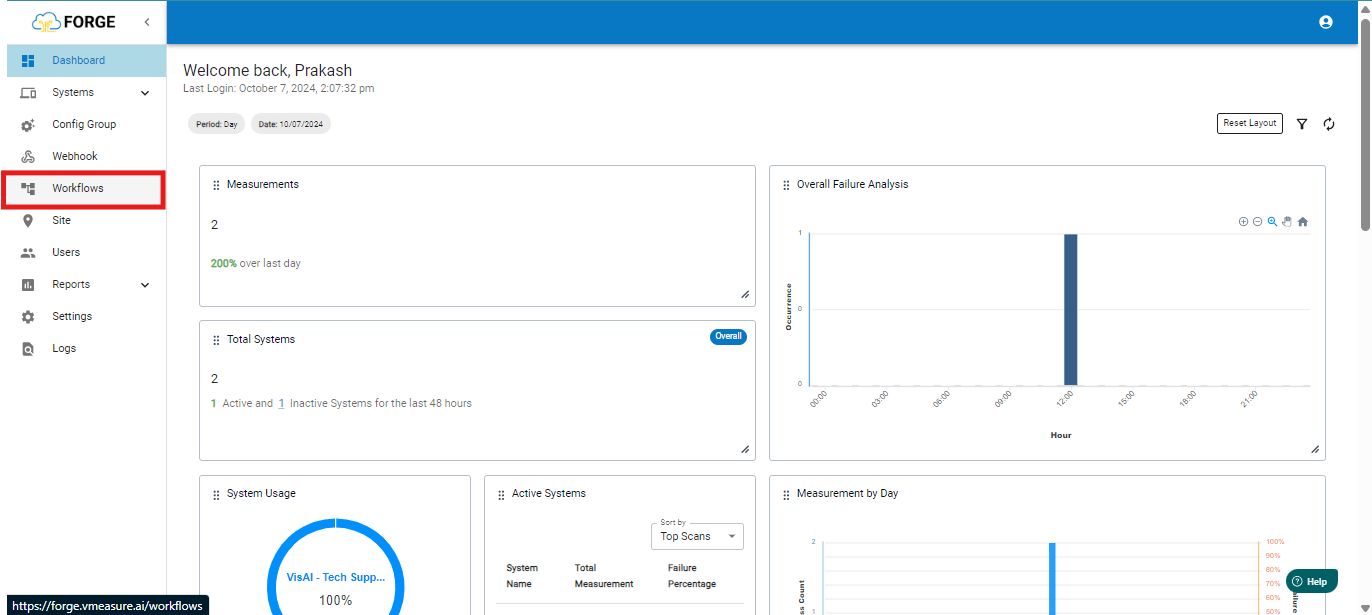
Step 2: Once logged In, Navigate to "Workflows".
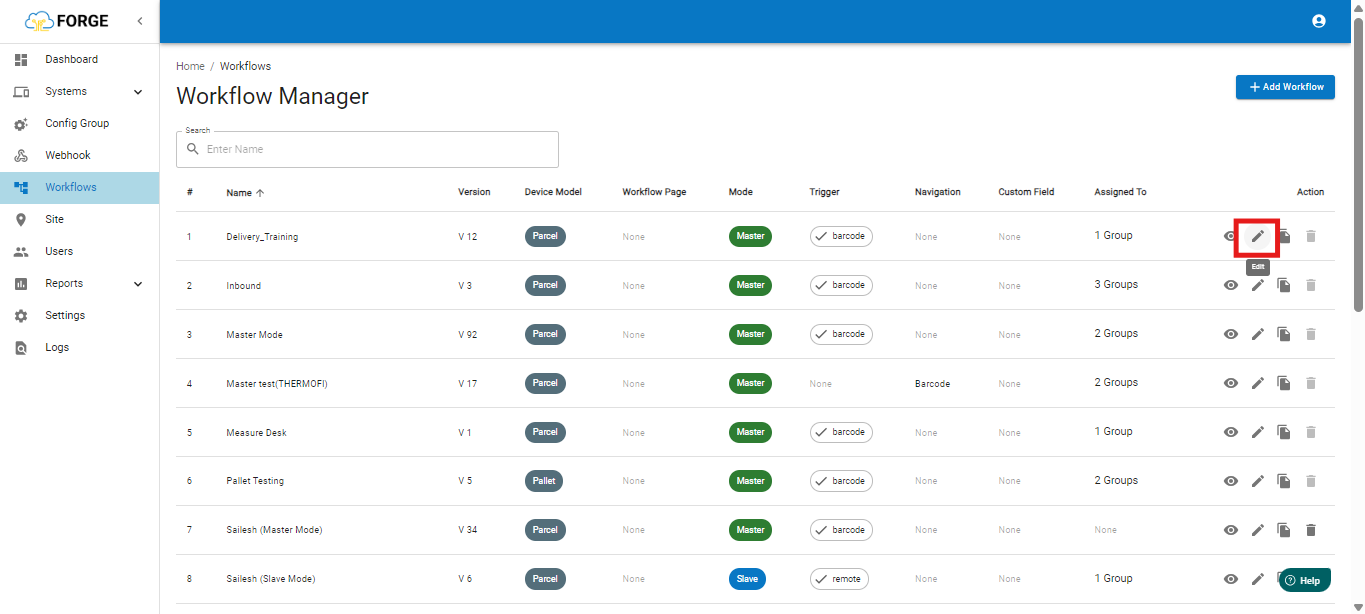
Step 3: On Workflows, click on "Edit".
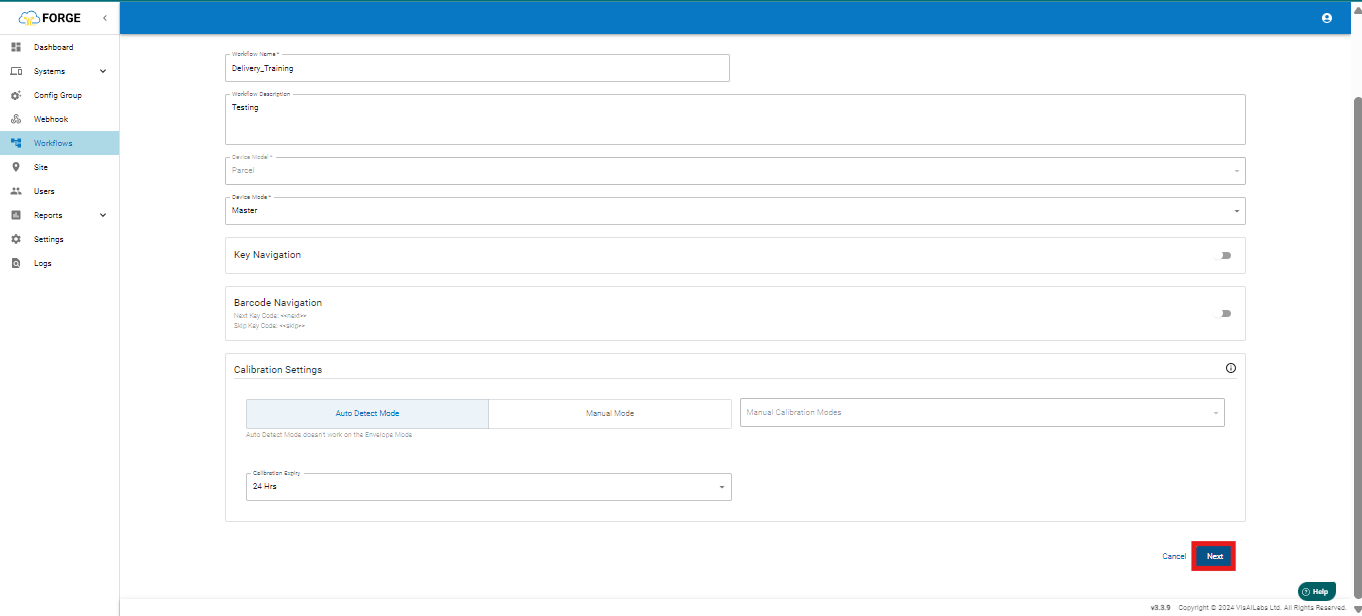
Step 4: Scroll down and click "Next".
Step 5 : Under the Barcode Field you can find the "Additional Barcodes" Feature and Enable it.
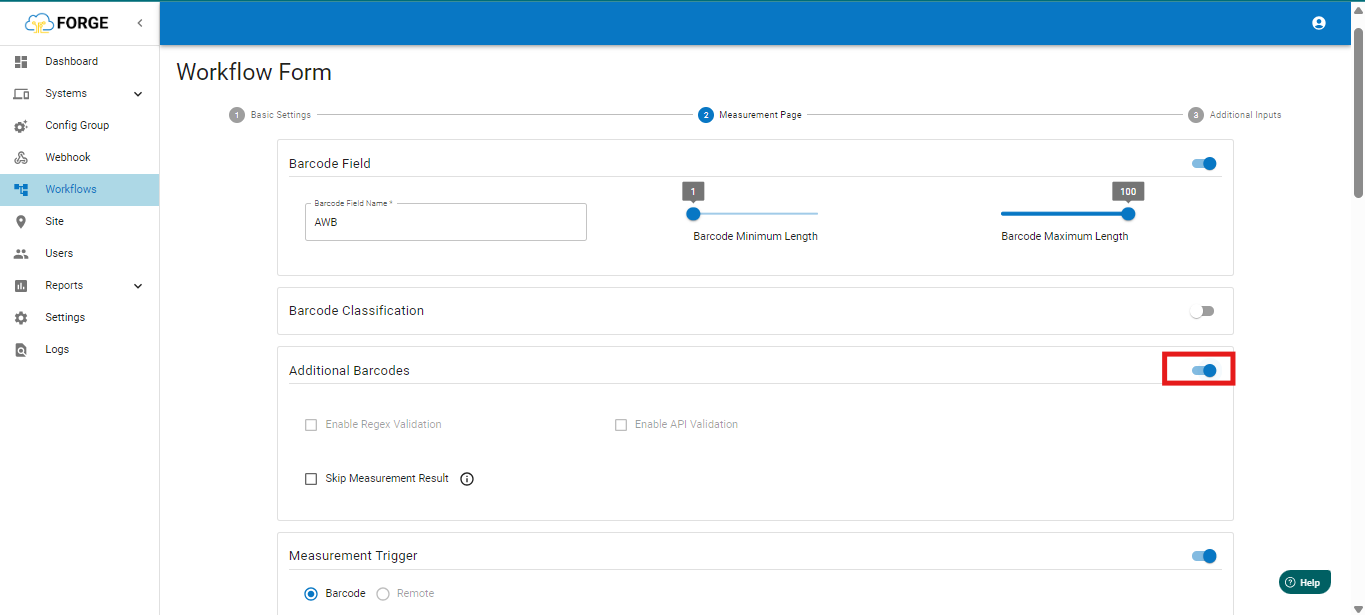
Step 6: Scroll down to the last click "Next"-> "Save" the workflow.
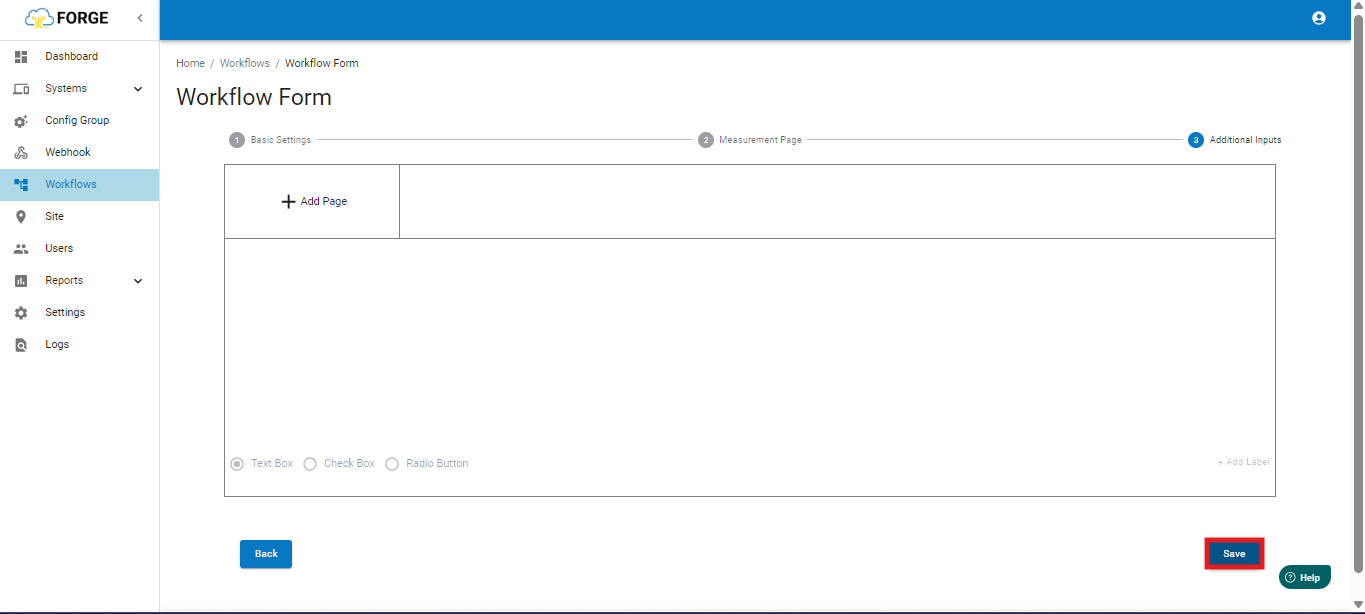
On Device:
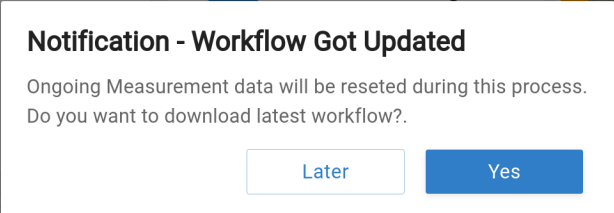
Once the workflow has been saved, you will find a prompt "Workflow Got updated" in the UI, click "Save".
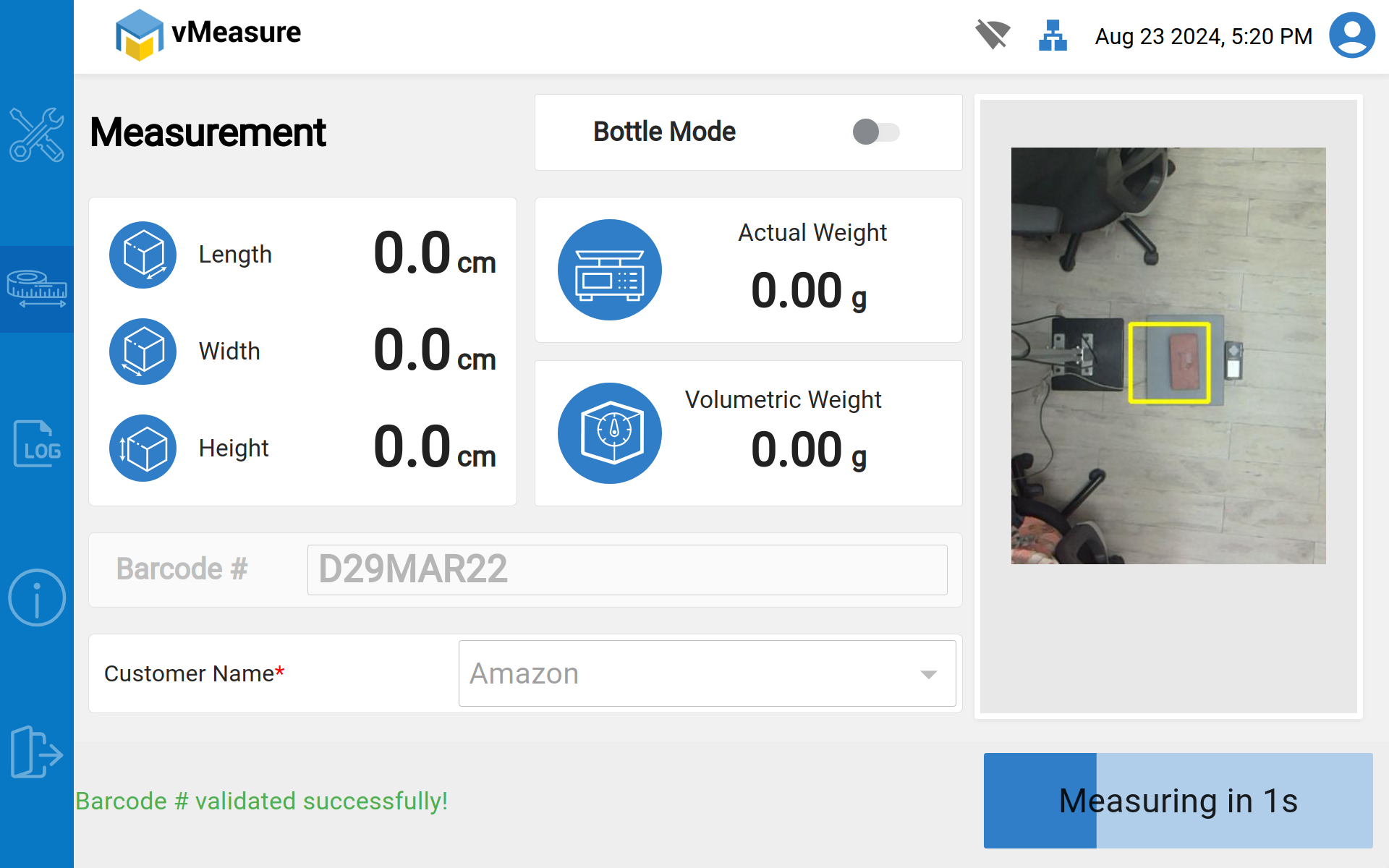
Now navigate to measurement page and scan the Master Barcode.
Next a prompt appears to add the "Additional Barcodes".
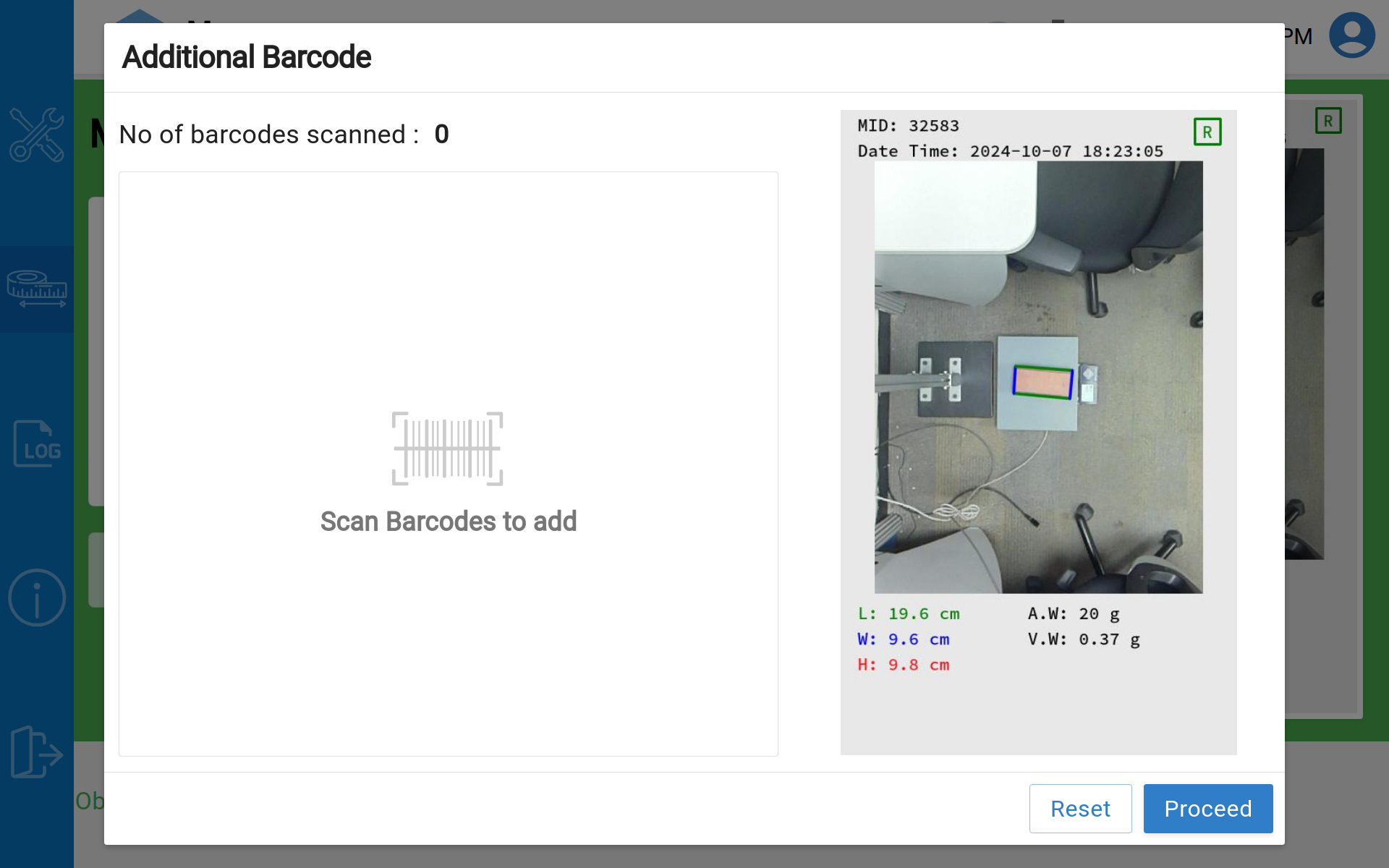
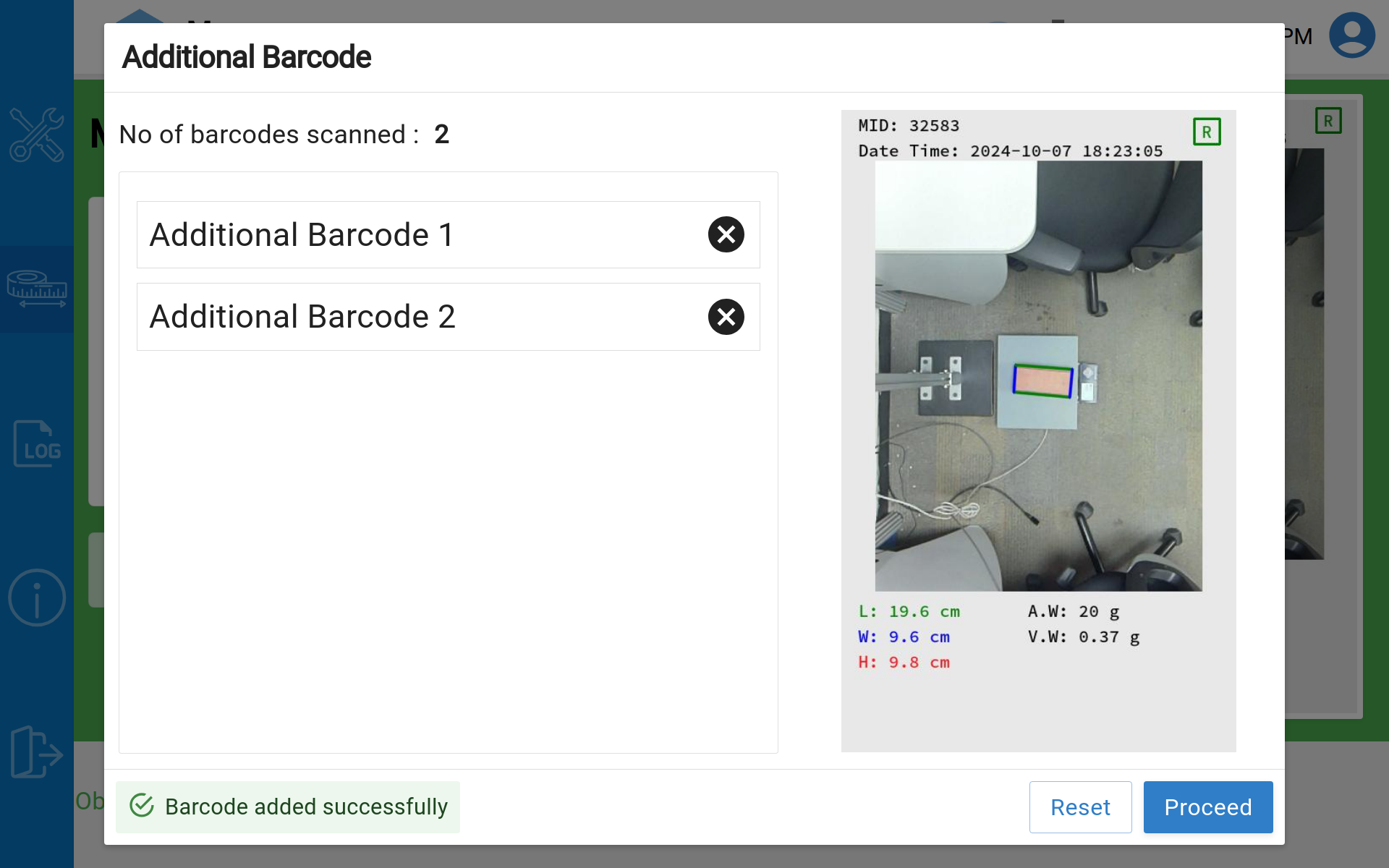
Note: You can add multiple barcodes in it without limitations.
Once the Barcode's are added click Proceed to Complete measurement.
If you need any support, please drop a mail to vmeasure@visailabs.com
Was this article helpful?
That’s Great!
Thank you for your feedback
Sorry! We couldn't be helpful
Thank you for your feedback
Feedback sent
We appreciate your effort and will try to fix the article