In this section, you can add additional fields between the barcode and the measurement page to collect even more information.
You can do so by creating any one of the following field types:
- Text Box
- Check Box
- Radio Button
Please find the below step to add the Additional Inputs page:
Note : For a detailed demonstration of the workflow creation on pages 1 and 2, please refer to the video link: Click here.
After successfully completing the additional inputs and capturing the data on the vMeasure device, you can view the log on the Reports page of the Forge portal. To do so, follow these steps:
Step 1: Log in to vMeasure Forge.
Step 2: Navigate to the "Reports" section (under "Detailed Reports").
Step 3: Click on the "Select Columns" dropdown, and select the "Workflow" option along with the required details to display in the reports.
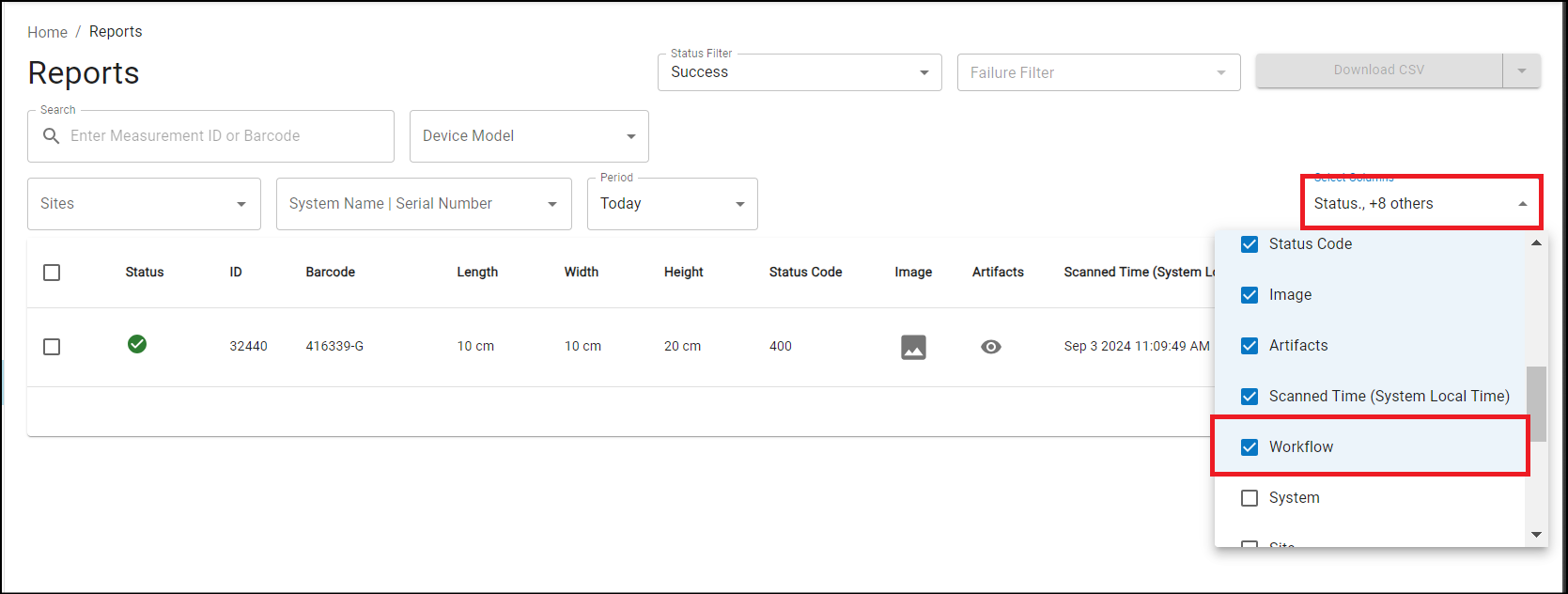
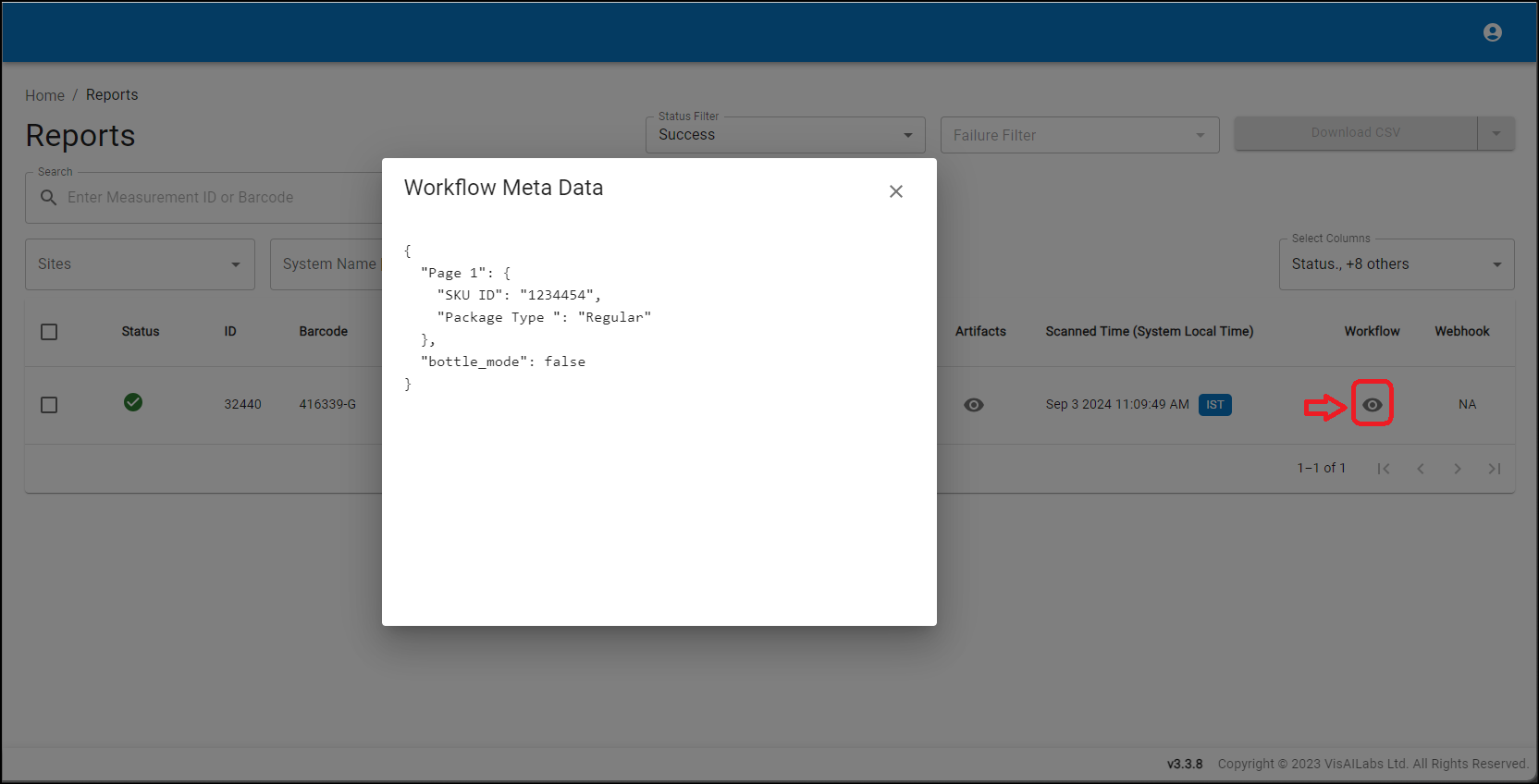
Step 4: In the Reports section, click on the "?" icon below the Workflow option to view the details in the format shown. (Refer to Picture 2).
Was this article helpful?
That’s Great!
Thank you for your feedback
Sorry! We couldn't be helpful
Thank you for your feedback
Feedback sent
We appreciate your effort and will try to fix the article