- Login to vMeasure Forge.
- Navigate to the "Workflows" page as shown below.
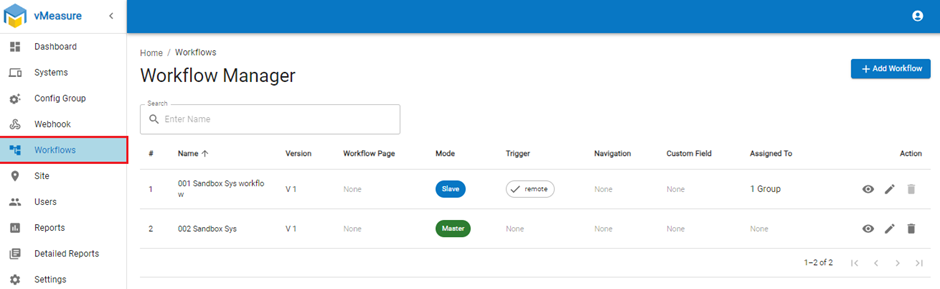
- Edit the desired workflow or add a workflow using the "+Add Workflow" button.
- Configure the Basic Settings and click on the Next as shown below.
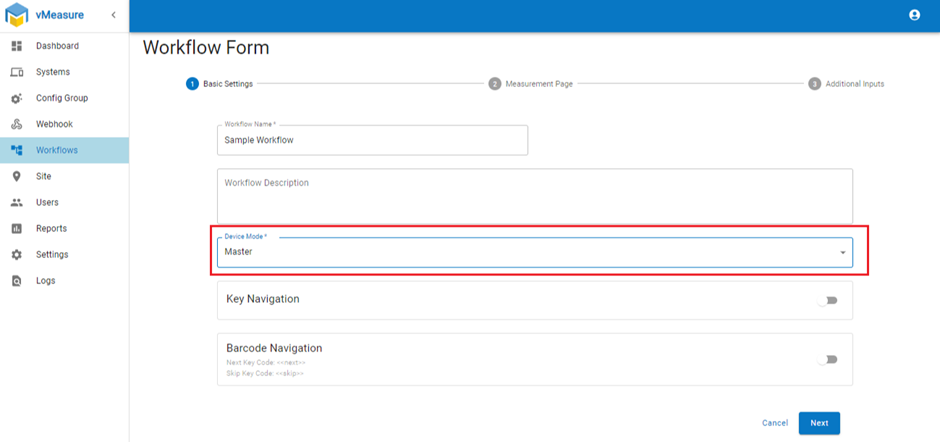
Note: Please make sure to select Master from the Device Mode drop-down. - Navigate to “Additional Video” and enable the additional video and fill the required details.
- Select the video duration from drop-down.
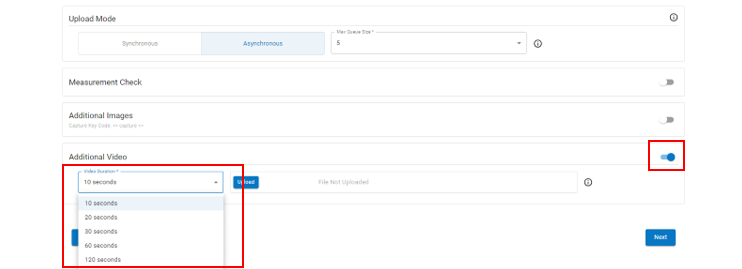
- You can also add watermark to your videos by choosing the "Upload" and selecting the file.

- Click on the "Next" button and "Save" the workflow.
On vMeasure Device:
On the vMeasure system, you'll be getting a prompt "Workflow got updated", Click "OK".
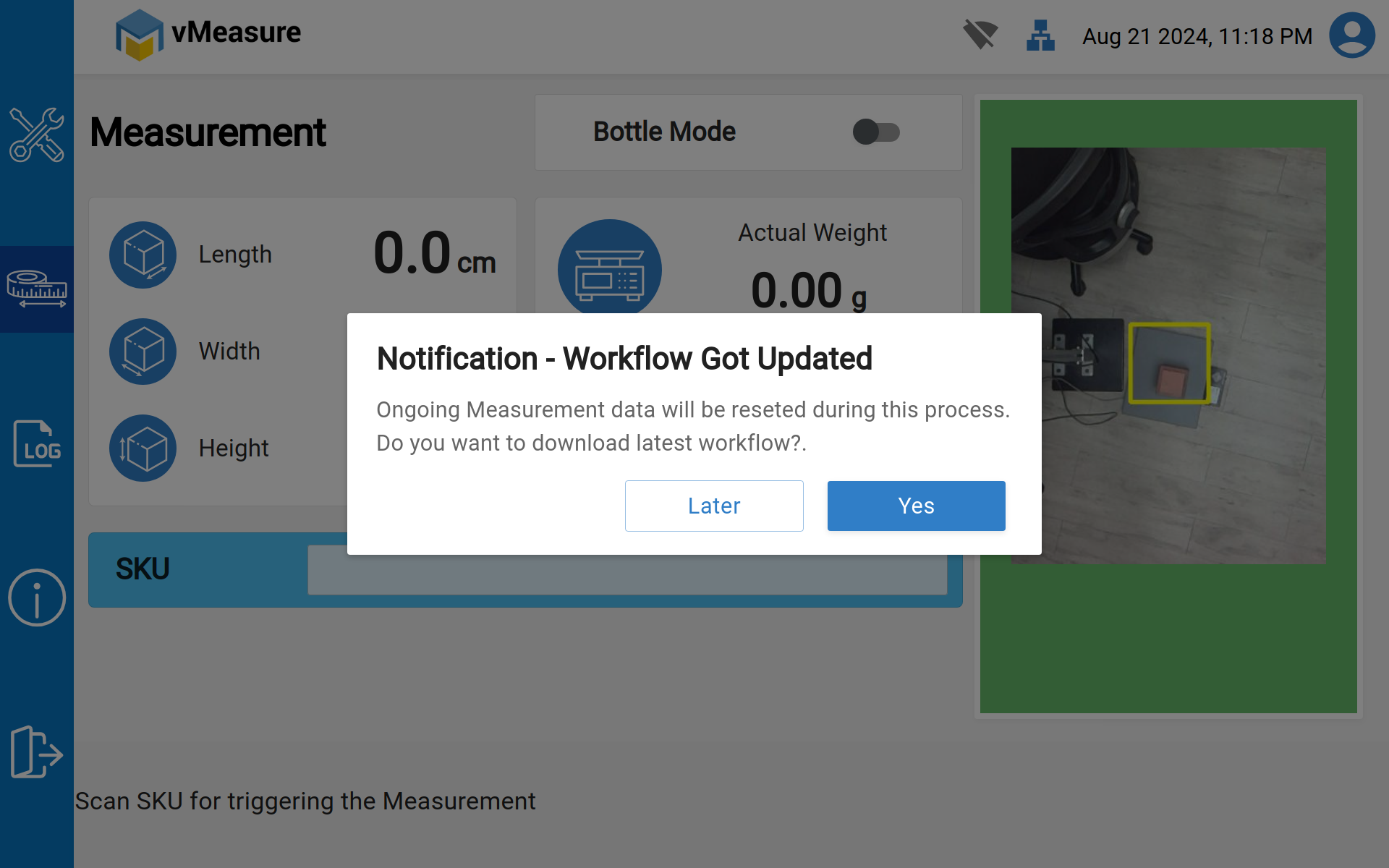
- Once Your workflow got updated.
- Kindly find the example Image of UI in the device.
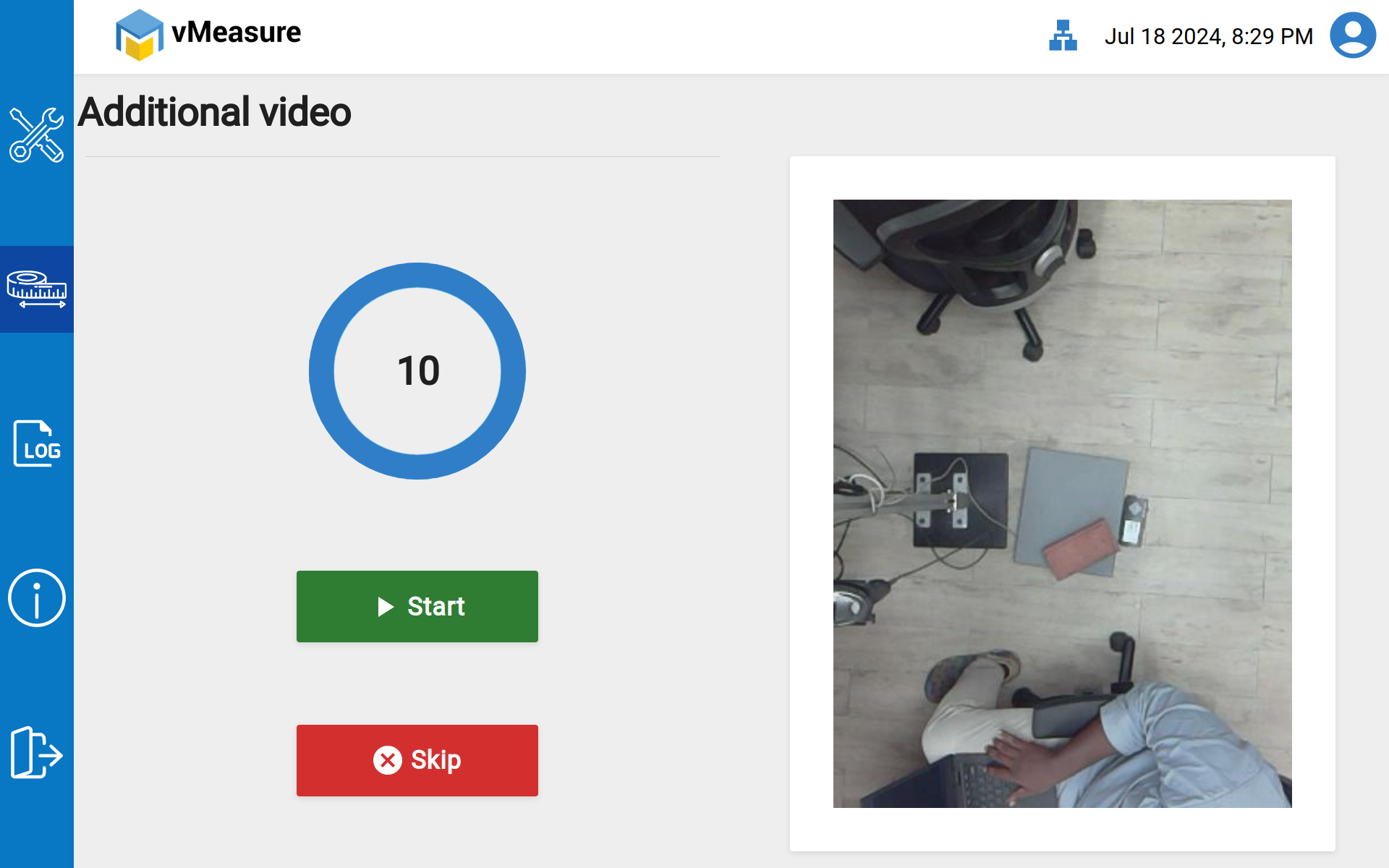
Click Start and the recording starts or either you can either skip and proceed with measurement.
To Download the Video.
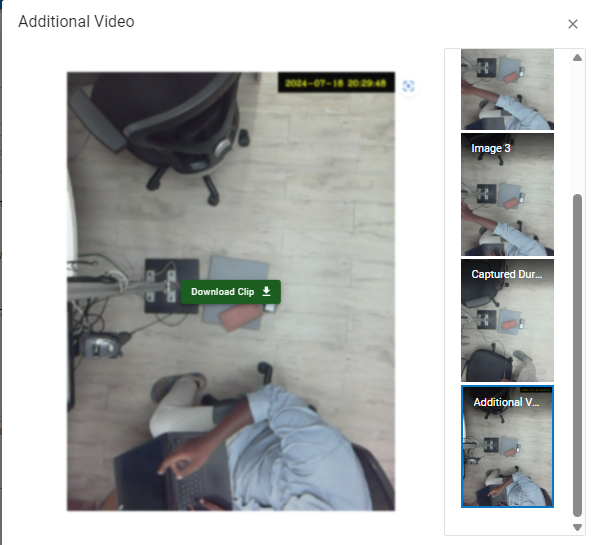
On forge-> Click on Reports and in Artifacts you can find the Additional Video.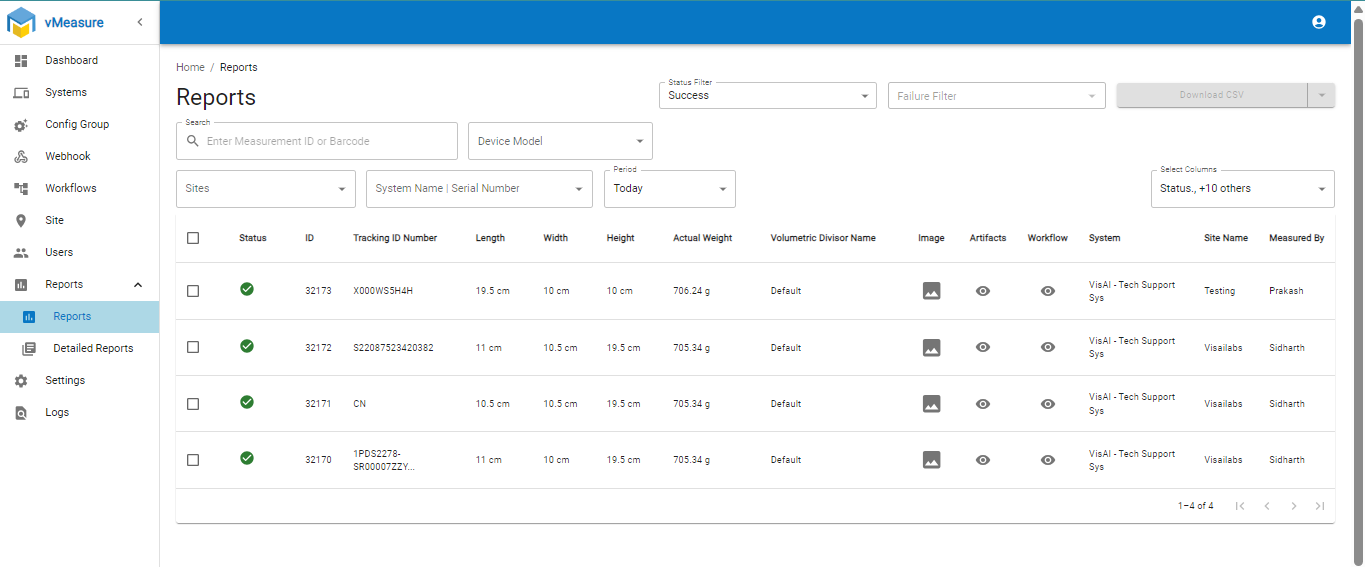
If you need any support , please drop a mail to vmeasure@visailabs.com
Was this article helpful?
That’s Great!
Thank you for your feedback
Sorry! We couldn't be helpful
Thank you for your feedback
Feedback sent
We appreciate your effort and will try to fix the article