Reference KB Articles:
How to configure Chrome Extension
How to configure Shipstaion worflow
How to Obtain userid, secretid and system token from Forge
Follow the steps below to enable the "Auto Trigger" in Shipstation orders:
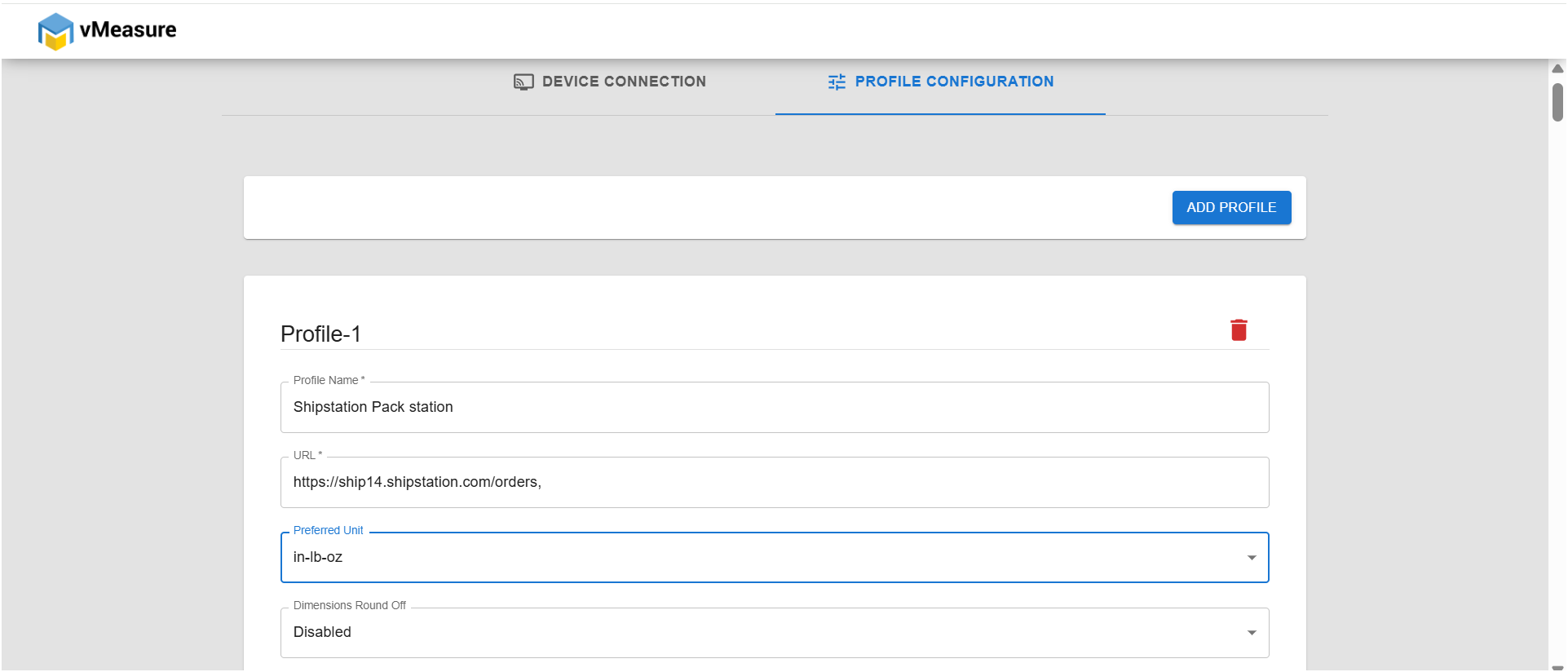
Step - 1: In profile configuration section, Click on "ADD PROFILE" & configure the settings as listed below.
A. Profile name - ShipStation Pack station
B. URL - https://ship14.shipstation.com/orders,
C. Preferred Unit - in-lb-oz
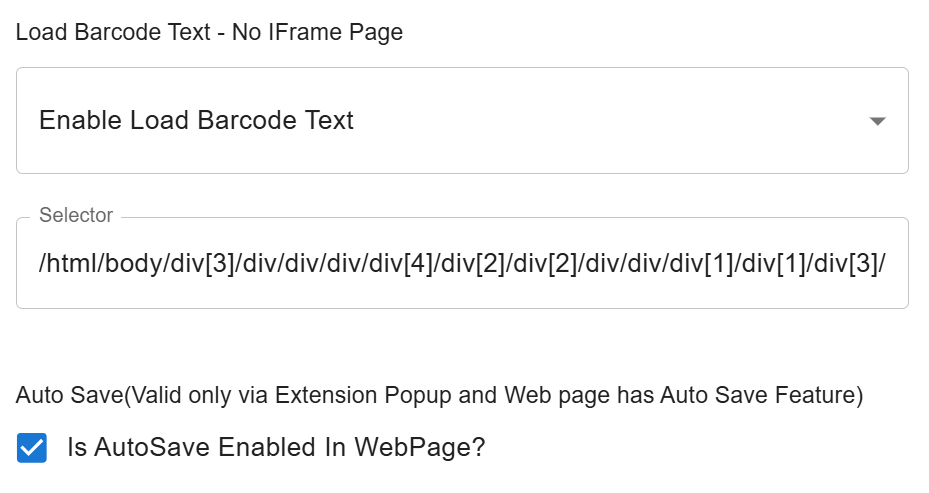
D. Load Barcode Text - No IFrame Page - Enable load barcode text
Selector - #app-root > div.drawer-container-WPebrW8 > div.drawer-OaXdldj > div > div > div.order-details- nav-bar-YXkyuxc > div.order-details-order-info-section-GWfkZHi > div.order-info-order-number-vbTaRbB > h4
E. Enable the check-box of Is AutoSave Enabled In WebPage?
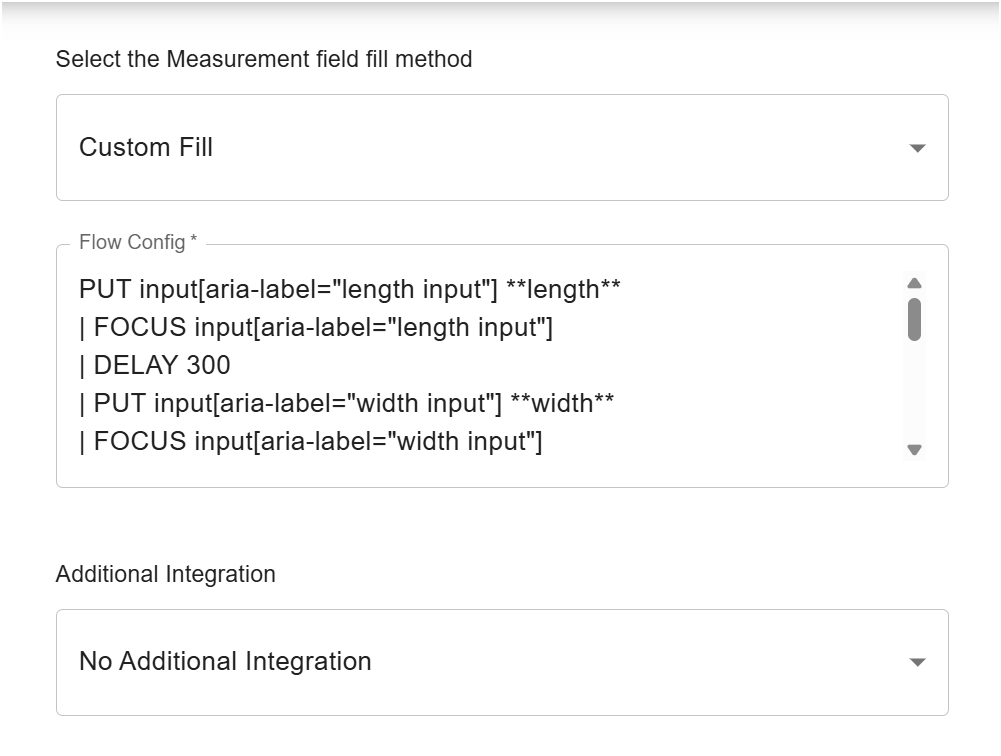
F. Select the Measurement field fill method - Custom Fill
Flow Config -
PUT input[aria-label="length input"] **length**
| FOCUS input[aria-label="length input"]
| DELAY 300
| PUT input[aria-label="width input"] **width**
| FOCUS input[aria-label="width input"]
| DELAY 300
| PUT input[aria-label="height input"] **height**
| DELAY 300
| FOCUS input[aria-label="height input"]
| PUT input[aria-labelledby$="pounds"] **actualWeight**
| FOCUS input[aria-labelledby$="pounds"]
| DELAY 300
| PUT input[aria-labelledby$="ounces"] **auxiliaryActualWeight**
| FOCUS input[aria-labelledby$="ounces"]
| DELAY 300
| TAB input[aria-labelledby$="ounces"]
G. Enable the Auto trigger Measurement.
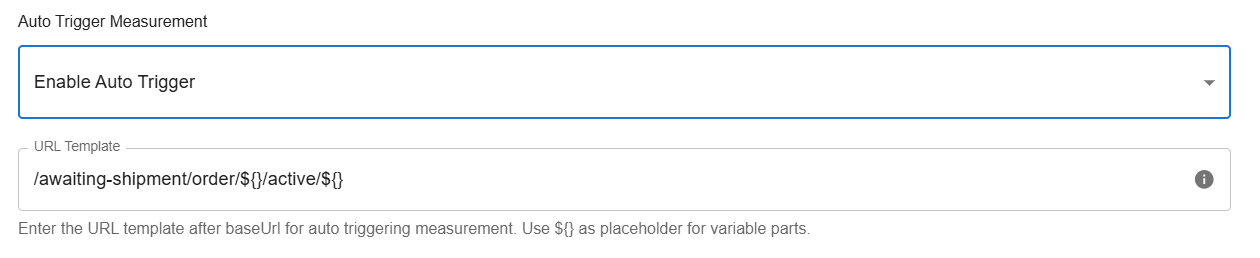 Template - /order/${}/active/${}
Step - 2: Click on "SAVE PROFILE", a pop-up will appear to allow the permissions. Click on "Allow" to grant the permissions to Read & change all your data on website. Post that ShipStation Profile configuration will be saved.
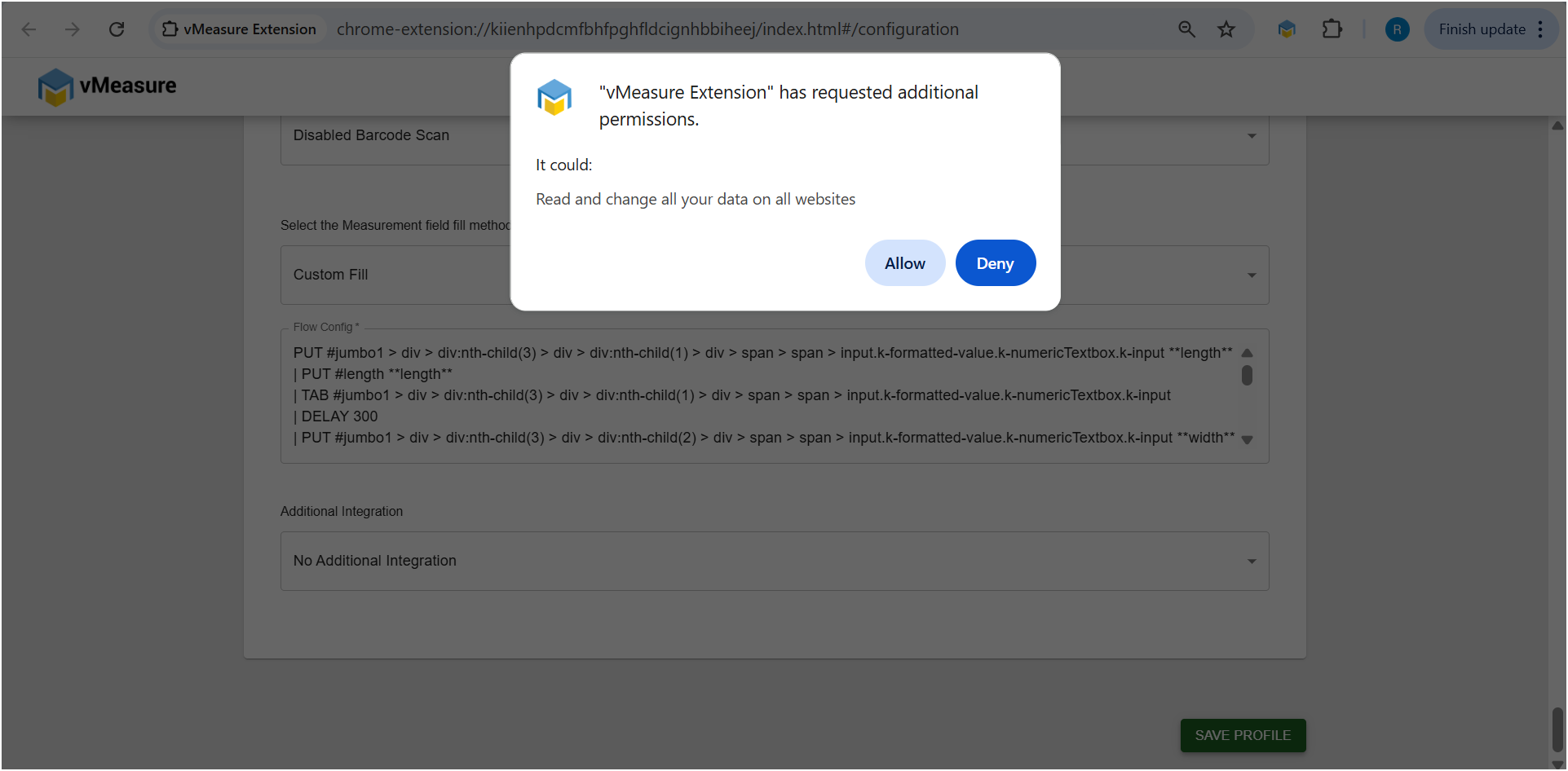
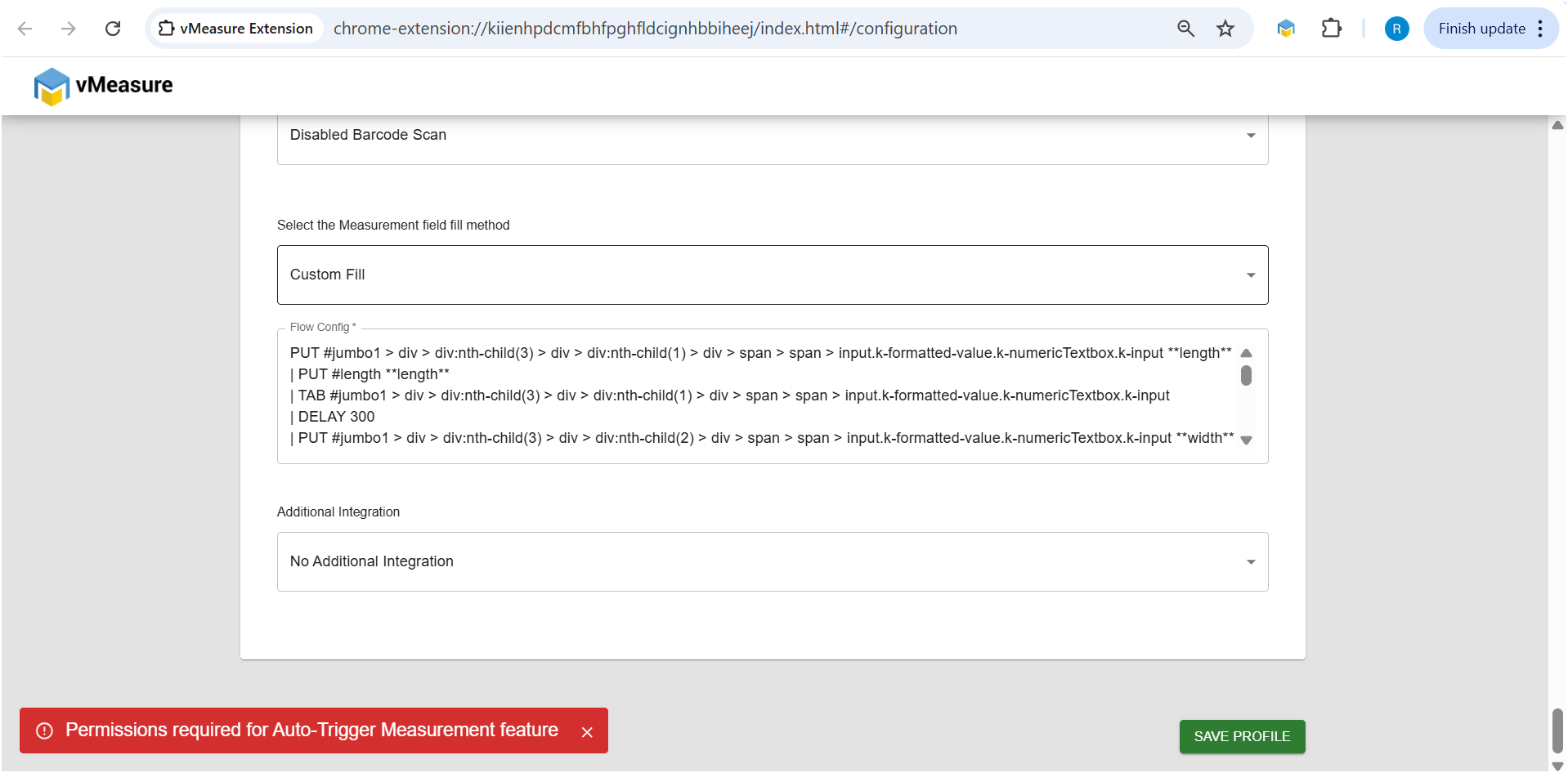
In case of click on "Deny" you will get a error pop-up to allow permissions before saving the configuration.
Navigate to Shipstation orders, open the order number the measurement will be automatically triggered as soon as the order is opened & dimensions & weight will be populated in the desired fields.
If you need any support, please drop a mail to vmeasure@visailabs.com
Was this article helpful?
That’s Great!
Thank you for your feedback
Sorry! We couldn't be helpful
Thank you for your feedback
Feedback sent
We appreciate your effort and will try to fix the article