Removing the Chrome Extension
1. Open the Browser
2. Go to Extensions
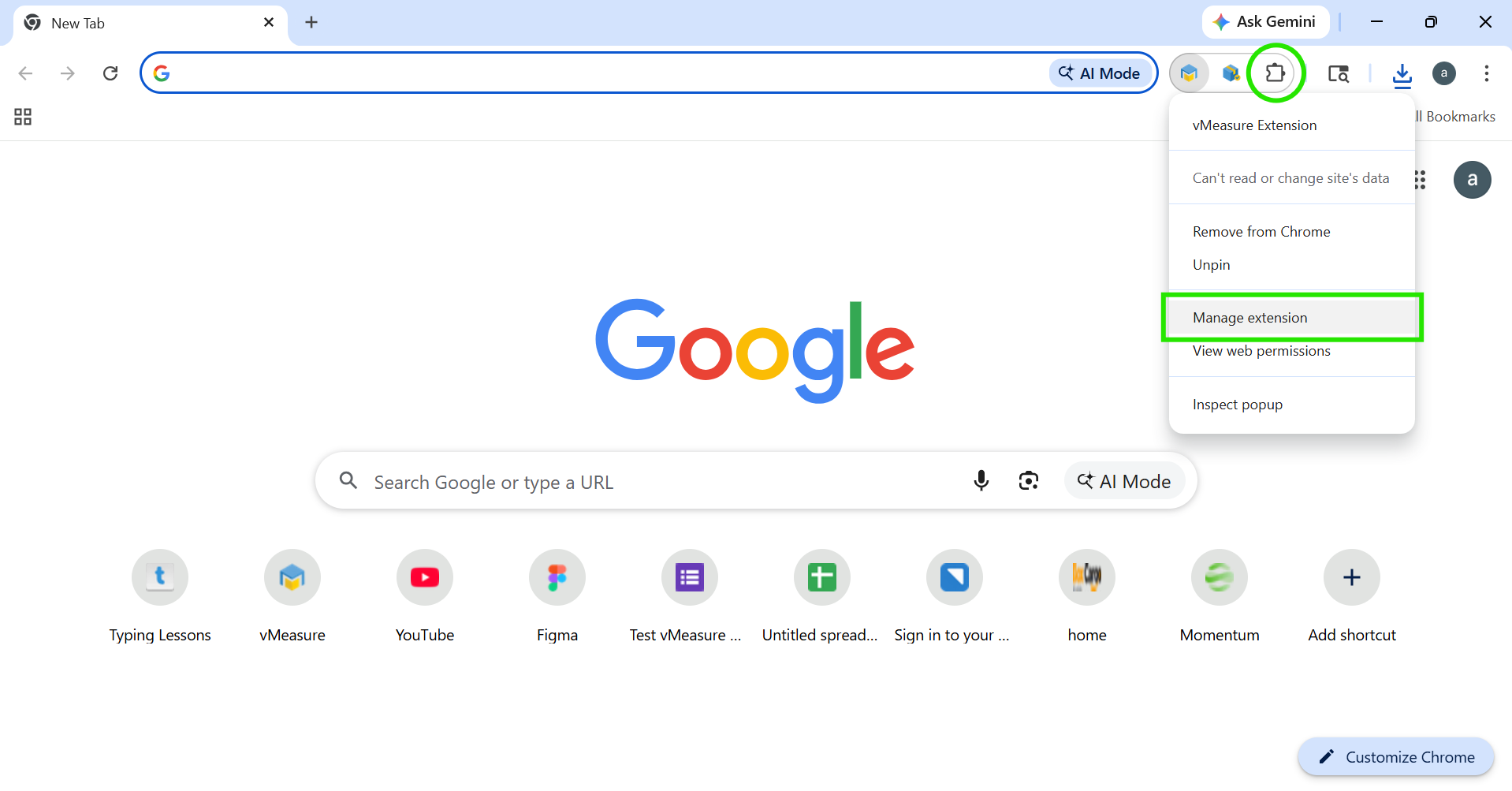
Click on the Extensions icon near the address bar and select “Manage Extensions.”
3. Remove Existing Extension
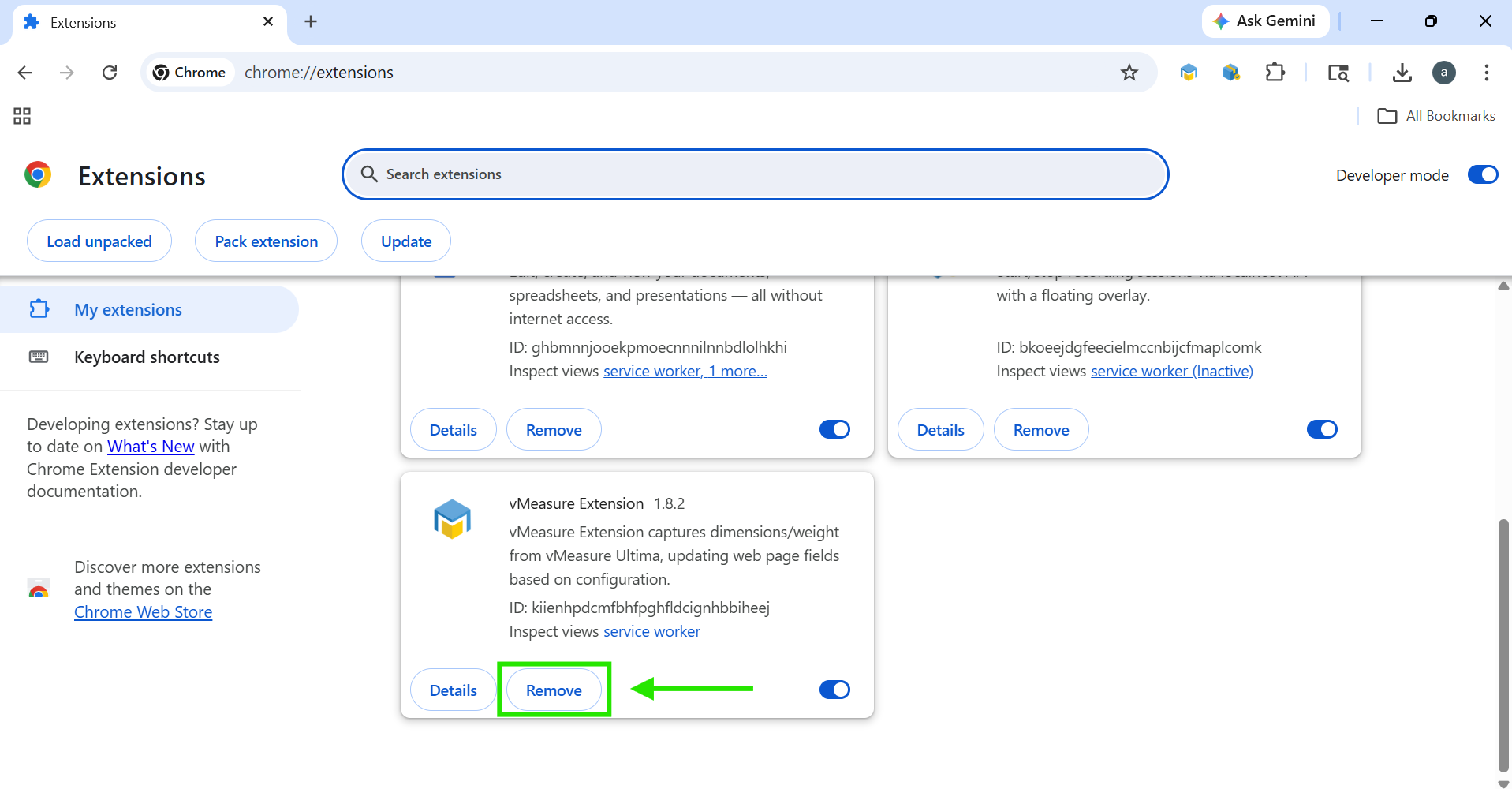
Locate the vMeasure Extension and click the “Remove” button.
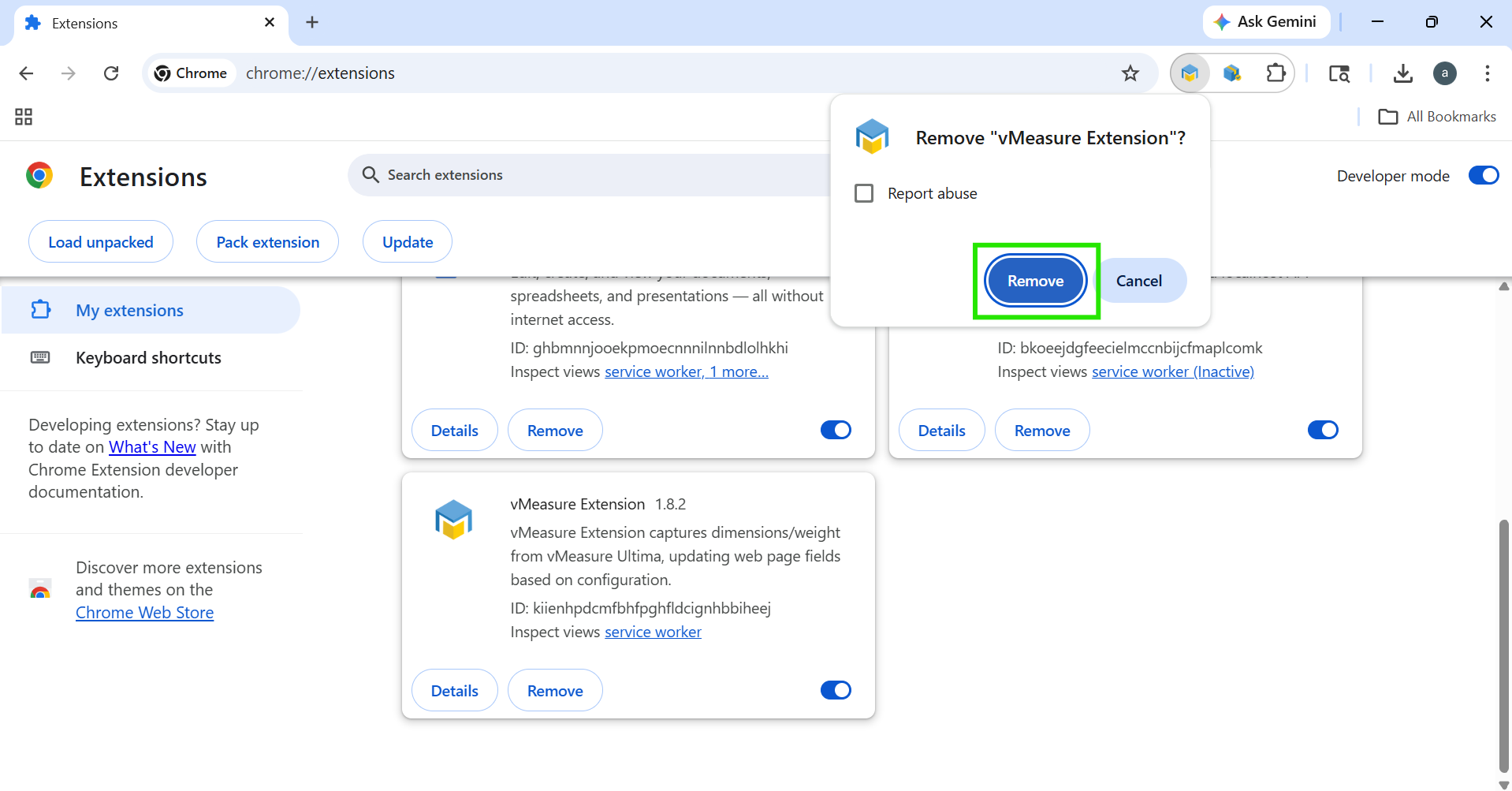
A confirmation pop-up will appear—click “Remove” again to confirm.
4. Extension Removal Complete
The extension will now be successfully removed from the browser.
Installing the Chrome Extension
- Open the browser.
- Search for Chrome Web Store.
- In the search bar, type “vMeasure Extension.”
- Select the vMeasure Extension from the results.
- Click “Add to Chrome.”
- In the pop-up, click “Add Extension.”
- The extension will be added to your browser.
- (Optional) Click the Extensions icon and use the pin icon to pin the vMeasure Extension to the toolbar.
- The vMeasure Extension is now ready to use.
Was this article helpful?
That’s Great!
Thank you for your feedback
Sorry! We couldn't be helpful
Thank you for your feedback
Feedback sent
We appreciate your effort and will try to fix the article