Download Chrome Extension
1. Open Google chrome or Chromium browser
2. Copy paste the below URL in the browser
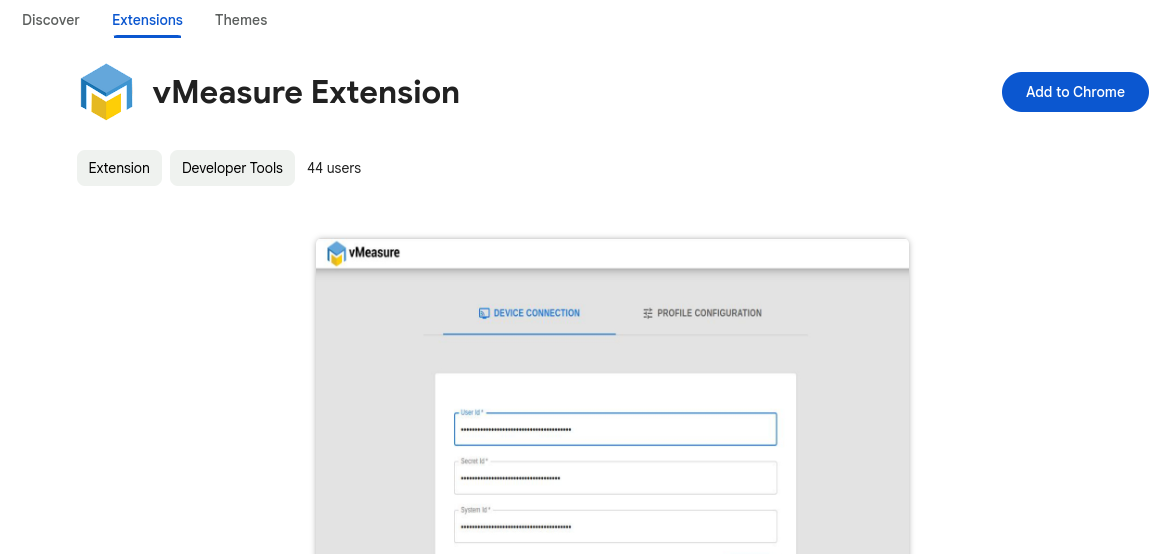
3. Click "Add to Chrome" button and Install the extension.
4. Pin the extension, for quicker access.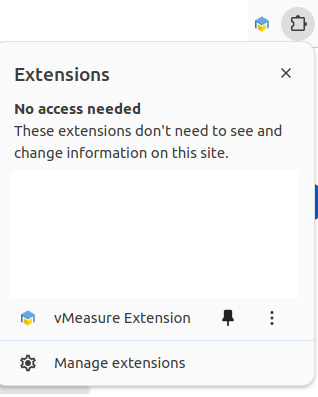 5. Click the vMeasure Logo near the address bar and click the settings icon. You will be open up a new tab which has Device connection and Profile configuration options.
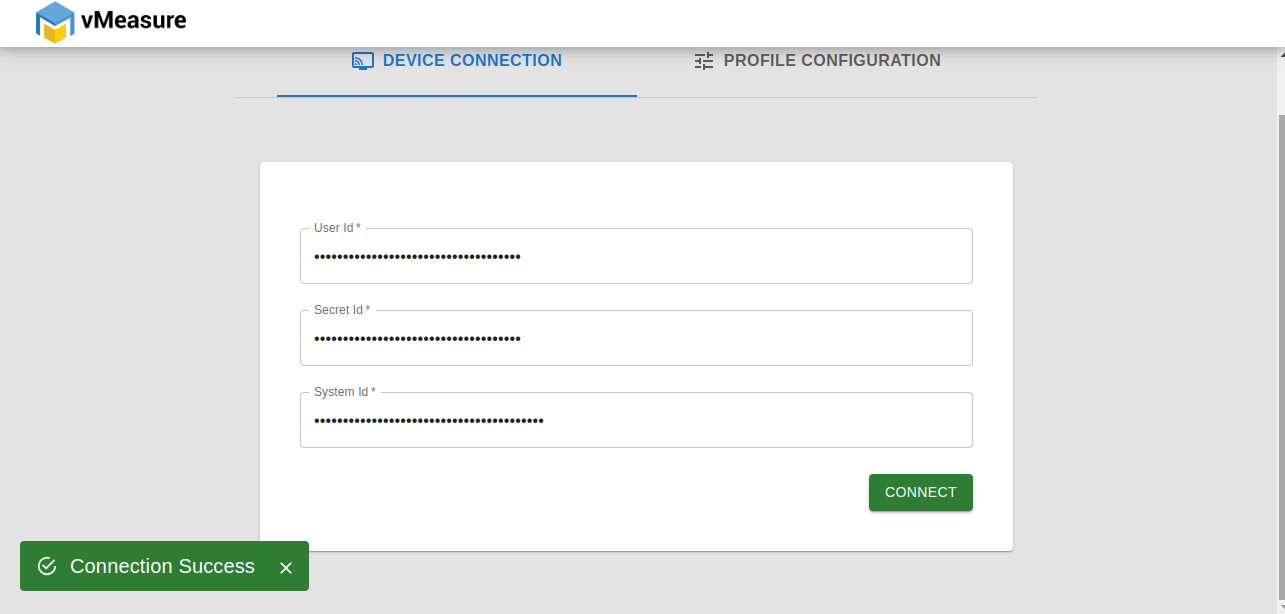
6. Device Connection:
- Update user id, secret ID and system ID from Forge portal. To get the required ID please look the below article link,https://vmeasure.freshdesk.com/support/solutions/articles/88000057888-how-to-obtain-credentials-for-slave-mode-
- Click connect button, you would be receiving "Connection Success" message.
7. Profile Configuration
- Click "ADD PROFILE" button, to add your first profile, you can also add multiple profiles.
- Once you clicked "ADD PROFILE" button, you will be asked to enter the below details,
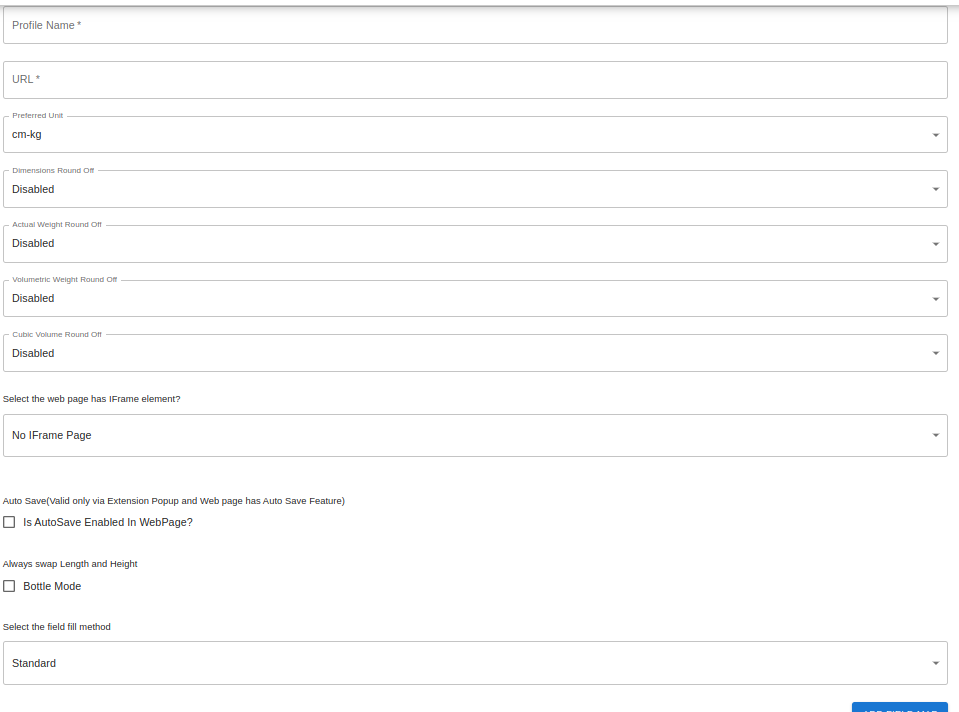
- Profile Name - Its a user defined name, it should be unique across profiles
- URL - Its the address of the webpage, where we plan to update the measurements.
- Preferred Unit - The unit option should be same as vMeasure system.
- Dimension Round Off - By Default, its Disabled. You have three options Nearest, Ceil, Floor. Based on the selected option dimension data will be changed and updated in the webpage.
- Actual Weight Round Off - By Default, its Disabled. You have three options Nearest, Ceil, Floor. Based on the selected option Actual weight will be changed and updated in the webpage.
- Volumetric Weight Round Off - By Default, its Disabled. You have three options Nearest, Ceil, Floor. Based on the selected option Volumetric weight will be changed and updated in the webpage.
- Cubic volume Round Off - By Default, its Disabled. You have three options Nearest, Ceil, Floor. Based on the selected option cubic volume will be changed and updated in the webpage.
- The webpage has IFrame element - Select this option based on your web page design.
- Is AutoSave Enabled in WebPage - Enable this option if the webpage does not separate save button to save your data.
- Bottle Mode - It will swap the length and Height.
- Fill Method - Standard and Custom fill are the two options available.
- Standard
- Click "ADD FIELD MAP" button.
- Select the Field Name from the drop down. For example Length.
- In the selector, paste the selector of the element in the webpage.
- Do the same process for the width, height and weight.
- Save profile.
- Custom Fill
- This option is required when the standard option won't fit for the webpage. Contact vmeasure support.
- Standard
- Click the vMeasure Icon and do measurement from your webpage(WMS/TMS).
Basic Demo
Was this article helpful?
That’s Great!
Thank you for your feedback
Sorry! We couldn't be helpful
Thank you for your feedback
Feedback sent
We appreciate your effort and will try to fix the article