The first step in system initialization is to specify your site details on the application.
Step 1: Login to Forge using your credentials: https://forge.vmeasure.ai/
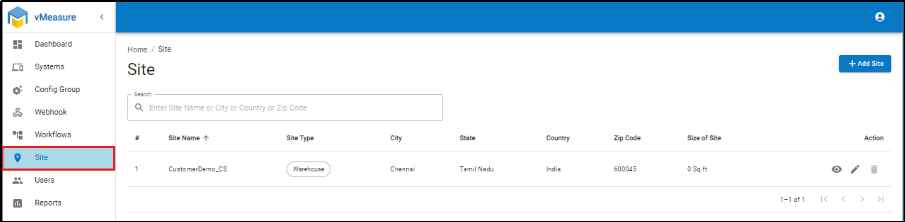
Step 2: Navigate to the ‘Site’ tab on the left corner of the screen as shown in the image below:
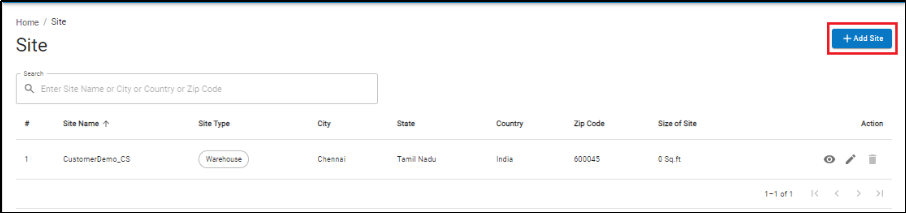
Step 3: Click on the ‘Add Site’ button indicated on the image below:
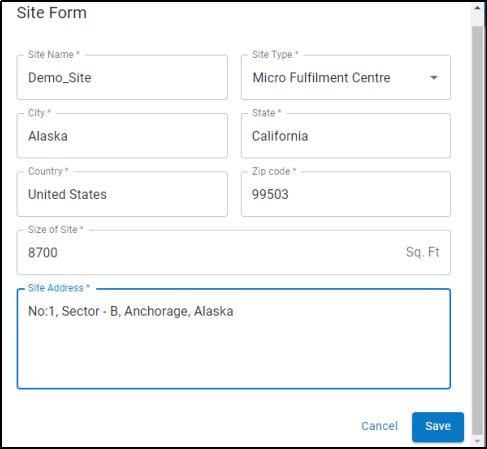
Step 4: Enter the details of the site
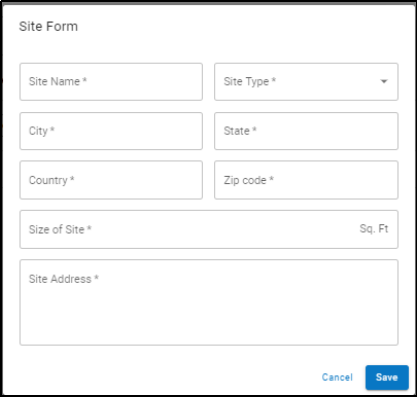
Step 4a: Select the ‘Site Type’ from the dropdown.
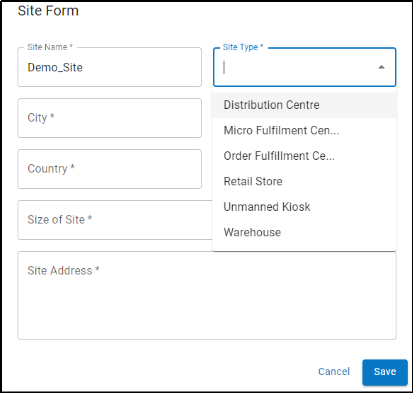
Step 5: Click ‘Save’ after completion
Assign site to a system:
This step will allow you to assign your site to the device. If you have more than one site, then here is where you allocate specific devices to specific sites.
Step 1: Click on the ‘Systems’ tab on the left corner of the screen.
Step 2: Select the desired system to which you would like to assign a site.
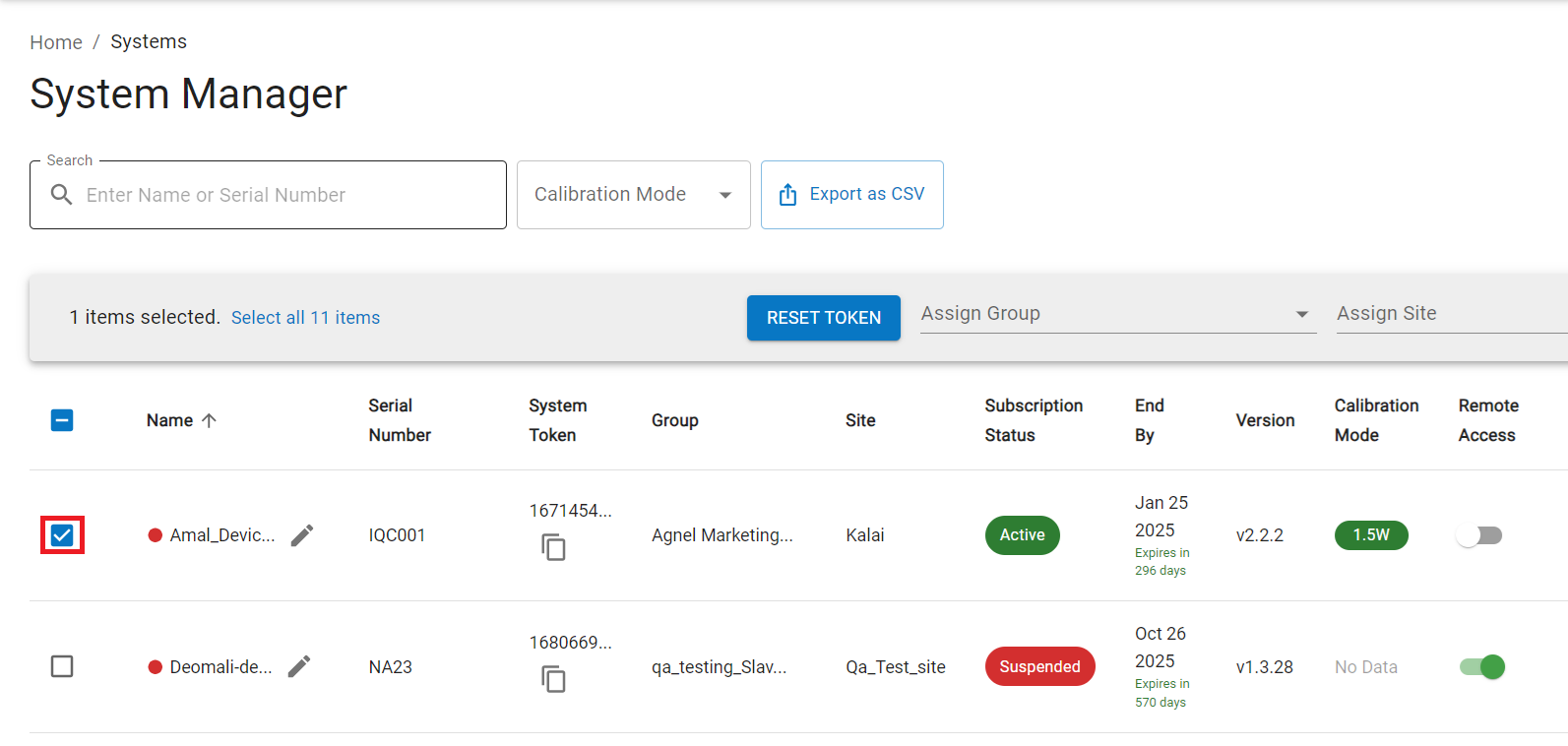
Step 3: Click the ‘Assign Site’ dropdown on the right corner of the screen. Choose the site from the dropdown.
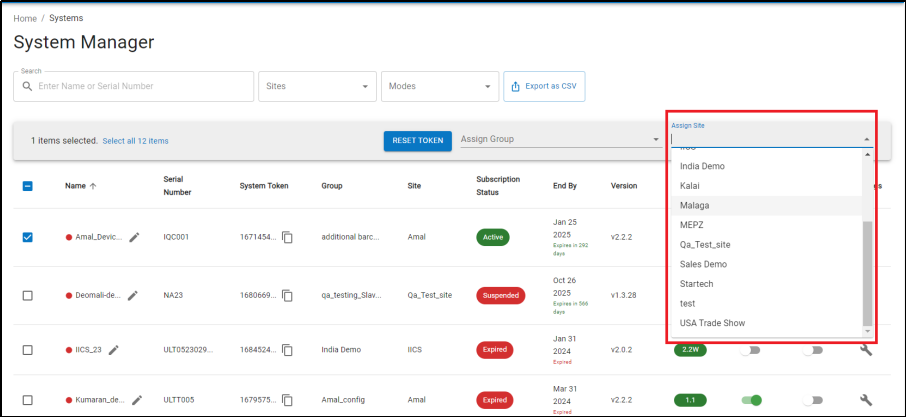
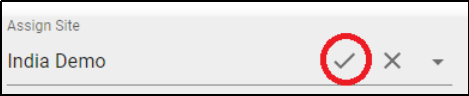
Step 4: Confirm the selection by clicking the tick button.
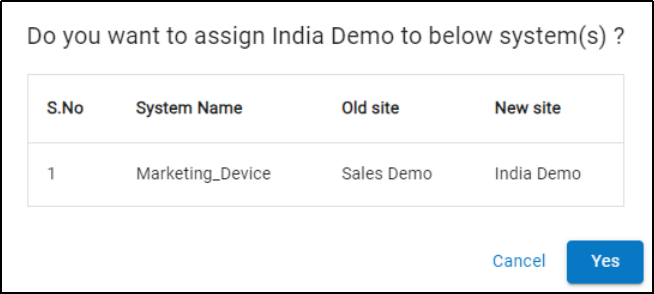
Step 5: A Confirmation pop up appears displaying old site and new site. Click ‘Yes’ to confirm your selection.
Step 6: Once Clicked ‘Yes’, you have successfully updated the site. After selecting the site, click the Reload button above the ‘Assign Site’ button for the assignment to take effect.
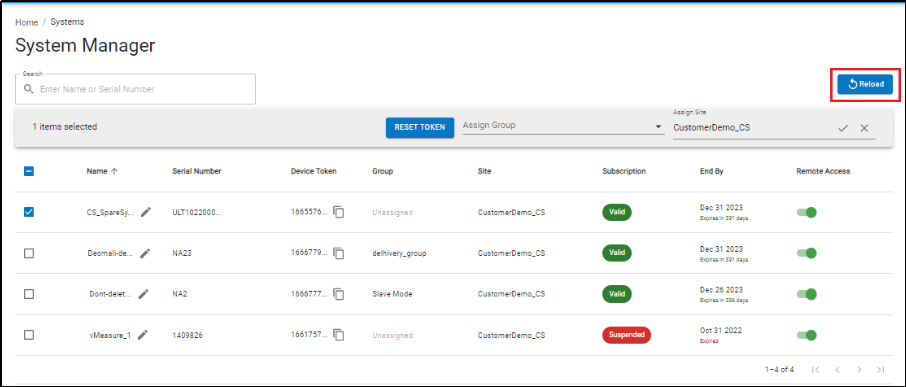
With that step, you have successfully assigned a system to your site.
If you need any support , please drop a mail to vmeasure@visailabs.com
Was this article helpful?
That’s Great!
Thank you for your feedback
Sorry! We couldn't be helpful
Thank you for your feedback
Feedback sent
We appreciate your effort and will try to fix the article