How to configure the network for vAudit in Device,
Network Configuration Requirements:
Network configuration is required when the vAudit connects to a Wi-Fi network or Ethernet with a static IP.
Note: The vAudit is designed to take a default IP in DHCP mode, so in most cases, manual configuration is not necessary. However, if needed, follow the steps below.
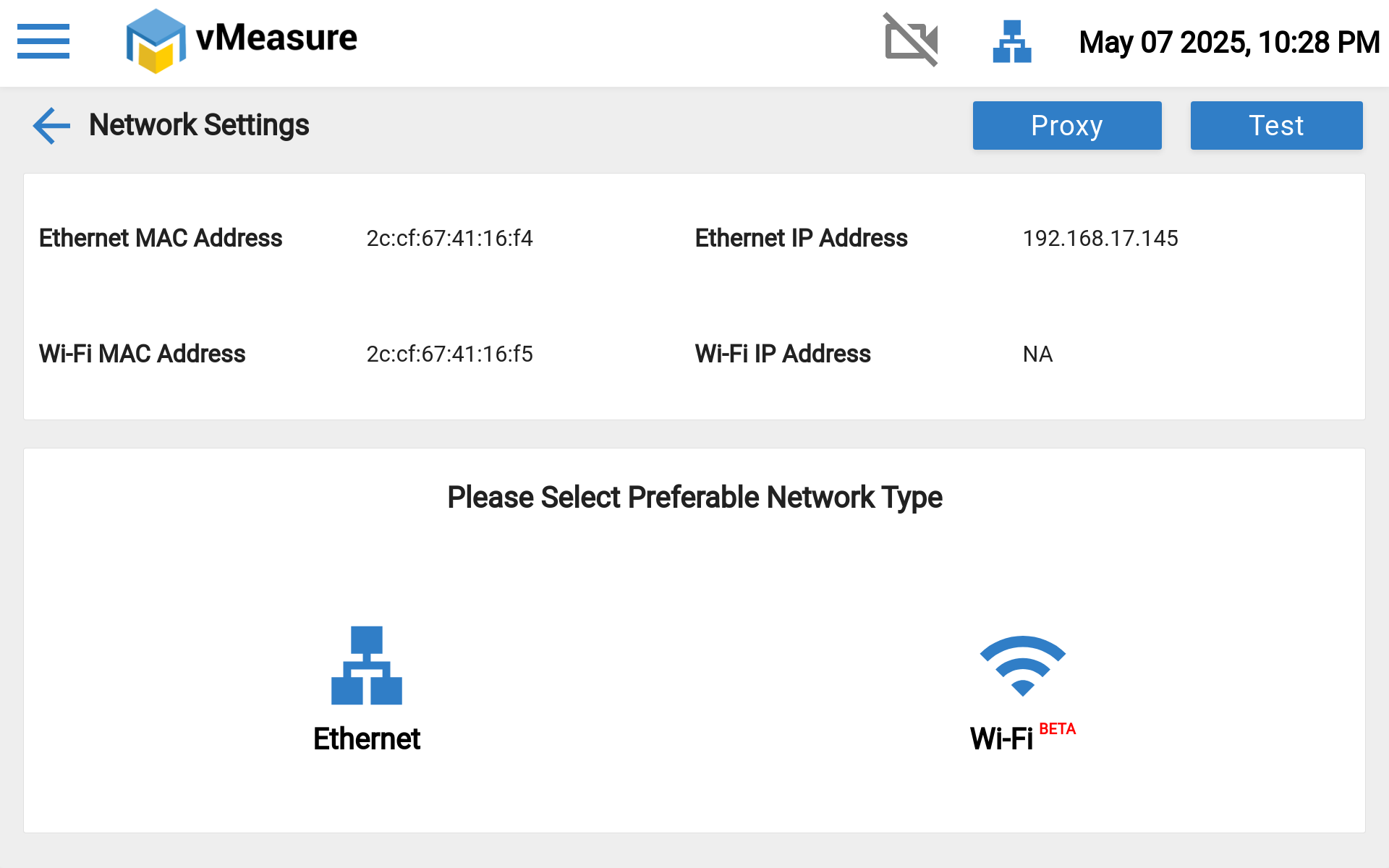
Step 1: Navigate to "Main Menu", Then click the "Network" option.
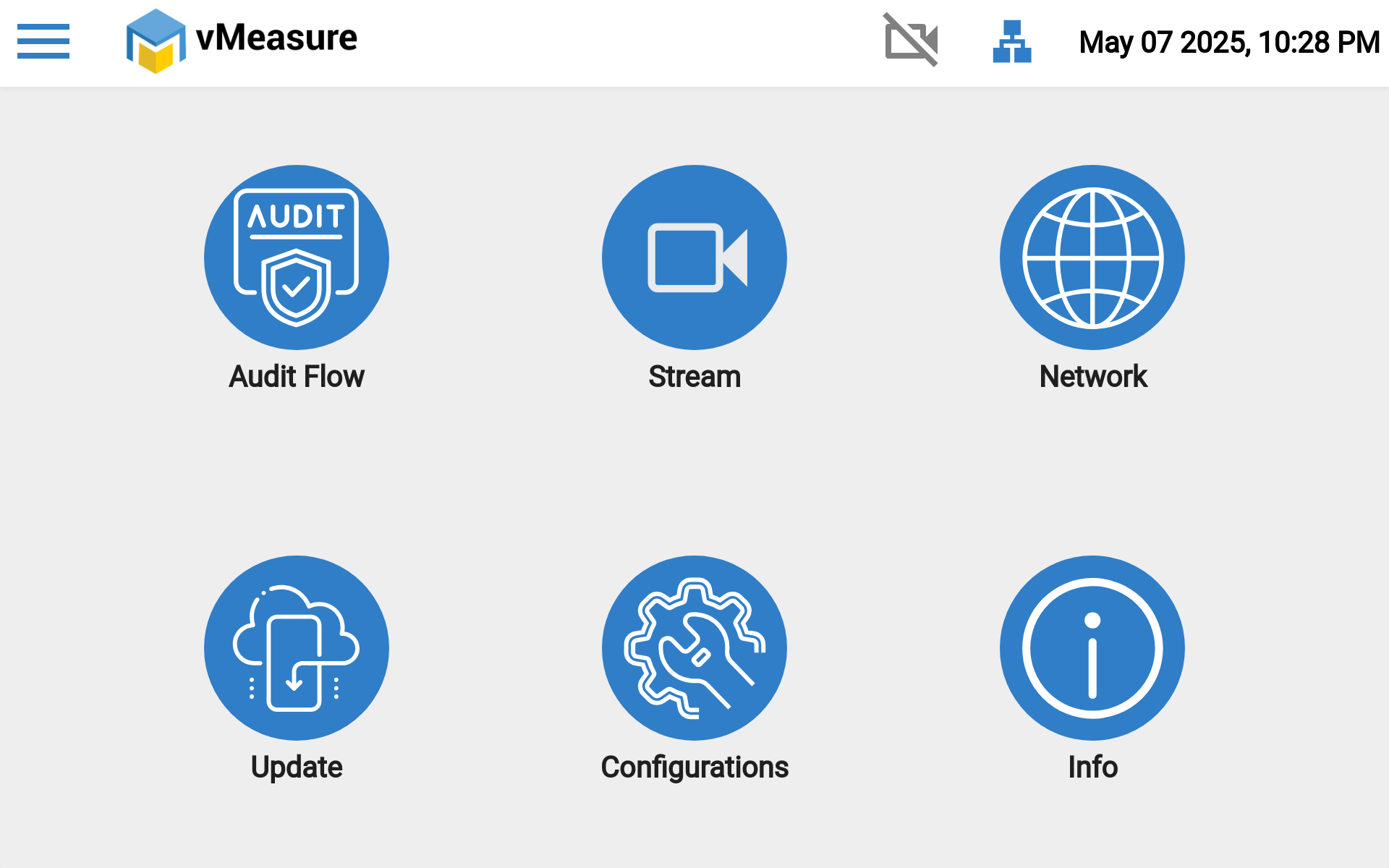
Steps for Network Configuration Over Ethernet:
Step 2: Click on Ethernet and select the Edit icon.
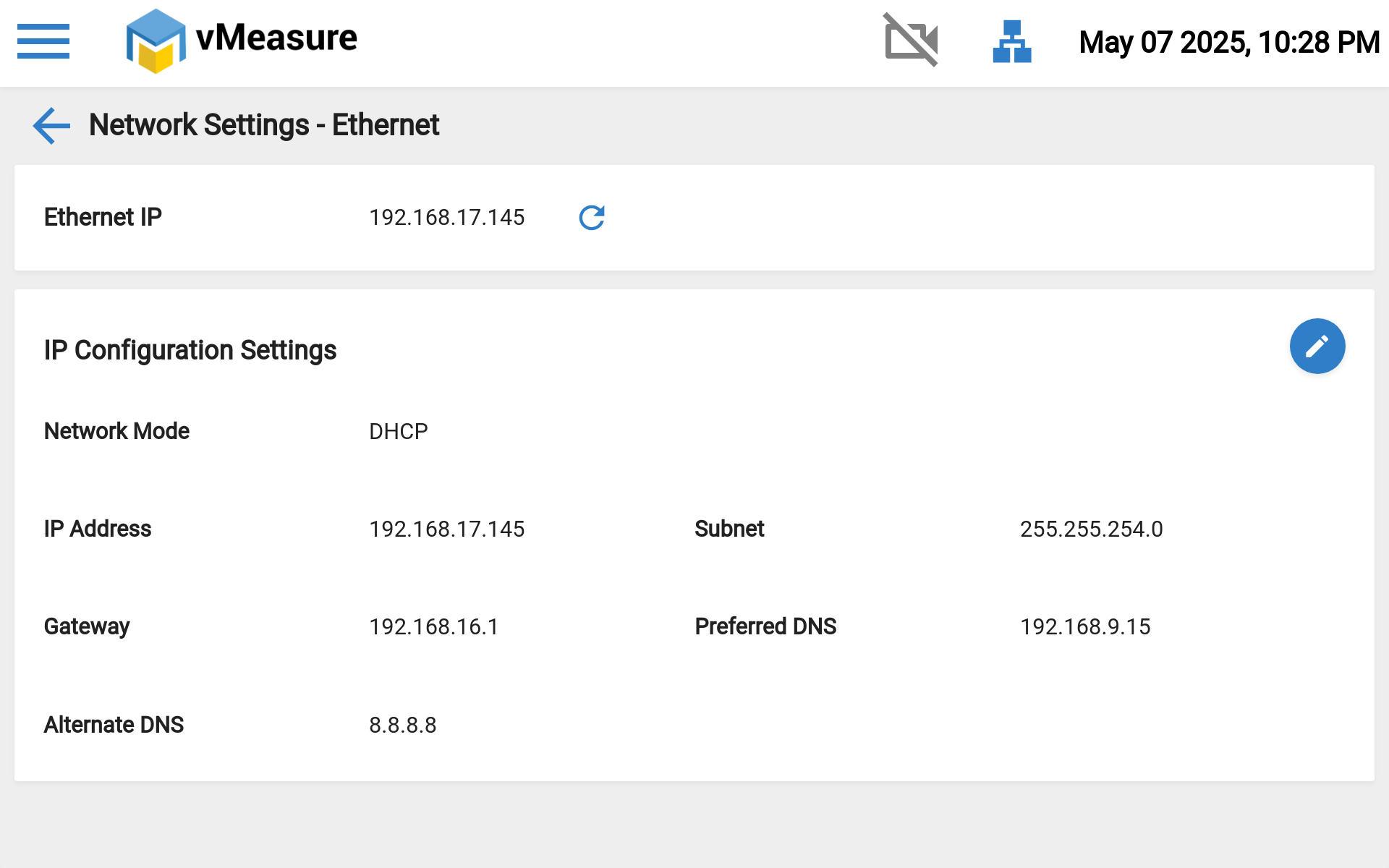
Step 3: Change the network mode from DHCP to Static IP.
Step 4: Enter the required network details (Static IP, Subnet Mask, Gateway, and DNS).
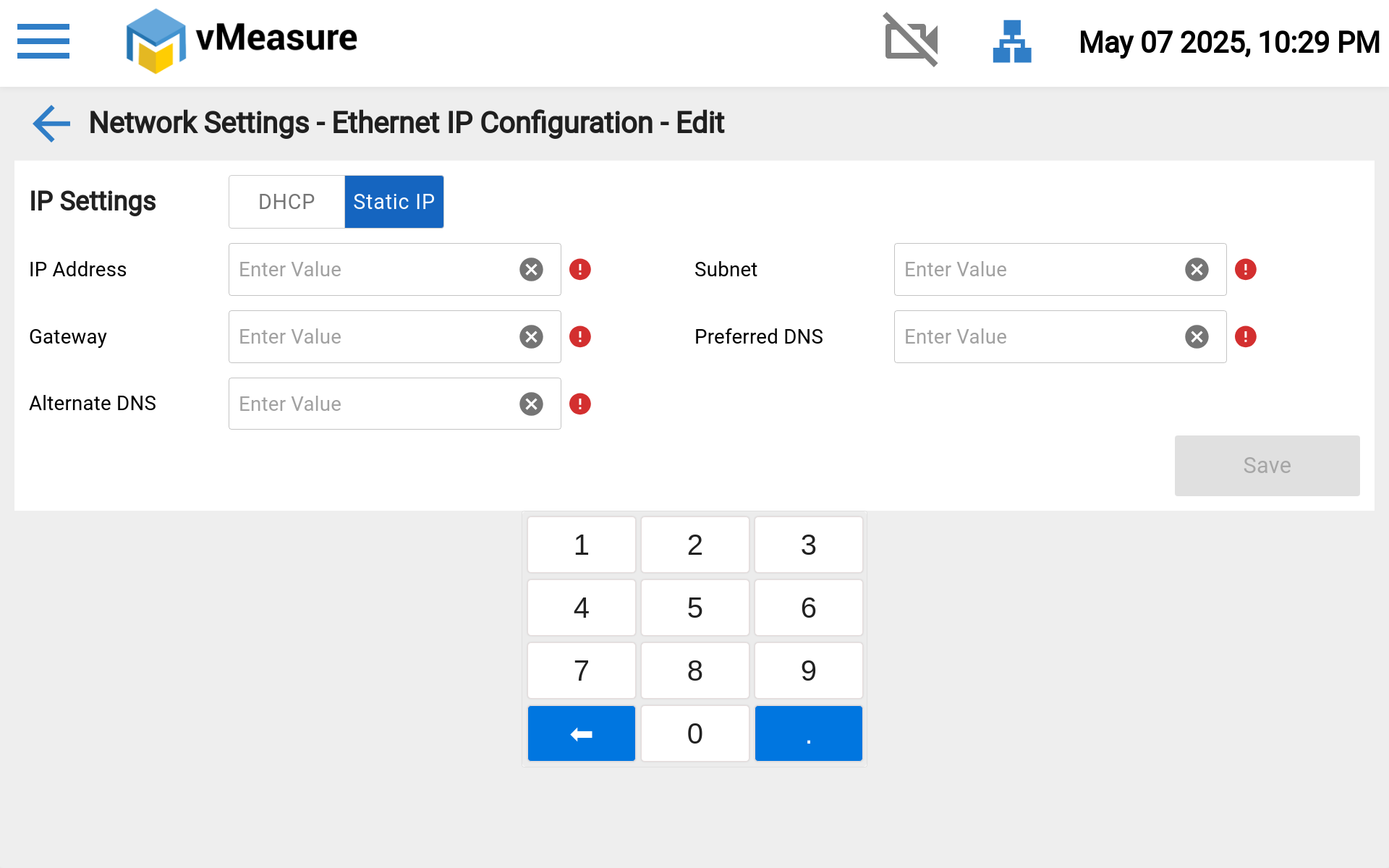
Step 5: Click Save to apply the changes.
Steps for Network Configuration Over Wi-Fi:
Step 6: Click Back, then select Wi-Fi.
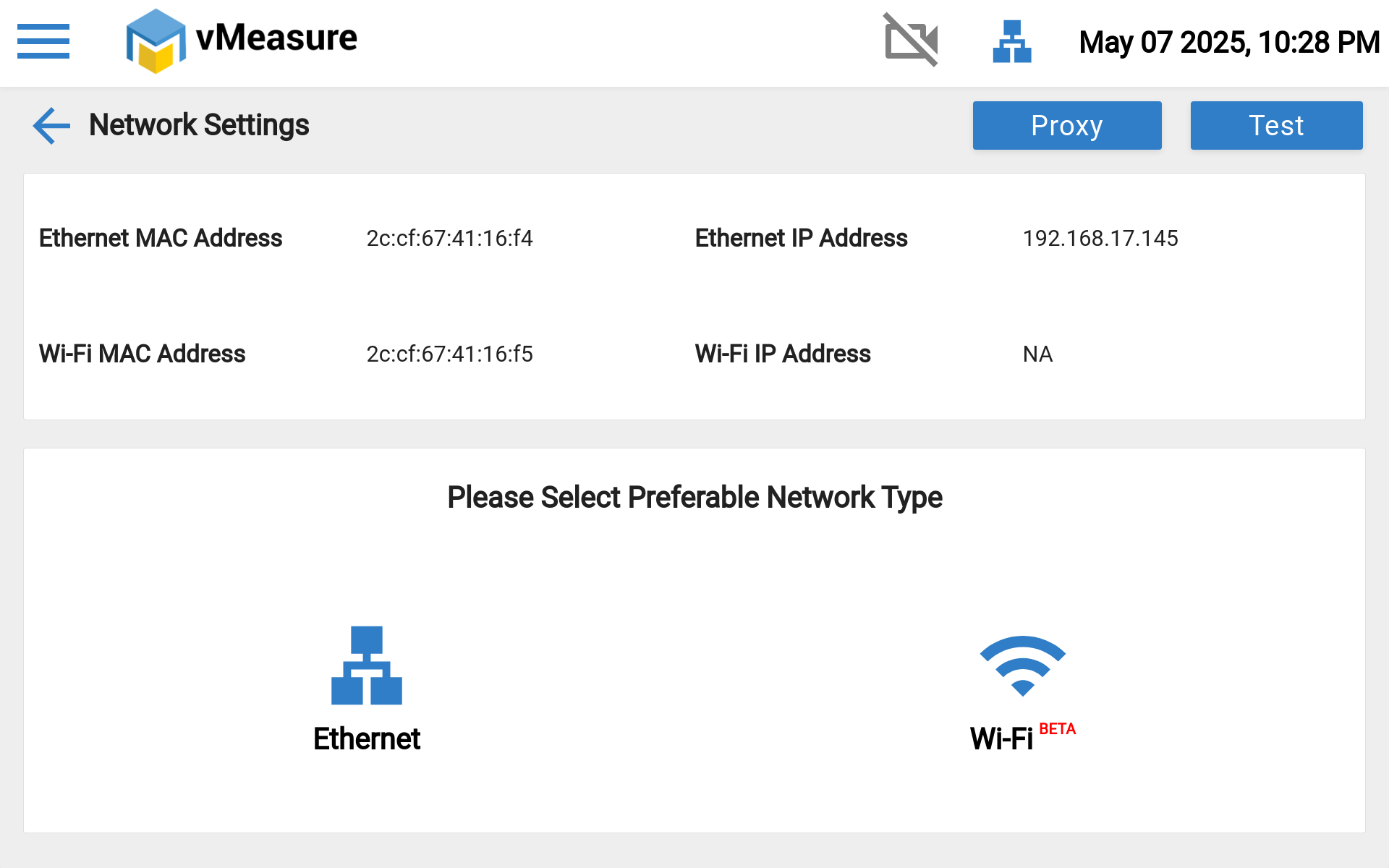
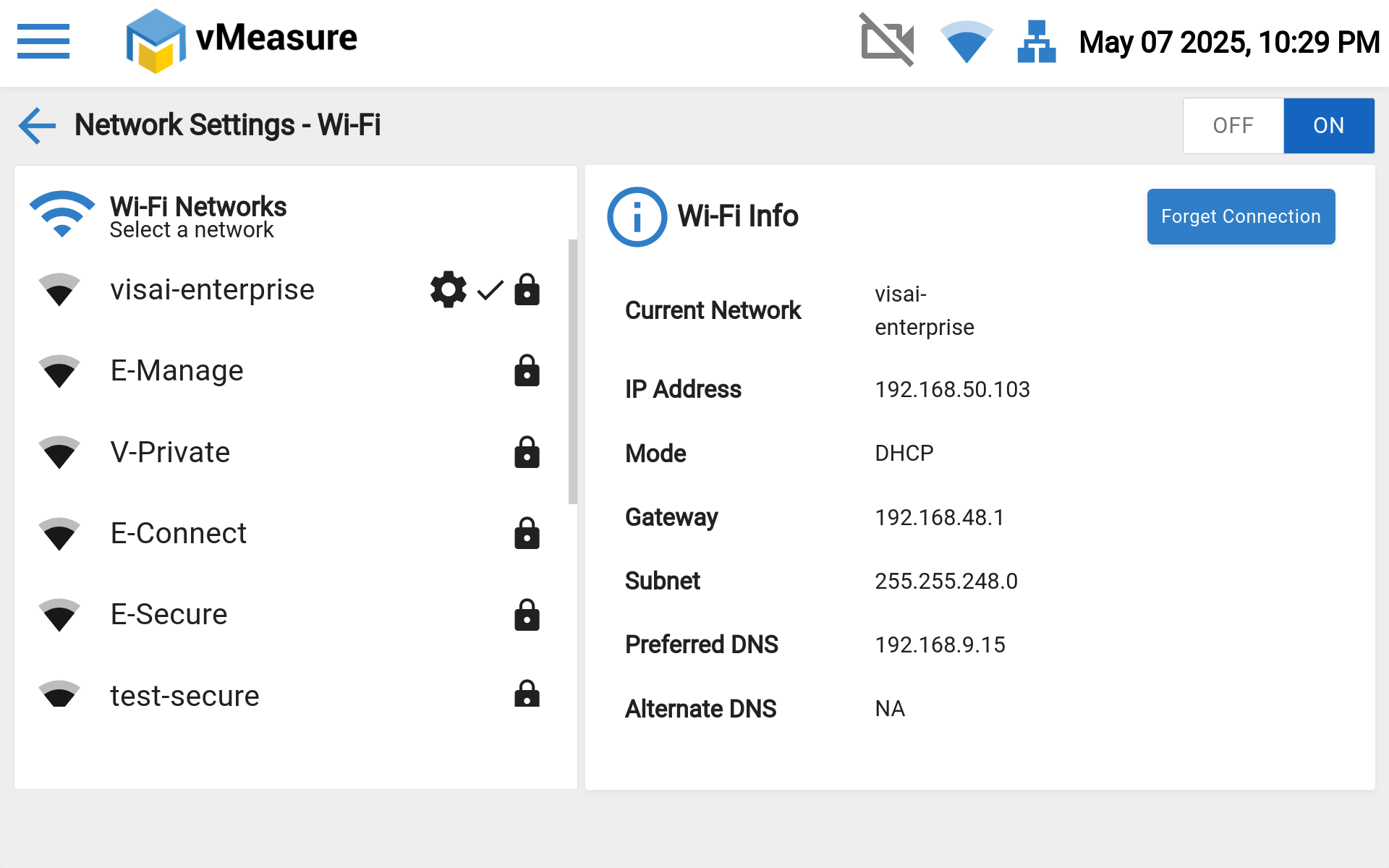
Step 6: Turn on Wi-Fi, choose the appropriate network, enter the password, and click Connect.
Once connected, a Wi-Fi symbol will appear on the display, confirming the connection.
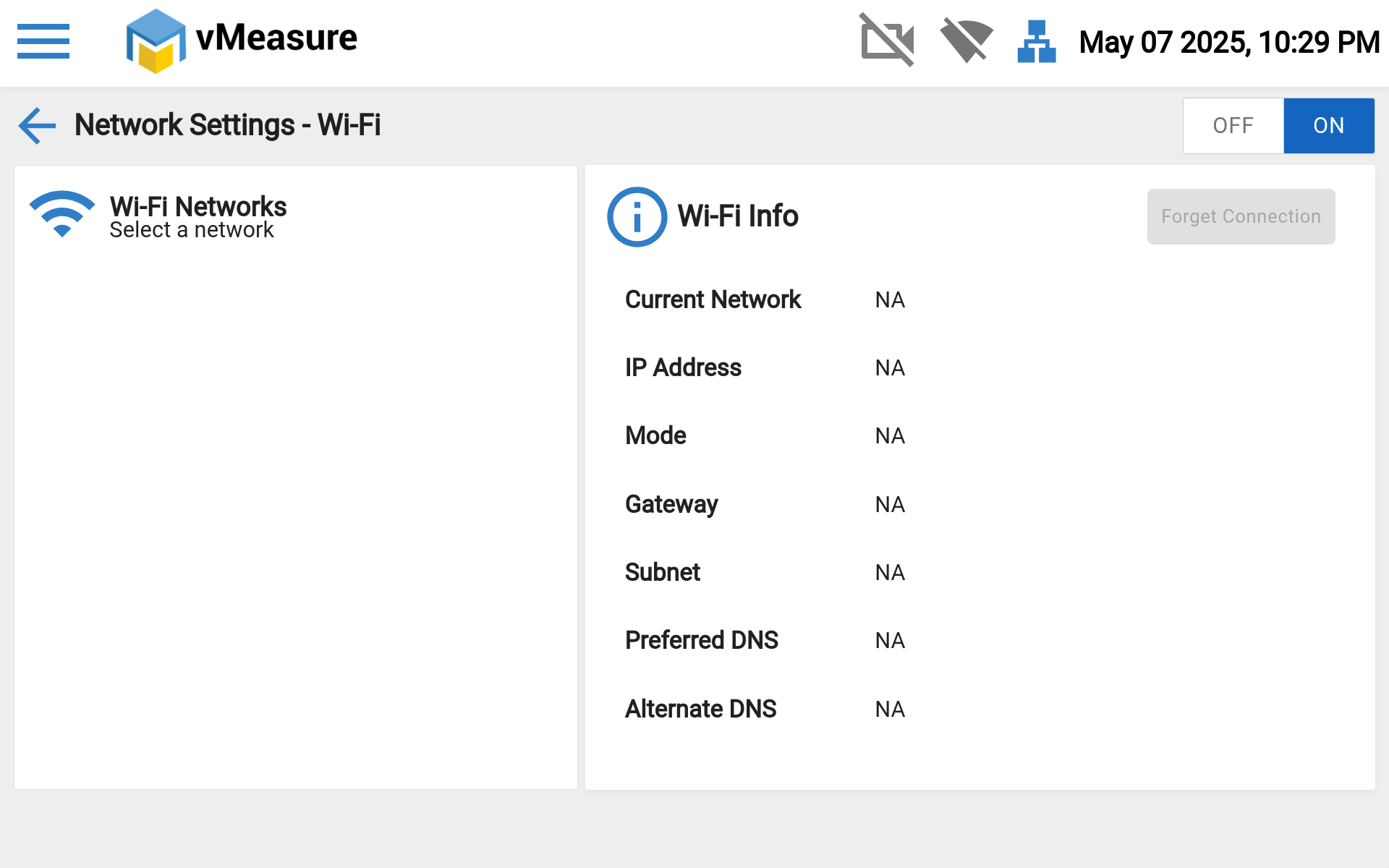
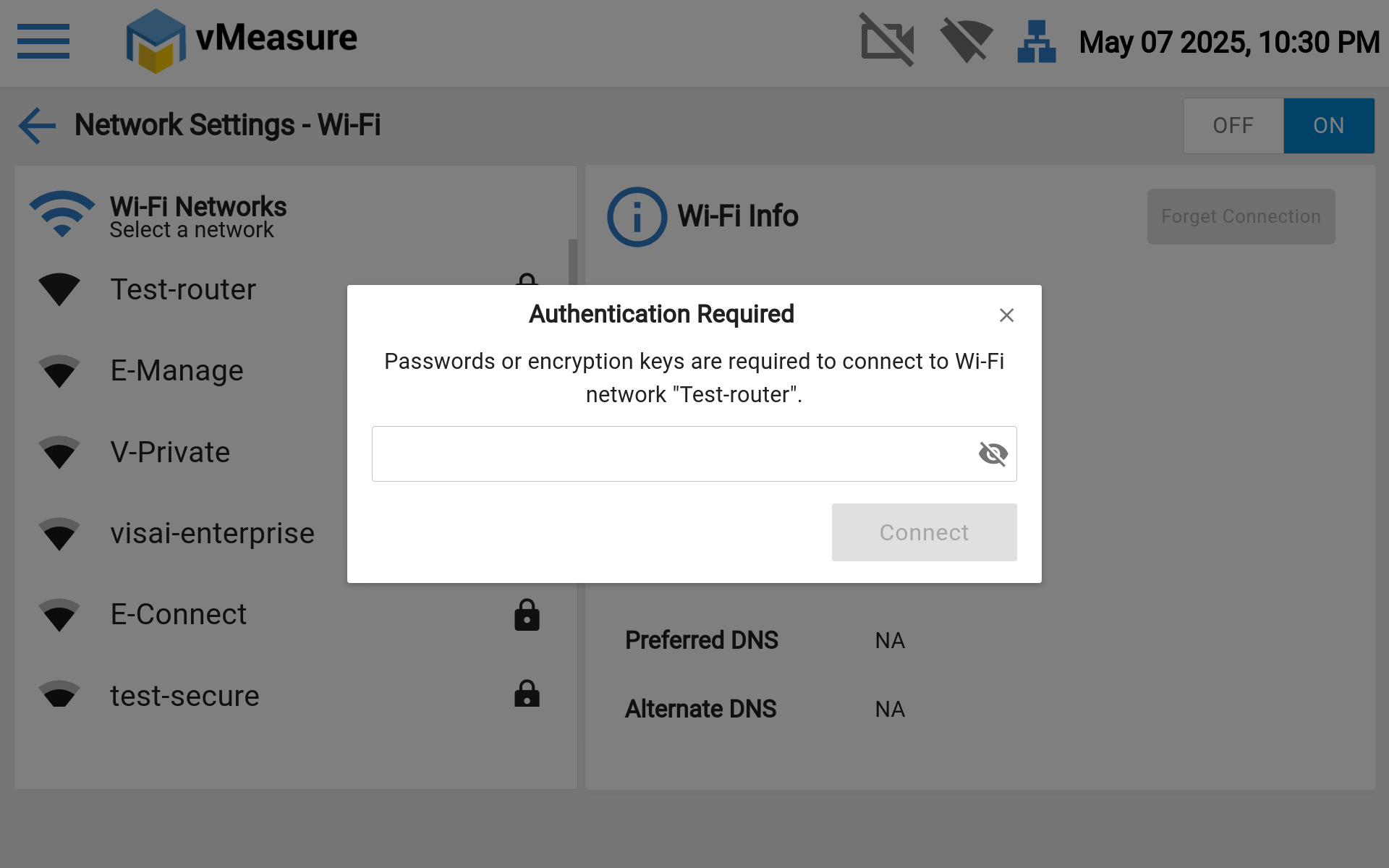
NOTE: To connect to a Wi-Fi network you need to connect a physical USB keyboard to the vAudit USB port to enter the password.
If you need any support , please drop a mail to vmeasure@visailabs.com or Click Here to Summit a Ticket.
Was this article helpful?
That’s Great!
Thank you for your feedback
Sorry! We couldn't be helpful
Thank you for your feedback
Feedback sent
We appreciate your effort and will try to fix the article