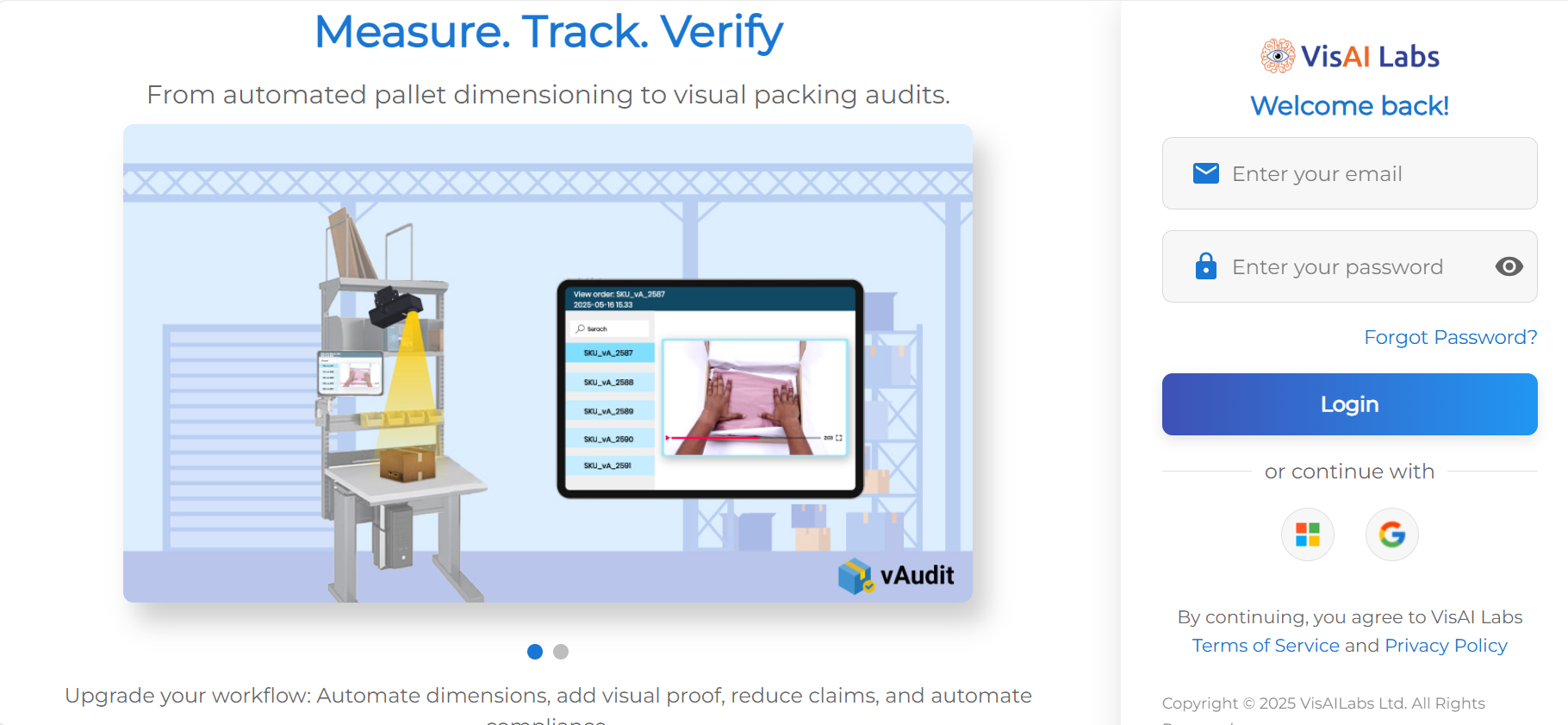
Step 1: Login to your forge account using your login credentials.
Step 2: Once on the Dashboard, go to "Workflows" page.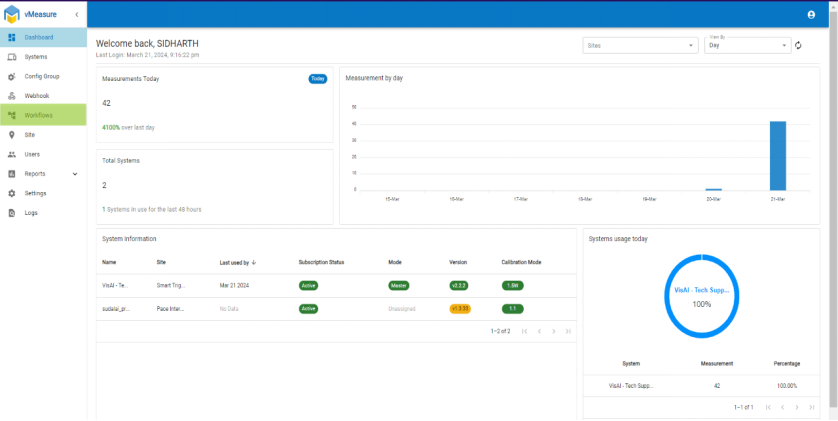
Step 3: On the workflows page select the workflow currently assigned to the device, and click the edit icon (Here we are using the workflow named Test1234).

Step 4: Once inside the workflow page navigate to second page and scroll down to “Upload Mode”

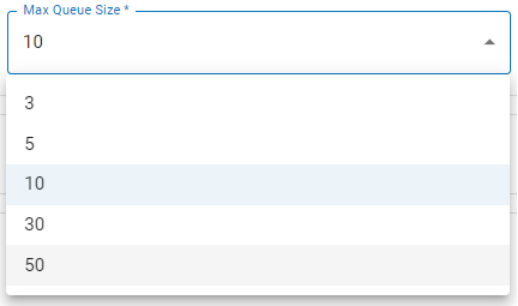
Step 5: Select “Asynchronous mode” and set “Max Queue Size” to 50.
NOTE:
This setting will allow you to scan up to 10 shipments before the device shows “STORAGE IS FULL” message on display.
Further need to check the network connection.
Once the network is stable or up automatically the stored data will be pushing to Forge.
If you need any support , please drop a mail to vmeasure@visailabs.com.
Was this article helpful?
That’s Great!
Thank you for your feedback
Sorry! We couldn't be helpful
Thank you for your feedback
Feedback sent
We appreciate your effort and will try to fix the article