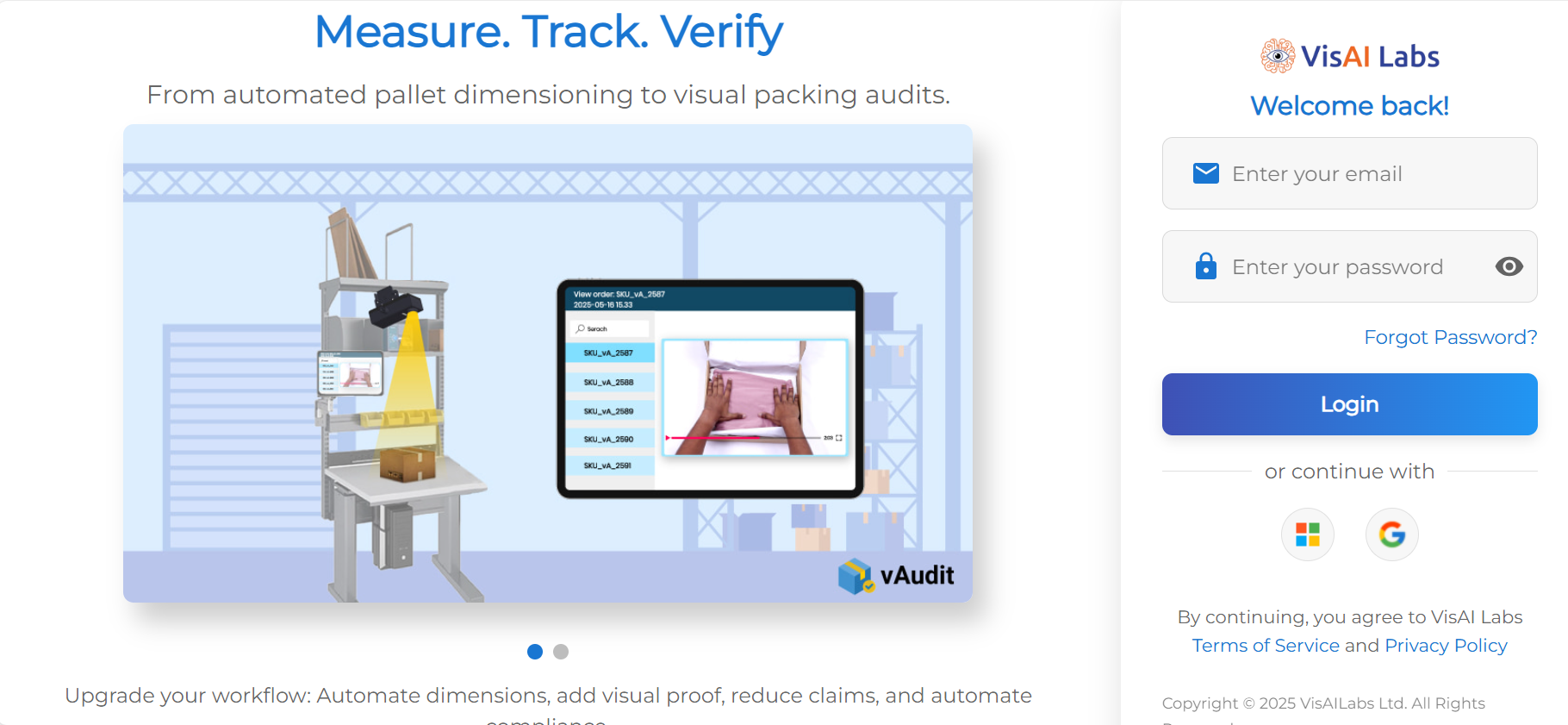
Step 1: Login to Your Forge Account
To begin, go to the Forge login page. Use your registered email ID and password to sign
in.
- You can also choose to sign in using Microsoft or Google accounts.
- If you’ve forgotten your password, click on “Forgot Password?”
Step 2: Access the Reports Section
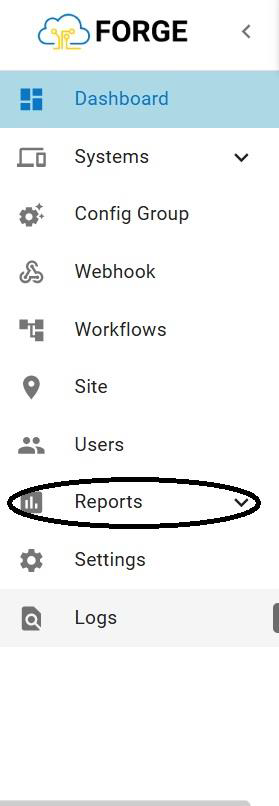
Once you’ve successfully logged in, look at the left side of your screen to find the sidebar
menu.
- Click on the “Reports” option.
- It is located below “Users” and above “Settings.”
- In the image below, the Reports option is clearly circled in black for easy identification.
Step 3: Select the Specific Report
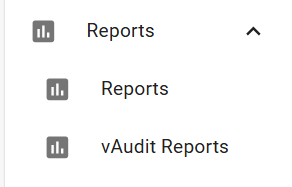
After clicking on the “Reports” option in the sidebar: - A dropdown or submenu will appear with multiple report options. - Click on the first “Reports” item listed under the dropdown. - This will open the detailed report view.
Step 4: Use the Barcode and Filter Options
In the Reports section, you can refine your search using several filters to quickly locate the data you need.
Barcode Search Options: -
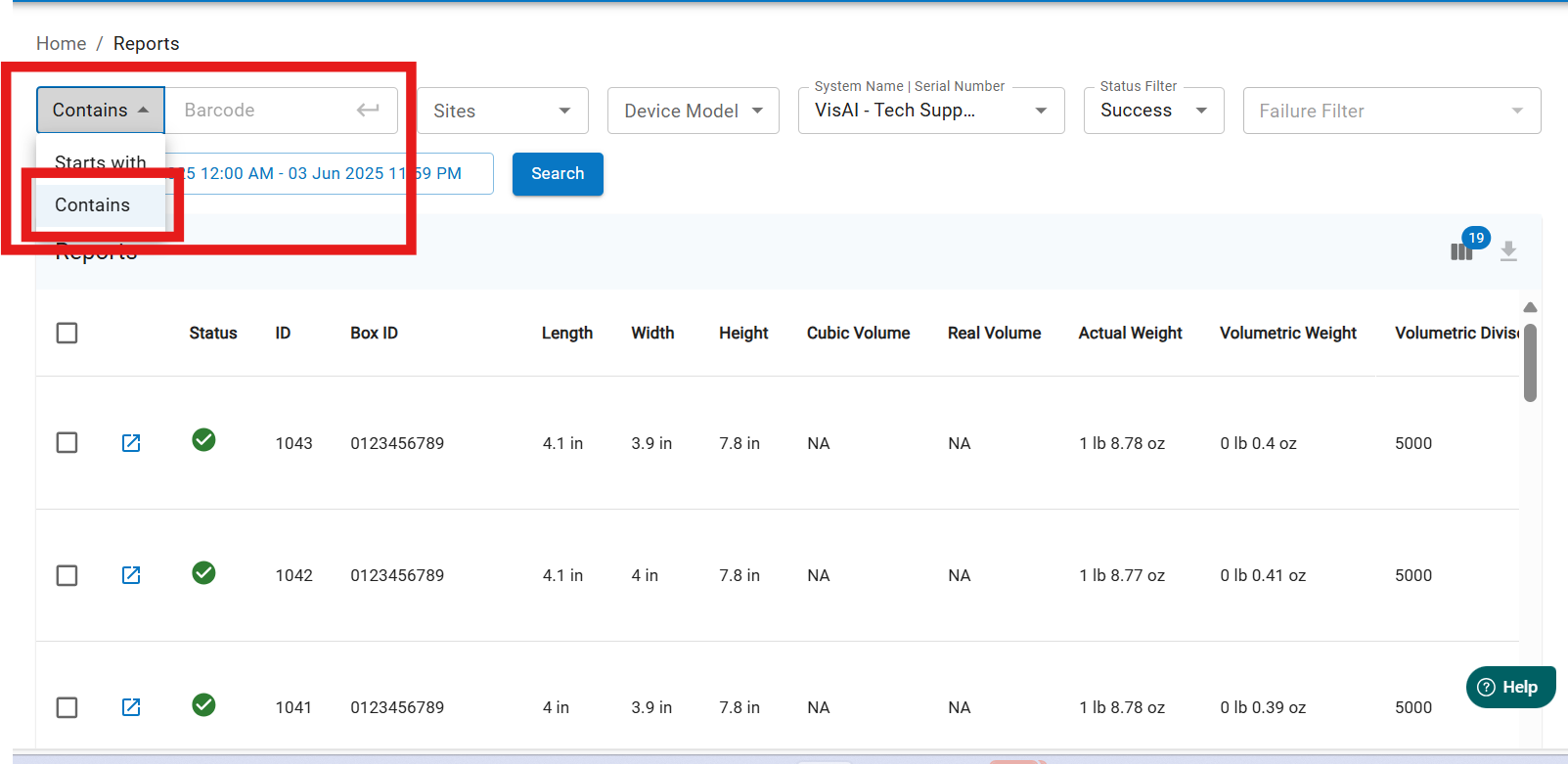
1. Starts With: Search for barcodes that begin with specific characters.
Example: If a barcode is 1234, searching with Starts With: 1 will show all barcodes starting with 1.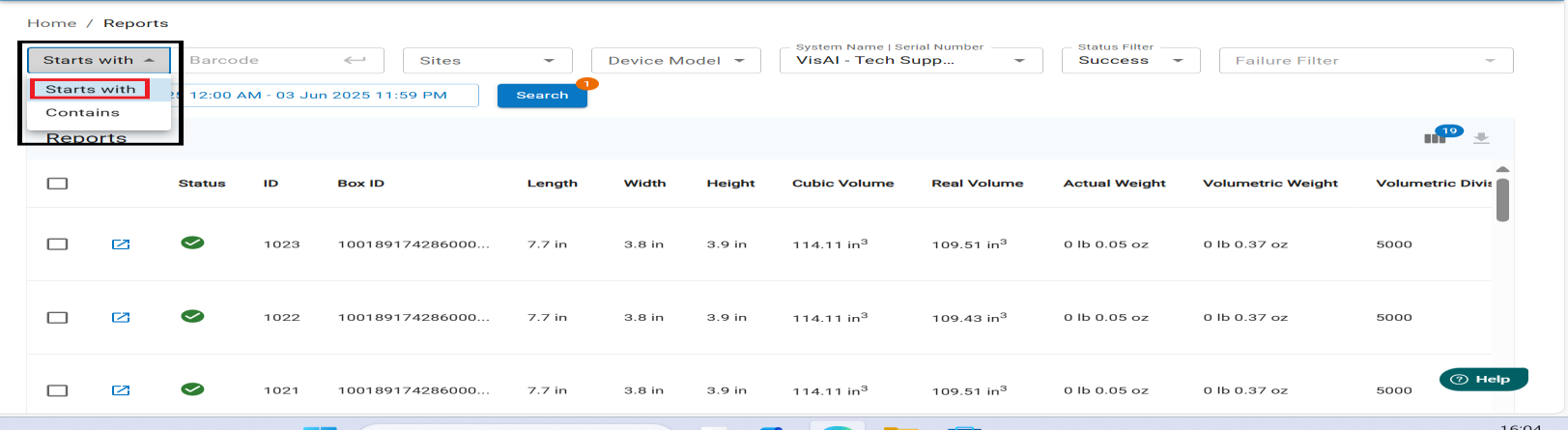
2. Contains: Search for barcodes that contain specific characters anywhere in the code. Example: If a barcode is 12345, searching with Contains: 23 will show all barcodes that include 23.
3. Site: Use this to filter reports based on the site or branch. Example: If the company XYZ has three branches, selecting a specific site will show reports only for devices at that location.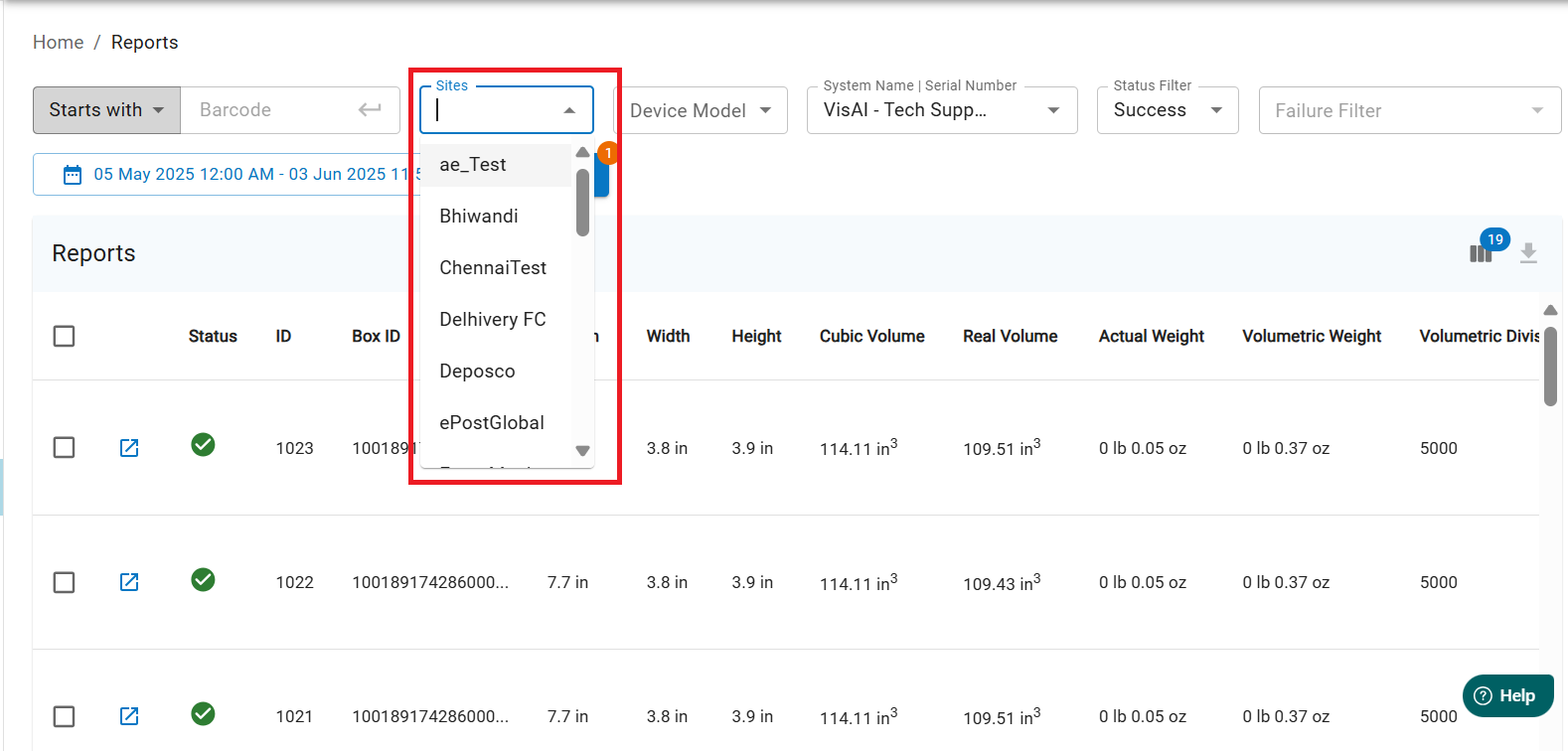
4. Device Model: Choose from the three available device types: Parcel, Pallet, Mobile Dimensioner.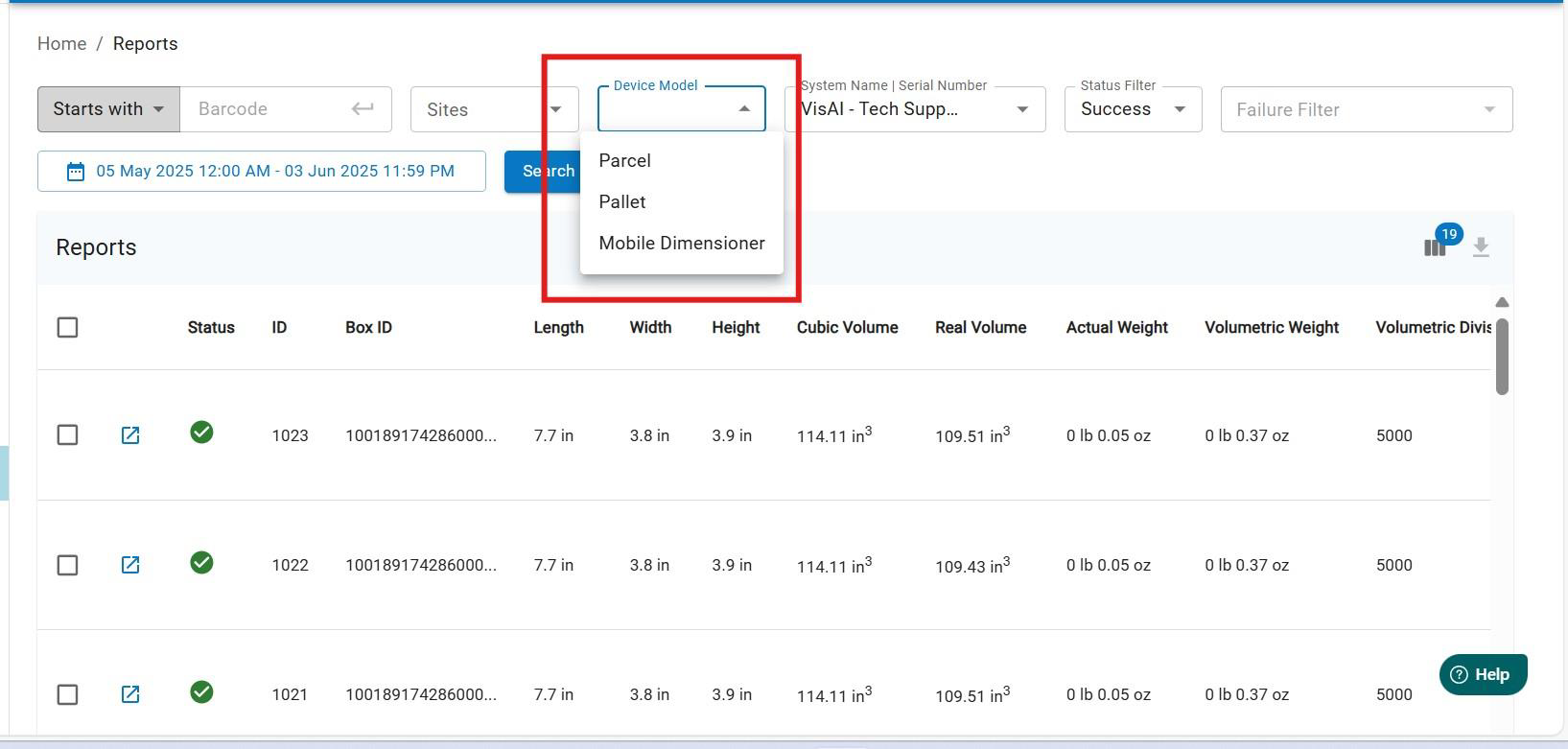
5. System Name / Serial Number: Search for a device using its system name or serial number, which is usually found on the back of the VHU.
Tip: Entering the last four digits is often enough to find the correct report.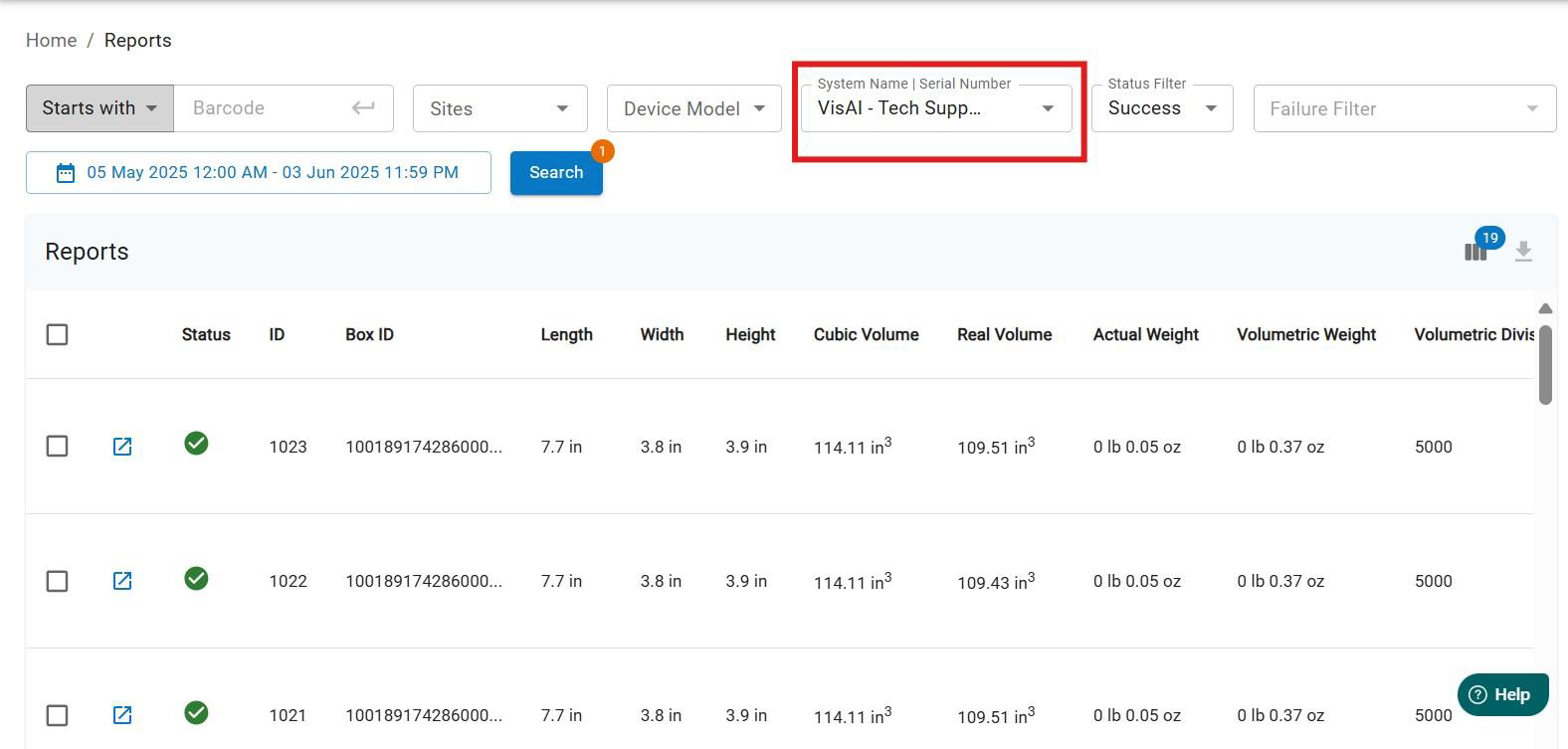
6.Status Filter : Filter results based on the device's status: -
Success - Failed When "Failed" is selected, you can further refine by checking:
Dimensioner Failure
Weighing Scale
Other (Make sure to check the boxes for the specific failure type you want to search.)
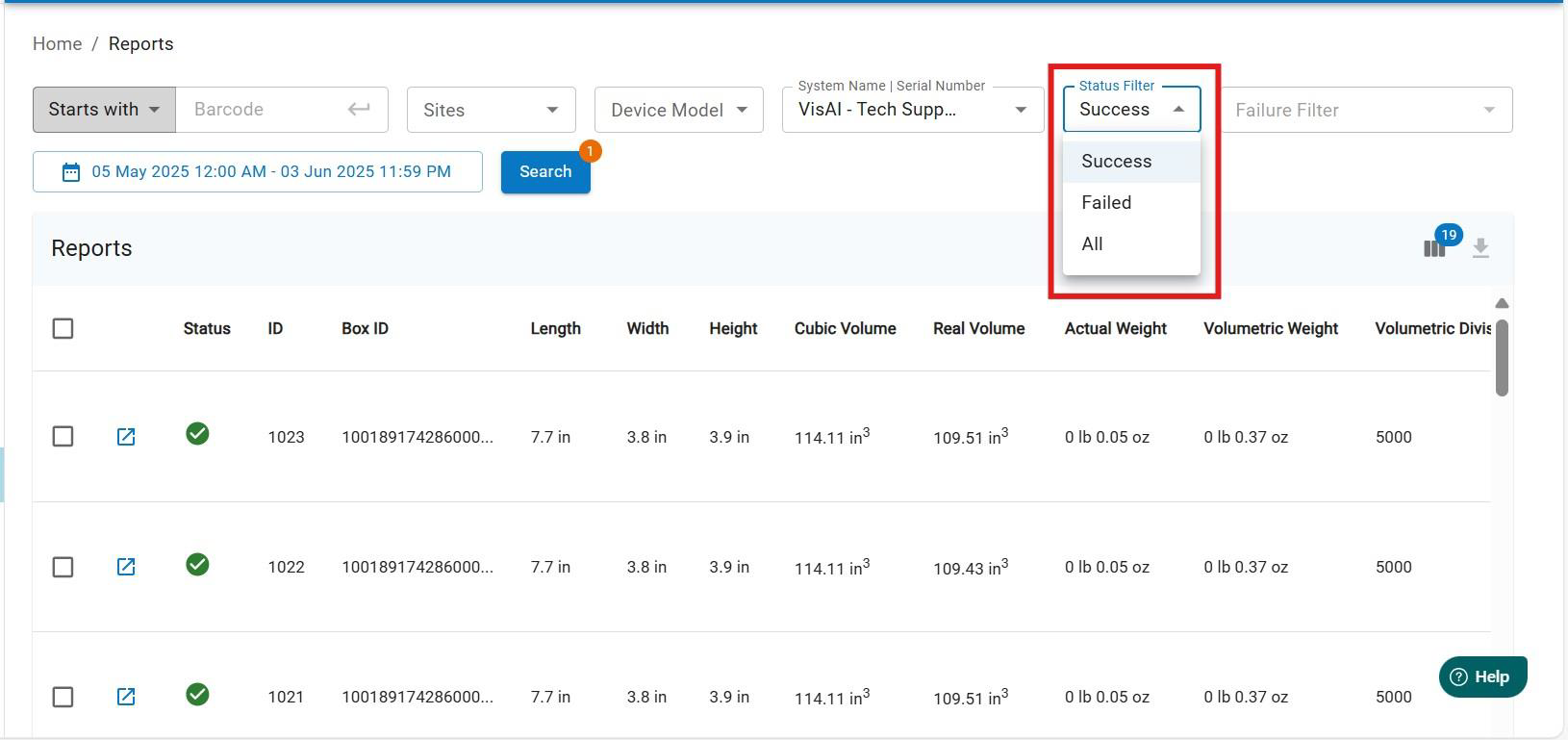
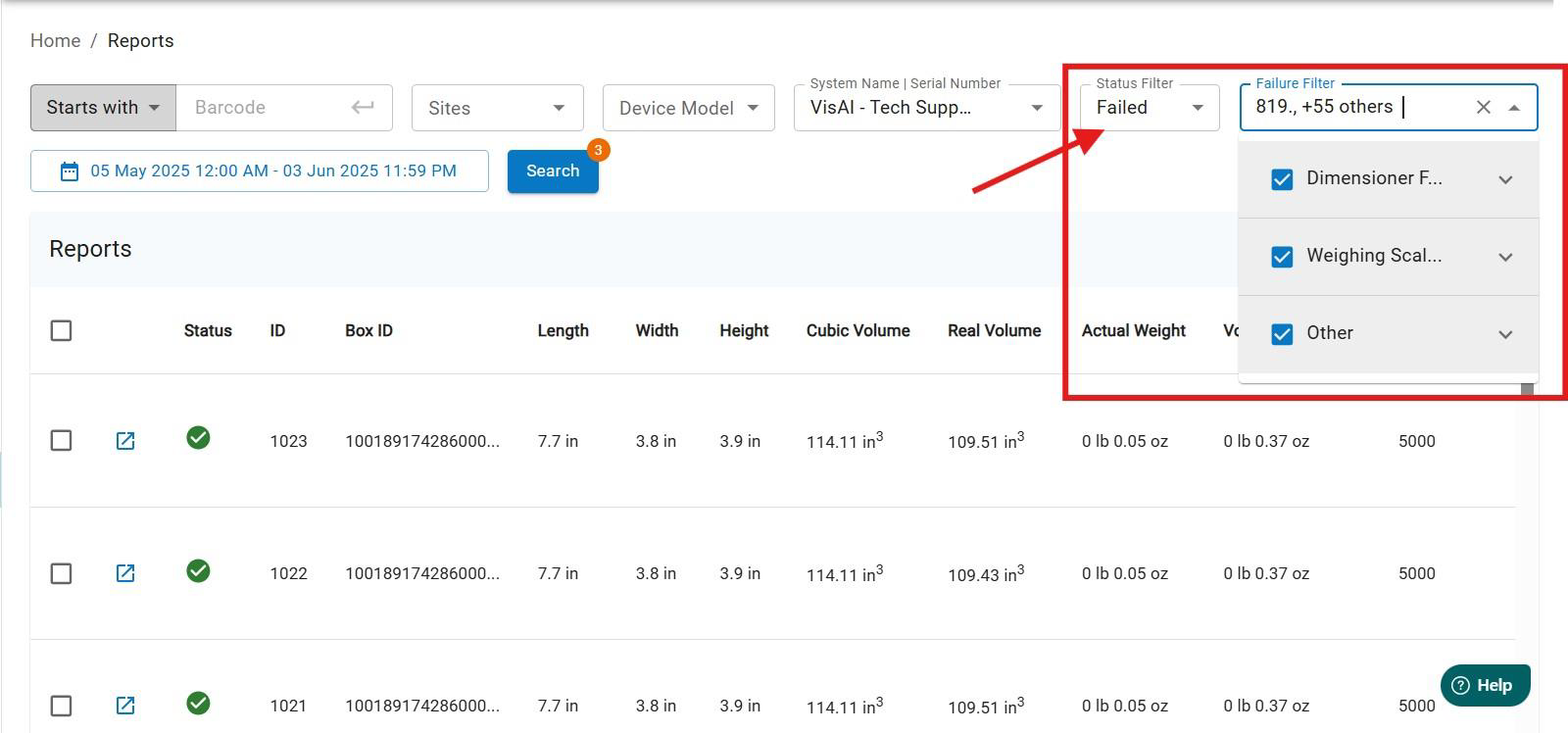
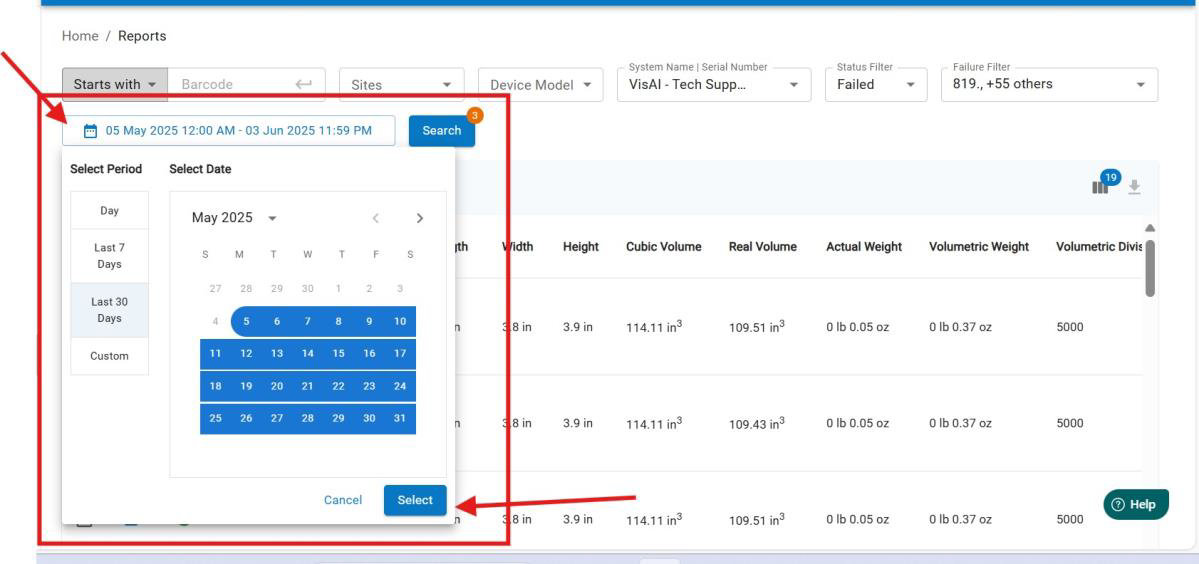
7.Date Range Selector: Use this to define the time period for which you want to view reports.
Step 5: Understanding the Report Table
Once you run a search, the results will be displayed in a tabular format. Each row represents a report entry, and the columns provide detailed information: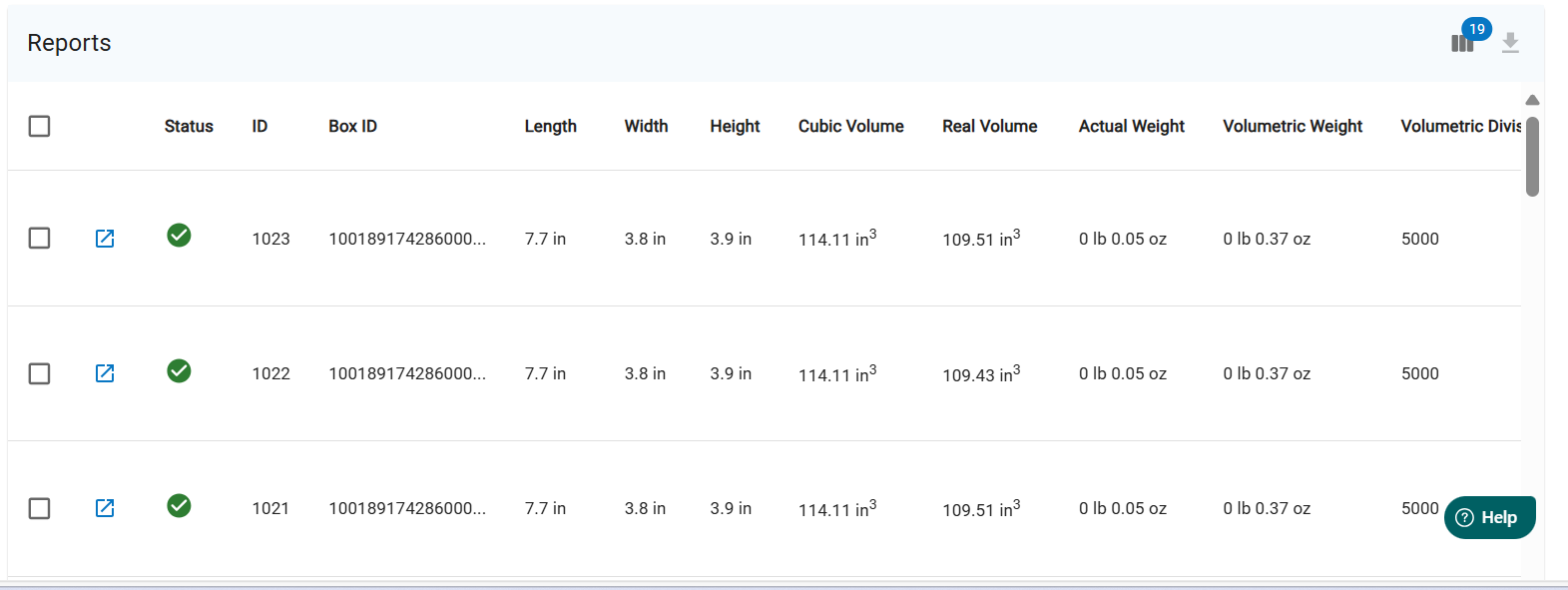
Table Columns Explained: -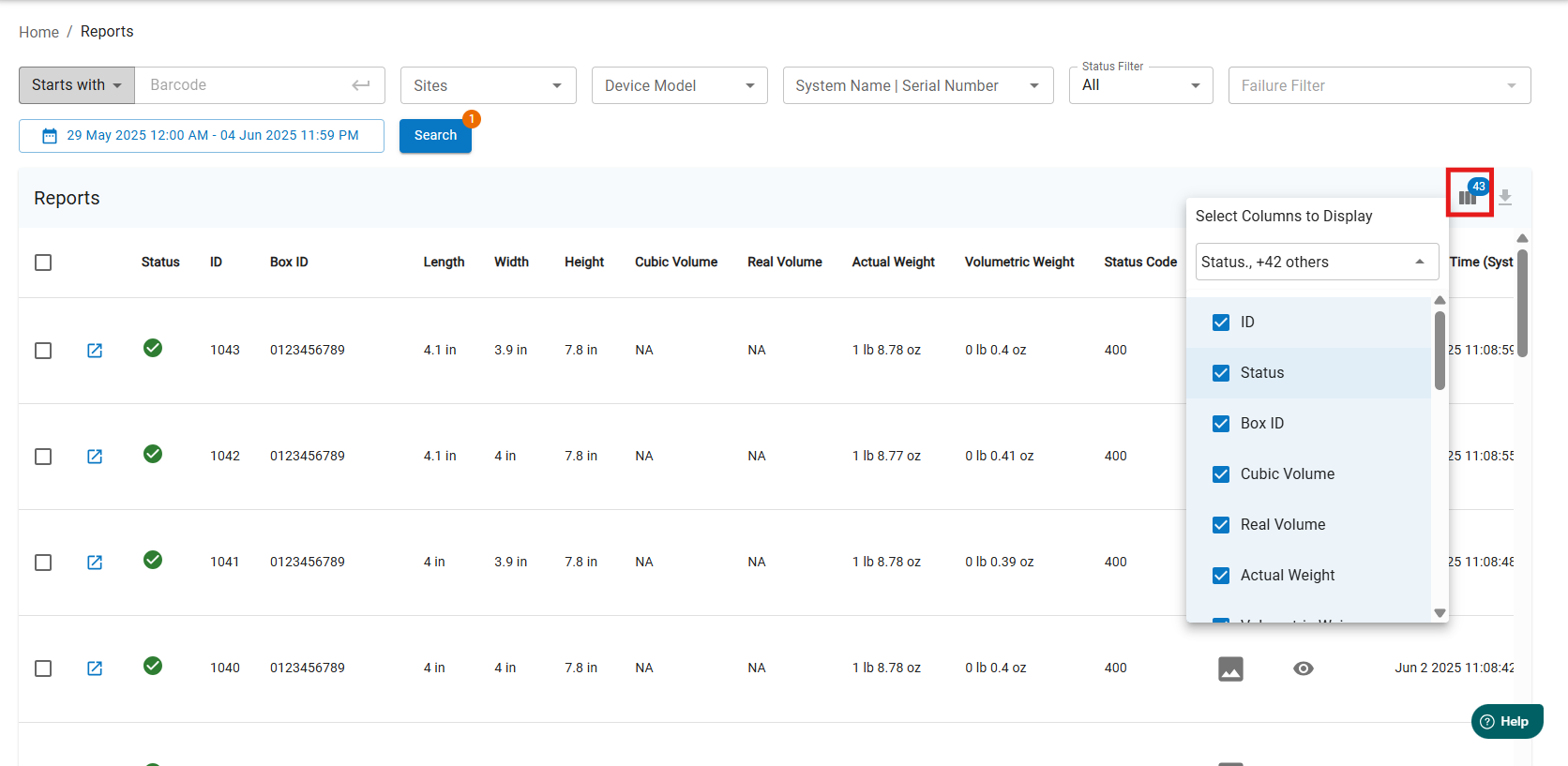
Status: Indicates the result of the measurement. A tick mark means success. A cross mark means failure.
ID: A unique identifier automatically generated by Forge for each entry.
Box ID: The barcode number or character ID of the box being measured.
Length / Width / Height: The physical dimensions of the box.
Cubic Volume: The calculated volume based on dimensions. Based on length, width and height .
Real Volume: The actual volume measured. - Actual Weight: The physical weight of the box.
Volumetric Weight: The weight calculated based on volumetric Divisor.
Volumetric Divisor: The factor used to calculate volumetric weight(for eg 5000).
Volumetric Divisor Name: The name or type of divisor used.
Status Code: A numeric code indicating the result (e.g., 400 for error).
Image: Display Measurement item image .
Artifacts: Additional media captured during measurement.
You can view: Primary Image, Support Image, Other Image, Video.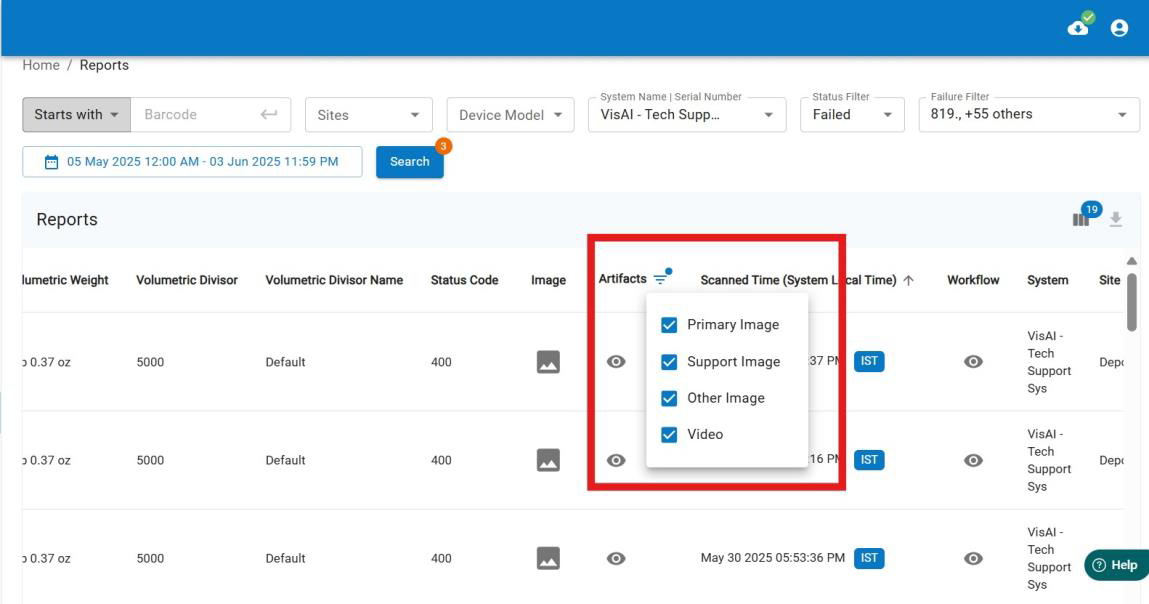
Workflow: Indicates the additional device assigned to the main device.
System: Displays the system name used for processing.
Site: The location or branch where the measurement was taken.
Measured By: The person who performed the measurement.
Webhook: Displays the API or AMS endpoint used to receive the data.
Scanned Time (System Local Time): The exact local time when the item was scanned.
If you need any support , please drop a mail to vmeasure@visailabs.com
Was this article helpful?
That’s Great!
Thank you for your feedback
Sorry! We couldn't be helpful
Thank you for your feedback
Feedback sent
We appreciate your effort and will try to fix the article