This feature is used to re-trigger the webhook or filehook manually in case of failure. Below are the detailed steps on how to do it.
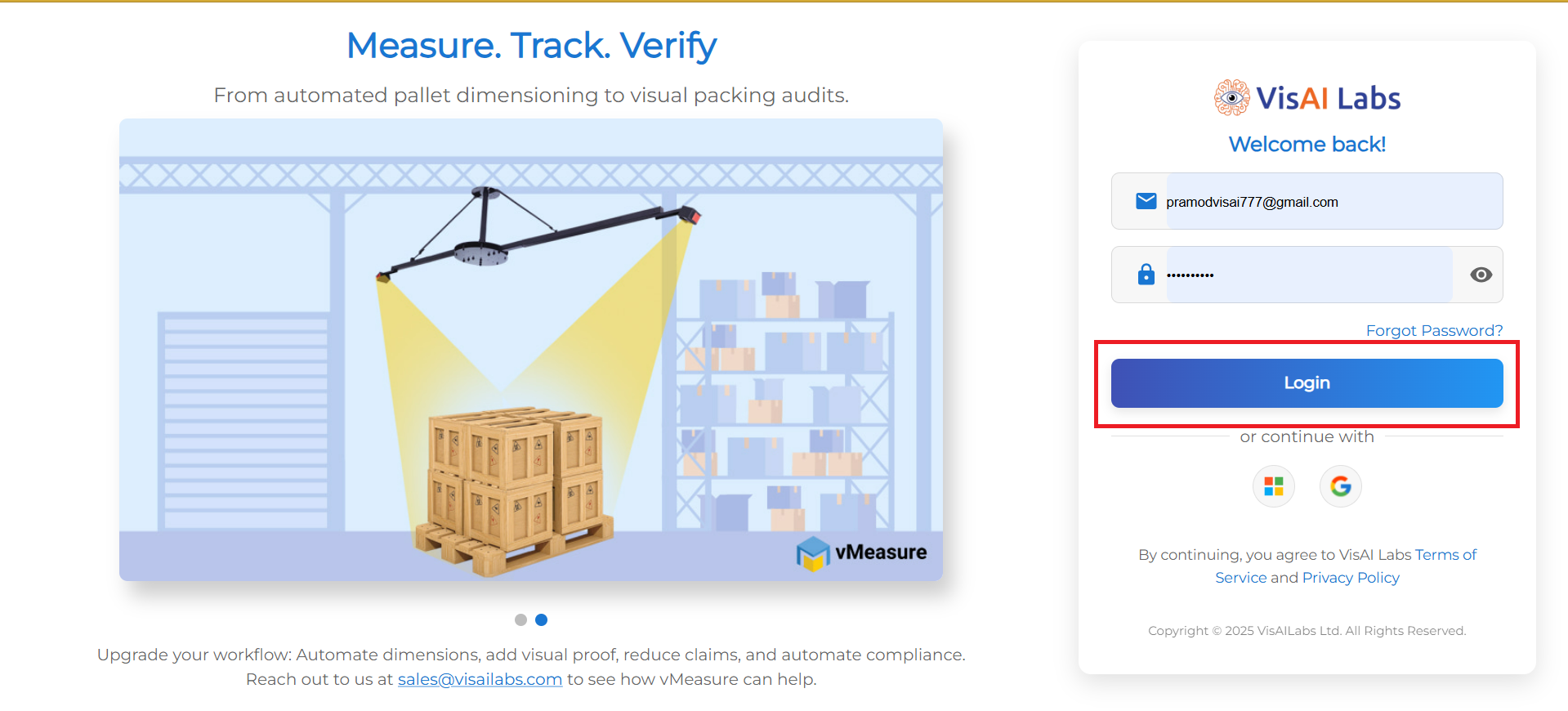
1. Open https://forge.vmeasure.ai/ and login with the mail id and password.
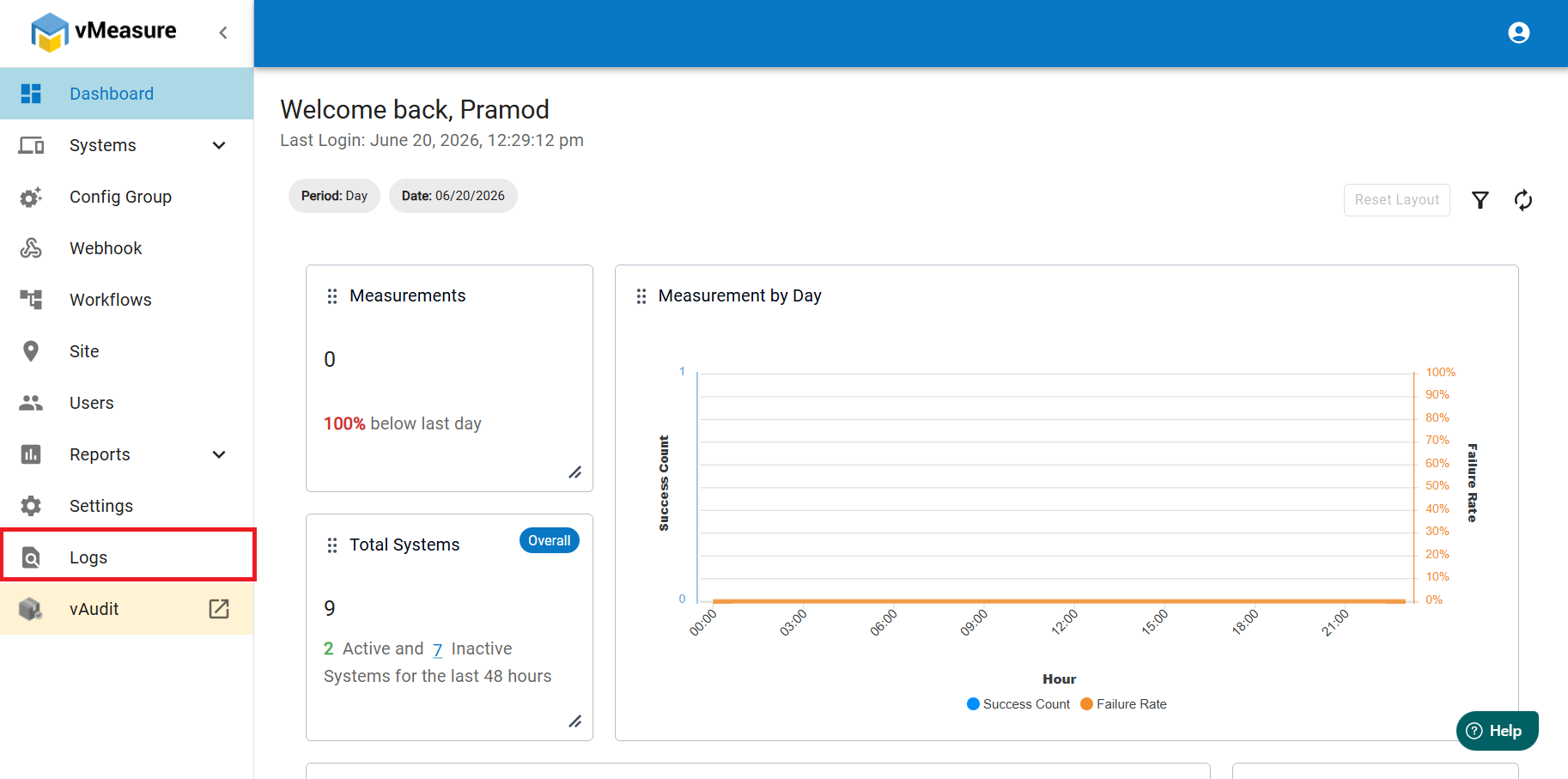
2. In the vMeasure page, on the left pane, navigate to Logs.
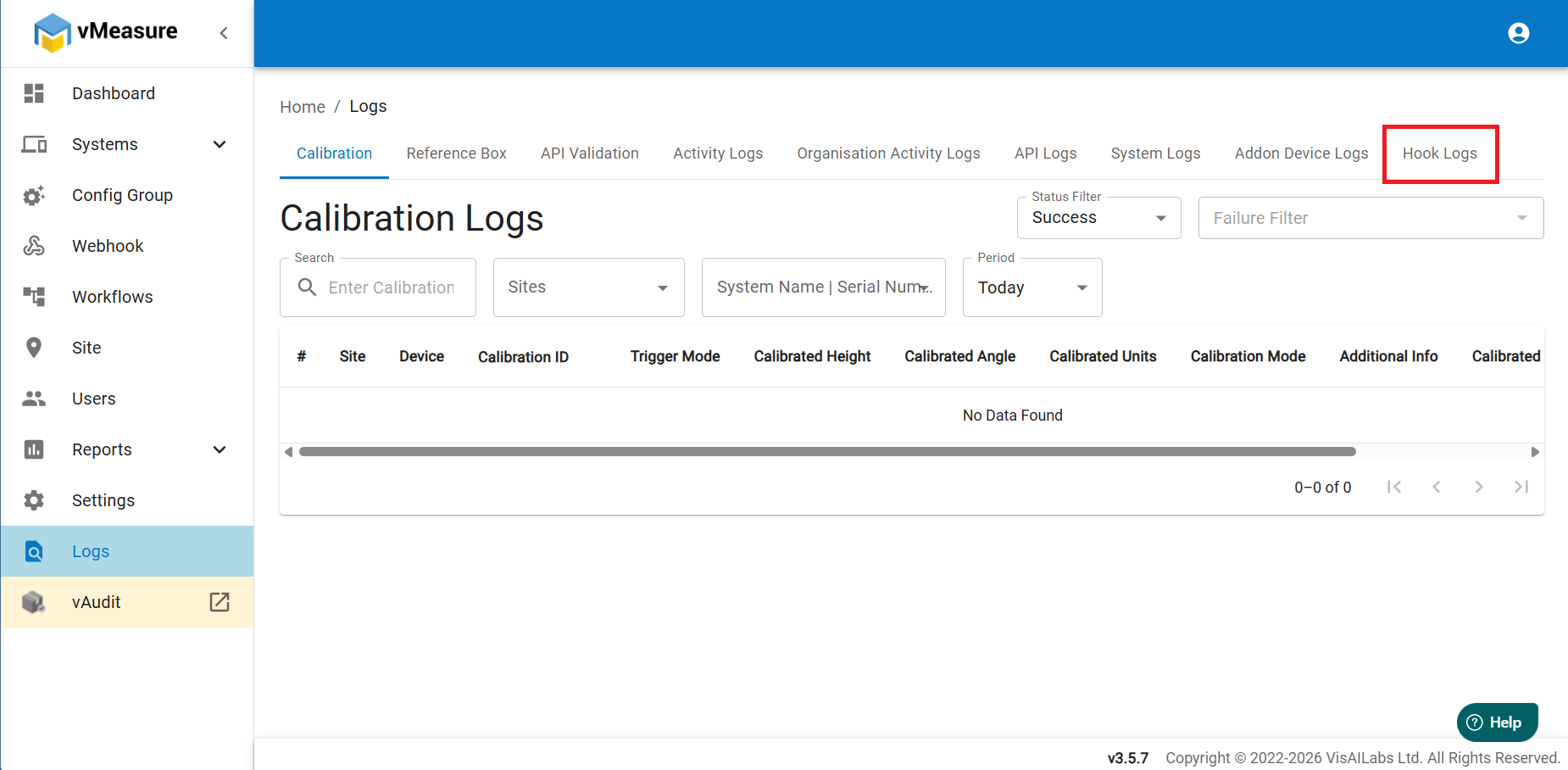
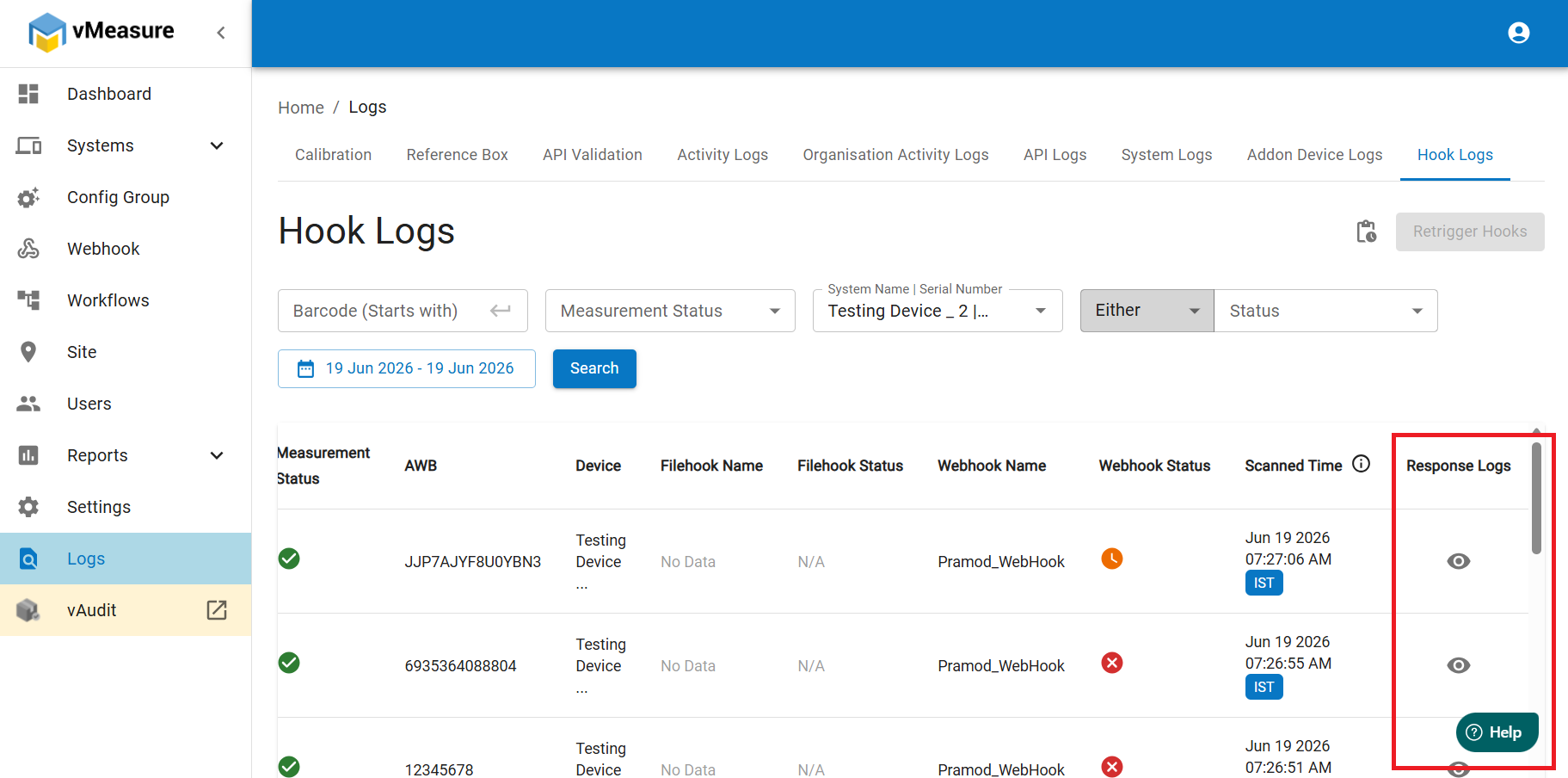
3. In the top row, you will find an option named as Hook Logs.
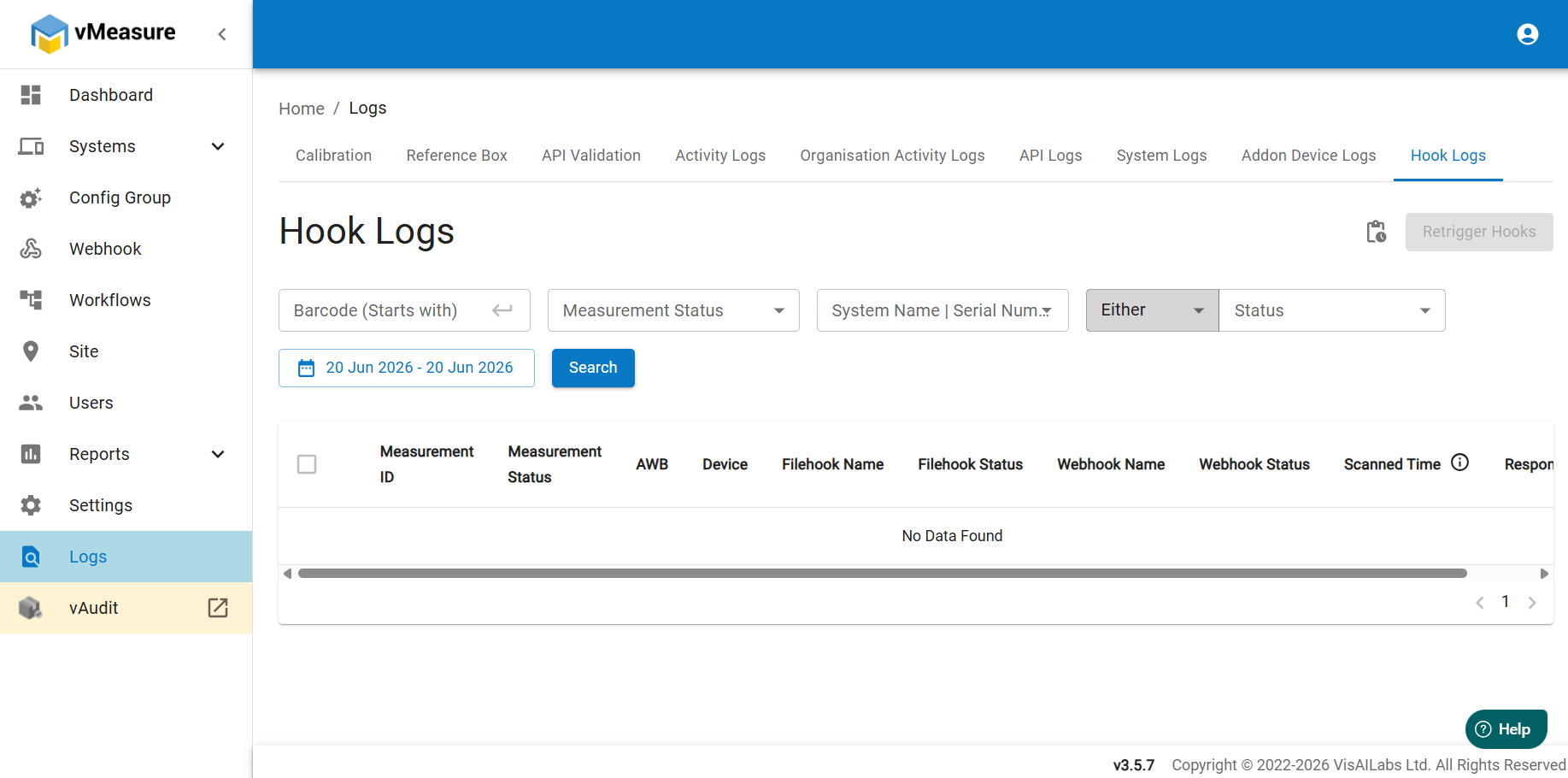
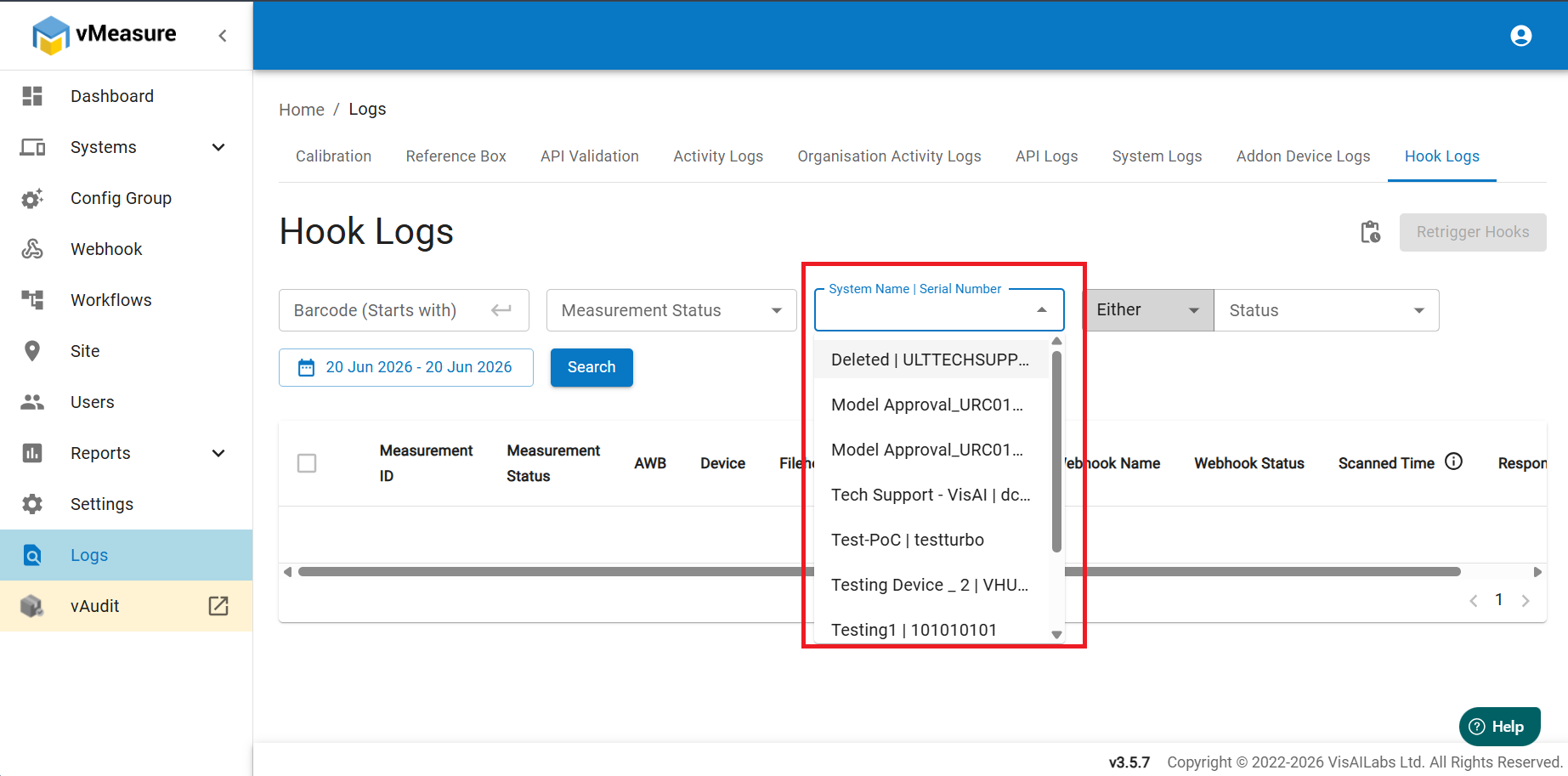
4. On the hook logs page, select the system by entering the system name or the serial number.
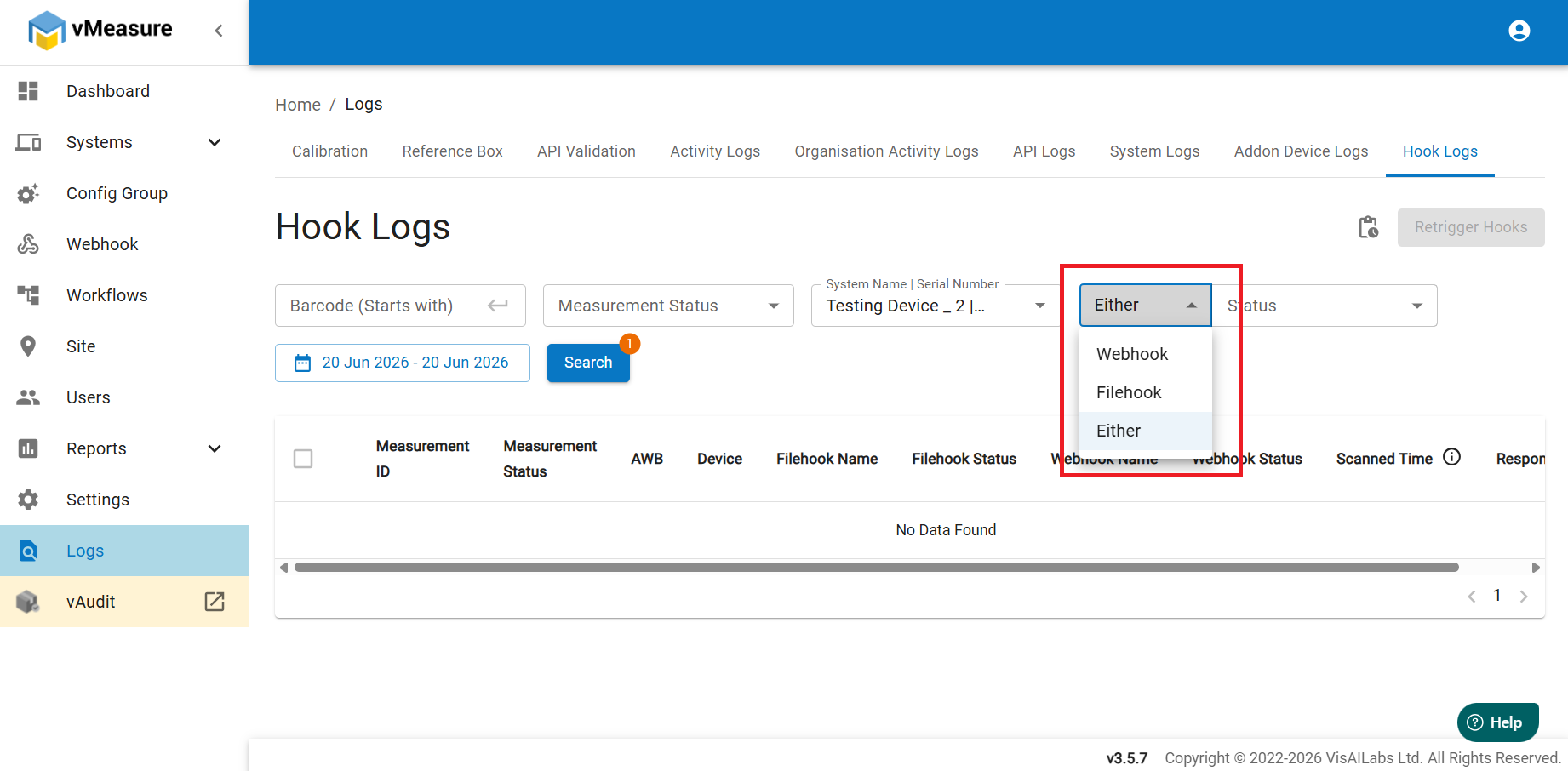
5. Click on the Either option to select the type of hook like Webhook or Filehook. If you want to trigger both then select Either.
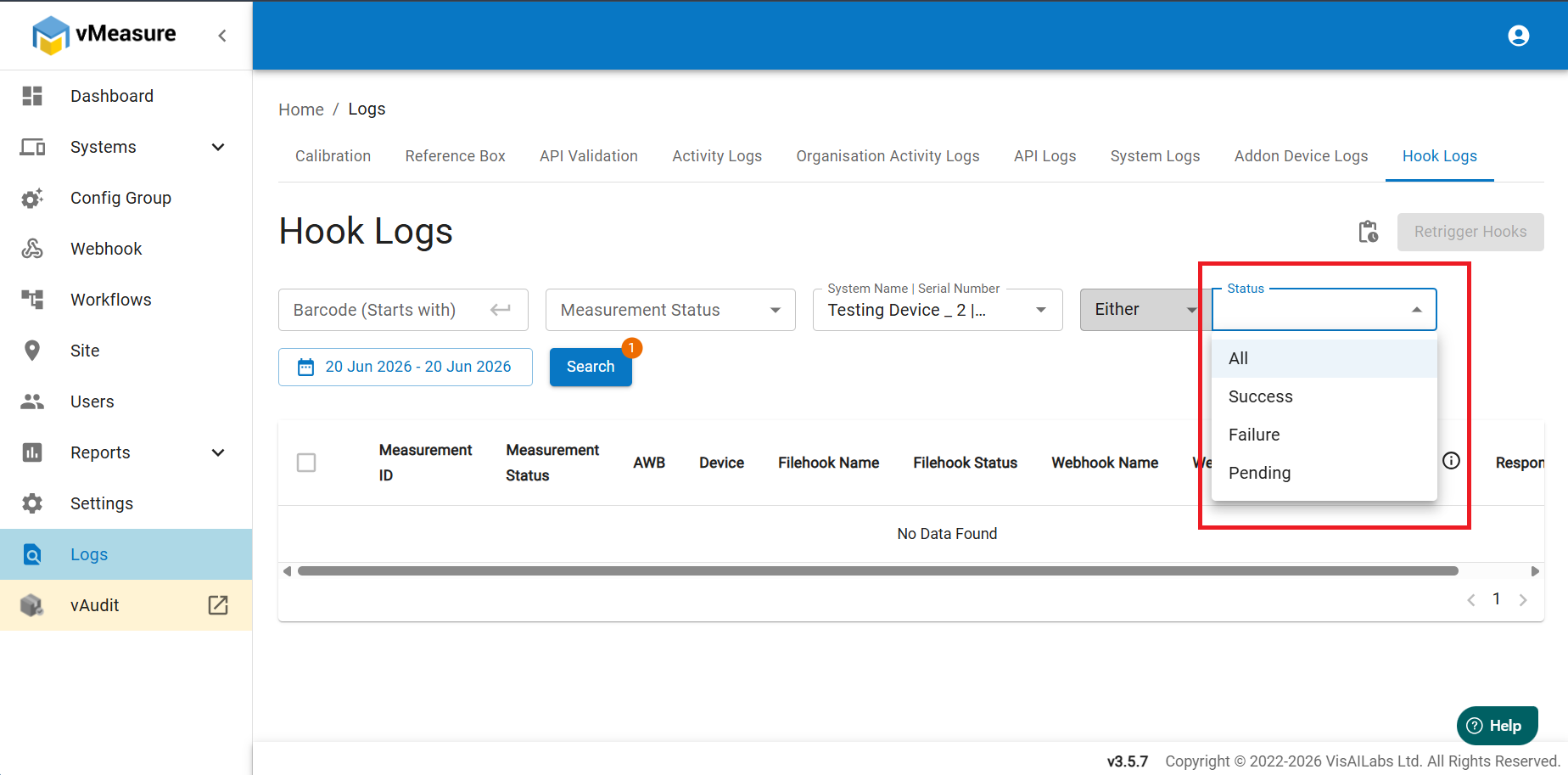
6. After selecting the type of hook, select the status of the hook like whether you want all hooks data or success hook data or failure hooks data or pending hooks data.
7. Select the timeline i.e. you can only select one day data for triggering the hooks.
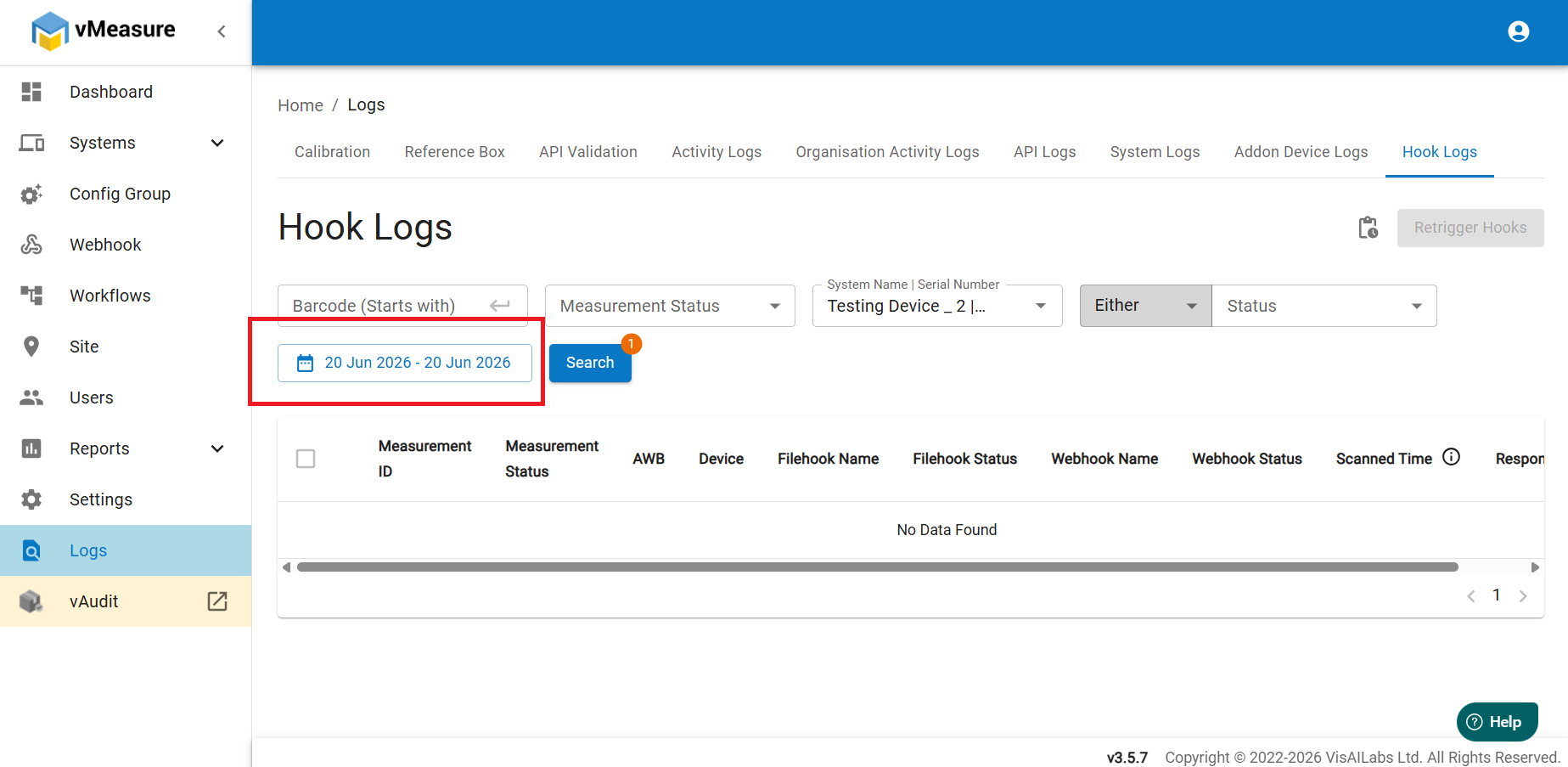
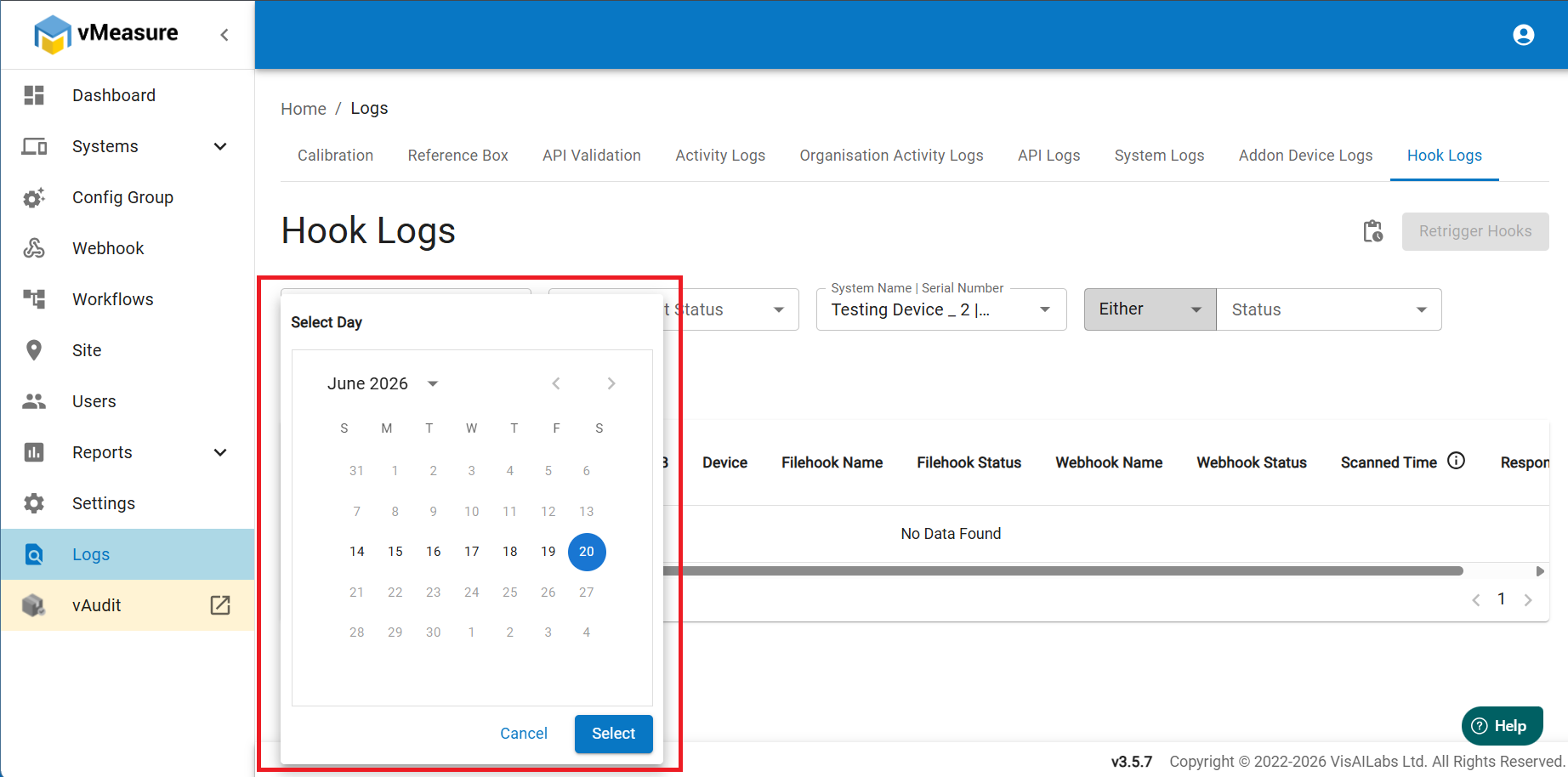
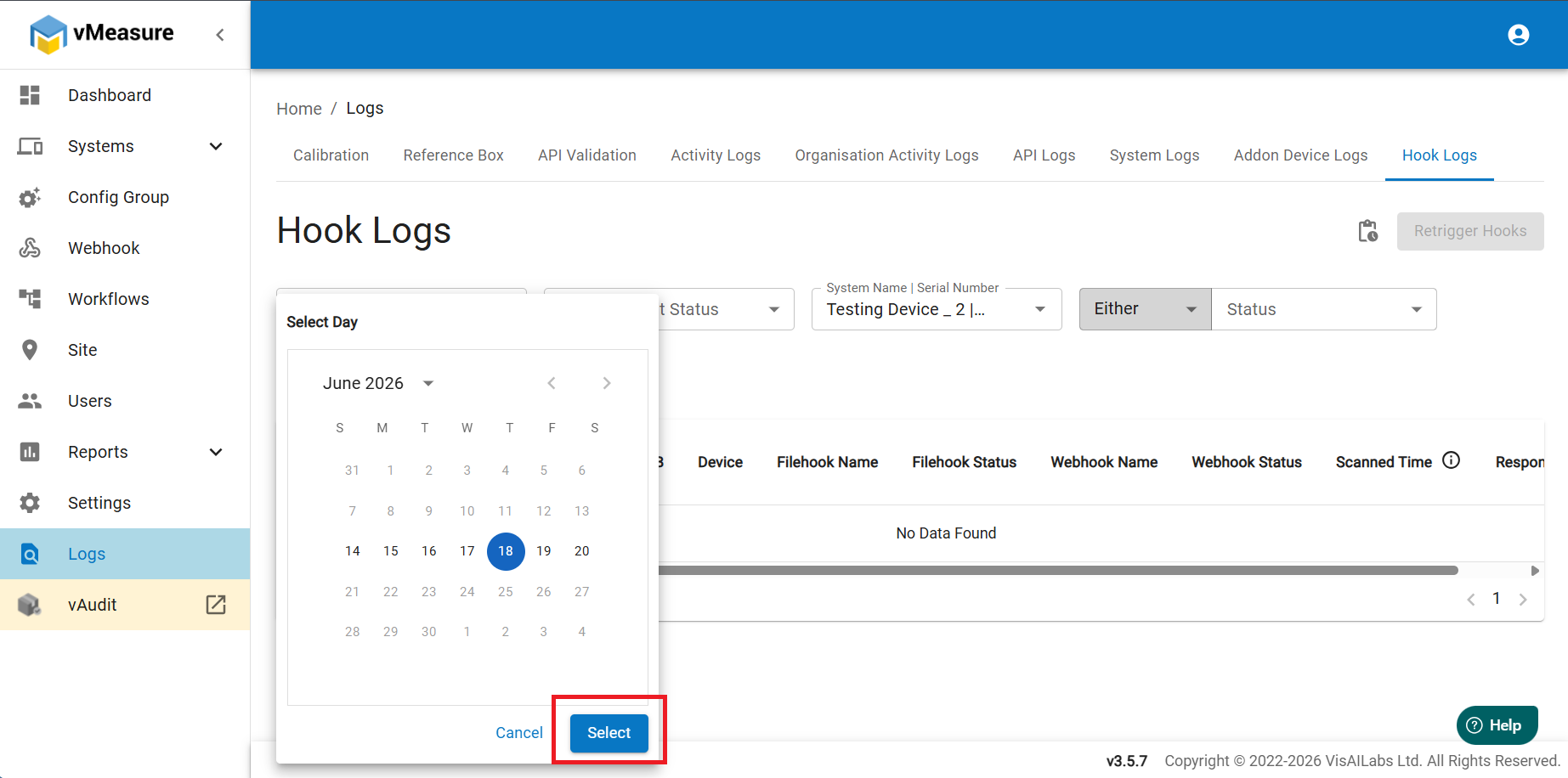
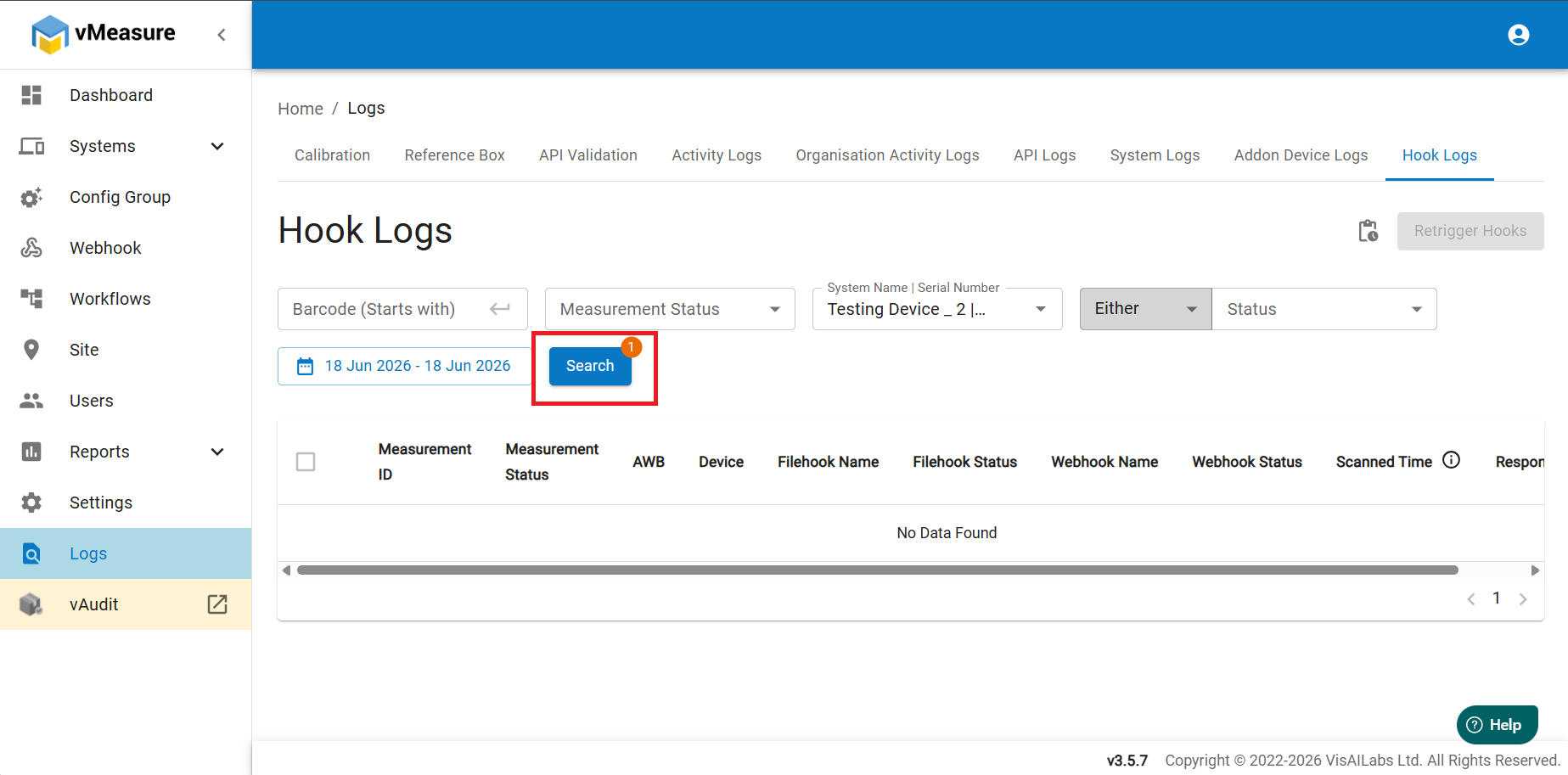
8. Click on Search to search the data for the date you have chosen to trigger the hooks.
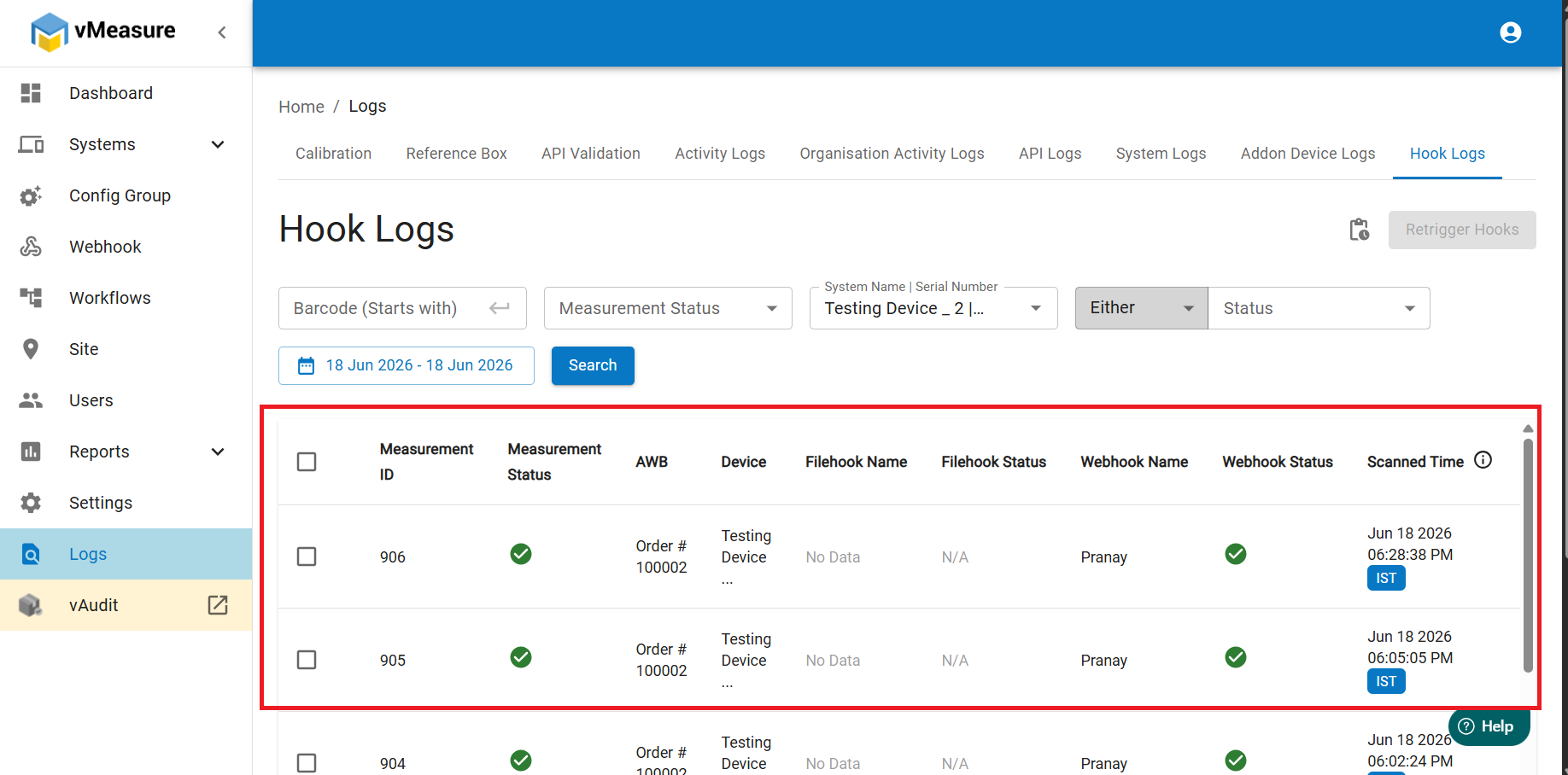
9. You will see a list of entries. From the list either you can retrigger manually for each hook or select all at once and retrigger.
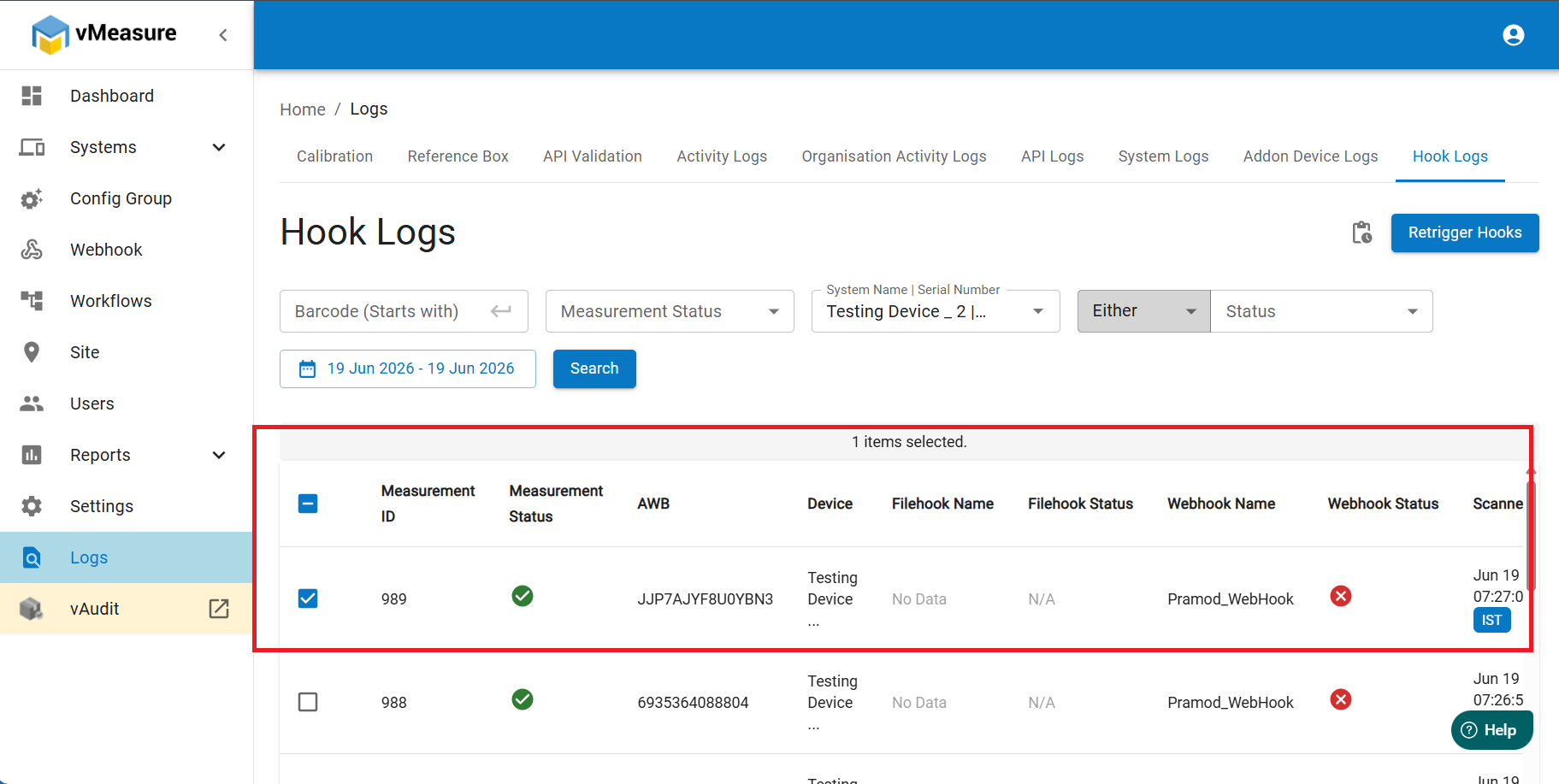
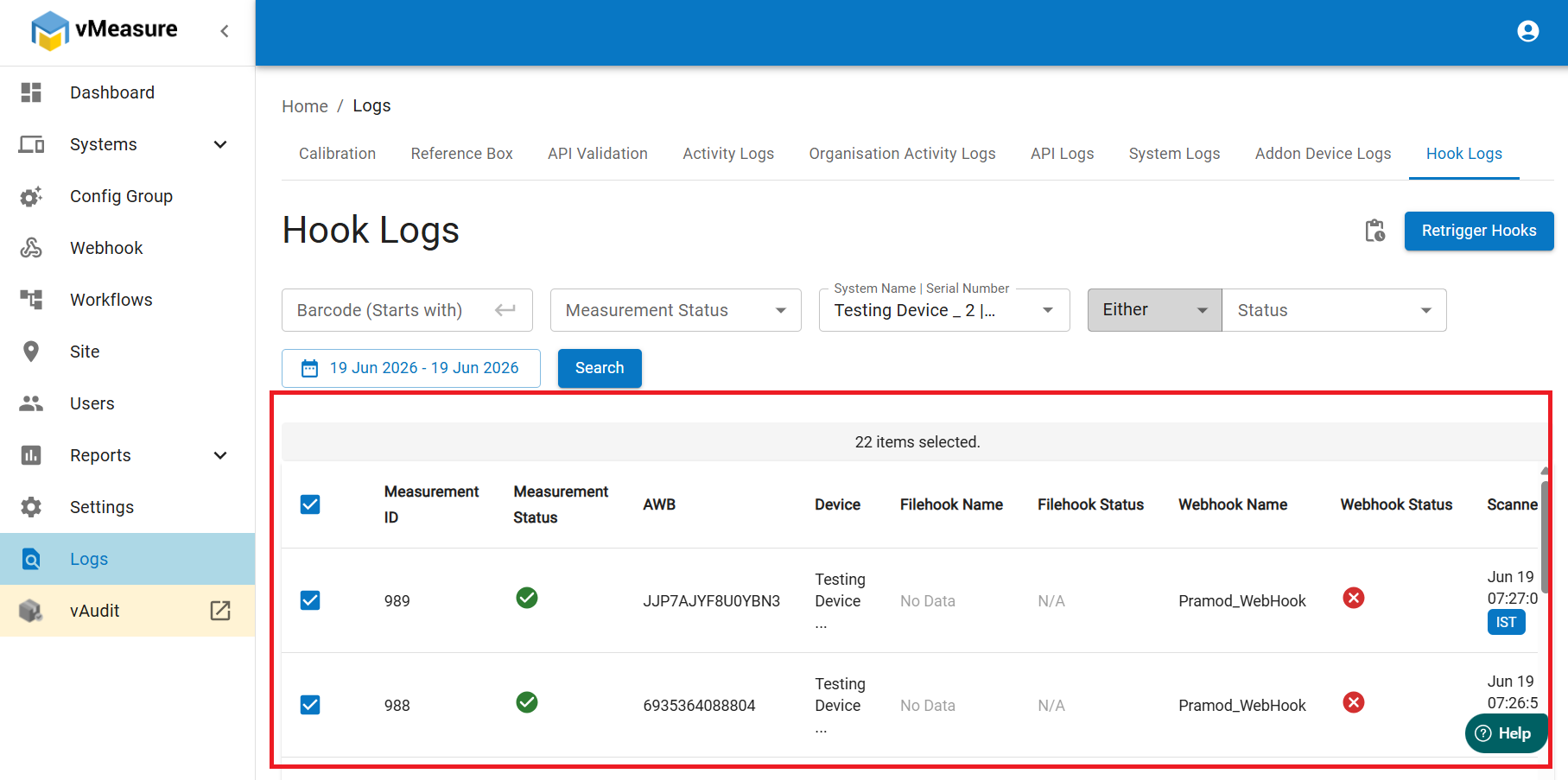
10. After you click on retrigger, you will see a pop up to confirm the retrigger operation. Click on Retrigger to confirm it.
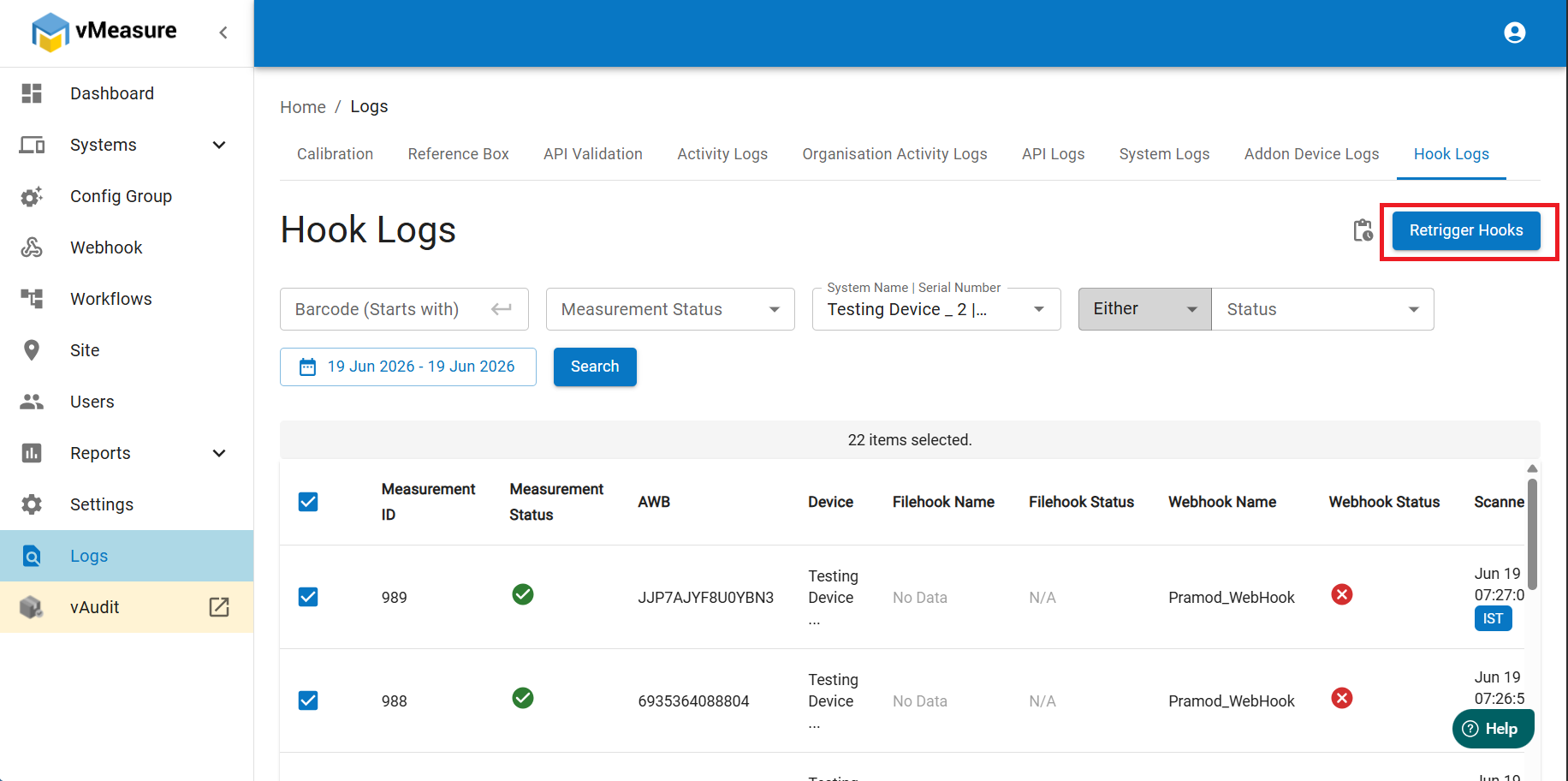
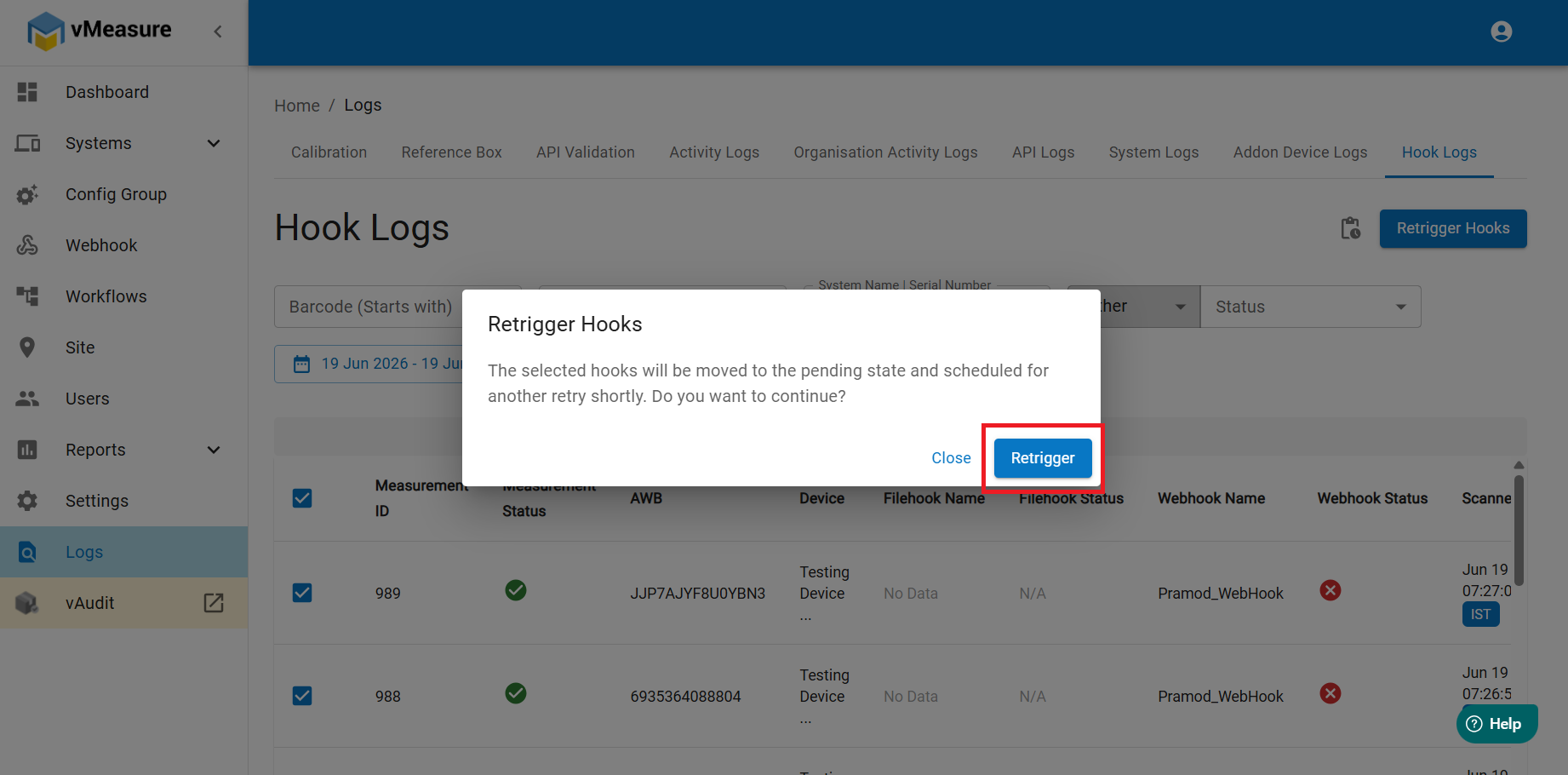
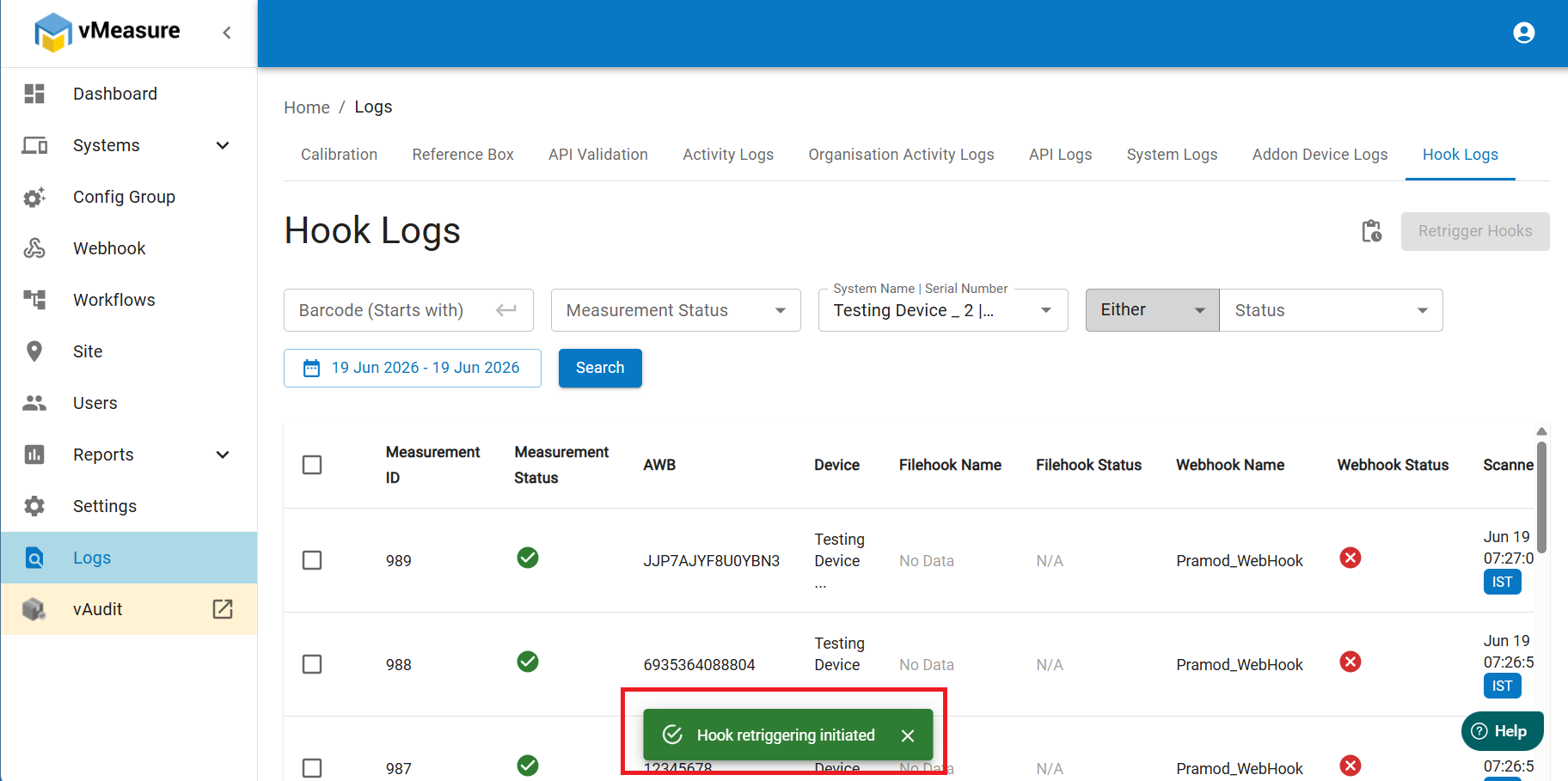
11. Once you confirm, you will see a popup below stating that Hook retriggering initiated.
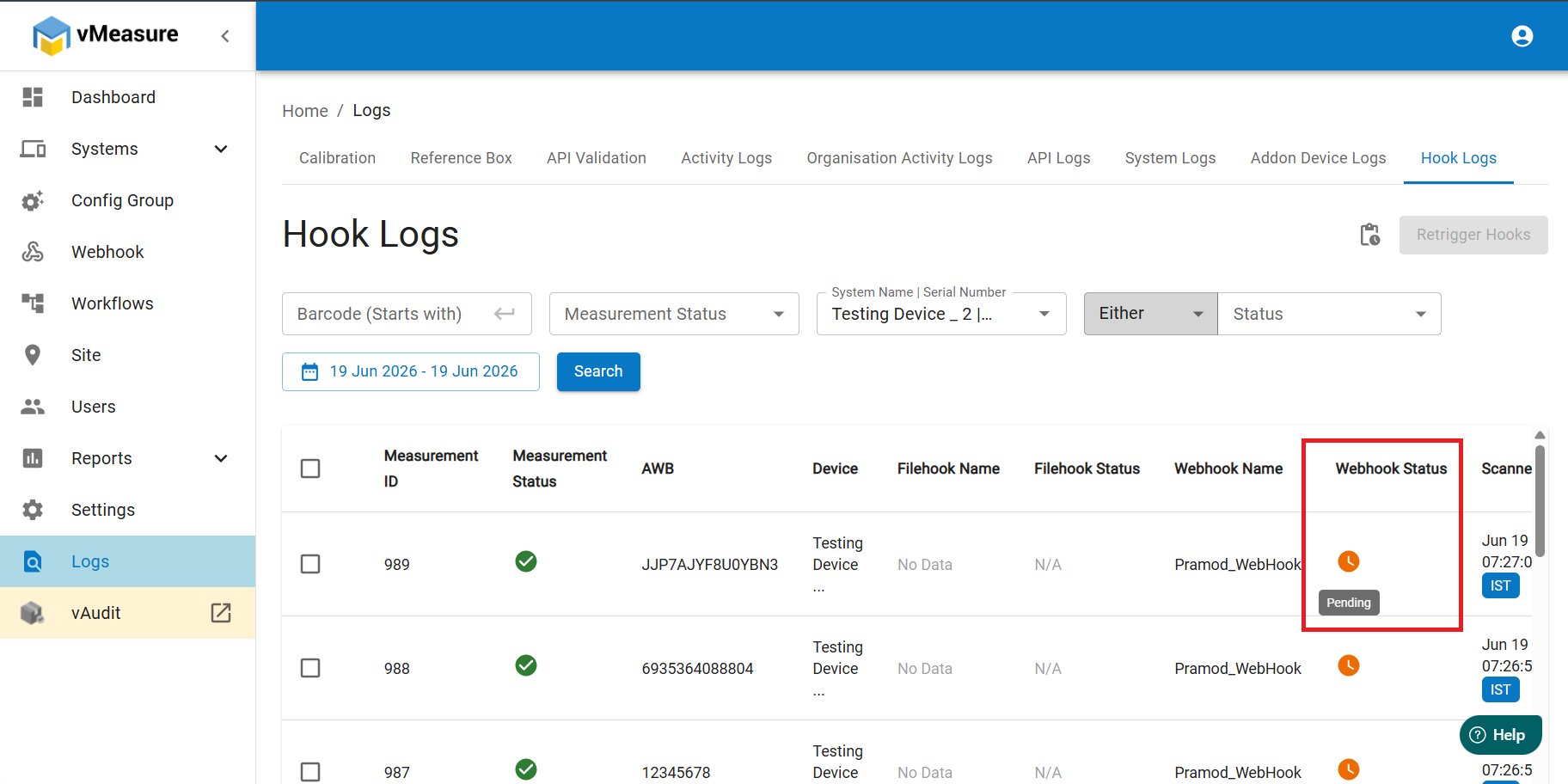
12. After that once again click on search and you will see that the hooks which were in failed state are moved to pending state.
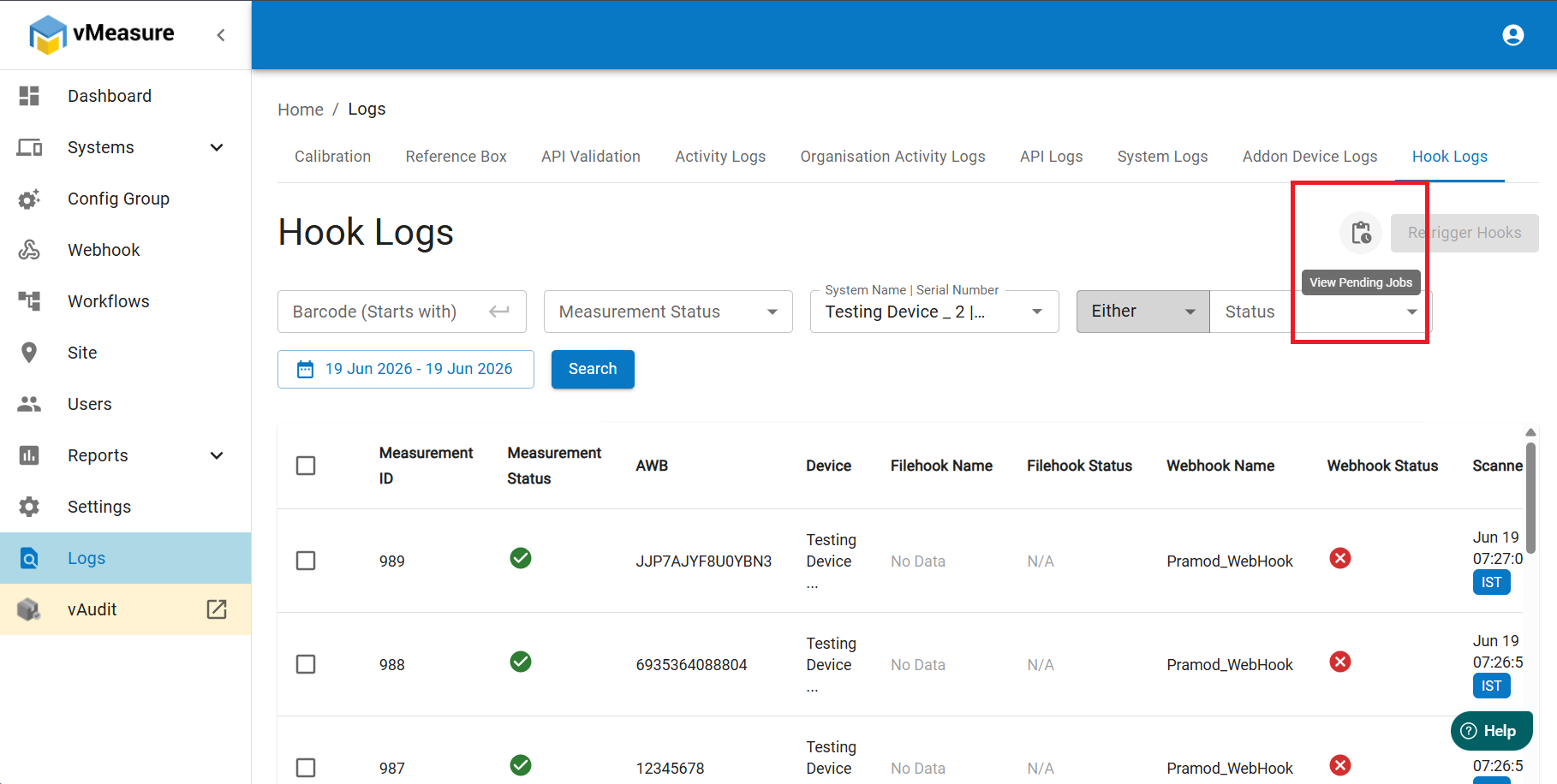
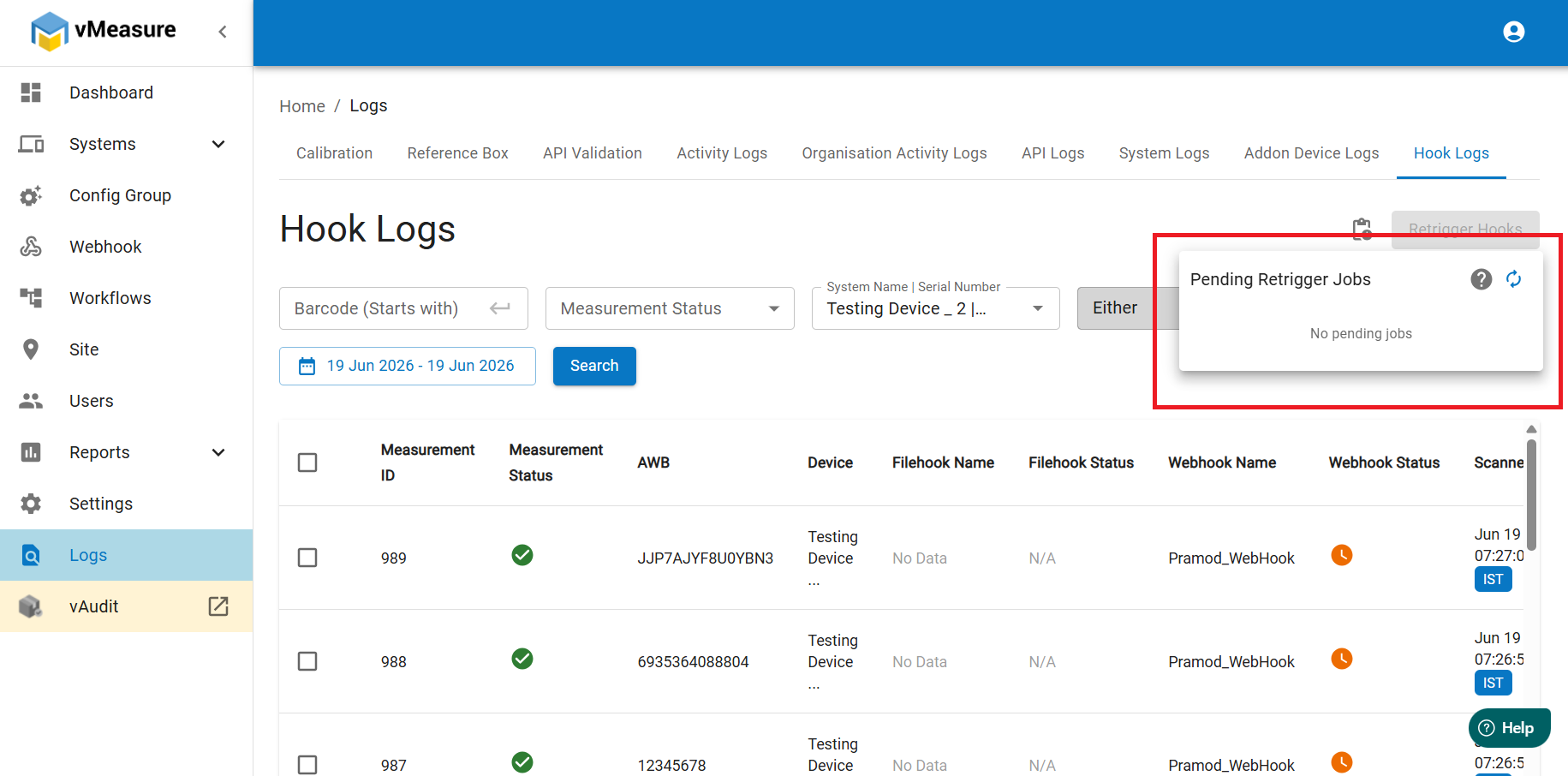
13. You can view the pending hooks by clicking on the clipboard icon beside the Retrigger Hooks option.
14. After the retriggering is complete, the hook status will be in green tick mark indicating that the hooks are retrigged and the status is changed from failure --> pending --> success.
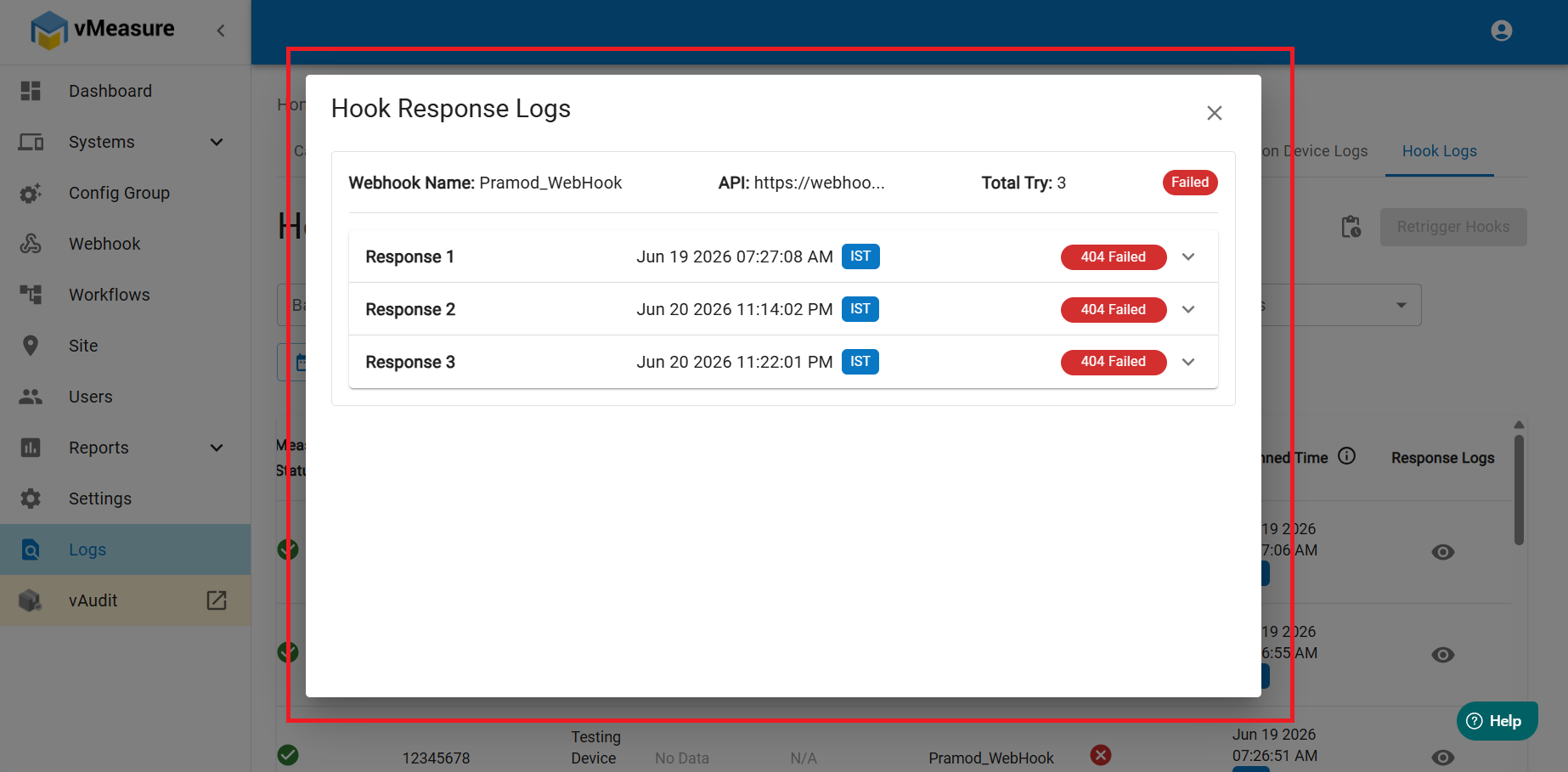
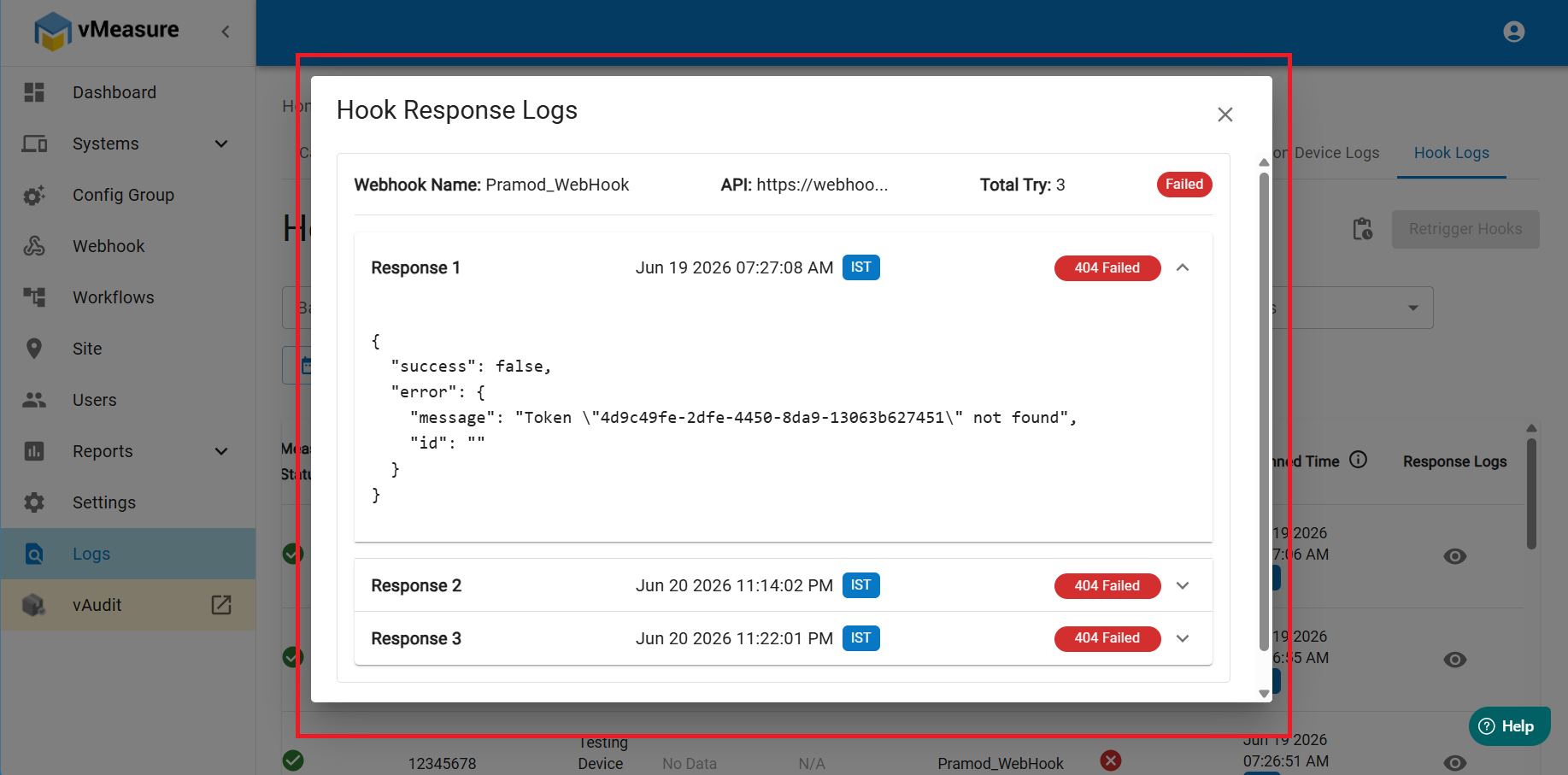
15 You can also check the hook response by swiping the entry to the left and you will see an option as Response Logs. To view the response, click on eye button. After opening the response logs, you can click on each of the response to view the reason of its failure.
To raise a support ticket - https://support.visailabs.com/
Was this article helpful?
That’s Great!
Thank you for your feedback
Sorry! We couldn't be helpful
Thank you for your feedback
Feedback sent
We appreciate your effort and will try to fix the article