Auto Calibration Mode
The Auto Calibration Mode enables the vMeasure device to automatically detect the appropriate calibration mode based on the installation height. The device supports calibration within a height range of 105 cm to 225 cm.
Supported Calibration Heights
| Calibration Mode | Height Range (cm) | Height Range (in) |
|---|---|---|
| Small Parcel Mode | 105 cm – 115 cm | 41.34 in – 45.28 in |
| All Parcel Mode | 116 cm – 155 cm | 45.67 in – 61.02 in |
| White Goods Mode | 156 cm – 225 cm | 61.42 in – 88.58 in |
Slave Mode
In Slave Mode, the client application remotely controls the vMeasure device using the vMeasure APIs. The client system triggers a measurement request and receives the measurement data as the API response.
Slave Mode Workflow
- The client application sends a measurement request using the Live Measurement API.
- The vMeasure device receives the request and performs the measurement.
- Once the measurement is completed, the device returns the measurement data to the client application as the API response.
In addition to API responses, the measurement data can also be downloaded from vMeasure Forge in CSV or JSON format.
Enabling Auto Calibration Mode in Slave Mode.
Step 1
Log in to vMeasure Forge using your credentials.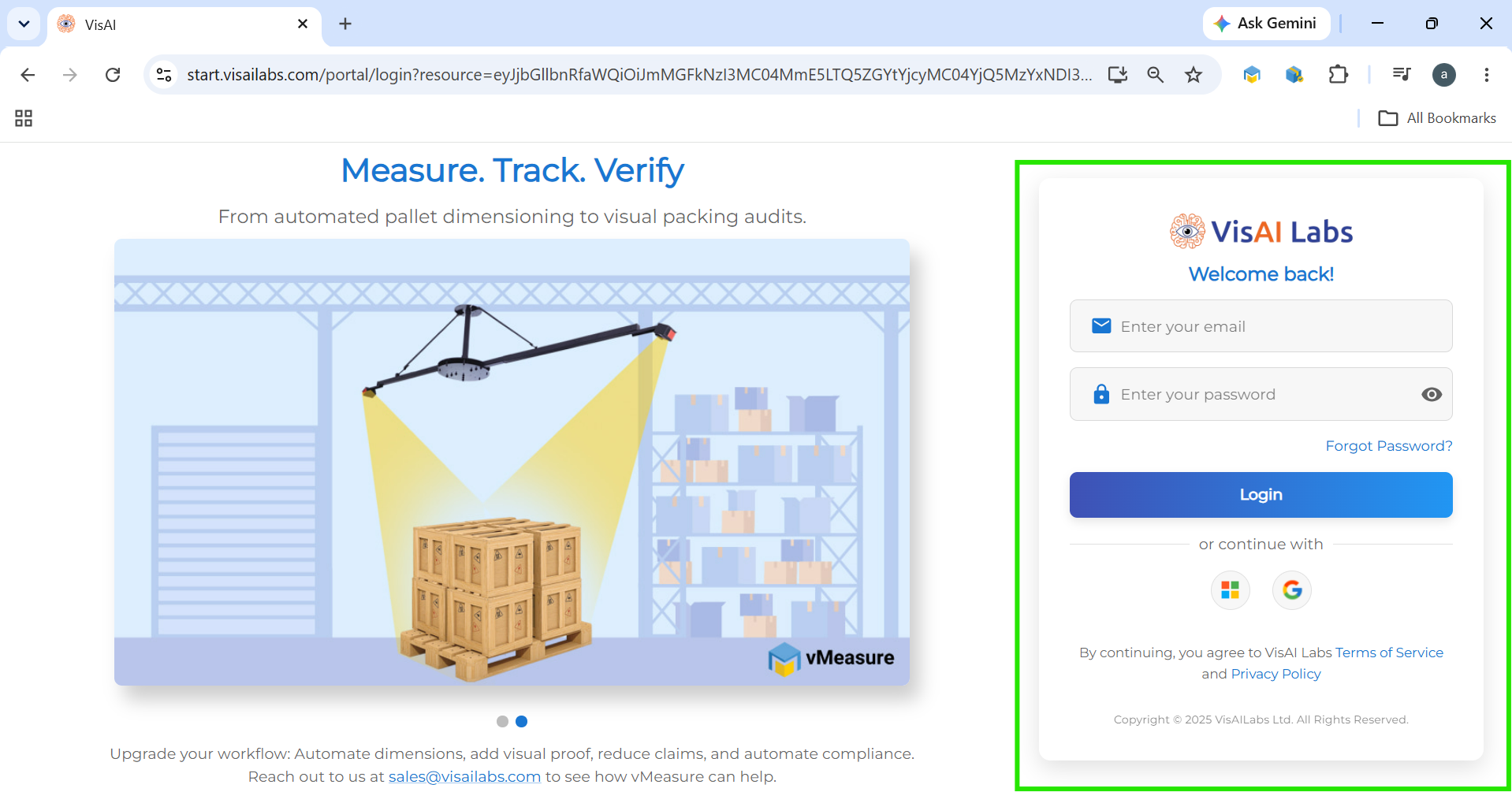
Step 2
From the Dashboard, select Workflows.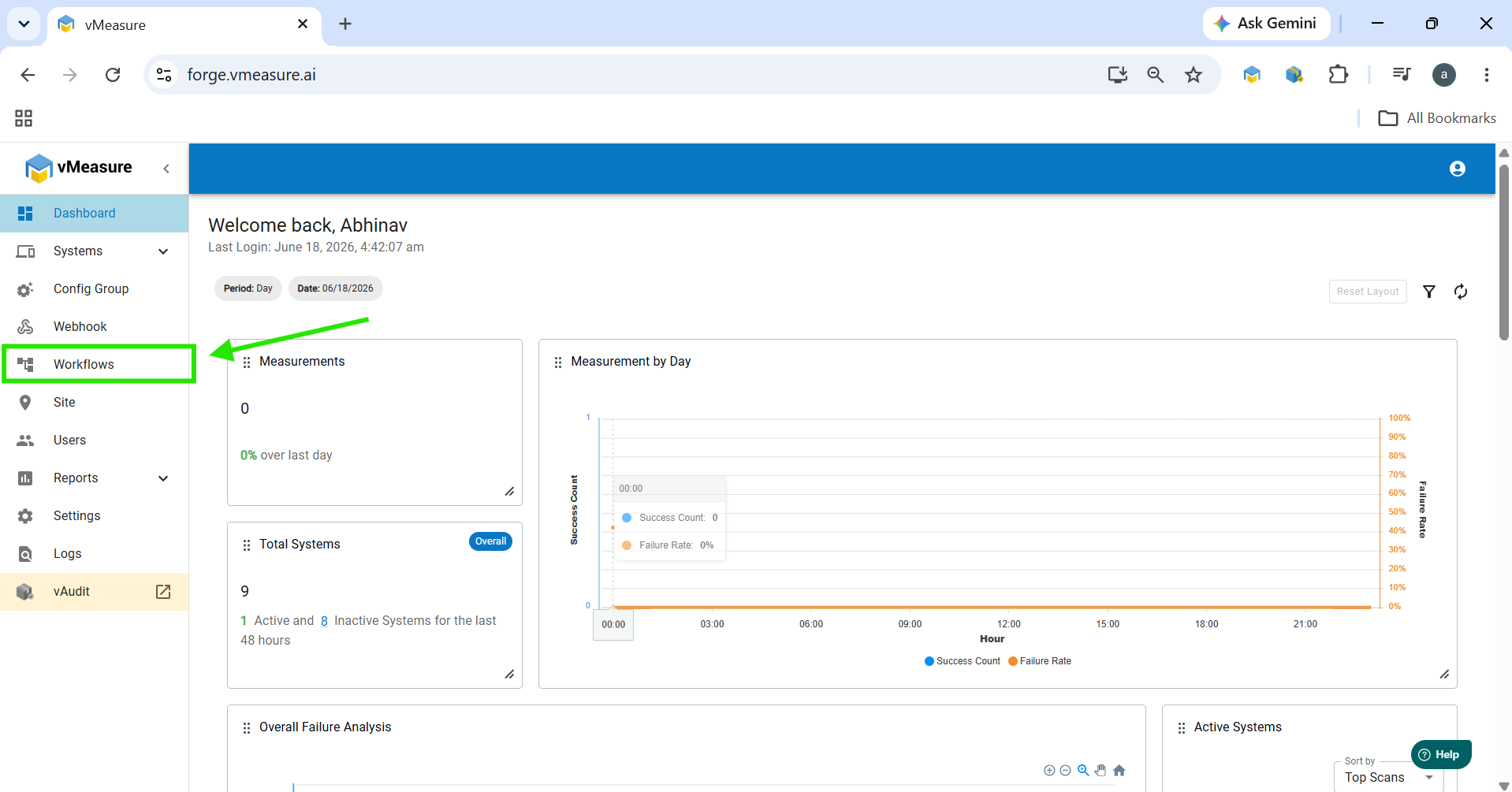
Step 3
Select the workflow you want to modify and click the Edit icon.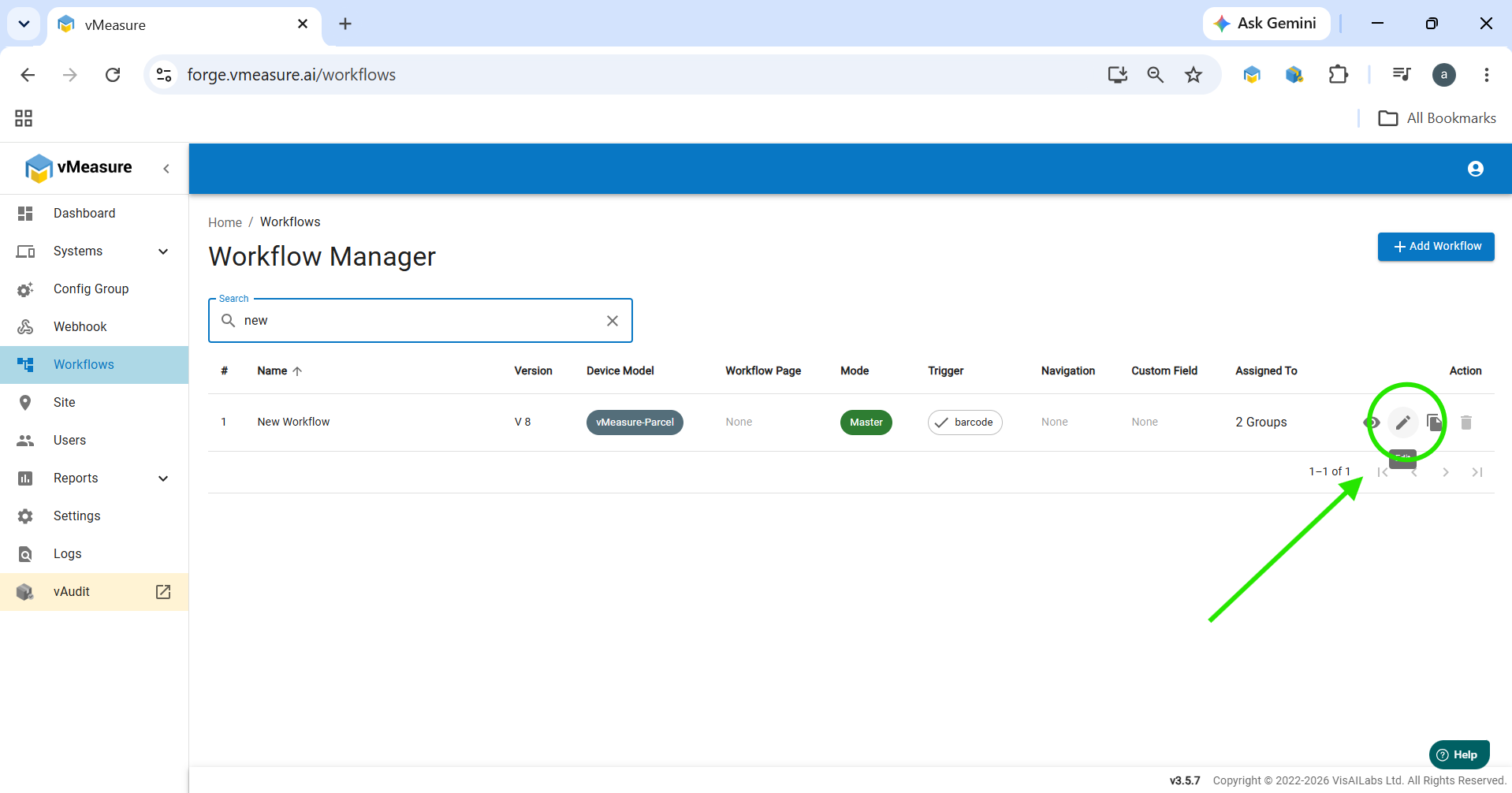
Step 4
In the Workflow Form, scroll down to Device Mode and select Slave and then select Calibration Settings section and enable Auto Detect Mode.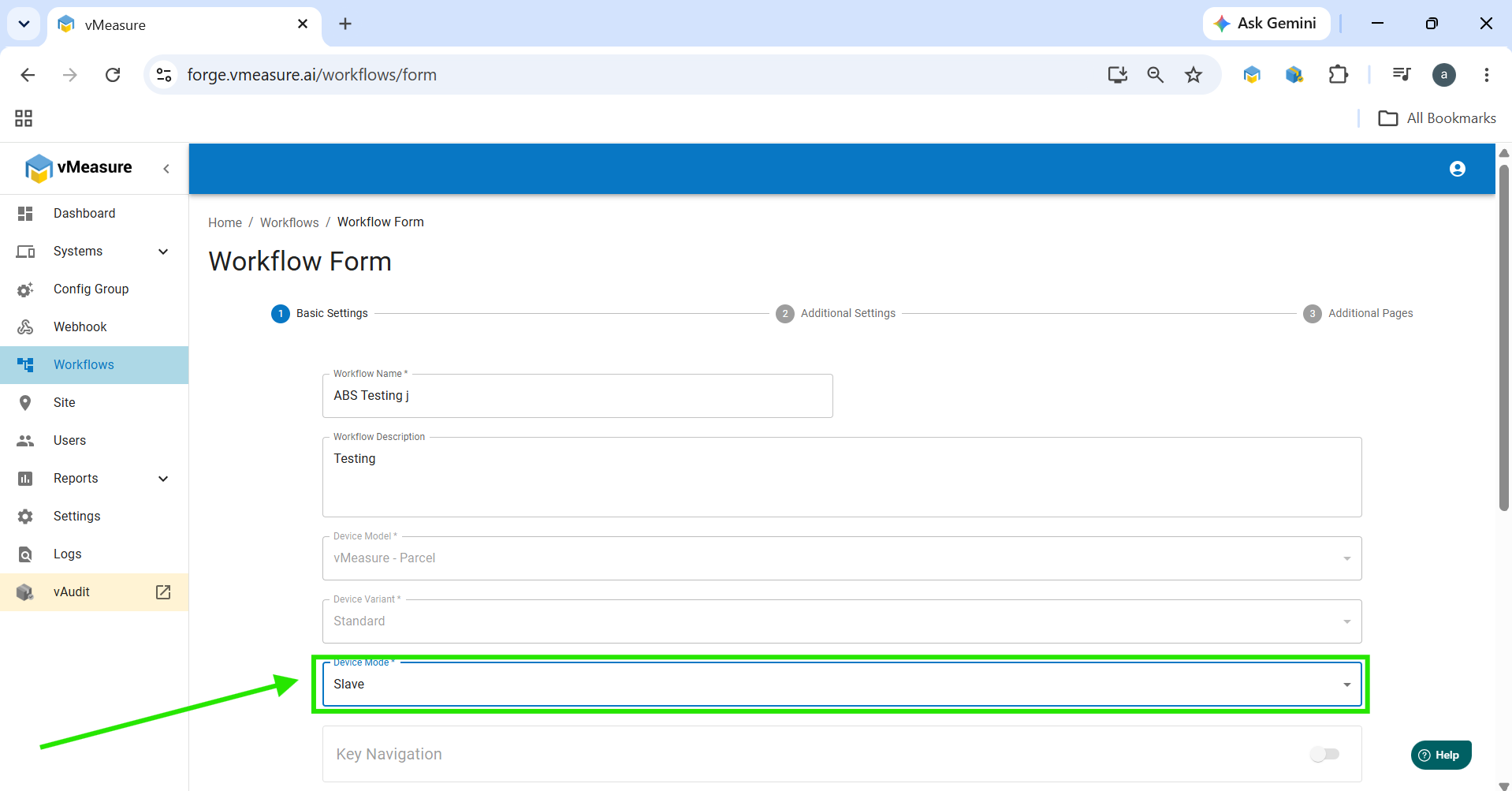

Step 5
Navigate to the third page of the workflow and click the Save icon to save the changes.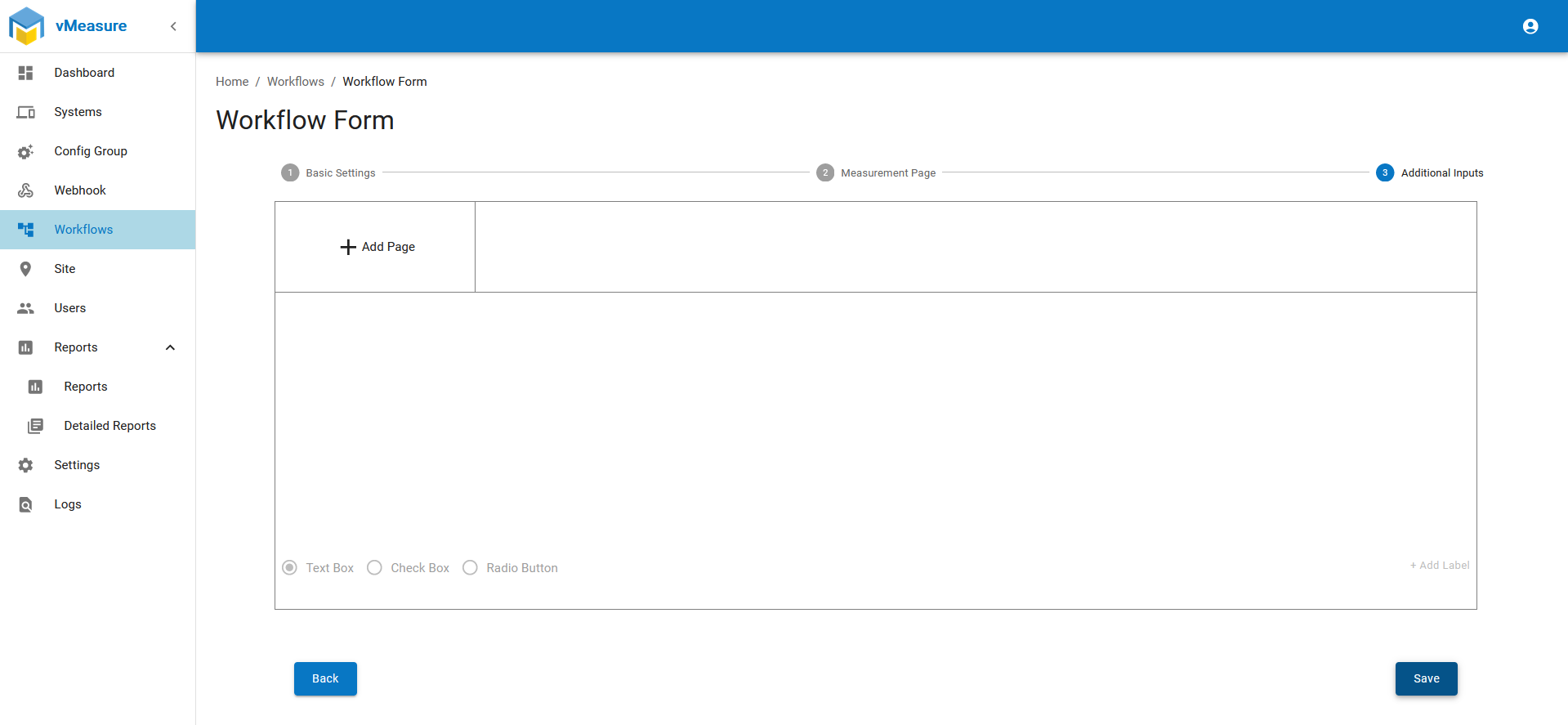
Step 6
Once the workflow is updated, a Workflow Updated pop-up will appear on the vMeasure device.
- Click Yes to apply the updated workflow immediately.
- Alternatively, log out and log back into the device to synchronize the workflow.
Step 7
Open the Calibration menu on the device. The Calibrate option will now be available.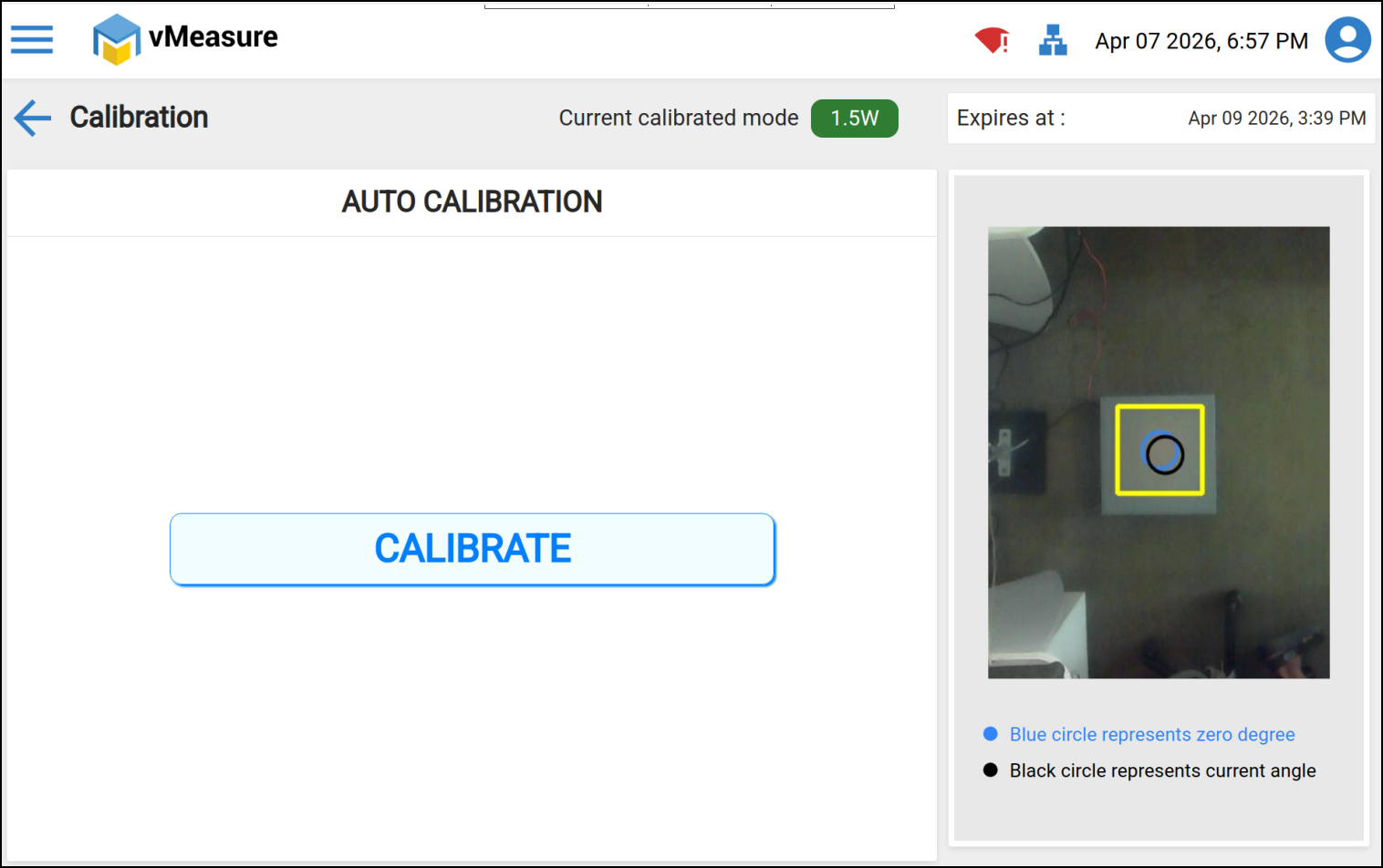
Support
If you need any assistance, please contact us at:
Was this article helpful?
That’s Great!
Thank you for your feedback
Sorry! We couldn't be helpful
Thank you for your feedback
Feedback sent
We appreciate your effort and will try to fix the article