Steps to Download Additional Image from vMeasure Forge:
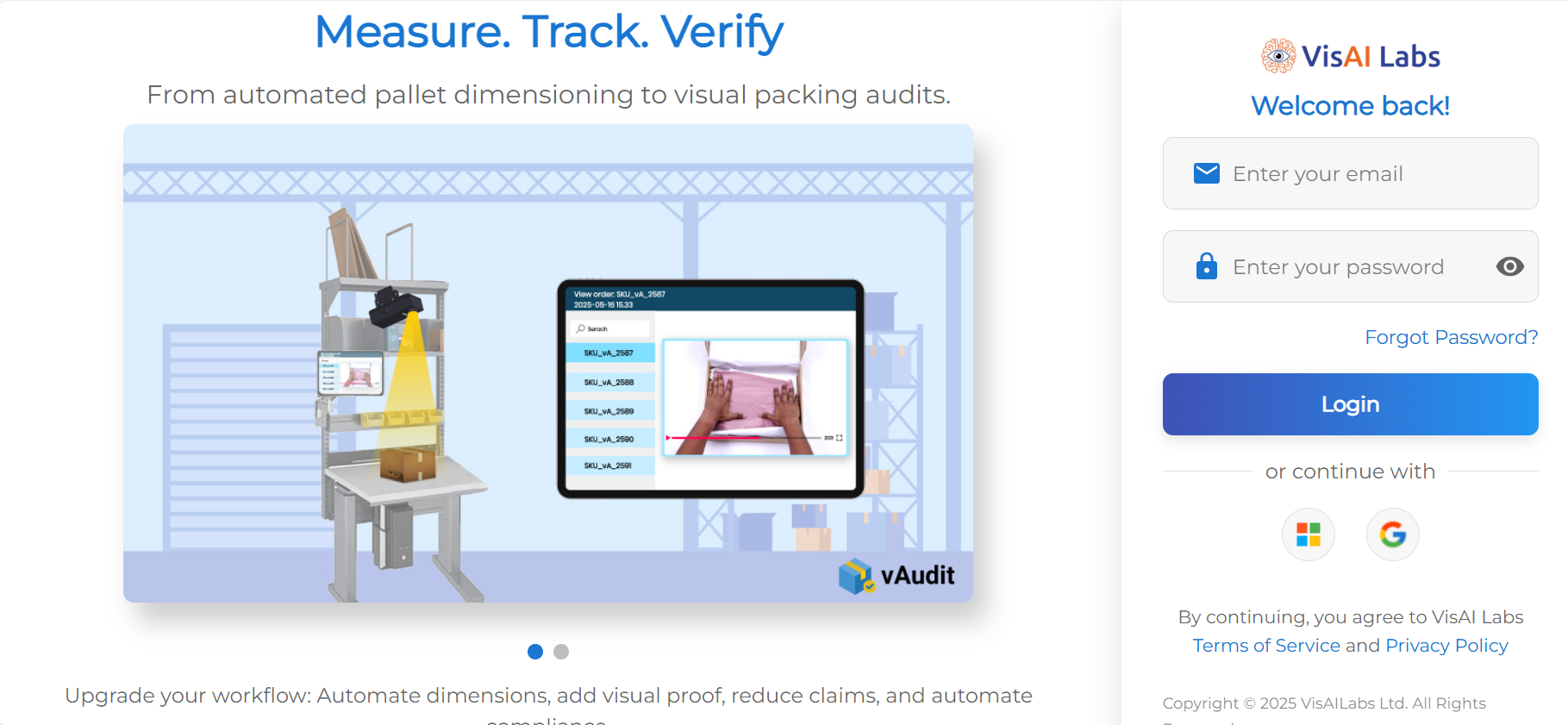
Step 1: Login to https://forge.vmeasure.ai/login
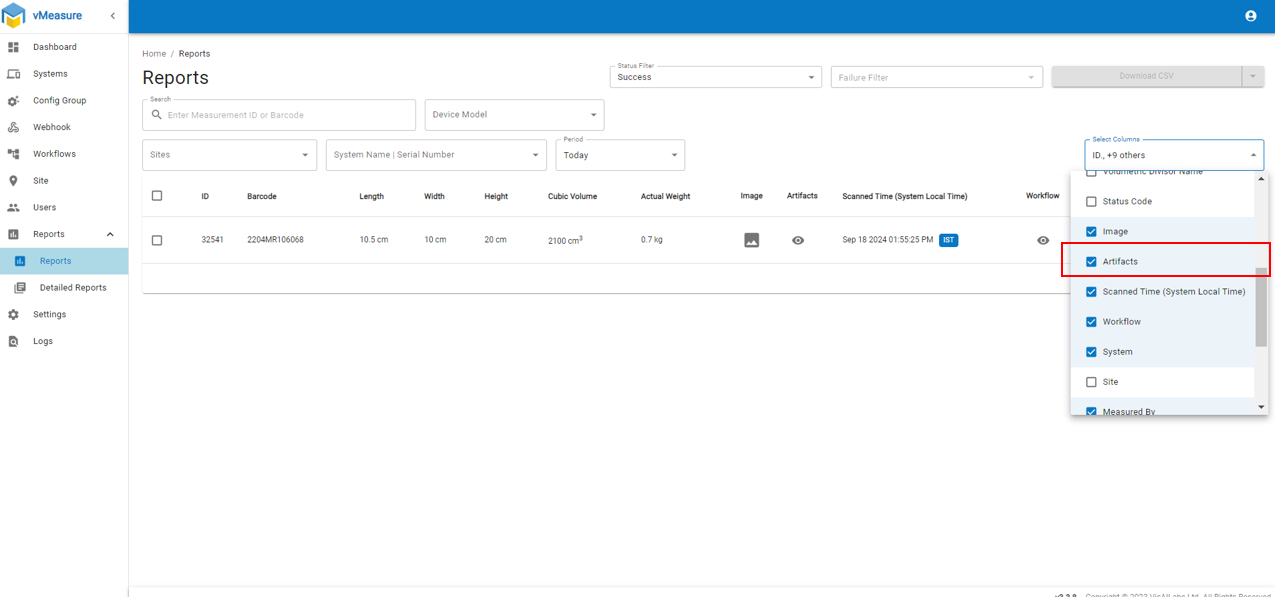
Step 2: Navigate to "Reports"
Step 3: Click on "Select Columns" and enable the "Artifact" option to view and download additional images.
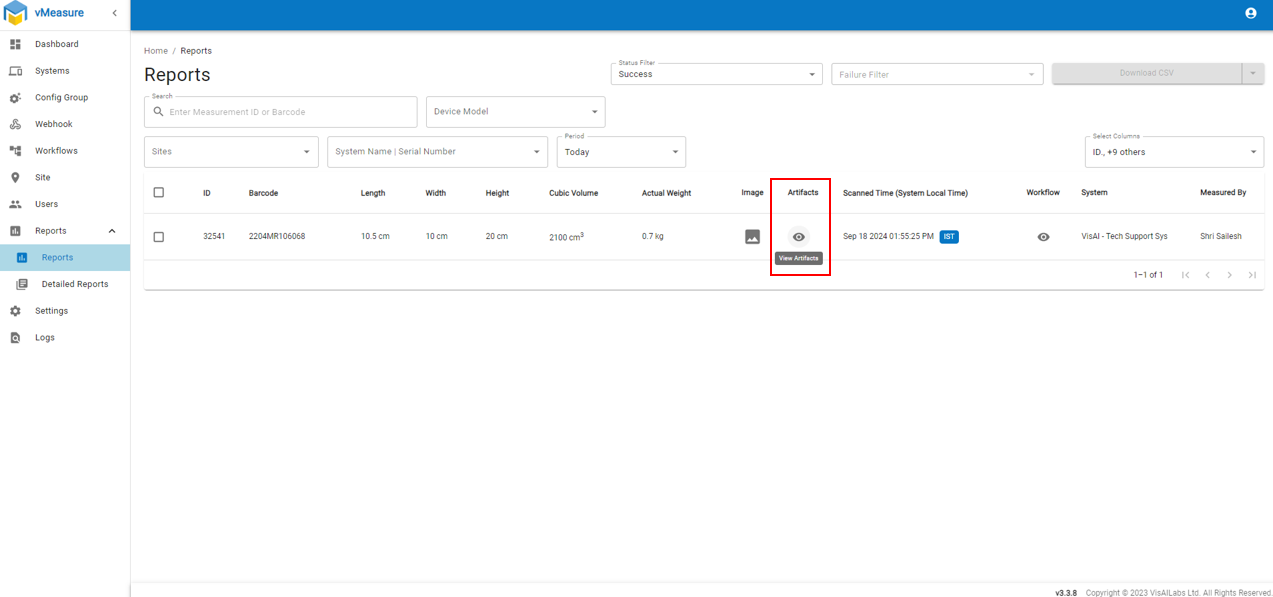
Step 4: Once enabled, click on "View Artifacts" to see the captured images and you can then download the desired Image.
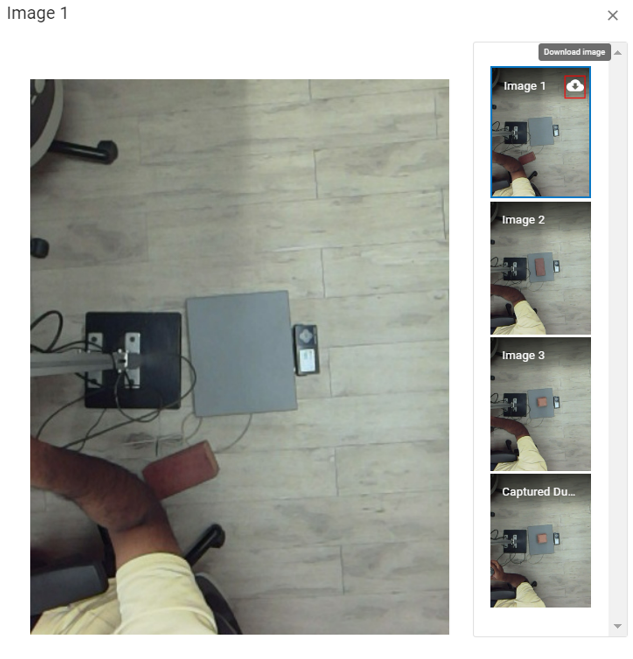
Additionally we can download the image by using S3 Bucket amazon URL.
Steps to Download Images Using S3 Bucket URL:
Step 1: Navigate to "Detailed Report" where the data is available.
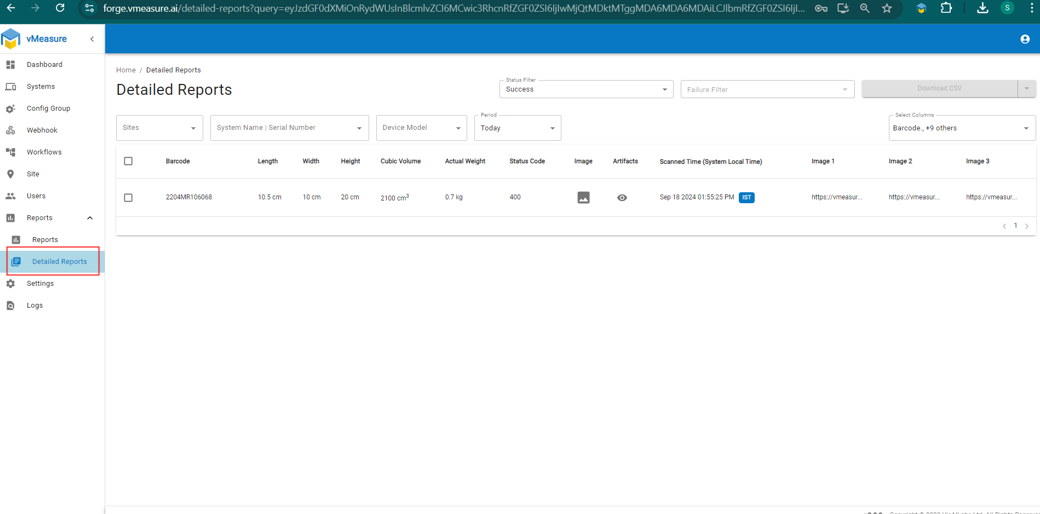
Step 2: Enable "Image 1", "Image 2", and "Image 3" in the "Select Columns" section of the report.
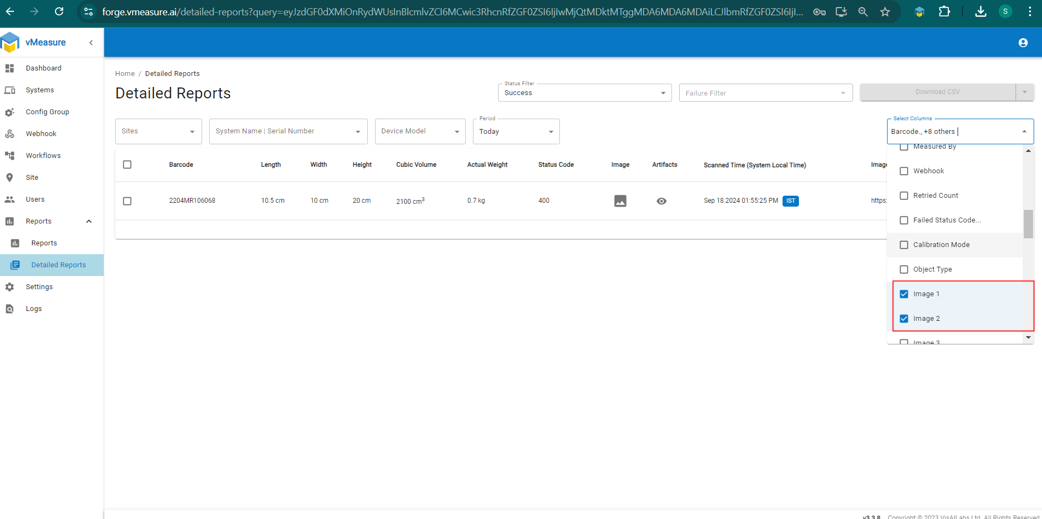
Step 3: Copy the URL for the images provided in these columns.
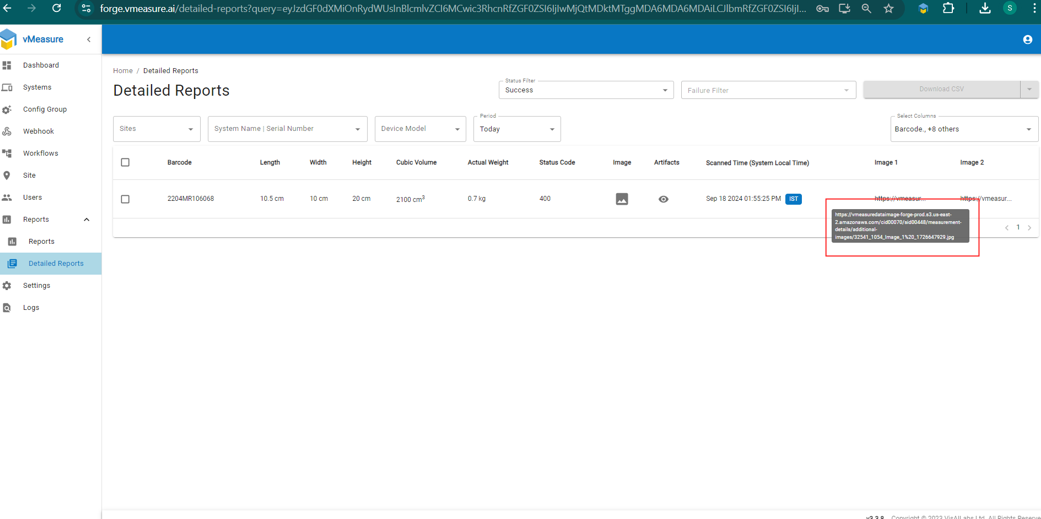
Step 4: Paste the URL in your browser to access and download the images.
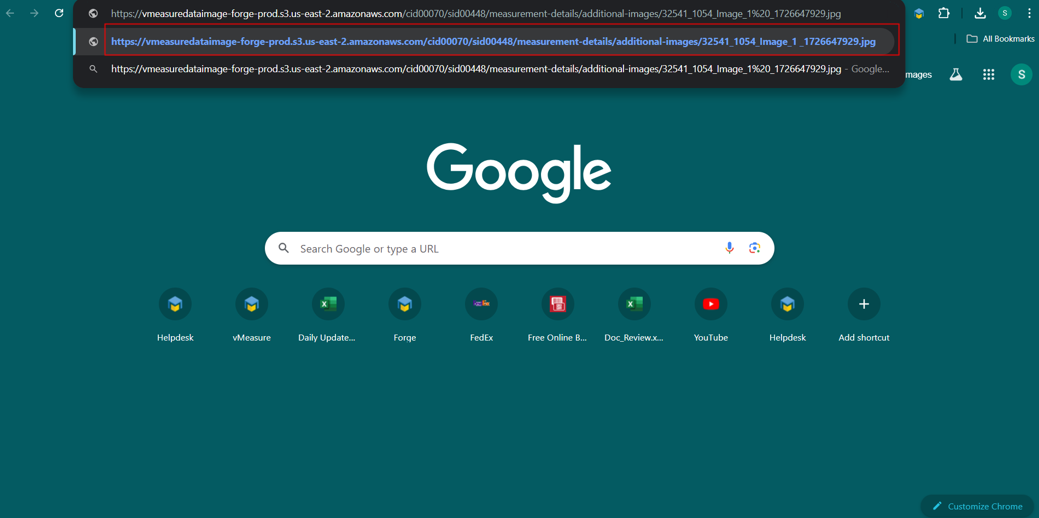
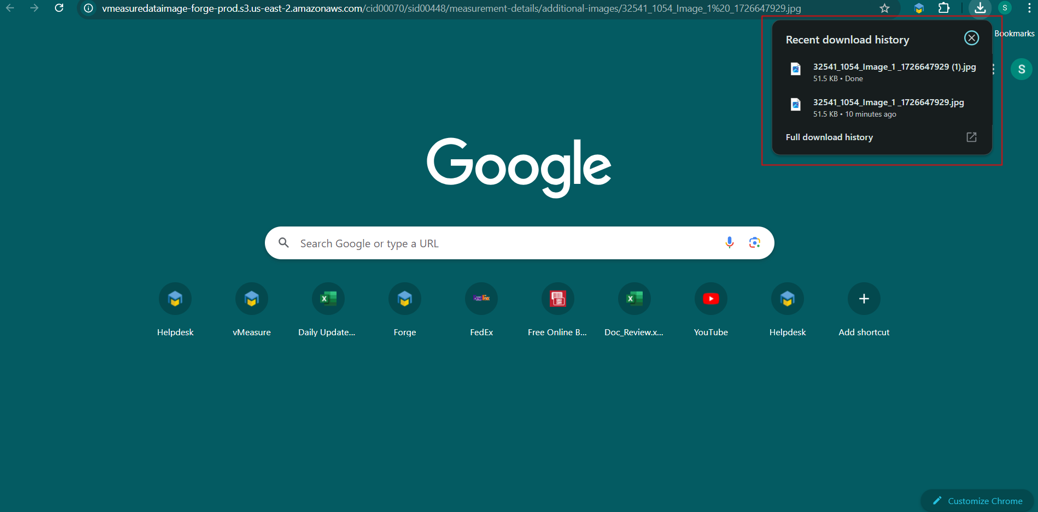
This should allow you to download the images to your system directly.
If you need any support , please drop a mail to vmeasure@visailabs.com
Was this article helpful?
That’s Great!
Thank you for your feedback
Sorry! We couldn't be helpful
Thank you for your feedback
Feedback sent
We appreciate your effort and will try to fix the article