This document provides the steps to integrate an additional USB camera with the vMeasure device and capture additional images along with the measurement data.
Configuration Steps
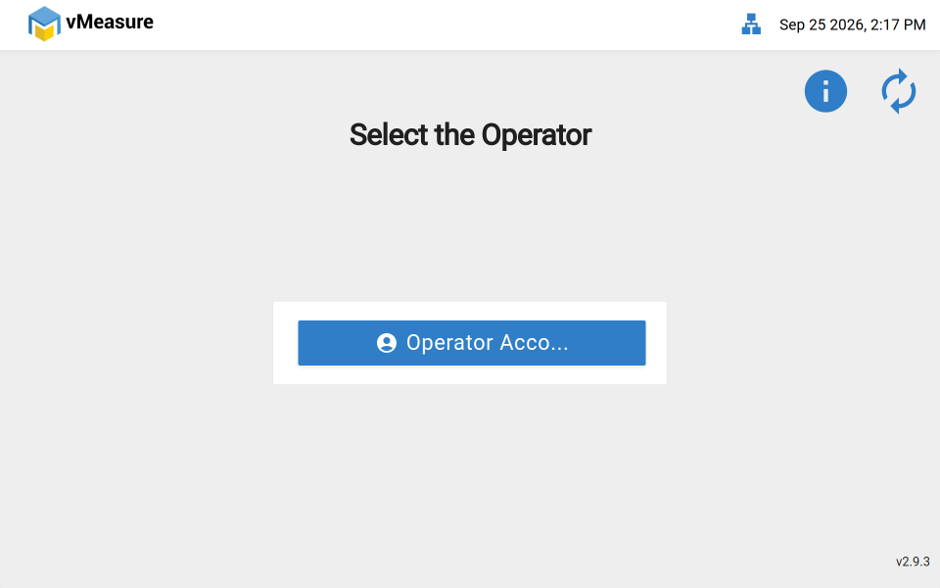
Step 1: Log in to the vMeasure device.
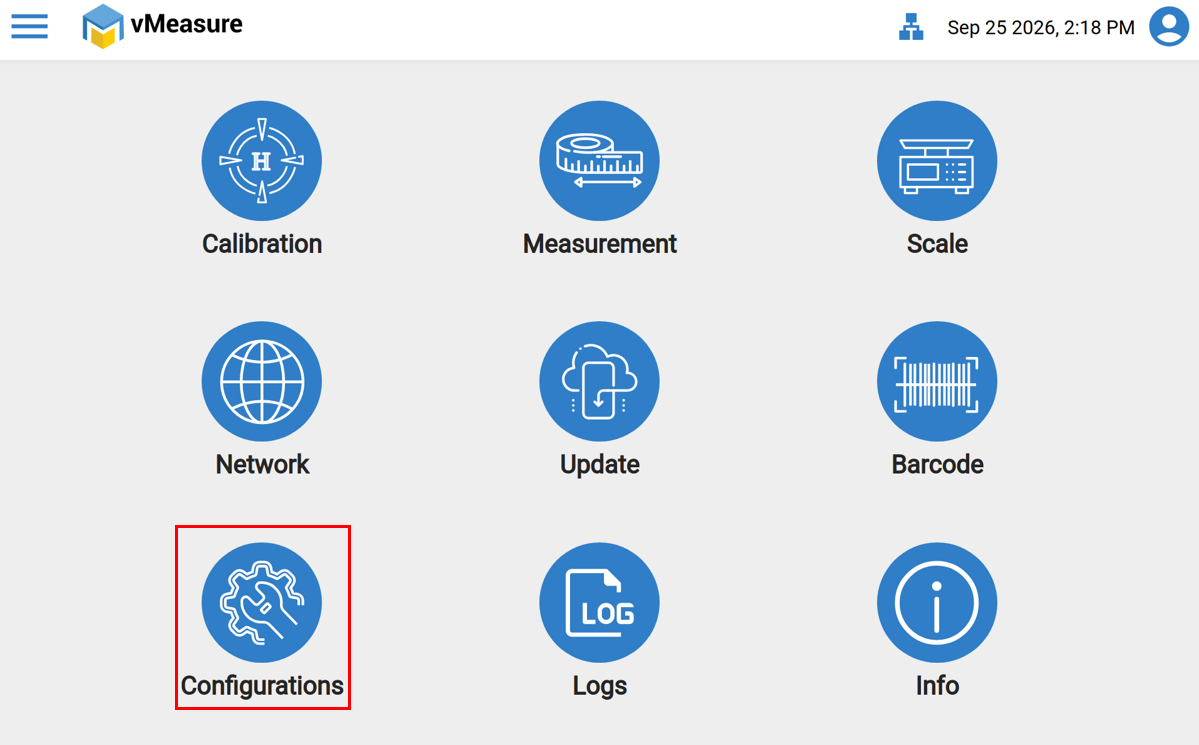
Step 2: Navigate to Configurations
- Click on Settings.
- Navigate to Configurations.
Image 1: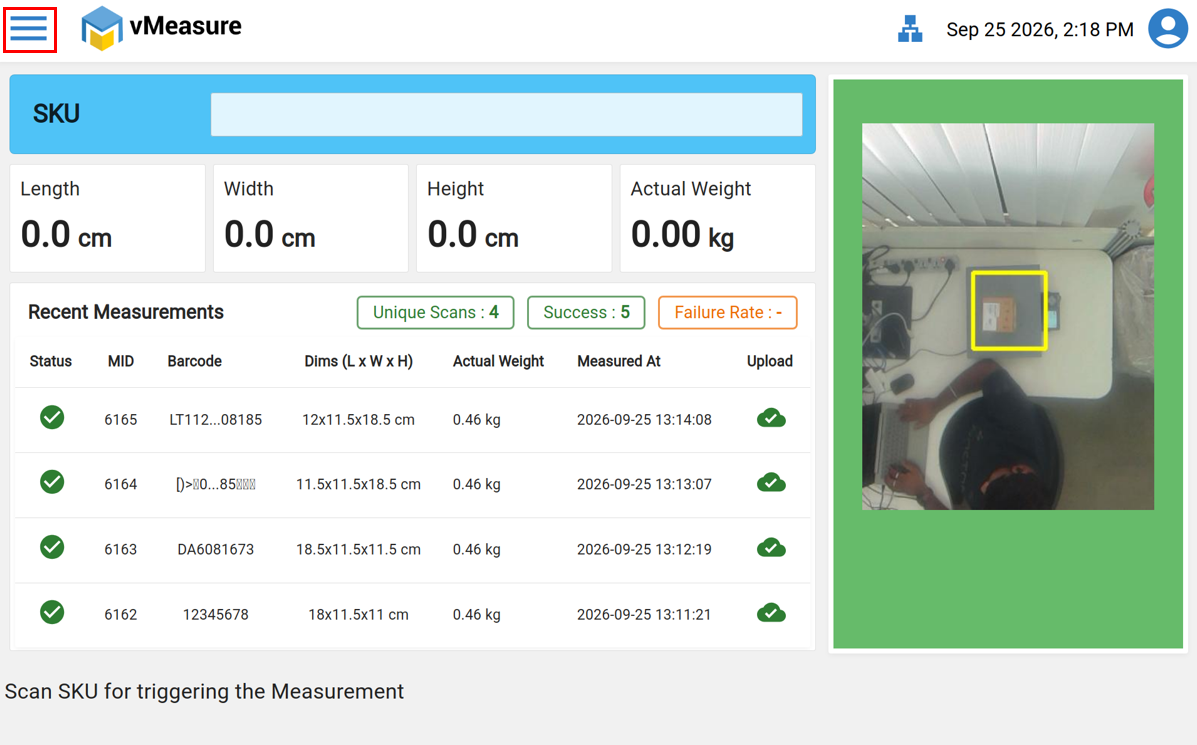 Image 2:
Step 3: Open USB Camera Settings
- Click on the Next icon.
- Select USB Camera.
Image 1:
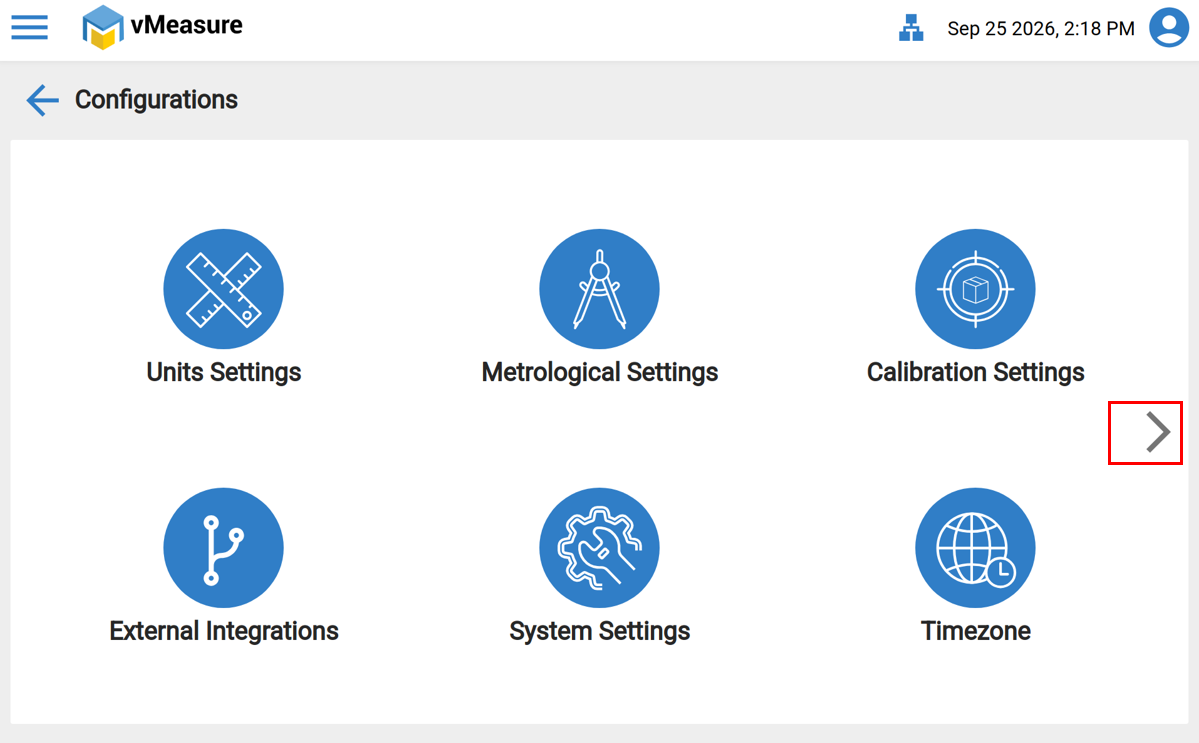
Image 2:
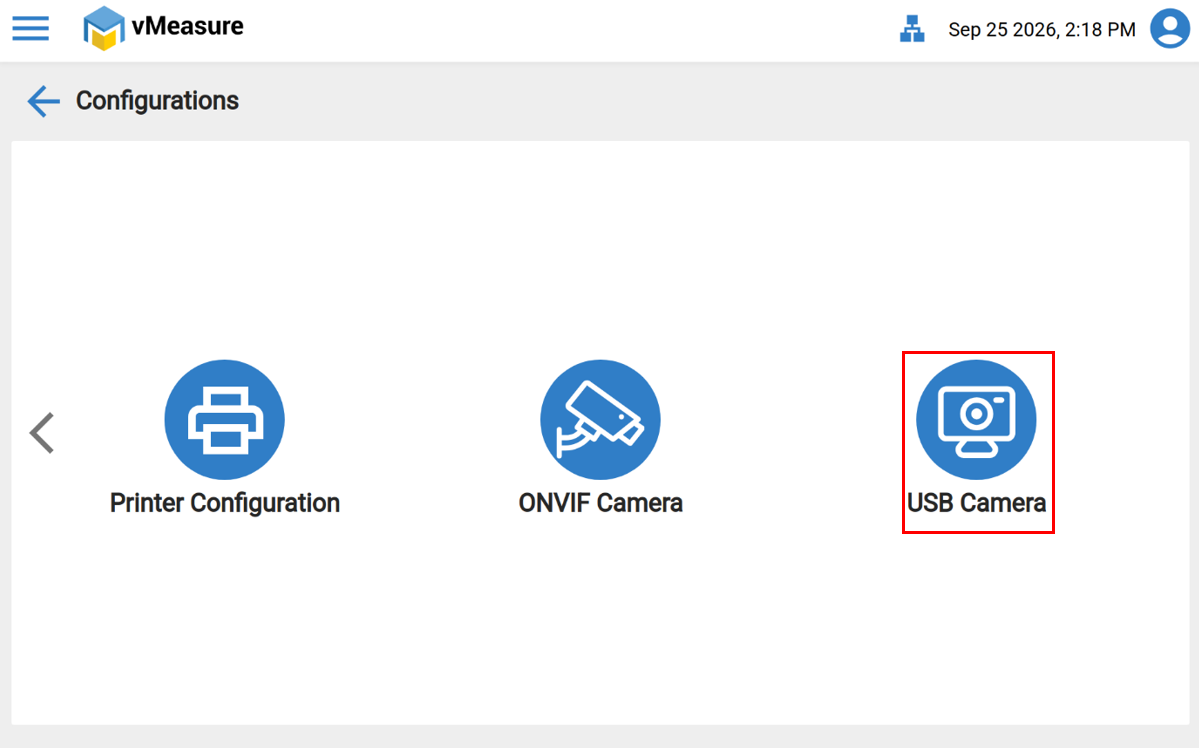
Note: Ensure that the USB camera is connected to either the PHU or VHU USB port.
Step 4: Add the USB Camera
Click + Add to add an additional USB camera.
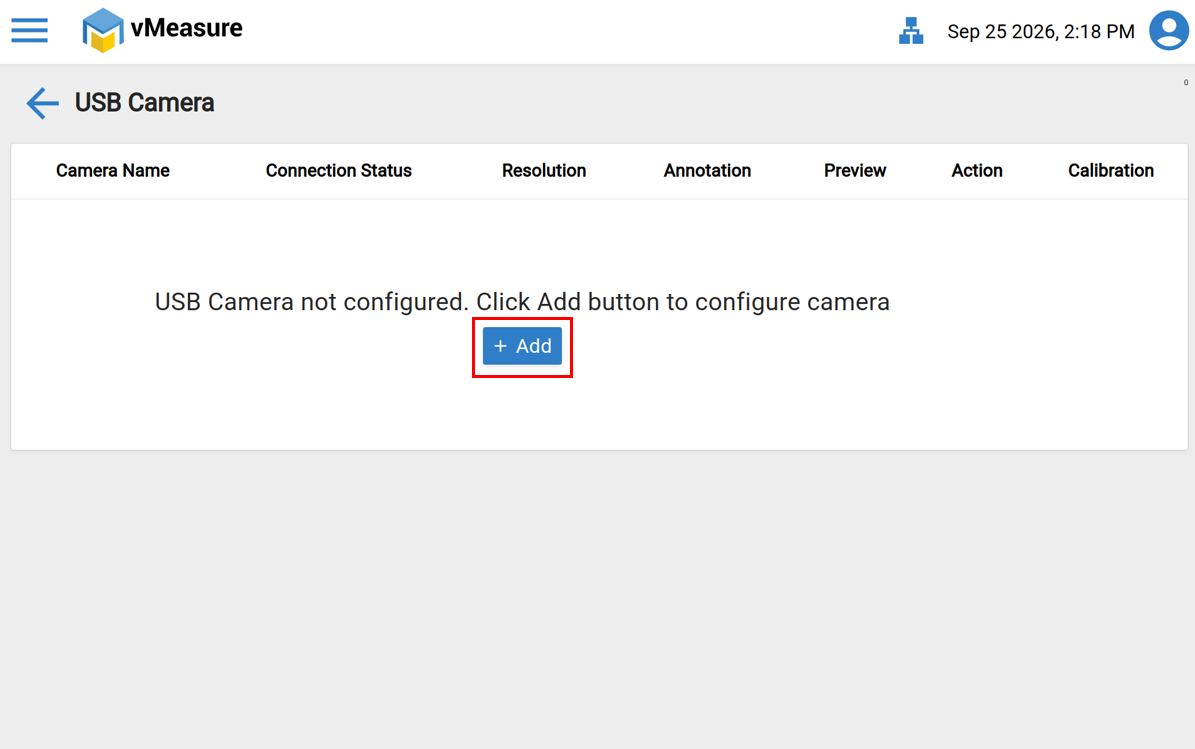
Step 5: Configure the USB Camera
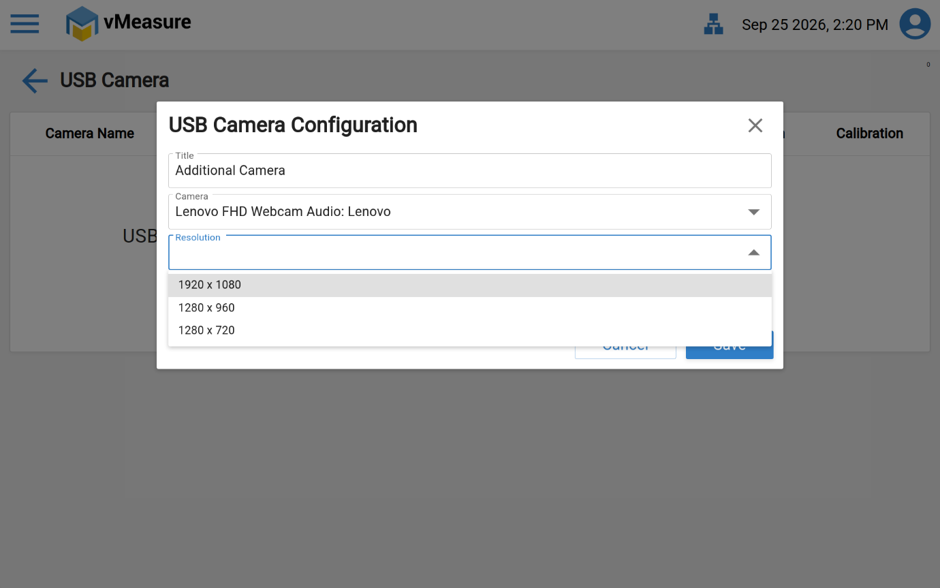
A USB Camera Configuration pop-up will appear. Enter the required details:
- Title: Enter any preferred name for the camera.
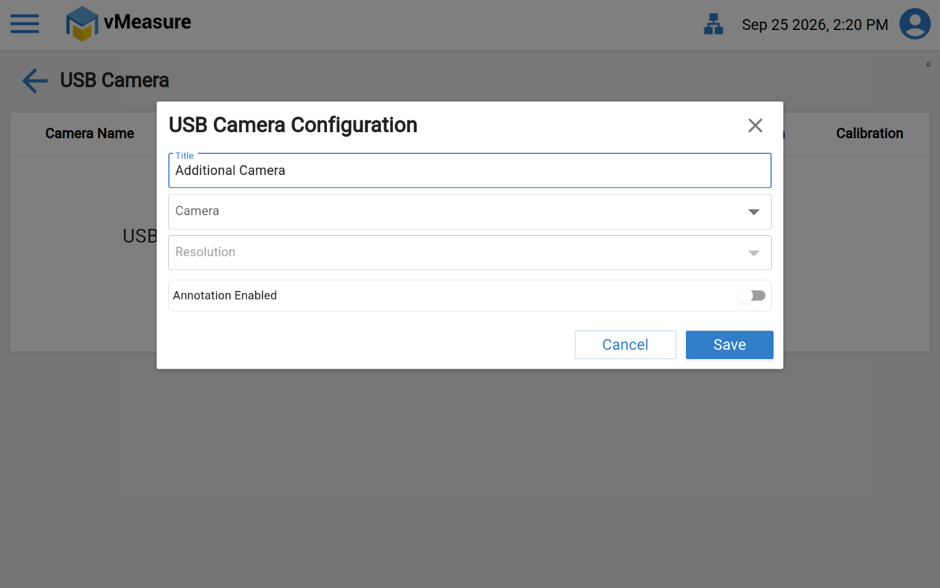
- Camera: Select the required camera from the dropdown list.
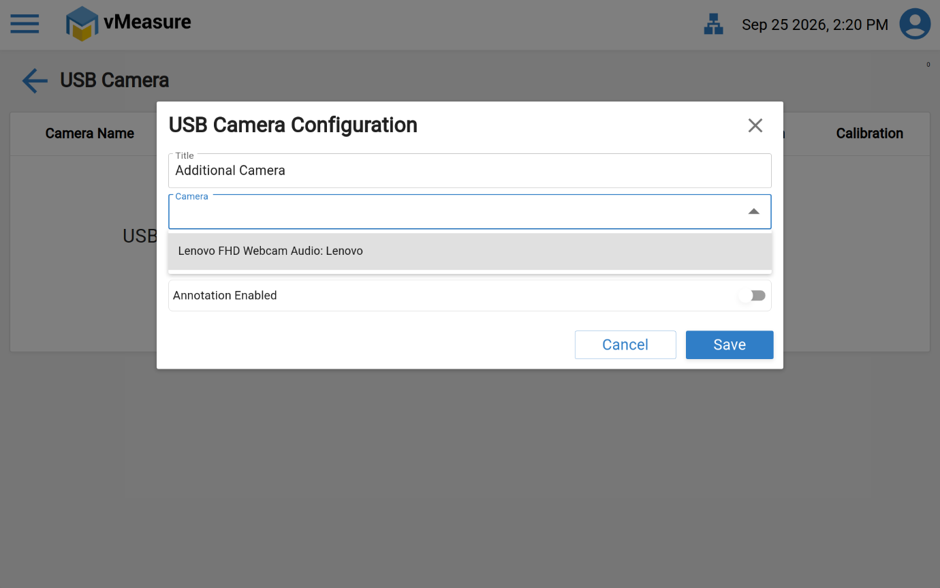
- Resolution: Select the required resolution from the dropdown list.
- Annotation: If required Enable Annotation.
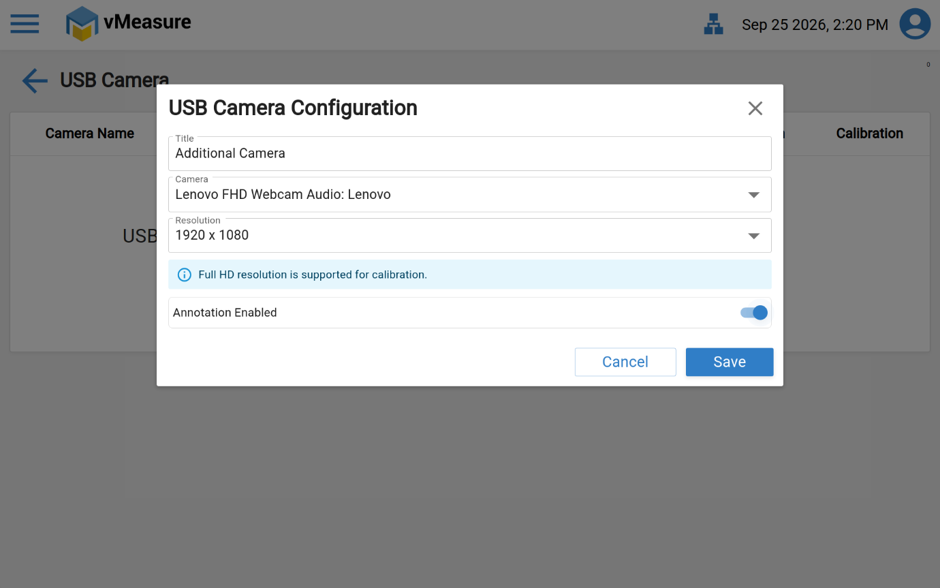
- Click Save to apply the configuration.
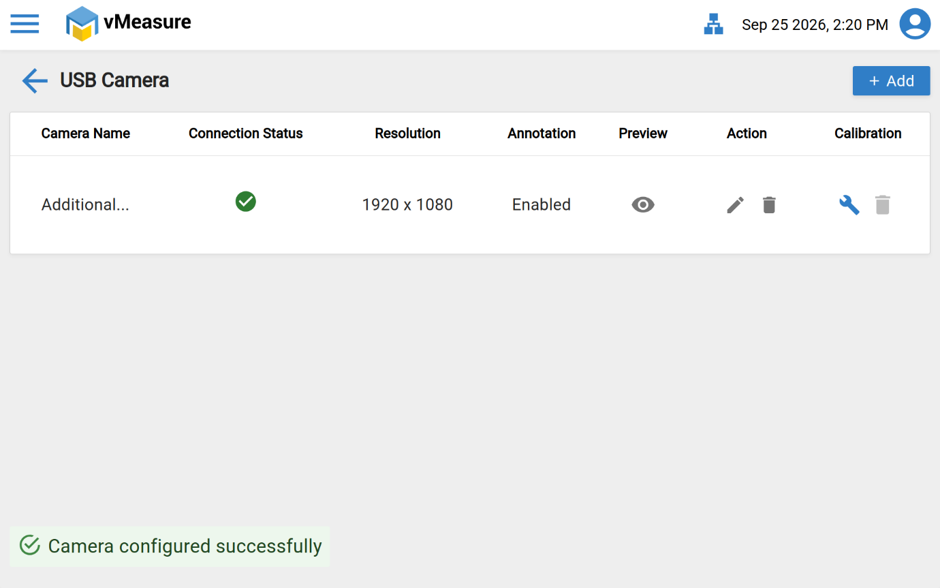
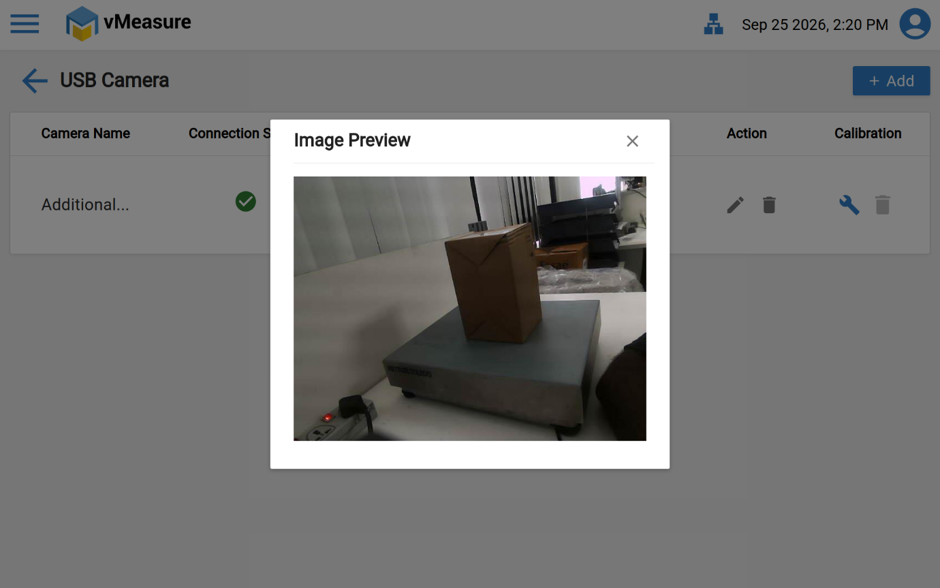
To check the camera preview, click on the "Preview" Icon
Image 1: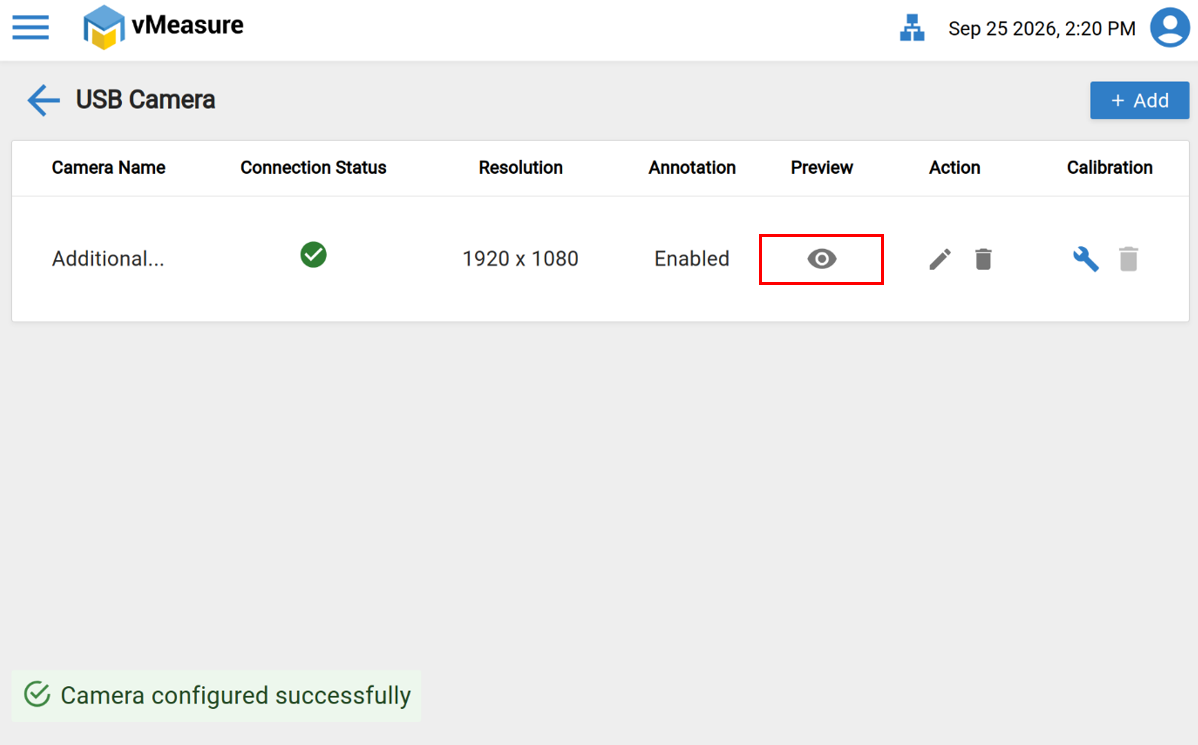
Image 2: Adjust the camera as per your requirement
Capturing Additional Images
- Navigate to the Measurement page.
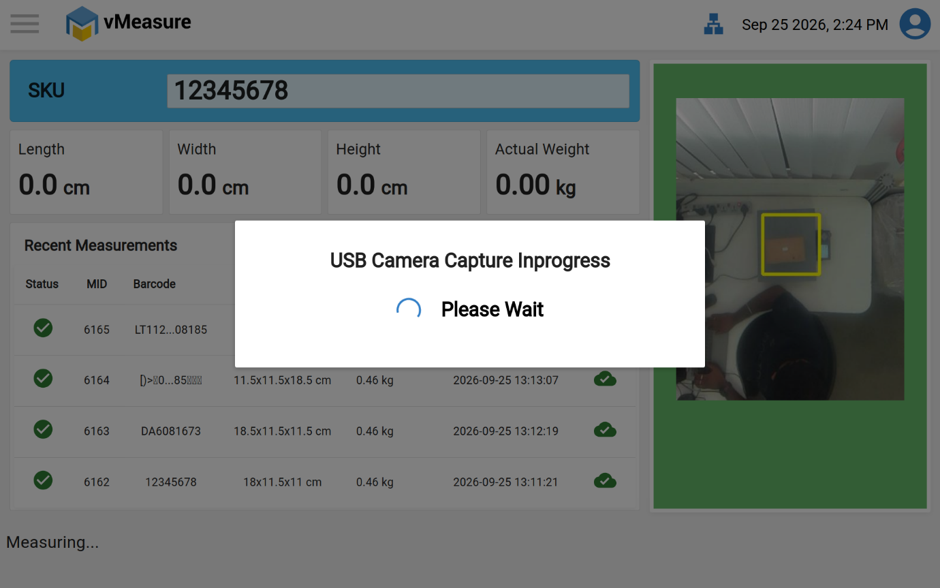
- Scan the barcode to capture the parcel dimensions and additional images.
- The configured USB camera will capture the additional image along with the measurement.
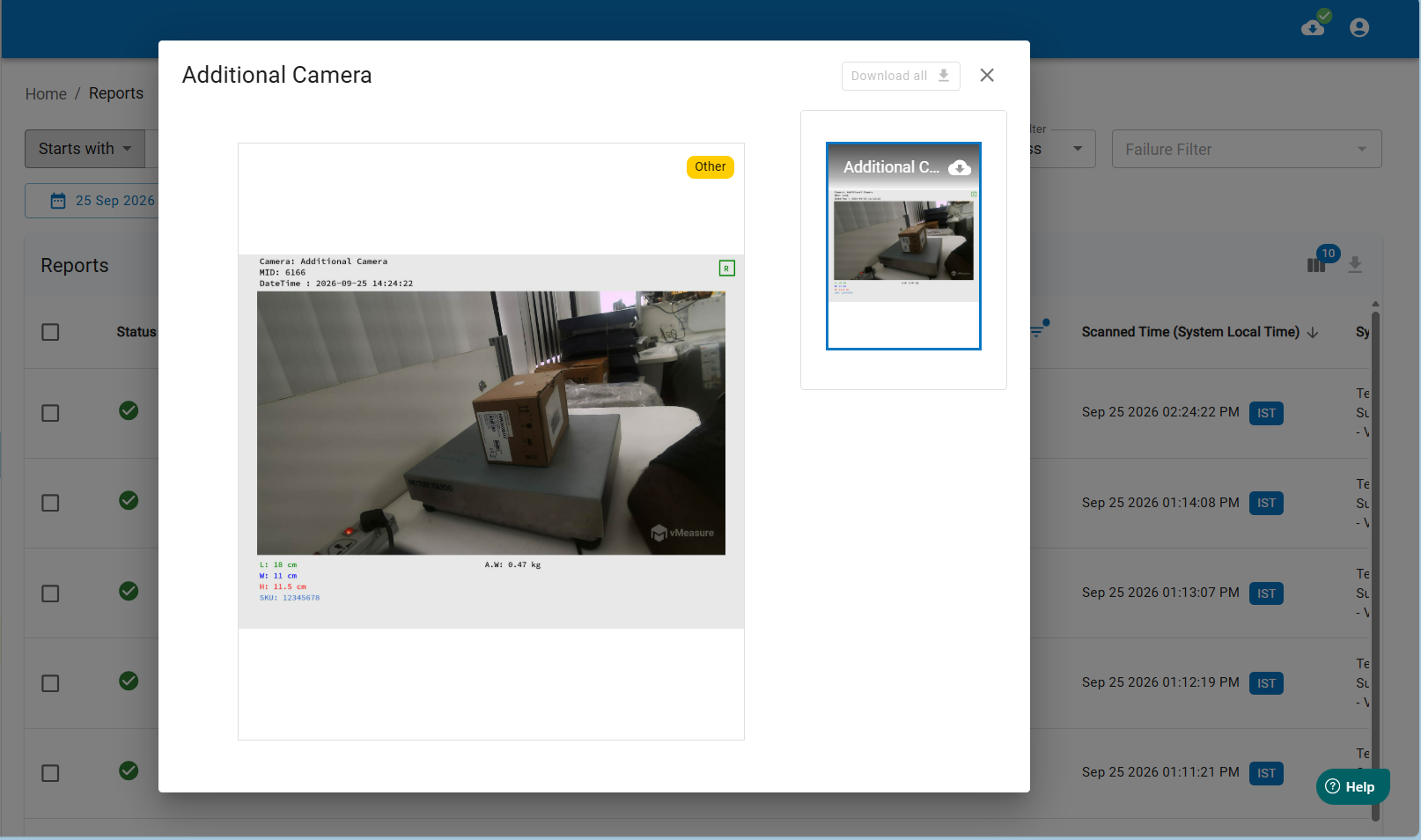
Viewing Additional Images in Forge
To view the captured additional image:
- Log in to the vMeasure Forge portal.
- Navigate to the Reports page.
- Open the required measurement/report.
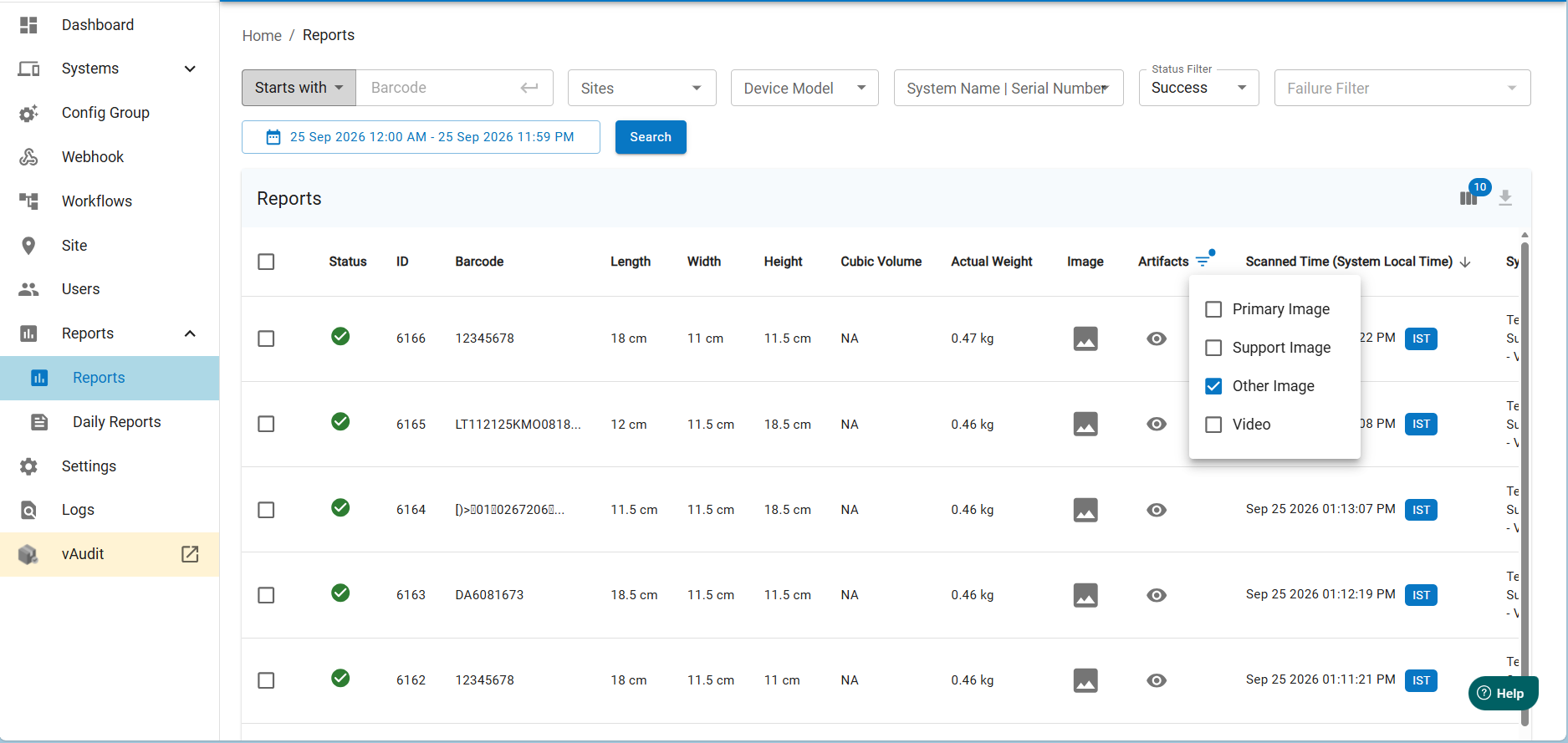
- Navigate to Artifact Image.
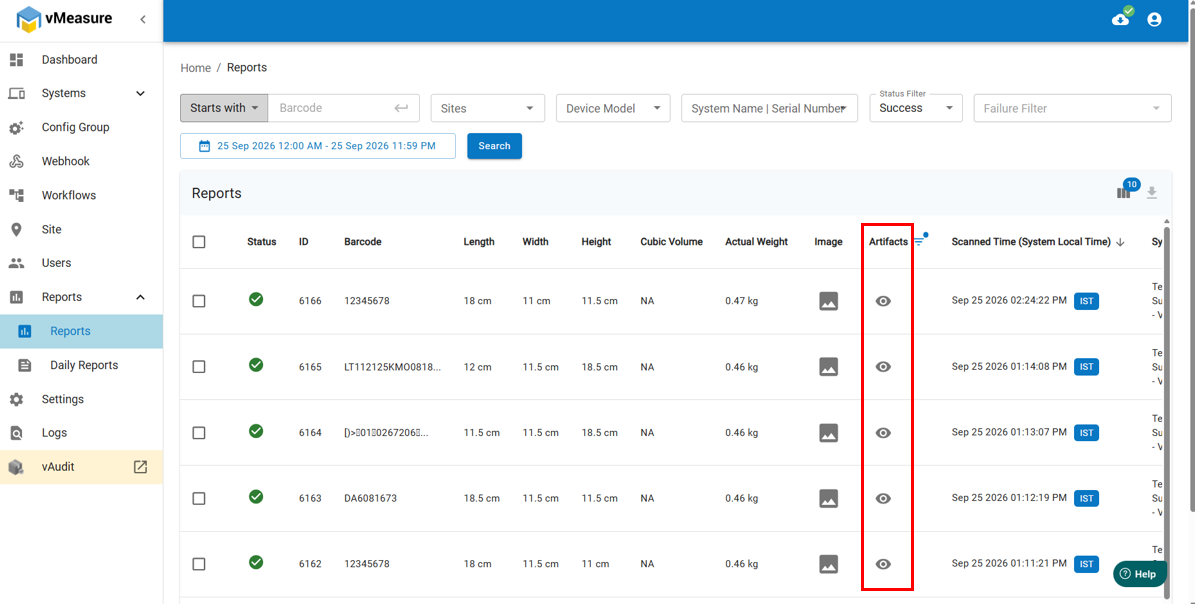
- The additional camera image will be available under Other Image.
Additional Information
- The USB Camera feature is supported from software version v2.9.3 onwards.
- A maximum of 2 additional USB cameras can be connected to a vMeasure device.
- If more than 2 additional cameras are required, please contact the Sales Team for further assistance.
Was this article helpful?
That’s Great!
Thank you for your feedback
Sorry! We couldn't be helpful
Thank you for your feedback
Feedback sent
We appreciate your effort and will try to fix the article