Pre-requisites:
Ensure that both the vMeasure device and the PC (where MeasureDesk is installed) are connected to the same network.
Download the vMeasure MeasureDesk setup from the provided Link and install it on the desired system.
Note: MeasureDesk is currently available only for Windows systems.
Verify that OpenJDK 21 is installed on your system before running the application.
You can download it from the following link: [OpenJDK 21].Barcode scanning is not supported in Slave Mode.
Once MeasureDesk is installed, launch the application by clicking the MeasureDesk icon on your desktop.
How to Configure MeasureDesk:
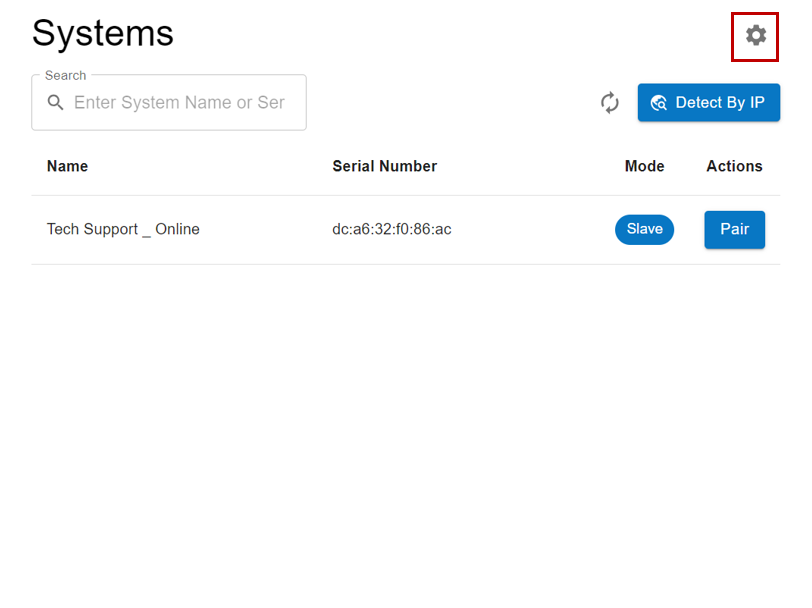
Step 1: Click the Cog (⚙️) icon to open the Settings page.
Step 2: In the Settings page, navigate to User Config.
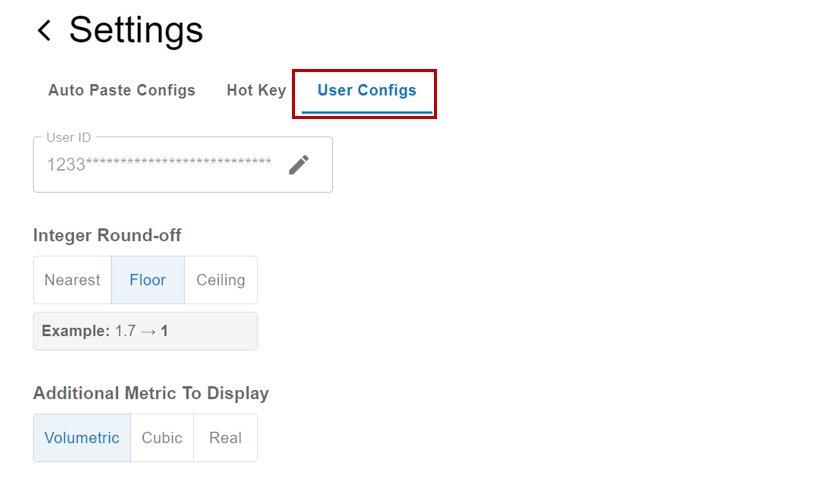
Step 3: On the User Config page, click the Edit (✏️) icon to enter your User ID.
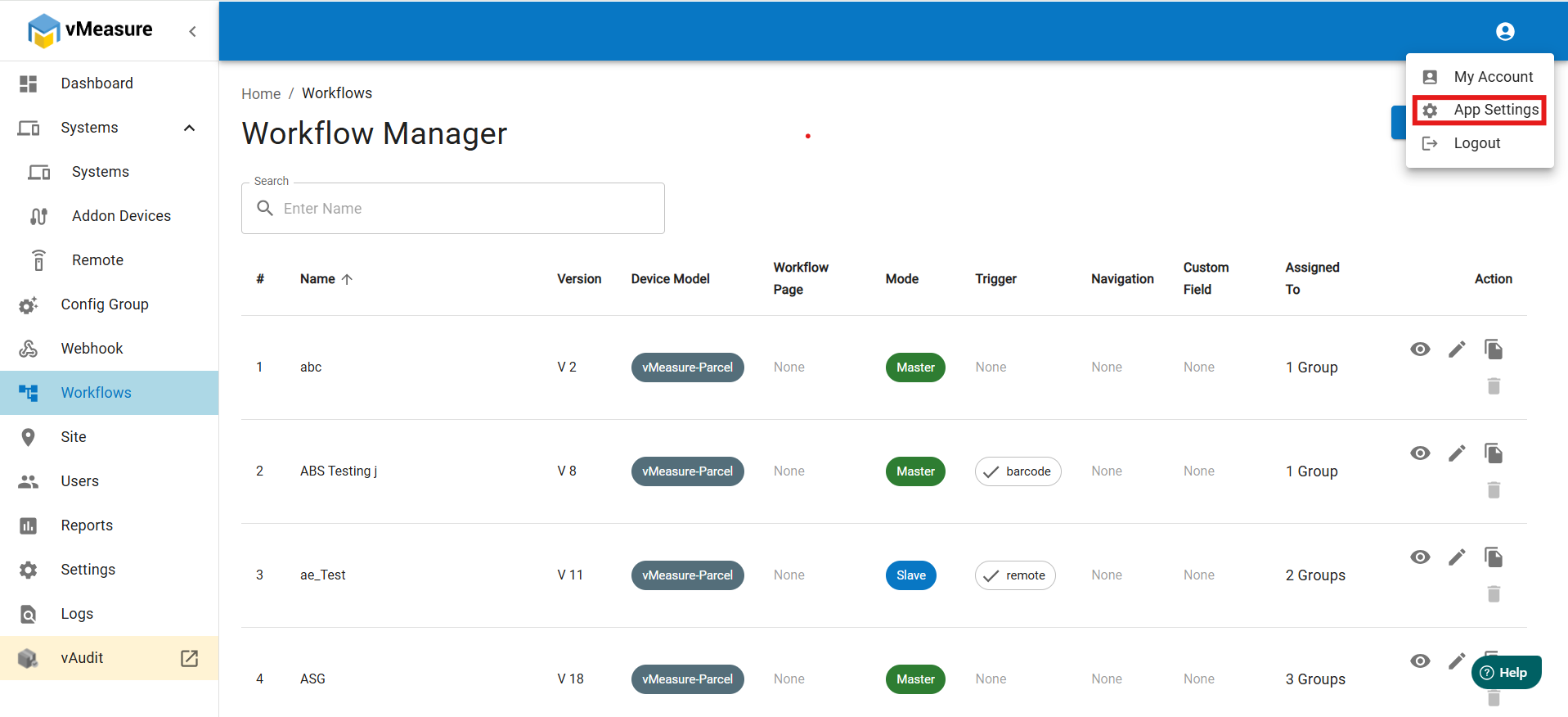
You can find your User ID by logging into your Forge account.
From the Dashboard, go to App Settings (top-right corner).
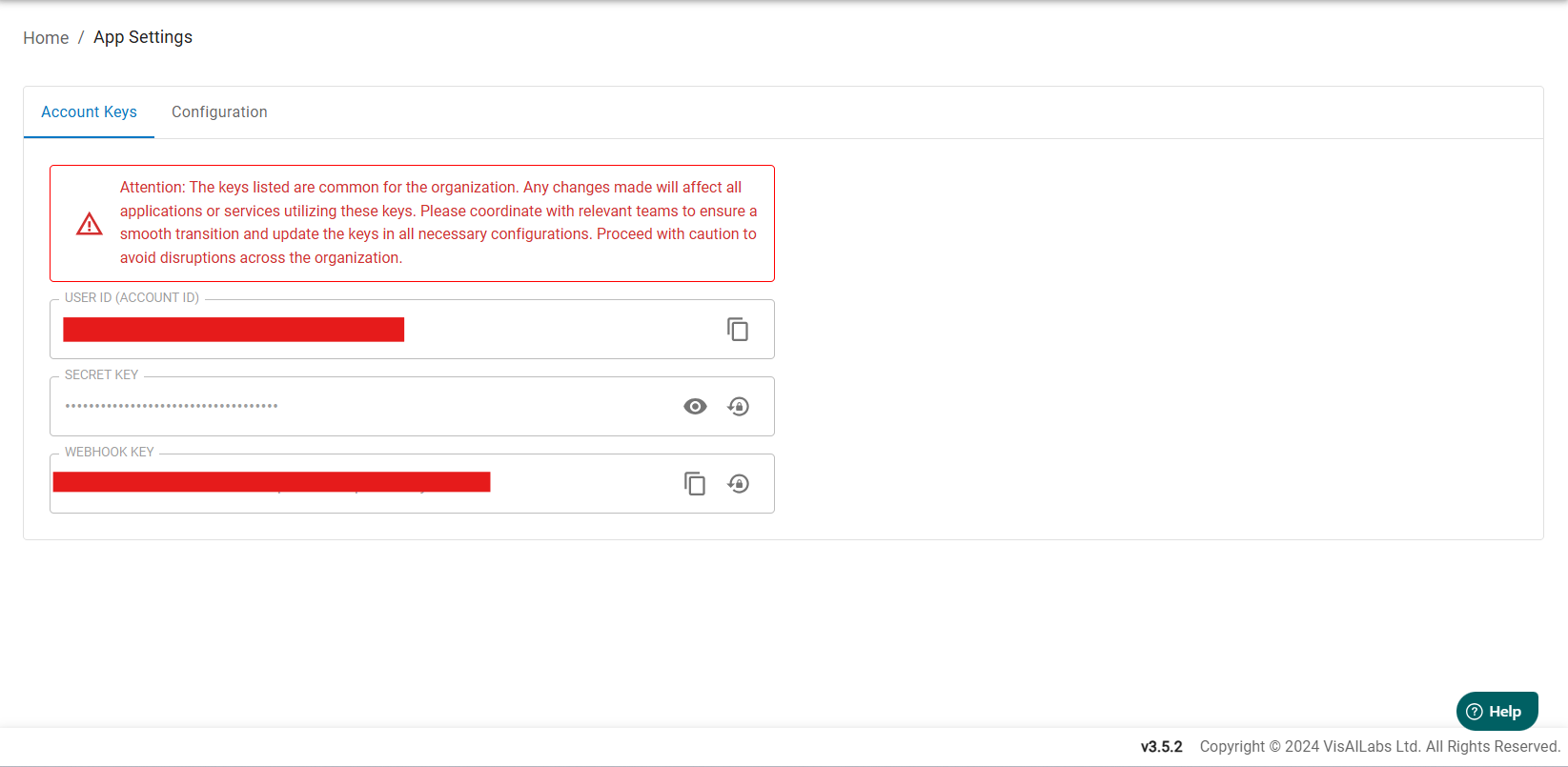
- Under Account Keys, copy the User ID using the Copy icon.
Step 4: After entering the User ID, click Update, then click the Home icon to return to the homepage.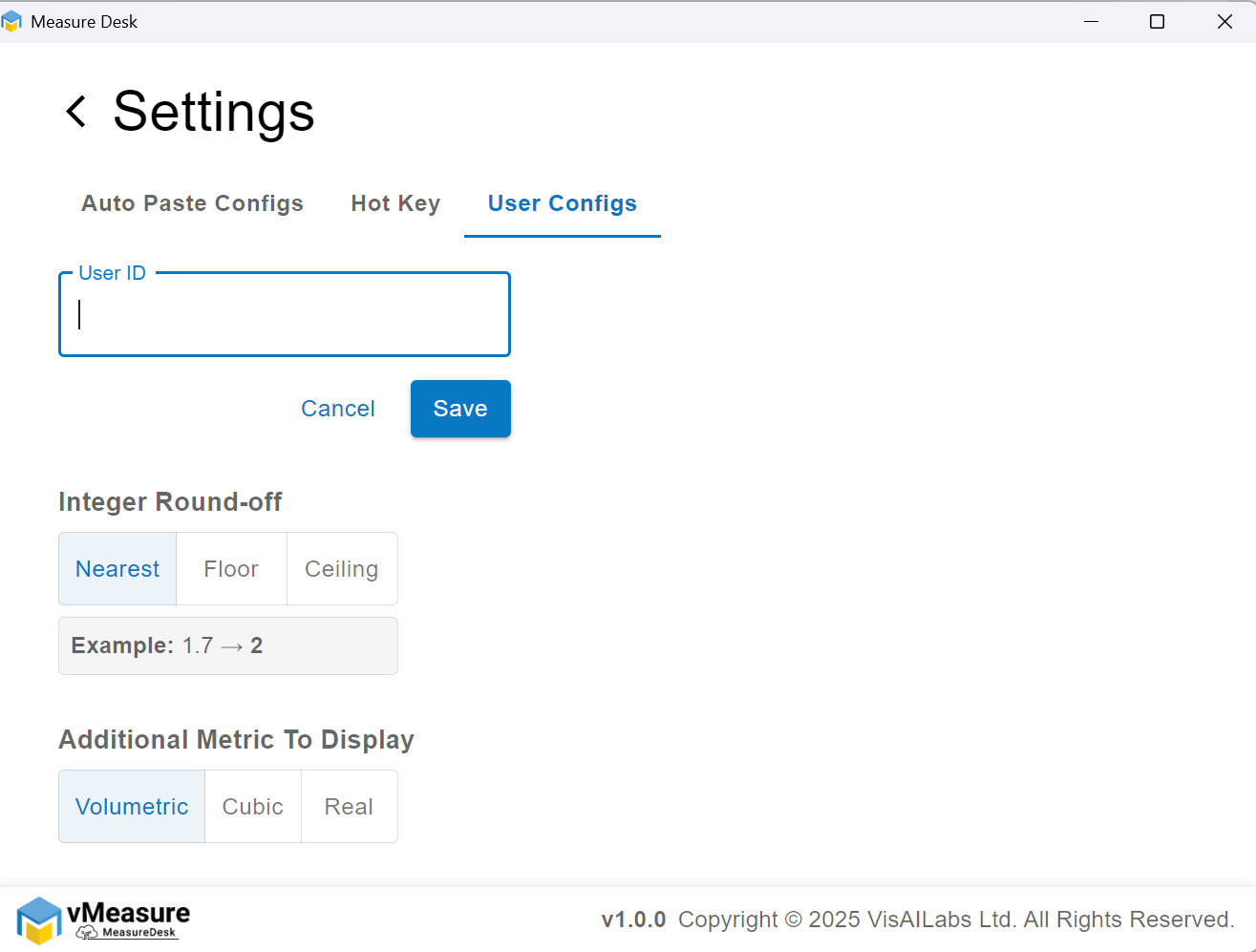
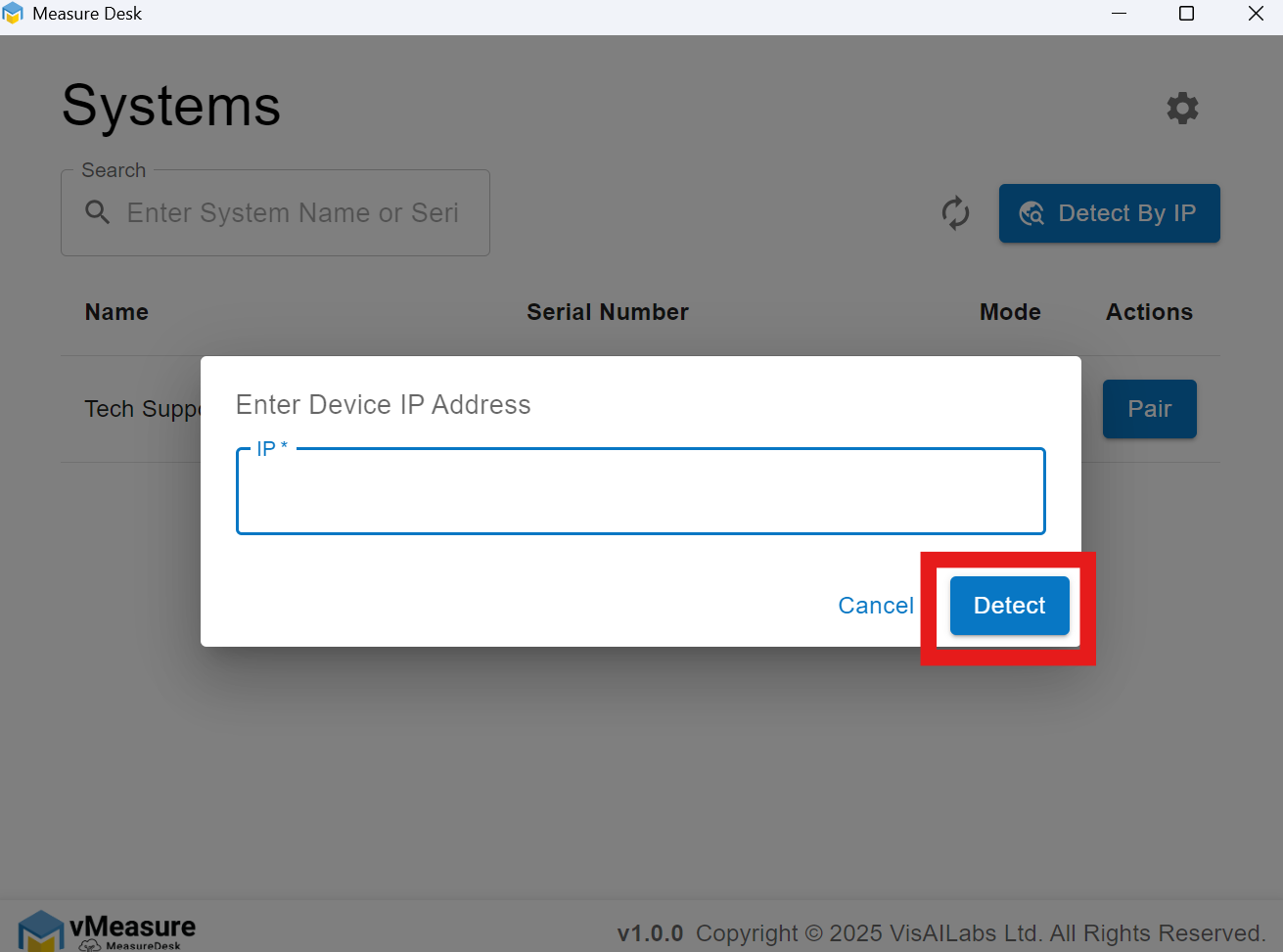
Step 5: On the homepage, click Detect by IP.
When prompted, enter the IP Address of your vMeasure device and click Detect.
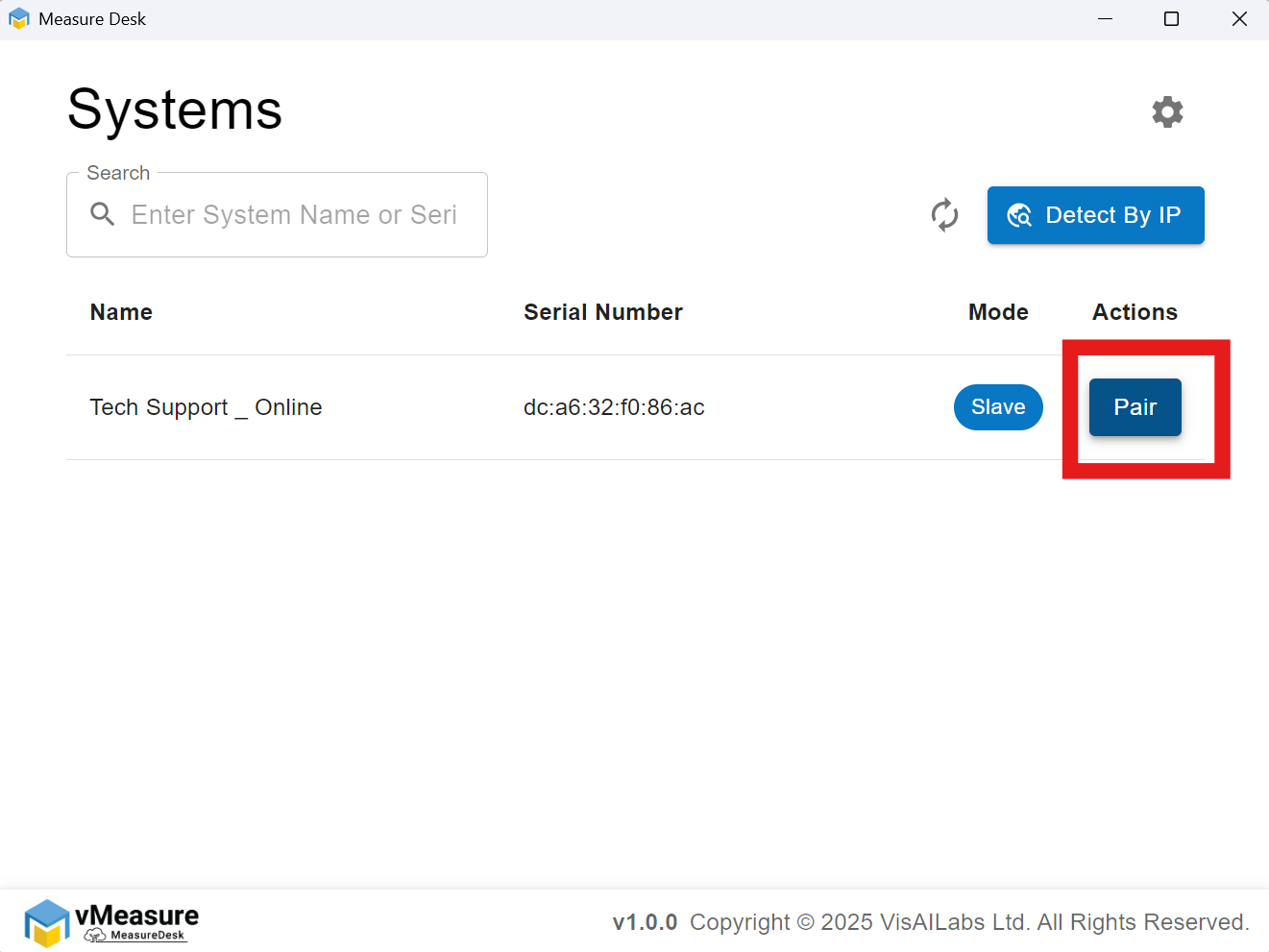
Once the weight device is detected, click the Pair icon to connect it with the MeasureDesk application.
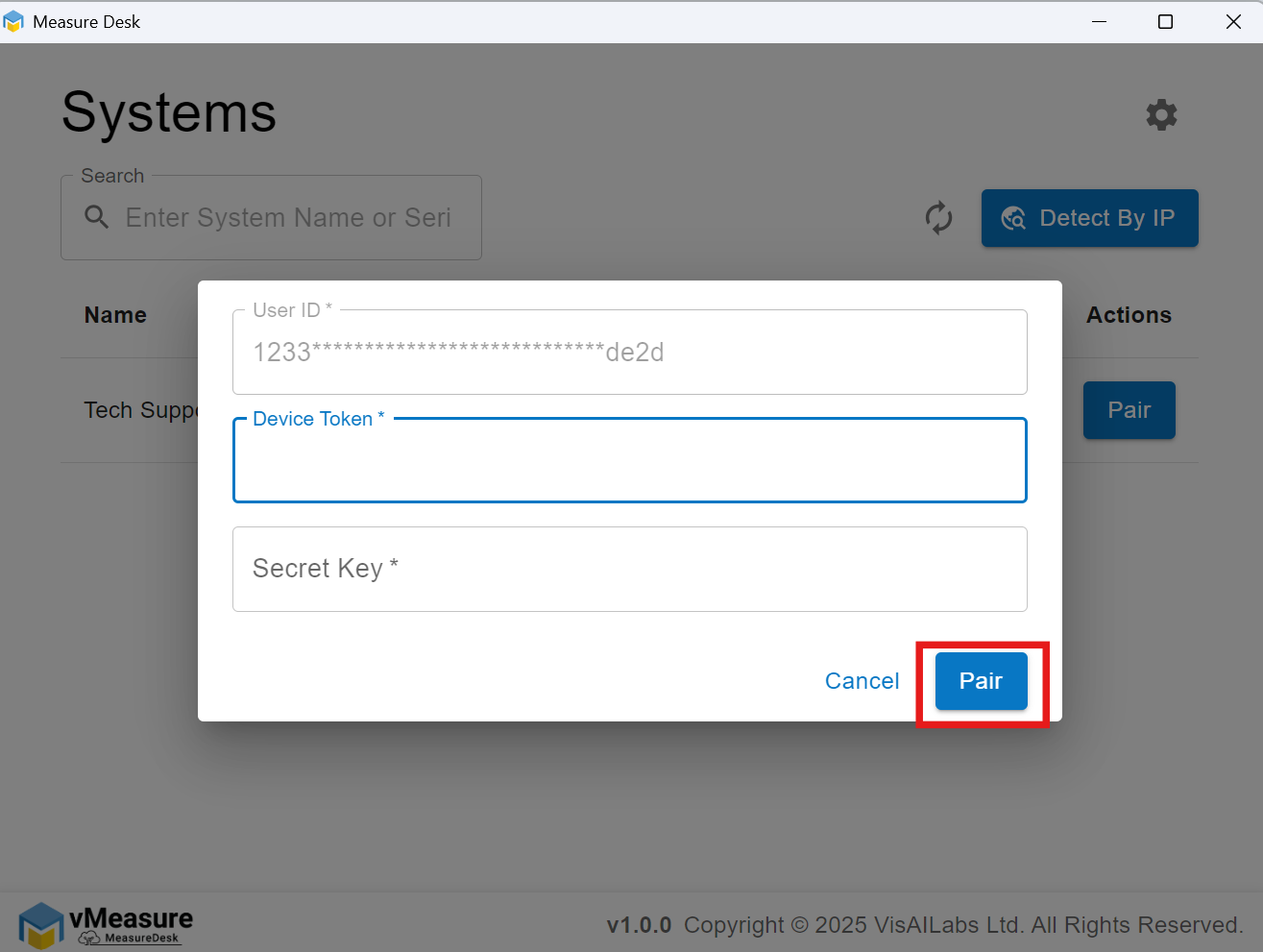
You will then be prompted to enter your Device Token and Secret Key, both available on the My Account page in Forge. After entering the details, click Pair.
A confirmation prompt will appear on your vMeasure device — press Confirm to complete pairing with MeasureDesk.
Once successfully paired, click the Cog icon again to return to the Settings page.
In Settings, click Add Custom Keystroke.
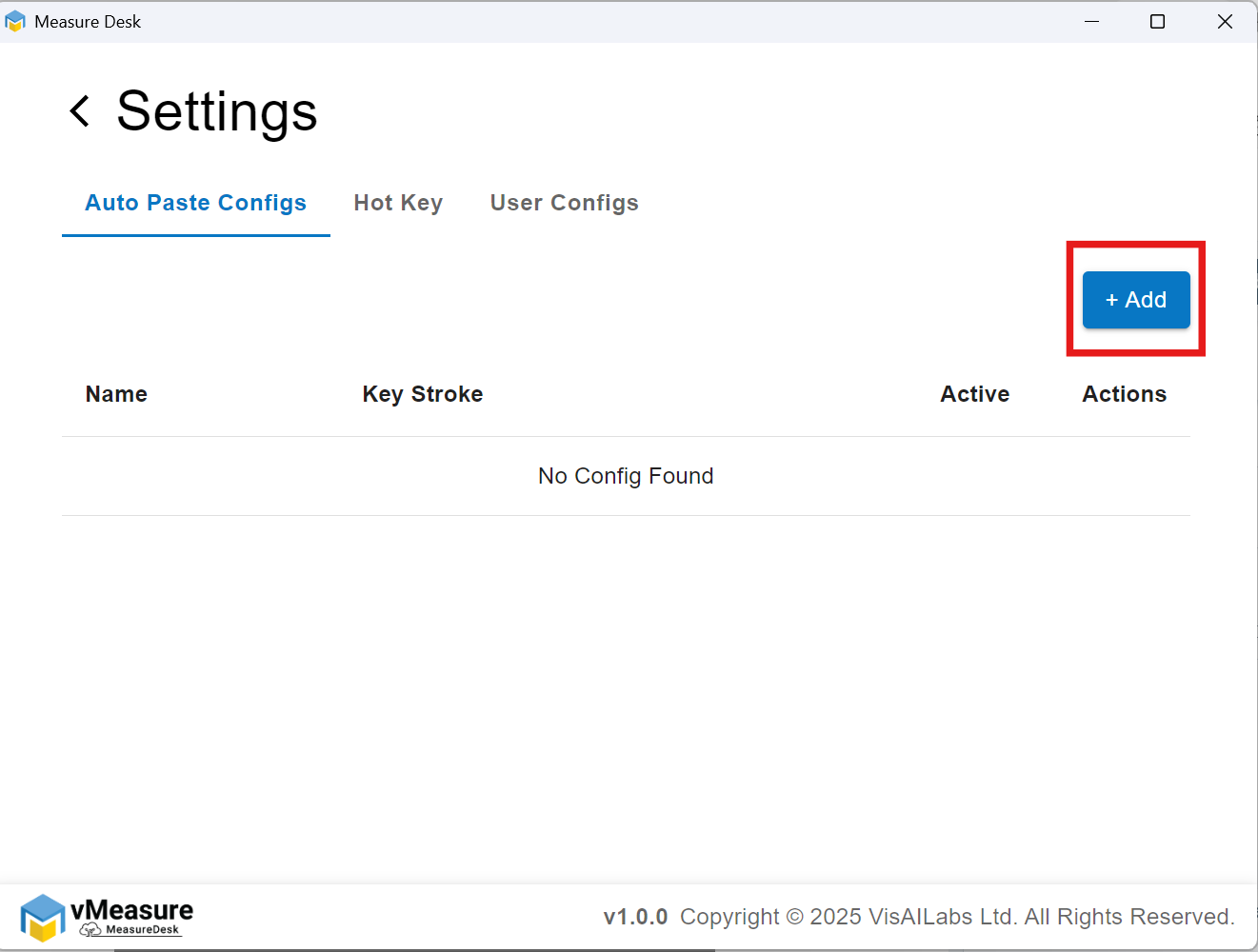
When prompted, enter an Application Name and a Custom Keystroke.
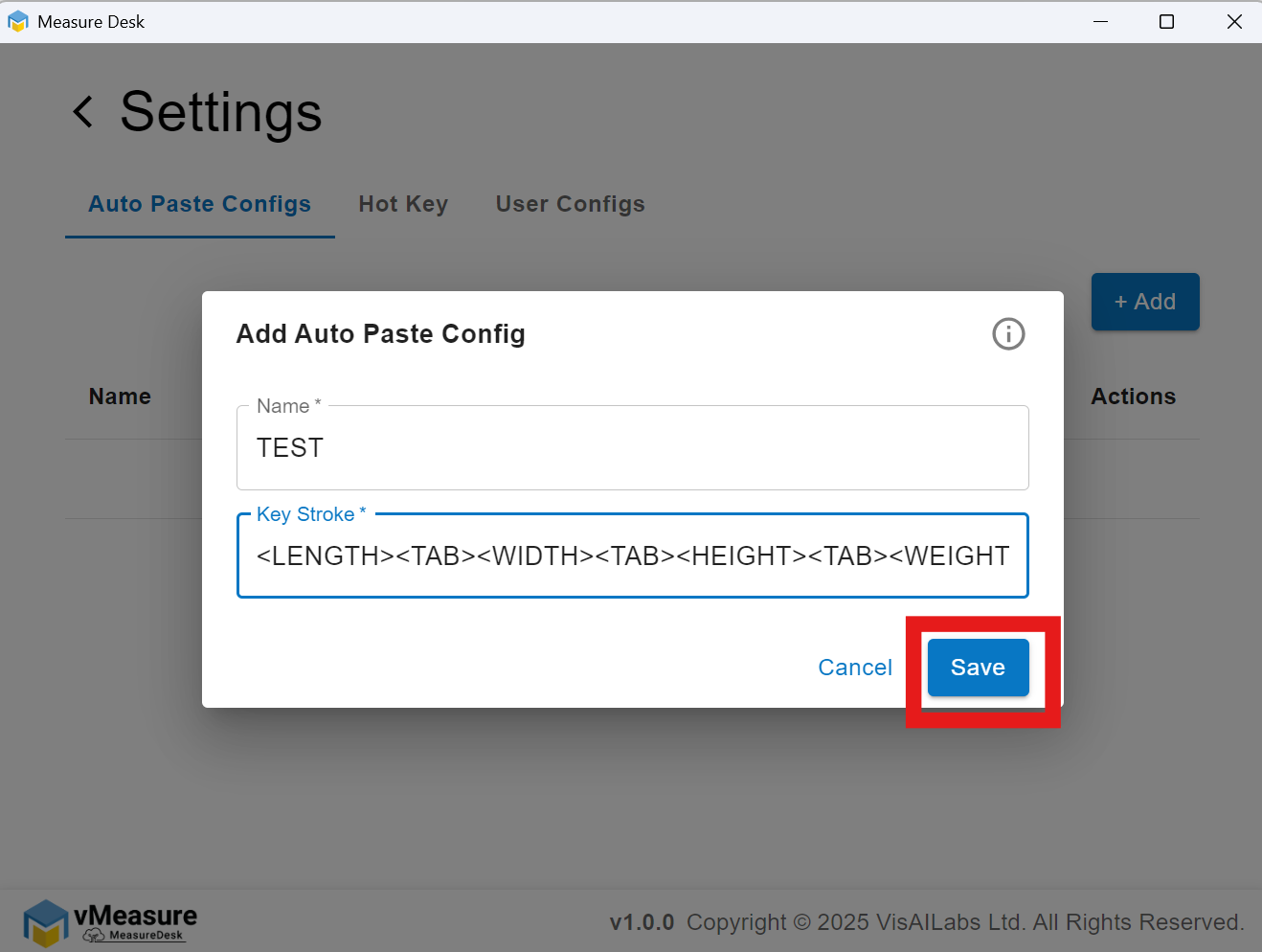
Note: The custom keystroke defines how data flows to the backend through MeasureDesk. You can configure it based on your requirements.
8. After adding the custom keystroke, make sure to activate it to enable data flow.
Was this article helpful?
That’s Great!
Thank you for your feedback
Sorry! We couldn't be helpful
Thank you for your feedback
Feedback sent
We appreciate your effort and will try to fix the article