1. Login your Forge account - https://forge.vmeasure.ai/
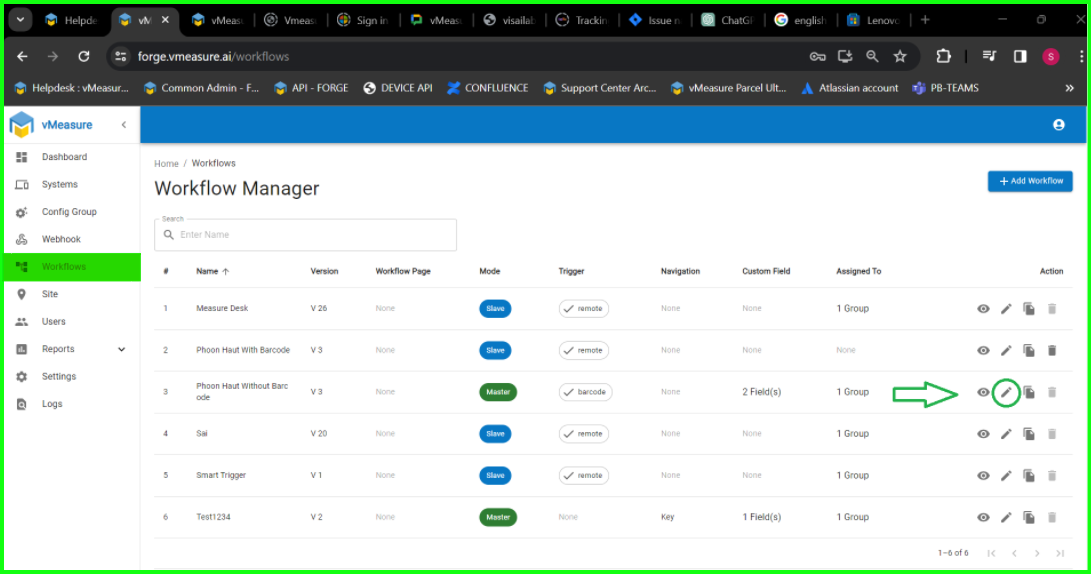
2. Navigate to "Workflow" & click on edit option.
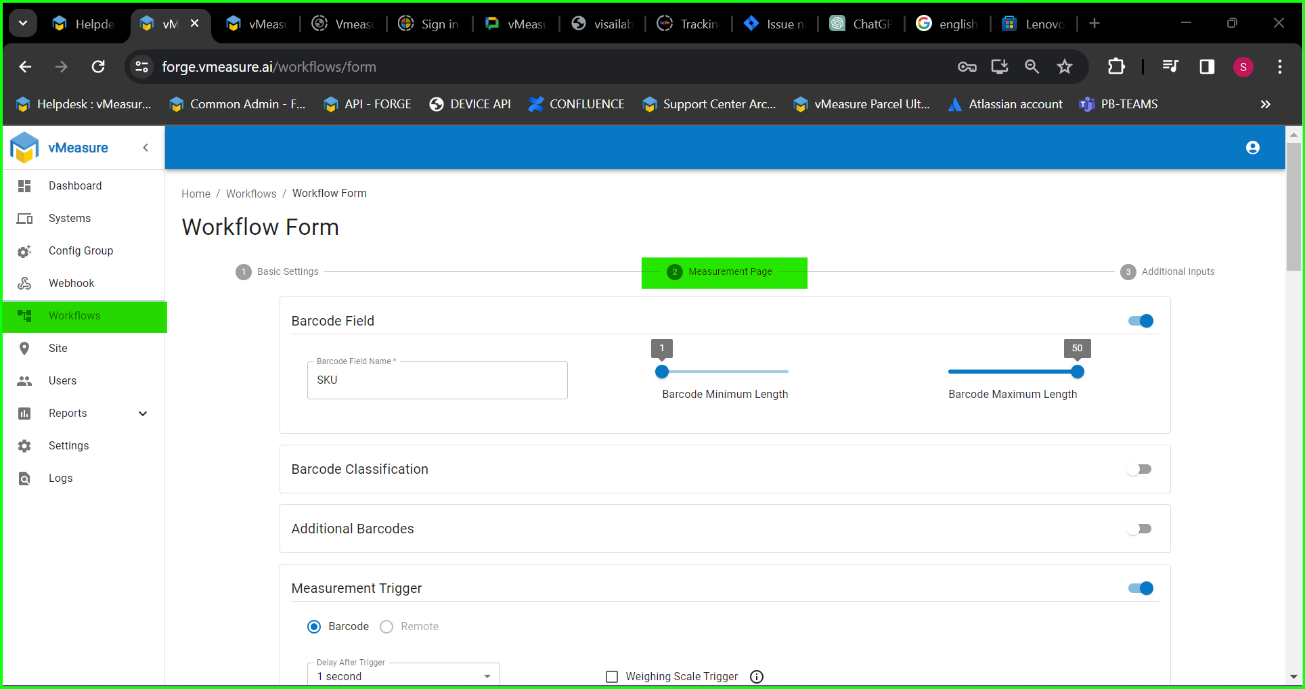
3. Scroll down and press "Next" to go to next page .
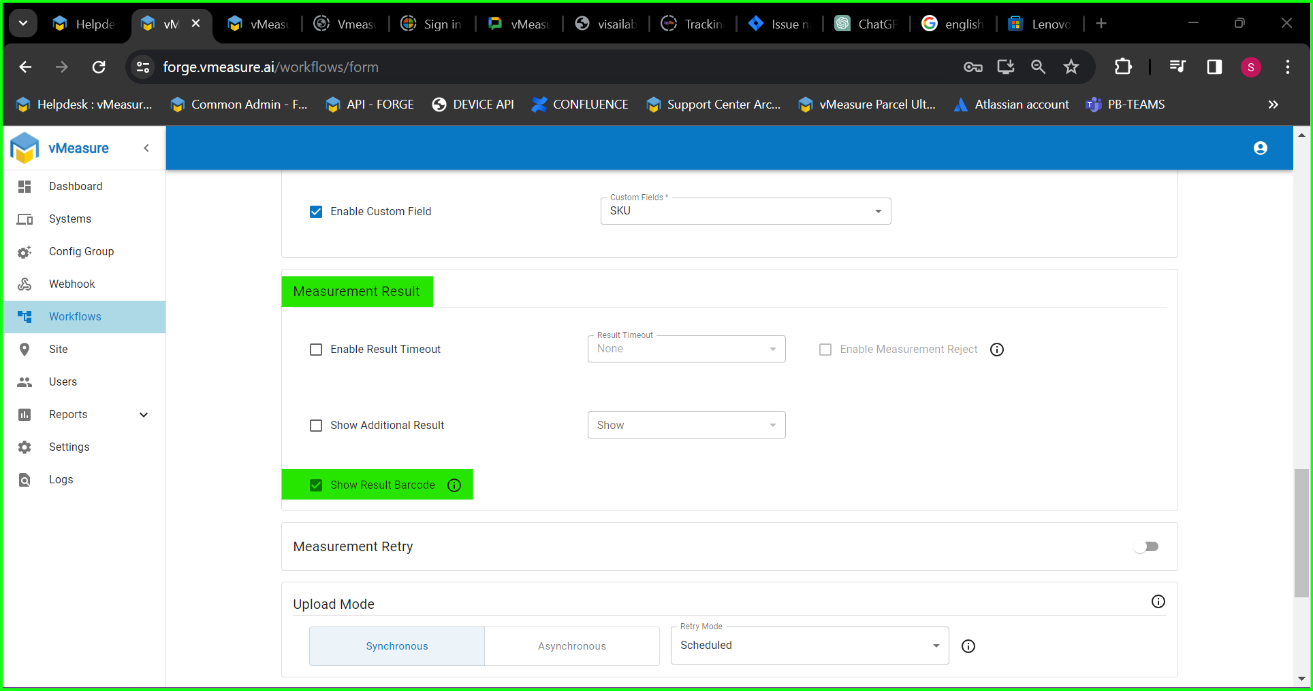
4. Scroll down and enable "Show Result Barcode" in the "Measurement result" section, post that navigate to the next page & click "Save" to apply the changes.
vMeasure Device :
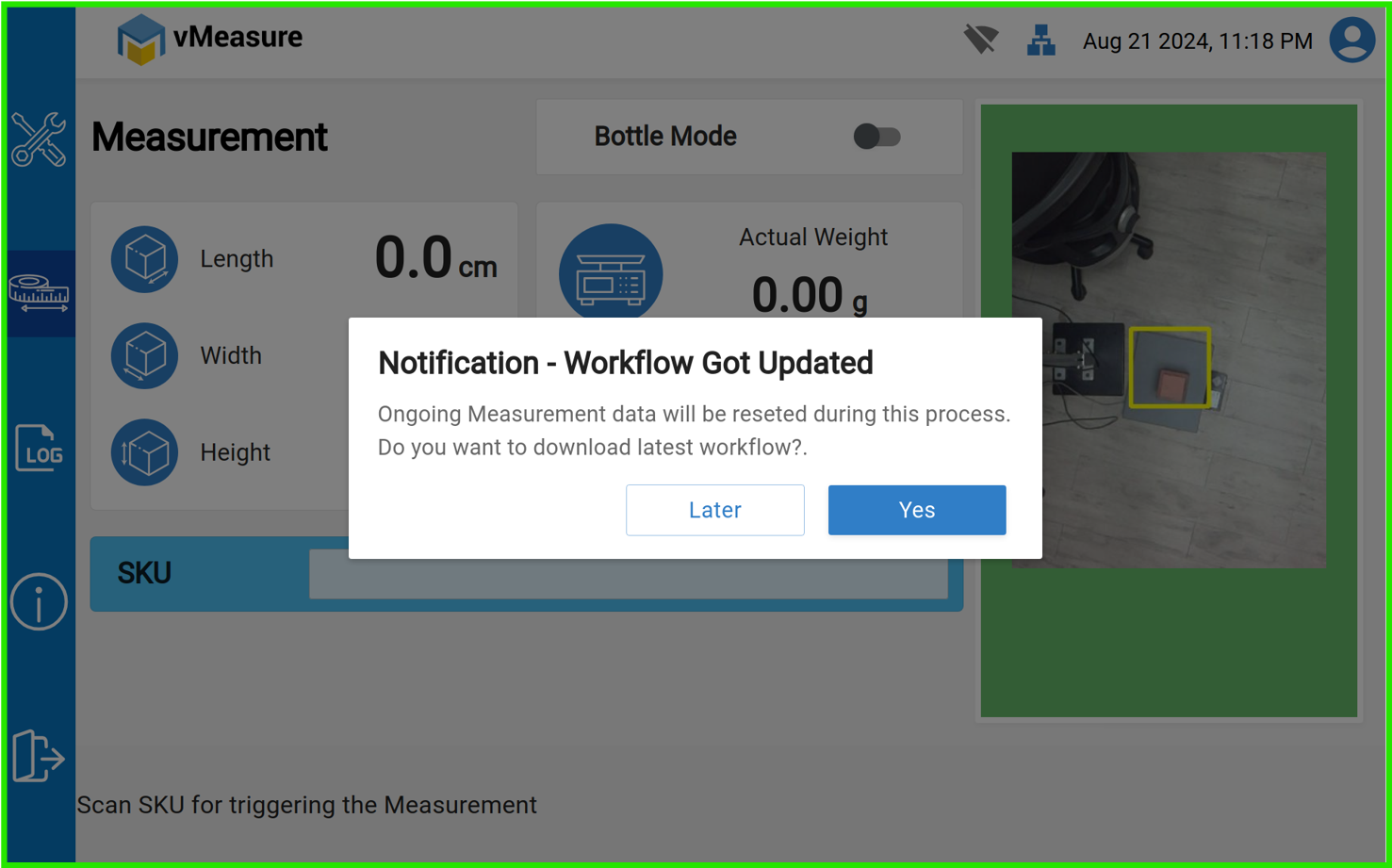
5. After applying the workflow on forge, you should be able to see a prompt on the device press "Yes".
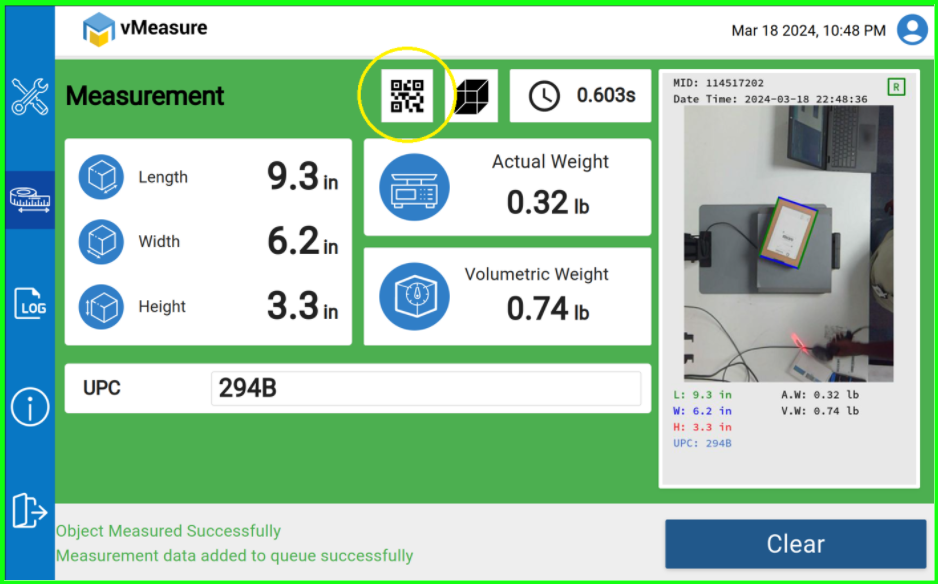
6. Now on triggering the measurement using the barcode scanner, on the measurement success page you should be able to see a QR Code symbol on the top of the screen.
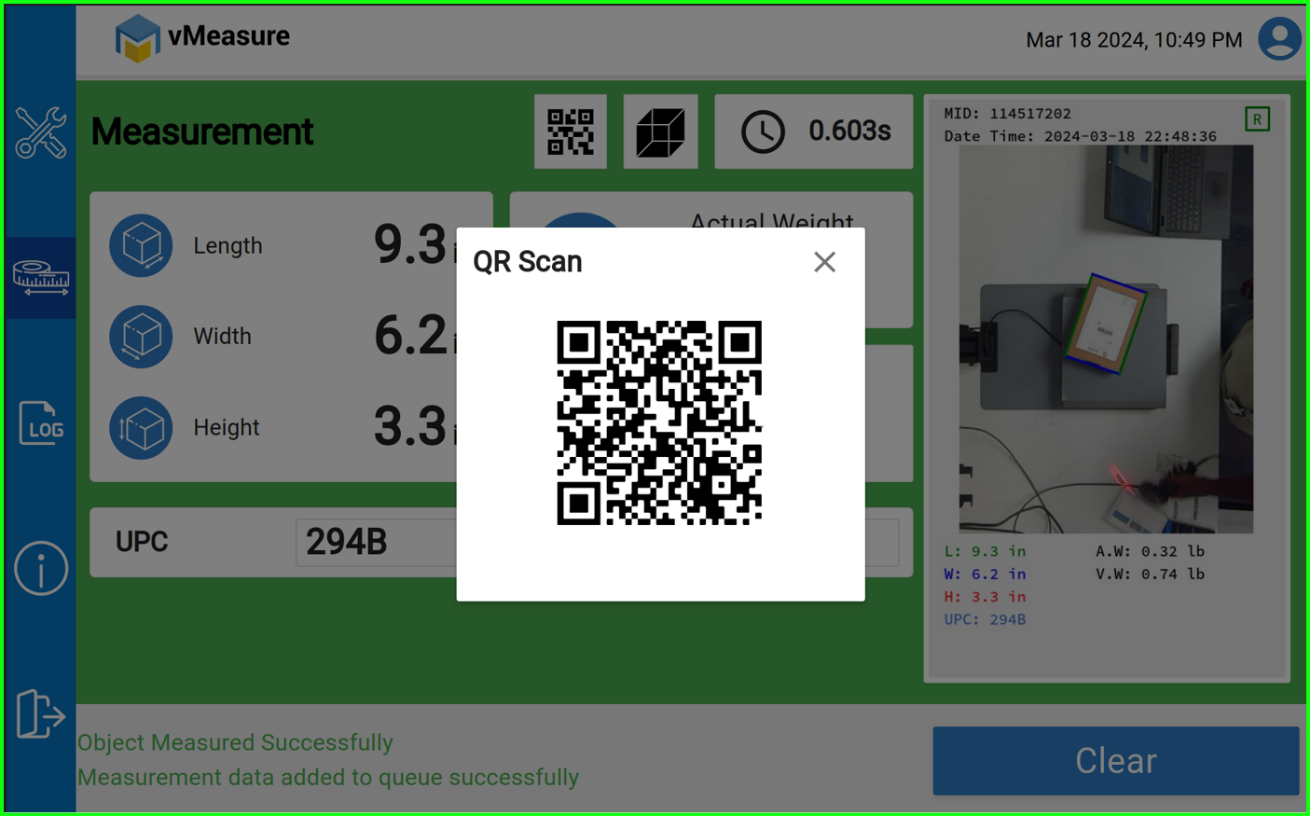
7. On pressing the symbol you should be able have a scannable QR-code.
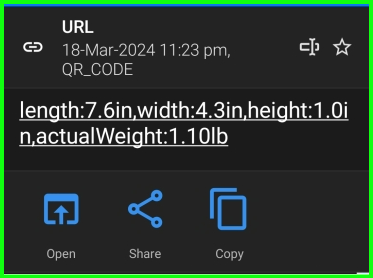
8. The QR-code will have the dimension and weight data for scanned shipments.
If you need any support , please drop a mail to vmeasure@visailabs.com
Was this article helpful?
That’s Great!
Thank you for your feedback
Sorry! We couldn't be helpful
Thank you for your feedback
Feedback sent
We appreciate your effort and will try to fix the article