How to pass system meta values in a webhook
Step 1 : Login to your forge account using your credentials.
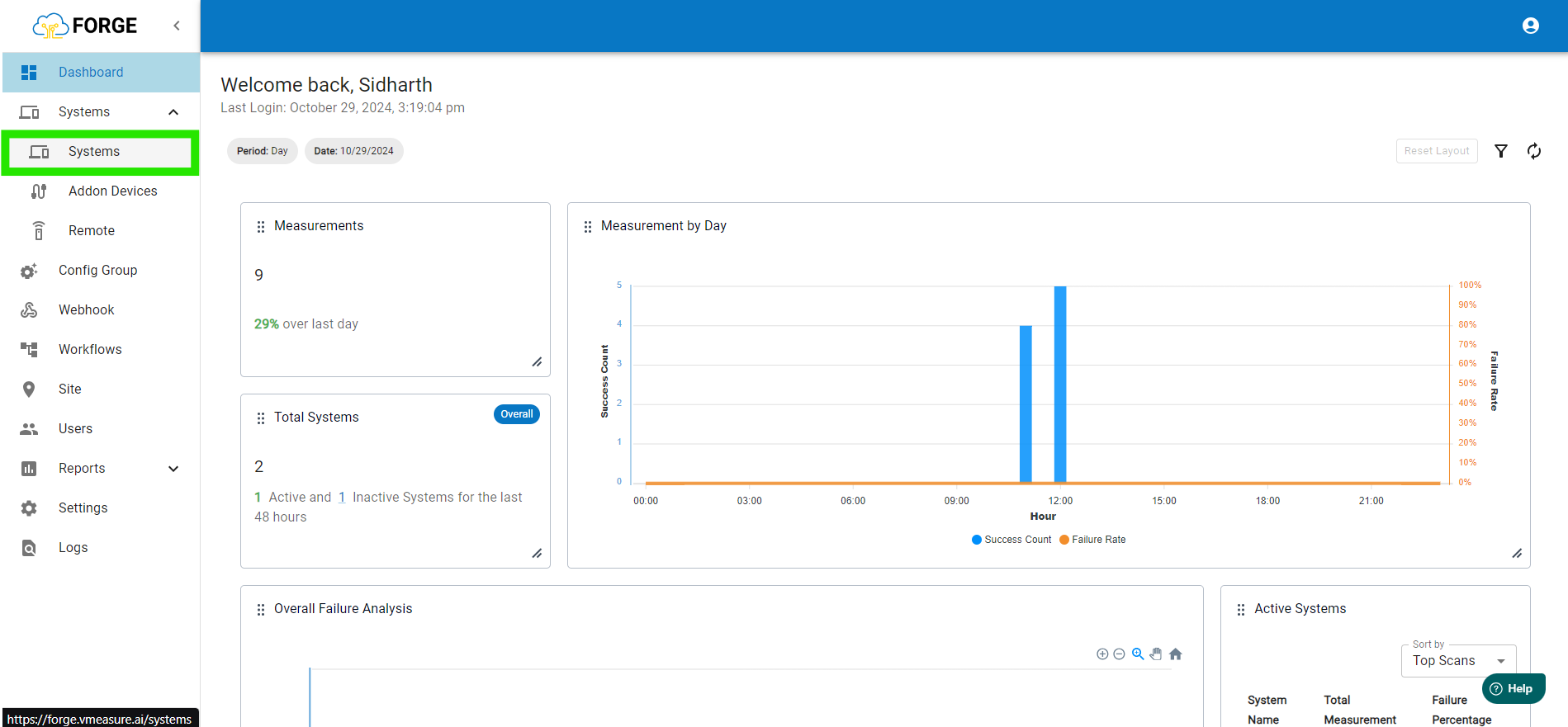
Step 2: Once are on the Dashboard page, go to "Systems".
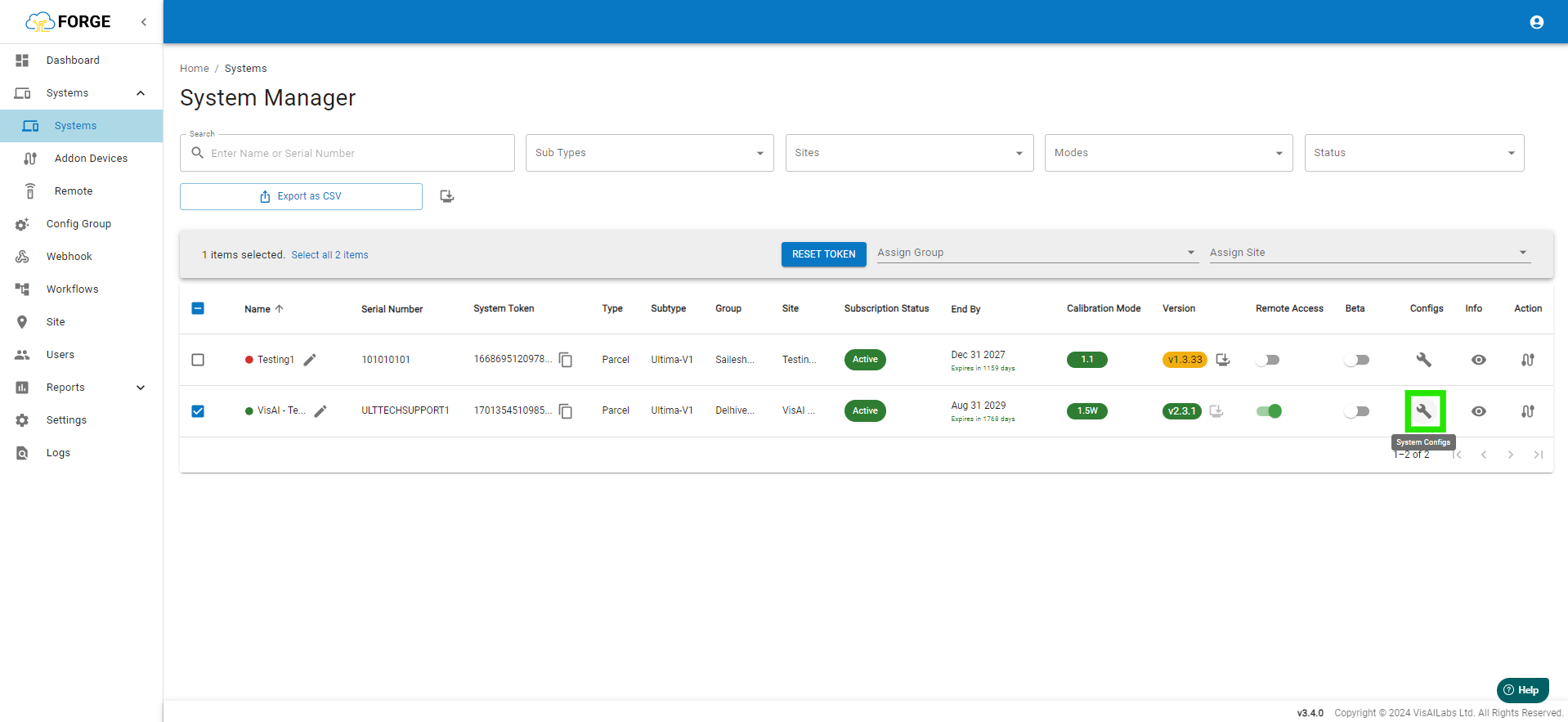
Step 3: In the "Systems" page go to Click the Wrench icon to open the System configuration panel.
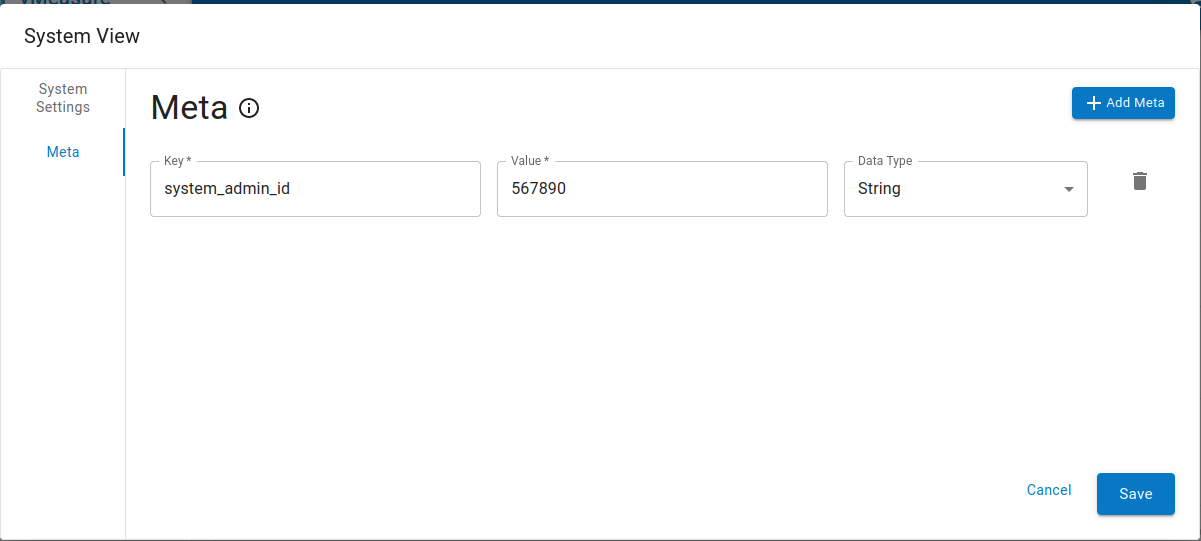
- Click Add Meta Button
- Add your custom key, values and Save it. The below one is the sample screen with meta key and values.
Step 4: Navigate to "Webhook" and click on "+Add Webhook"
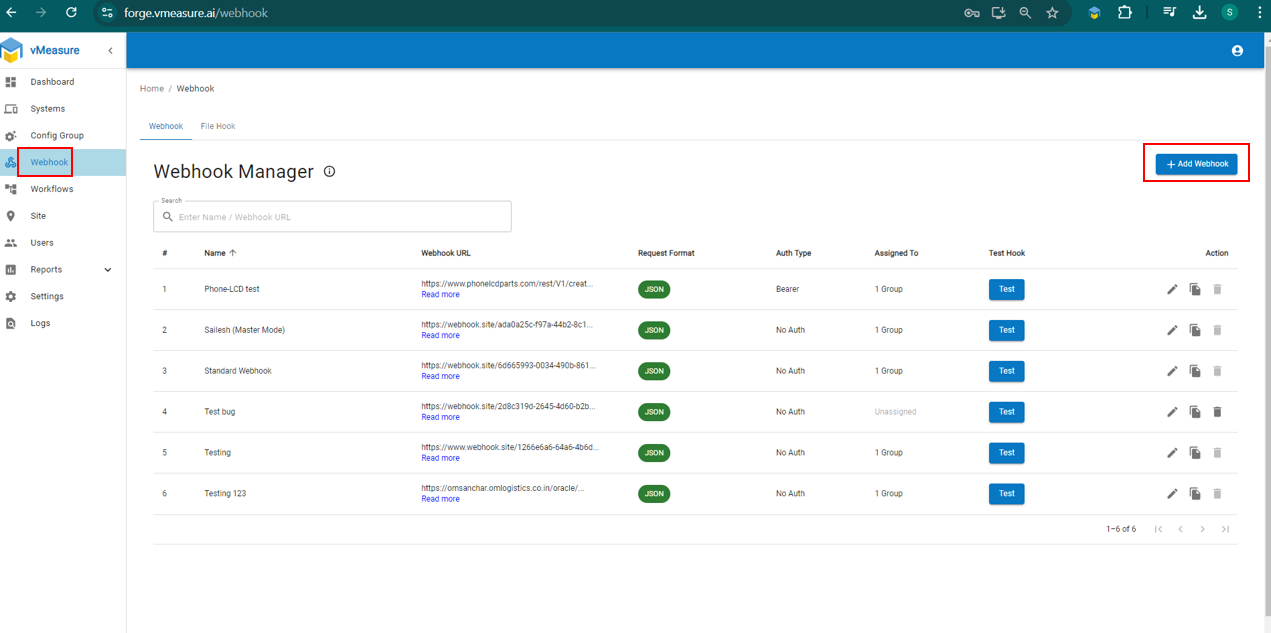
Step 3: Add/Edit your webhook from the Webhooks menu.
Step 3a : Add your system meta values in customer header or custom payload.
Step 3b: For example, if you want this system meta values in the custom payload. Enable custom payload and enter your key and value should be in the format of ${system.meta.meta_key}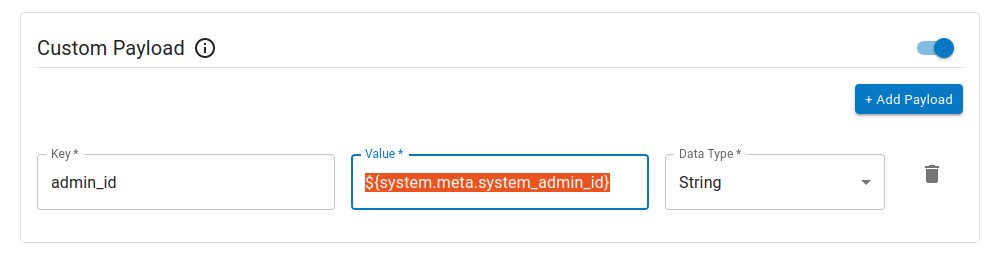
Step 4 :Save the Webhook and Trigger the measurement, the new configured key and system meta value received via your webhook endpoint.
If you need any support , please drop a mail to vmeasure@visailabs.com
Was this article helpful?
That’s Great!
Thank you for your feedback
Sorry! We couldn't be helpful
Thank you for your feedback
Feedback sent
We appreciate your effort and will try to fix the article