Follow the steps below to Enable Wi-Fi in vMeasure Pallet Ultima device:
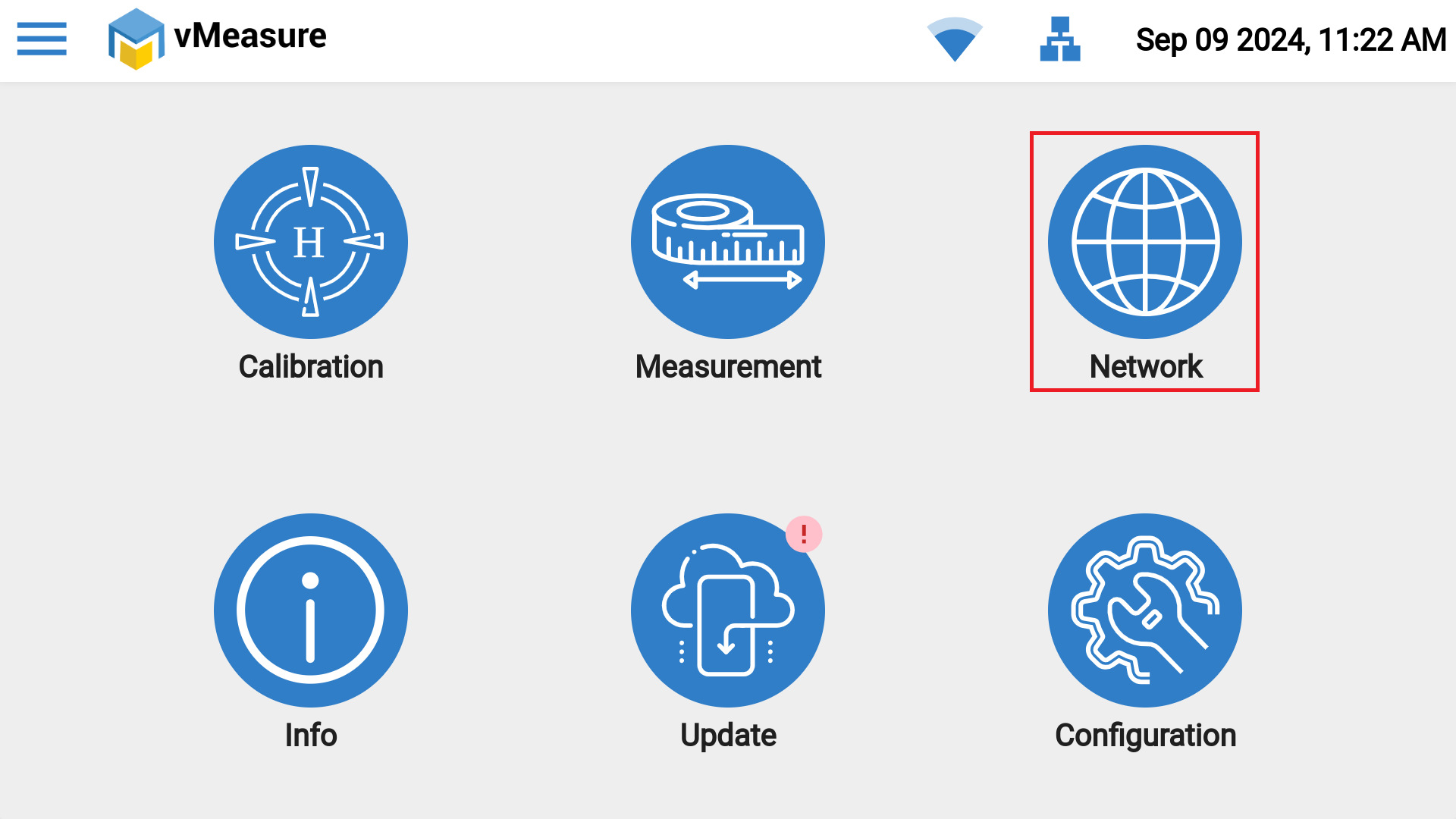
Step -1: Click on "Network" in the settings page.
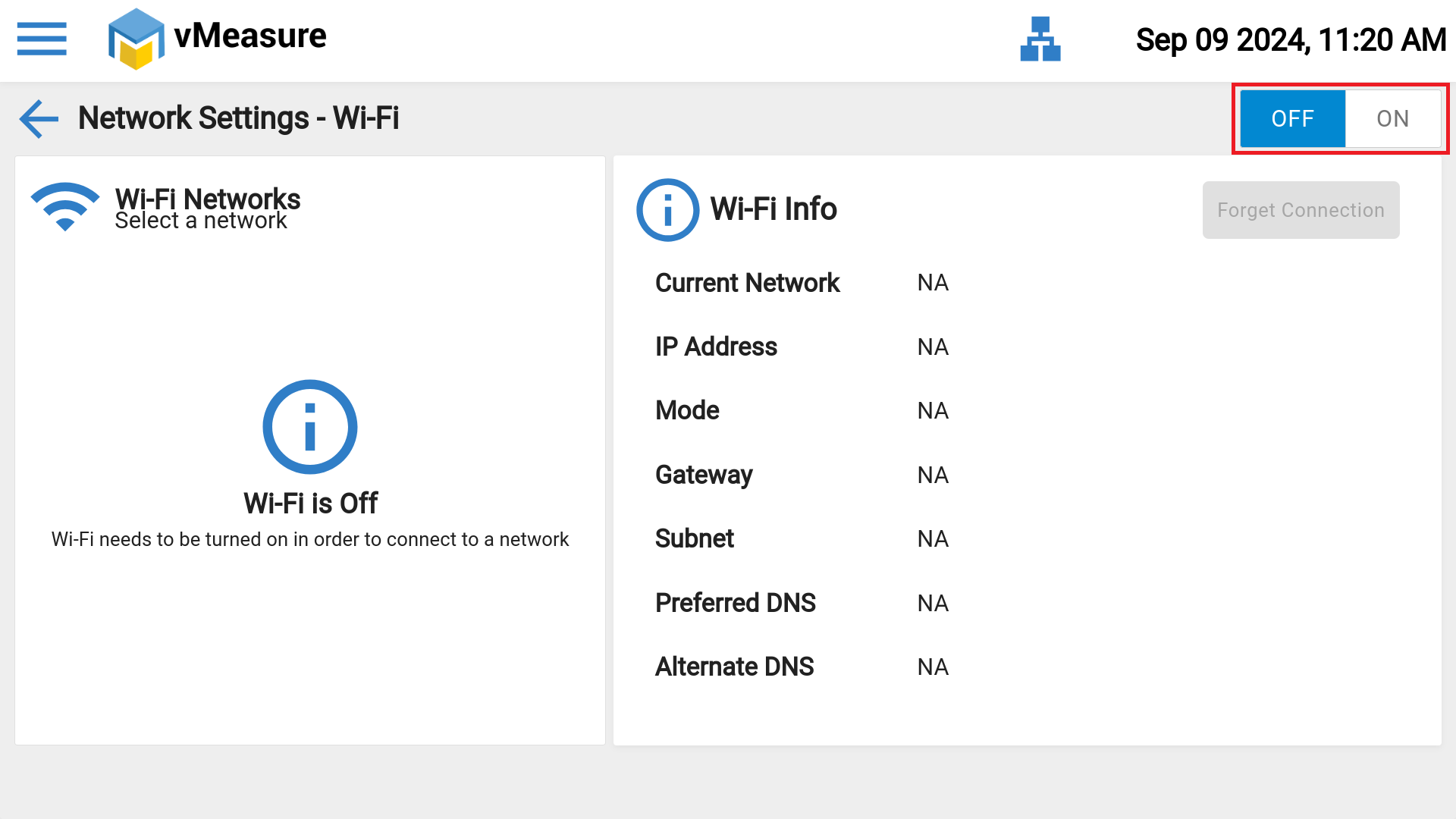
Step -2: Click on "Toggle (OFF / ON) button" to Turn on Wi-Fi.
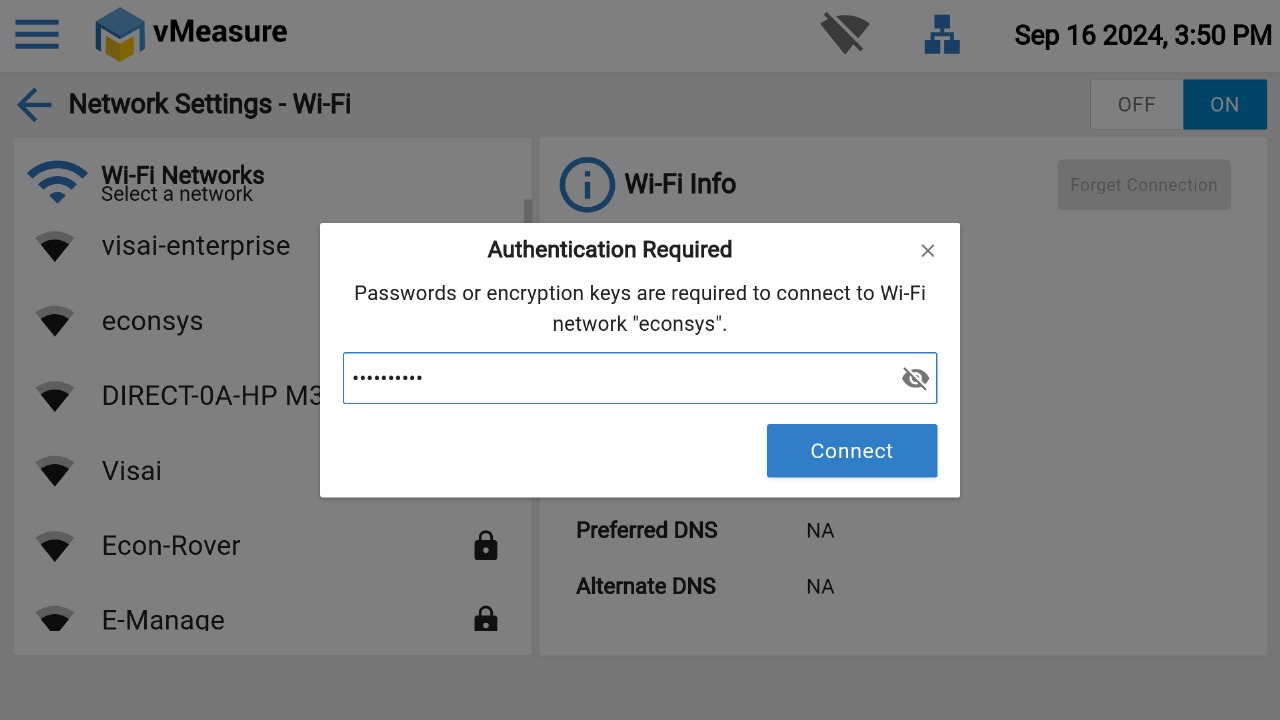
Step -3: Select the network form the list & Enter the password and click on "Connect".
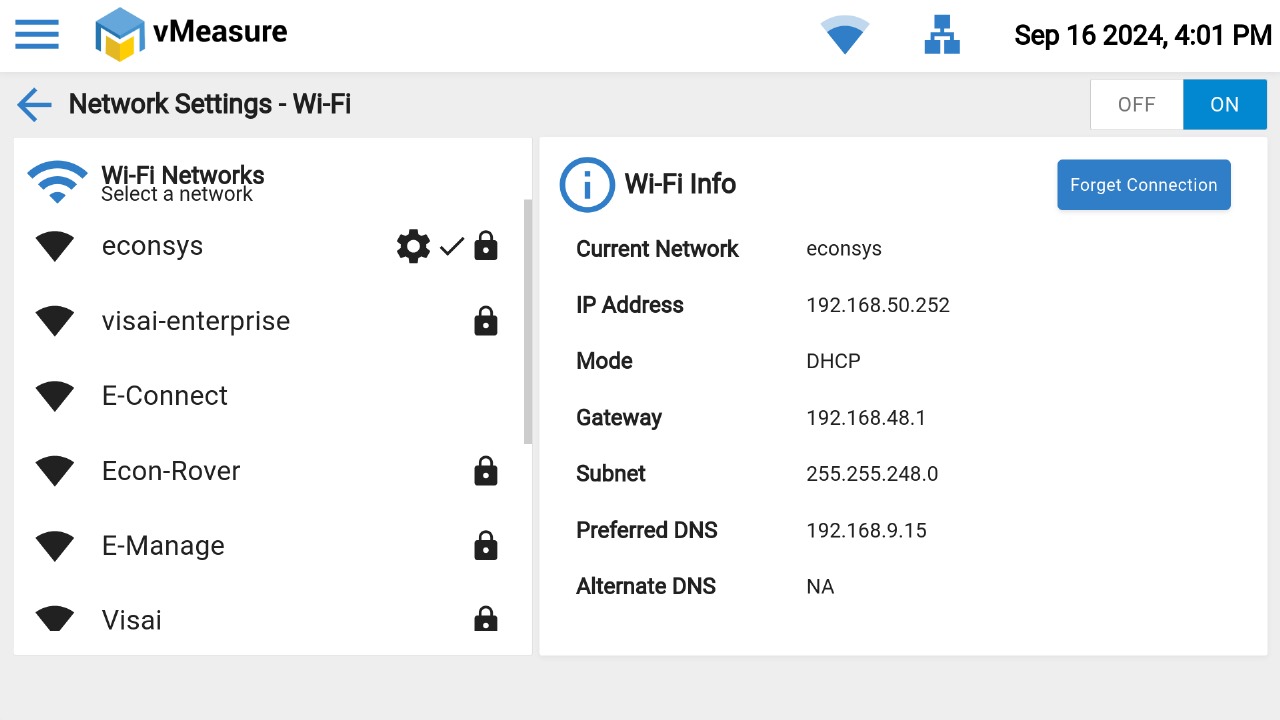
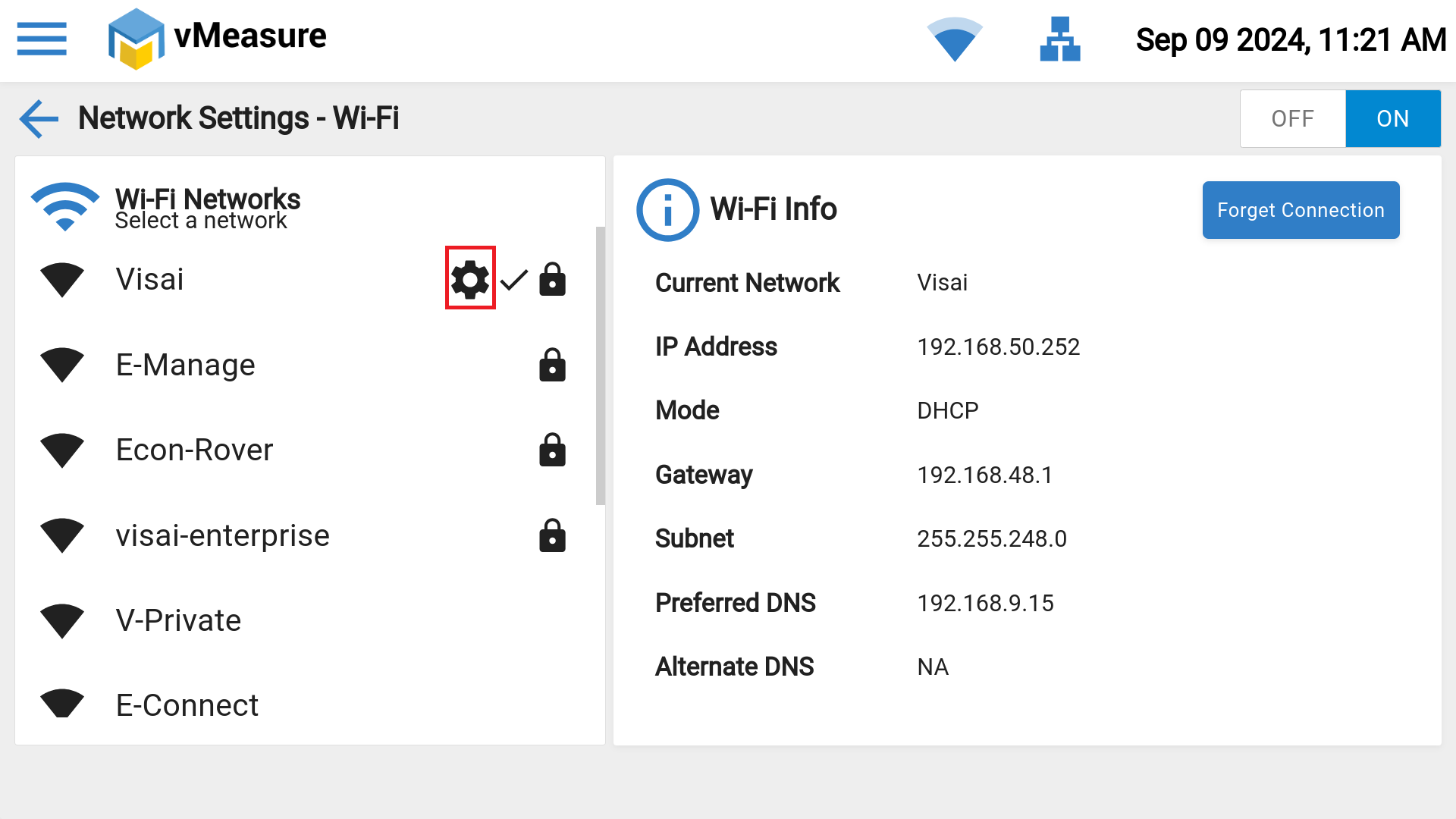
Step -4: Wi-Fi will be successfully connected. If you wish to configure your "Static IP" then click on "Settings icon".
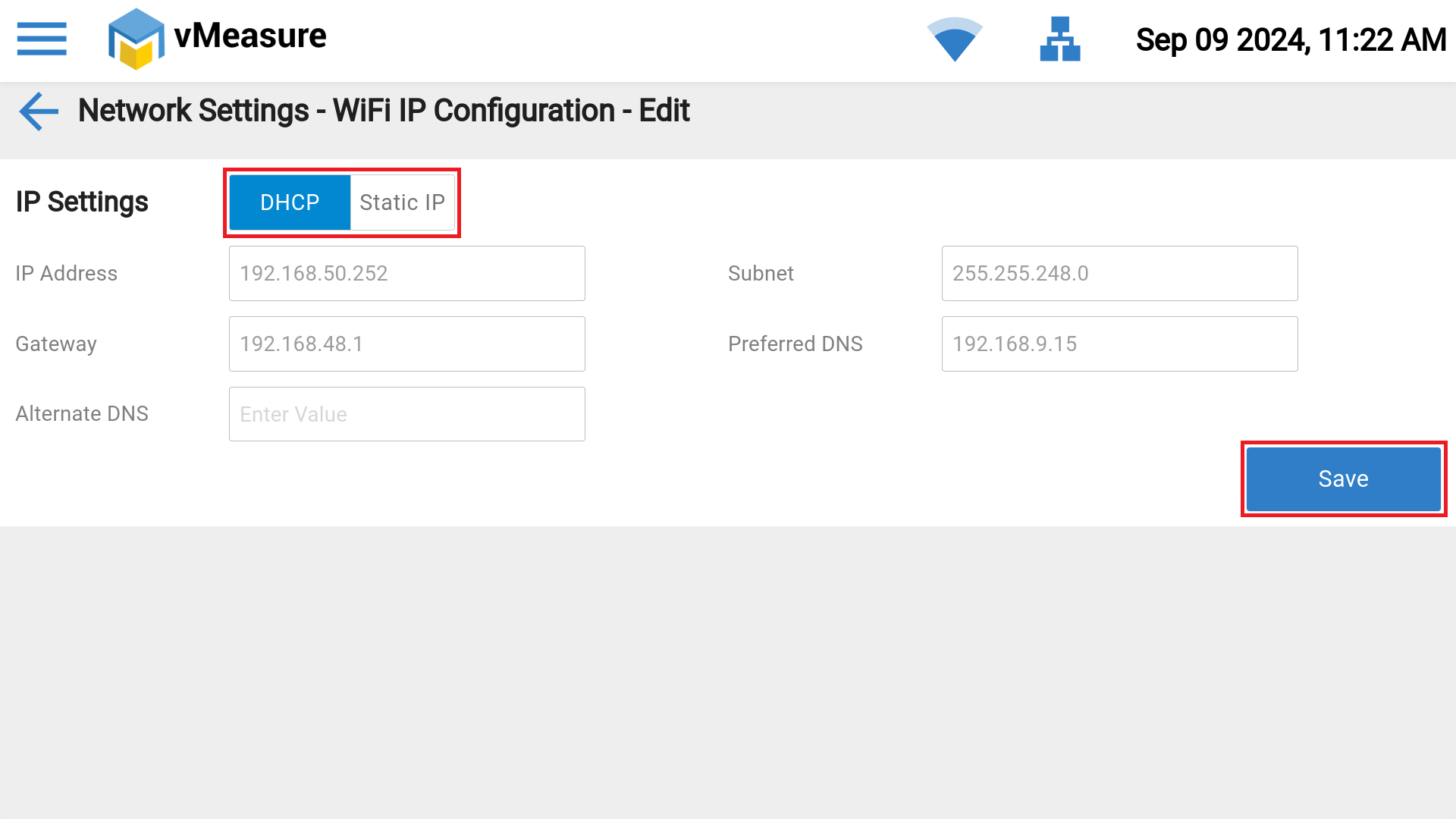
Step -5: Click on "Toggle (DHCP / Static IP) button" to select preferred IP Configuration, then click on "Save". Settings will be saved.
Step -6: You can find the Wi-Fi IP address. Click on “Test” icon to validate the Network connection.
Step -7: If the results are not as above then please ensure that Forge URL's & ports are whitelisting on your Network firewall, Click here for Forge URL's.
If you need any support , please drop a mail to vmeasure@visailabs.com or Click here to Submit a Ticket.
Was this article helpful?
That’s Great!
Thank you for your feedback
Sorry! We couldn't be helpful
Thank you for your feedback
Feedback sent
We appreciate your effort and will try to fix the article